
How to Sell Pax8 M365 Licensing
Configure and sell Pax8 M365 licensing products with Upmind
Pax8 M365 delivers Microsoft 365 licenses through Pax8's cloud marketplace for MSPs and resellers. Upmind automates the full subscription lifecycle from order creation through renewals and suspensions using Pax8's OAuth API, matching products by SKU or ID for reliable provisioning of Business Basic, Premium, and Enterprise plans.
Pax8 M365 required credentials
You will require the following credentials:
- Client ID: OAuth application identifier from Pax8.
- Client Secret: Secret key for API authentication.
Get Pax8 M365 credentials
Pax8 API uses OAuth 2.0 authentication.
- Log in to Pax8.
Pax8 login
- Get Client ID and Client Secret from Pax8 dashboard.
- Exchange credentials for access token.
- Use token for API requests.
For more details, you can see the following guides:
Configuring Pax8 M365 provisioning in Upmind
- In Upmind, go to Settings > Provision Configurations
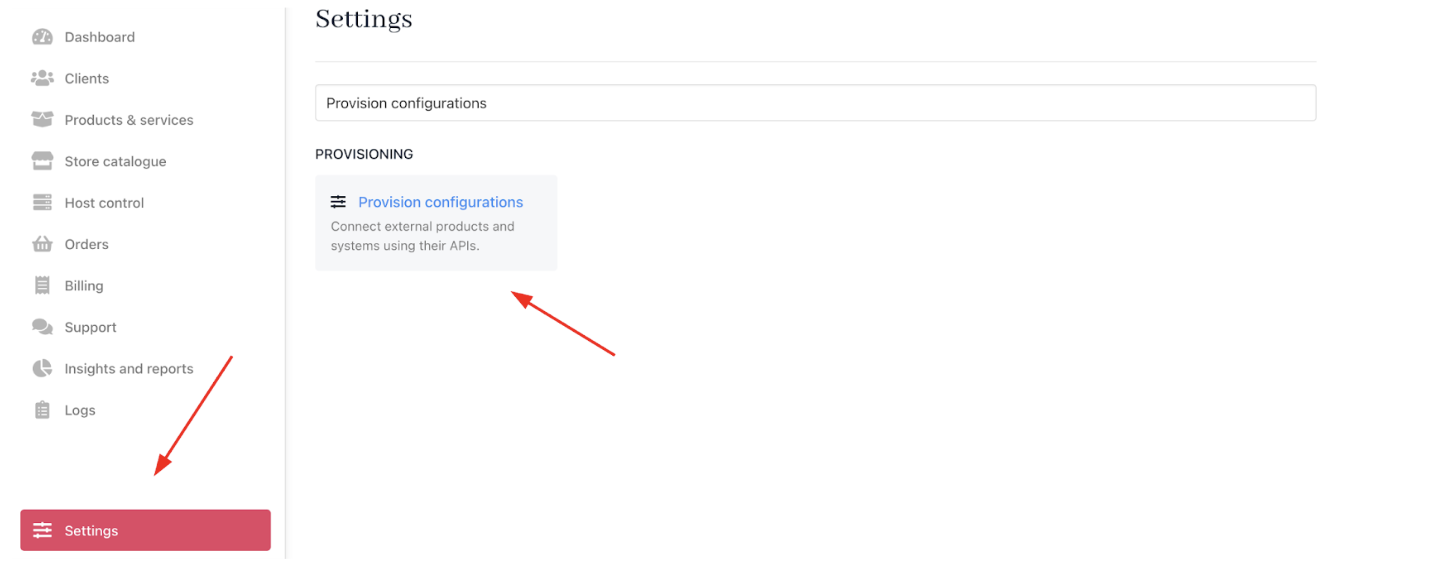
Settings > Provision configurations
- Click on Add New Configuration.

Add new configuration
- Provide a Name (e.g., Pax8 M365 Licensing Provision).
- Select Software Licenses as the product type.
- Choose Pax8 M365 as the provisioning provider.
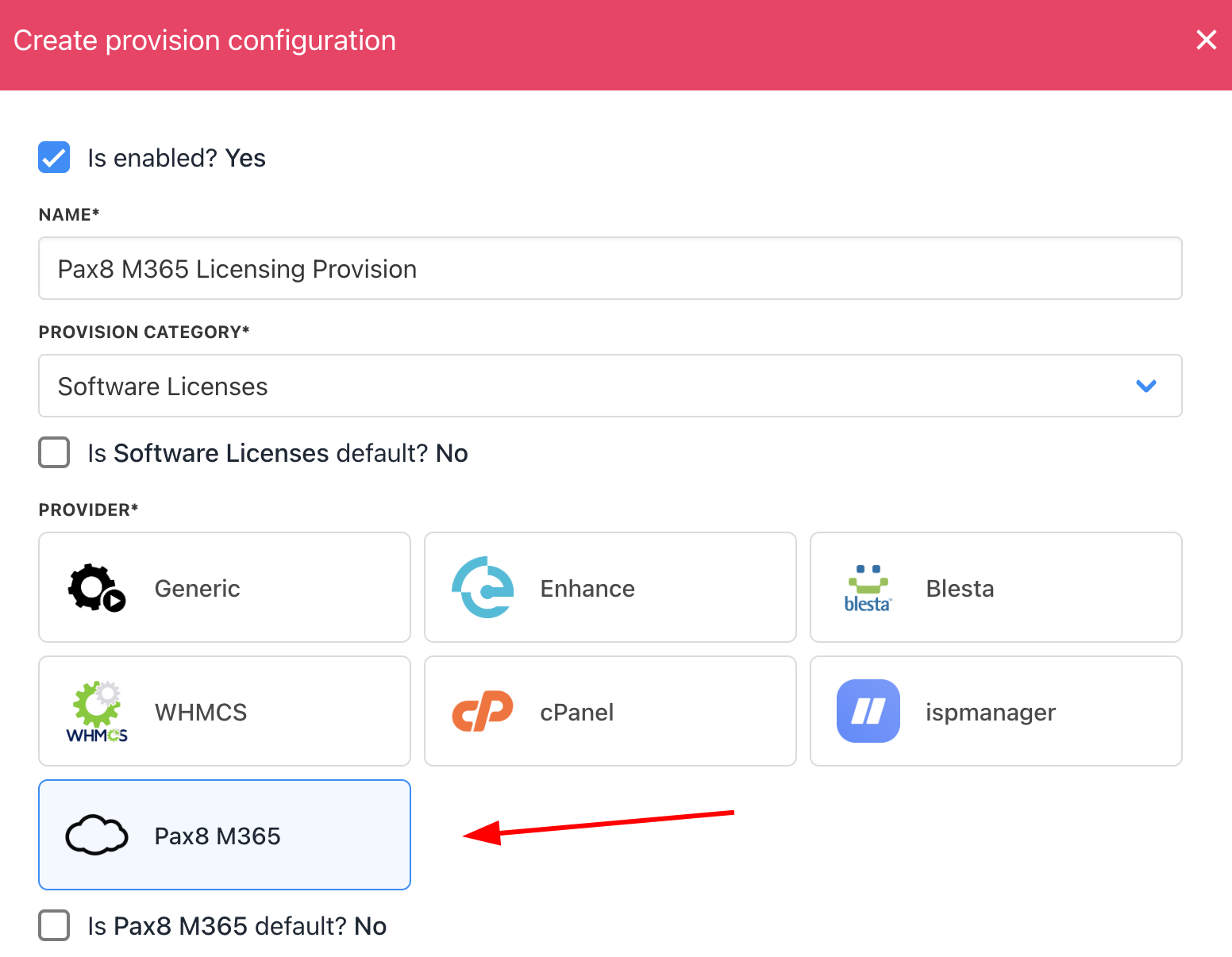
Choose Pax8 M365
- Enter the Client ID and Client Secret.
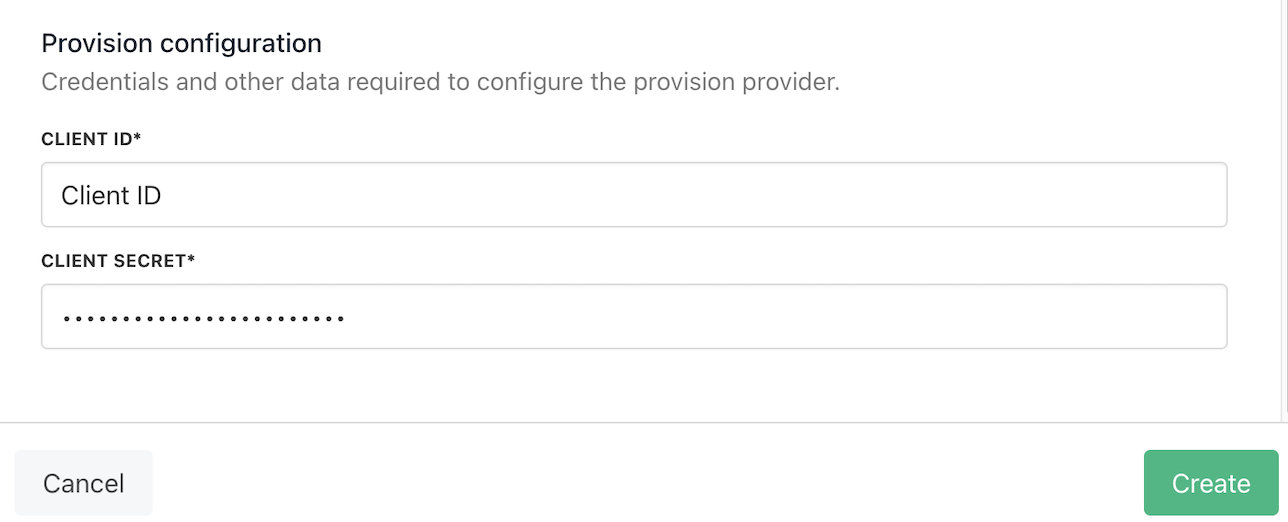
Fill in the details
- Click Create.
Creating Pax8 M365 licensing products in Upmind
- Go to Store Catalogue > Products in Upmind.
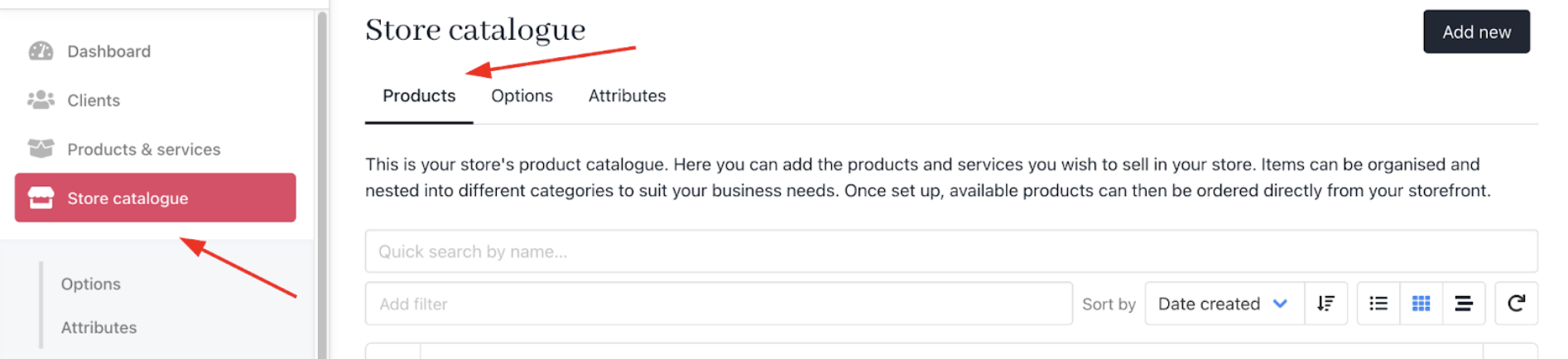
Store Catalogue > Products
- Click Add New.
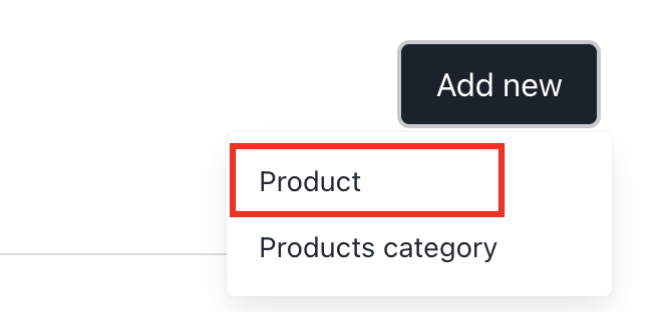
Add new
- Choose the category and fill in the details.
- Then click Create.
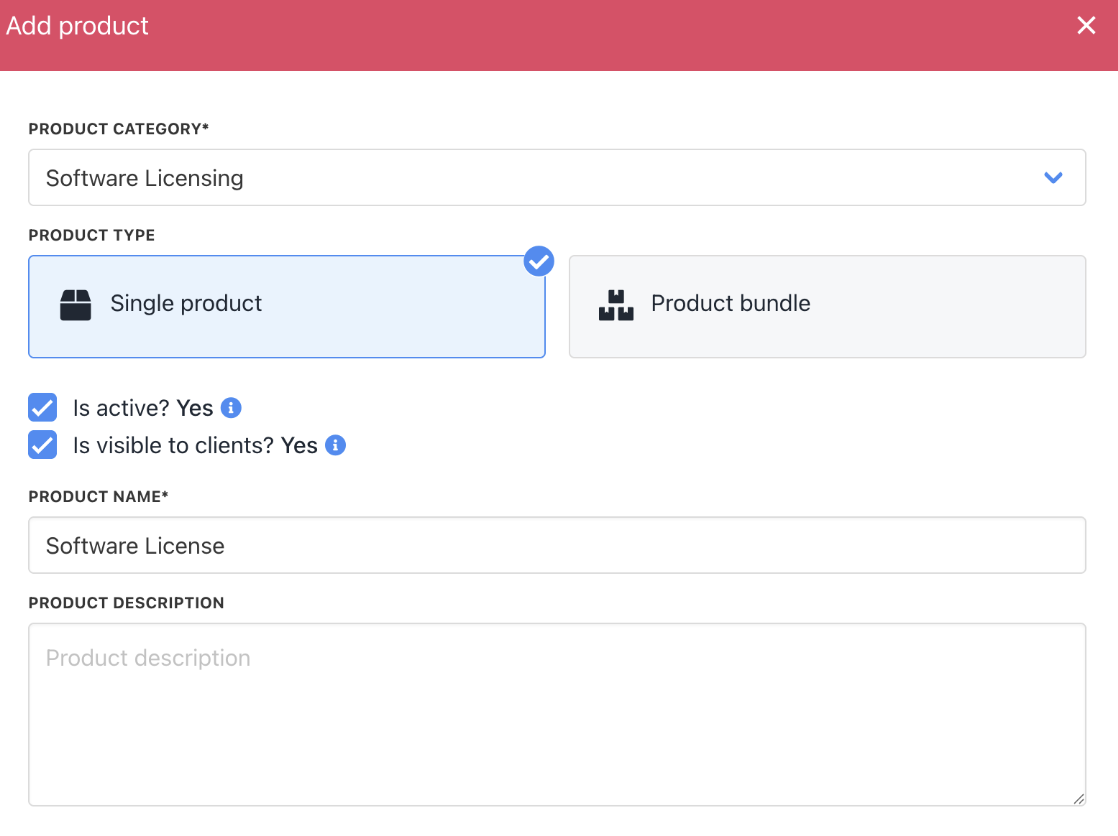
Fill in product details
- On
Provisioning, set the Provision Blueprint to Software Licenses.
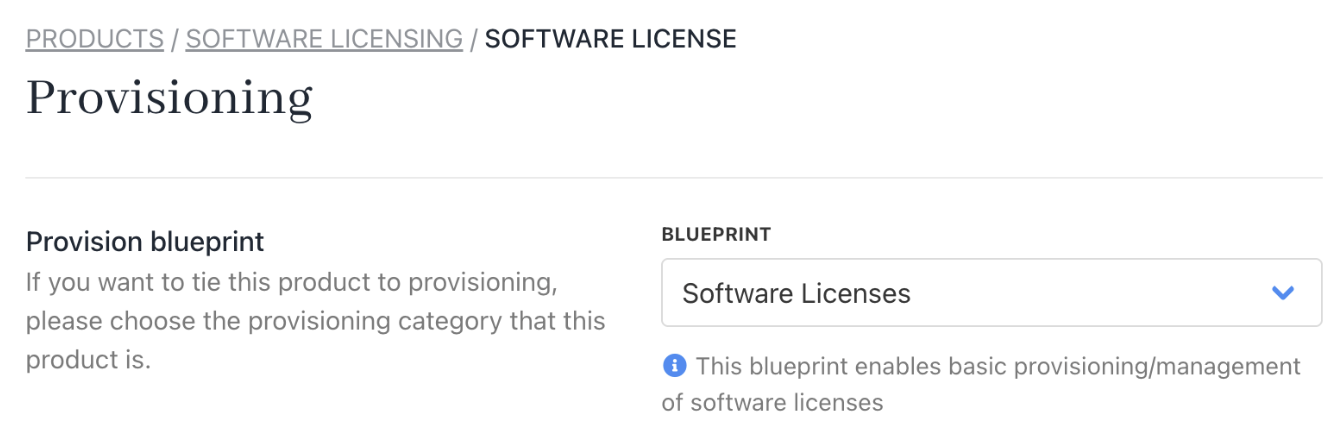
Provision blueprint
- Set the Provision Provider to Pax8 M365.
- Choose the Configuration Mode and Provider Configuration.
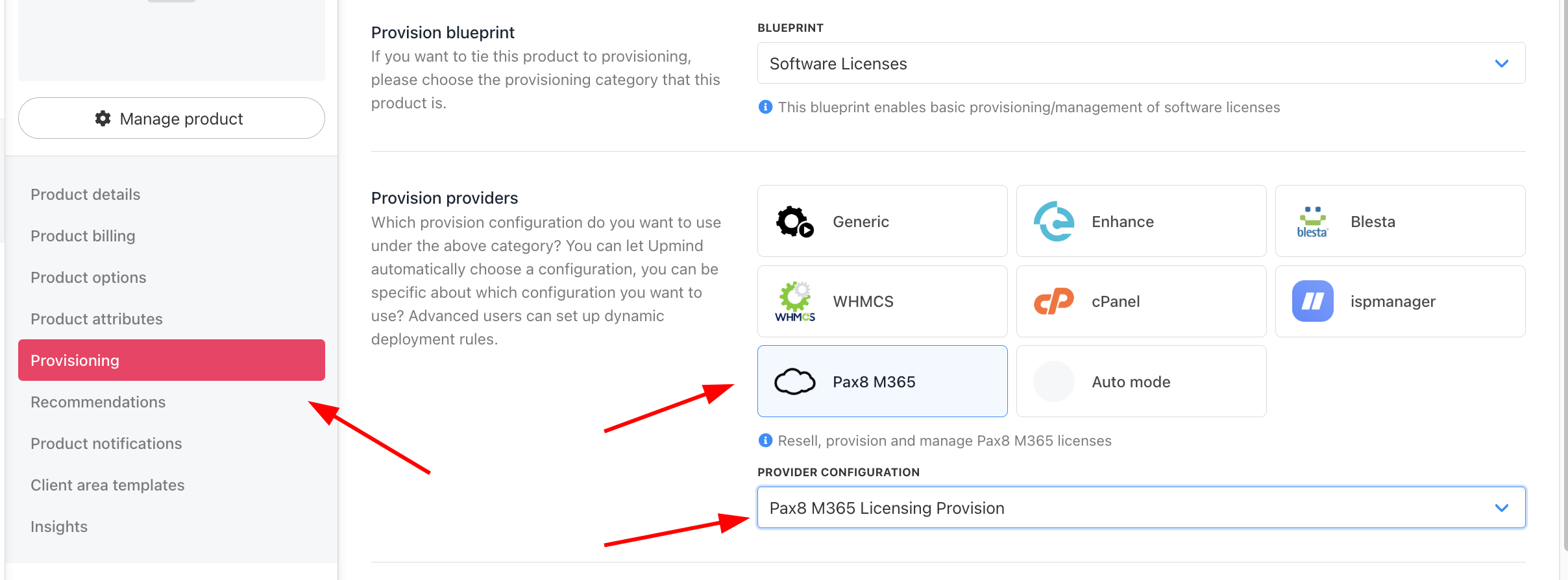
Set provision provider
- Enter the Package Identifier. Use either the license name (e.g., Pax8 Product SKU) or the license Product ID (e.g., 55227).

Complete other product details
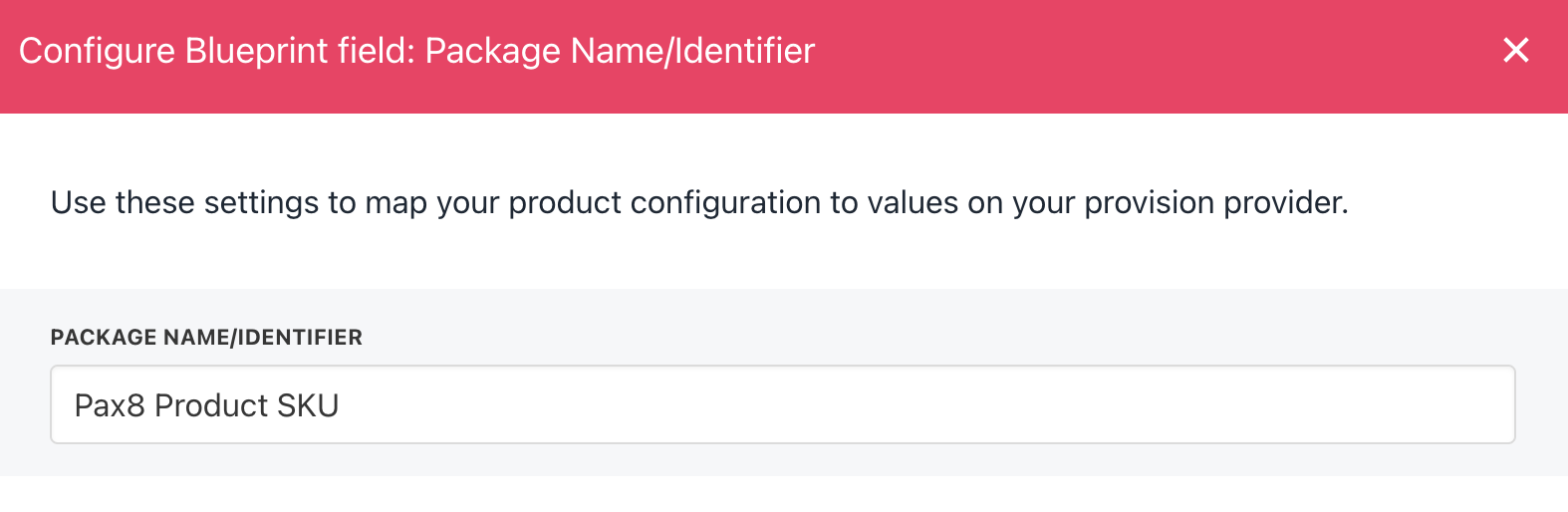
Enter package identifier
- Save the product.
Supported actions
Upmind manages the complete lifecycle of Pax8 Microsoft 365 licenses and subscriptions, including:
- Create – Provision a new license or subscription.
- Retrieve Usage – View usage data for an active license or subscription.
- Renew – Reactivate a previously deactivated license or subscription.
- Suspend – Deactivate (cancel) an active license or subscription.
- Unsuspend – Restore a suspended license or subscription.
- Terminate – Permanently cancel a license or subscription.
This ensures that provisioning, billing alignment, and subscription state changes are handled consistently throughout the lifecycle.