

Assigning Departments to Staff Users
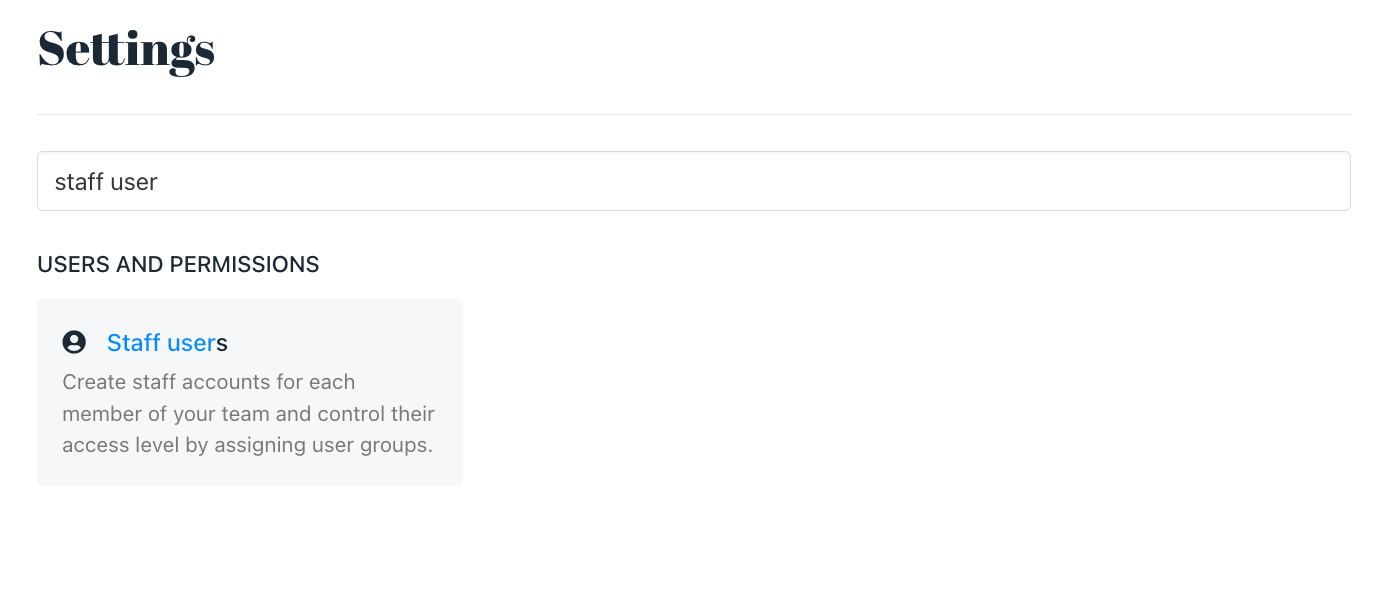
You can assign specific departments to your staff users. If a staff user is not assigned to a department, they won’t be able to see tickets from that department. To assign a department to a staff user, follow these steps:- Navigate to
Settings→Staff Users.
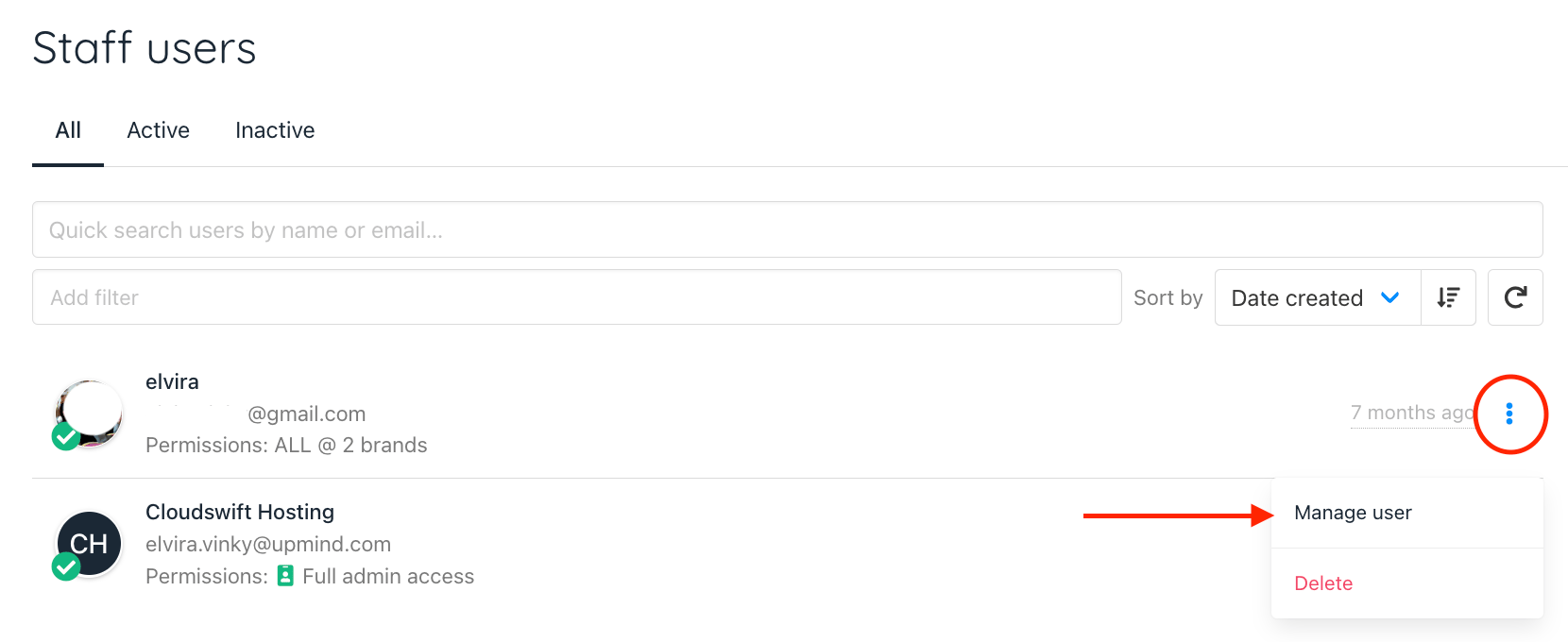
- Select a staff user and click
Manage user.
- In the new screen, go to the Overview tab, scroll down to
User Permissions, and assign them to specific groups or departments.
-
Permission Group: These are groups you create under
Settings → Staff Group, and they control what each staff user can access. [Refer to our guide here for further details] -
Ticket Department: These are the departments you’ve set up under
Settings → Support Departments. Check the guide here to create a support department. This option allows you to manage and assign departments to staff users, ensuring they only handle tickets from their designated departments.
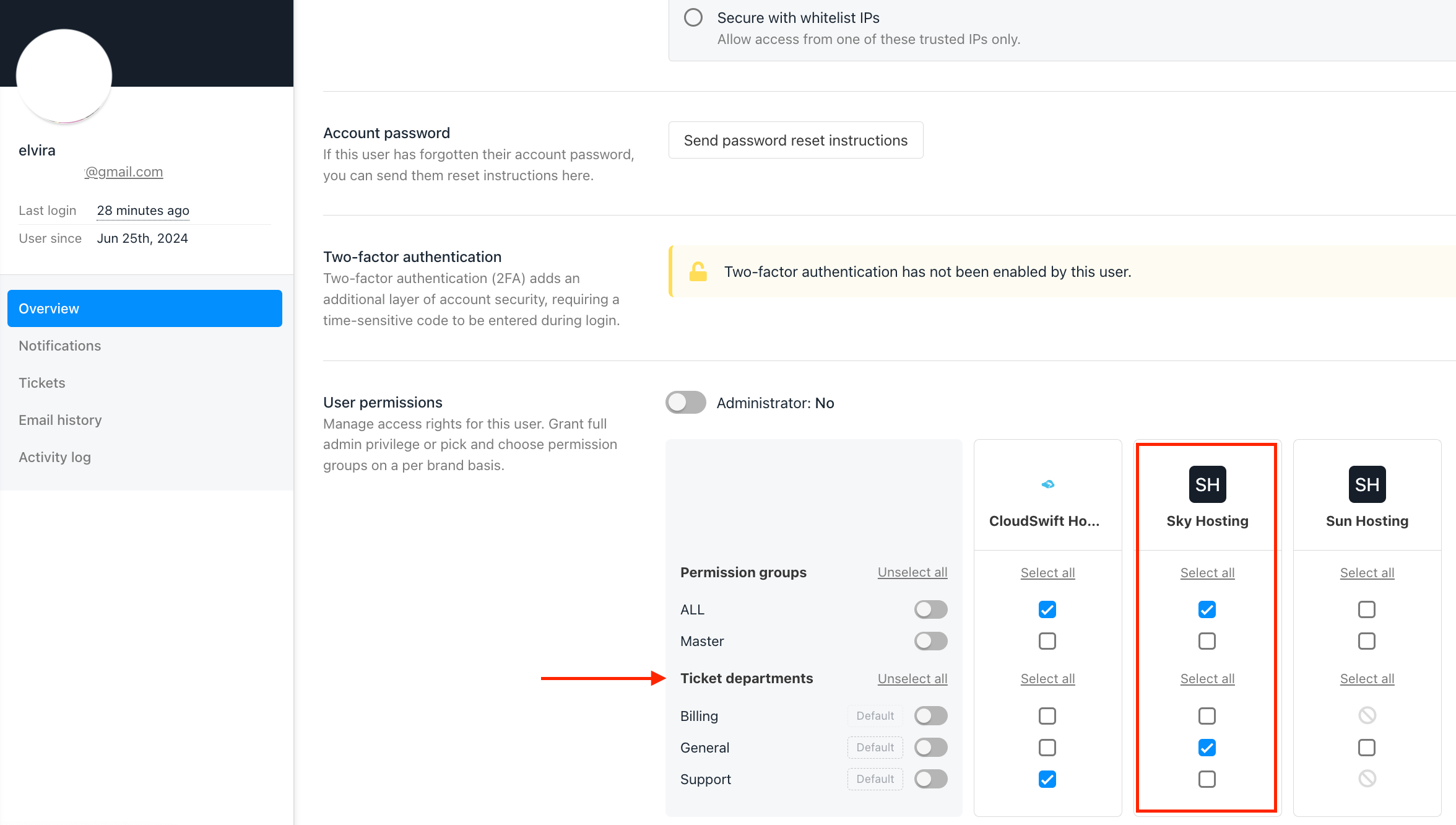
This is where you manage permission groups and assign ticket departments to a staff user
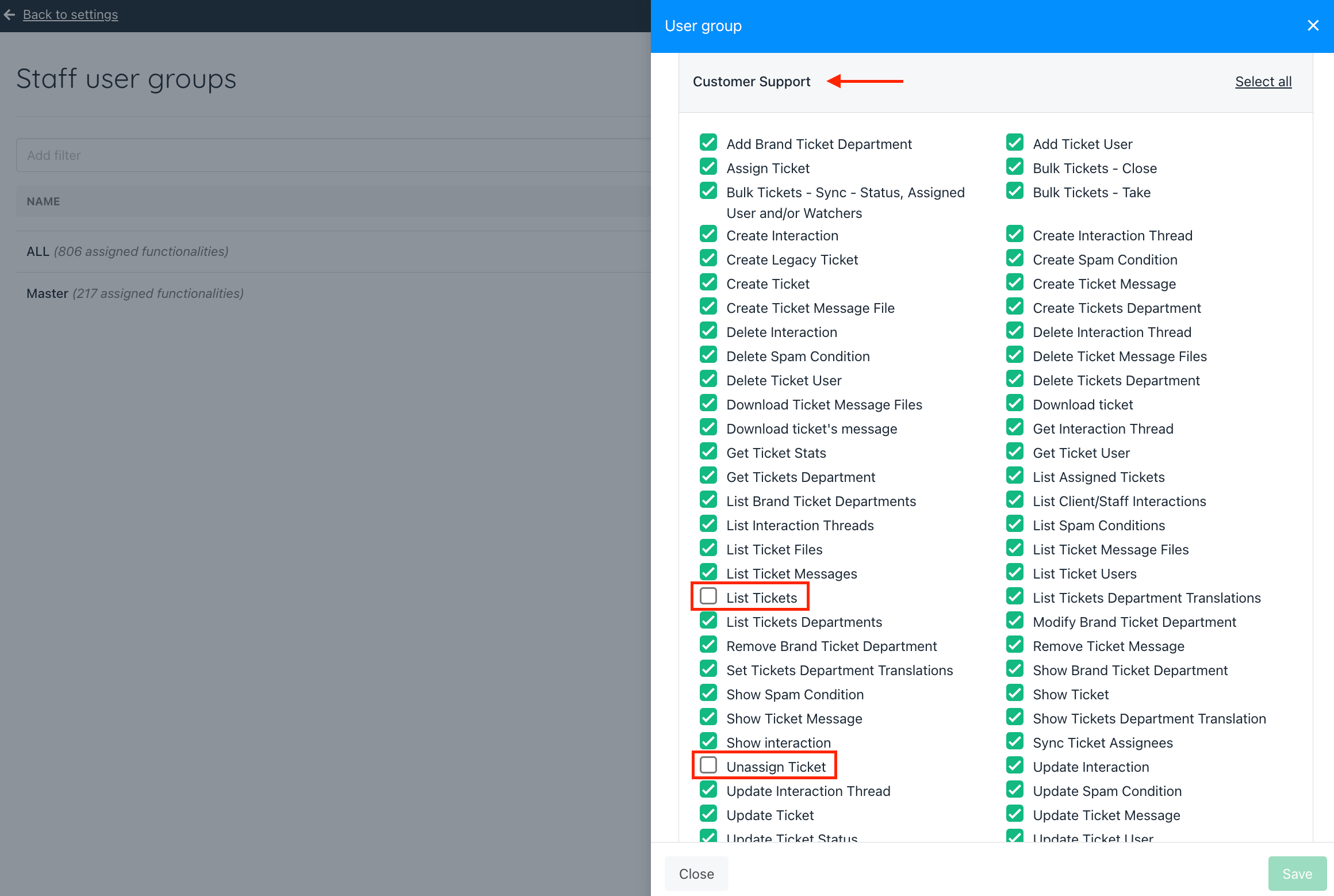
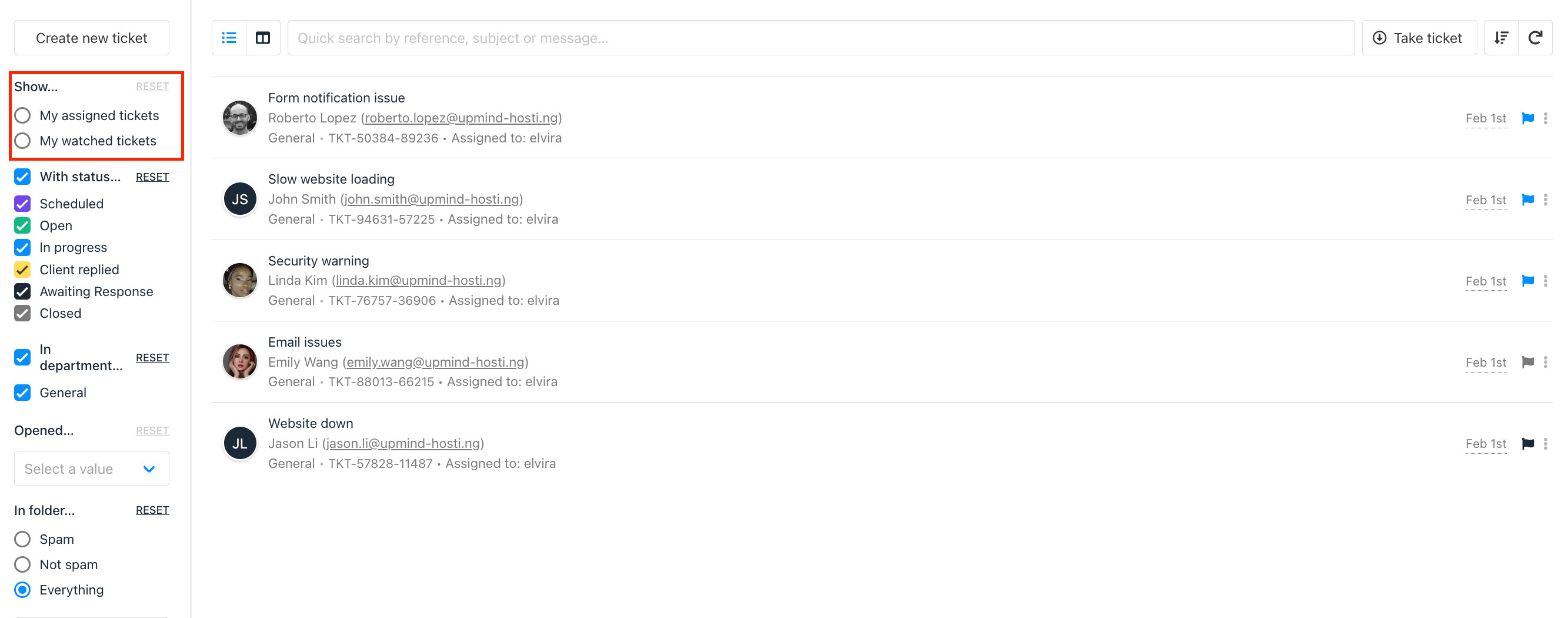
How to Remove “List All Tickets” for Staff
This feature prevents staff from picking and choosing tickets themselves.- Go to Settings.
- Click on Staff Groups > then click Edit.
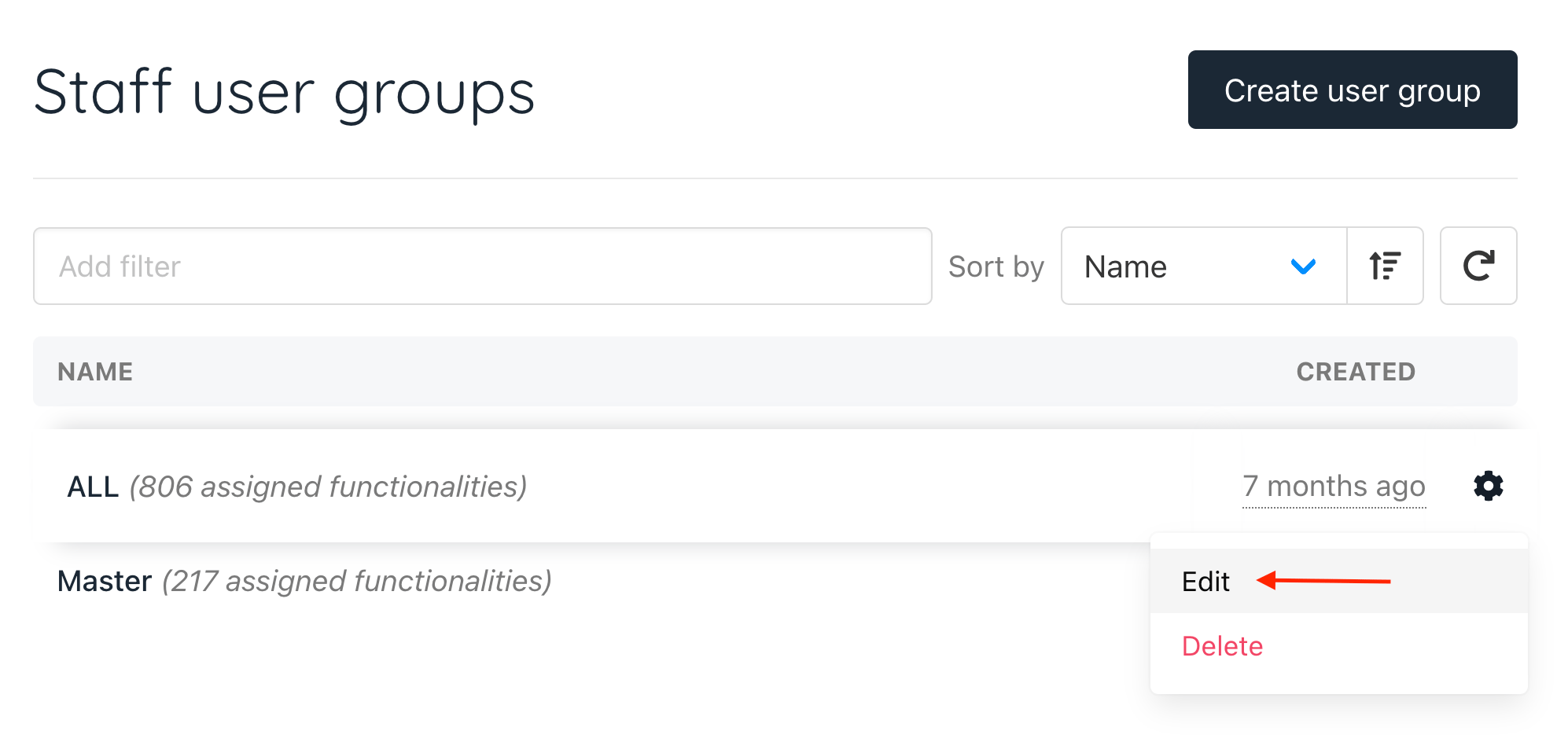
- Uncheck the List Tickets and Unassigned Tickets options.
How Staff Take Unassigned Tickets
In the Support menu, there is a feature called Take Ticket. This allows staff to pick up unassigned tickets from their assigned department. How It Works:- Once a staff is assigned to a department, they can use the Take Ticket button.
- Clicking Take Ticket will automatically assign them the first available unassigned ticket in their department.
- Before Clicking “Take Ticket”
- The staff is assigned to the Support Department.
- There are unassigned tickets available.
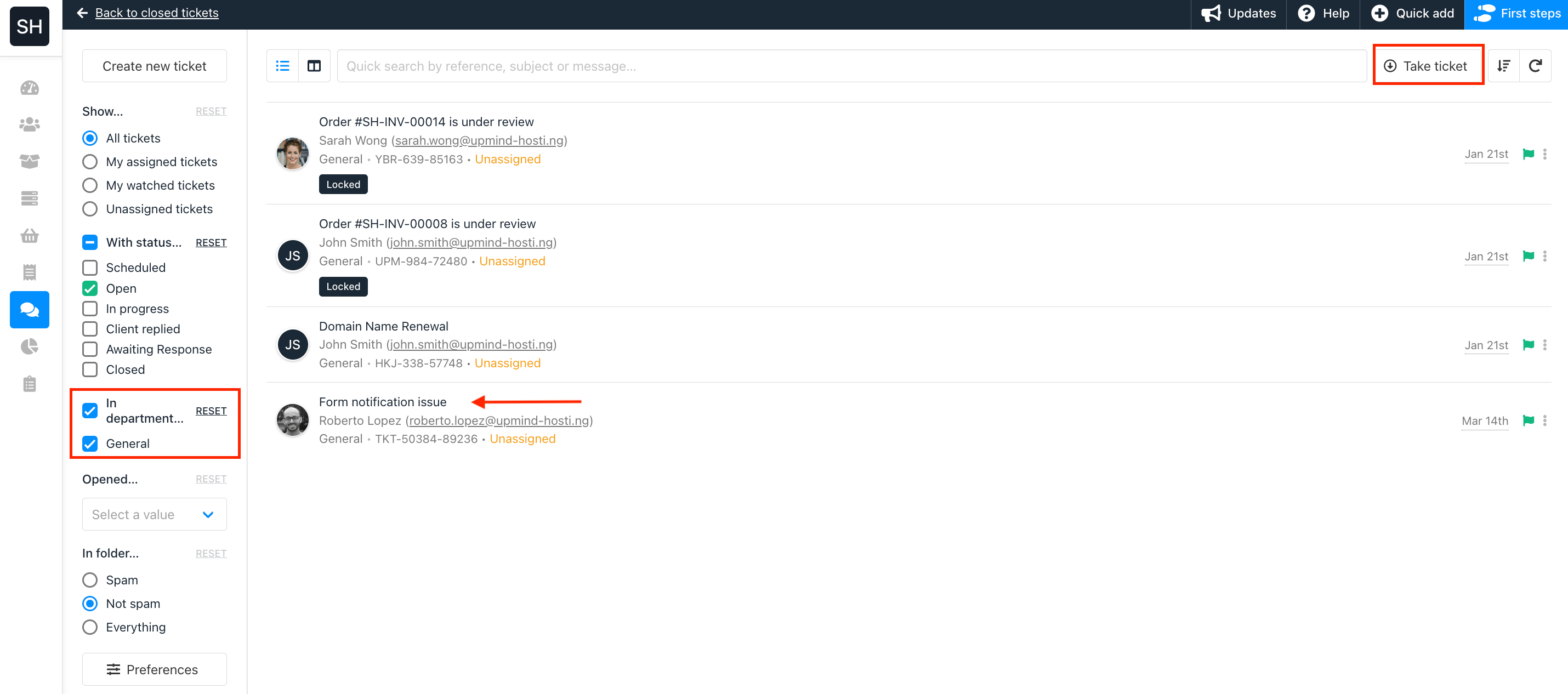
Ticket list before clicking Take Ticket
- After Clicking “Take Ticket”
- The system assigns the staff the first unassigned ticket in their department.
- They can now proceed to handle the ticket.
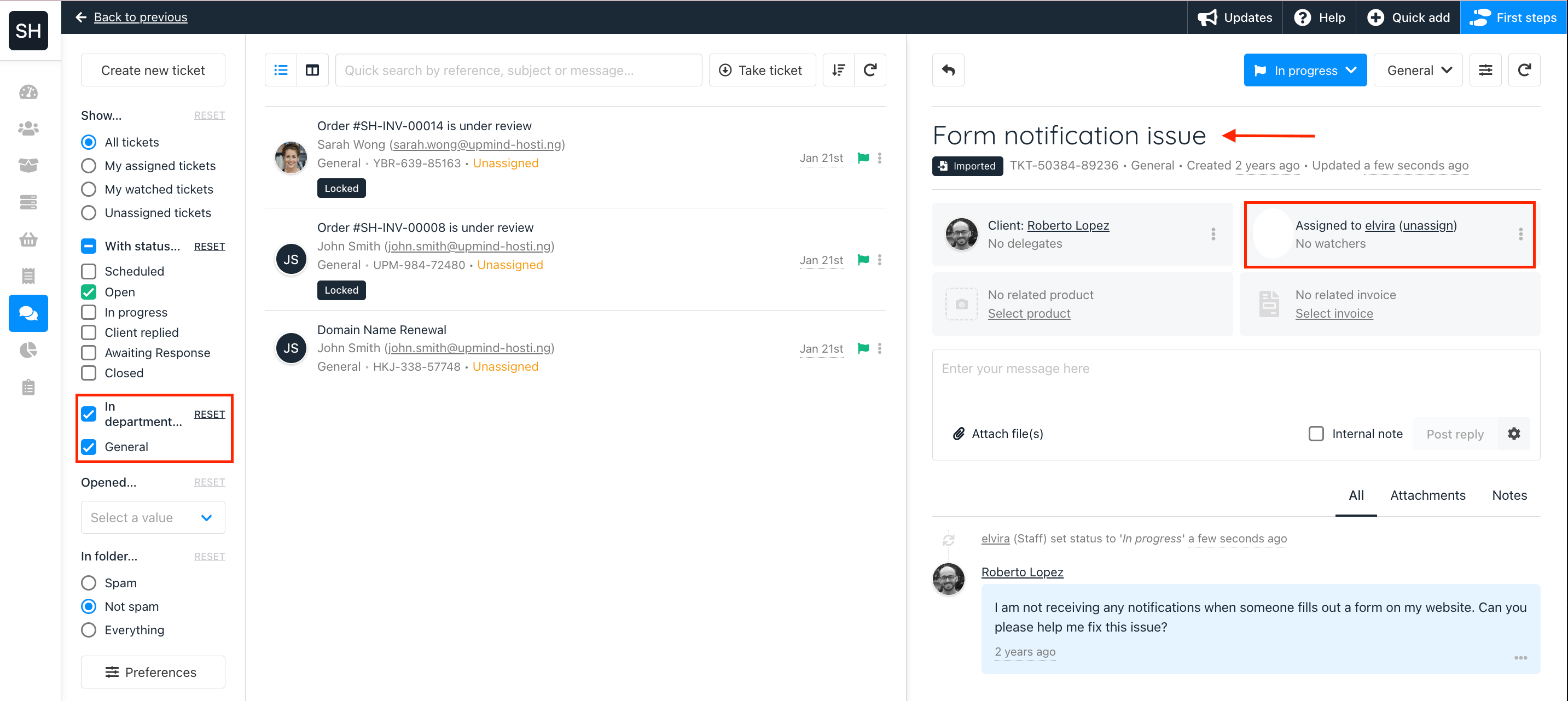
Ticket assigned after clicking Take Ticket
As an Admin: How to View Staff Ticket
Admins can see each staff’s assigned, watched, and closed tickets under:Settings → Staff Users. This allows admins to track workload, monitor ticket progress, and ensure fair ticket distribution.
How to Check a Staff User’s Tickets:
-
Go to
Settings→Staff Users. -
Select a staff user and click
Manage User. -
In the Ticket tab, you’ll find:
- Assigned tickets – Tickets assigned to them.
- Watched tickets – Tickets they are involved in.
- Closed tickets – Tickets they’ve closed
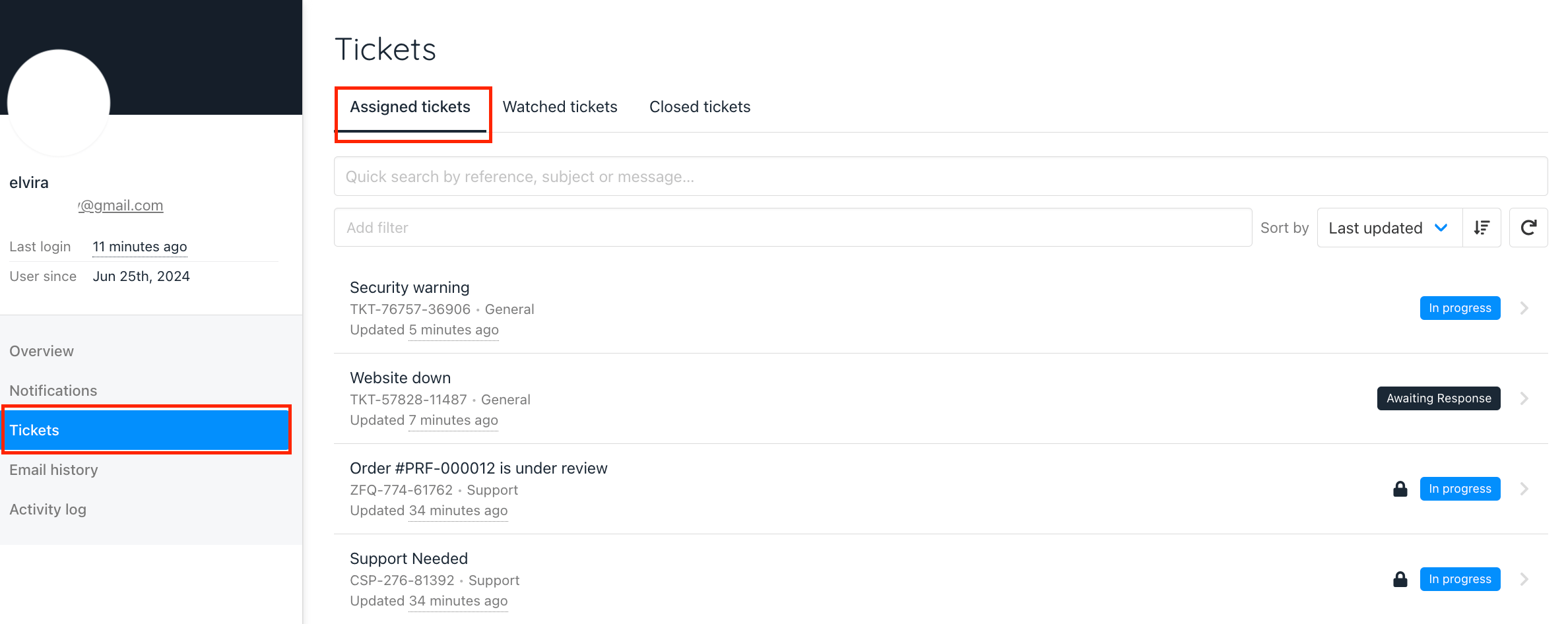
All tickets listed in the Assigned Tickets section
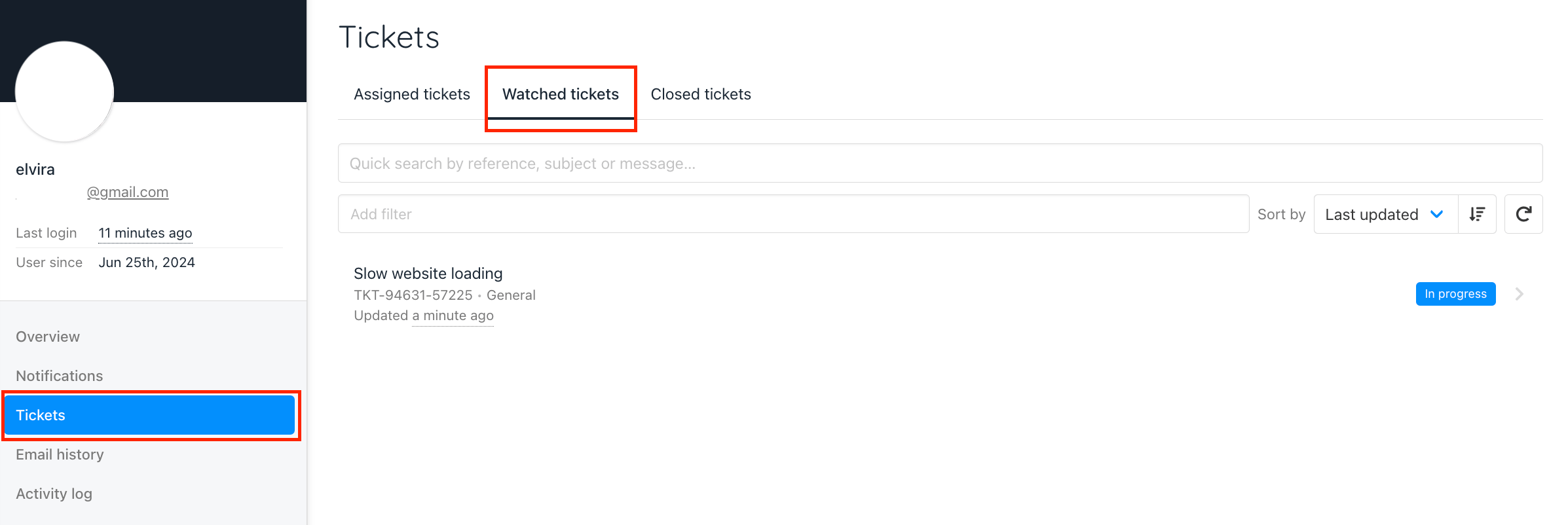
All tickets listed in the Watched Tickets section
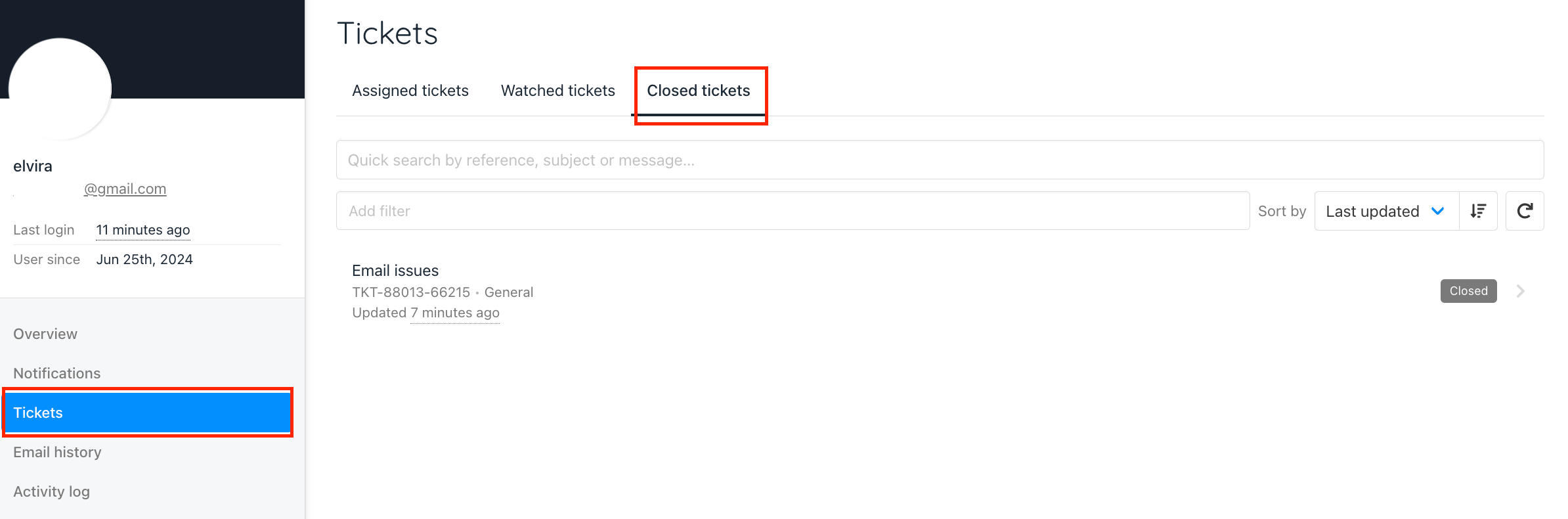
All tickets are listed in the Closed Tickets section