

Getting Stripe API credentials
- Log in to your Stripe account.
- Go to Developers > API Keys.
- Copy your Secret Key (for Upmind’s API Key field) and Publishable Key (for Upmind’s Public Key field).
-
Optionally, generate a Restricted Key with write access to:
- PaymentIntents
- Customers
- PaymentMethods
- Prices
- SetupIntents
- Charges
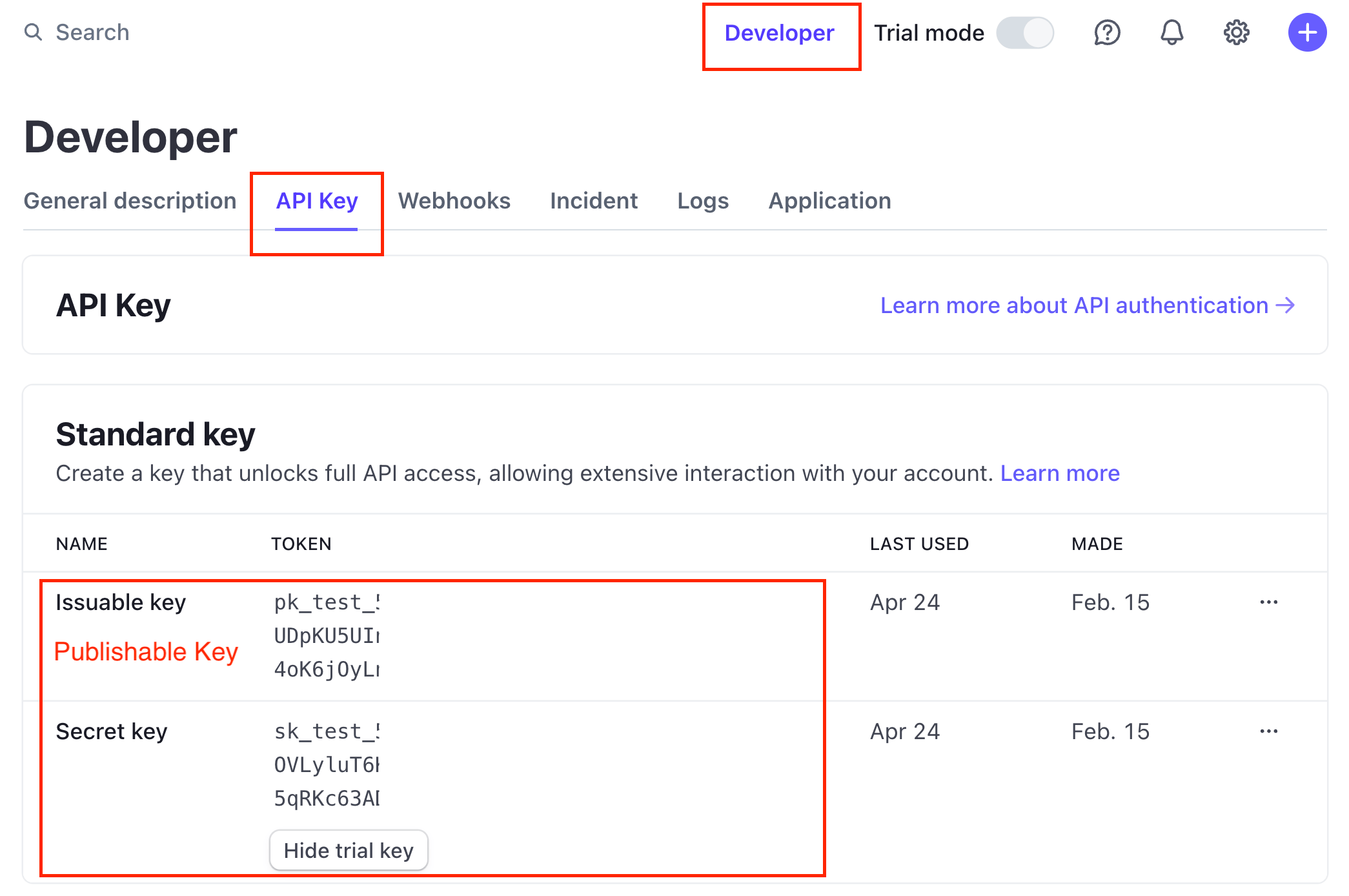
Developers > API keys
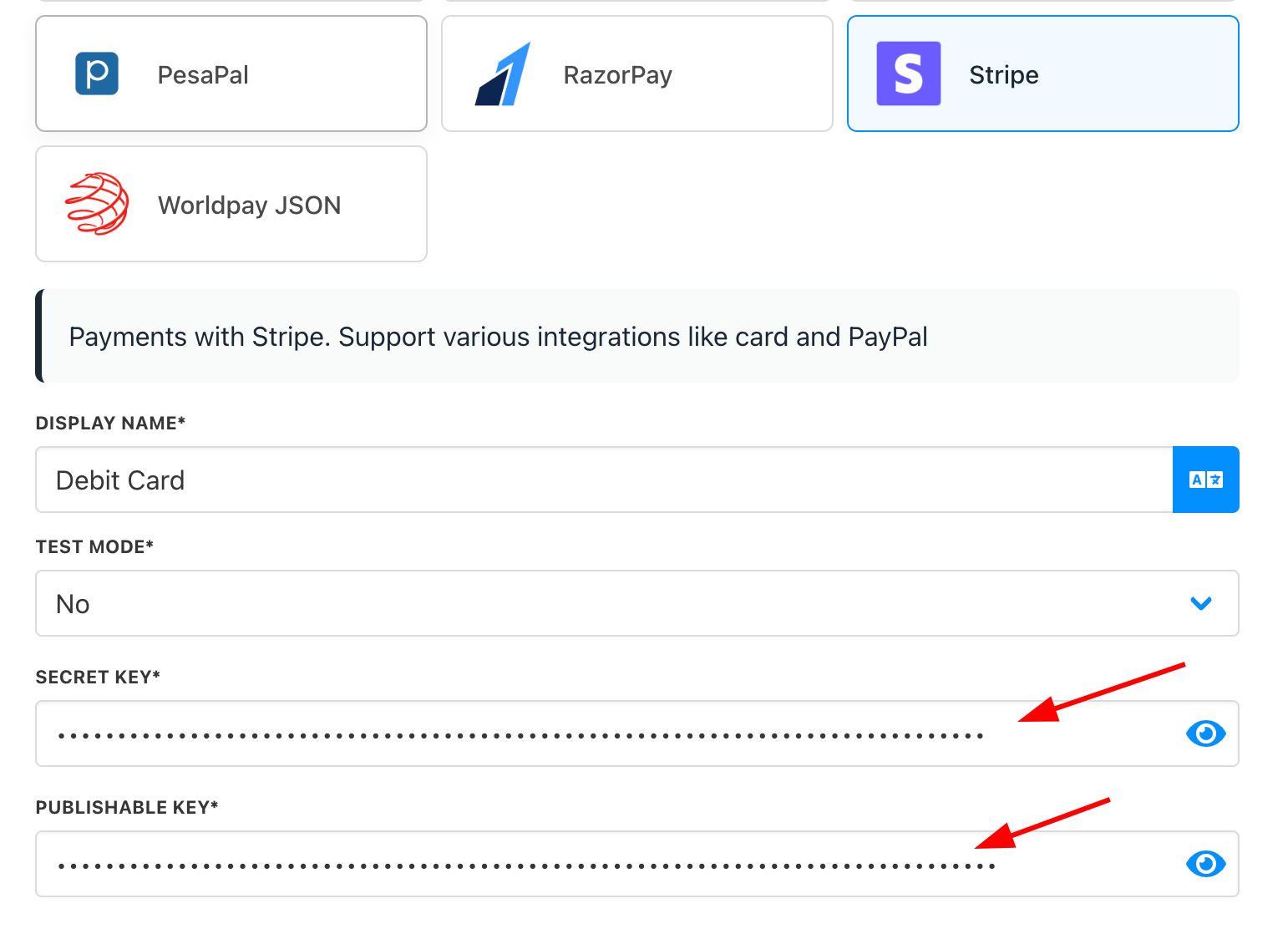
Secret key and publishable key
Adding Stripe as a payment provider
- Go to Settings > Payment Providers in Upmind.
- Click Add Payment Provider and select Stripe.
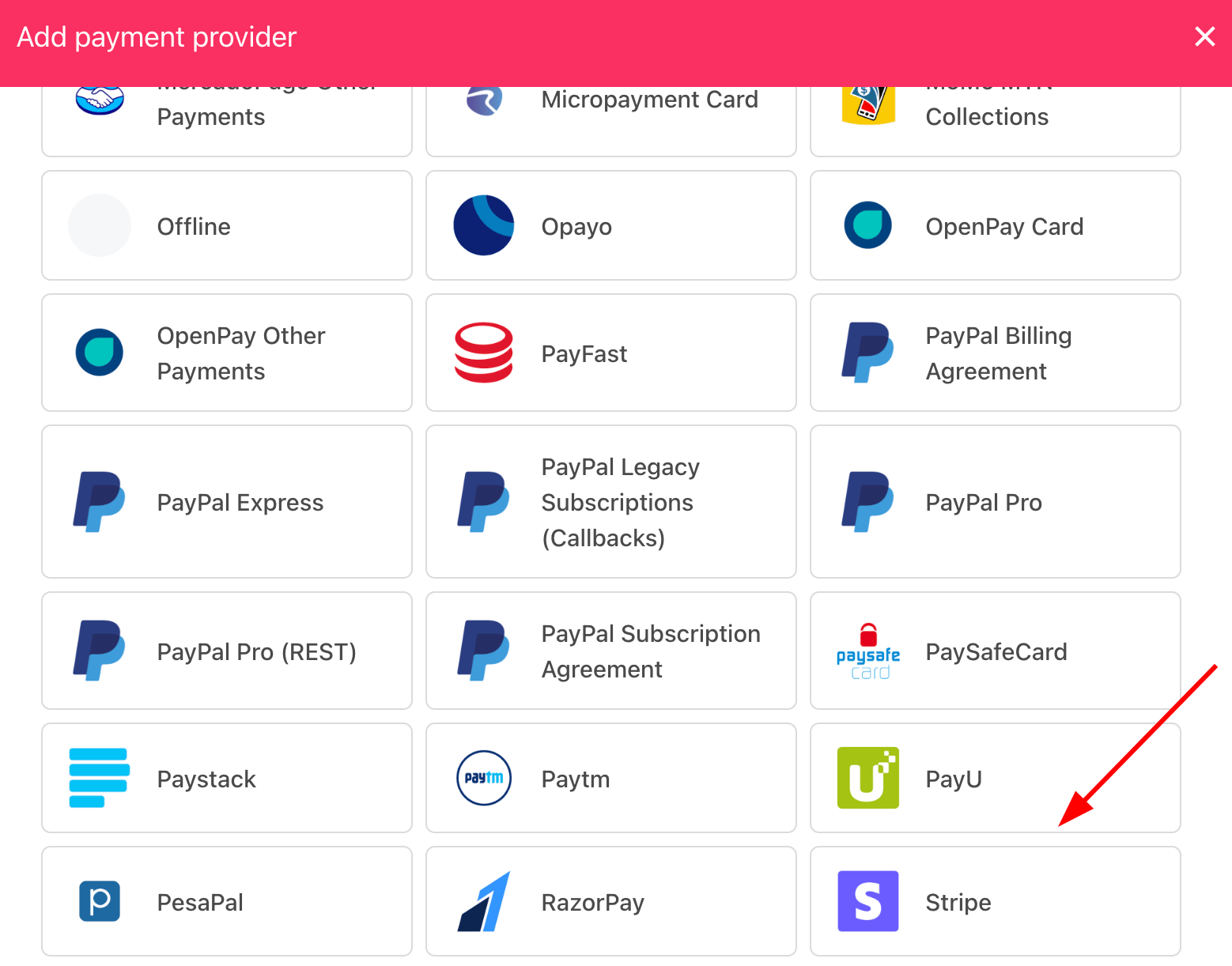
Select payment provider
Configuring details
- Enter a display name. We suggest Credit or Debit Card.
- Set Test Mode to No for live payments.
- Enter your Secret Key and Publishable Key.
- Choose whether to allow stored cards (for subscriptions/recurring) or one-time payments.
- Click Test Credentials to verify.
- Toggle accepted card types as needed.
- (Optional) Add supported currencies and payment instructions.
- Click Create.
Stripe.js options
After entering your Stripe information, the next step is to add the Stripe JS. To do this, you will need a public key. This guide explains how to obtain it. For each question, you can choose either yes or no. Choose options that match your business needs and the payment methods you want to support through Stripe.js on your website. Below is a detailed explanation to help you decide:- Create Customer for Non-Stored Payments: Select yes to create a customer record for each payment without storing payment details for future transactions. Recommended: YES.
- Reuse Stripe Customer from Other Saved Methods: Select yes to use saved payment methods linked to a customer’s Stripe account for Stripe.js payments. Recommended: YES.
- Reuse Stripe Customers by Email: Select yes to link customer payments by email in Stripe for Stripe.js transactions. Recommended: YES.
- Accept Cards?: Choose yes to accept card payments using Stripe.js on your website. Recommended: YES.
- Accept PayPal?: Select yes to accept PayPal payments through Stripe.js integration. For setup, see this article. Recommended: YES.
- Accept SEPA Debit: Select yes only if SEPA Debit is active in your Stripe account. Otherwise, it will fail. Recommended: NO unless enabled.
- Accept iDEAL: Enable only if iDEAL is active in your Stripe account. Otherwise, it will fail. Recommended: NO unless enabled.
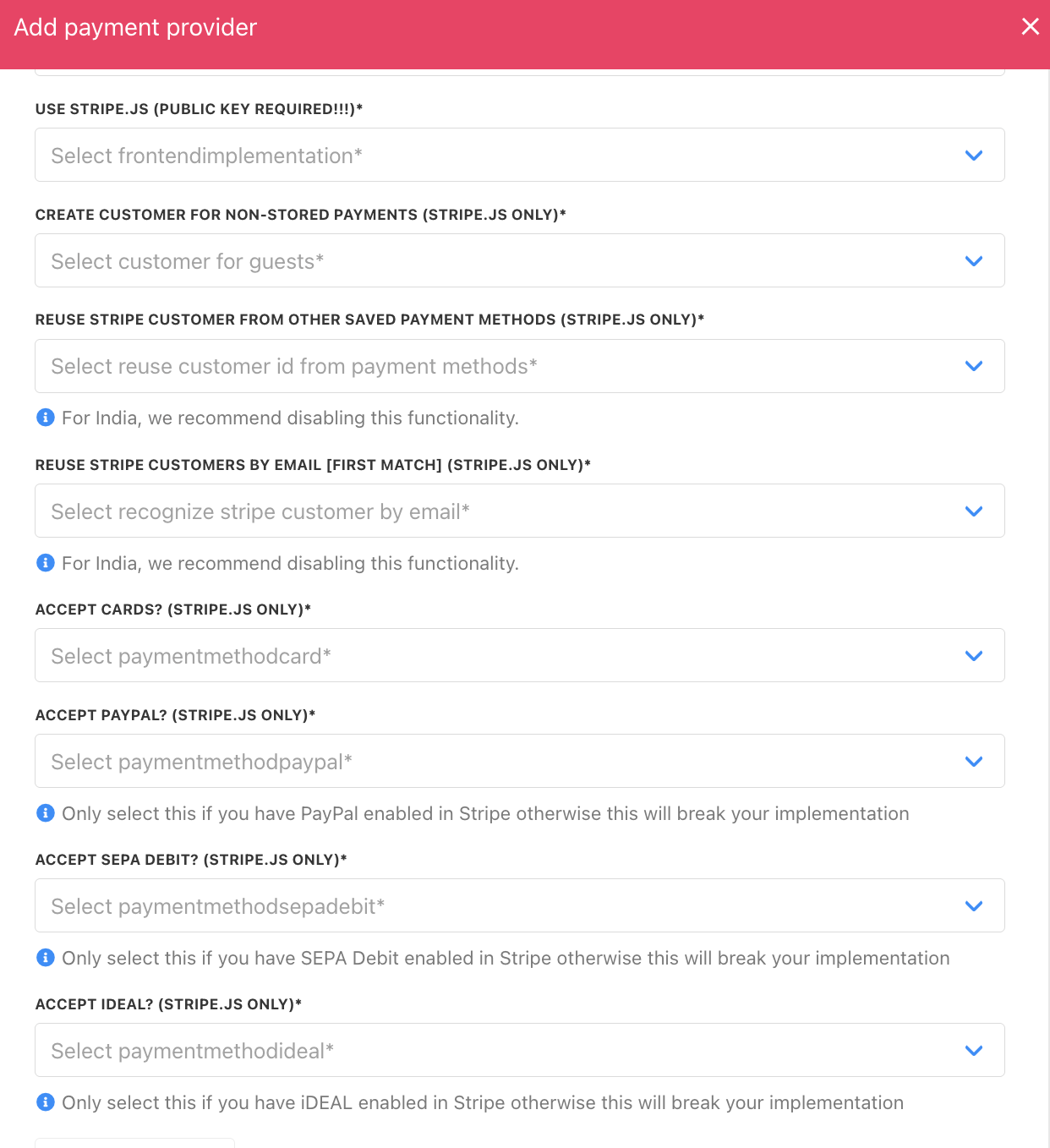
Select options
If your client is using either iDEAL or SEPA, please note the following:
- iDEAL is a one-time payment method, which means each payment must be authenticated by the customer.
- While Stripe can save the IBAN from an iDEAL payment as a SEPA Direct Debit method, in Upmind this does not happen automatically.
- To use SEPA for future payments in Upmind, your client needs to manually add SEPA as a payment method in their account. See the guide here.
Changing the Stripe statement description
You can change this under Settings > Payment Options > Gateway Settings > Statement Description.Indian Stripe customers
For Stripe customers in India, only INR is supported for non-sole traders due to Stripe’s regulations. The error is as follows:As per Indian regulations, only registered Indian businesses (i.e., sole proprietorships, limited liability partnerships, and companies, but not individuals) can accept international payments. More info here.
Editing the payment method
Go to Settings > Payment Providers, click the three dots next toStripe, and select Edit.
Configure Stripe webhook
Configuring Stripe webhooks allows your Stripe account to notify Upmind when key payment and billing events occur.- Log in to
Stripe Dashboard(https://dashboard.stripe.com)
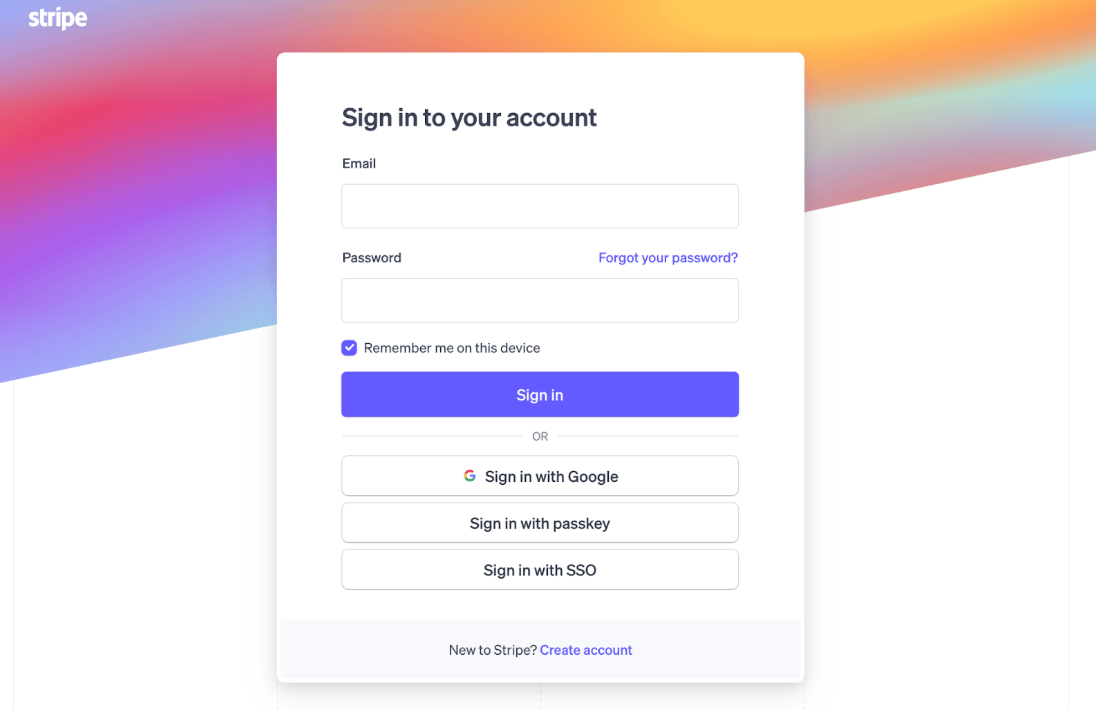
Stripe login
- In the left sidebar, click Developers. Under the Developers section, select Webhooks.
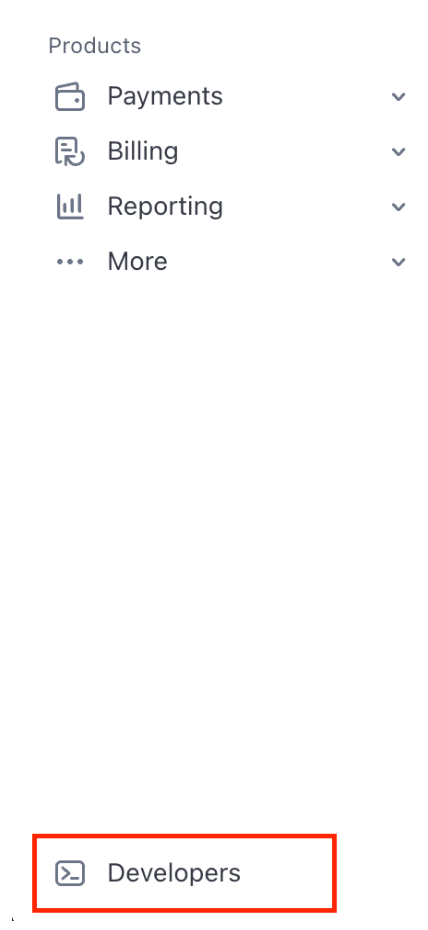
Click on developers
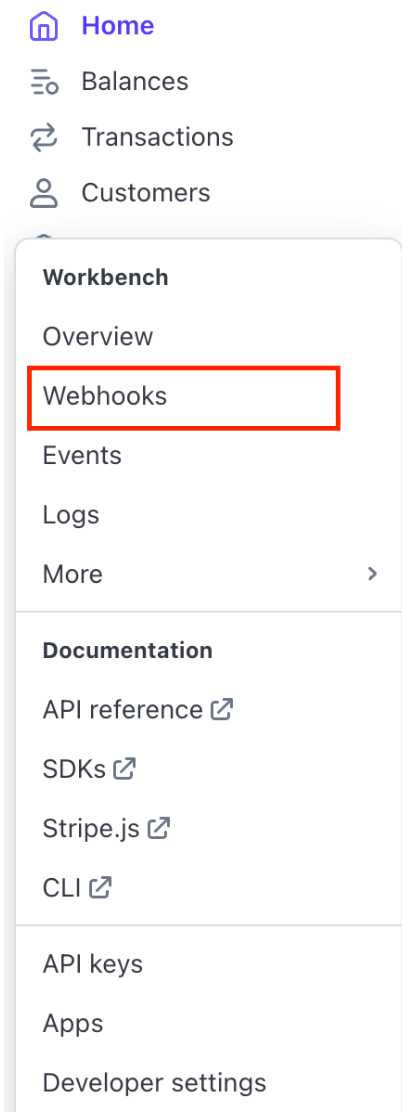
Select webhooks
- Click the + Add destination button to add webhooks.

Add destination
- Select the Events you want to receive.
- payment_intent.succeeded – Payment succeeded
- payment_intent.payment_failed – Payment attempt failed
- invoice.payment_succeeded – Invoice payment completed
- charge.refunded – Refund processed on a charge
- mandate.updated - Mandate details updated
- charge.succeeded - Charge completed successfully
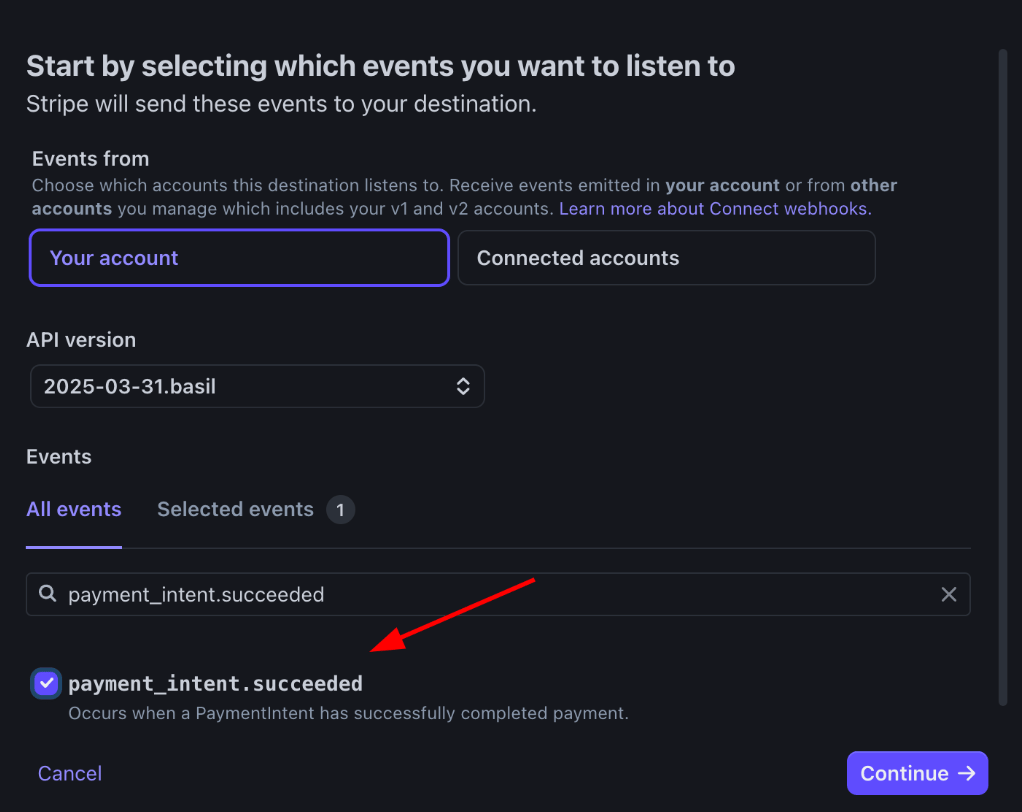
Choose events
- charge.refunded (refund)
- mandate.updated (mandate Update)
- charge.succeeded (paid Pending)
- charge.failed (reject Pending)
- Choose Webhook endpoint as the destination type.
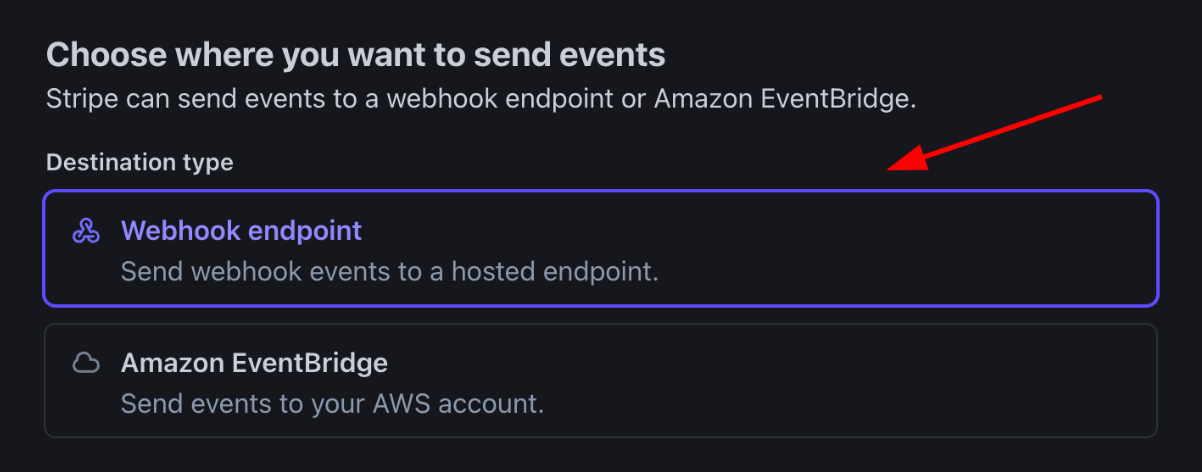
Webhook endpoint
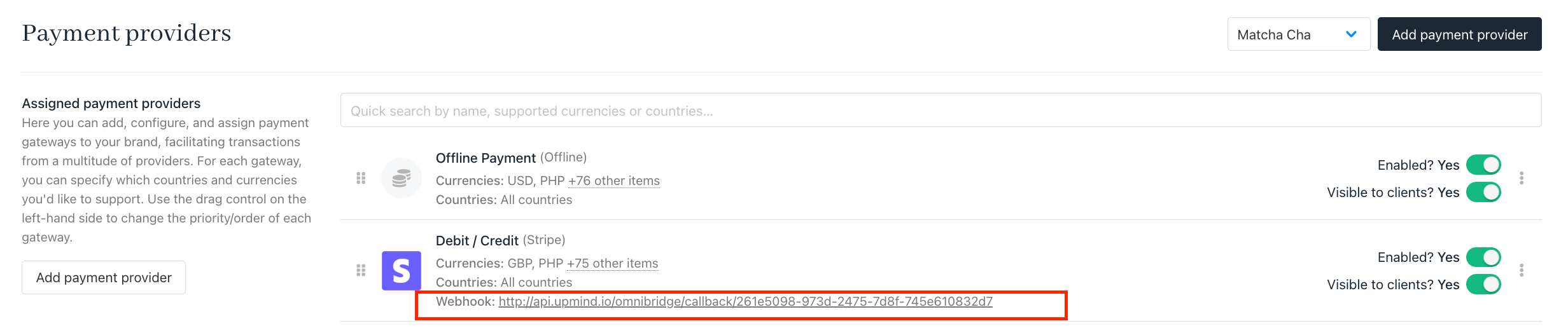
- In the Endpoint URL field, enter your system’s webhook receiver address, which you can find under Settings > Payment Providers. Example: https://yourdomain.com/api/stripe/webhook
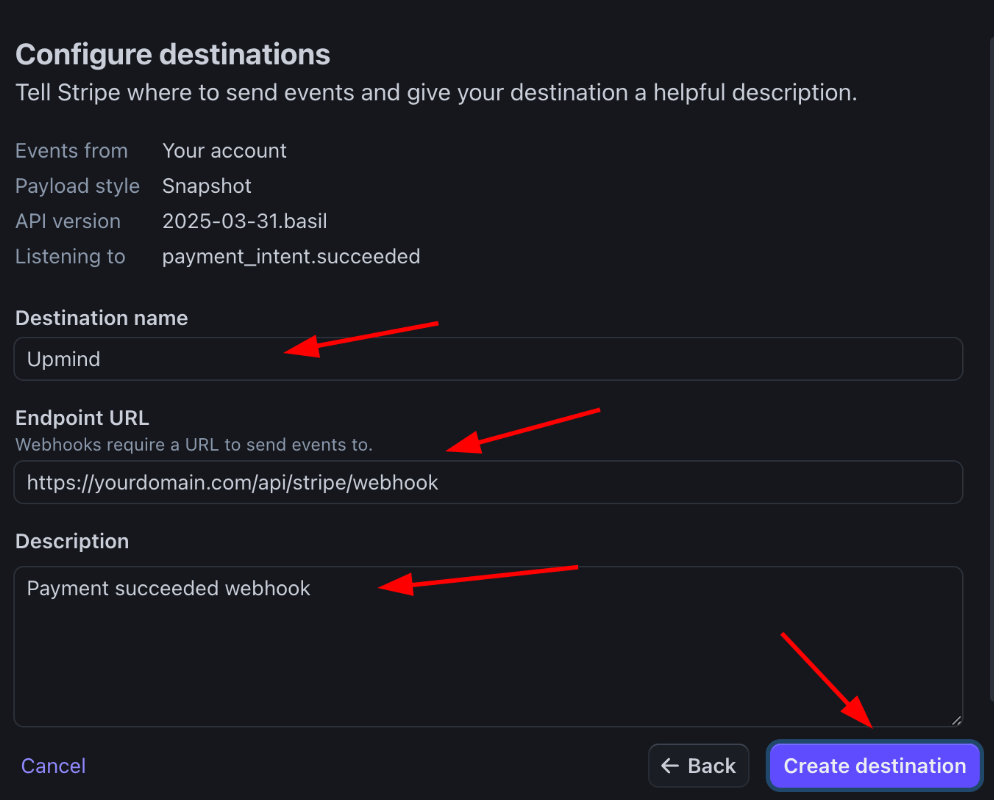
Create destination
- Finalise
Webhook Setupby clicking Create Destination.

Review webhook