

Getting Paytm credentials
- Log in to Paytm Business Dashboard.
- Go to Settings > Profile > Account Details for Merchant ID, Website, Industry Type, and Channel ID.
- Go to Developer Settings > API Keys to generate your Merchant Key. Choose either Test or Production environment as needed.
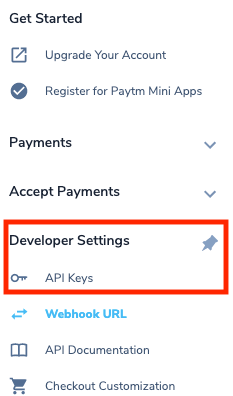
Developer setting > API keys
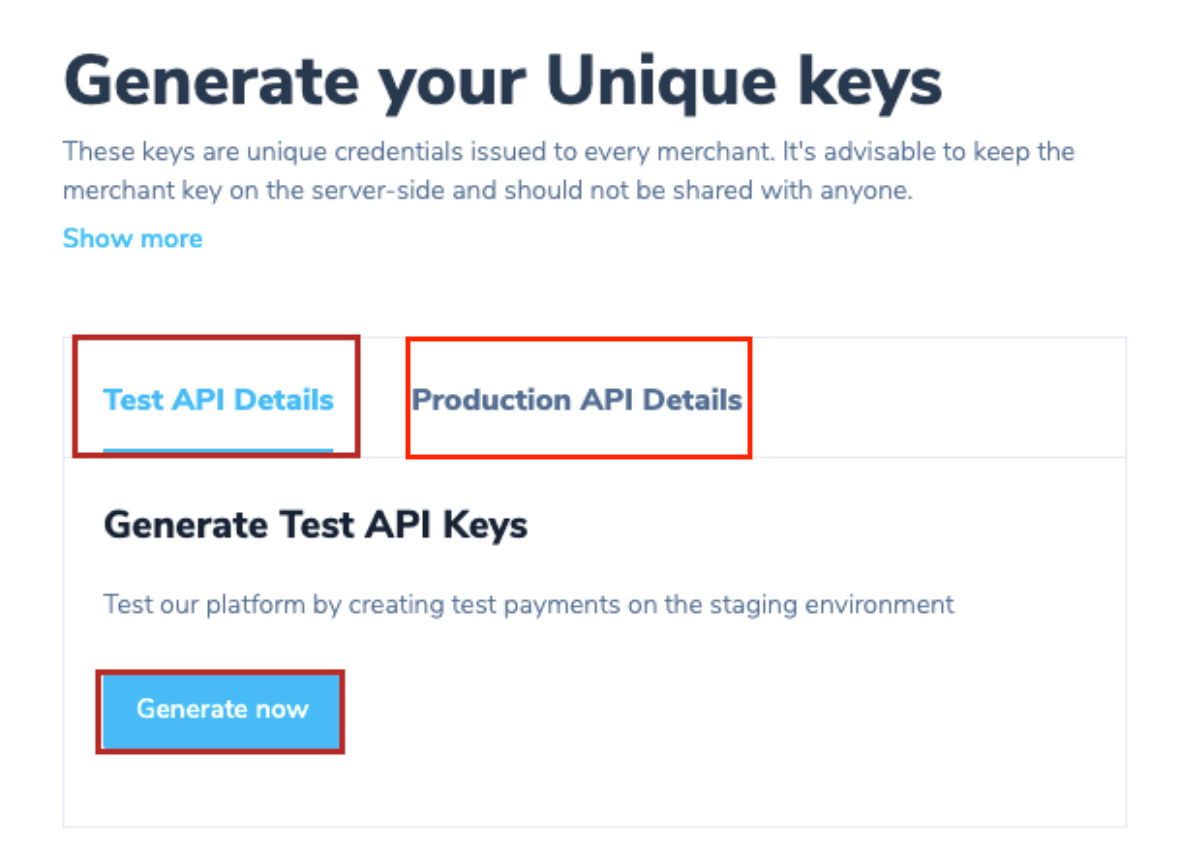
Generate keys
If test credentials are unavailable, request them via a Paytm support ticket. Some merchants may only have live credentials.
Add Paytm in Upmind
- Go to Settings > Payment Providers in your Upmind admin panel.
- Select Add Payment Provider and choose Paytm.
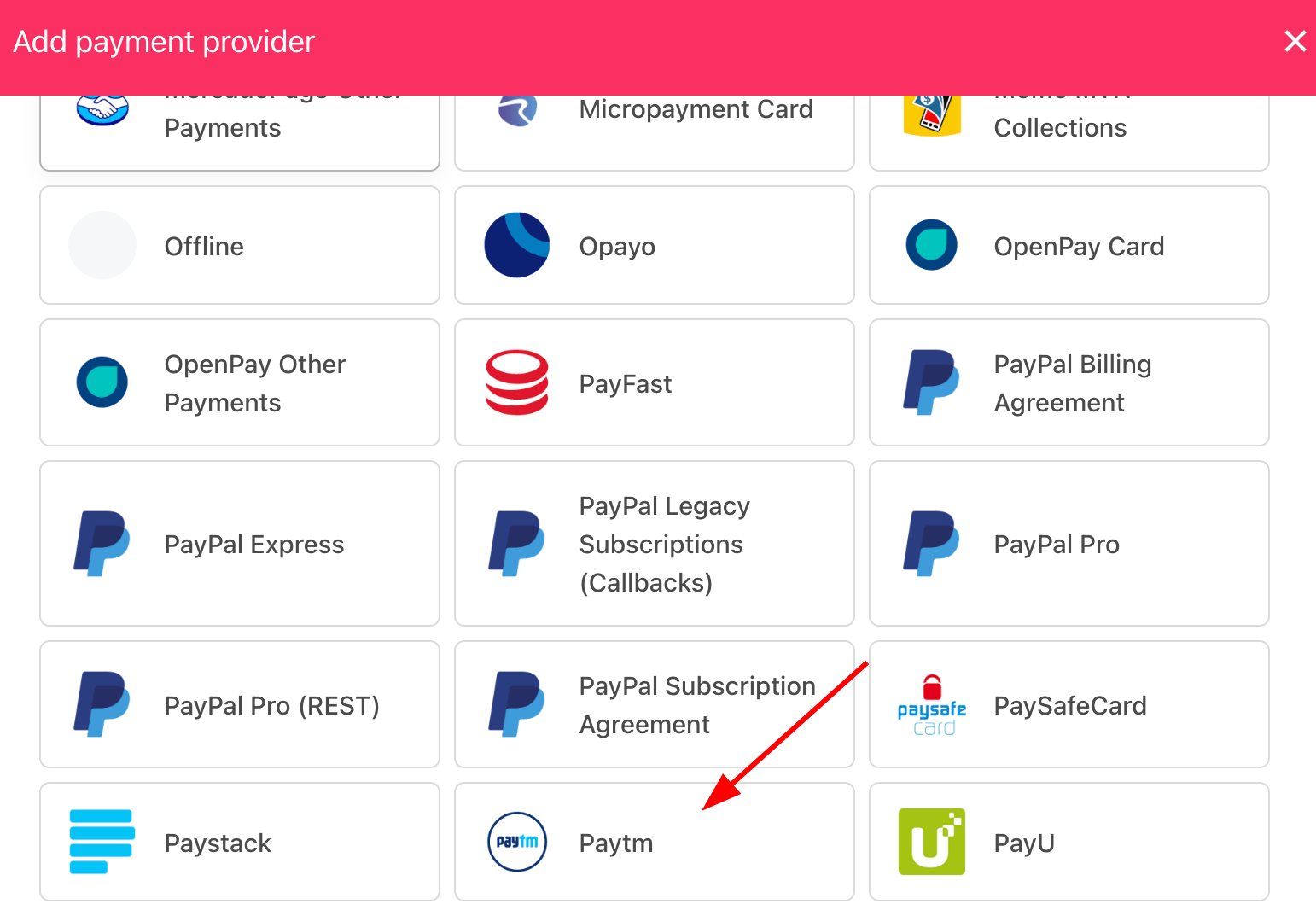
Select payment provider
Configure details
- Enter Display Name. We suggest Paytm.
- Configure Test Mode.
- Enter Merchant ID, Website, Industry Type, and Channel ID.
- Click Test Credentials to verify connection.
- Set Currency (only INR supported) and optionally, add payment instructions for customers.
- Click Create to save.
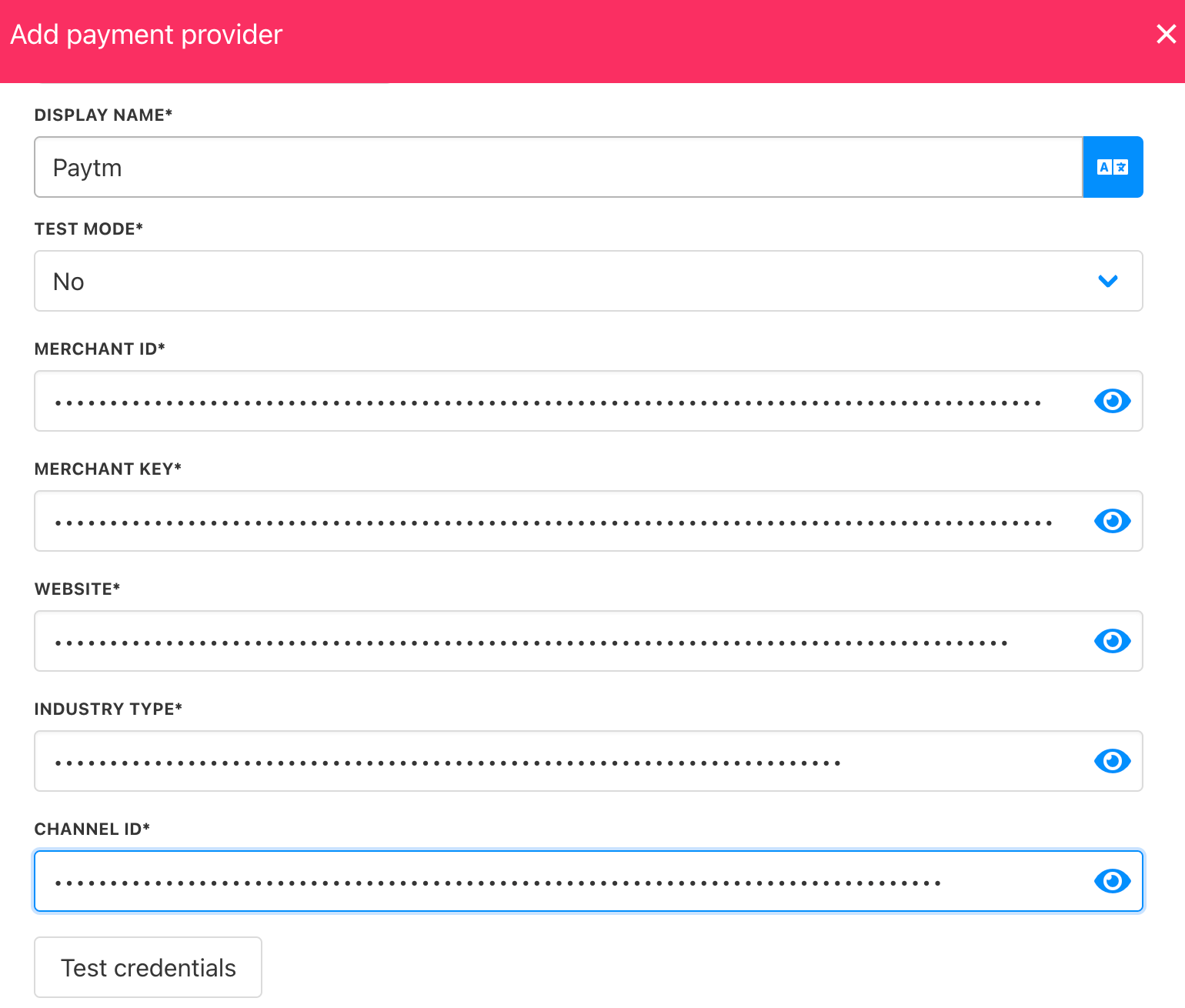
Add details
Configure Paytm Webhook
After adding Paytm, Upmind will generate a webhook URL. This URL must be added to your Paytm account for payment and refund notifications.
Webhook
- Log in to your Paytm Business Dashboard.
- Go to Developer Settings.
- Select Webhook URL.
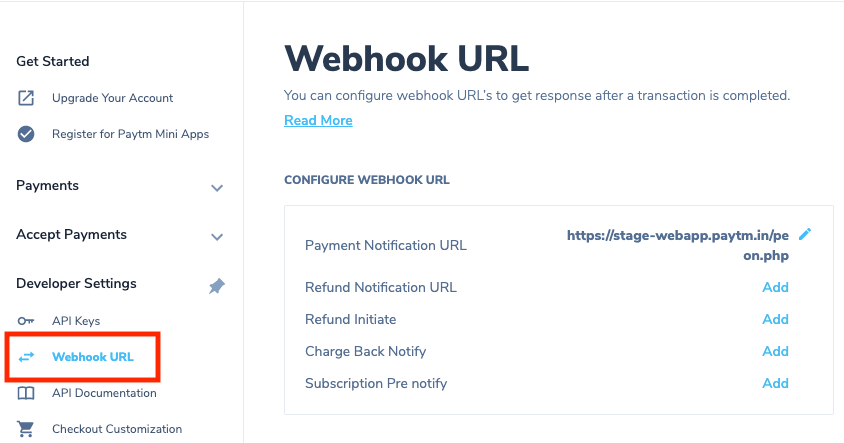
Webhook URL
- Add the Upmind webhook URL for both payment and refund events.
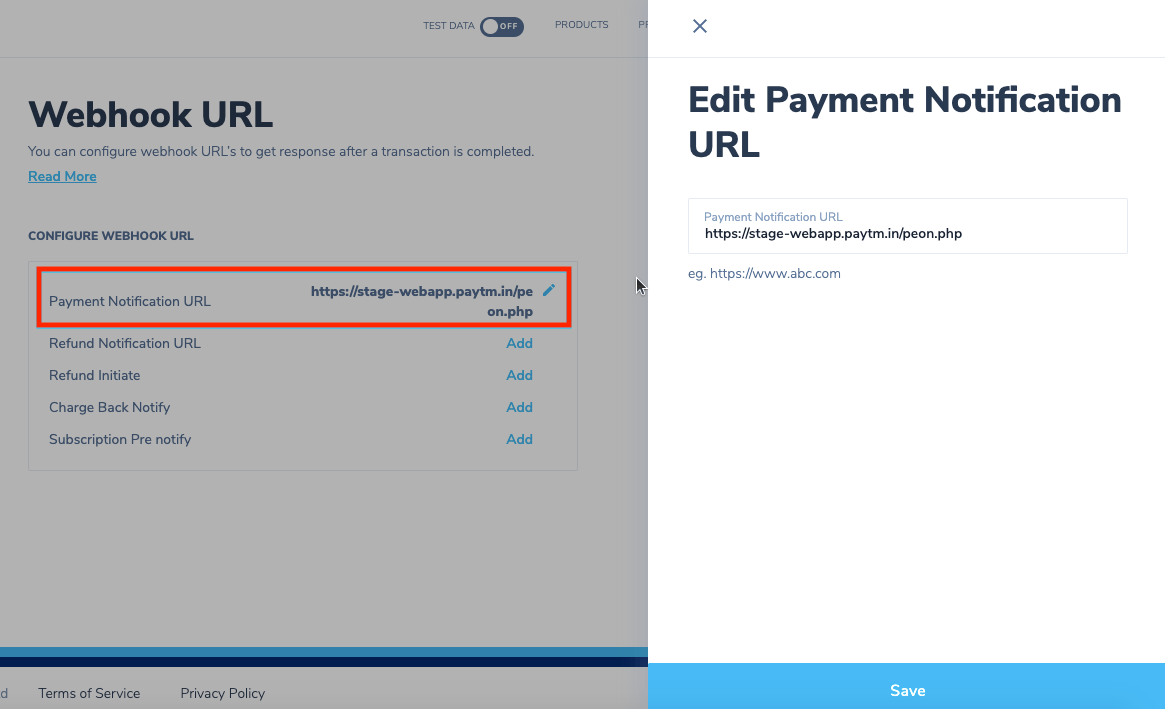
Upmind webhook URL
- To enable the Refund API, please submit a request to Paytm Support at pg.support@paytmpayments.com. If you are using multiple Merchant IDs (MIDs), the Refund API needs to be enabled separately for each MID. Please make sure to include all relevant MIDs in your request so they can be activated accordingly.
Editing the payment method
Go to Settings > Payment Providers. Click the three dots next toPaytm and select Edit.
How to Enable EMI payments on Paytm
EMI is not enabled by default on Paytm accounts. To get the EMI payment mode activated on your MID, you need to contact your Paytm account manager or submit a request through the Paytm contact page. If you are using multiple MIDs, the EMI payment mode needs to be requested and enabled separately for each MID. Standard EMI on Paytm is available for both credit card and debit card transactions across all checkout flows supported by Paytm.Supported banks
Credit Card EMI is currently supported by 19 banks, including:- HDFC BANK
- SBI BANK
- ICICI BANK
- AXIS BANK
- BANK OF BARODA
- HSBC BANK
- RBL BANK
- AMERICAN EXPRESS
- IDBI BANK
- YES BANK
- INDUSLND BANK
- STANDARD CHARTERED BANK
- CITI BANK
- KOTAK BANK
- IDFC FIRST BANK
- AU SMALL FINANCE BANK
- ONE CARD
- FEDERAL BANK
- CANARA BANK
- SCAPIA
- HDFC BANK
- ICICI BANK
- KOTAK BANK (will be available soon)
How it works for your customers
For Credit Card EMI, the customer selects the EMI option at checkout, enters their card details, and chooses an EMI tenure. The bank then takes around 5–7 working days to approve and convert the transaction into EMI. If the bank rejects the conversion, the customer pays the full amount as per their credit card billing cycle. For Debit Card EMI, the bank requires the customer’s mobile number to check eligibility. If eligible, a ₹1 verification transaction is processed first, and upon success, the loan is booked against the transaction amount. The customer then pays EMI as per the plan selected at checkout.Once EMI is enabled on your MID by Paytm, it will be available as a payment option within your Paytm checkout automatically. No further configuration is needed in Upmind.