

Opening the My Account page
The first step is to open the My Account page.- Log in to your Upmind admin dashboard.
- Click the logo at the bottom of the left pane.
- Click My Account.
Adding an avatar
Staff users and clients can see your avatar. It displays on every page. Upmind occasionally uses it in place of a display name.For best display results, use square images (i.e., 1:1 aspect ratio) at least 128 x 128 pixels. Smaller images may appear blurry. The maximum file size is 1 MB.
- Click the avatar icon.
- Select Upload avatar and select the image from your device.
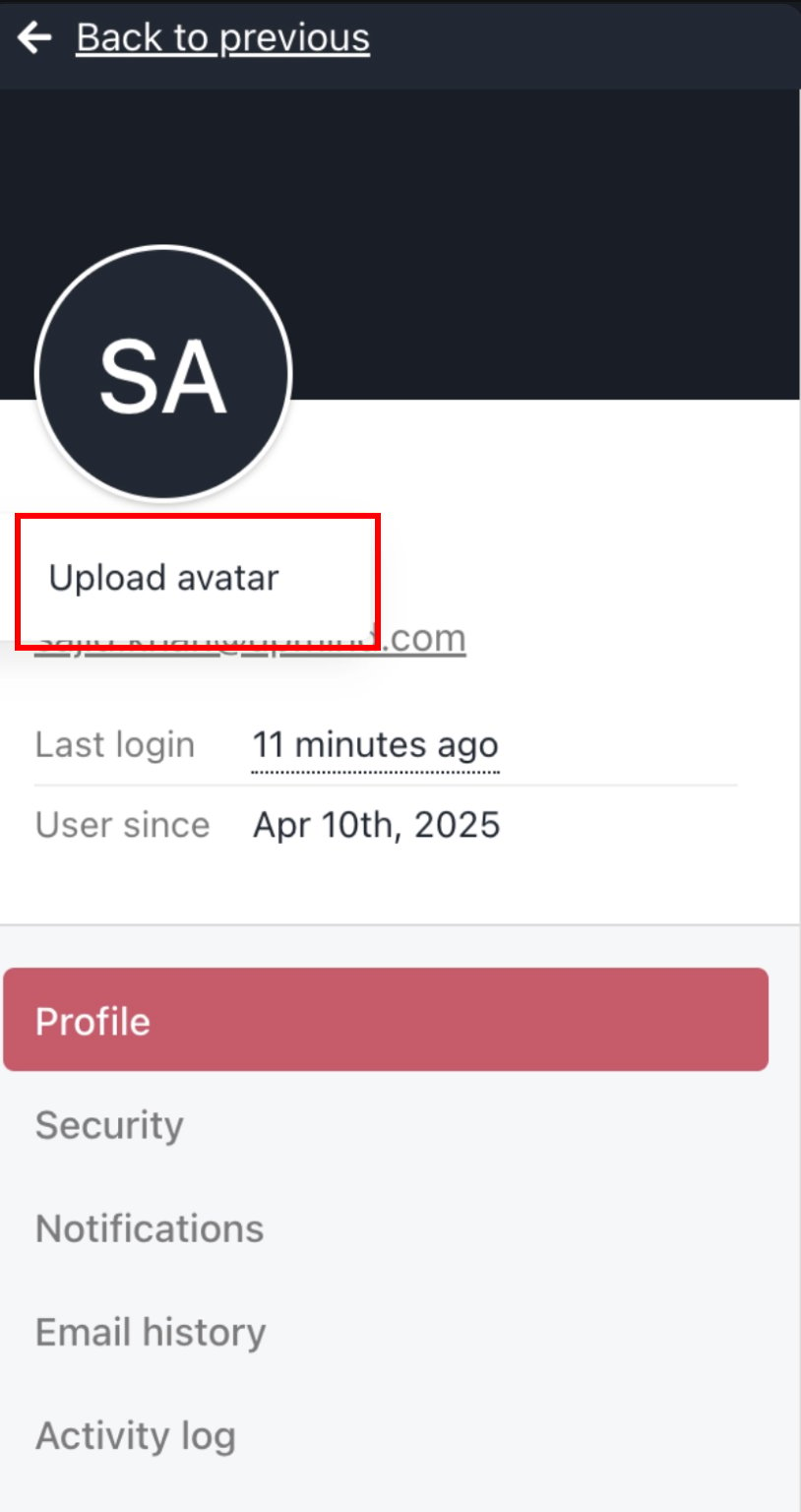
Select Upload avatar to load image
- Upmind adds the profile avatar.
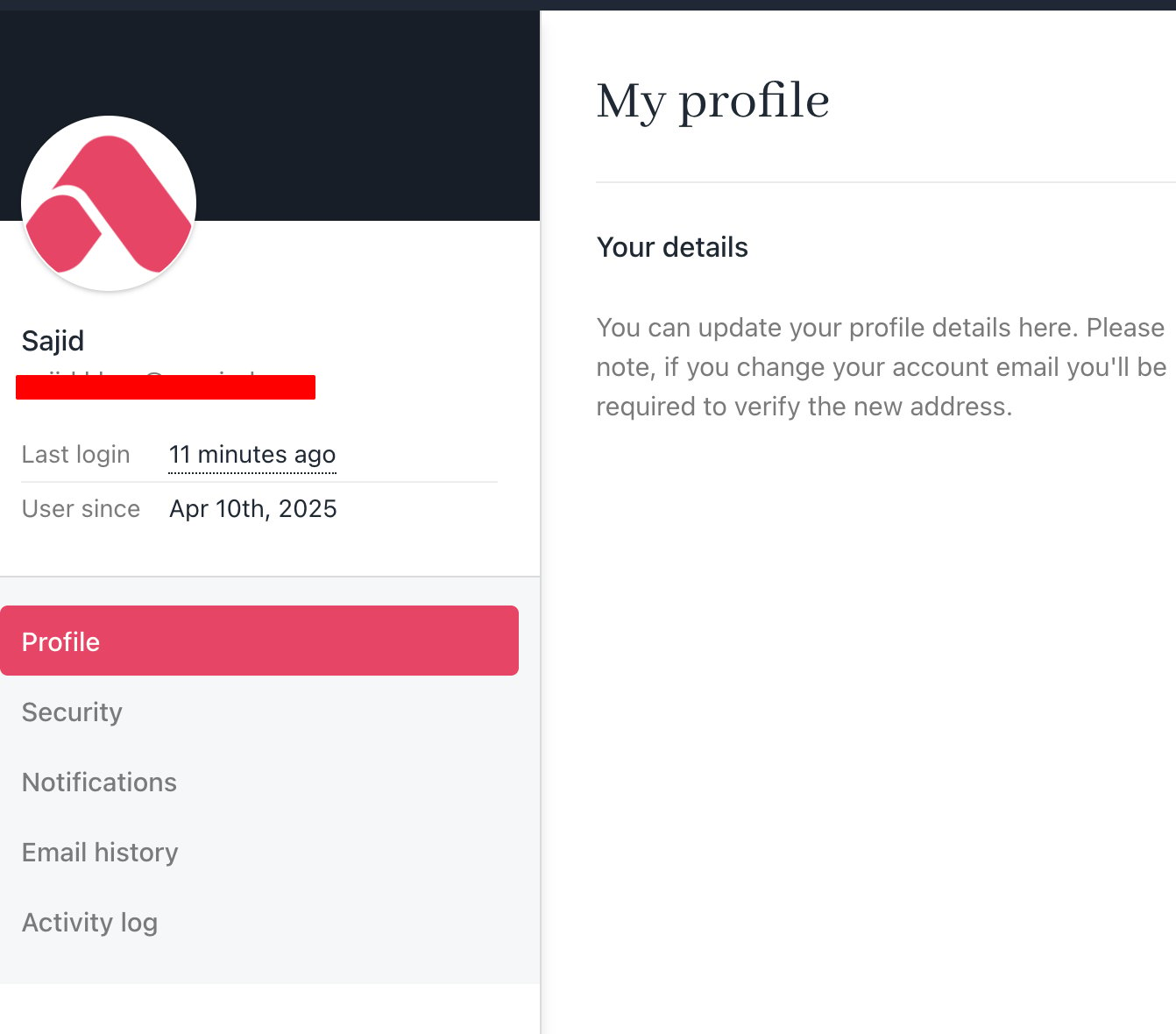
The avatar updates through the application
Deleting an avatar
To remove an image:- Hover over the image and select Remove avatar.
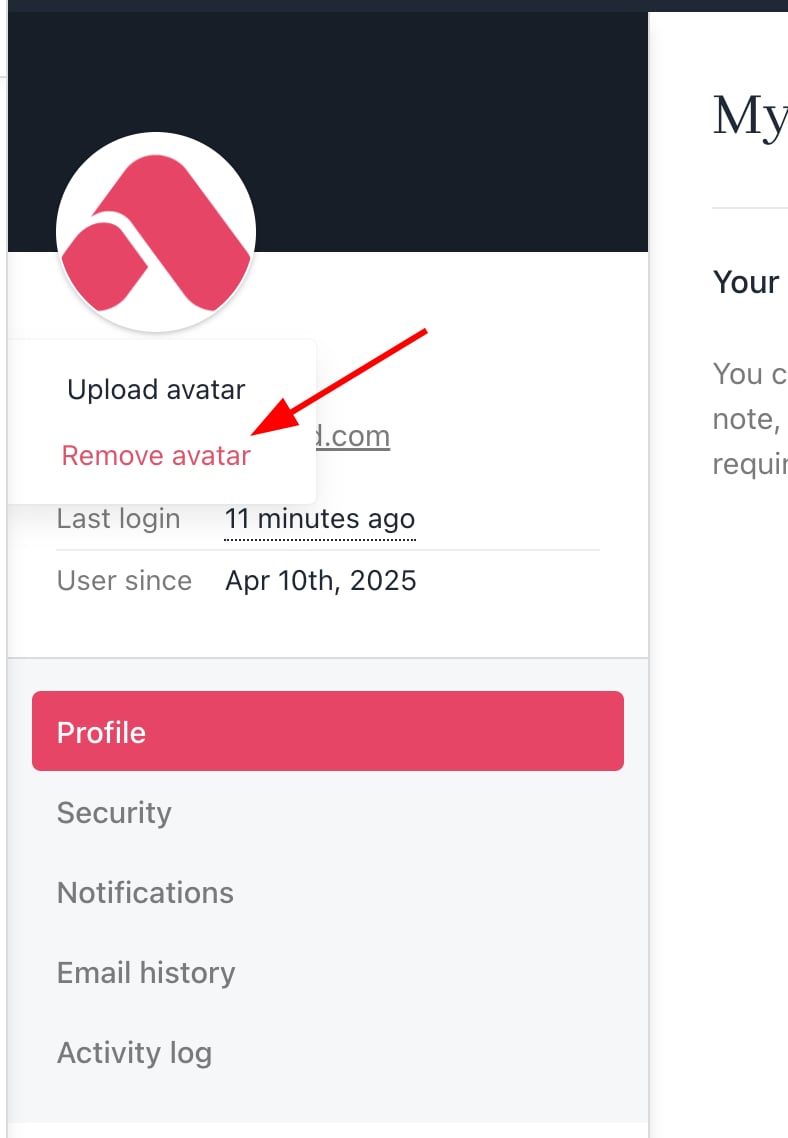
Select Remover Avatar to delete the avatar
- Enter the confirmation code in the pop-up window and click Delete.
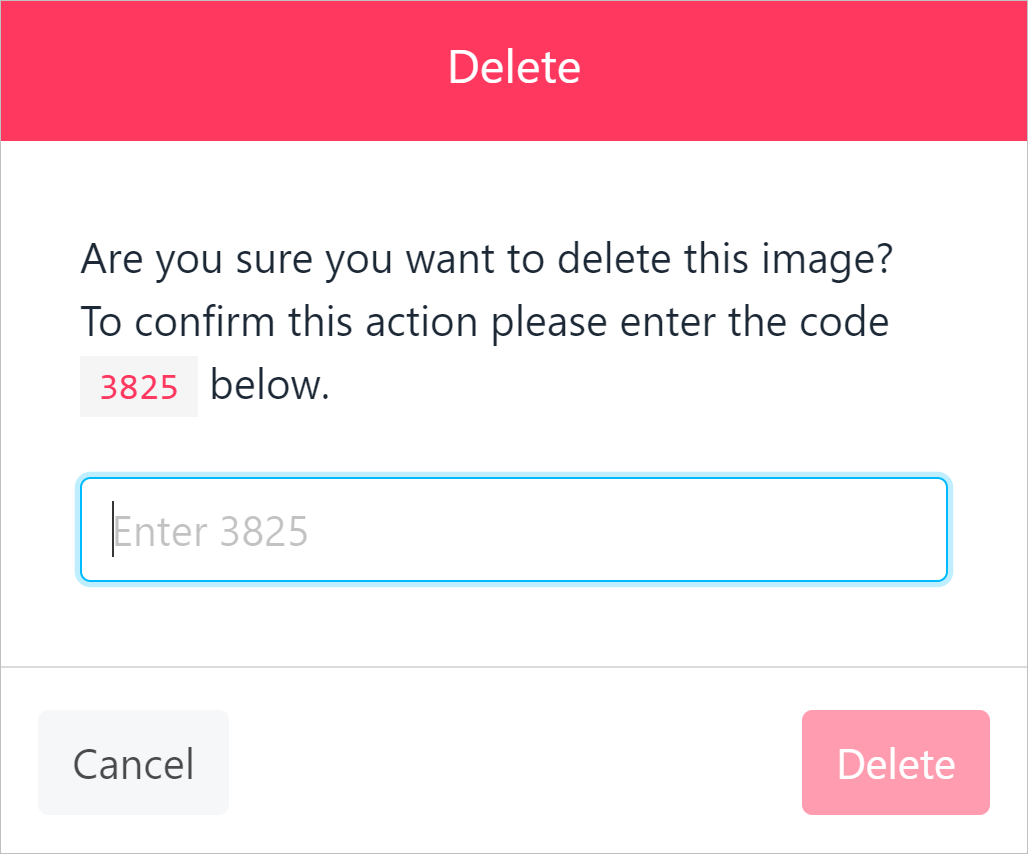
Enter confirmation code in pop-up window
Changing profile settings
You can add or edit information on the My profile panel.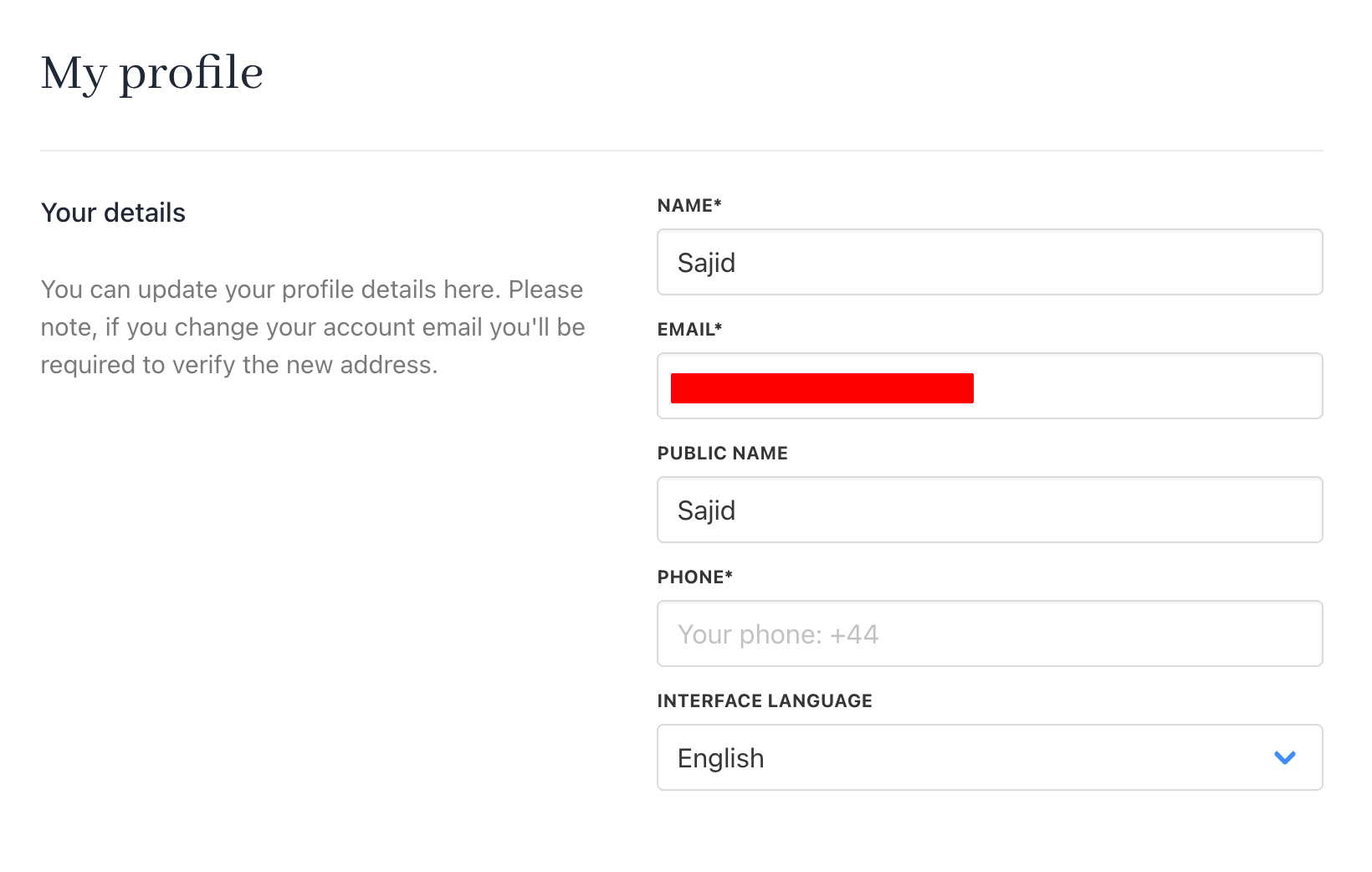
My profile settings
Email and name
Use your email to log in to Upmind. We also use that email address to send along service messages and notifications that you set up in our Notifications centre. Staff users and clients can see your name.Phone
We use your phone number for:- Phone number verification, if you forget your login or are blocked for security reasons.
- Two-factor authentication, if enabled.