

Create an account
- From the Upmind landing page, click on Start Free.
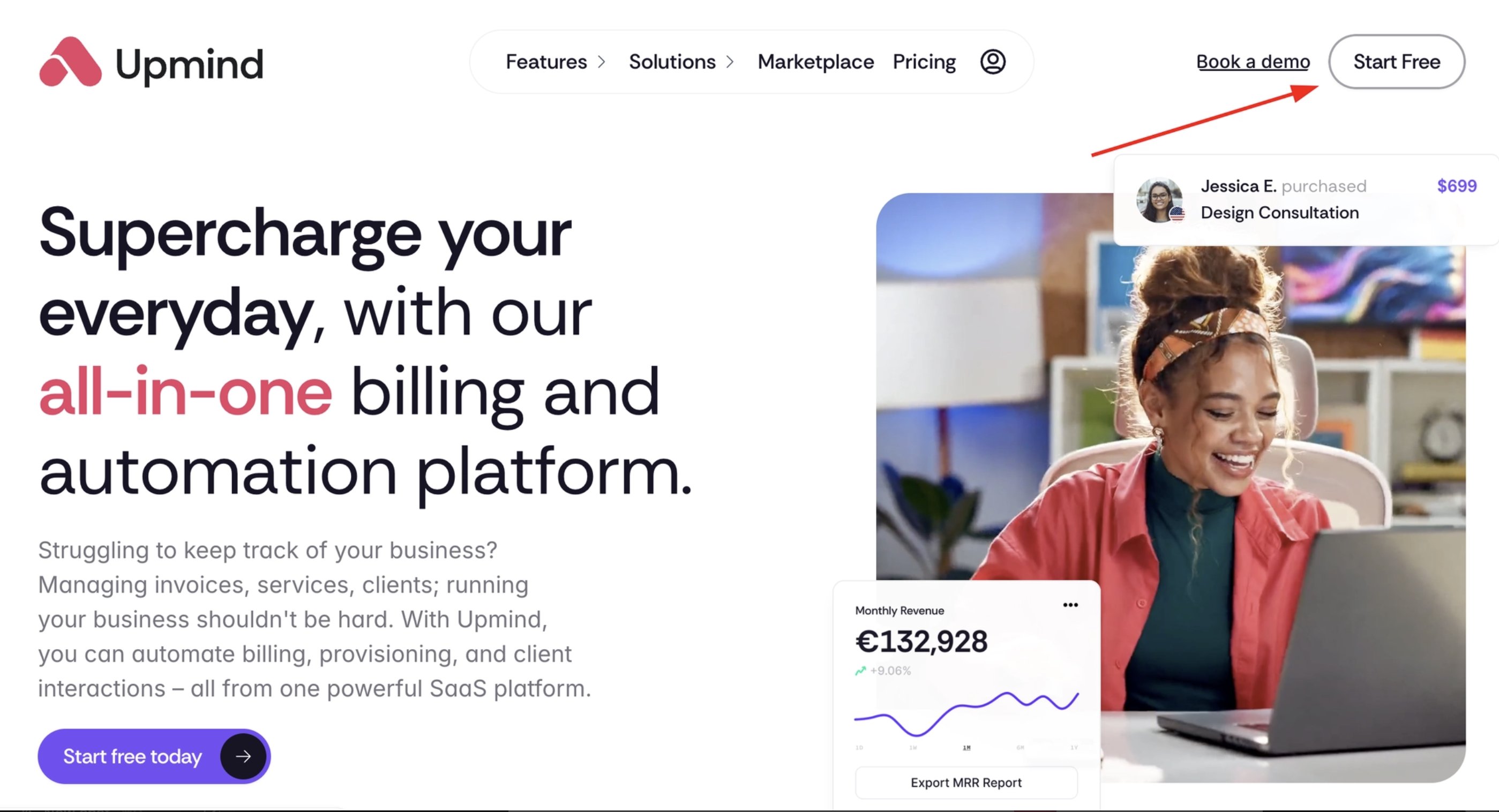
Start Free
- Enter your email and create your account.
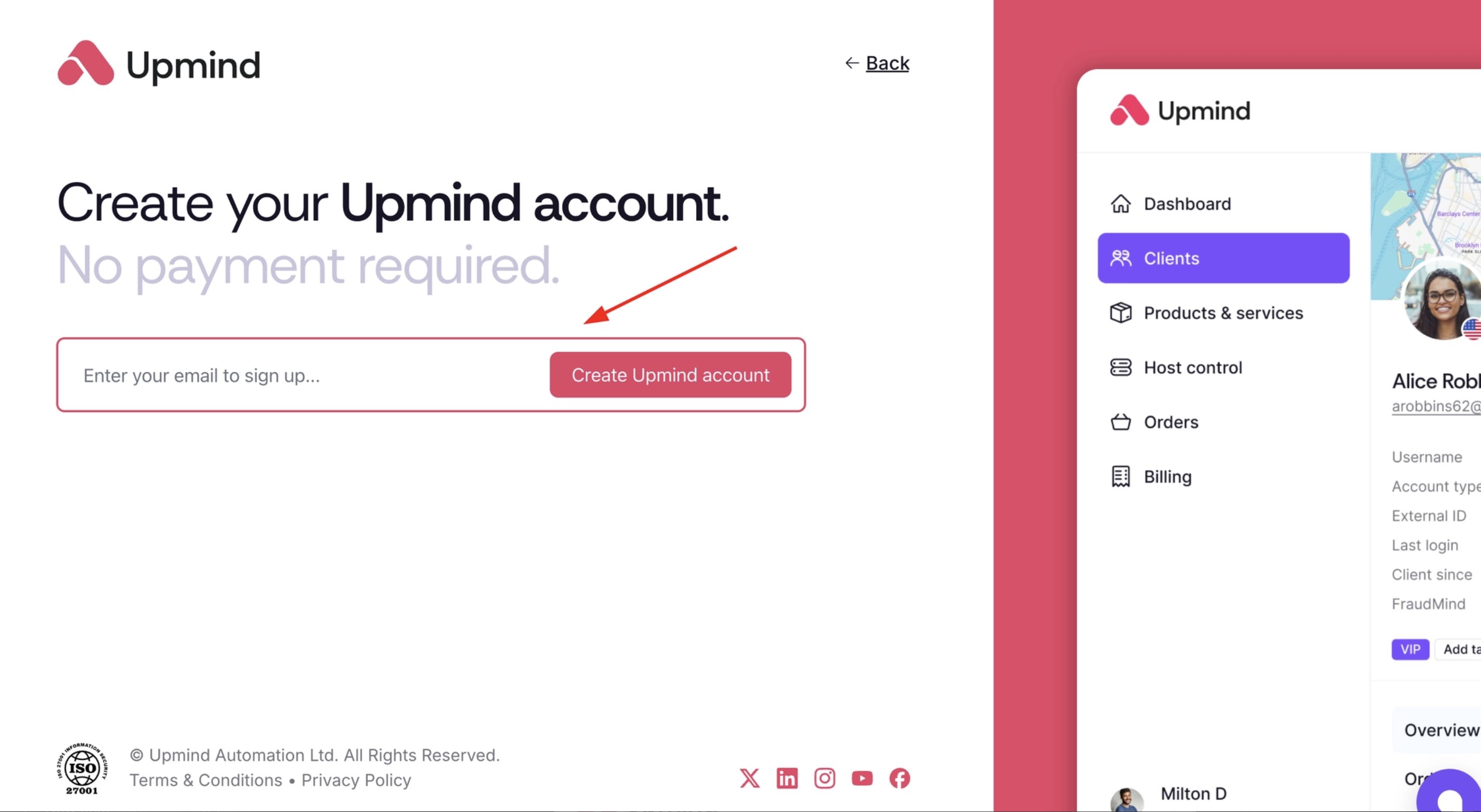
Enter email address
- You will need to verify your email address.
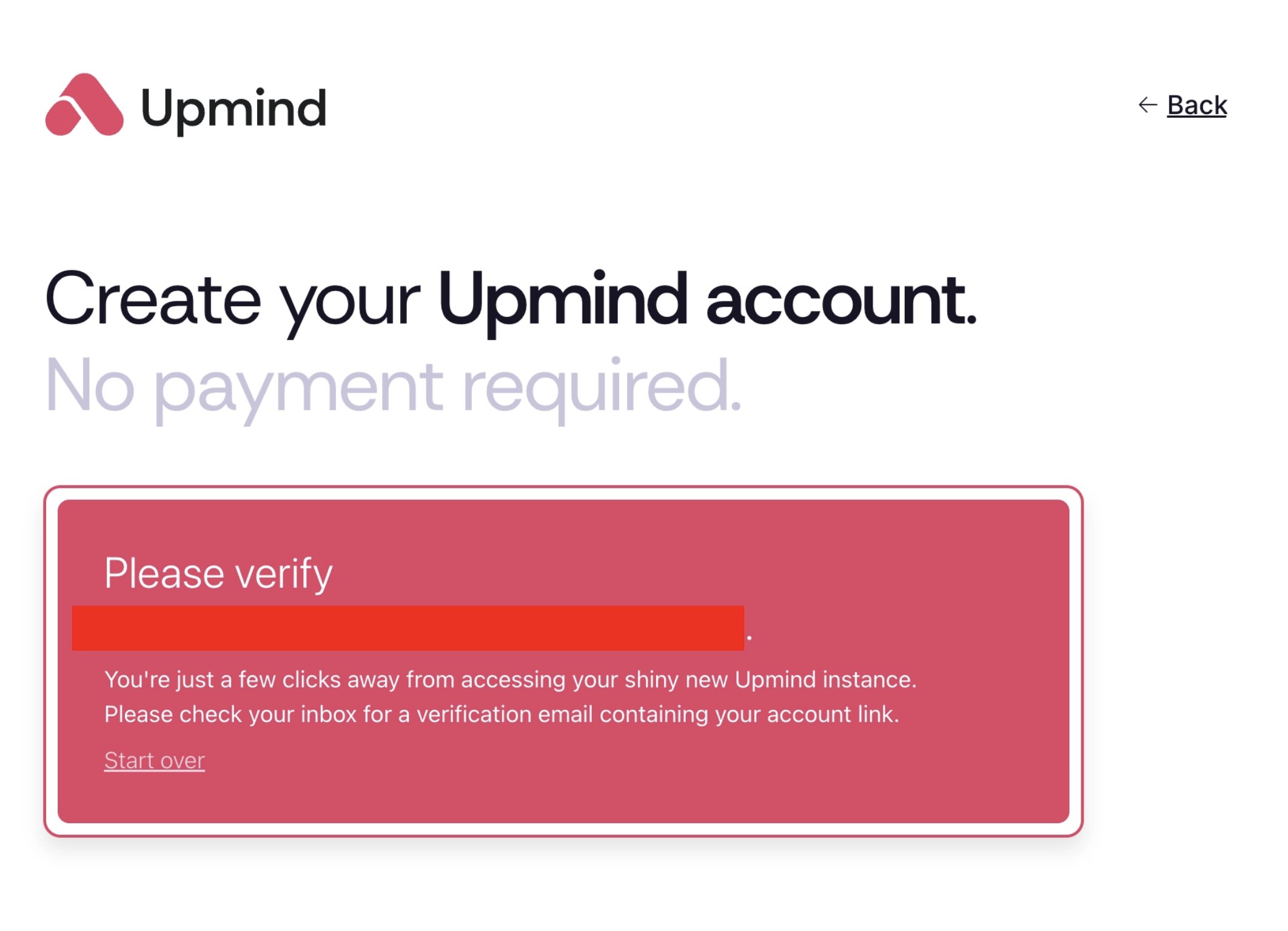
Verify your email
- Click on Complete Registration.
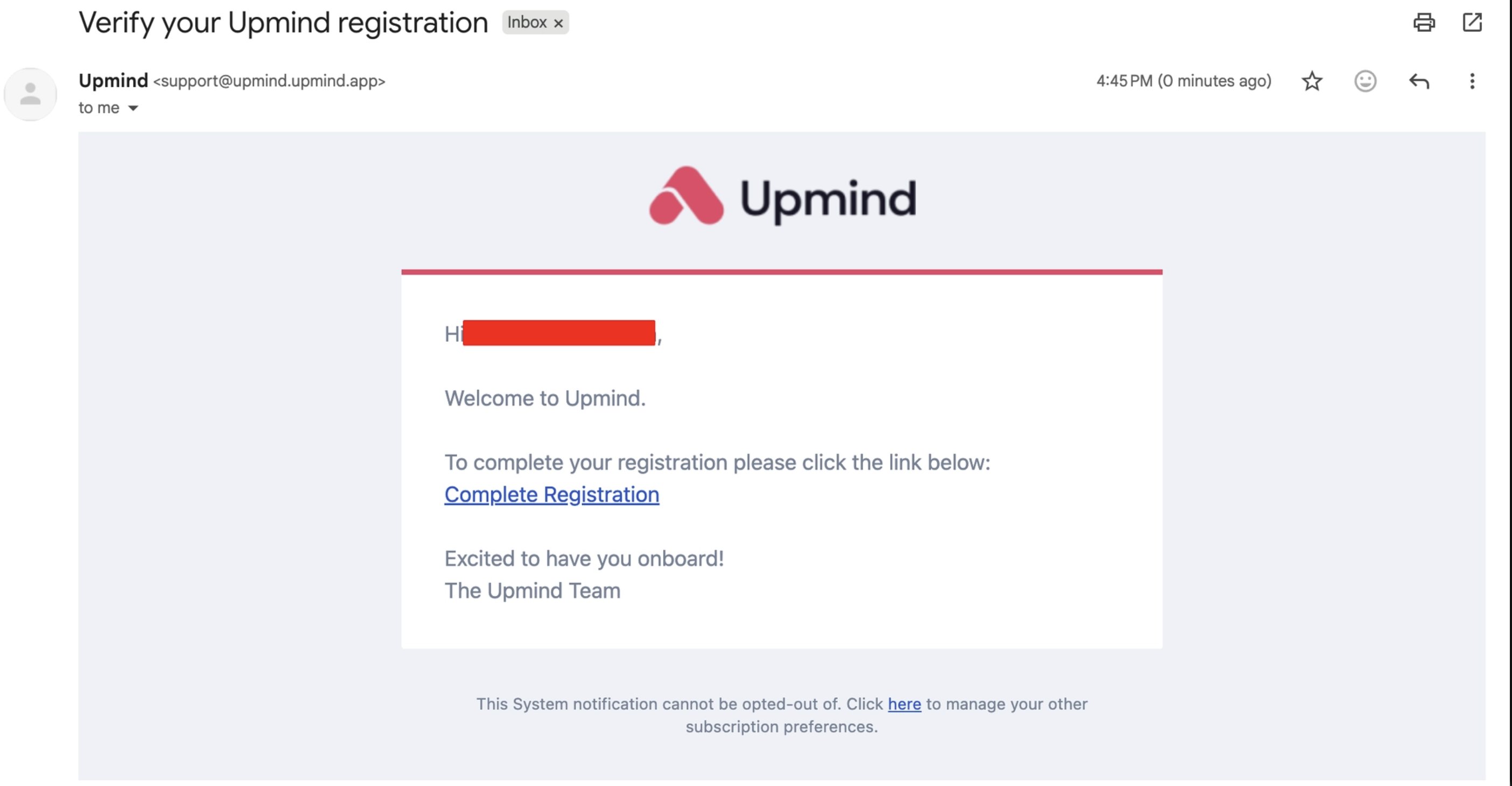
Click on complete registration
Signing up
- Enter your organisation name, your name, the desired account password, and choose the brand currency.
- You can also choose to seed the demo data, which will help you give Upmind a test drive. You can delete this data anytime.
- You can also check out our Terms & Conditions before you proceed.
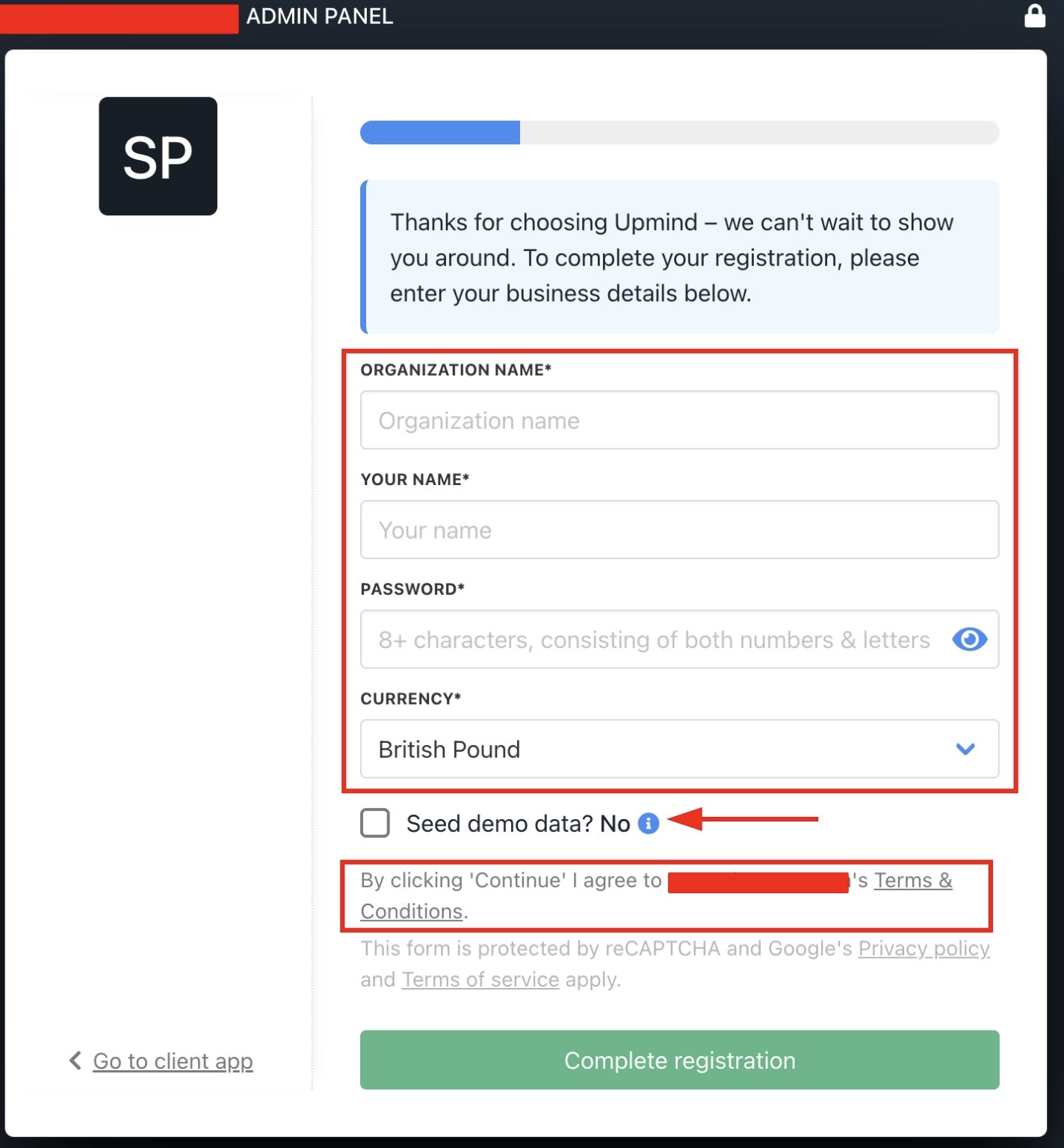
Fill in the details
- Click Continue.
Your domain
Upmind creates a subdomain for your online store. It has a randomly generated unique ID plus the extension .upmind.app. We encourage you to configure your own domain name (e.g., yourdomain.com or clientarea.yourdomain.com) after setup.Verifying an account
Upmind emails a message with a verification link. If the message does not arrive within five minutes, check your spam folder. Click the link. Your organisation’s admin dashboard opens in a new browser tab. Your account is live!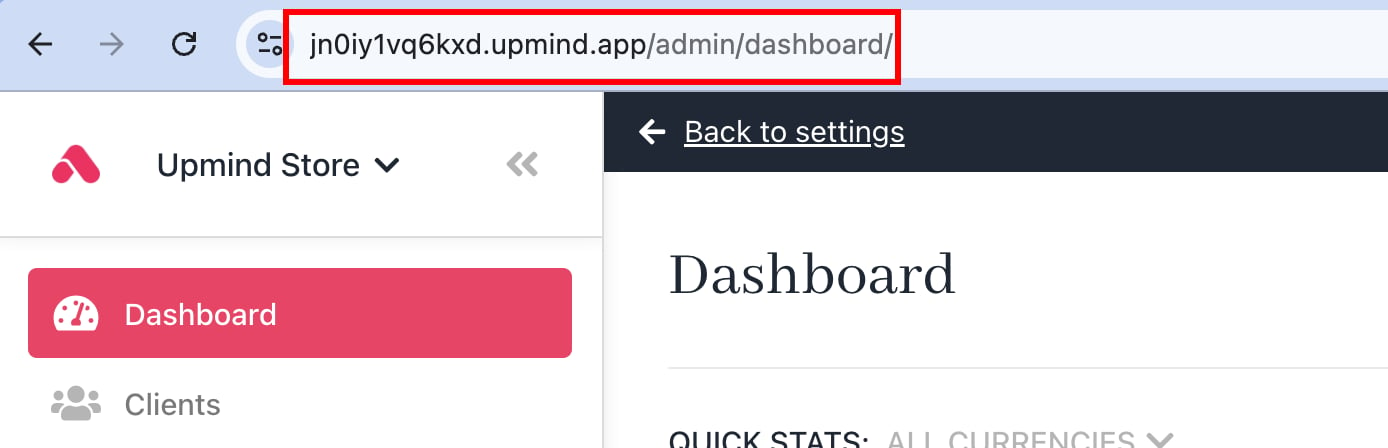
Unique URL
Changing the organisation name display
You can change the way your organisation’s name appears on the screen.- Click the Settings button in the bottom left corner of the screen.
- Click the Brand settings tile under Branding and Customisation.
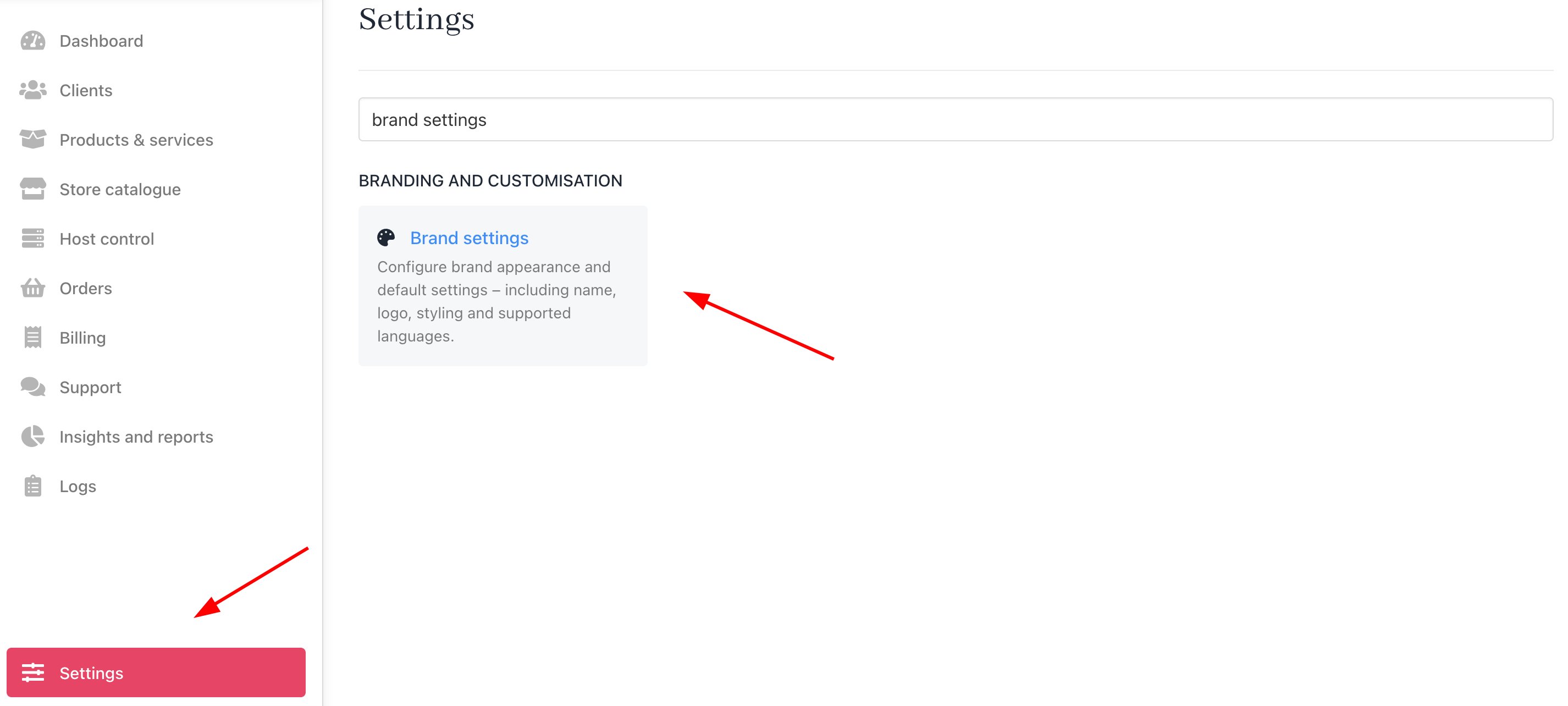
Settings > Branding and Customisation > Brand Settings
- Enter a new name.
- Click Save.
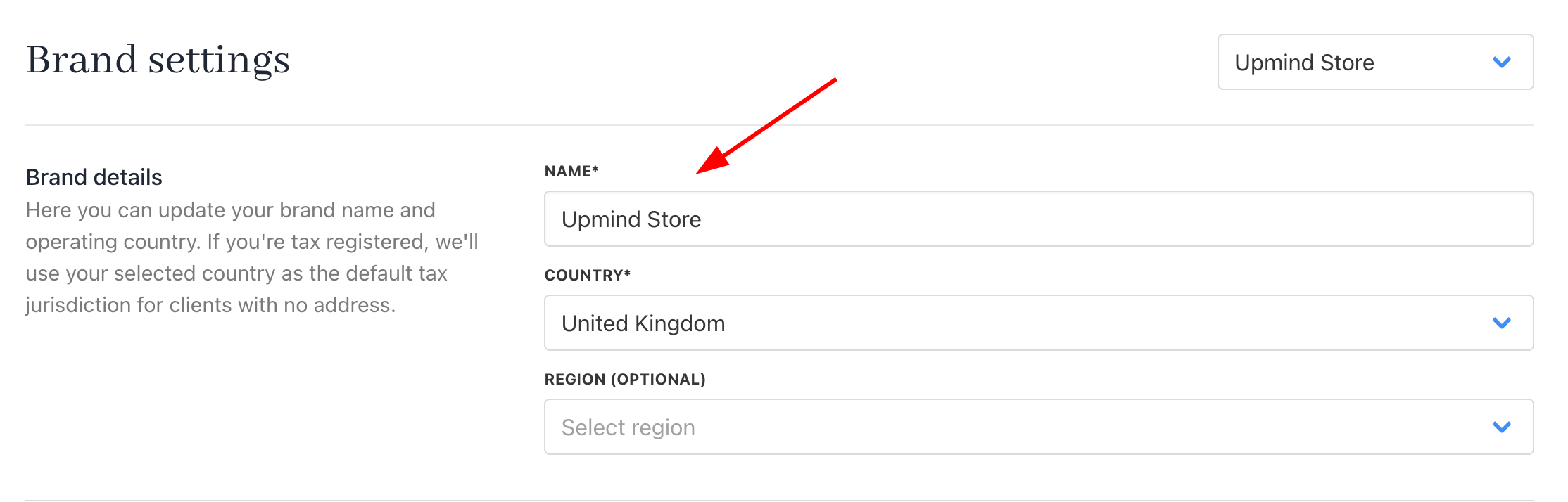
Enter a new brand name
Upmind automatically changes the organisation name (but not the domain name).

Upmind automatically changes the organisation name
Logging into the admin panel
Go to the Admin Panel login page and enter your credentials. That login page URL looks like this:- randomID.upmind.app/admin/auth/login
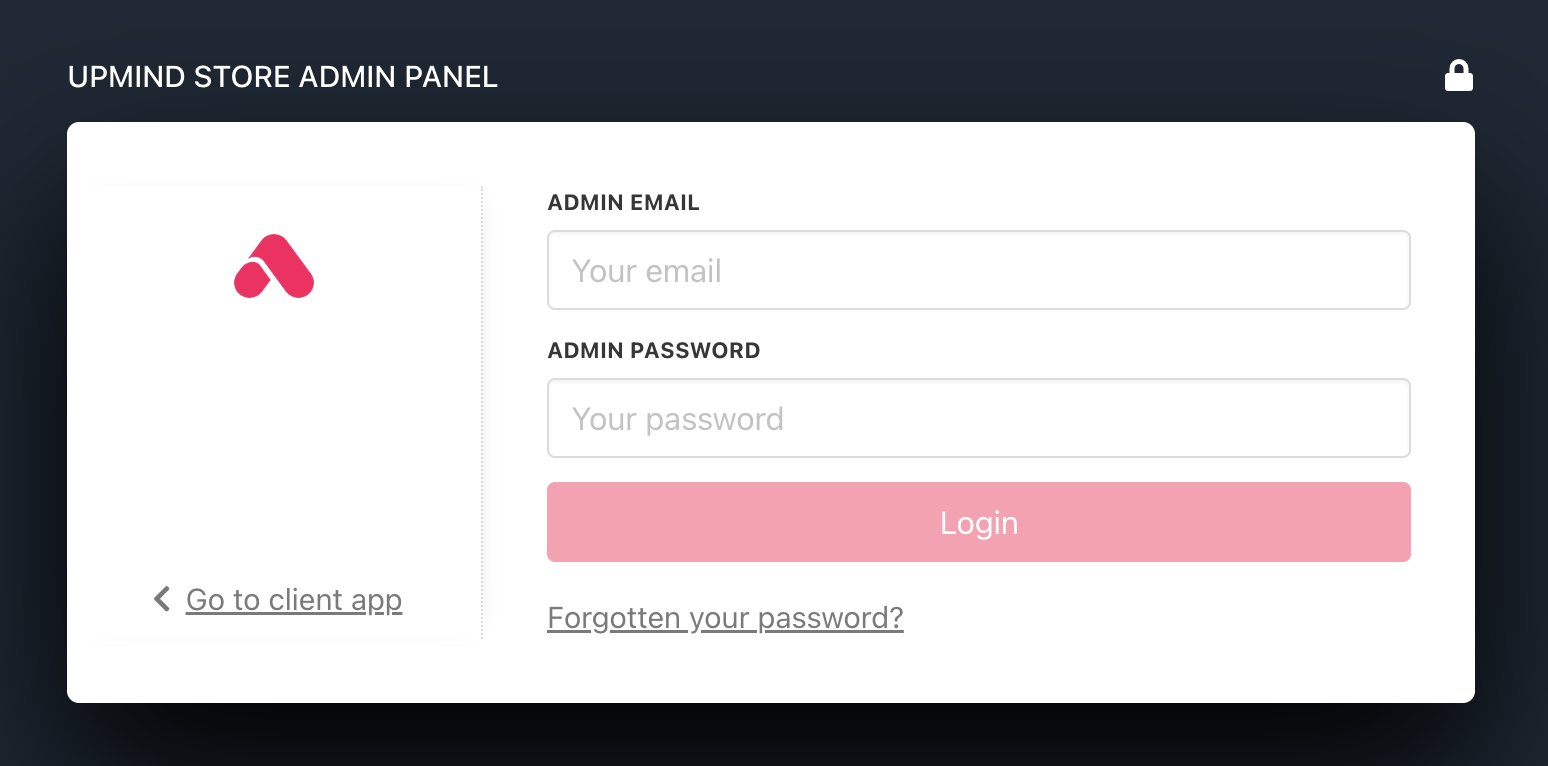
Admin login screen