

Adding a new payment gateway
- Log in to your Upmind admin dashboard.
- Click Settings at the bottom of the left menu and select Payment Providers.
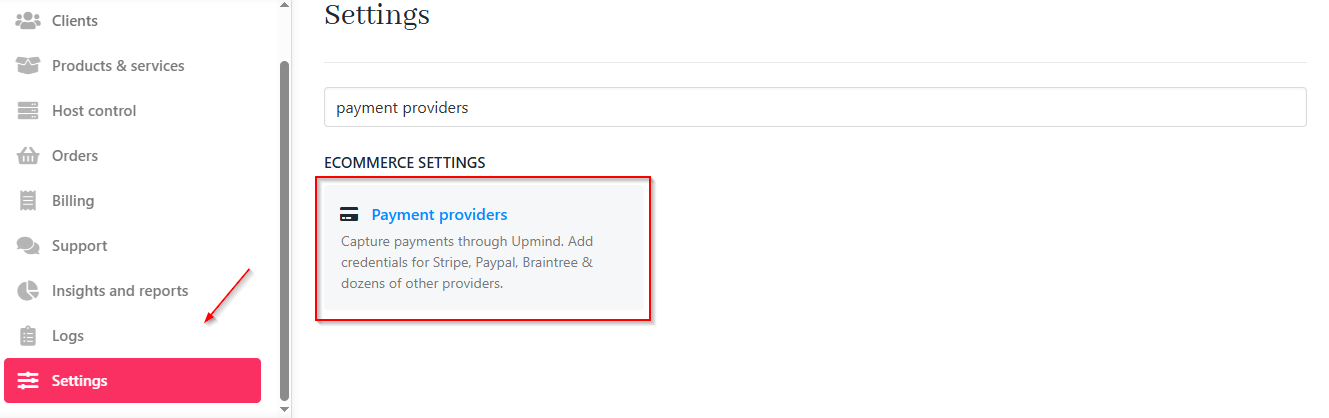
Settings > Payment providers
- Click Add Payment Provider.

Add payment provider
- Choose a payment provider from the list.
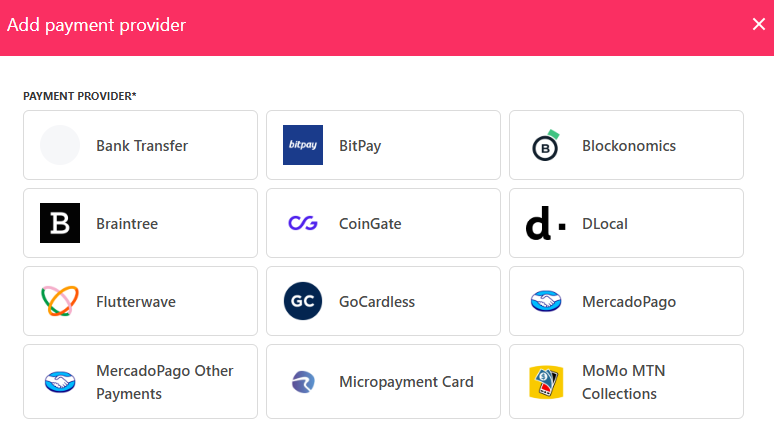
Choose a payment provider
- Fill in the required fields.
Each payment option requires different information. We selected the Stripe option for this example. To obtain specific information, like an API key, go to your payment provider account.
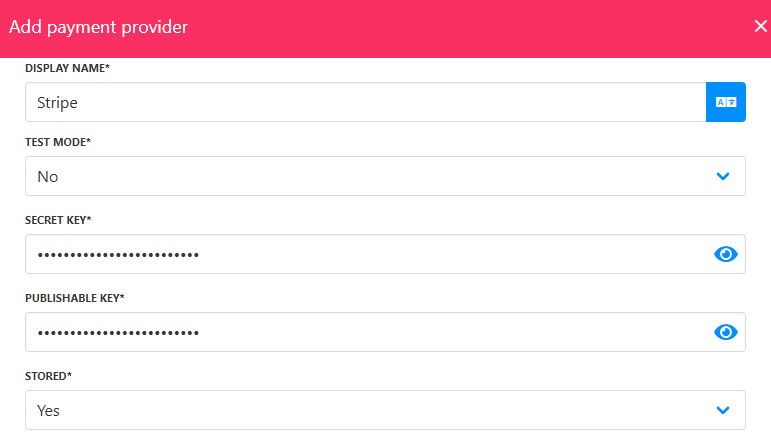
Fill in the details
- Test your credentials to confirm the correct setup. (Optional)
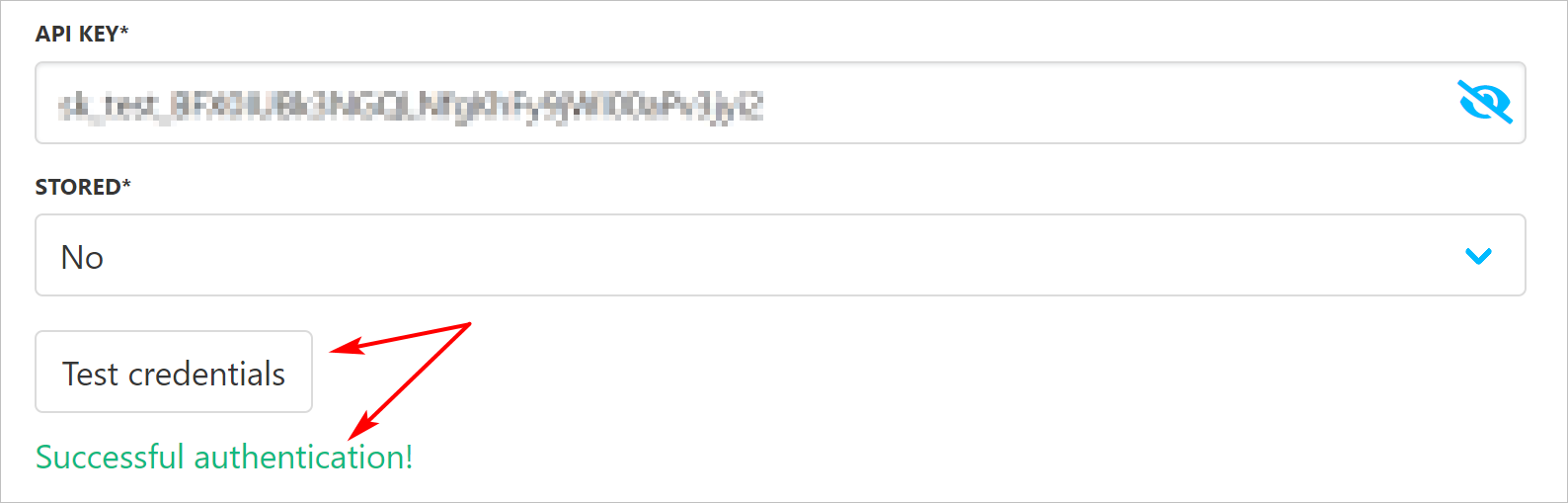
Test credentials
- Use toggle switches to enable or disable credit card acceptance.
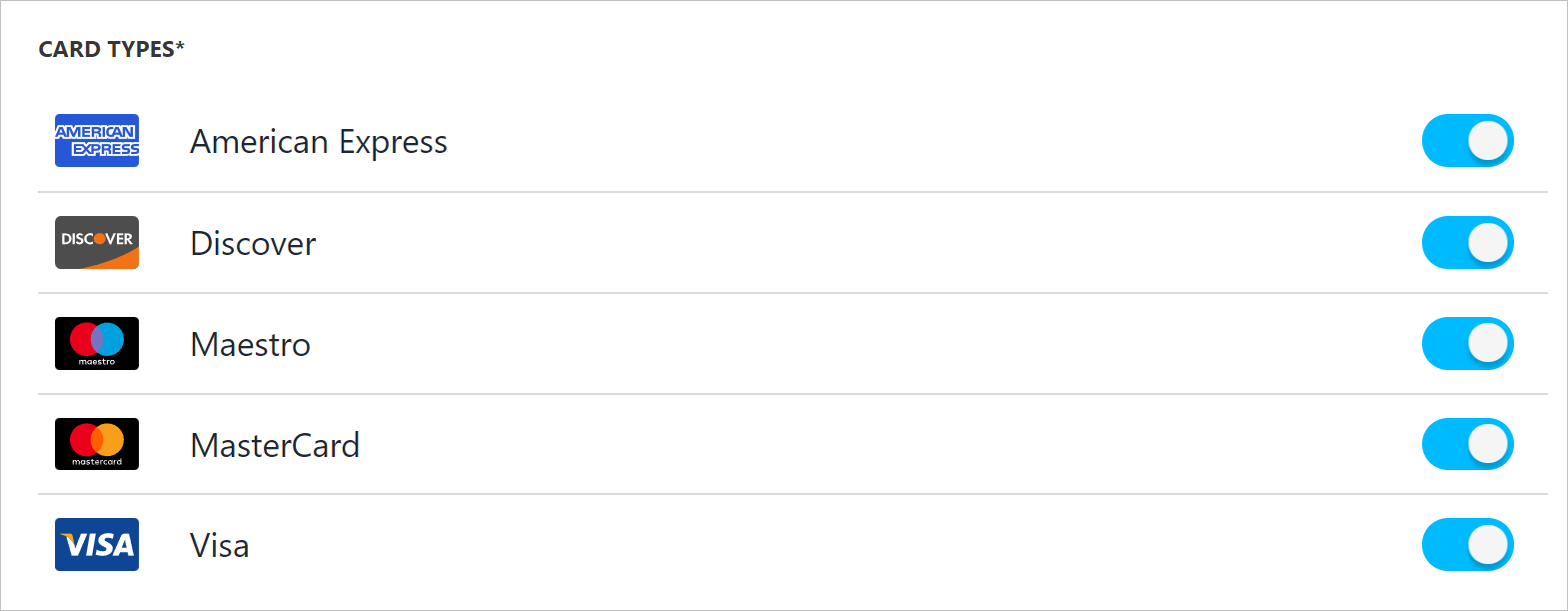
Enable/disable card types
- Select which currencies you want to accept for this gateway.
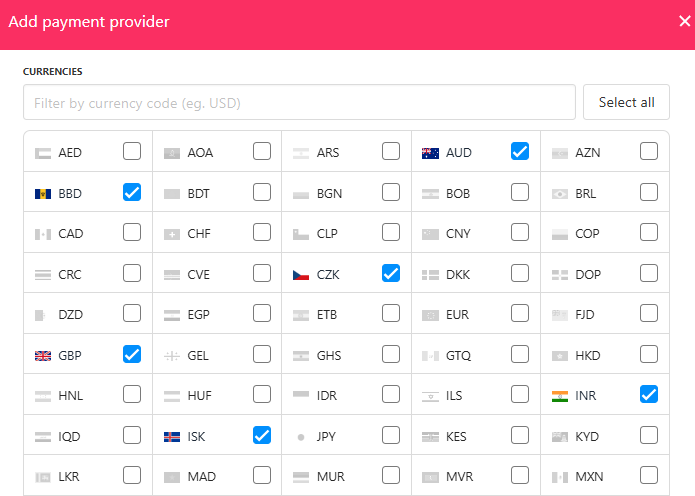
Select currencies
- Specify the countries where this payment provider should be available.

Enable for countries
- (Optional) Add payment instructions for clients.
- Click Update to save your settings.
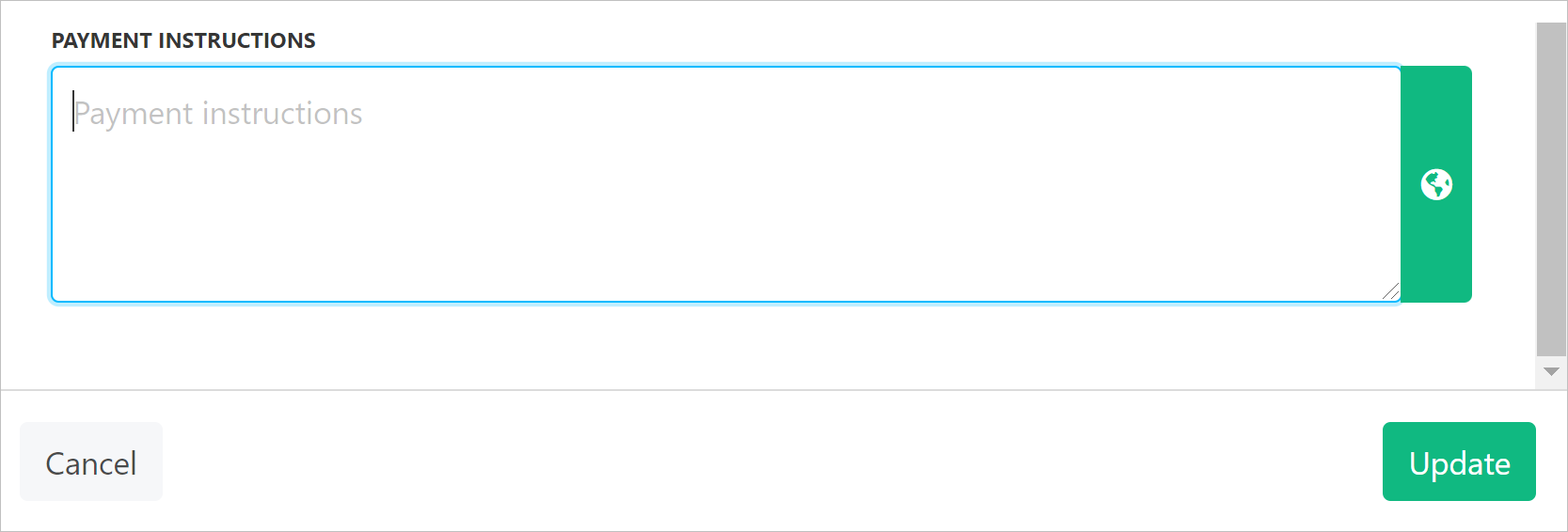
Payment instructions
Editing payment visibility
You can control which payment provider options the client can access on the checkout page. To control visibility, toggle the switch ON (green) to show the gateway at checkout.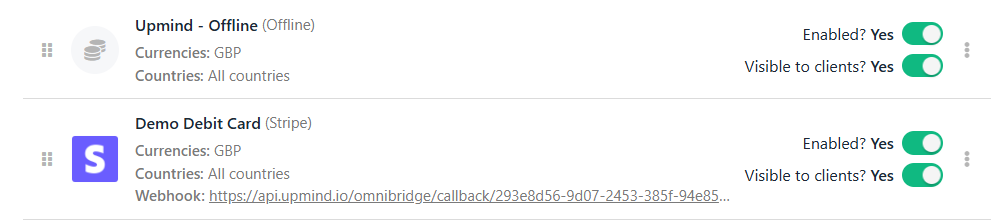
Payment visibility (enabled)
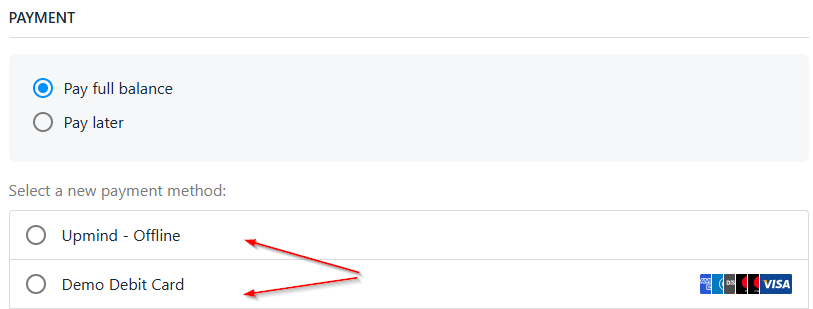
Multiple payment options
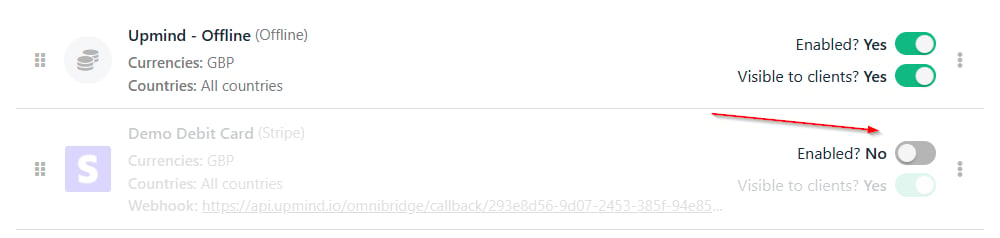
Payment visibility (disabled)
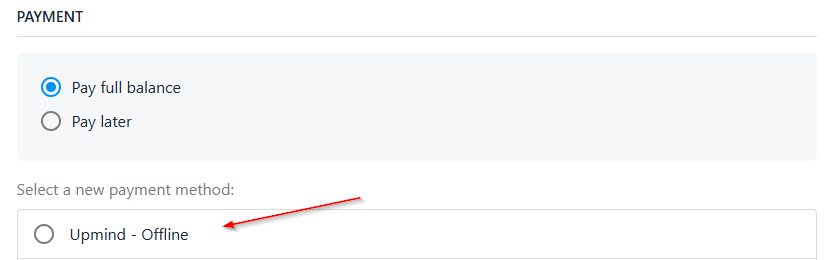
Single payment option
Editing a payment provider
To edit an existing payment provider, locate it in the list and click the gear icon. You can also delete any payment providers.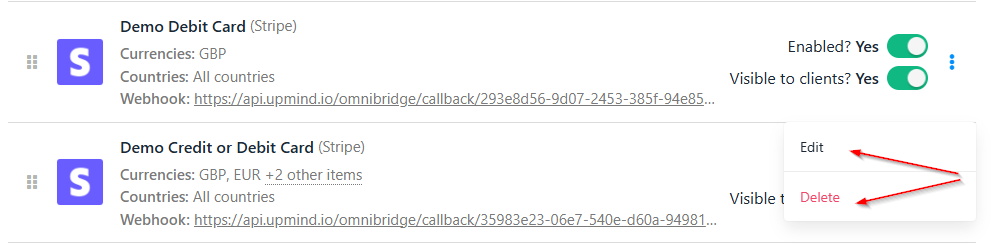
Edit payment provider

Payment instructions
Payment provider instructions display on the checkout only if the client selects that payment option.