

Adding a new provision
The first step is to configure a new provision. This is how you add web servers and domain providers via APIs.- Log in to your Upmind account.
- Go to Settings > Provision Configurations.
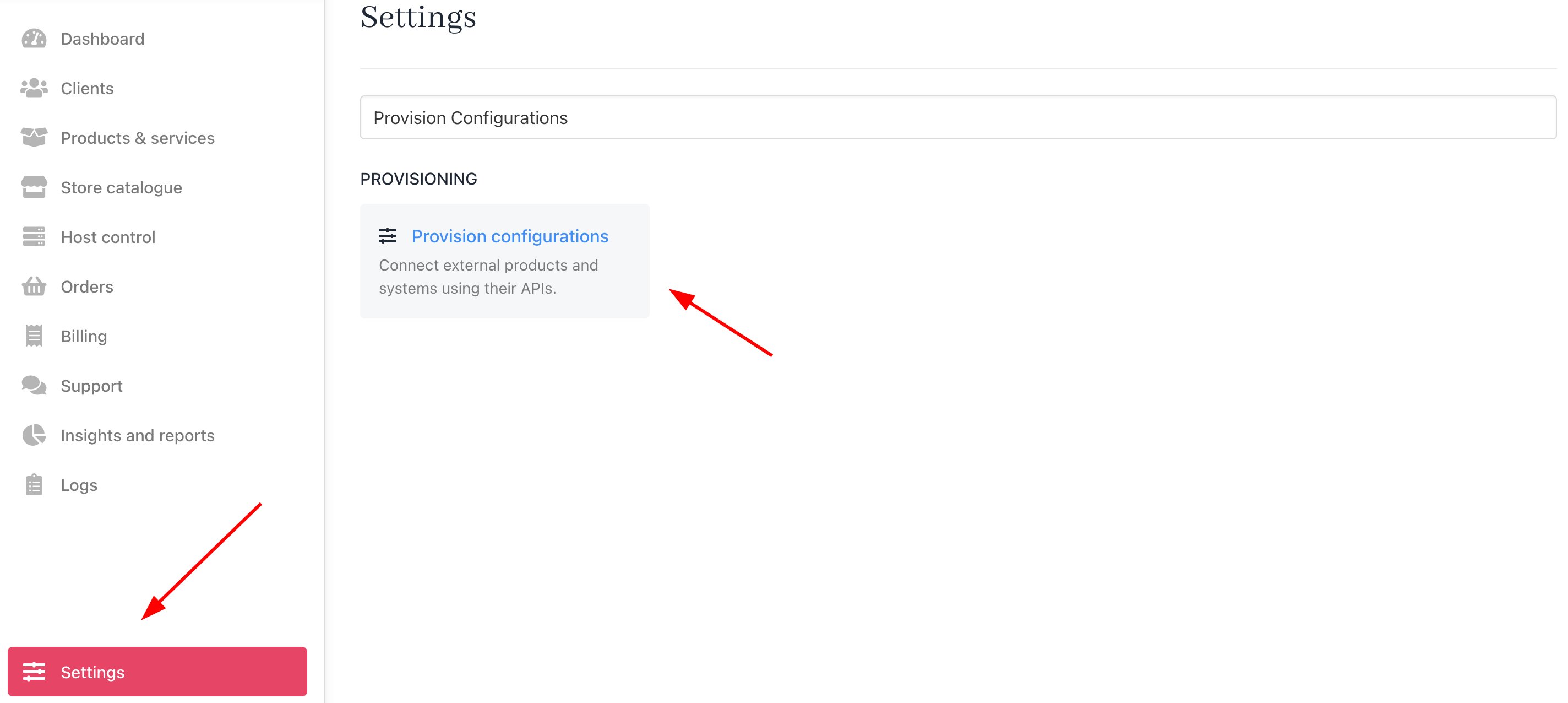
Settings > Provision Configurations
- Click the Add new configuration button to add a WHM server account. A new panel displays.
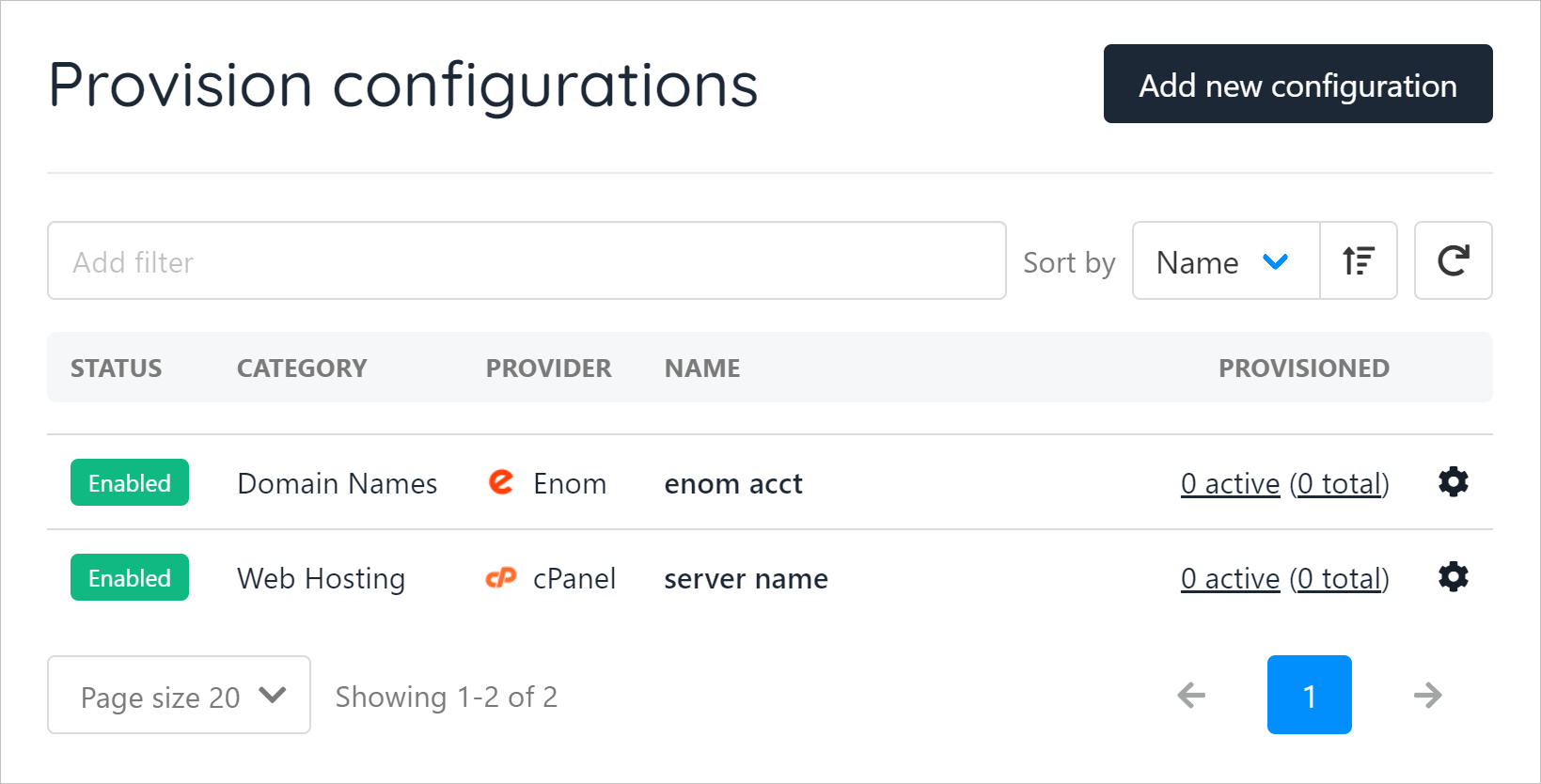
Add new configuration
Creating a provision
On the new panel:- Enter a unique name for the service.
- Click the Provision Category field and select Web Hosting.
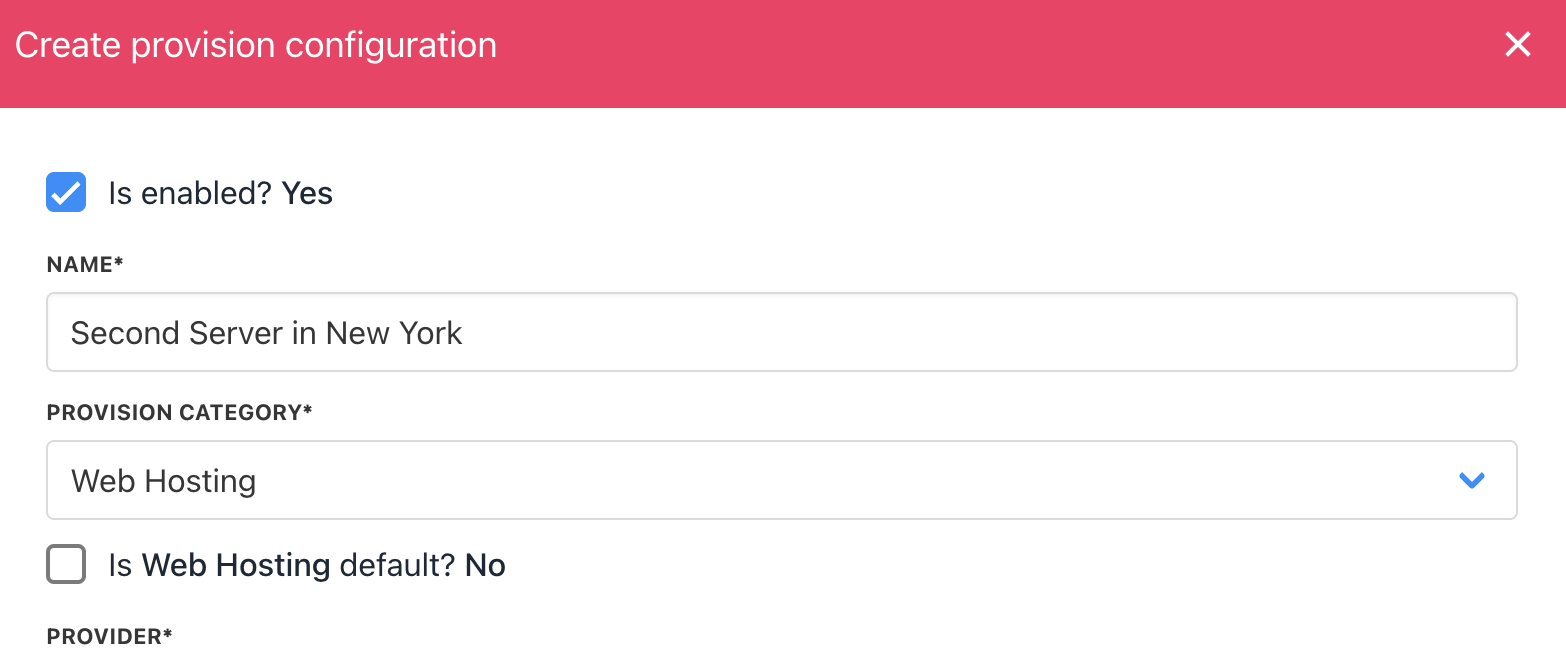
Select provision category
- Select a provider (e.g., cPanel, PLESK, or 20i Hosting). In this example, we select cPanel.
- Enter the hostname.
- Enter the WHM username.
- Enter the WHM API key.
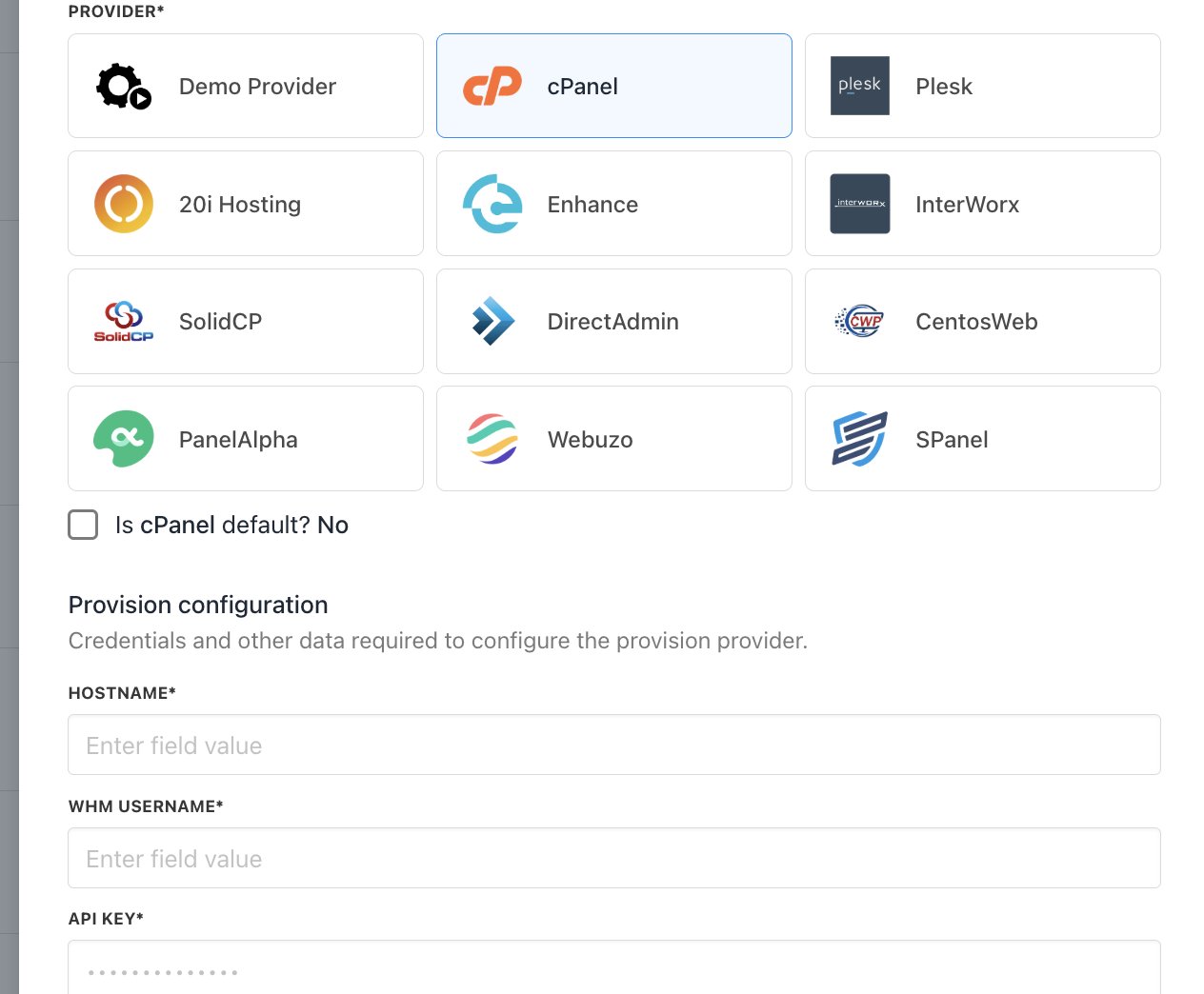
Enter details
- Click Create.
Copying WHM information
To complete all the fields in the panel described above, you need to find and copy three pieces of information on your WHM account:- Hostname
- WHM Username
- API key
- Open your reseller account.
- Select the package you want to add to Upmind.
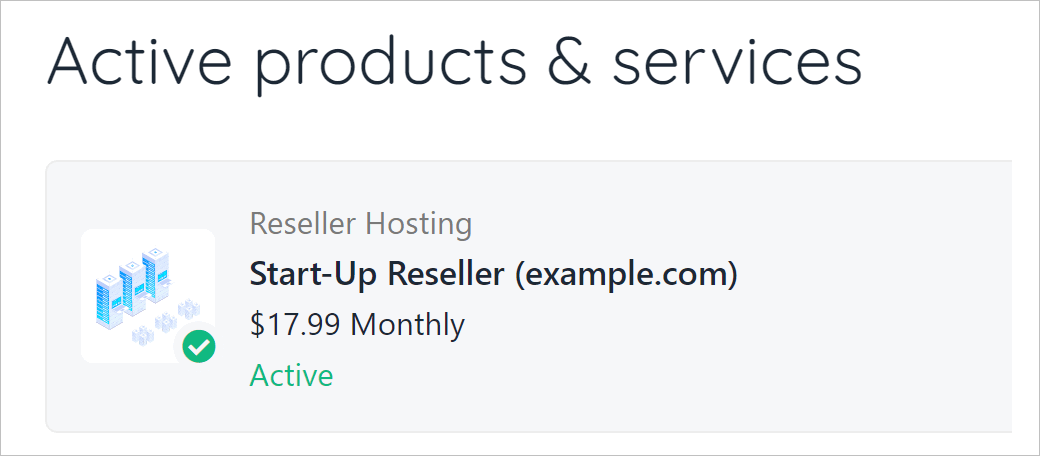
Select a reseller package
- On the next page, click the button that logs in to your WHM control panel.
The screenshot below shows a WHM control panel login button for one reseller website. The button on your site will likely look a bit different.

Log in to WHM control panel
Hostname
- Go to the browser tab with the WHM control panel.
- Copy a section of the URL. This is the hostname. Do not copy HTTPS://. Do not copy any characters after .com.
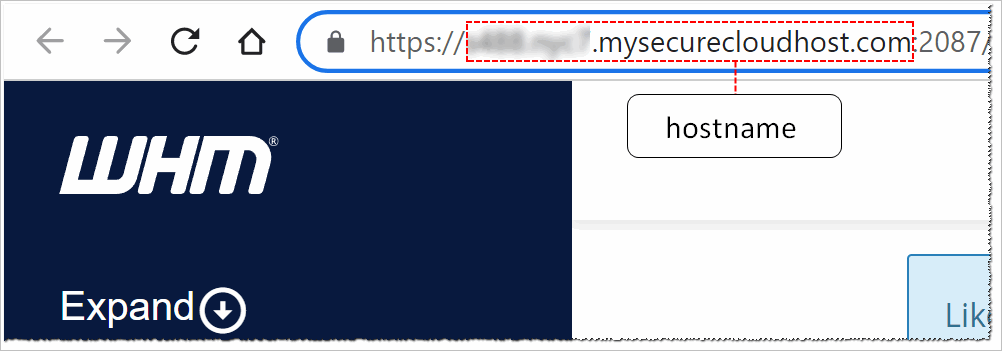
WHM hostname
- Go to the Upmind page and paste the value into the Hostname field.
- Go back to the WHM page.
WHM Username
- On the side menu, expand the Account Information folder and click List Accounts.
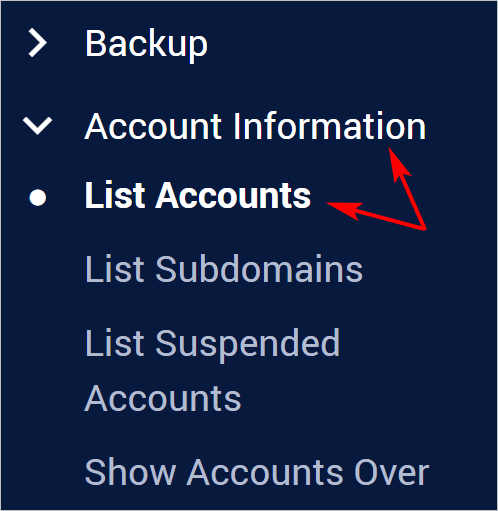
List WHM accounts
- On the List Accounts page, locate the Username column.
- Copy the WHM Username of your reseller account.

Copy username
- Go back to the Upmind page and paste the value into the WHM Username field.
- Go back to the WHM page.
API key
- Enter Manage API Tokens in the search field.
- Click the best search result.
- On the Manage API Tokens page, click Generate Token.
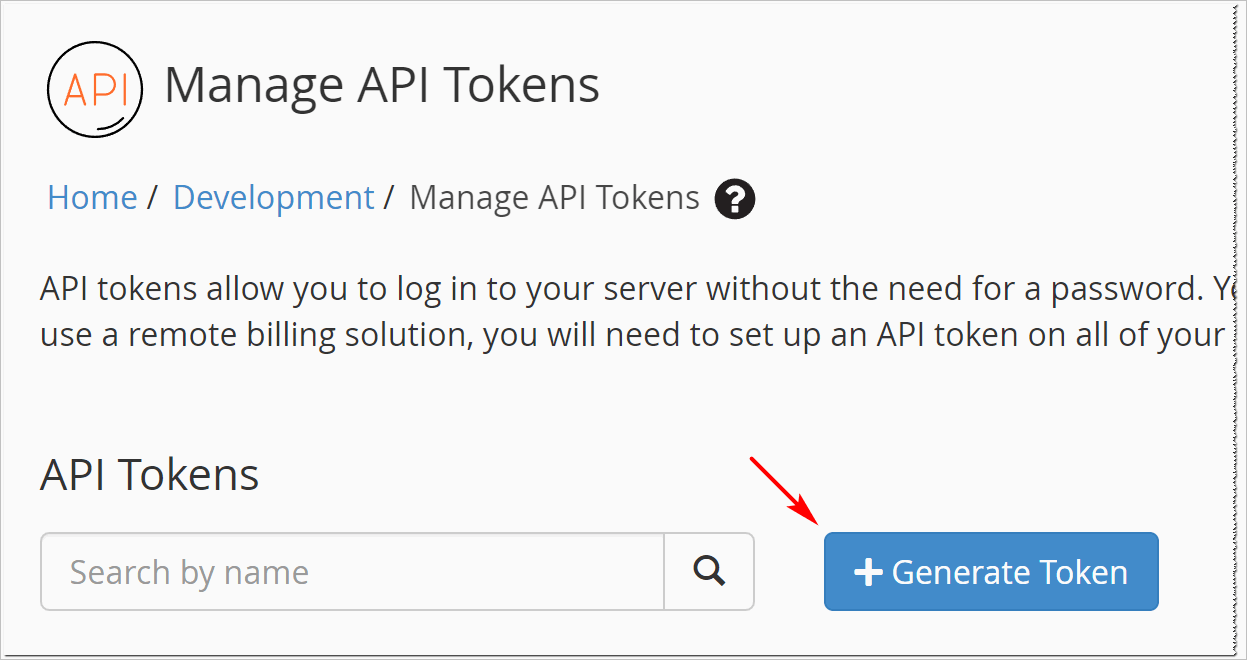
Generate an API key
- On the next page, enter a token name.
- Click Save.
- Go back to the Upmind page and paste the value into the API Key field.