

Upmind supports MercadoPago for card payments and local methods based on your account. Check in your MercadoPago account.
Getting MercadoPago credentials
- Log in to your MercadoPago account.
- Go to Your Integrations > Your Application > Production > Production Credentials.
- Copy your Access Token and Public Key.
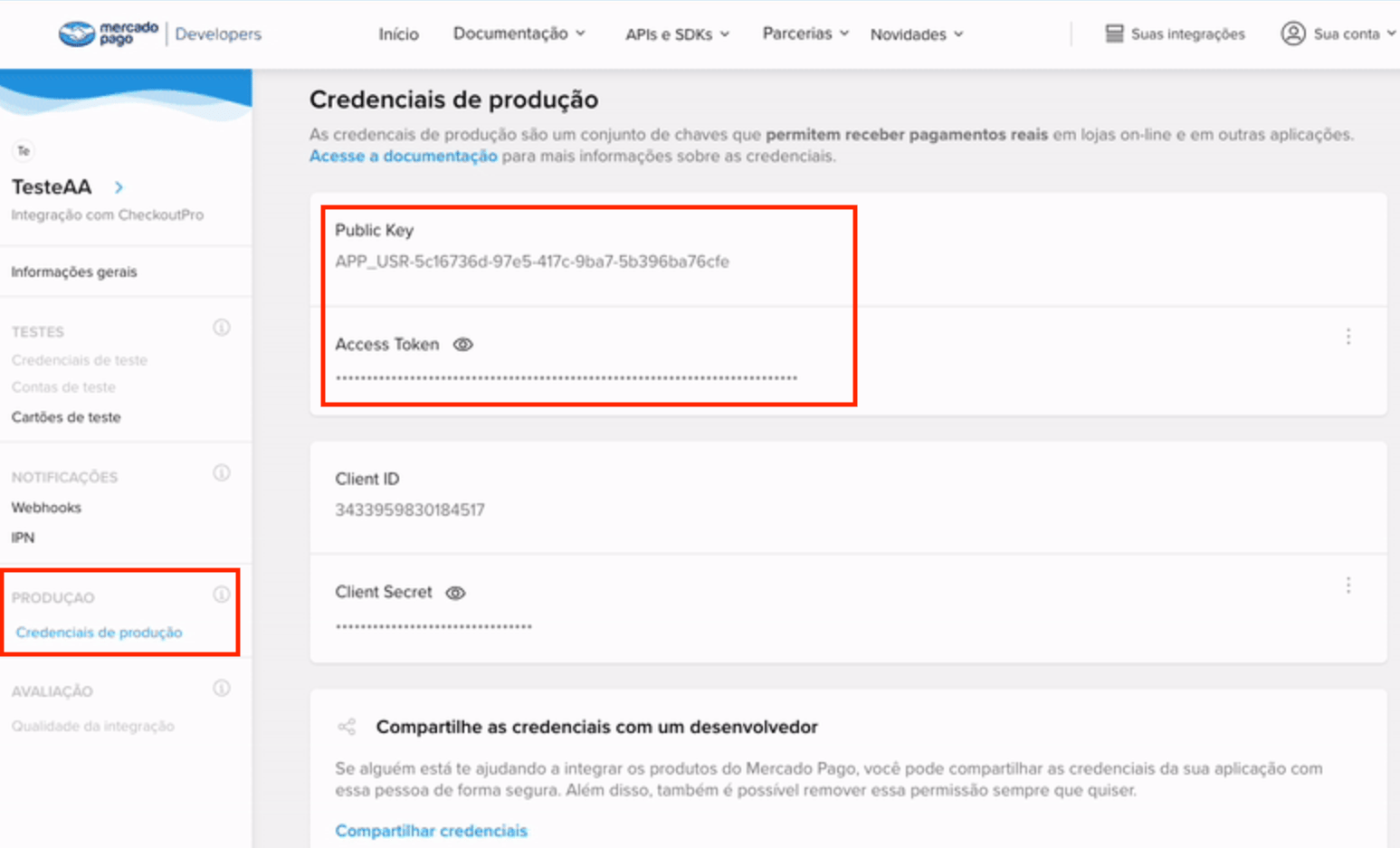
Access Token and Public Key
Adding MercadoPago Card in Upmind
- Go to Settings > Payment Providers in your admin area.
- Click Add Payment Provider and choose MercadoPago.
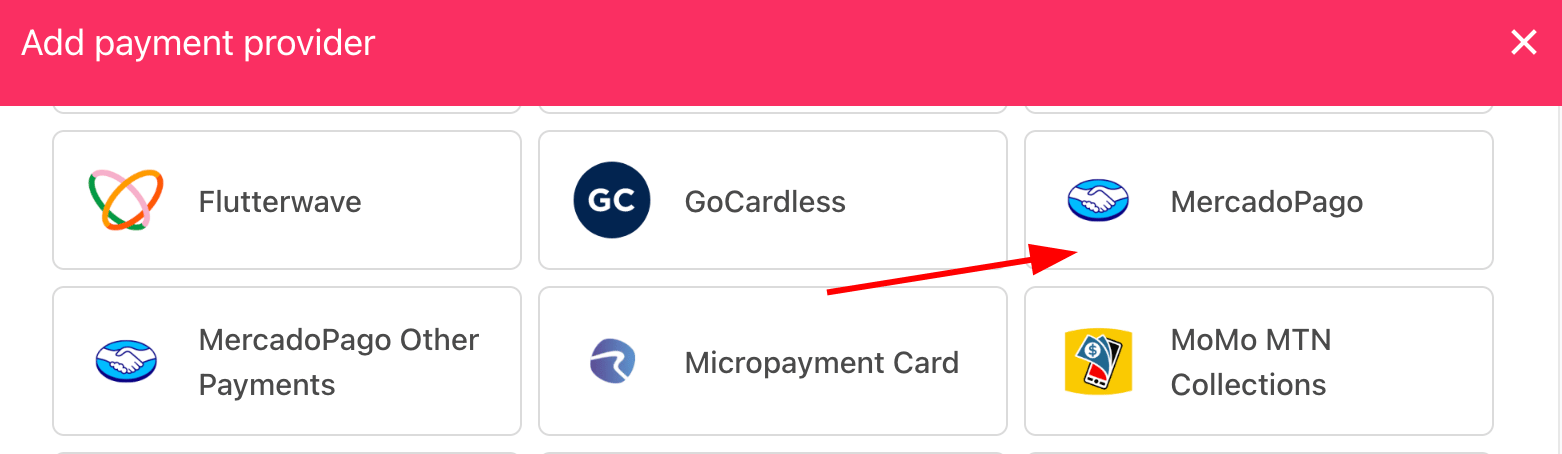
Select payment provider
Configure details
- Enter a display name. We suggest MercadoPago.
- Select Test Mode as needed.
- Enter your Access Token and Public Key.
- (Optional) Click Test Credentials.
- Select the currency matching your MercadoPago account.
- (Optional) Enter payment instructions.
- Click Create.
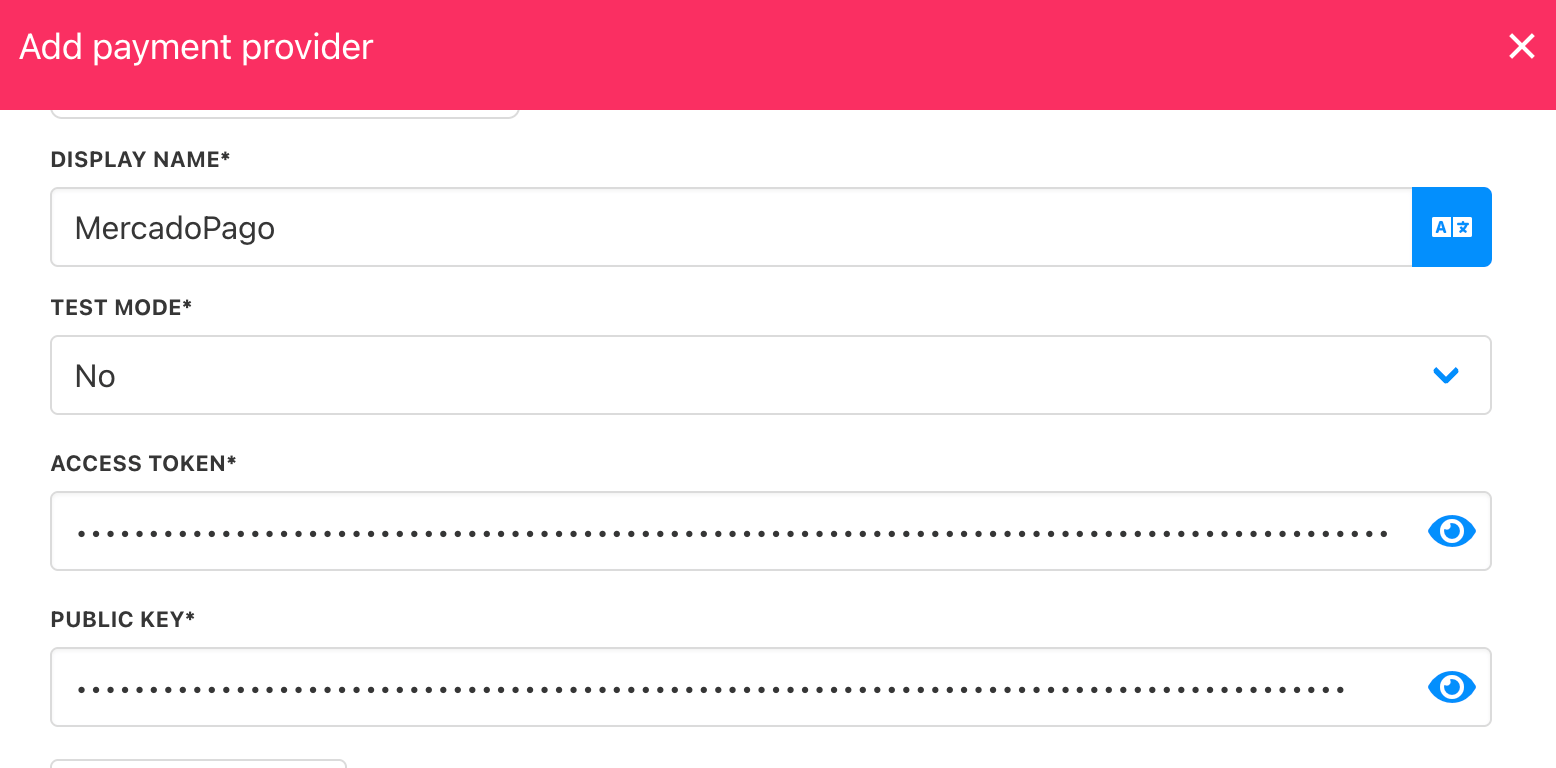
Add details
Adding MercadoPago Other Payments in Upmind
- Go to Settings > Payment Providers.
- Choose MercadoPago Other Payment.
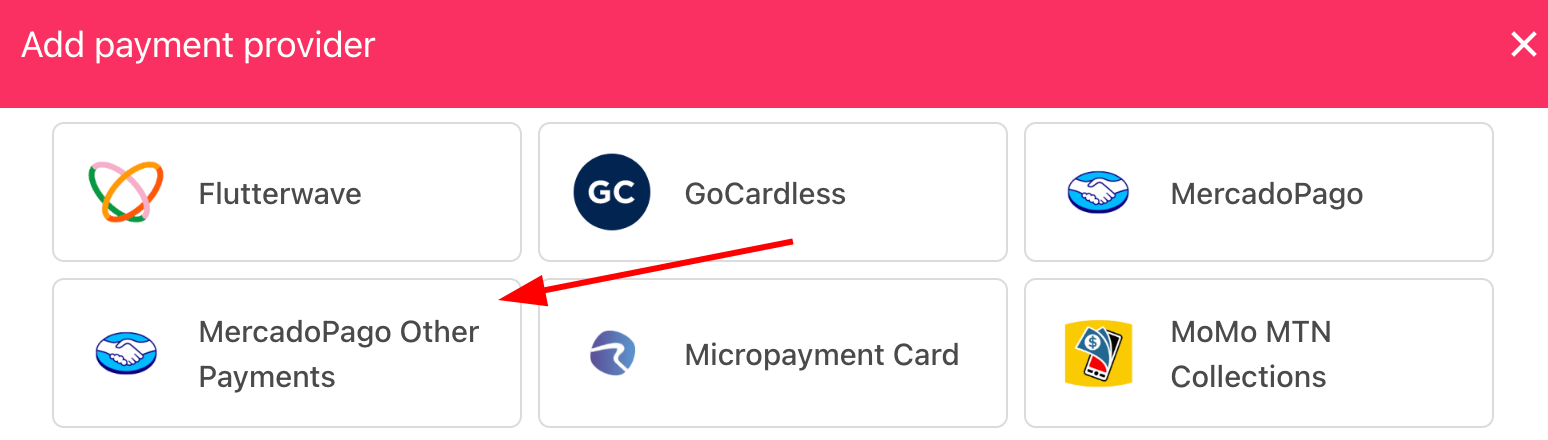
Select payment provider
Configure details
- Enter a display name. We suggest MercadoPago Other Payments.
- Select Test Mode as needed.
- Enter your Access Token and Public Key.
- (Optional) Click Test Credentials.
- Select the currency matching your MercadoPago account.
- (Optional) Enter payment instructions.
- Click Create.
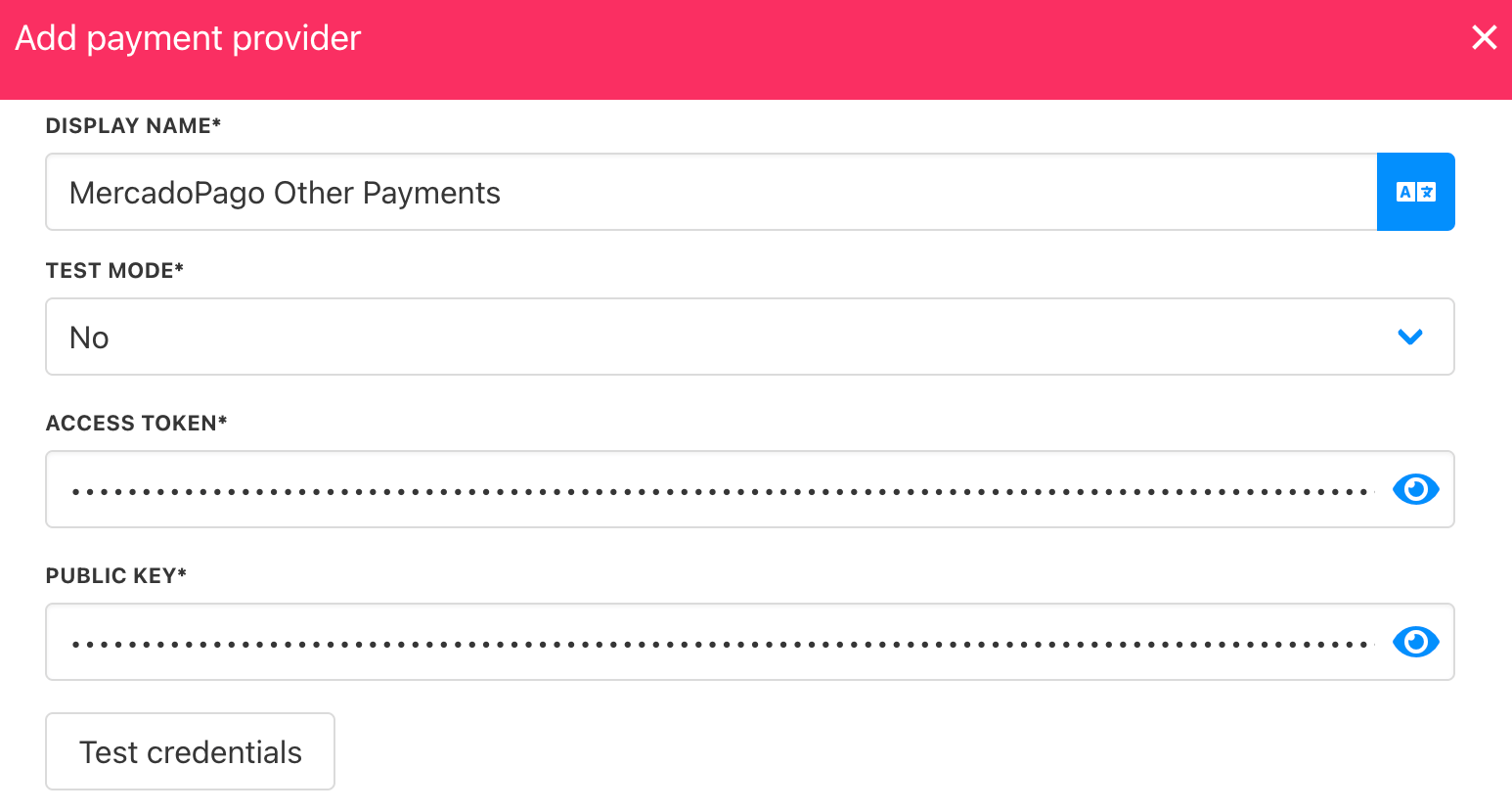
Add details
When setting up MercadoPago in Upmind, select one currency that matches your MercadoPago account (e.g., MercadoPago Colombia > COP).For multiple currencies, set up each MercadoPago account separately with its own credentials and currency (e.g., MercadoPago Argentina > ARS).MercadoPago Other Payments redirects customers to a payment page where they can make a one-time payment using any option available in your account.
Editing the payment method
To update, go to Settings > Payment Providers, click the three dots next toMercadoPago, and select Edit.