

Getting RazorPay API credentials
- Log in to your RazorPay account.
- Go to Accounts & Settings > Settings > API Key and click Regenerate Key to obtain your Key ID and Key Secret.
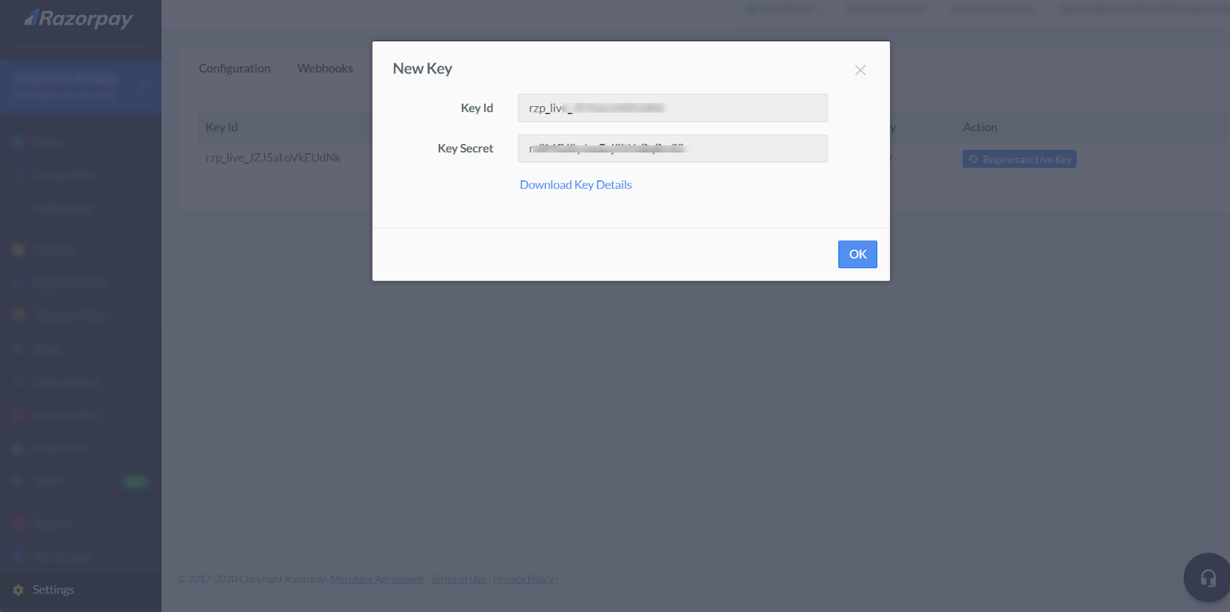
Key ID and Key Secret
Adding RazorPay in Upmind
- Go to Settings > Payment Providers in your admin area.
- Click Add Payment Provider and select RazorPay.
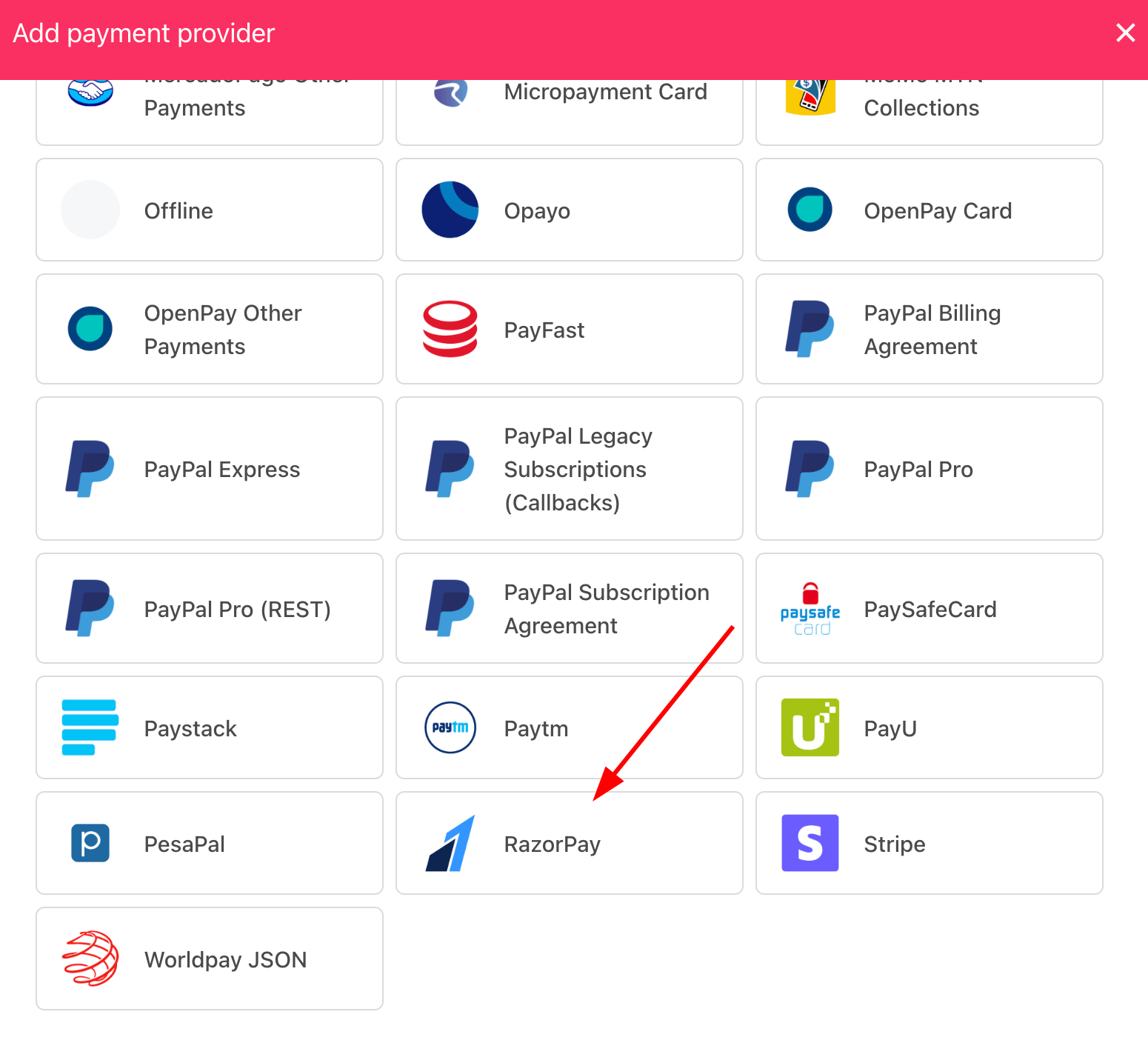
Select payment provider
Configuring details
- Enter a display name. We suggest RazorPay.
- Select the appropriate Test Mode option.
- Enter your Key ID and Key Secret.
- Click Test Credentials to verify.
- (Optional) Add supported currencies.
- (Optional) Enter payment instructions for your customers.
- Click Create.
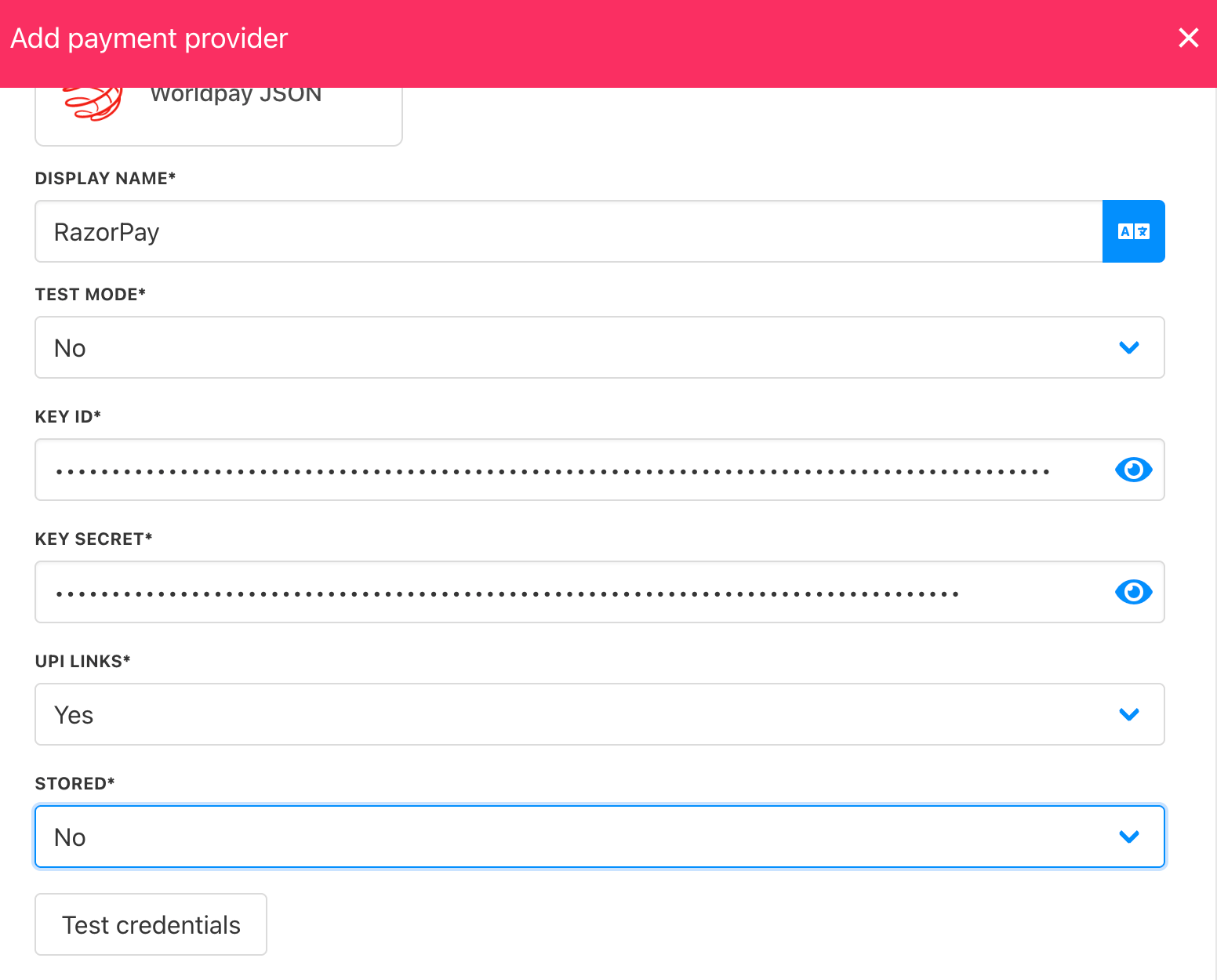
Add details
Editing the payment method
To update, go to Settings > Payment Providers, click the three dots next toRazorPay, and select Edit.
Configure RazorPay webhook
You must configure the RazorPay webhook so Upmind always receives transaction updates.- Log in to your RazorPay dashboard.
RazorPay login
- Go to
Account & Settings.
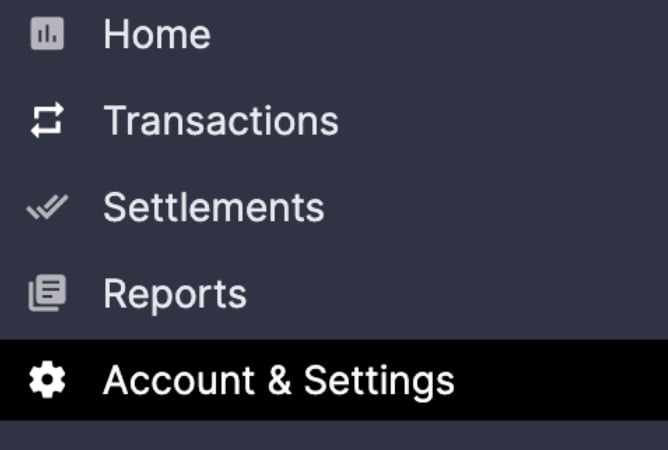
Account & settings
- Click Webhooks under Website and app settings.
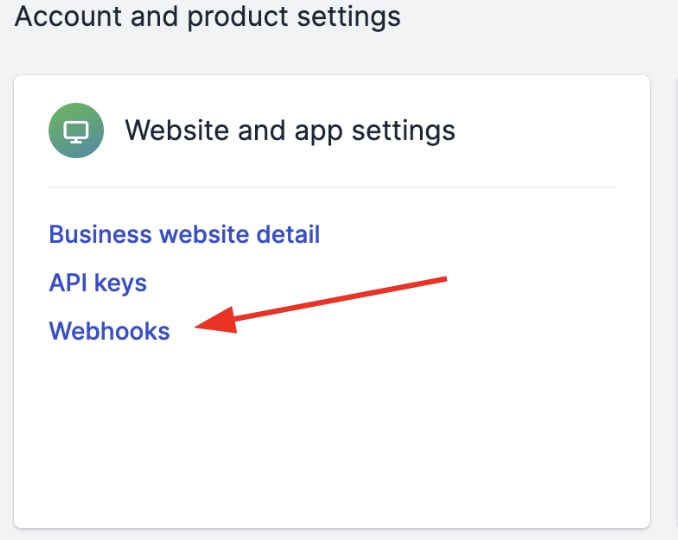
Website and app settings > Webhooks
- Click + Add New Webhook.

Add New Webhook
- Enter the public HTTPS URL of your endpoint.
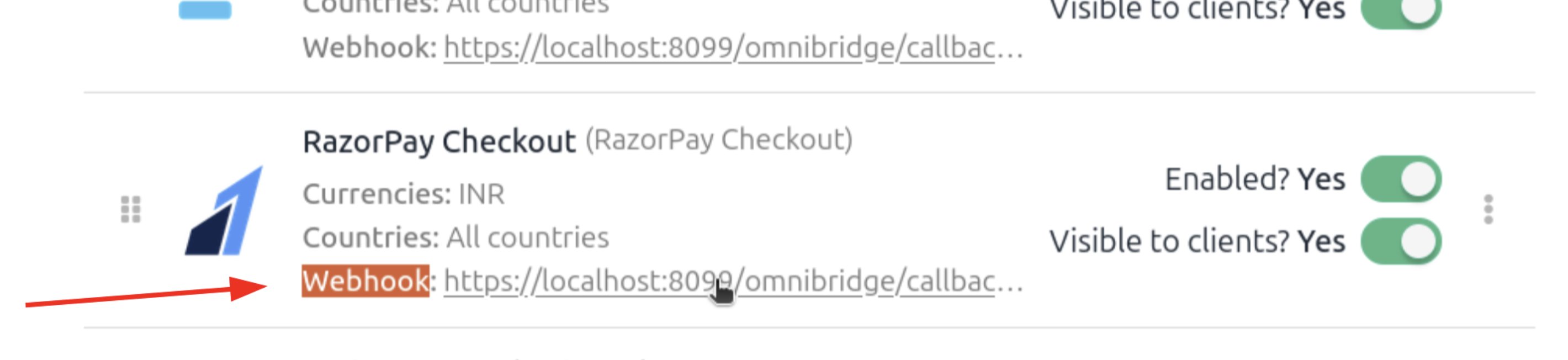
Webhook URL from Upmind
- Add a Secret for security on the webhook endpoint. (Optional)
- In the Alert Email field, enter the address to receive webhook failure notifications, such as errors or deactivations.
- Select the desired Events from the list.
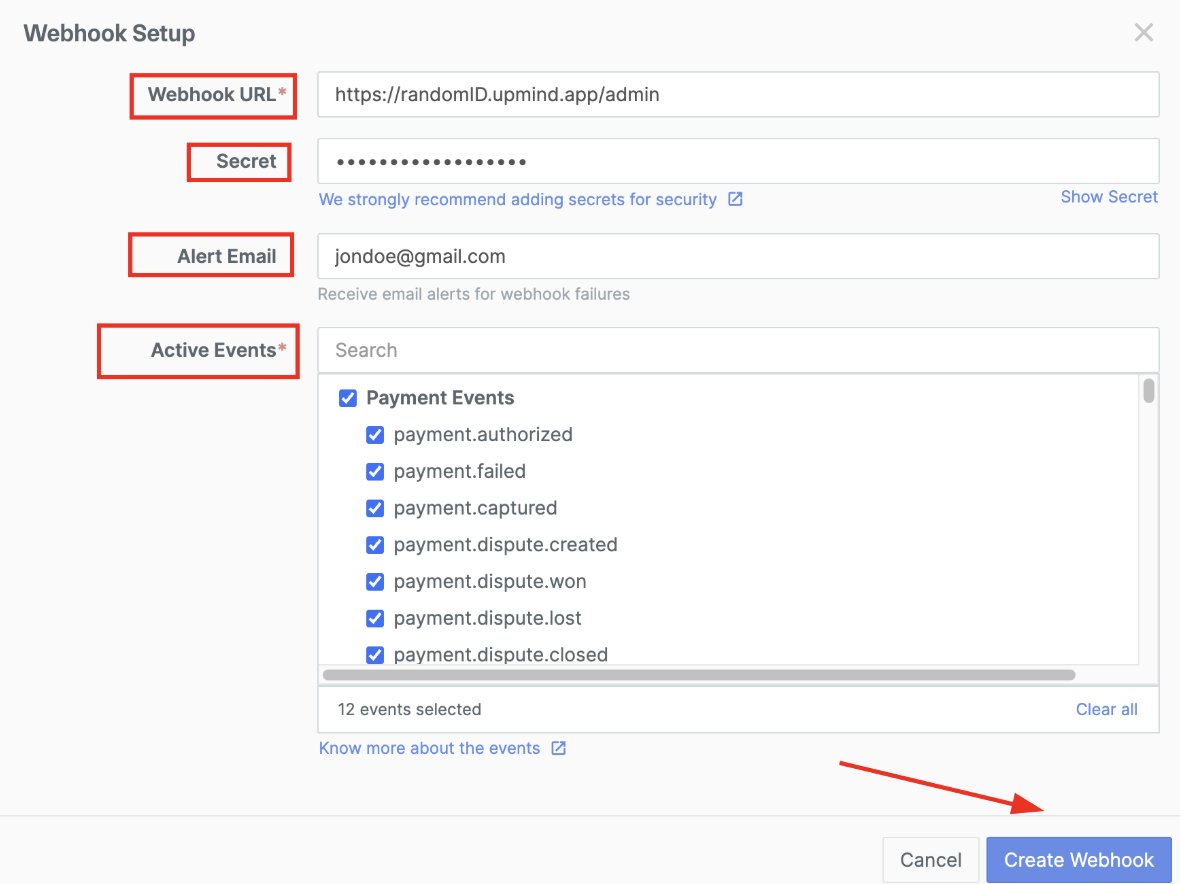
Fill in the details
- Click Create Webhook.
How to Enable EMI payments on Razorpay
The EMI function is not enabled by default on Razorpay accounts. You need to raise a request through the Razorpay Dashboard for activation. The following EMI types are available:- Credit Card EMI
- Debit Card EMI
- No Cost EMI
- Low Cost EMI
- Cardless EMI
Instant refunds are not supported on EMI transactions, so make sure your refund policies reflect this before going live.
Requesting EMI for your account
- Log in to your Razorpay Dashboard in Live mode (this setting is only available in Live mode).
- Go to Account & Settings > Payment Methods.
- Click Payment Methods, then select EMI as the payment method type.
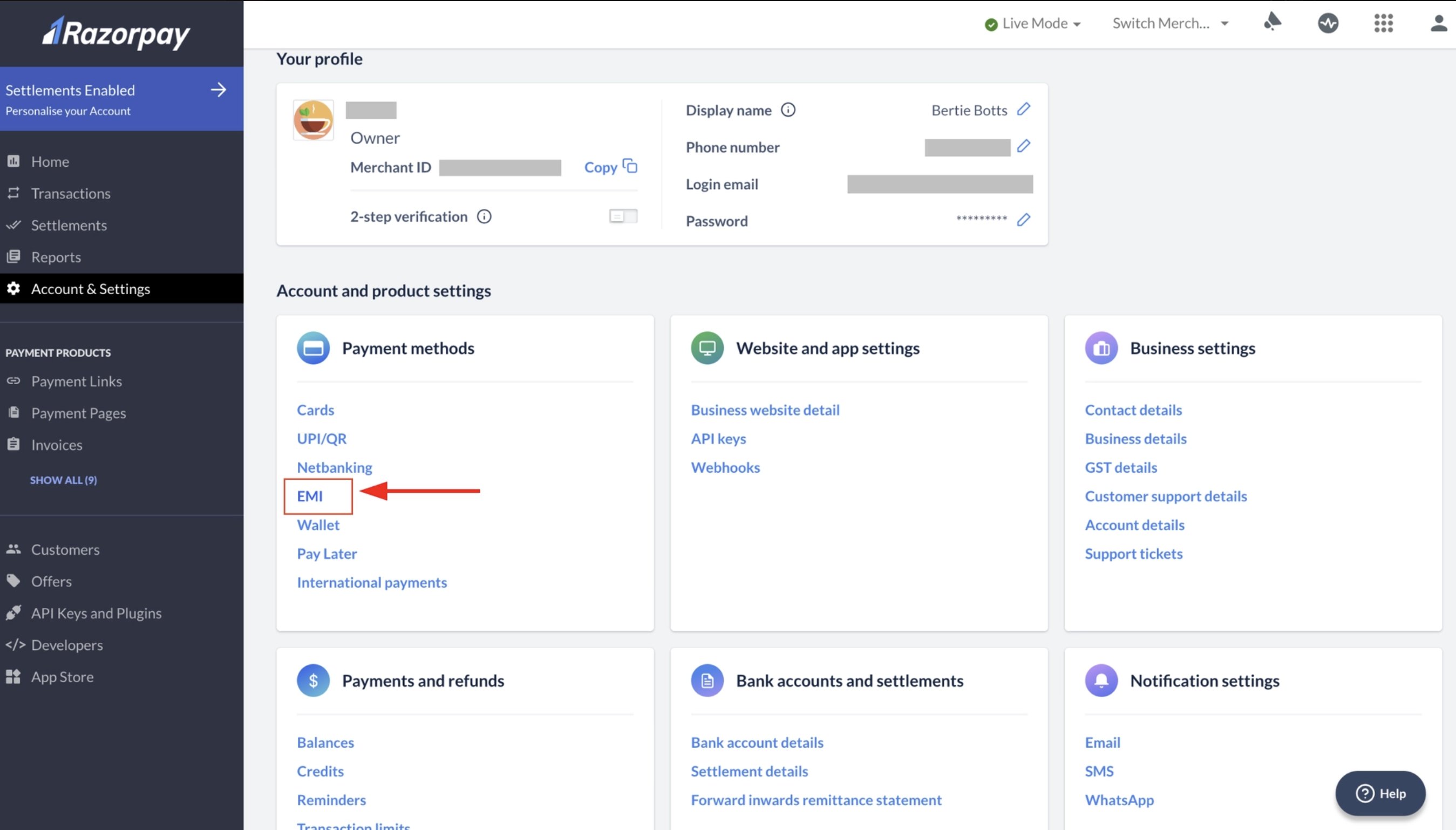
Account & Settings > Payment Methods
- Find the EMI option you want to enable and click Request.
- Review the activation timeline shown in the confirmation box, then click Confirm.