

Getting Adyen credentials
- Log in to your Adyen account.
- Go to Developers > API Credentials.
- Create or select an API credential.
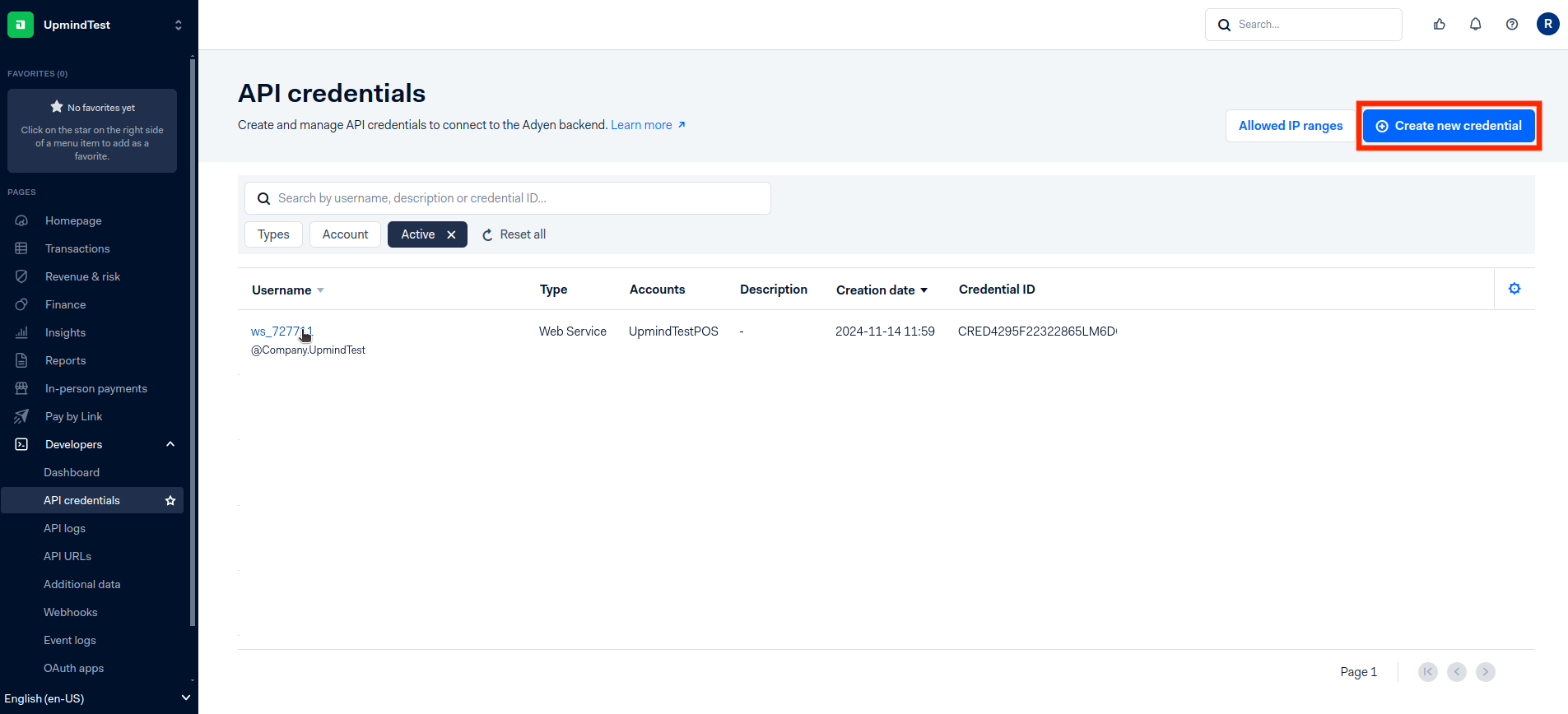
Create new credential
- Under Server settings > Authentication, generate and copy your API Key.
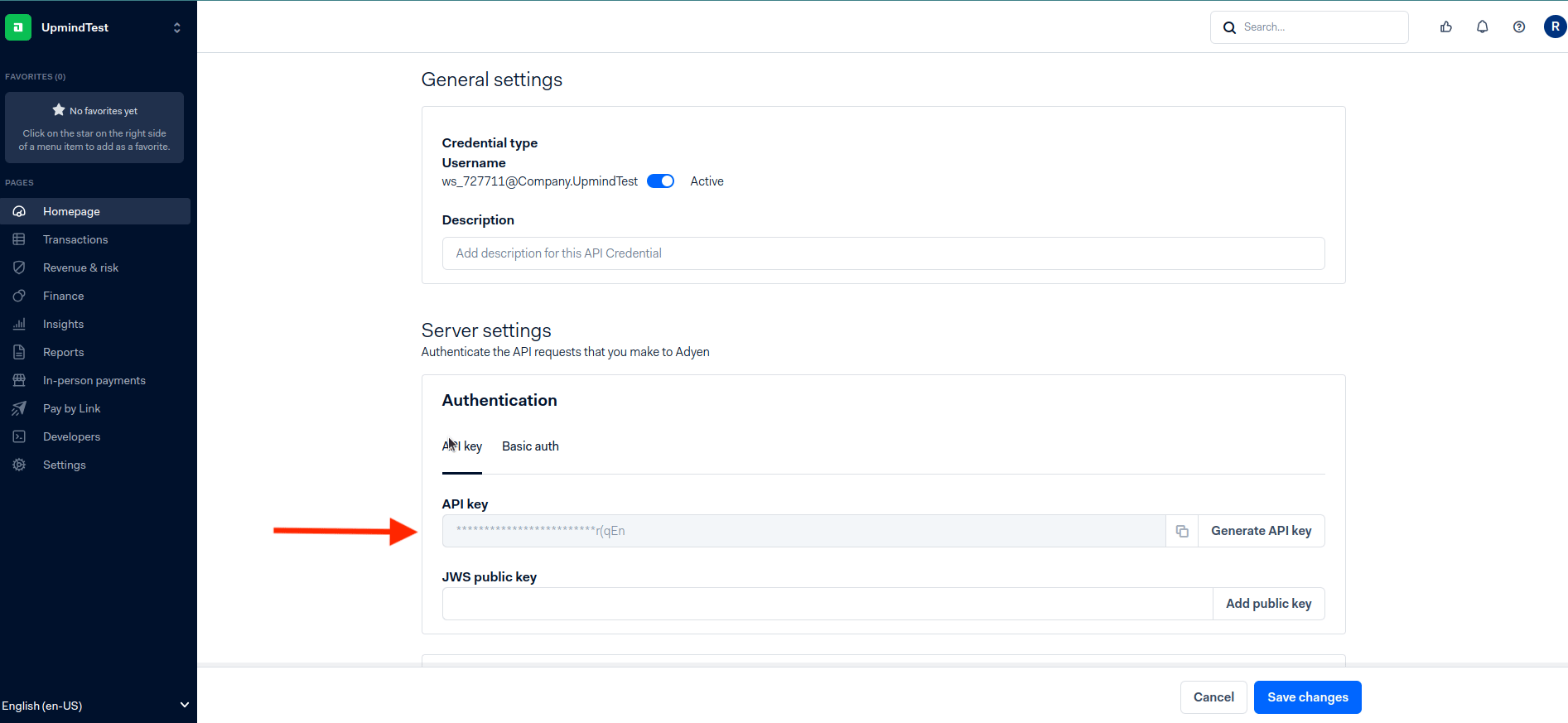
API key
- Under Client settings > Authentication, generate and copy your Client Key.
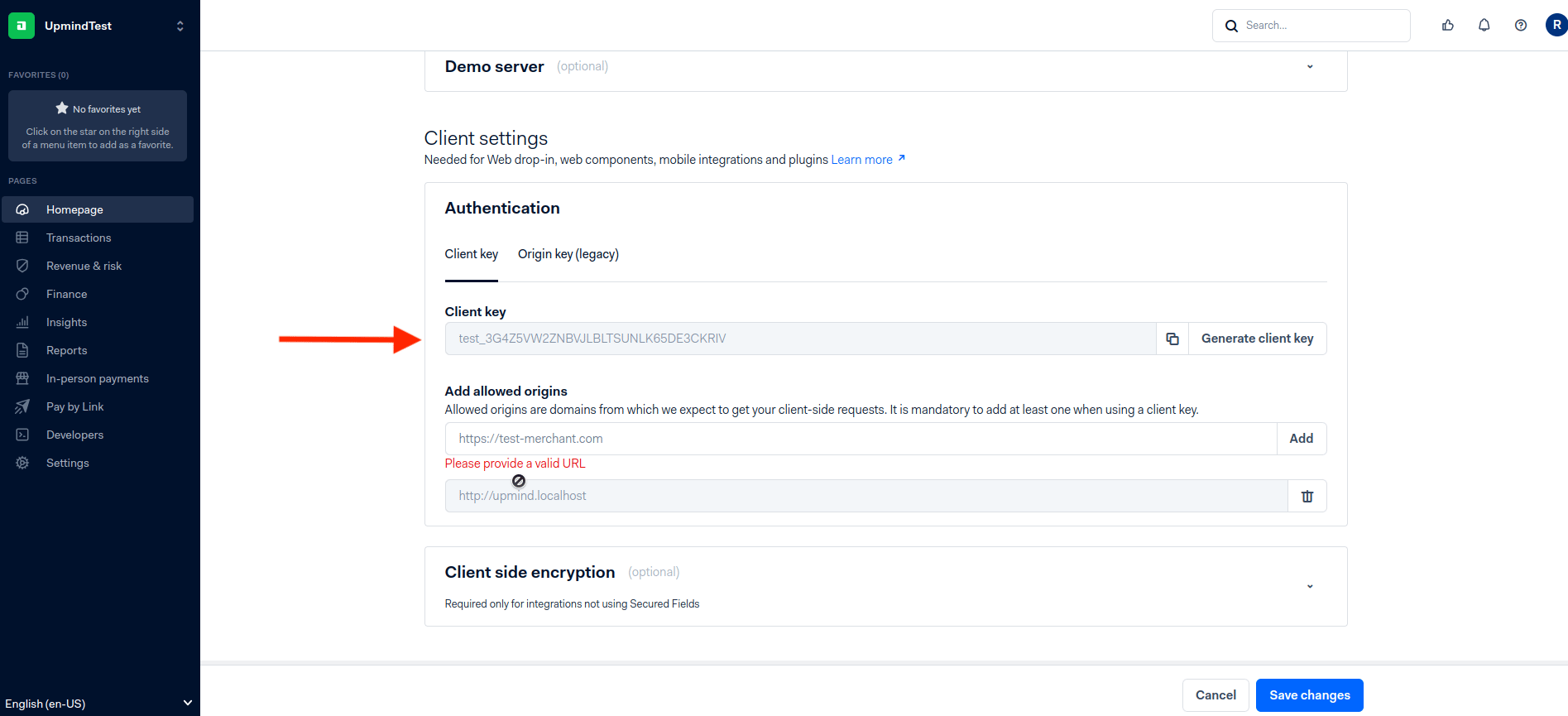
Client key
- Under Permission > Roles > Uncategorized, enable API tokenise payment details (contact Adyen support if unavailable).
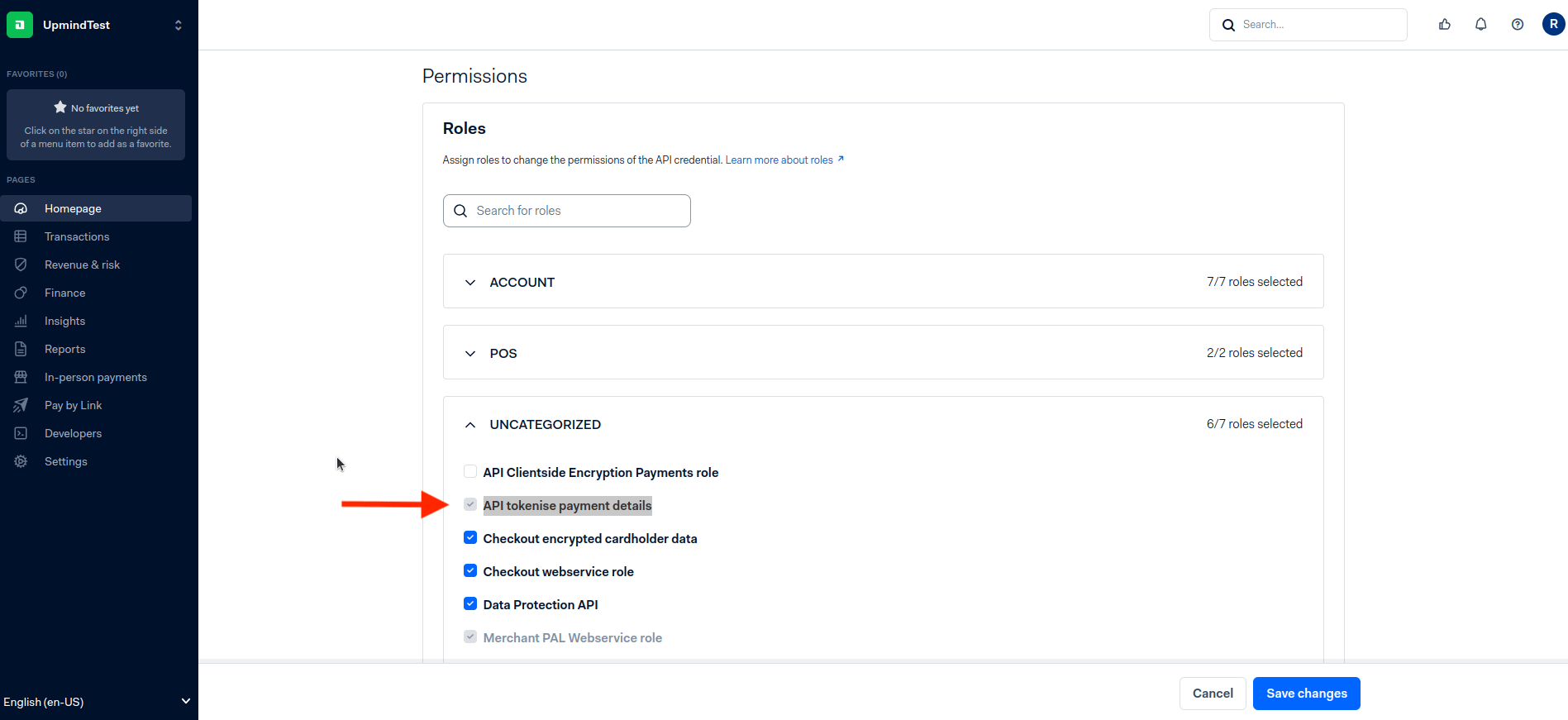
API tokenise payment details
- Click Save changes.
Getting Merchant Account
After generating the API and Client Key, the Account column displays your Merchant Account.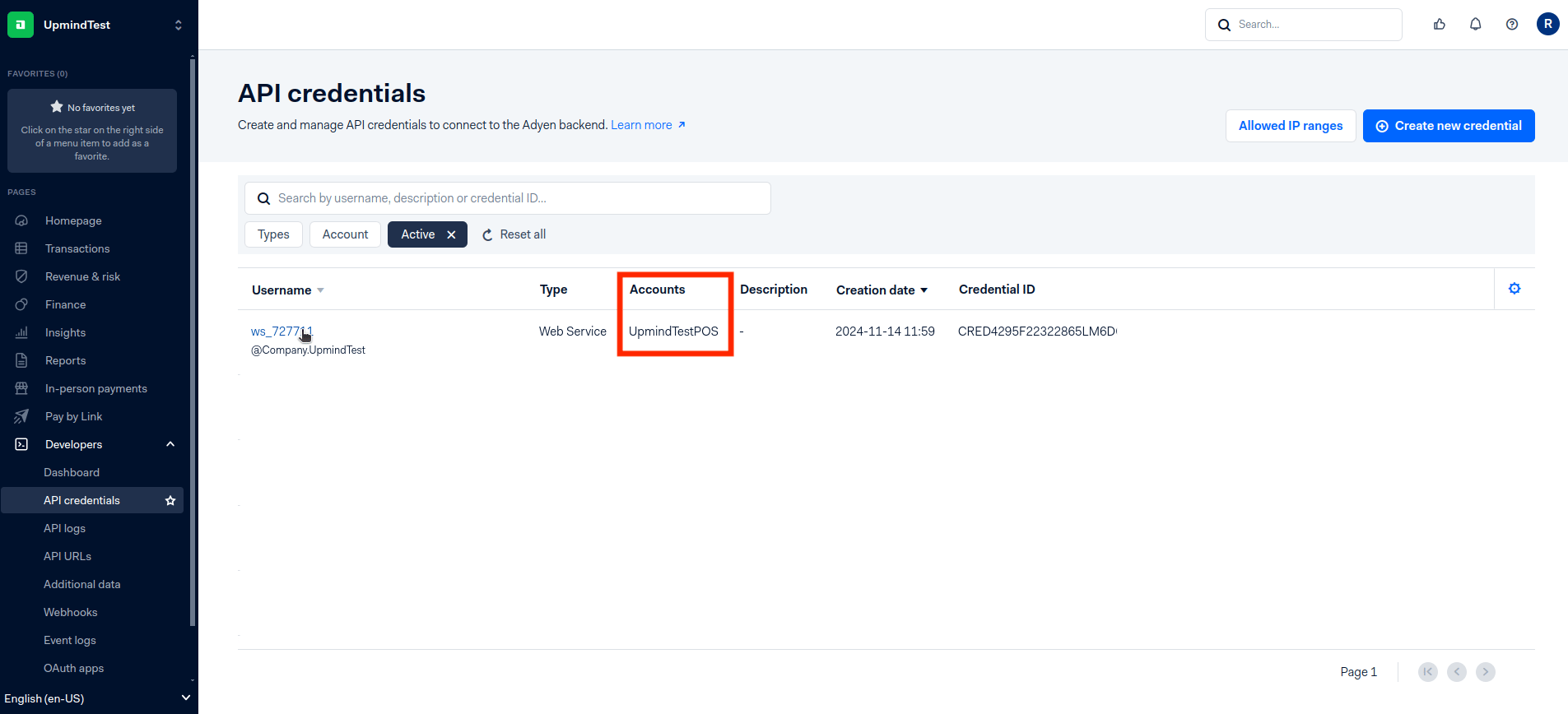
Merchant account
Generate HMAC Key
- Go to Developers > Webhooks.
- Create or edit a webhook.
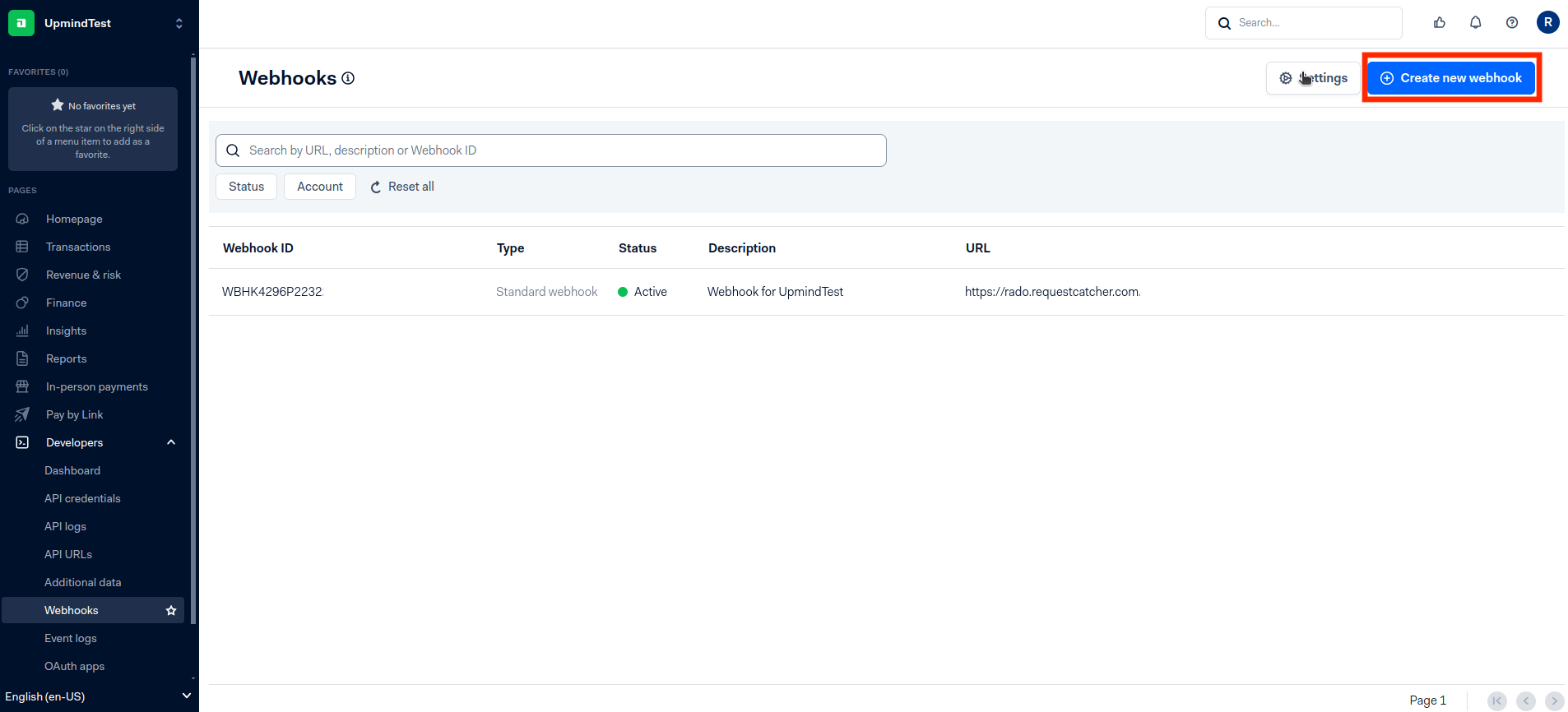
Create new webhook
- Under Security, generate and copy your HMAC Key.
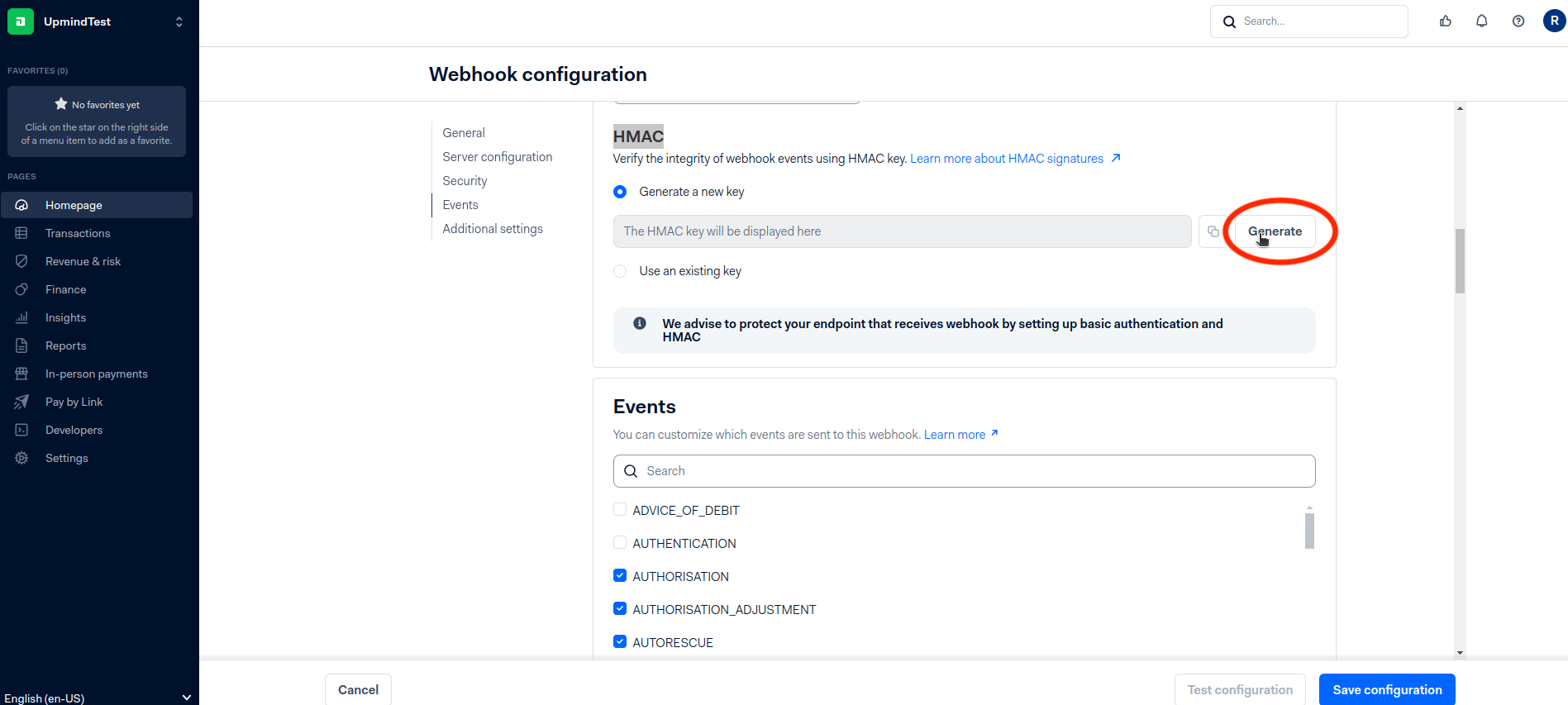
Generate HMAC key
- Under Events, select all.
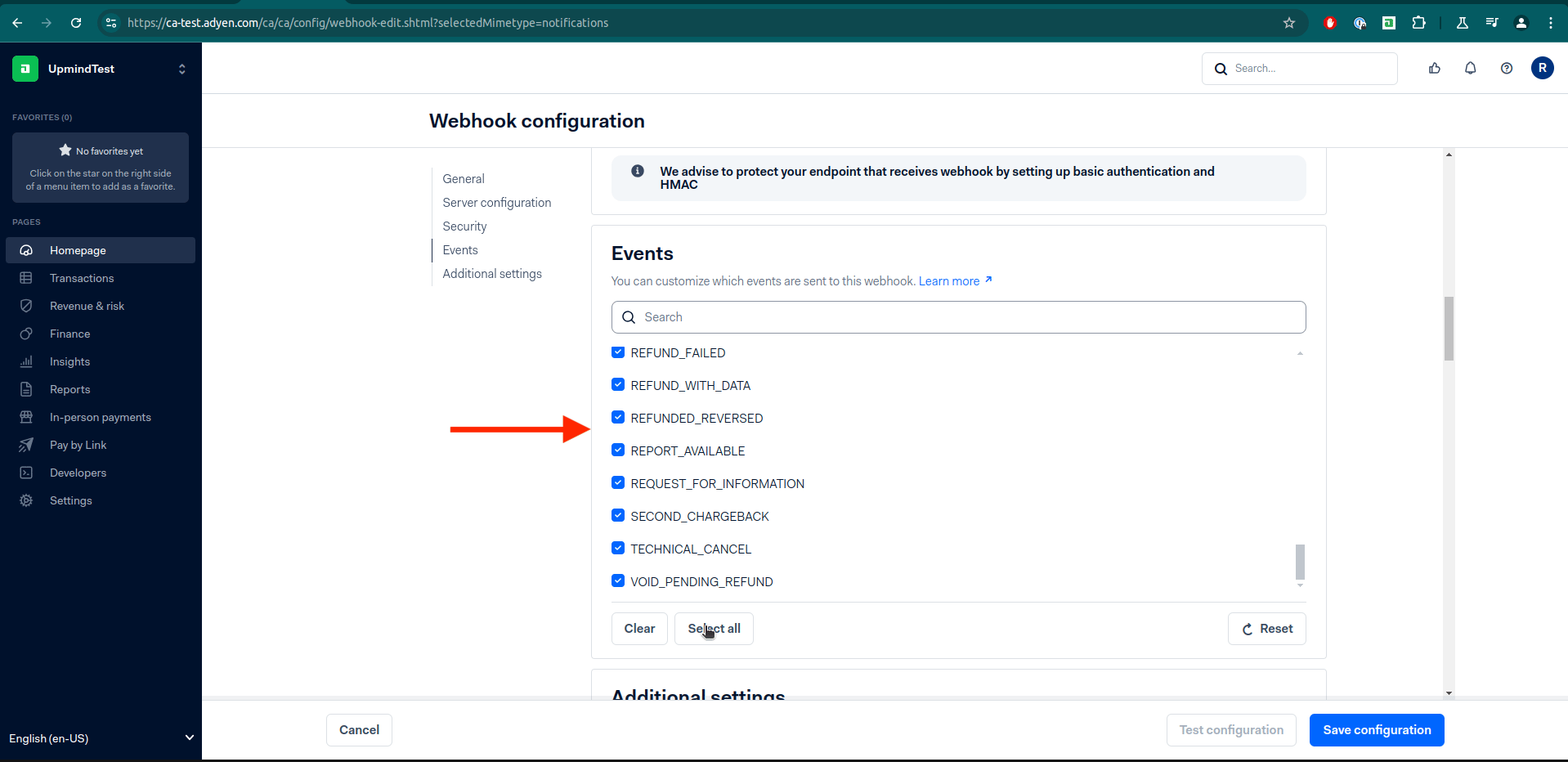
Select all
- Click Save configurations.
- Enable Recurring contract and Authentication.
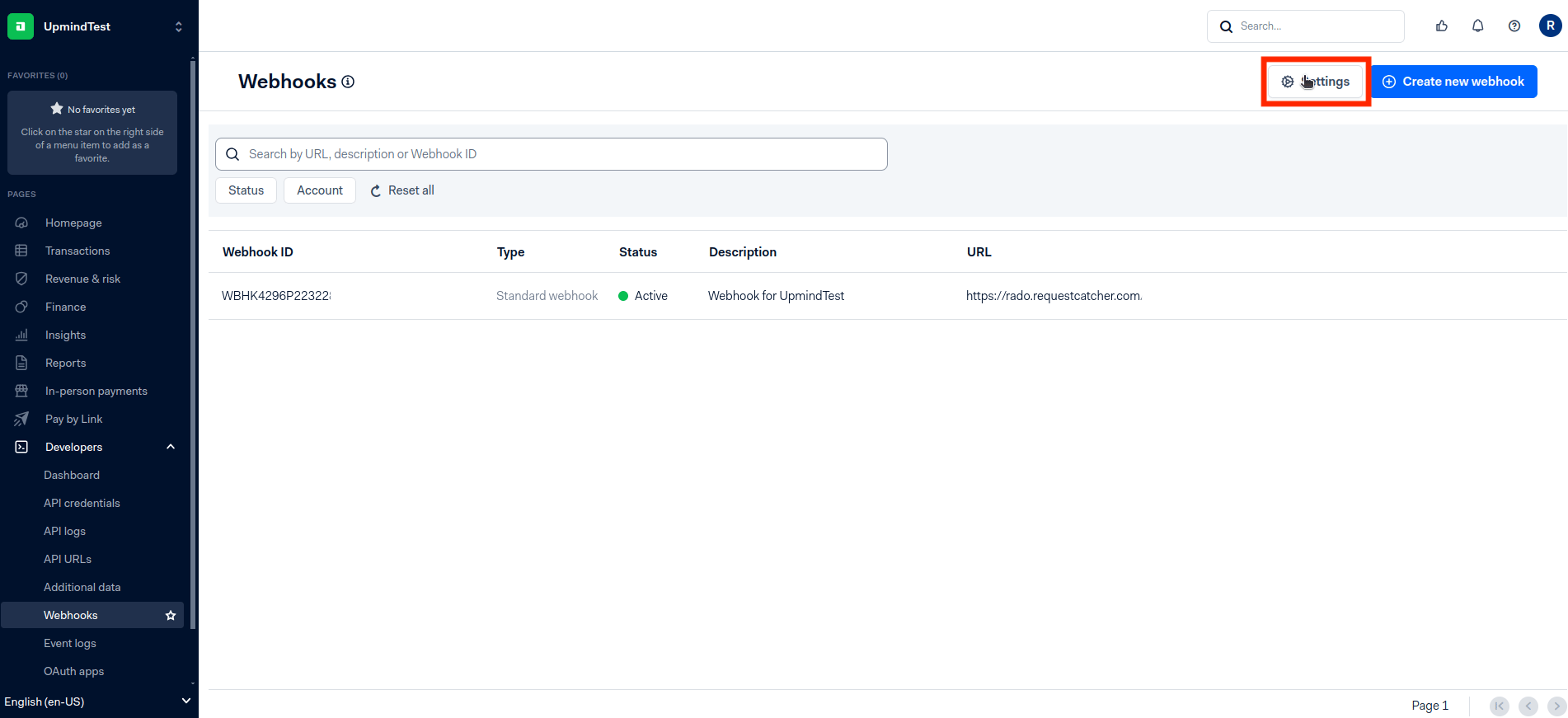
Save settings
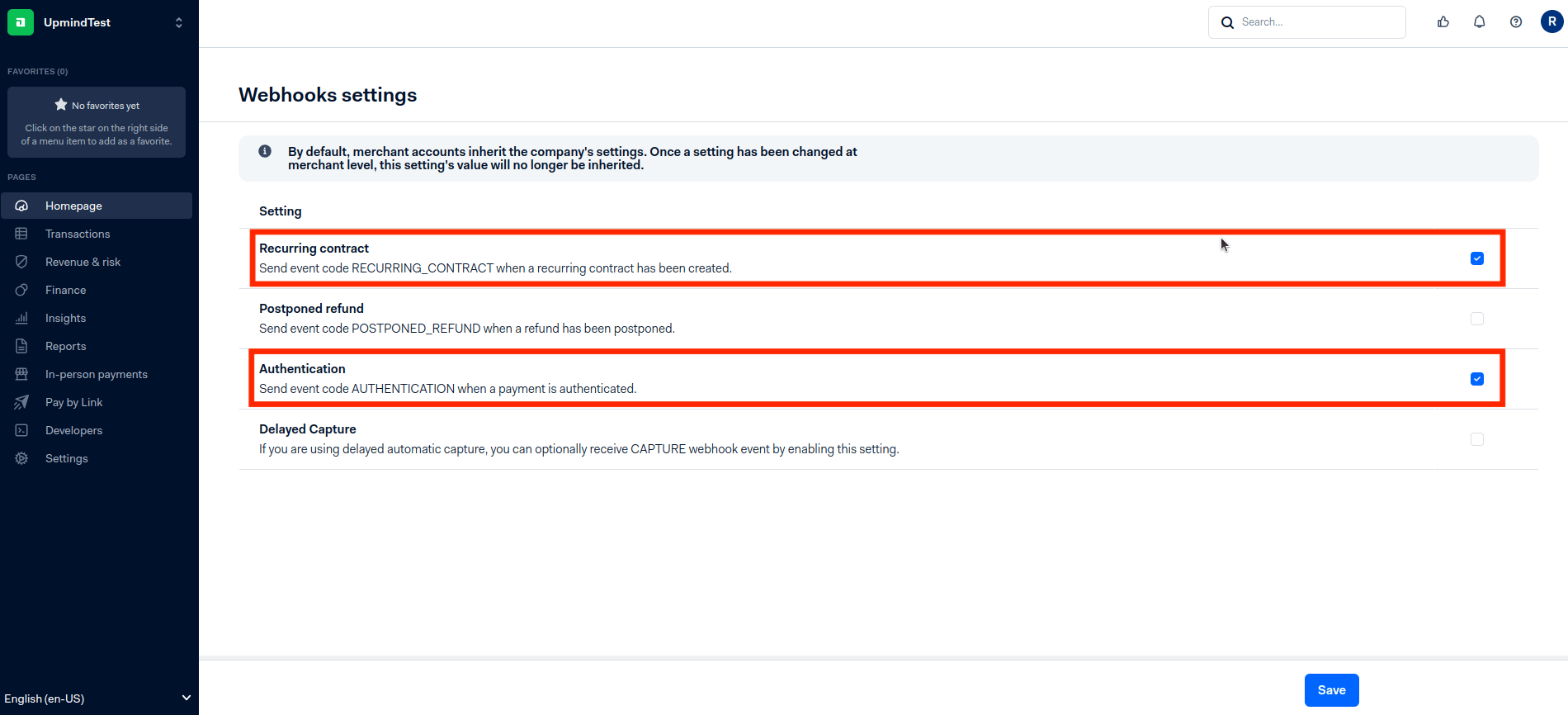
Enable recurring and authentication
- For more information, check this .
Additional Settings to Check for Storing Cards
- Go to Developers > Additional Data and enable Recurring detail.
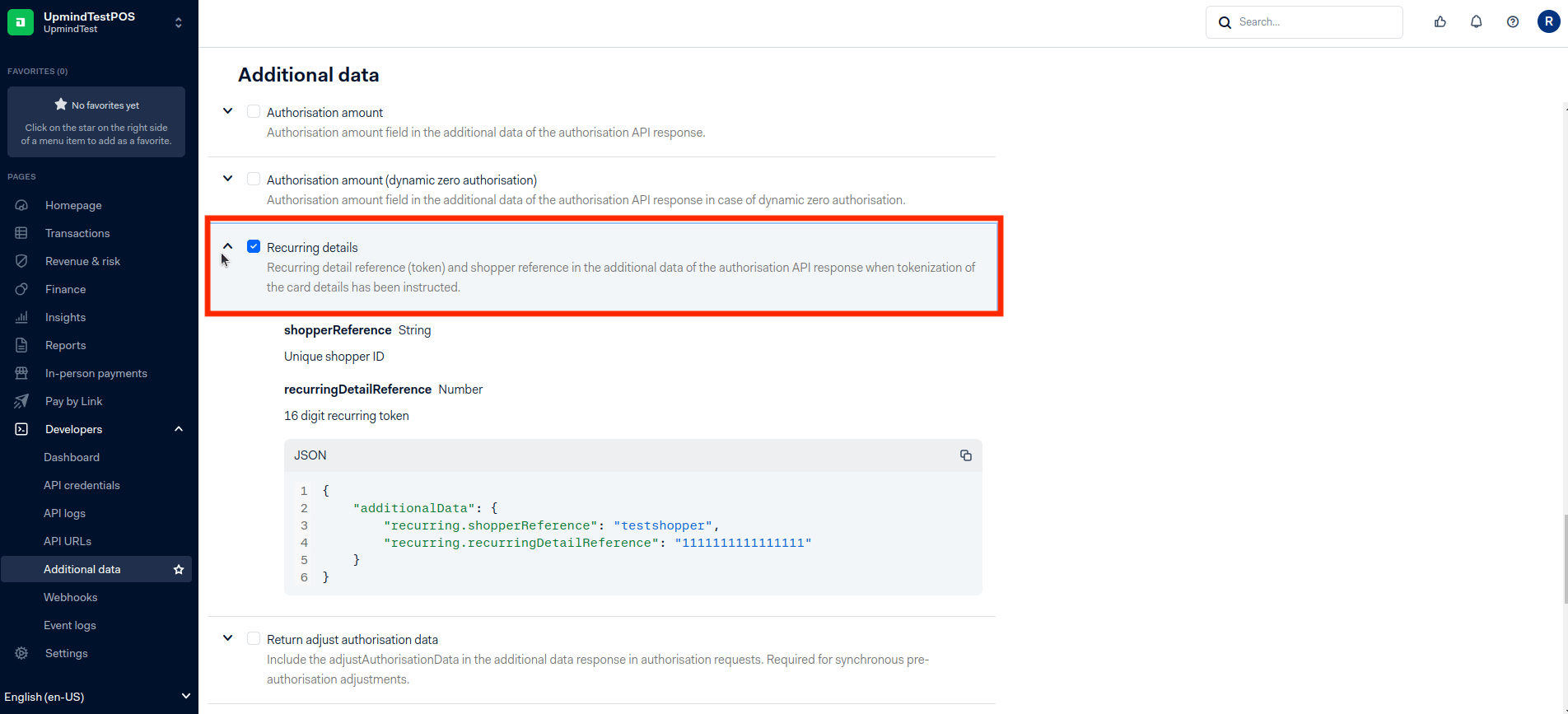
Recurring detail
- In Settings > Checkout Settings > Tokenization, ensure Recurring is ON.
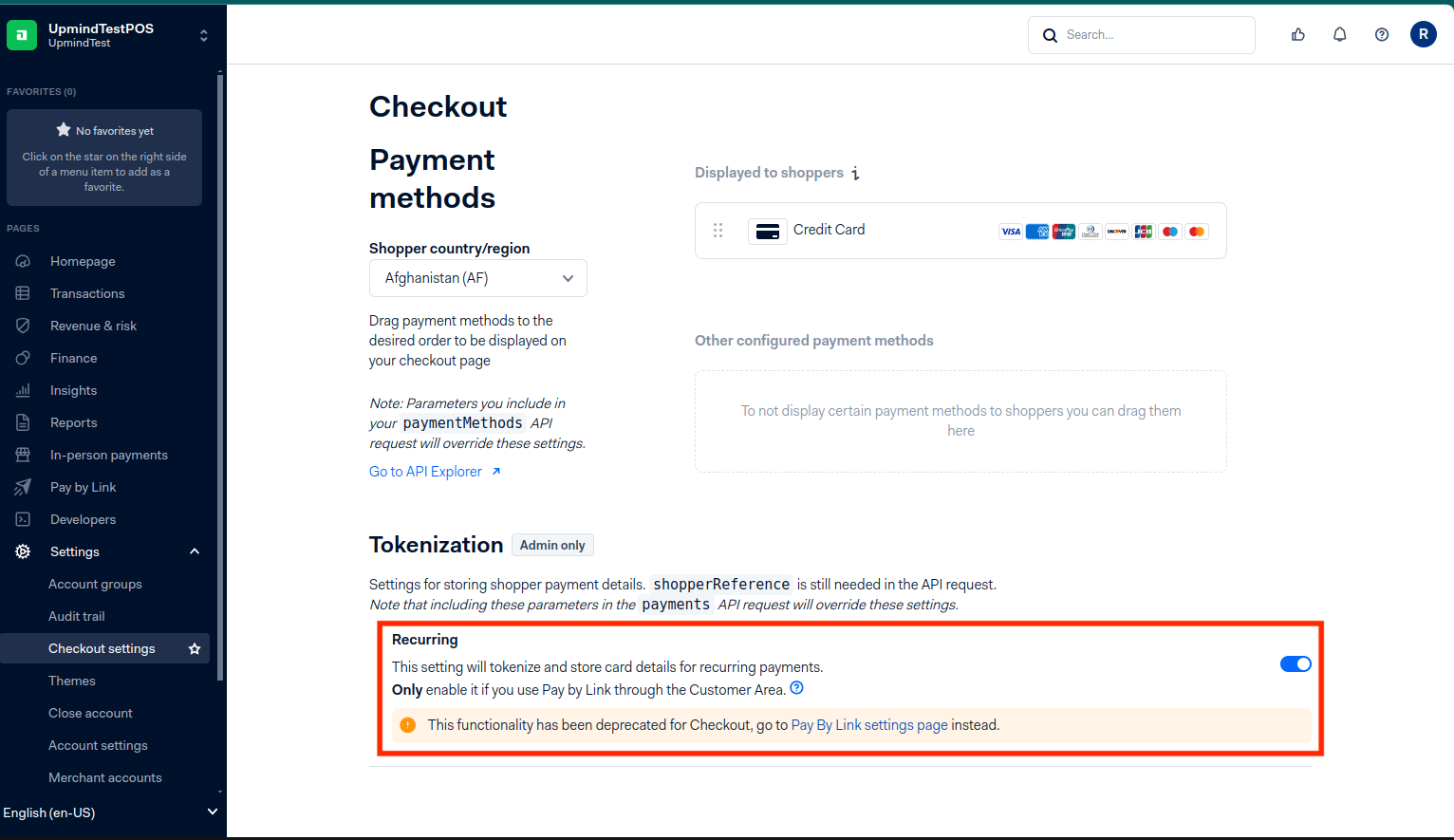
Enable Recurring
Adding Adyen in Upmind
- Go to Settings > Payment Providers in your admin area.
- Click Add Payment Provider and select Adyen.
Configure details
- Enter a display name. We suggest Adyen.
- Select Test Mode as needed.
- Enter your API Key, Client Key, Merchant Account, and HMAC Key.
- (Optional) Click Test Credentials.
- Add supported currencies.
- (Optional) Enter payment instructions.
- Click Create.
Editing the payment method
To update, go to Settings > Payment Providers, click the three dots next toAdyen, and select Edit.