

Click here to review our current plans and pricing.
Verifying your payment method
The first step is to enter (or verify) your payment method. If you started with the Free Plan, you likely did not enter this information. Upmind does not require payment information when users set up a free account.- Log into your Upmind admin account.
- Click your account name in the bottom left corner of the page.
- Click Manage My.Upmind.
- Go to Products and Services > Choose your Subscription > Manage Product.
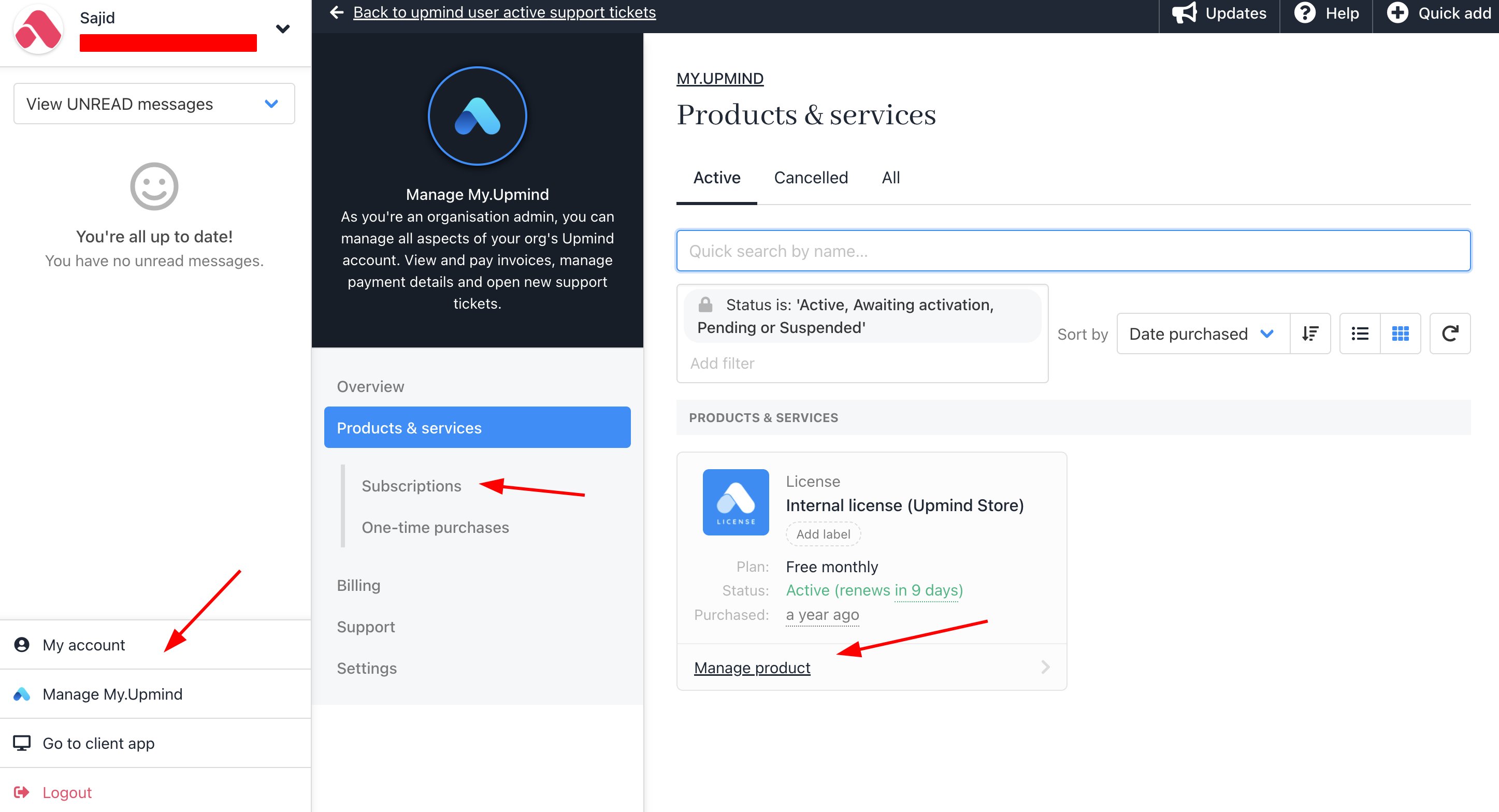
Manage My.Upmind > Products and Services > Manage Product
- Click the Settings menu tab and then click Select payment method.
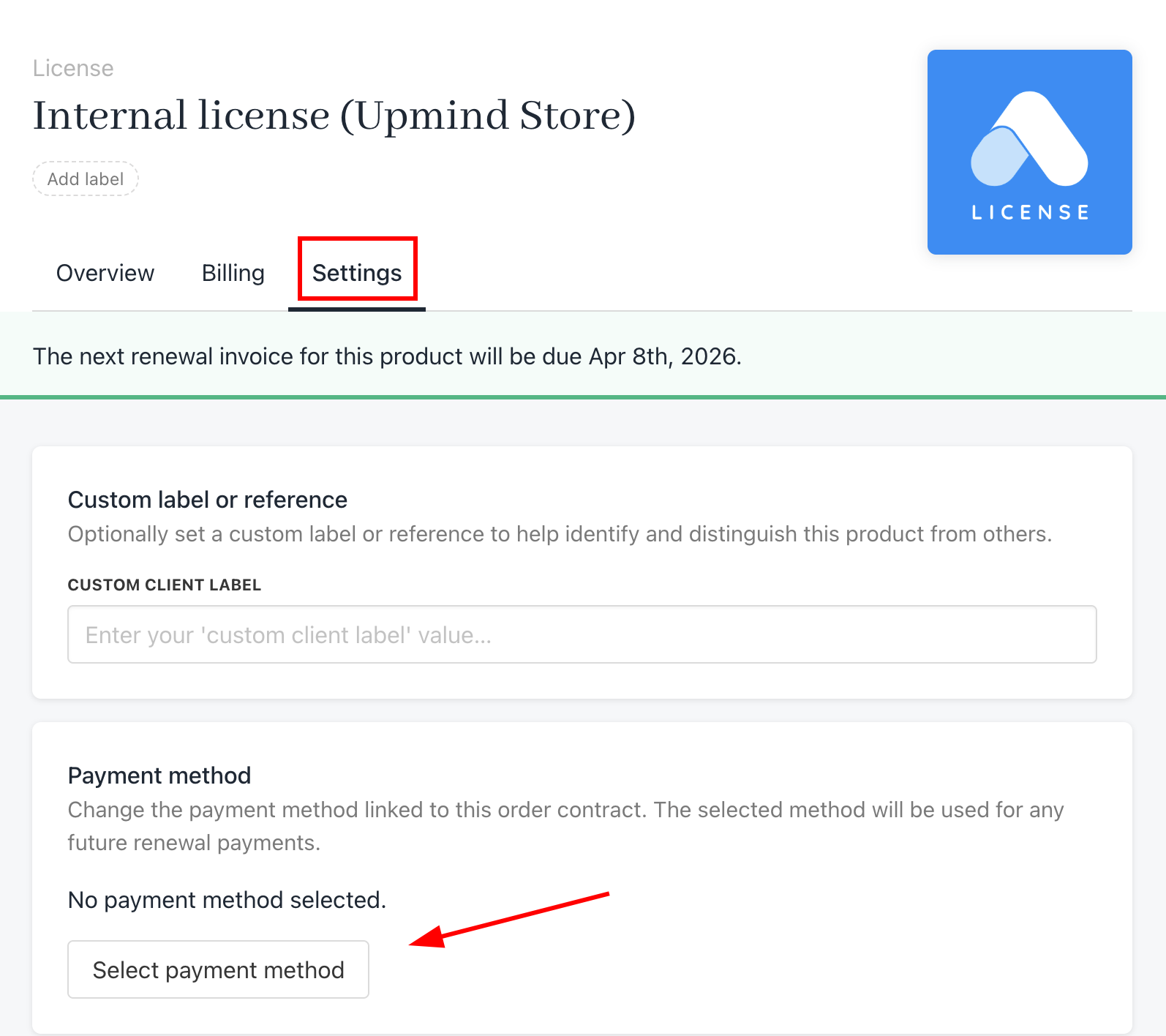
Settings > Select Payment Method
Upgrading your plan
Now you’re ready to upgrade. Click the green tab at the top of the page. In the screenshot below, our demo user starts out with a free account. It’s also possible to upgrade from a lower-tier paid plan.
Upgrade your plan