

Admin area
If a client’s card fails to pay a renewal invoice, staff or admins can assist by using a different payment method. Admins can only use another saved card or add a new card for payments if the client has shared their card details and given permission. For PayPal and MercadoPago Other Payments, it will be redirected to their respective account to complete the payment. Here are the steps:- Log in to your Upmind Admin Dashboard.
-
Select
Clientsfrom the left panel.
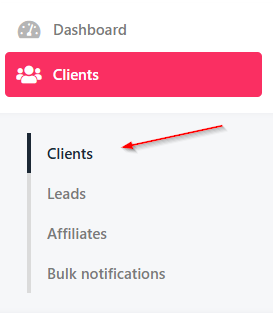
Select clients
- Click on the Client with the unpaid invoice.
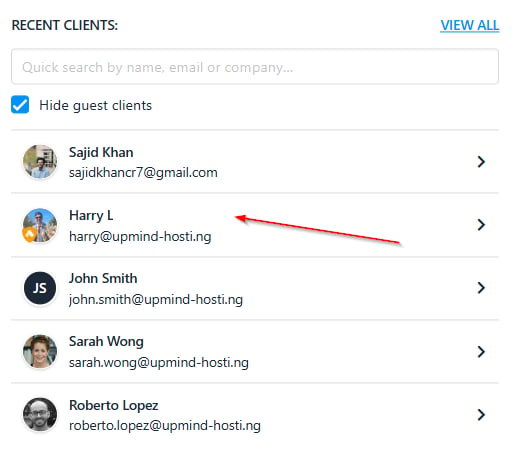
Select the client
- Go to
Billingand thenInvoices.
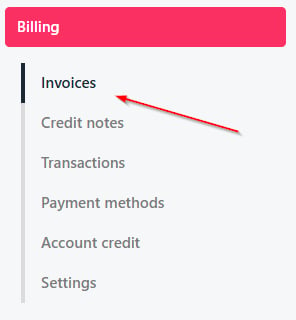
Select invoices
- Find the unpaid Invoice.
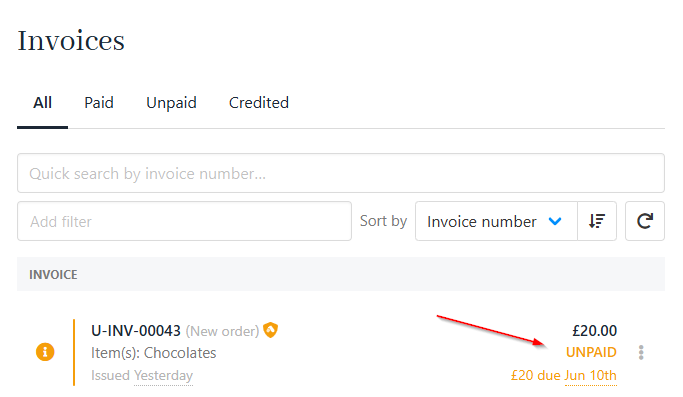
Unpaid invoice
- Click Pay Now.
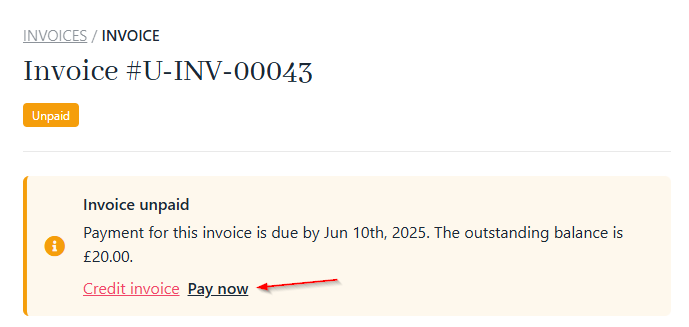
Pay now
- As an admin or staff member, you can help process a client’s payment using their saved card or any of the existing payment methods they have added. In the example shown in the screenshot, the available methods are Stripe and PayPal.
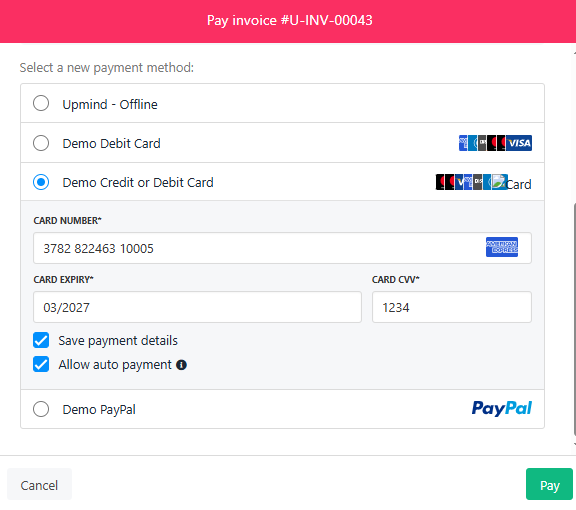
New payment method
How to change the default payment method from the admin area
Admins can only change the default card. The automatic payment setting is applied when the card is initially added and saved.- Select your Client and then go to
Payment MethodsfromBilling.
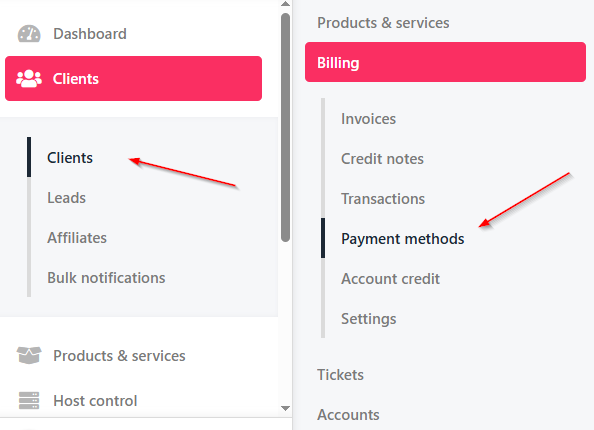
Select payment methods
- You can make a new card automatically charge for the renewal invoice by making it the Default.
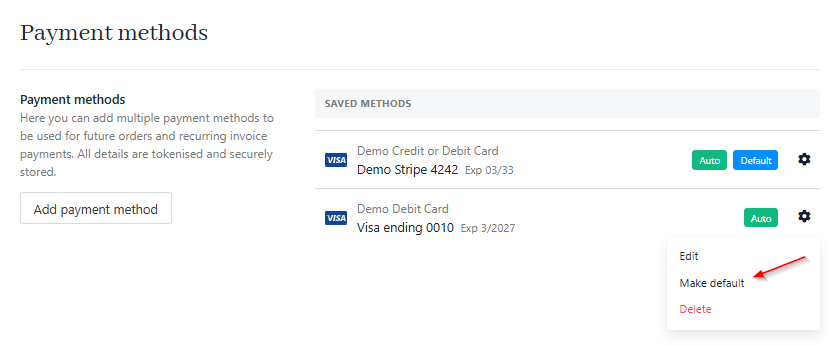
Make default
Client area
Your client can also pay their renewal invoice using a different payment method from the client area. Here’s how to do it:- Log in to the Client Area.
-
Select
Billingand go toMy Invoices.
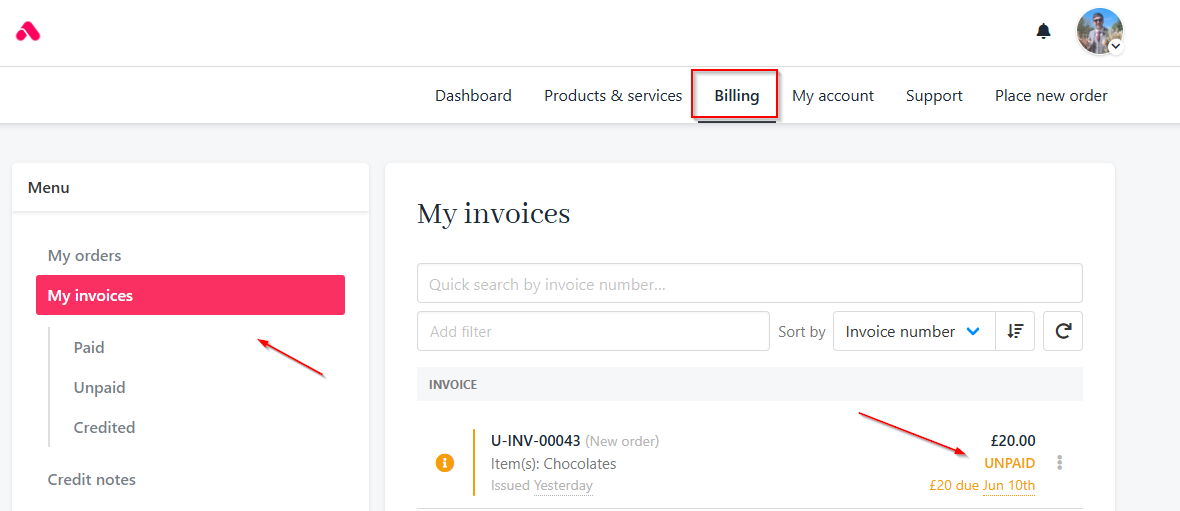
Select my invoices
- Select the unpaid
Invoiceand click Pay Now.
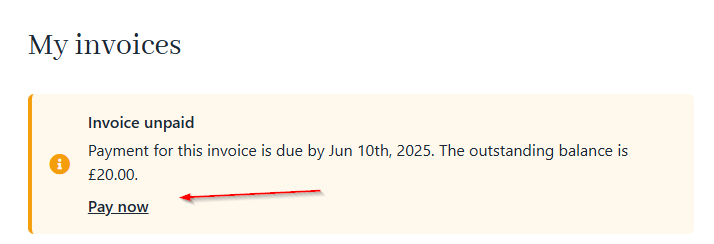
Pay now
- Similar to Admin, you can make the payment with the existing card or use a different payment method.
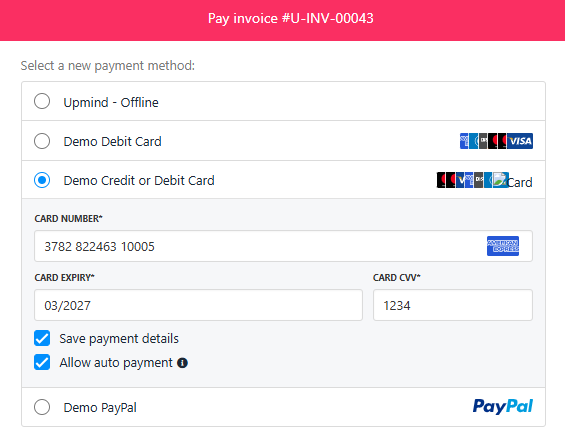
New payment method
How to change the default payment method from the client area
Clients can only change the default card. The automatic payment setting is applied when the card is initially added and saved.-
Go to
Billingand selectPayment Methods. - You can make a new card automatically charge for the renewal invoice by making it the Default.
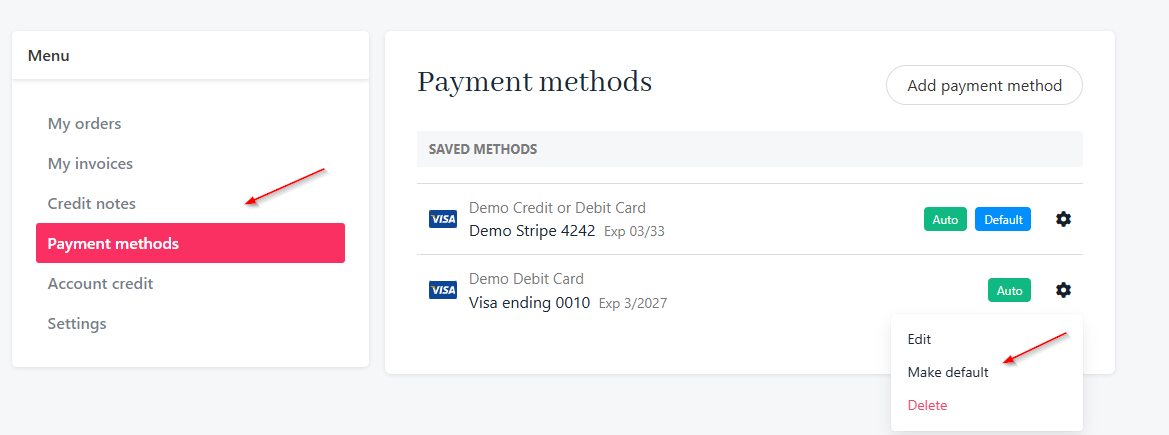
Make default
Notify clients about card expiry
You can set up notifications to alert clients several days before their cards expire. This will help to ensure timely reminders and avoid missed payments. This works for multiple payment methods and can be customised to your preference.
Configure notification (Settings > Payment options > Billing automation)
To prevent automatic payment failure
If you have other cards saved as payments for your clients, Upmind will automatically switch to another backup card if there is an automatic payment failure on the primary one.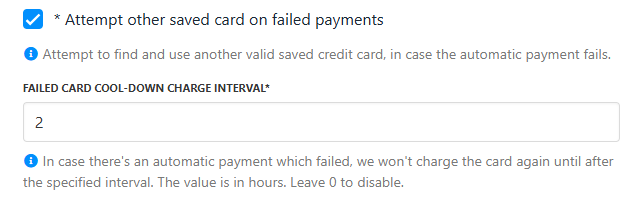
Enable/disable attempts (Settings > Payment options > Billing automation)
- A client has 10 invoices scheduled for auto payment today and only one card on file.
- The payment for the 3rd invoice fails.
- The card will be temporarily unavailable for use for the next 2 hours during the cool-down period.
To reset payment attempts after a successful payment
When a client successfully pays an invoice, Upmind can automatically reset the payment attempts for any other unpaid or overdue invoices they have. This means if those invoices had previously reached the maximum number of payment tries without success, the system will give them a fresh start to process payments again.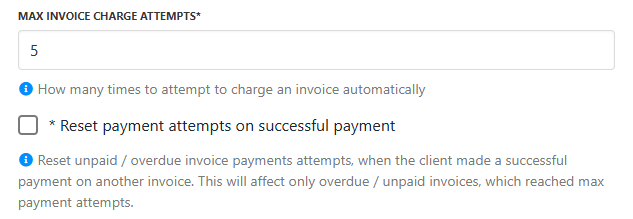
Enable/disable attempts (Settings > Payment options > Billing automation)