

Getting Braintree credentials
- Log in to your Braintree account.

Settings > API
- Click the Settings cog wheel → API to obtain your Public Key, Private Key, and Merchant ID.

Public Key, Private Key, and Merchant ID
- For your Merchant Account ID, go to Settings > Business > Merchant Accounts.

Settings > Business
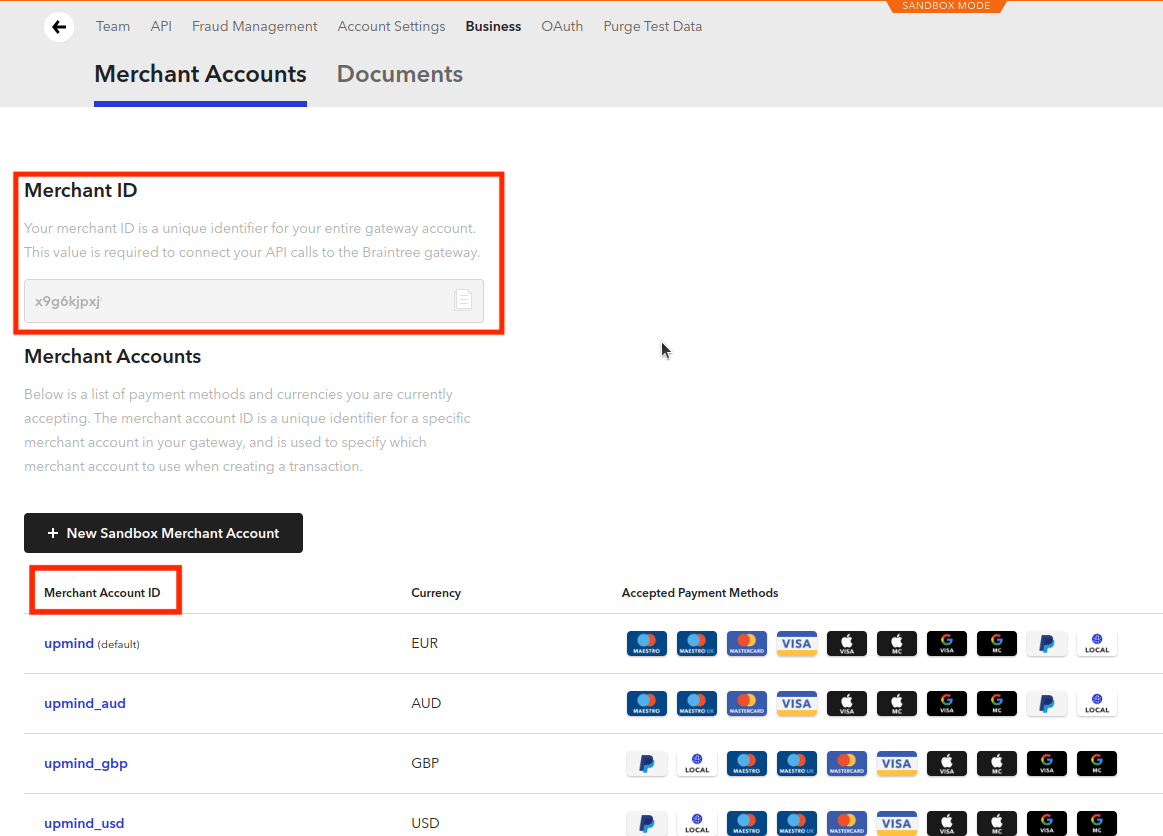
Merchant ID and Merchant Account ID
The Merchant Account ID lets you specify the merchant account used for processing payments.By default, your Braintree account only supports your home currency. To accept other currencies, set up additional currencies in Braintree, then update your Upmind provider with the new merchant account ID for each currency you want to process.
Adding Braintree to Upmind
- Go to Settings > Payment Providers in your admin area.
- Click Add Payment Provider and select Braintree.
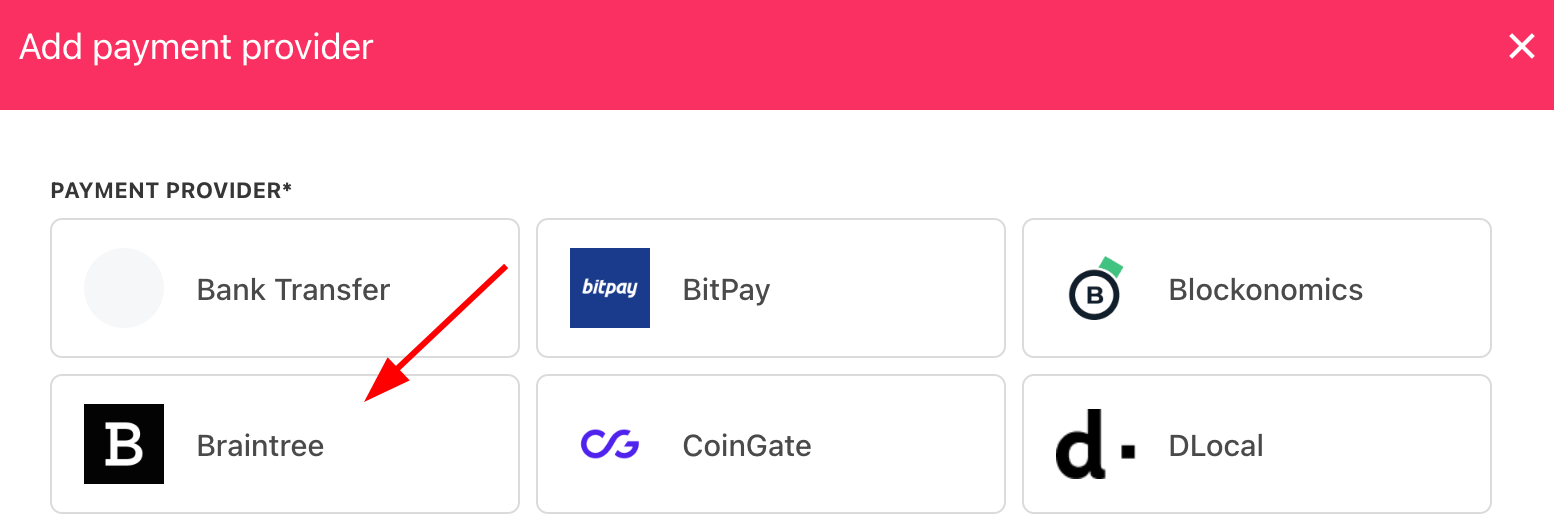
Select payment provider
Configure details
- Enter a display name. We suggest Braintree.
- Select Test Mode as needed.
- Enter your Merchant ID, Public Key, Private Key, and Merchant Account ID.
-
Choose your preferences for:
- Stored card
- Create a New Braintree Customer Account for Guest
- Reuse the Braintree Customer Account by Stored Payment Method
- Use 3D Secure Flow
- Accept PayPal Payment
- Accept PayPal Credit Payment
- (Optional) Click Test Credentials to verify.
- Select the currency.
- (Optional) Enter payment instructions.
- Click Create.
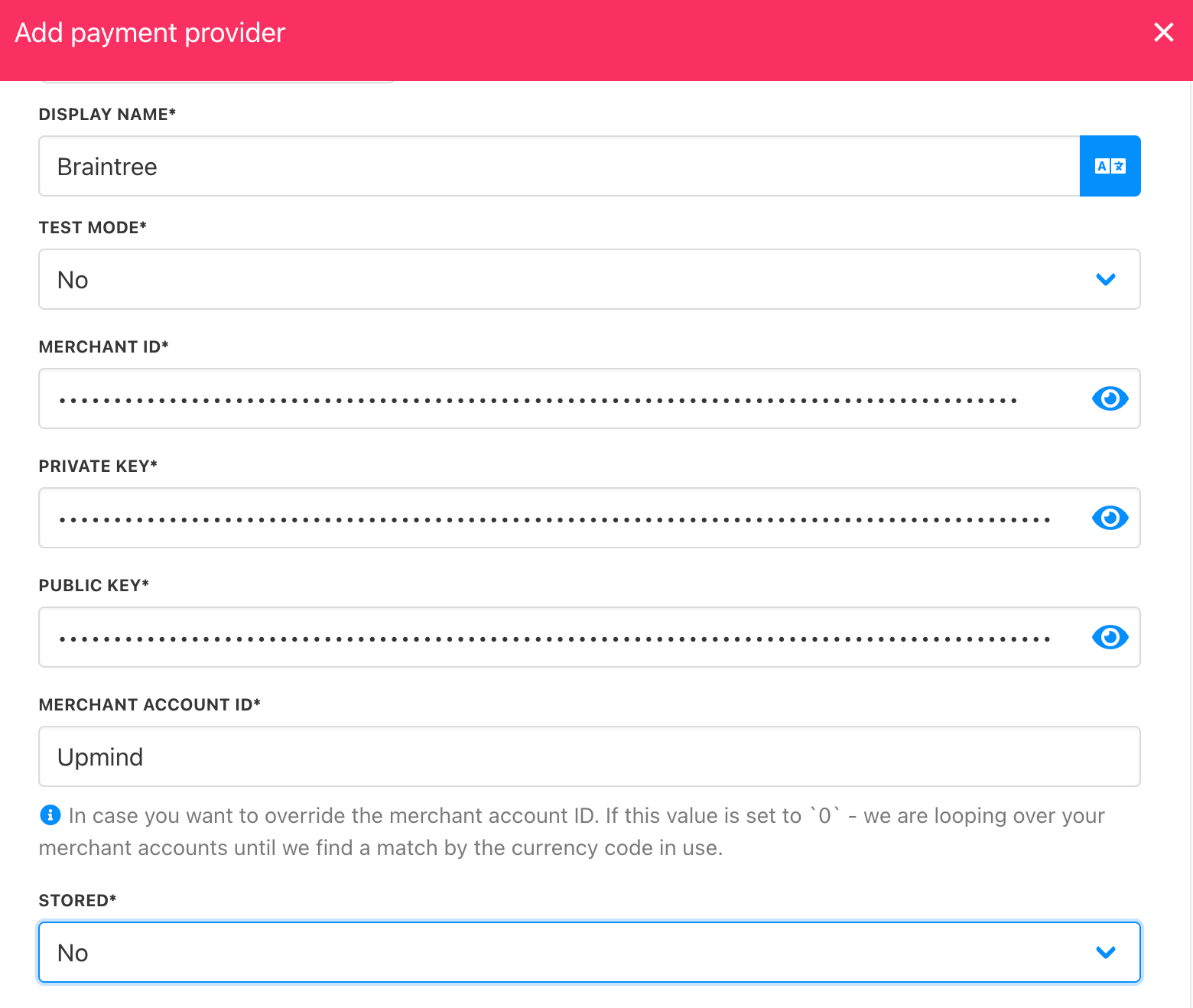
Add details
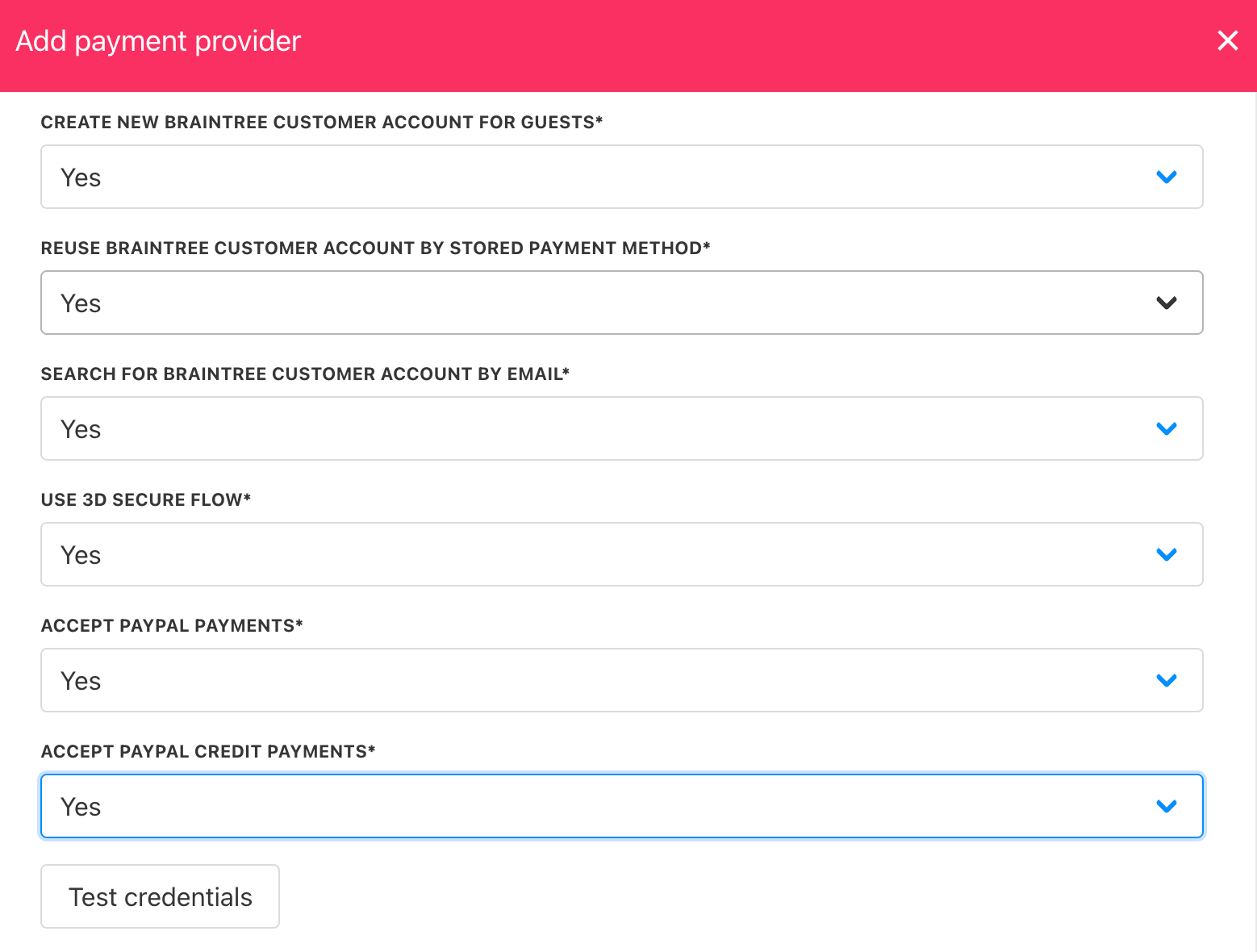
Choose options
Editing the payment method
To update, go to Settings > Payment Providers, click the three dots next toBraintree, and select Edit.