

Free trials apply to recurring payments (subscriptions) only. They are not available for one-time payment products.
What is included in this guide
- How to Enable a Free Trial for a Product
- Trial Settings Explained
- Client Experience During a Trial
- How to Offer a Discount for Trial Continuations
- How to Auto-Apply a Promotion
- Trial Automation and Contract Settings
- Requiring Payment Details for Free Trial Orders
How to enable a free trial for a product
Before setting up a trial, make sure you have already created a product. If you have not, you can add a new product category and product first.- Go to Settings > Product Catalogue (or open Store Catalogue directly).
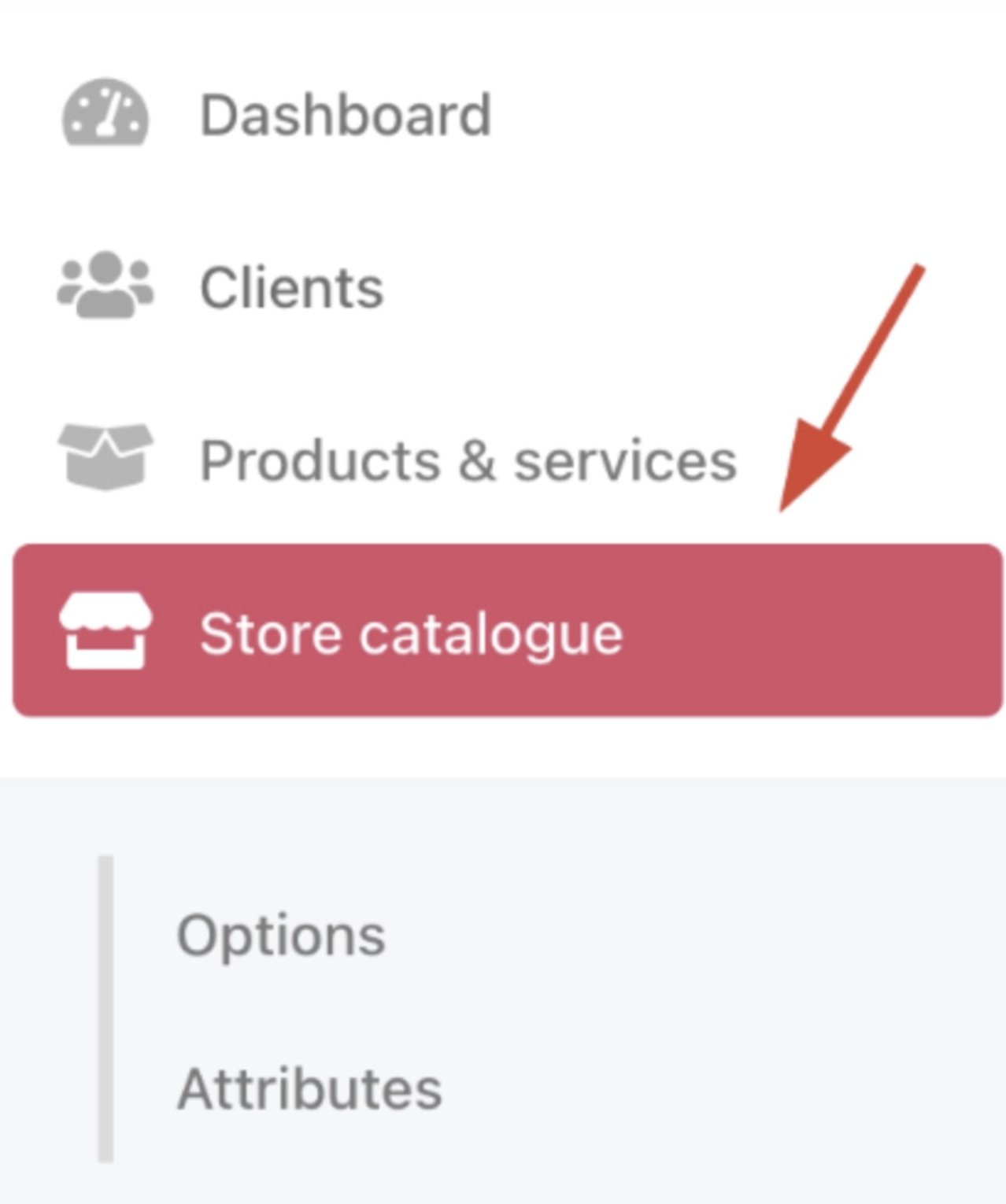
Store catalogue
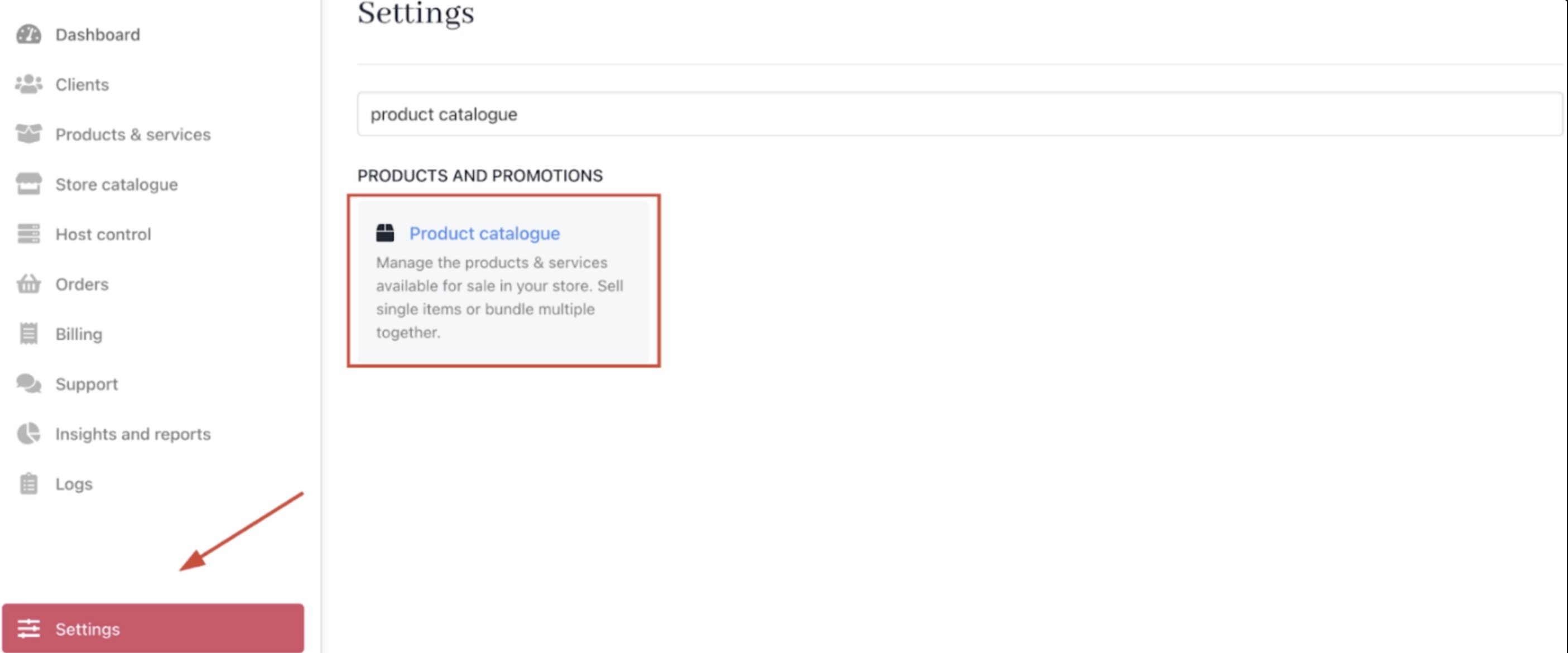
Settings > Products and Promotions > Product Catalogue
- Select an existing product or create a new one.
- Open the Billing tab, then expand Product Trial.
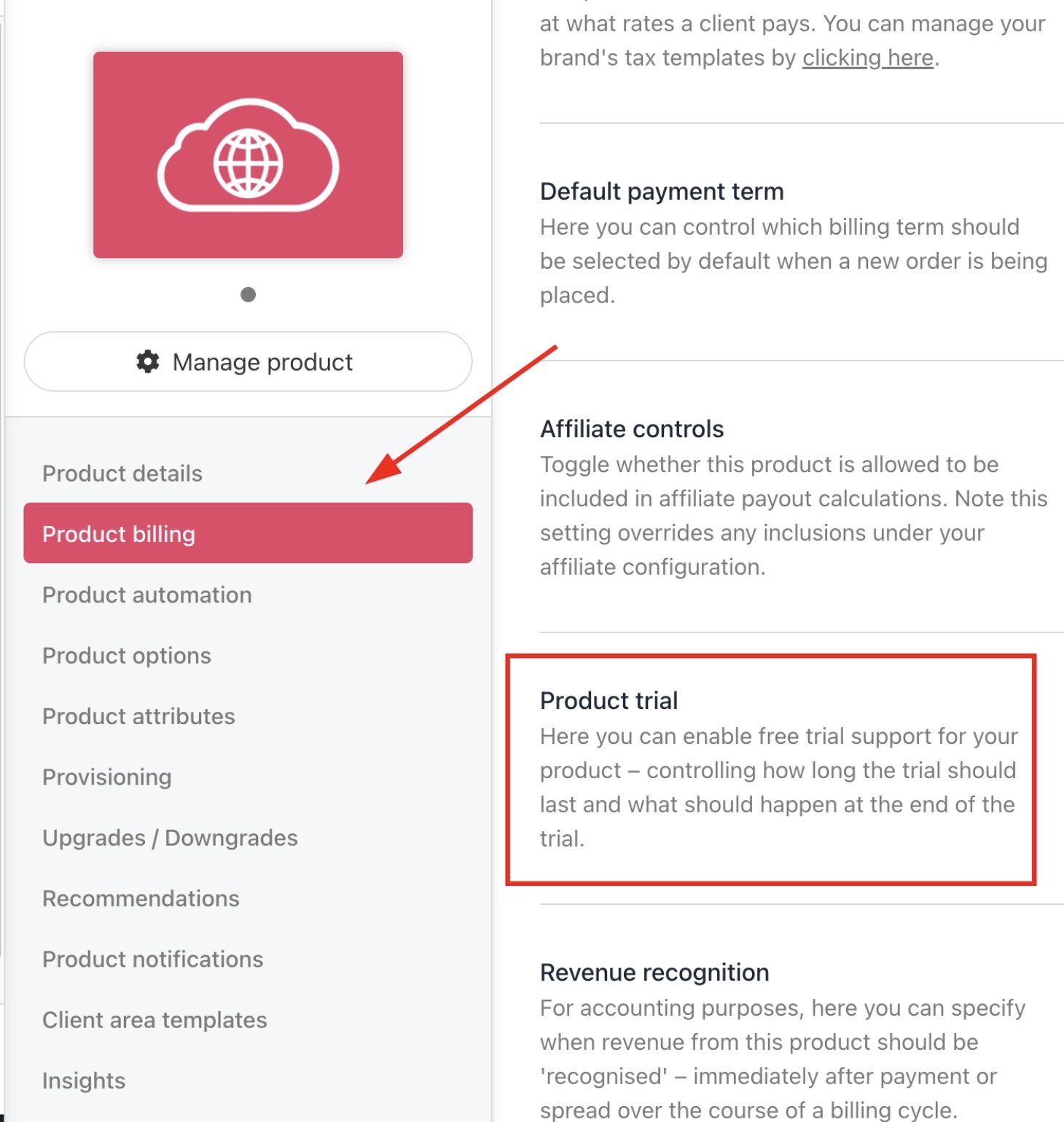
Product billing > Product trial
- Toggle on Support Trial Period.
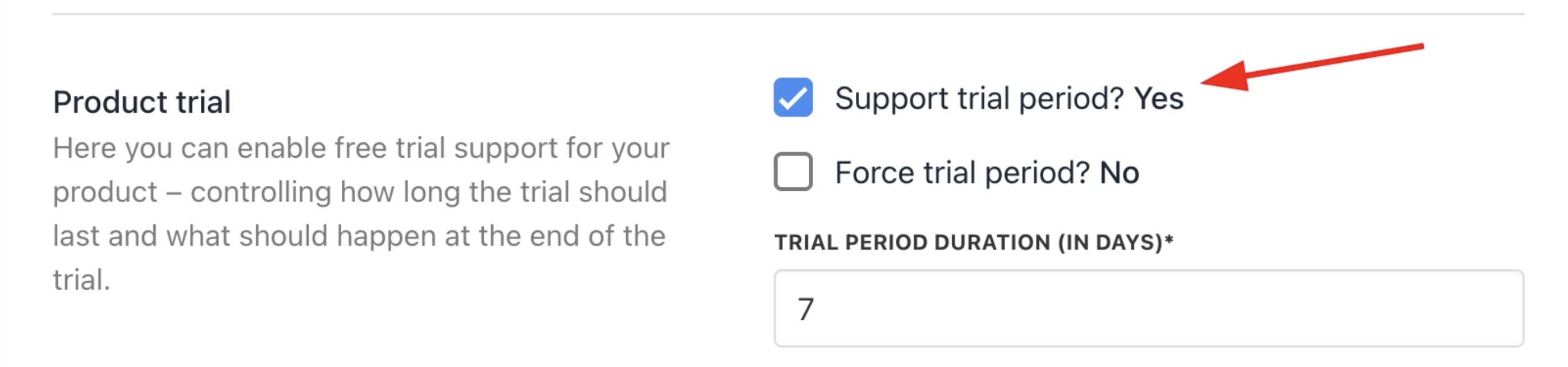
Enable support trial period
Trial settings explained
Forced trial
You can make a trial optional or mandatory (forced).- If the trial is optional, clients can choose to skip it when placing an order.
- If the trial is forced, all clients ordering that product will start on the trial, with no option to bypass it.
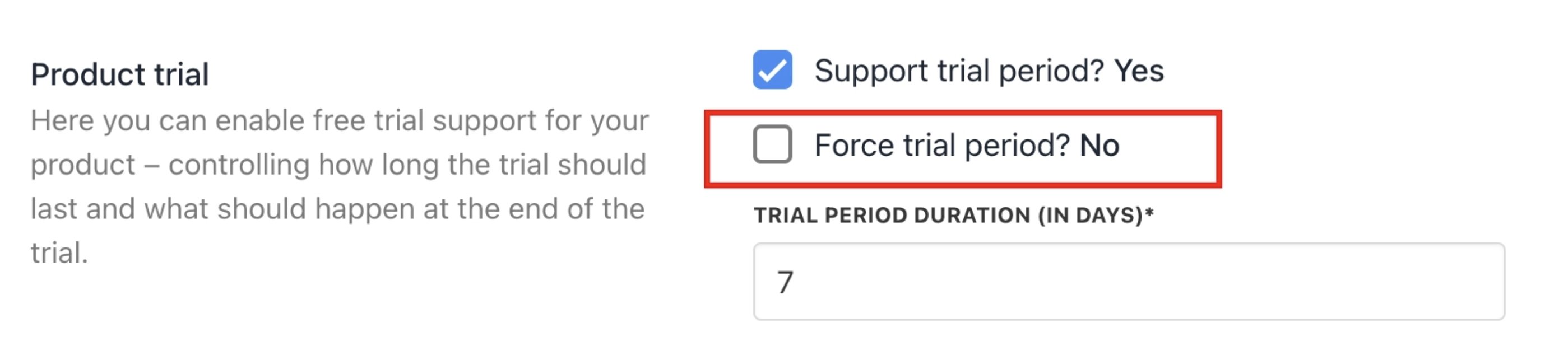
Force trial period
Trial period duration (in days)
The number of days the free trial lasts before the end-of-trial action is triggered.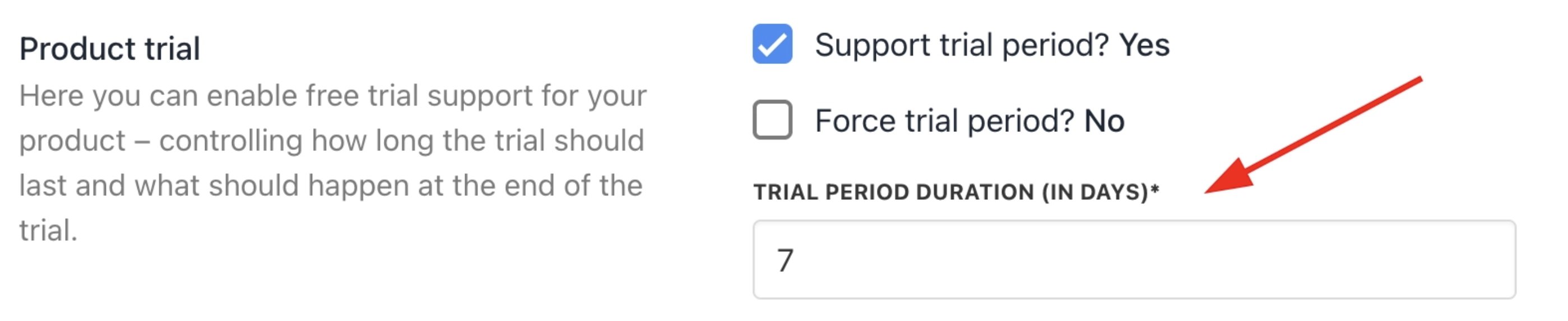
Trial period duration (in days)
Pre-expired notification (in days)
Set how many days before the trial ends you want to trigger configured actions, for example, sending reminder emails to clients.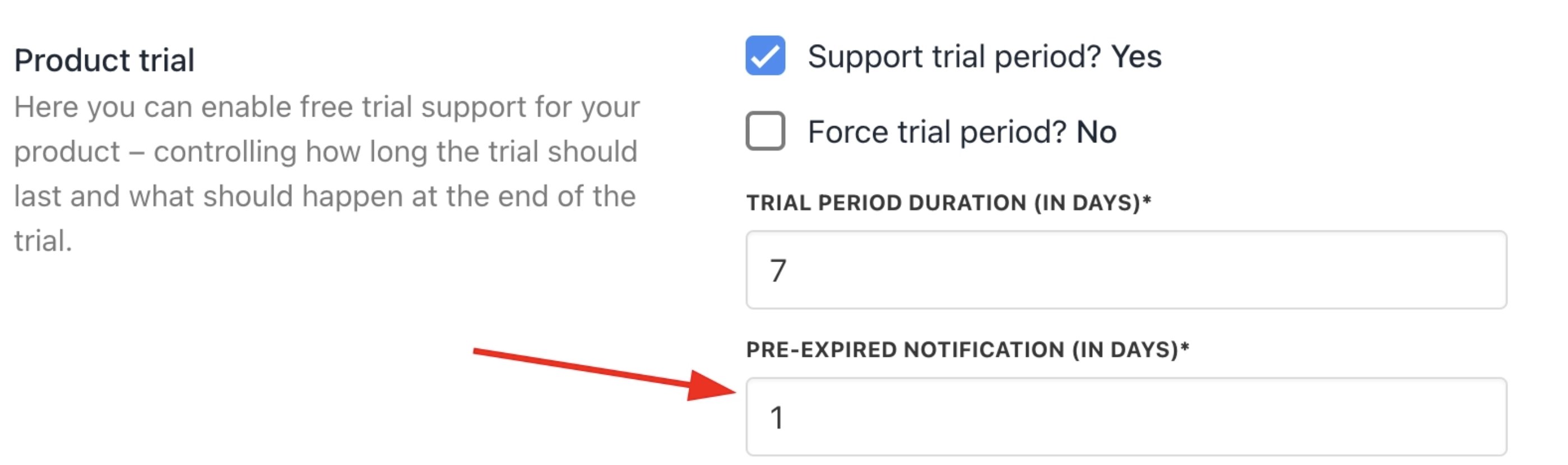
Pre-expired notification (in days)
End of trial action
Choose what happens when the trial period finishes.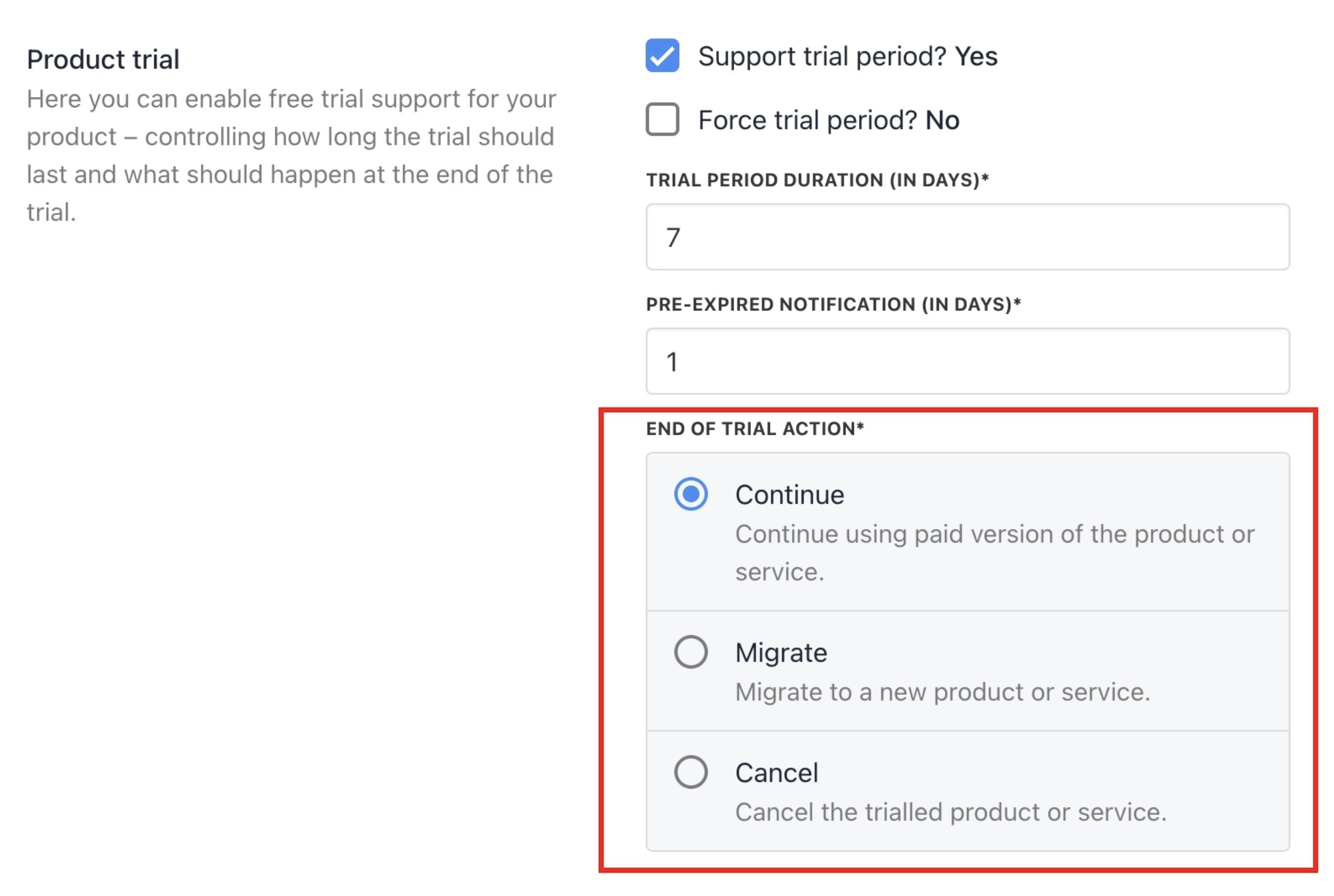
End of trial action
Client experience during a trial
When a client is on an active trial, the trial status is visible in their client area. Clients can end the trial early at any time. Doing this triggers the end-of-trial action configured for that product (continue, migrate, or cancel).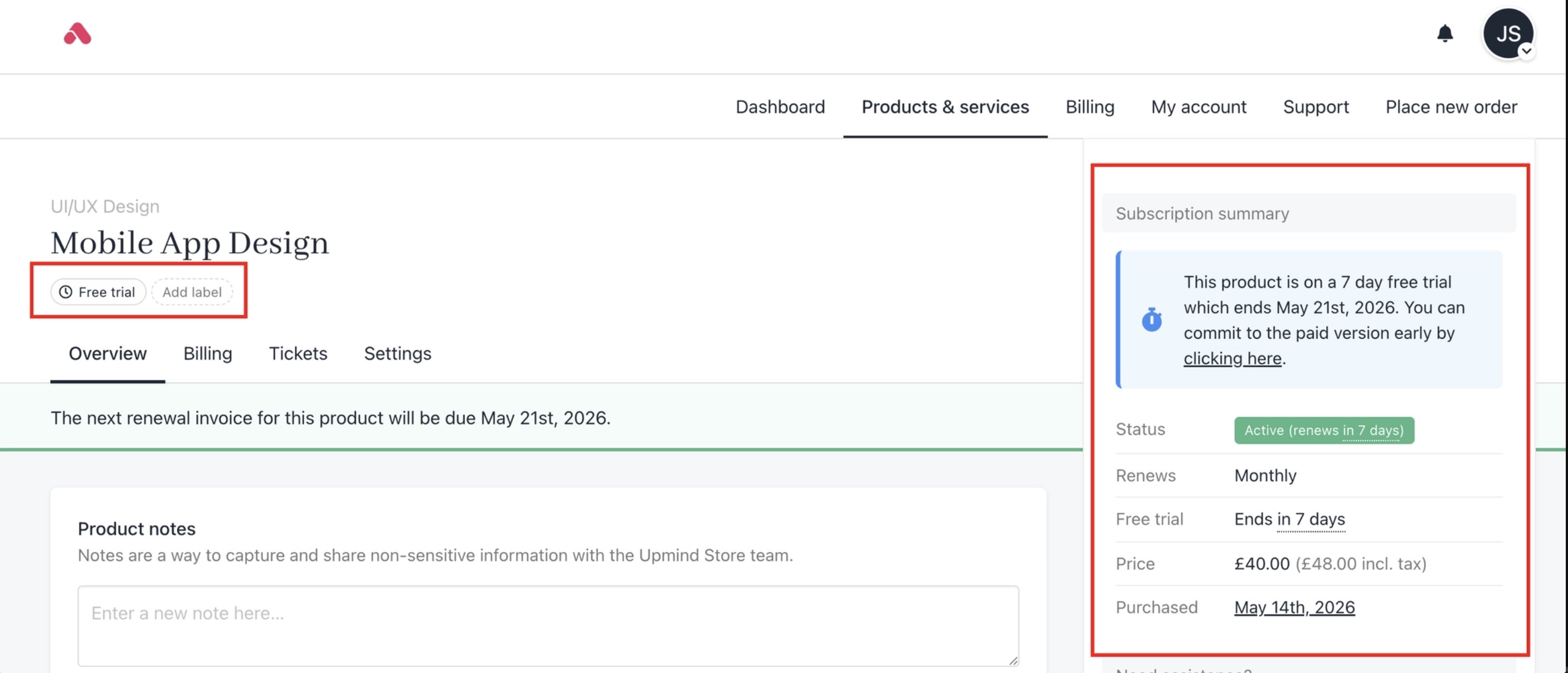
Free trial product
How to offer a discount for trial continuations
If you want to reward clients who choose to continue after a trial with a promotional discount, you can set this up through the Promotions section.- Go to Settings > Promotion (found under the products and promotions).
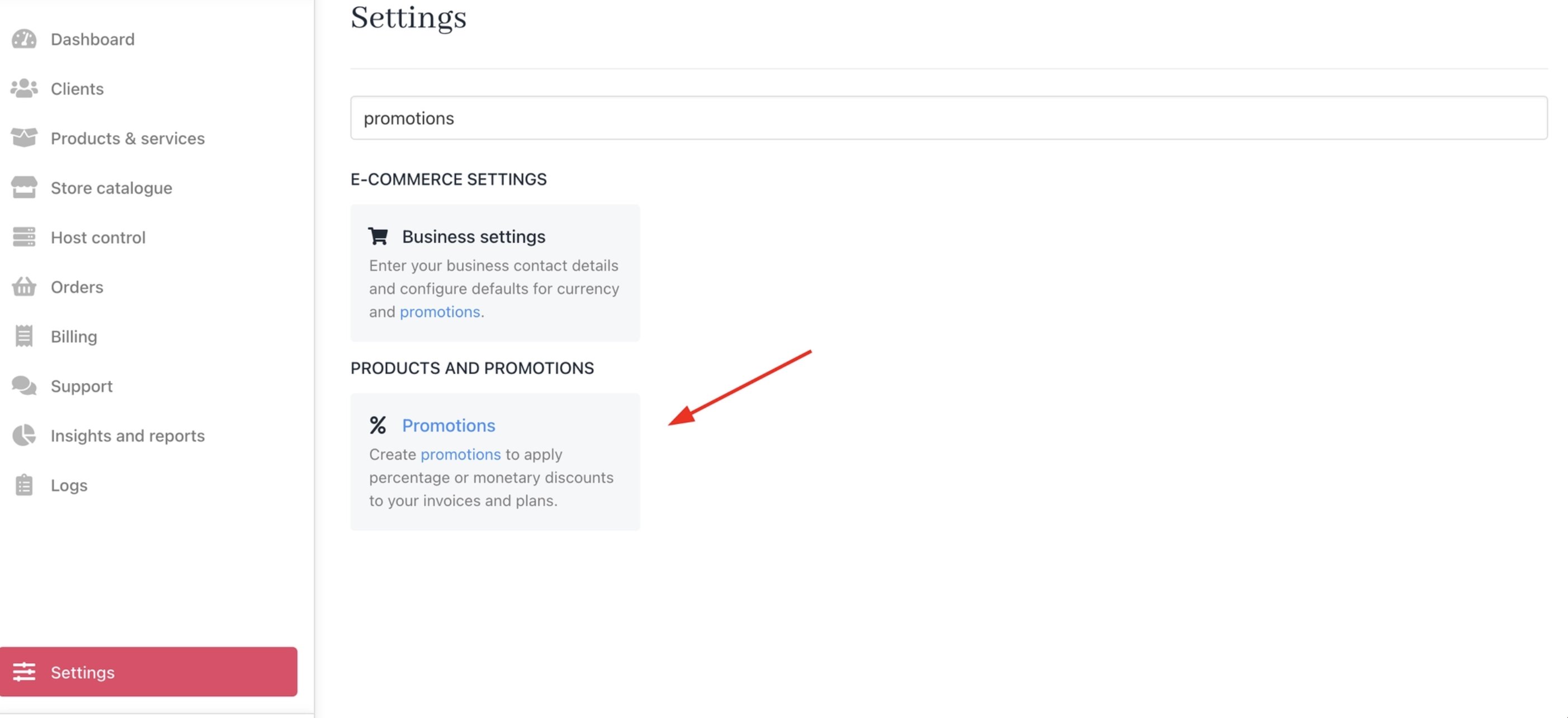
Settings > Products and Promotions > Promotion
- Click Add Promotion and configure the promotion details.
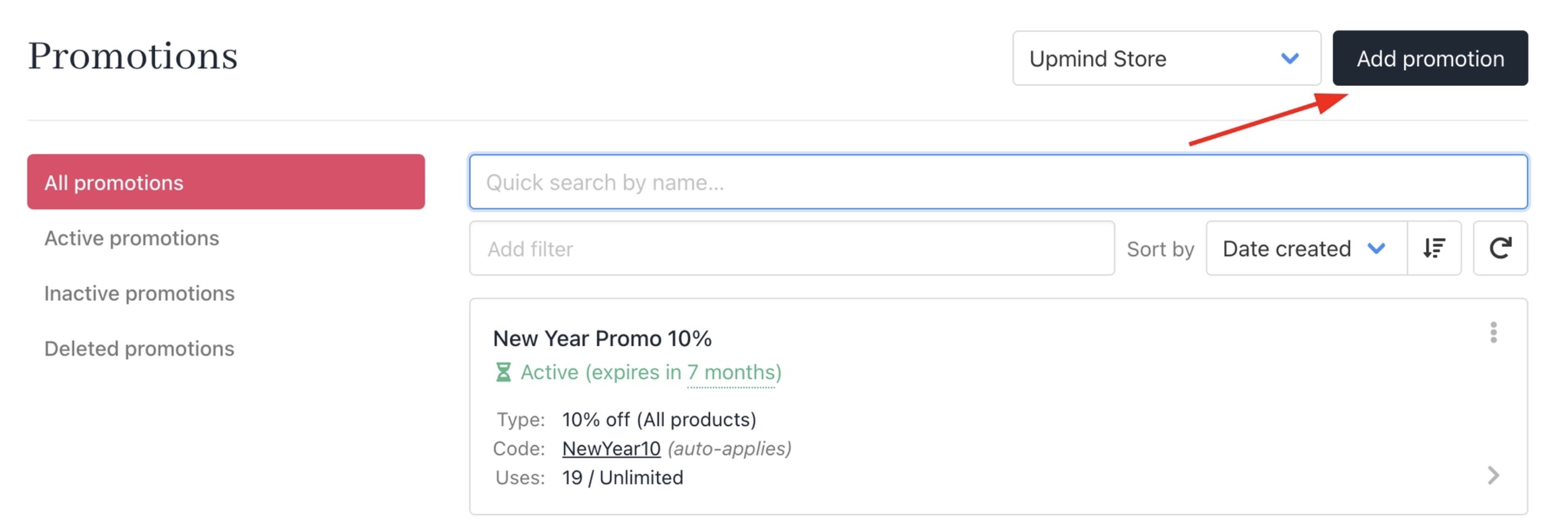
Add promotion
- Choose the promotion type: Custom condition per product, which will apply to an individual promotion per product.
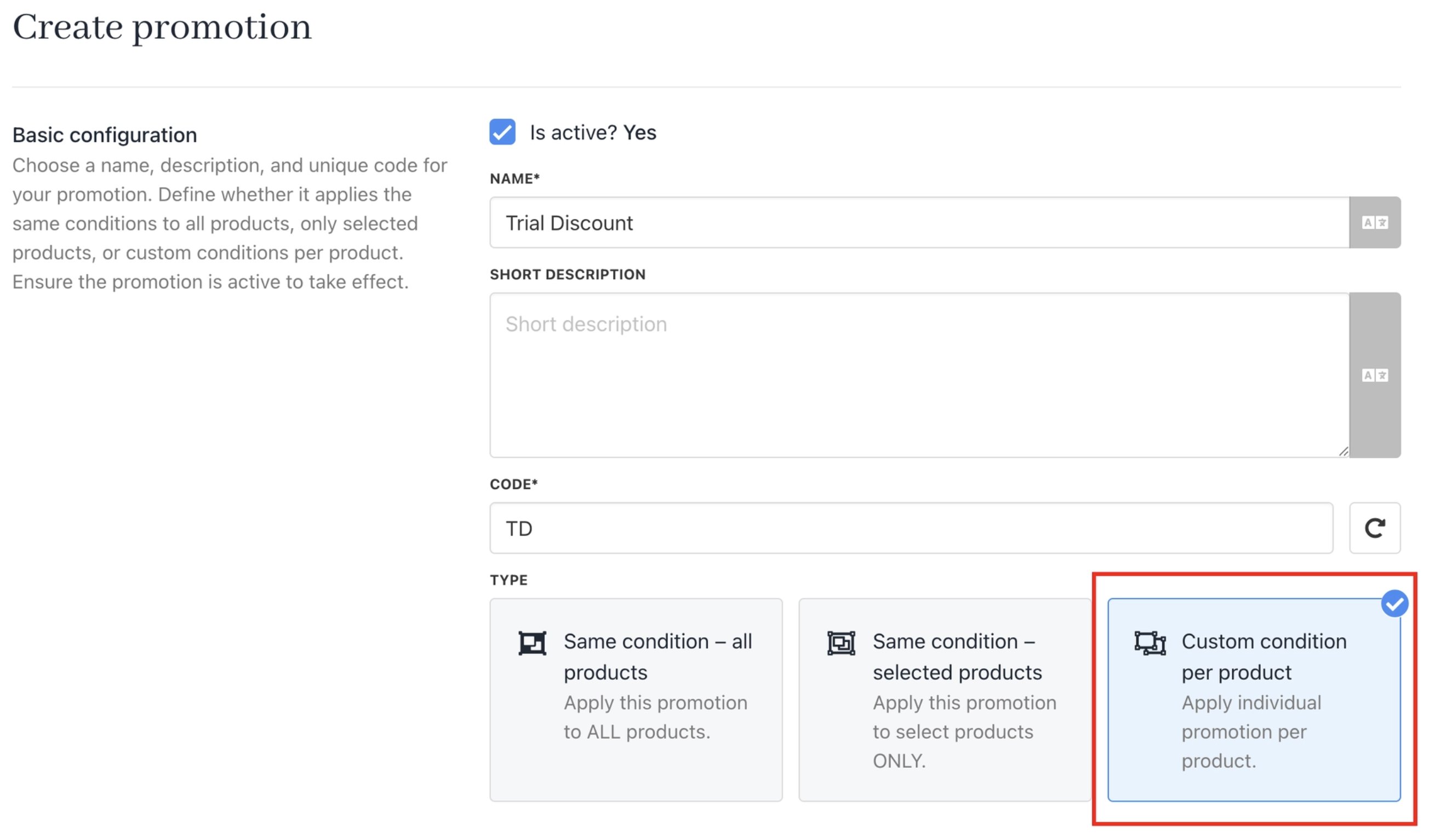
Choose promotion type
- Then click on Attach new product.
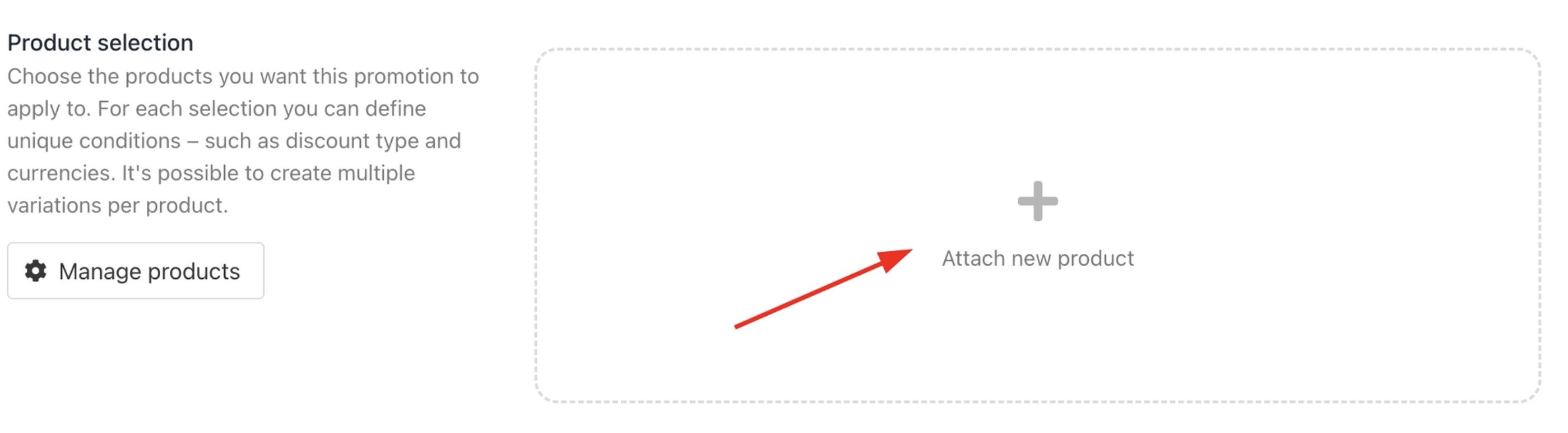
Attach new product
- Set the discount as a fixed amount or a percentage of the product price, tick the applicable conditions, and fill in the minimum and maximum quantity.
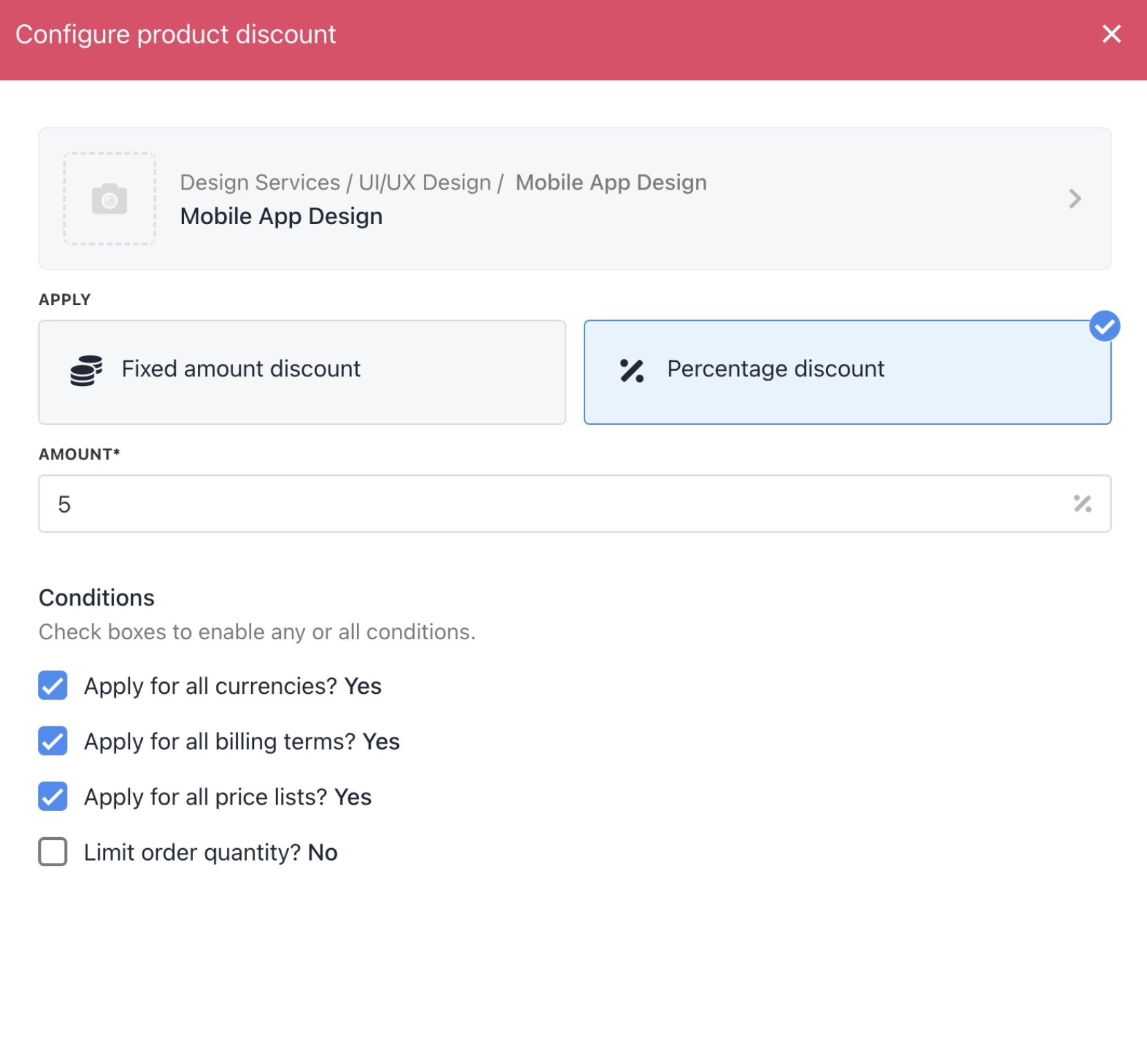
Set discount
- Click Save.
- Under Mandatory Products, click Manage Product.
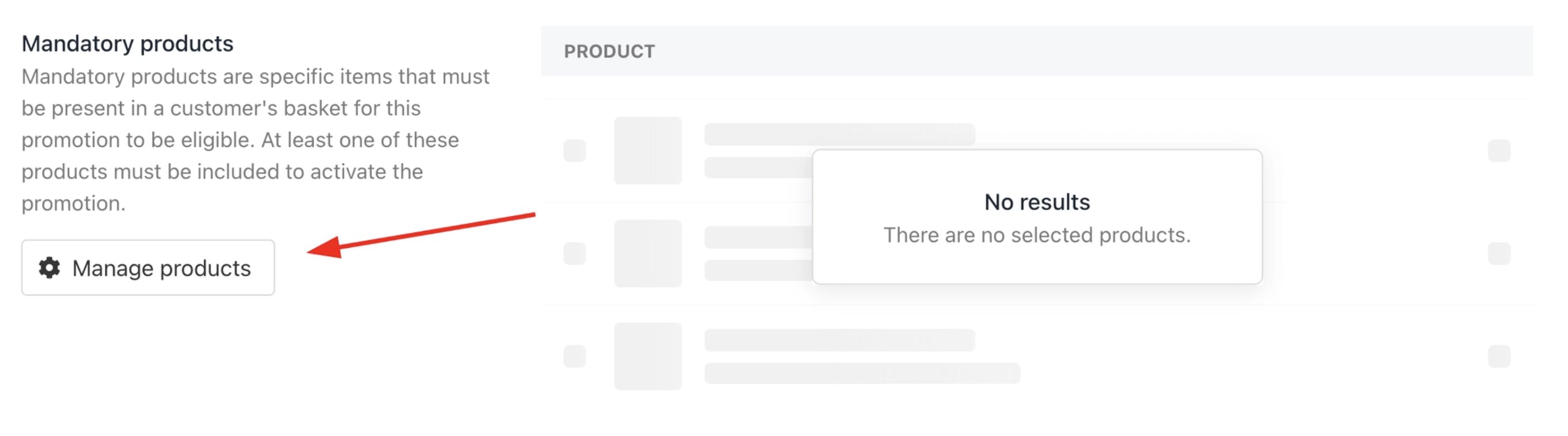
Mandatory products
- Tick the conditions that apply to the promotion, and click Save.
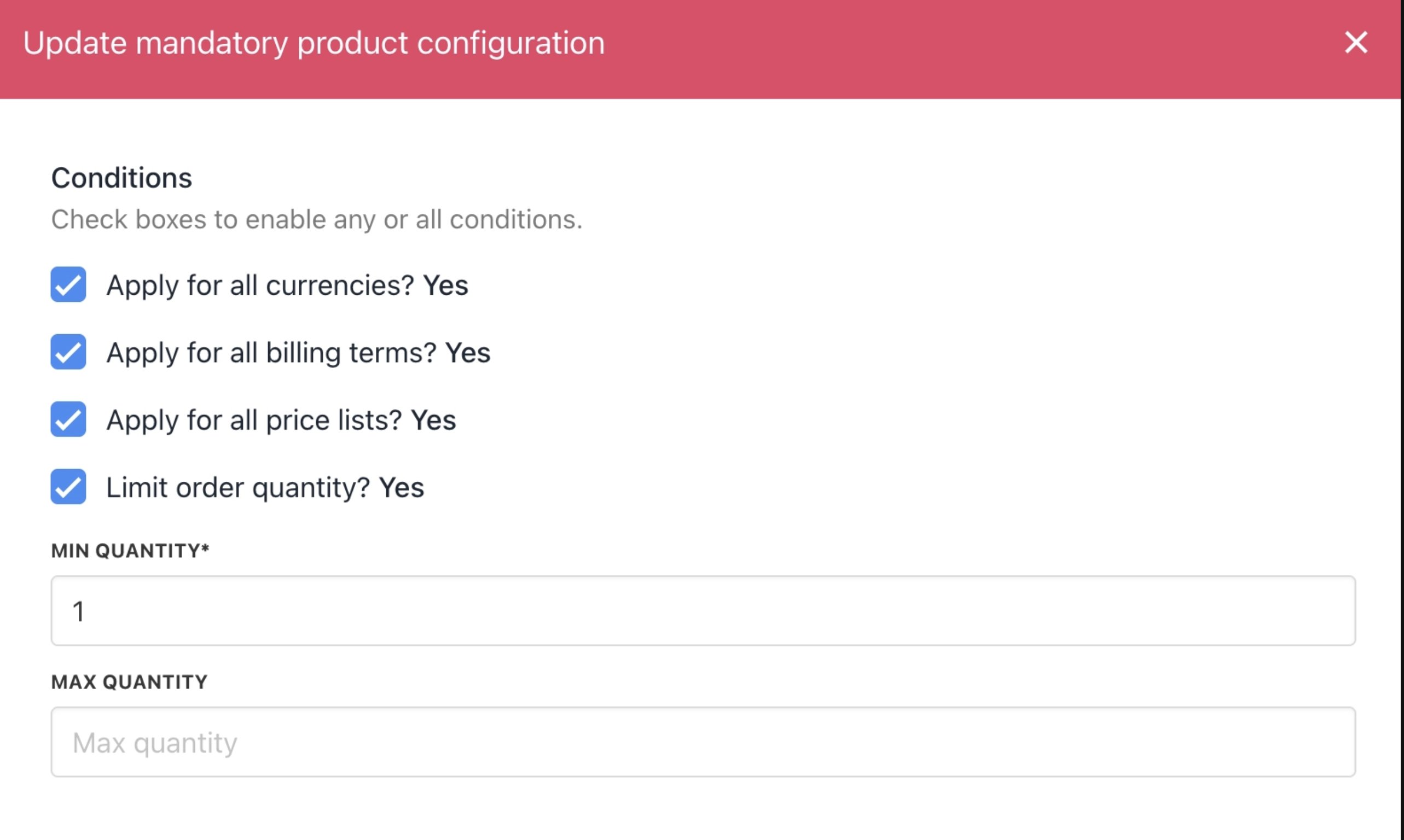
Tick conditions
- Set up the Availability and Eligibility rules, tick the applicable conditions, and click Save.
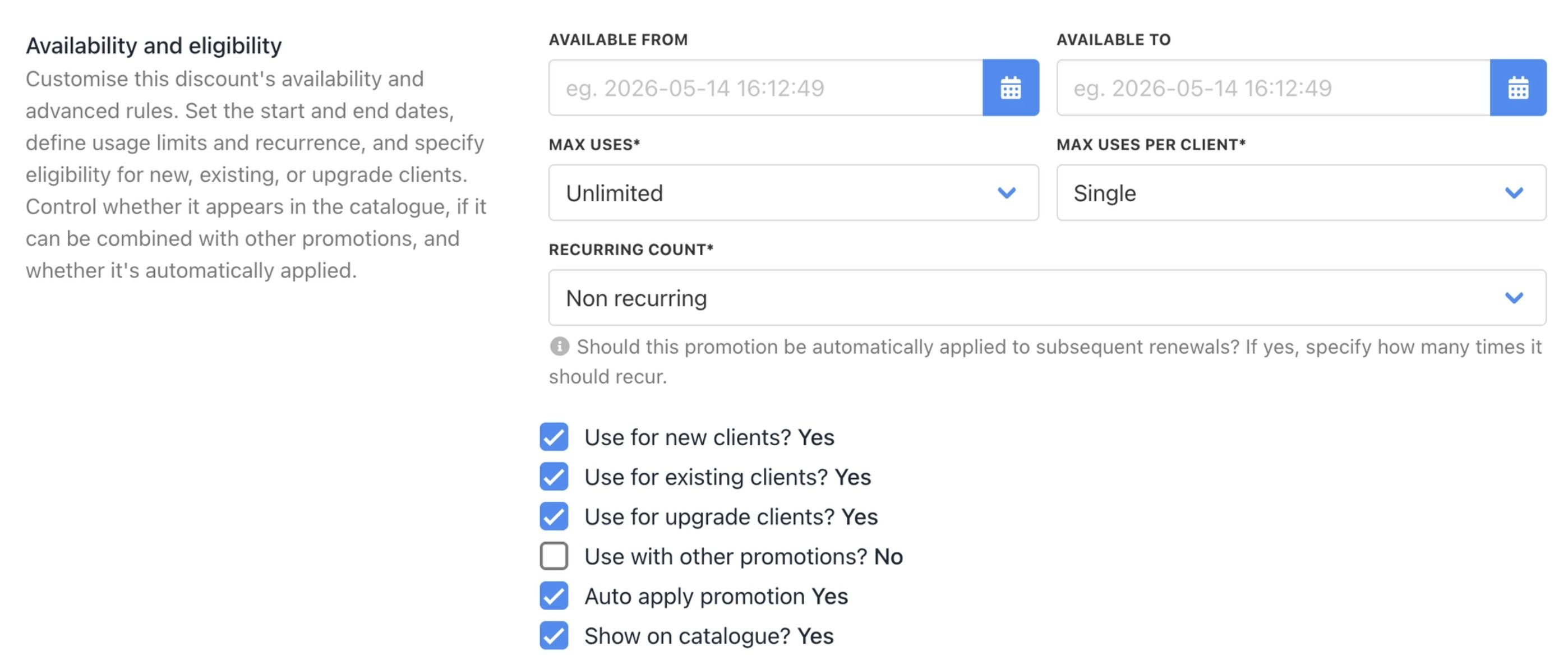
Set availability and eligibility
How to auto-apply a promotion
To automatically apply a promotion without requiring clients to enter a code:- Go to Settings > Business Settings (under the E-commerce Settings heading).
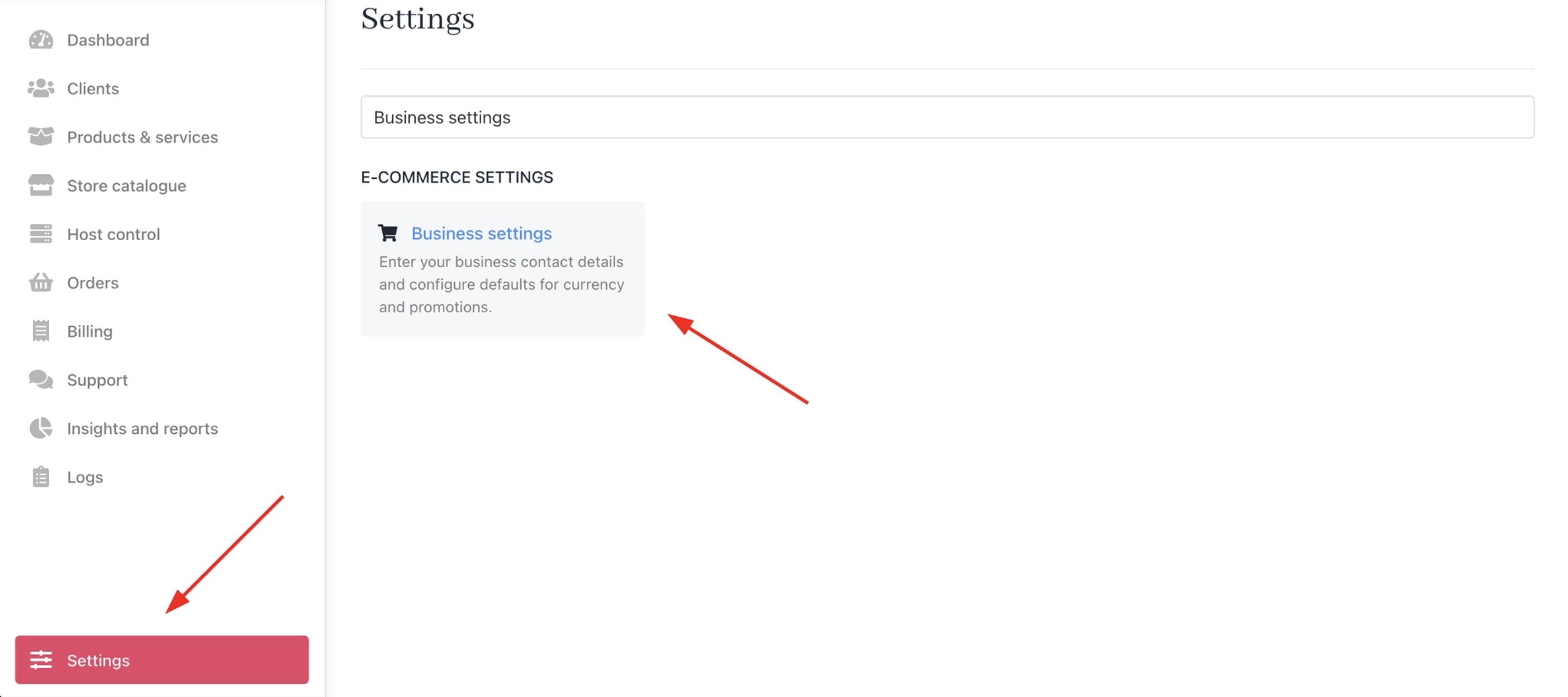
Settings > E-commerce Settings > Business Settings
- Scroll down to Applied Promotion.
- Toggle the setting to ON.

Applied promotion
Trial automation and contract settings
Upmind can automatically suspend, cancel, or terminate trial contracts that become overdue. These settings are found at Settings > Branding and Customisation > Subscription Options > Contract Settings.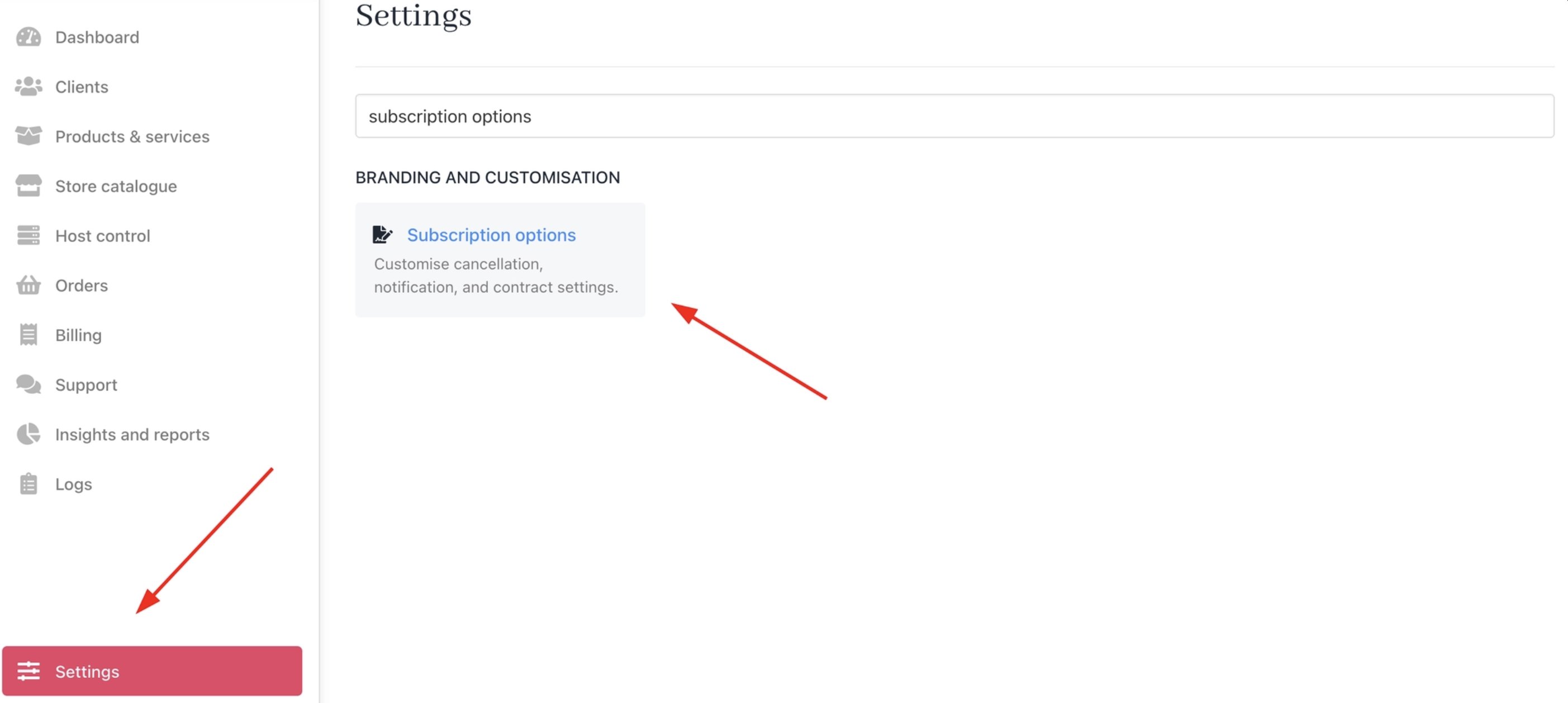
Settings > Branding and Customisation > Subscription Options
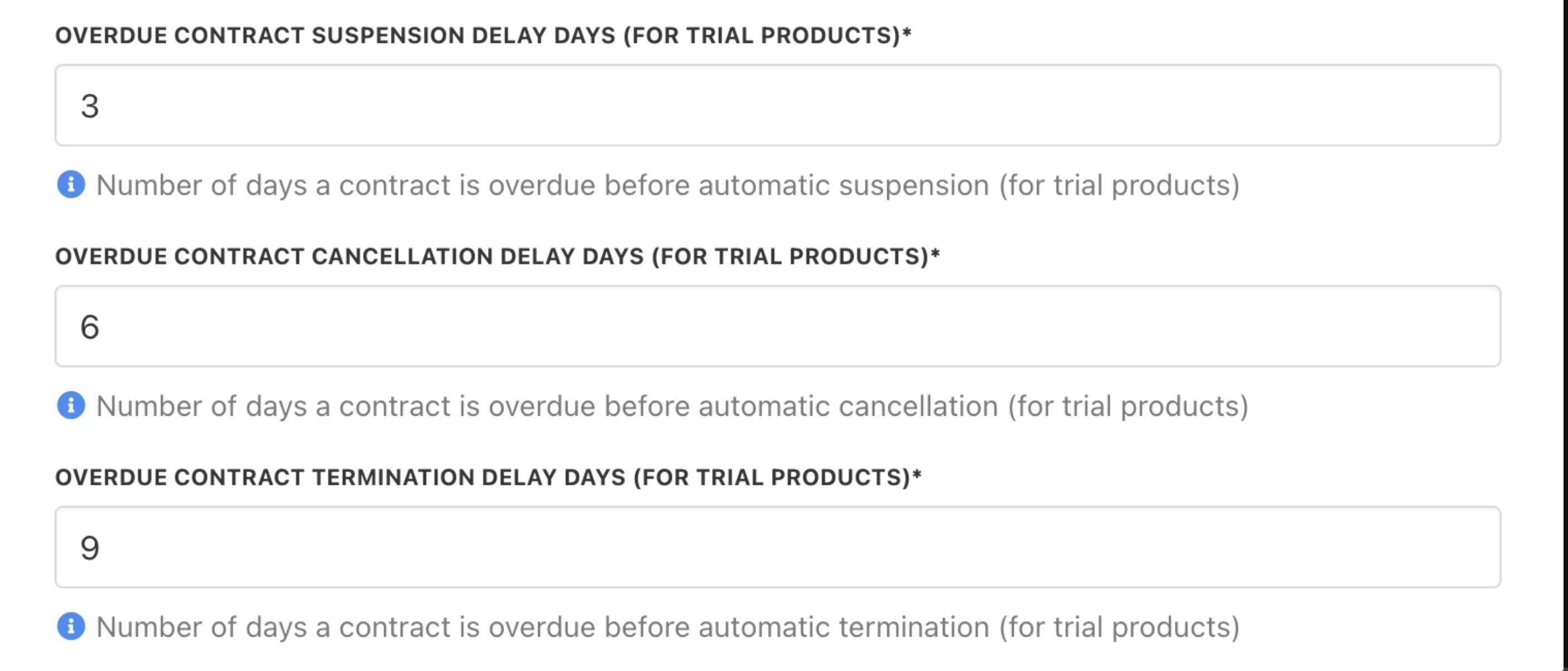
Overdue contract settings for trial products
Requiring payment details for free trial orders
Go to Settings > E-commerce Settings > Order Options > Misc.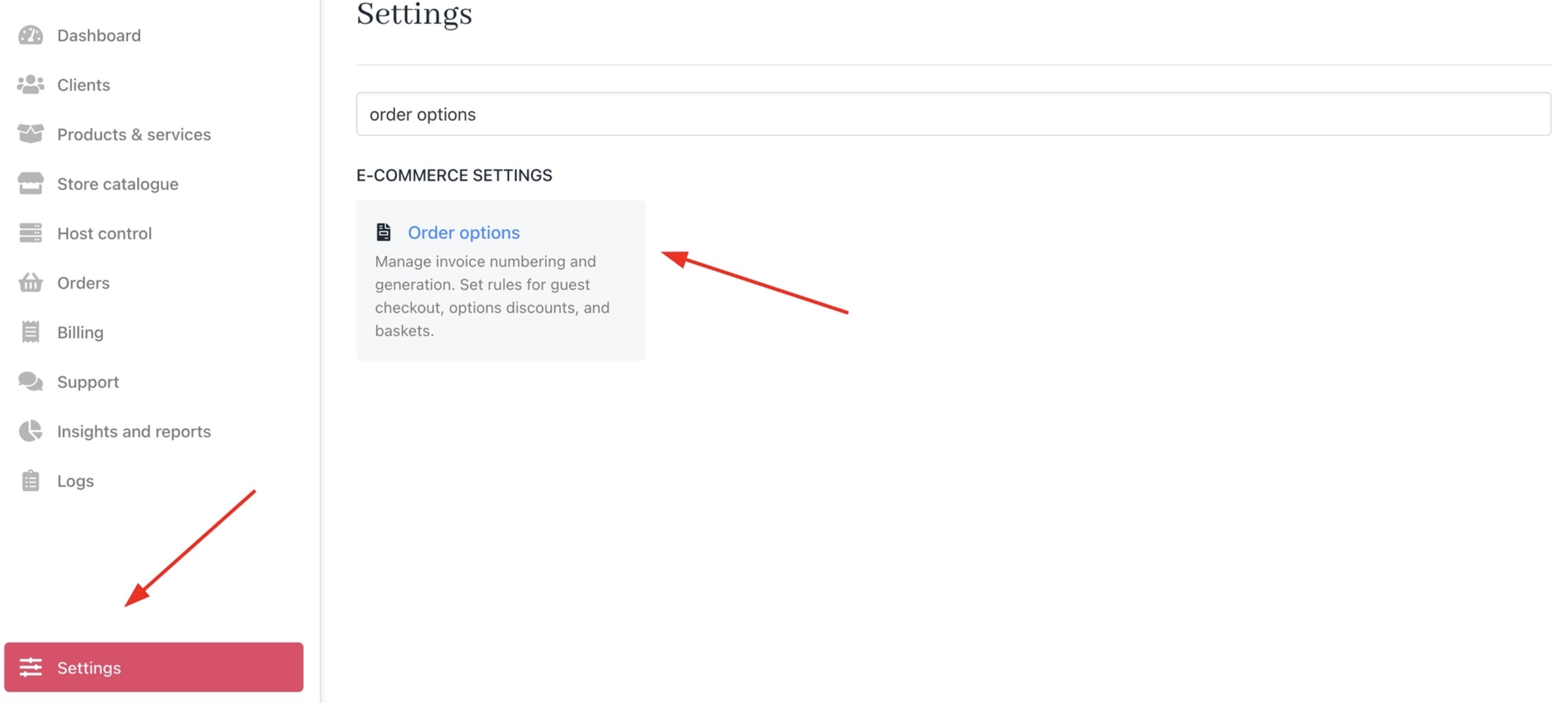
Settings > E-commerce Settings > Order Options

Require payment details for zero amount orders
true means that when a basket is converted to an invoice for a free trial, the client must add a saved payment method before completing the order. This makes sure the renewal invoice at the end of the trial can be charged automatically, without any manual follow-up.
This is recommended if your end-of-trial action is set to Continue and you want billing to be fully automated.