

Create a trigger
- Log in to the Upmind dashboard.
- Access it from the dashboard by clicking on Store Catalogue.
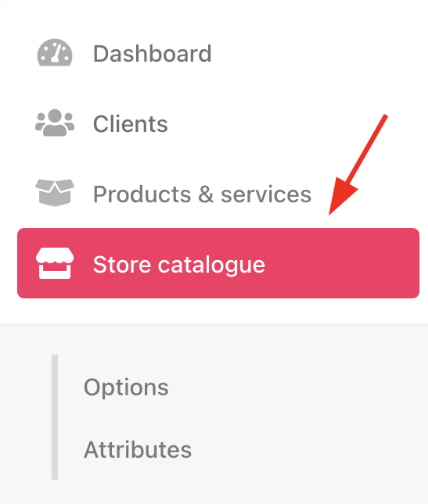
Store catalogue
- You can also click Settings and select the Product Catalogue tile under Products and Promotions.
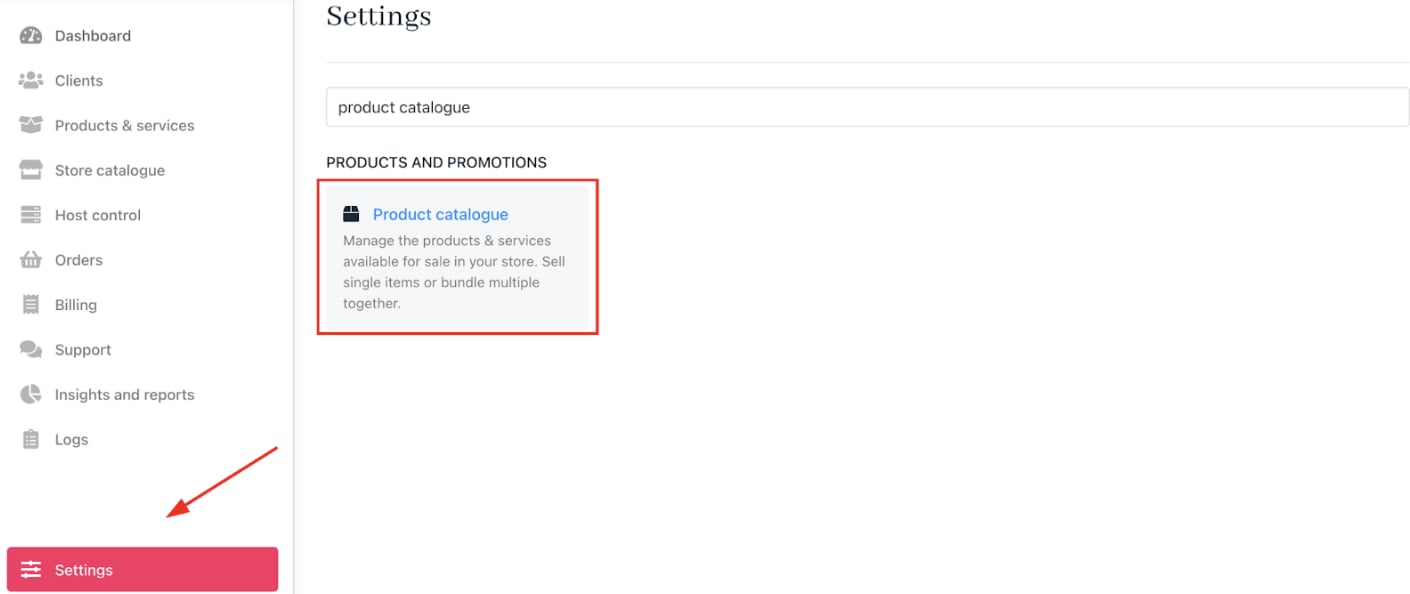
Settings > Products and Promotions > Product Catalogue
- Choose a product and click Product notifications on the product details page.
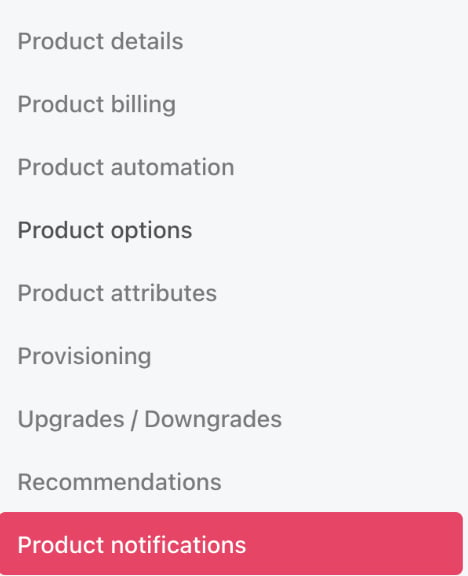
Create a trigger
Select a trigger
- Click Add to create a notification.
- Click the Trigger field and select the event that will activate this notification (e.g. product purchased, subscription renewed).
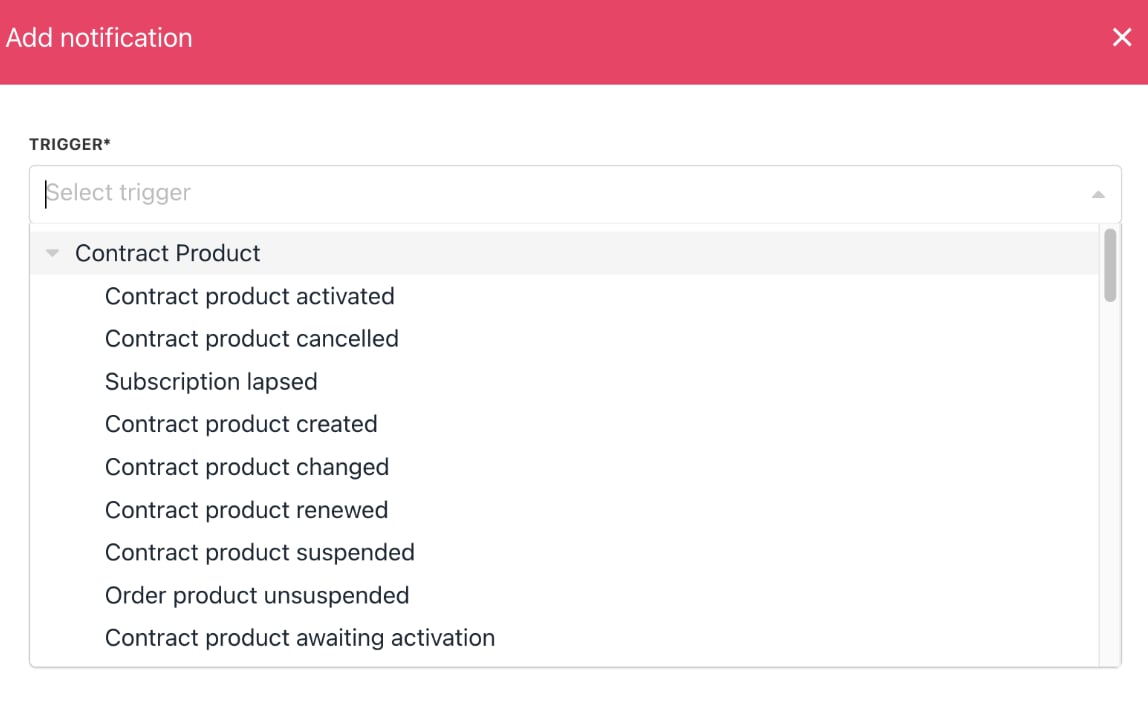
Select a trigger
Create the notification message
- Enter a unique Notification Name (internal use only).
- Choose the Message Type: email, in-app, or Slack (depending on what is enabled).
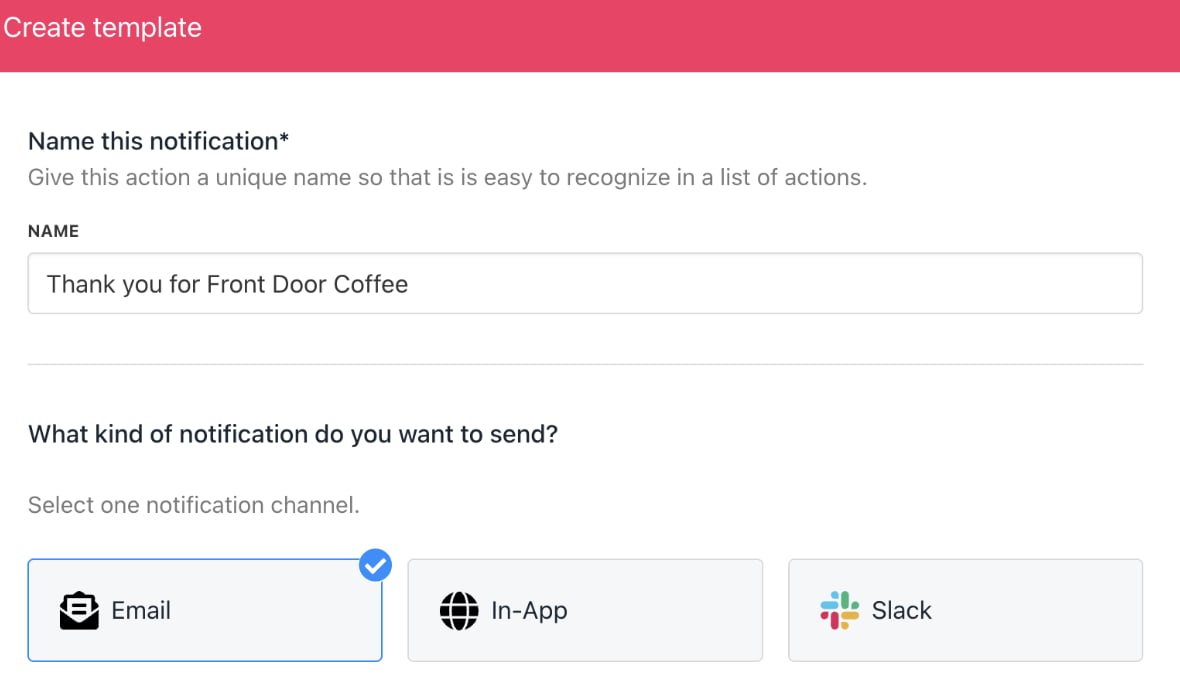
Create template
- Select the recipient group (clients, staff, etc.).
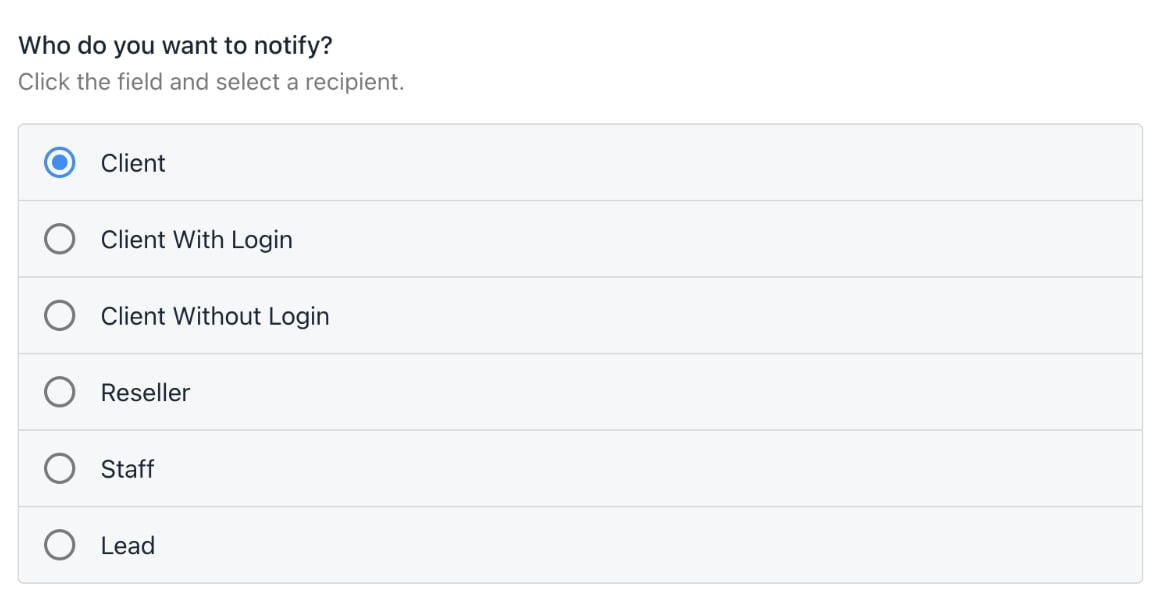
Notify recipient
- Compose the message subject and body using text and Twig code snippets for dynamic content.
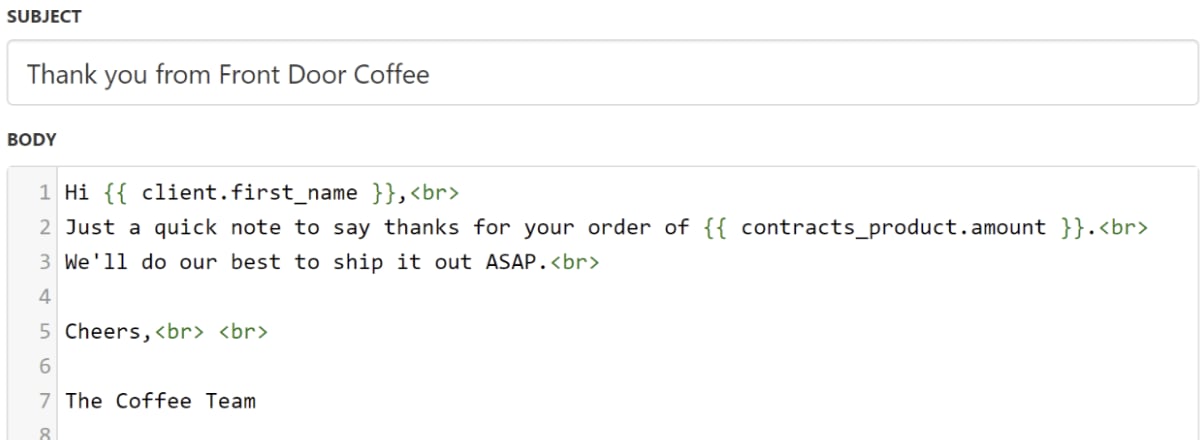
Create a message
Save and manage notifications
- Click Save, then Create to finalise setup.
- Notifications will be sent automatically when triggers occur.
- To edit a notification, click its name in the list.
- To delete, use the gear icon.
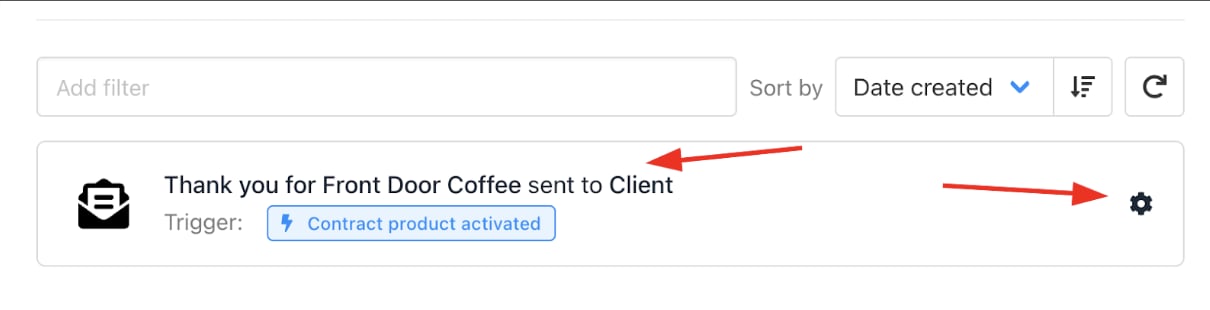
Completed product notification
Customer view
Example: A Thank You email sent automatically after product purchase improves communication without manual intervention.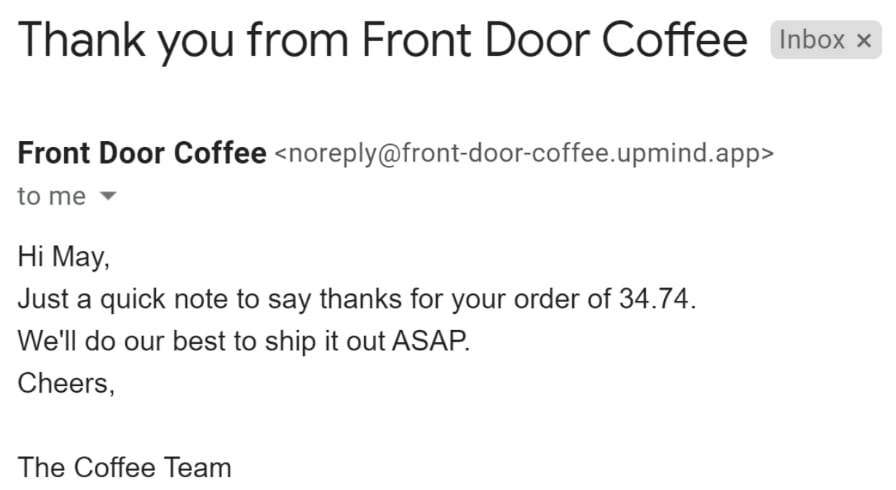
Thank you email