

How to auto-populate prices in your product catalogue
- Log in to the Upmind dashboard.
- Access it from the dashboard by clicking on Store Catalogue.
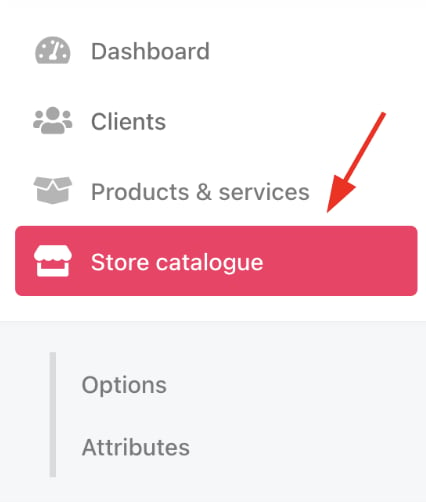
Store catalogue
- You can also click Settings and select the Product Catalogue tile under Products and Promotions.
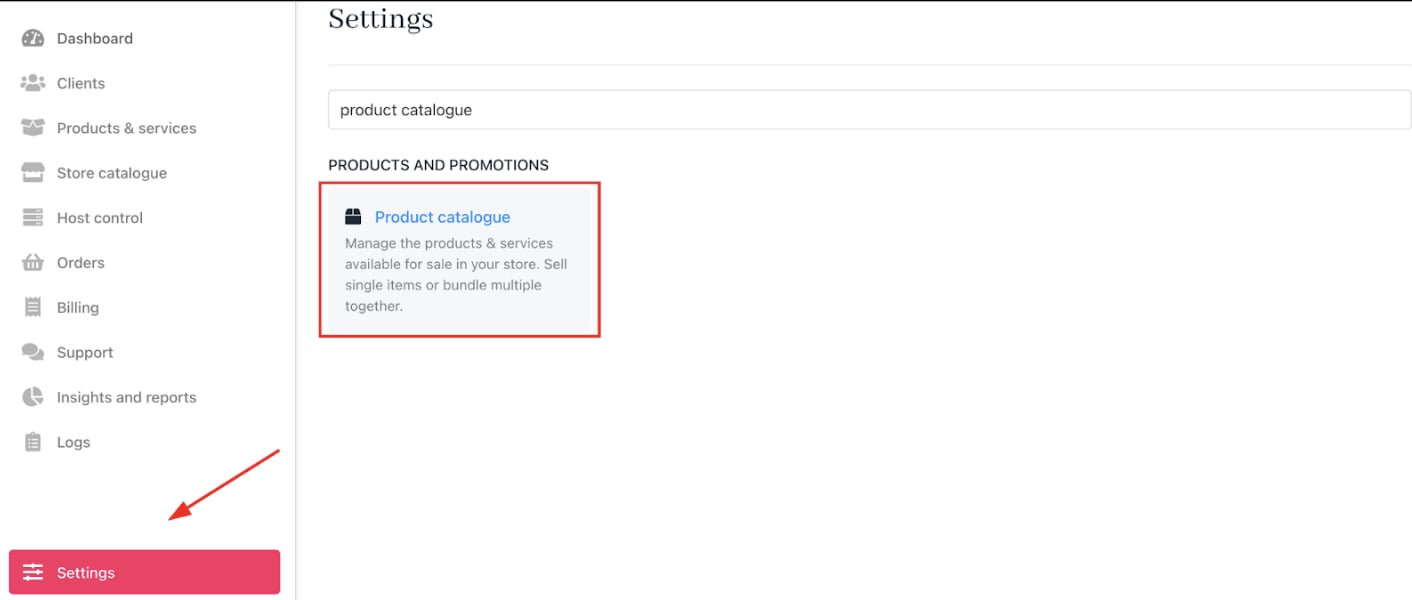
Settings > Products and Promotions > Product Catalogue
- Select the product to update.
- Open
Product Billing. - In
Subscription Terms, open the Advanced options, then choose Auto Populate Prices.
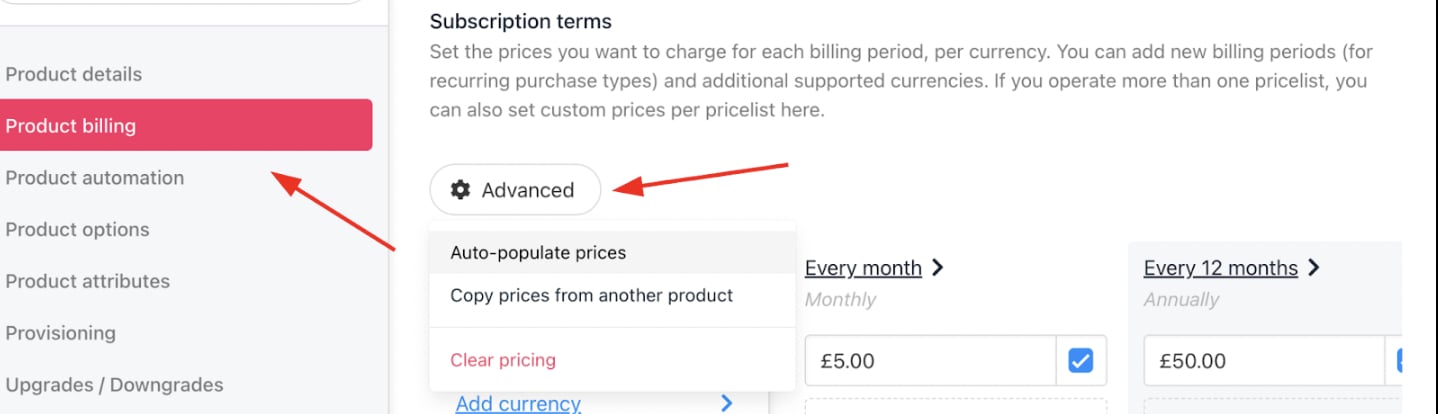
Auto-populate prices
Customising auto-population
Choose base term:
Select either monthly or annually. Example: Setting £5/month will auto-calculate £60/year for annual term.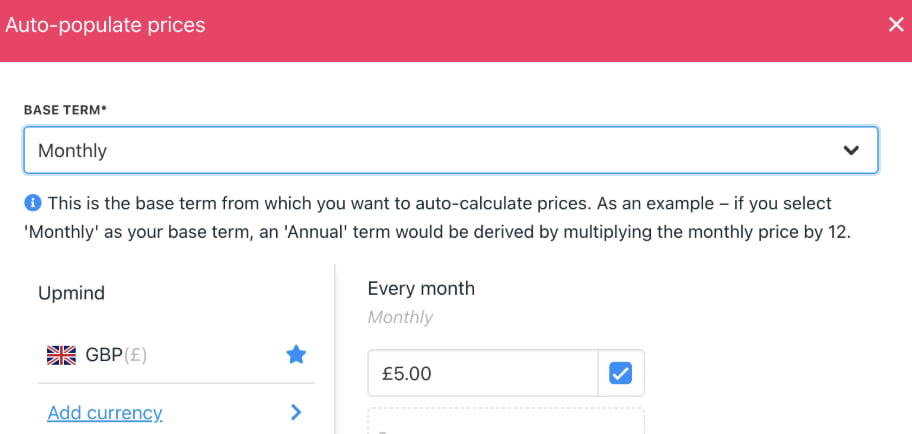
Base term
Select billing terms:
Choose which terms (quarterly, semiannual, etc.) to auto-fill with prices. Optionally, you can add percentage discounts on each calculated price per term.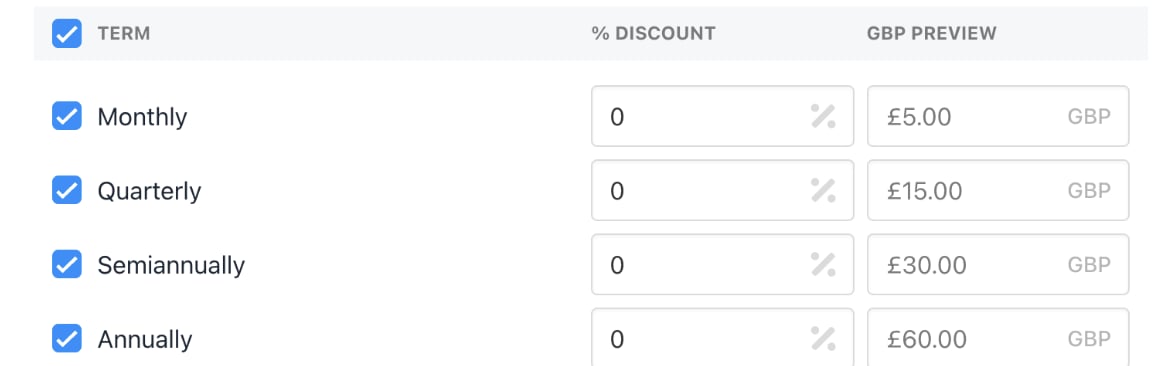
Billing terms
Overwrite existing prices:
Check theOverwrite existing prices box to update or retain prices for selected terms.

Overwrite existing prices

Apply discount
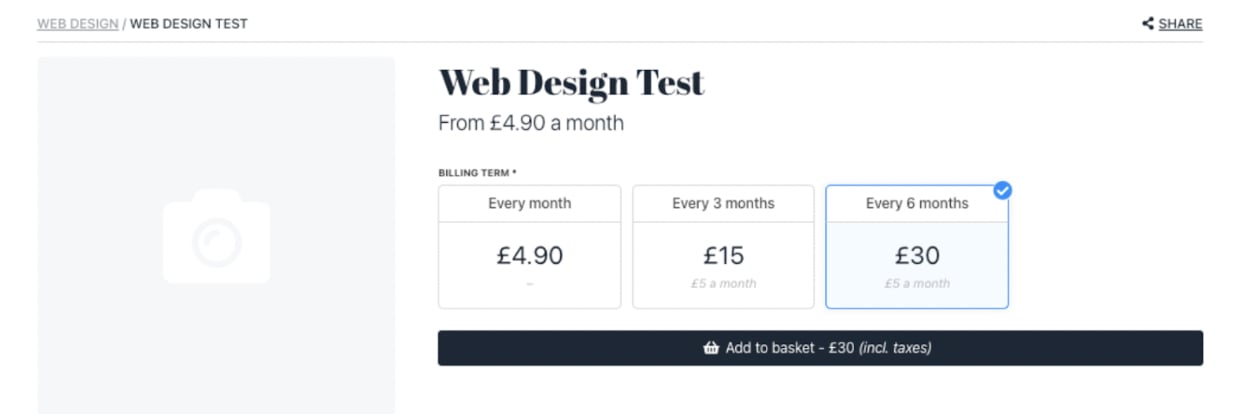
Customer view