

- Create custom price lists for specific clients, such as:
- Offering discounts to wholesale customers.
- Loyalty pricing.
- Legacy rates for existing clients.
- You can enable or disable products per client. A product is only orderable if it has a price in that client’s list, though most products already have default prices.
Create a price list
- Log in to Upmind.
- Go to Settings > Price Lists under Products and promotions.
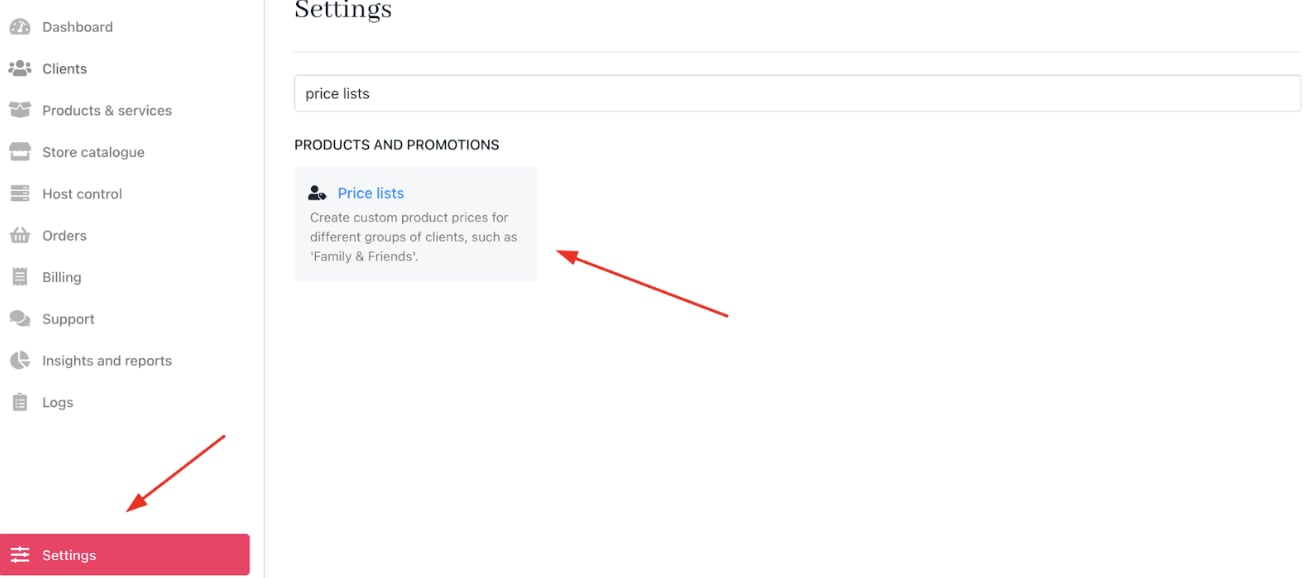
Settings > Products and promotions > Price Lists under
- Click Add Price List.

Add price
- Name the price list and click Add.
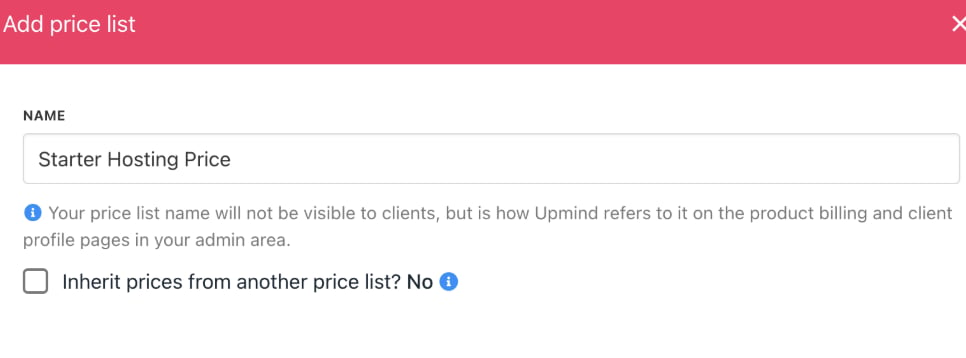
Click add
Set product prices in a price list
- Log in to the Upmind dashboard.
- Access it from the dashboard by clicking on Store Catalogue.
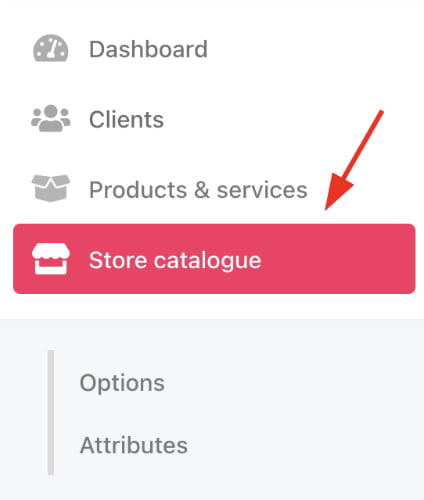
Store catalogue
- You can also click Settings and select the Product Catalogue tile under Products and Promotions.
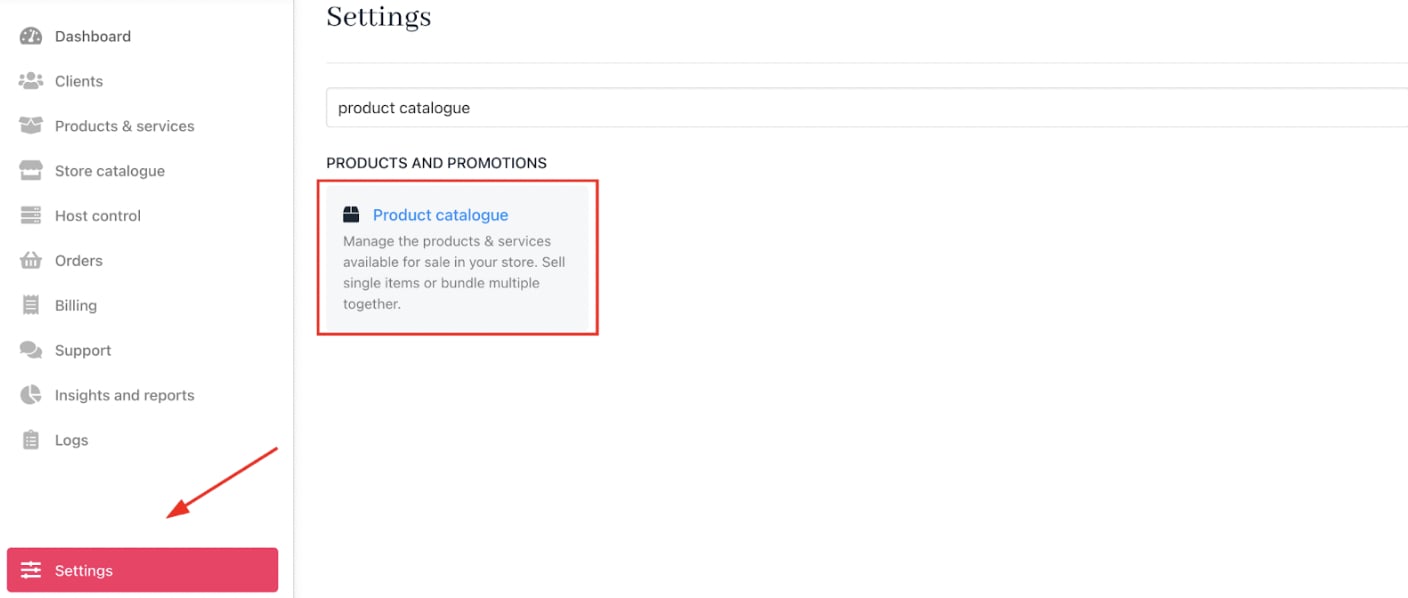
Settings > Products and Promotions > Product Catalogue
- Choose a product to modify.
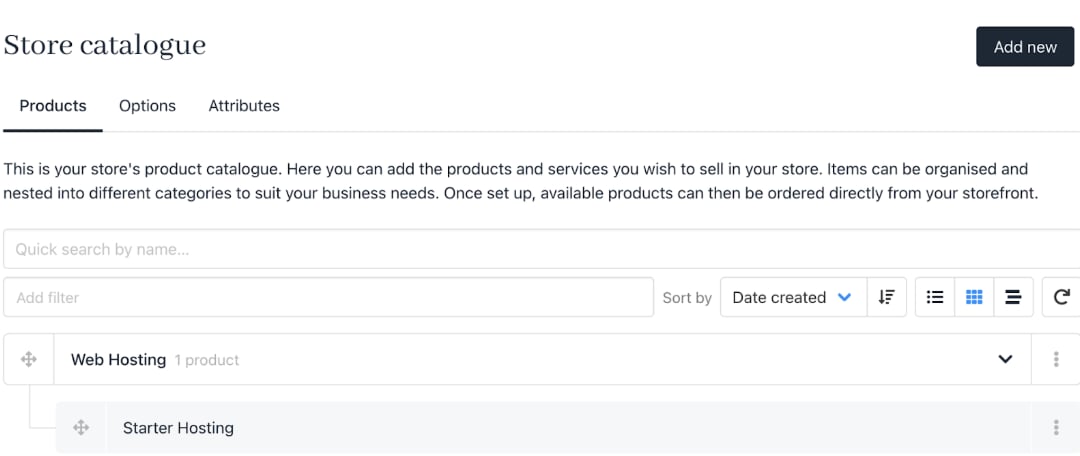
Choose product
- Open the
Product billingpanel. - Select the desired price list from the dropdown.
- Add or edit prices per currency.
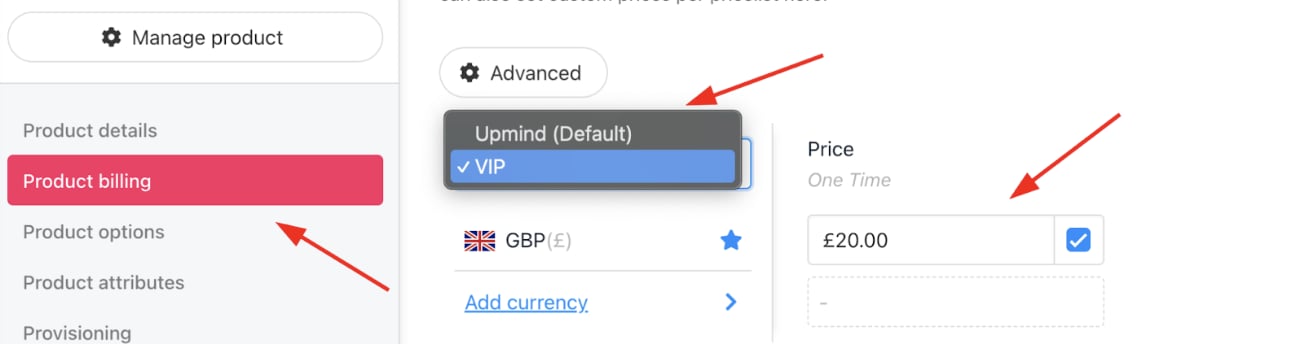
Choose new price list and price
- Click Save.
Assign a price list to a client
- Go to Clients in the main dashboard.
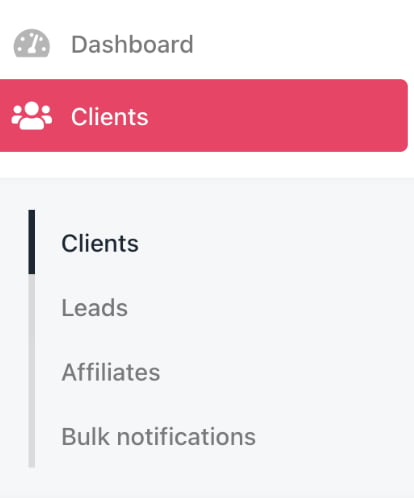
Dashboard > Clients
- Select a client.
- Click the Settings tab.
- Choose the desired price list from the Price List dropdown under Billing.
- Save the client profile.
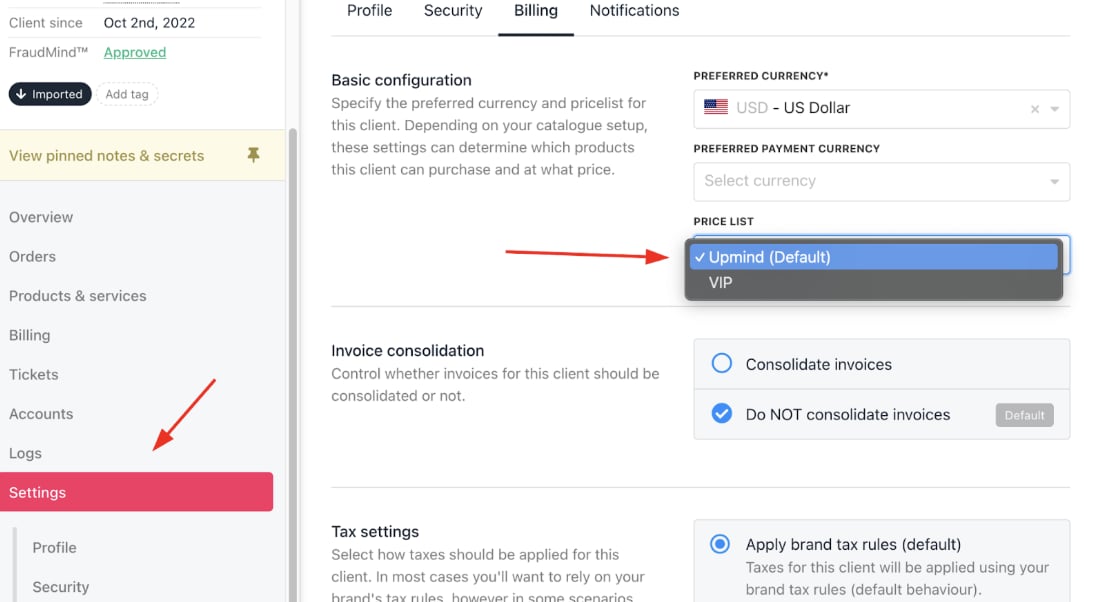
Choose price list
Use price lists to show or hide products
When creating a new price list, you can choose whether to inherit prices from another list:- Inherit prices enabled: Products not added to this list will still use their default (or inherited) prices.
- Inherit prices disabled: Only products explicitly added to this price list will be visible to clients.
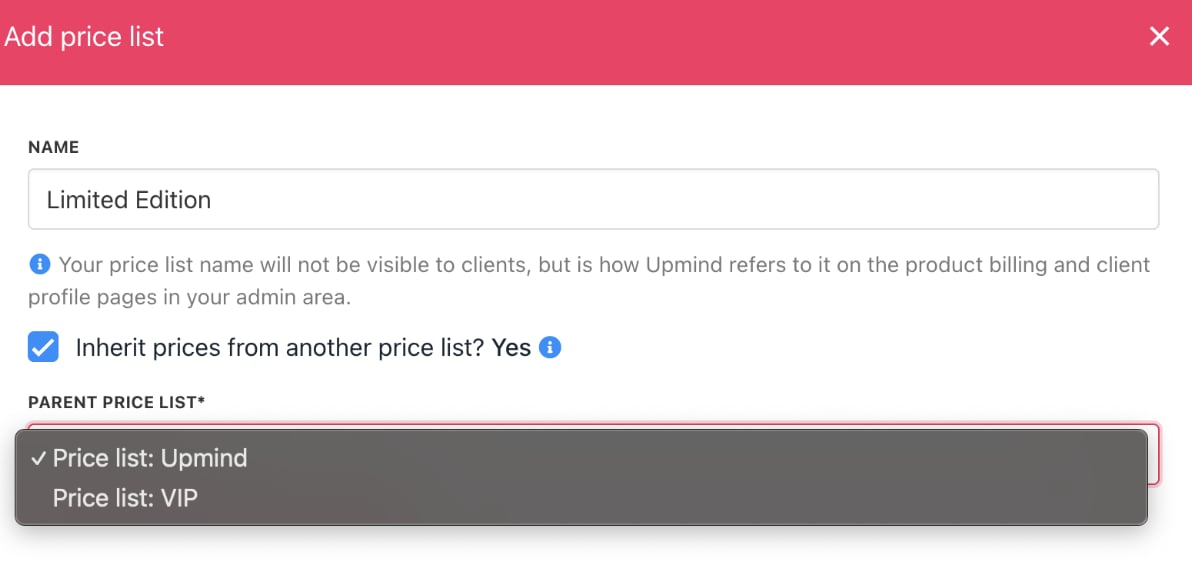
Check box to inherit prices
- Open the product in
Products & Services. - Select the relevant price list.
- Clear the price and check Omit product.
- Save your changes.
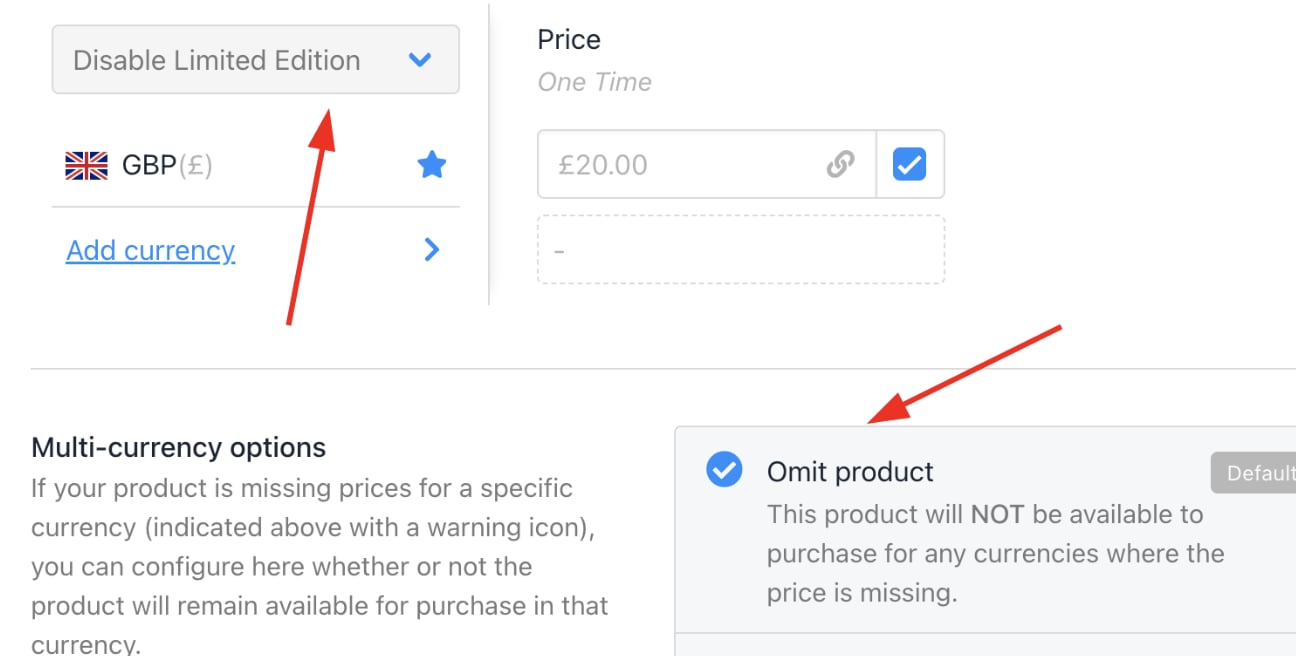
Select omit product
- Assign the updated price list to the client (or client group). Clients will then only see the products that are enabled and priced in their assigned list.
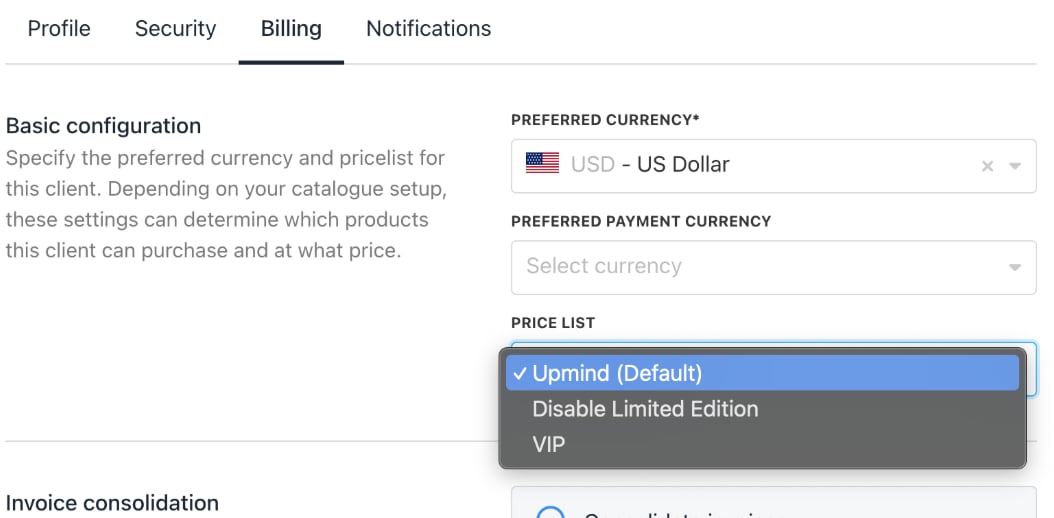
Apply new price list