

If you operate internationally, you can add prices in multiple currencies.
- One-off payment: A single purchase with no recurring charge.
- Recurring payment: A subscription with automatic periodic billing (e.g. monthly subscription to a hosting plan).
Open the product billing page
- Log in to the Upmind dashboard.
- Access it from the dashboard by clicking on Store Catalogue.
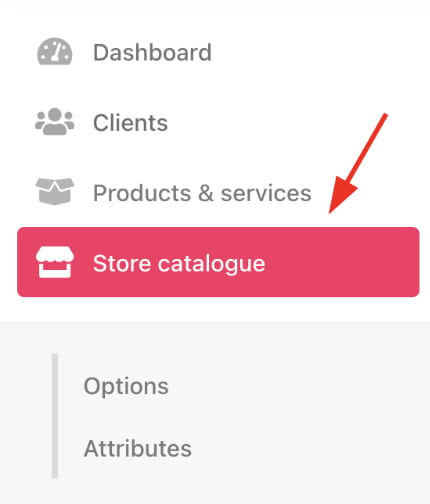
Store catalogue
- You can also click Settings and select the Product Catalogue tile under Products and Promotions.
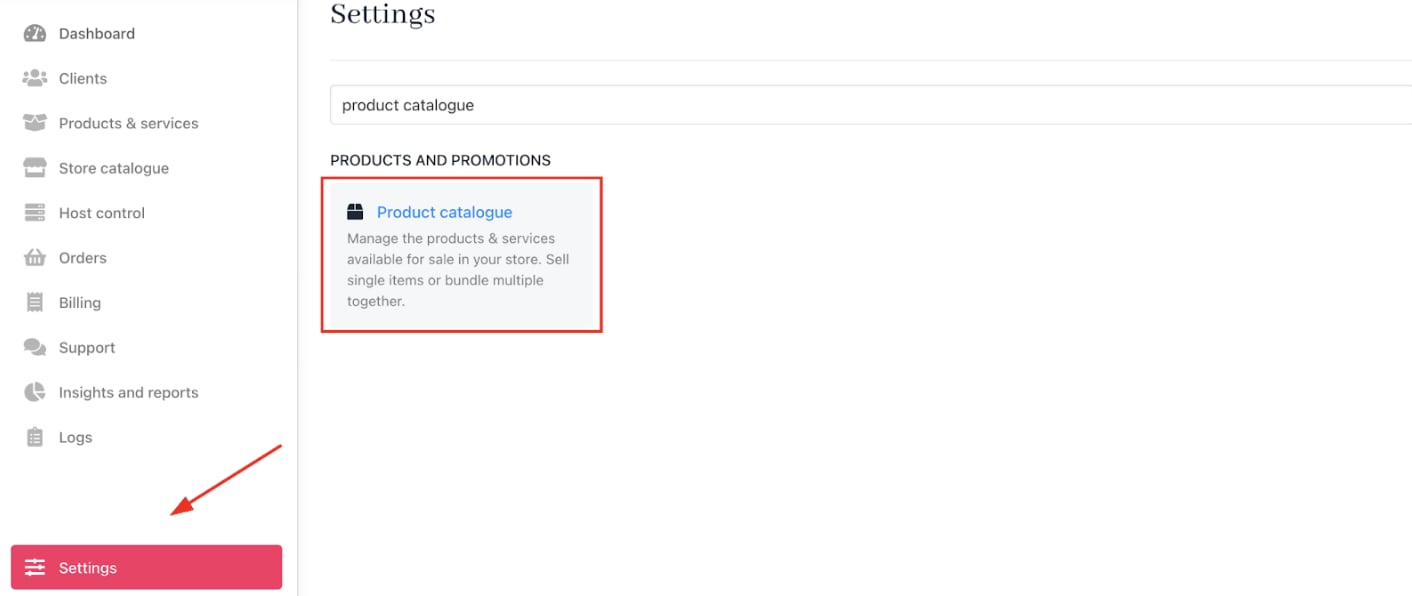
Settings > Products and Promotions > Product Catalogue
- Open a category to find your product or service.
-
Click the product to open its
Product Detailspage.
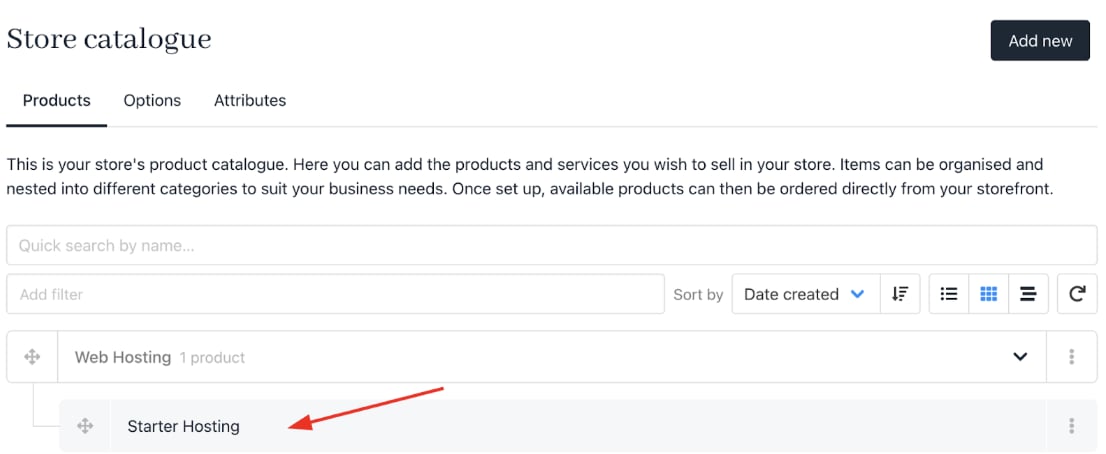
Click product or service

Product details page
- Select
Product billingfrom the menu.
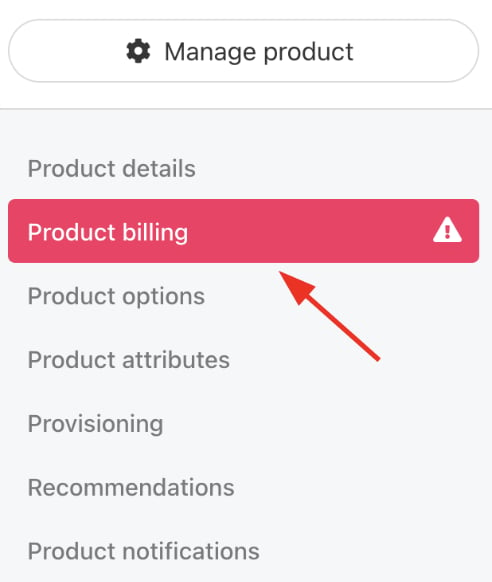
Choose Product billing
Create a one-off payment price
- Click the One-off payment tile.

One-off payment tile
- Enter the price for your default currency.
- Add prices for additional currencies. (Optional)
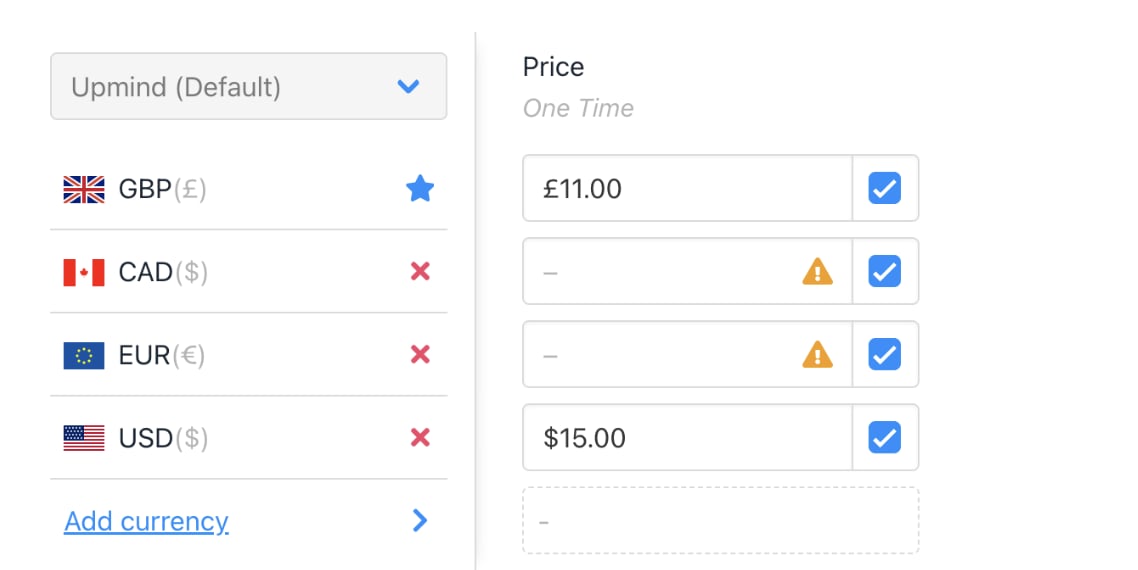
Add price for default currency
- Click Save.
Configure multi-currency option
If a product doesn’t have a set price in a specific currency (for example, it’s only priced in your primary currency), you can control how Upmind handles it. By default, it follows your brand’s settings, but you can override this per product by choosing one of three options.- Omit product: Product unavailable in that currency.
- Make available: Automatically convert price using current exchange rates.
- Inherit brand default: Use your brand’s global multi-currency setting.
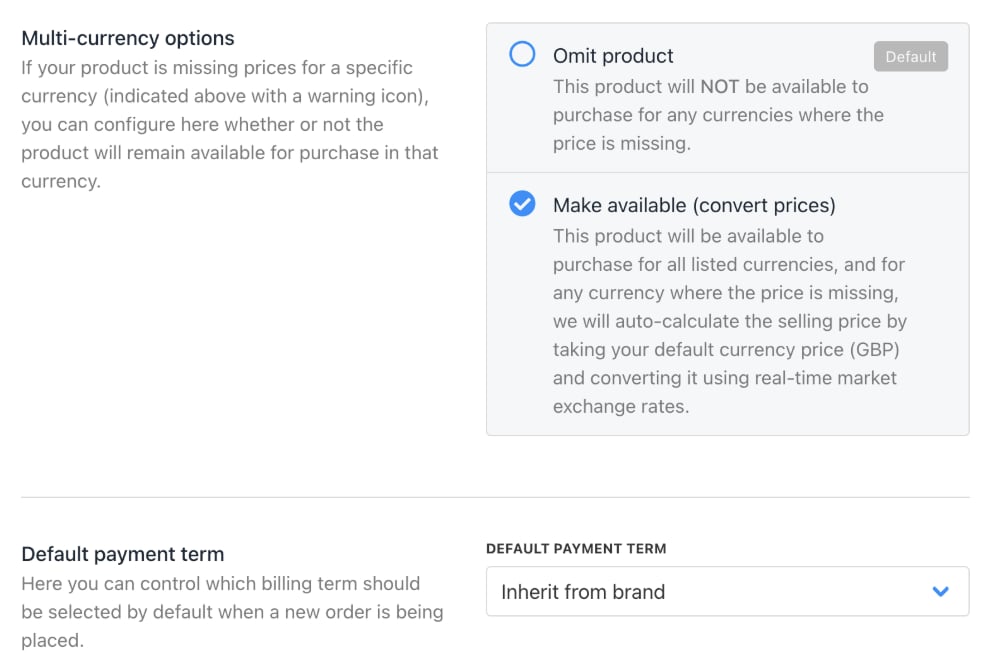
Choose make available
Set up recurring payments
- Click the Recurring payment tile.
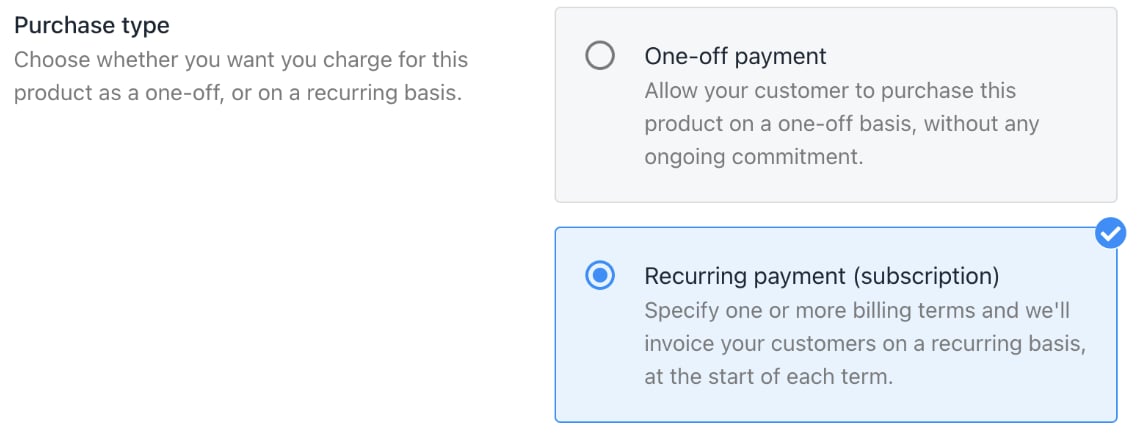
Recurring payment tile
- Scroll to the pricing section and click Add new term.
- Choose a billing term from the dropdown menu (monthly, yearly, etc.)
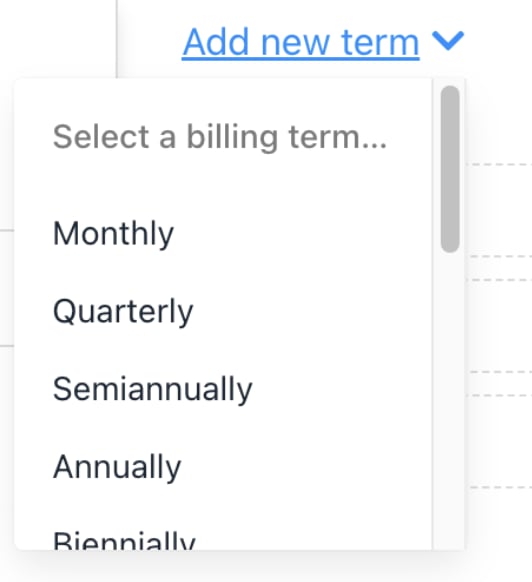
Select option on drop-down menu
- For custom plans, select Custom and enter the number of months.
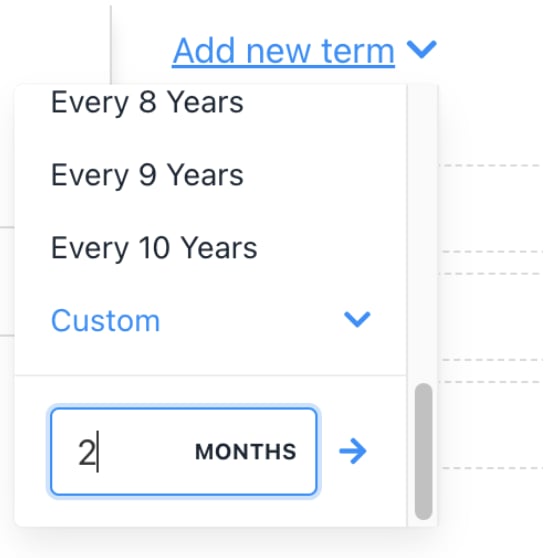
Enter number of months
- Add prices for each currency accordingly.
- Add more terms if needed.
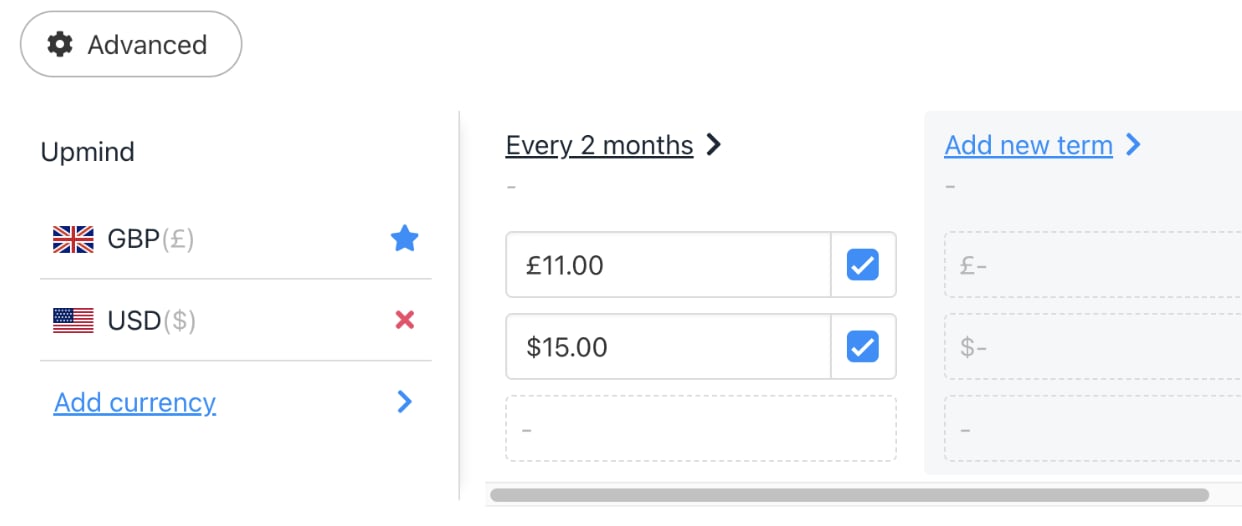
Enter price for each currency
- To delete a term, click Delete next to it.
- Click Save.
Select the default payment term
When multiple subscription options exist, you can set which term displays by default to customers. At the bottom of the billing page, select the default.
Select an option
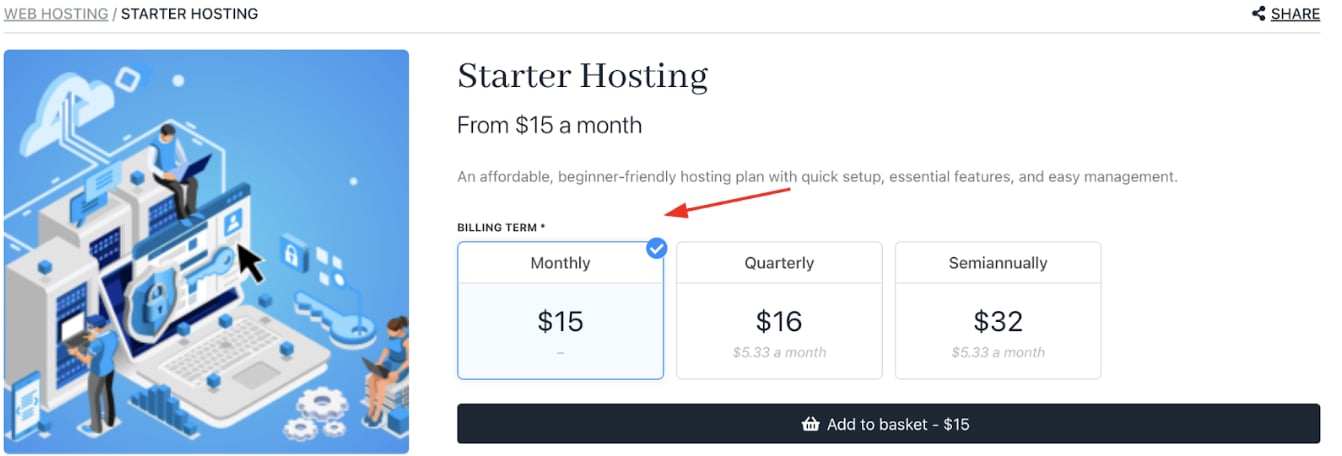
Lowest price option
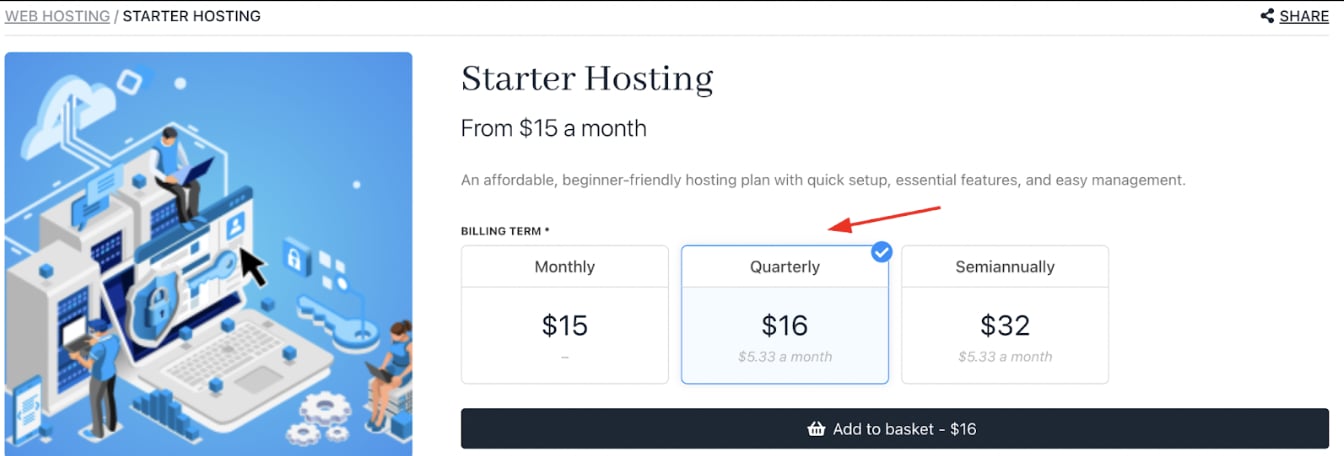
Lowest monthly price
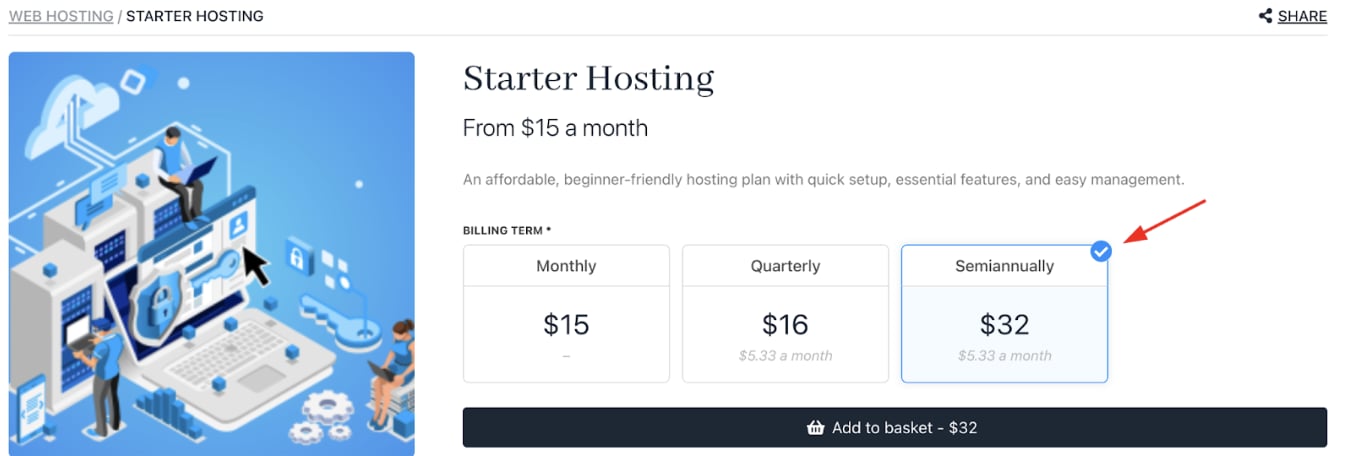
Display highest price