

Open the automation settings
- Log in to the Upmind dashboard.
- Access it from the dashboard by clicking on Store Catalogue.
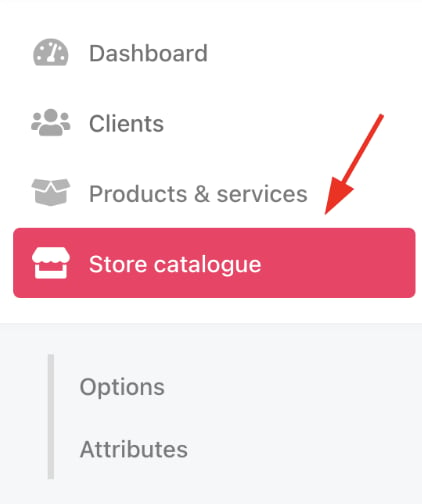
Store catalogue
- You can also click Settings and select the Product Catalogue tile under Products and Promotions.
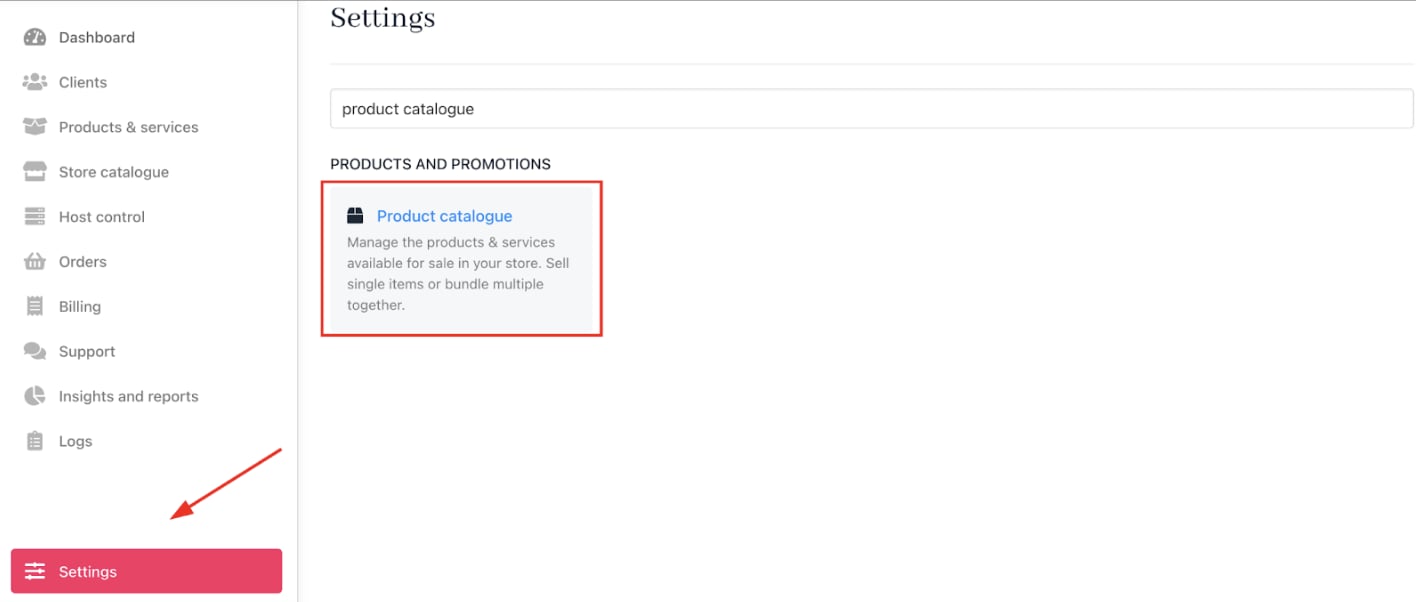
Settings > Products and Promotions > Product Catalogue
- Choose a product and click Product Automation on the product details page.
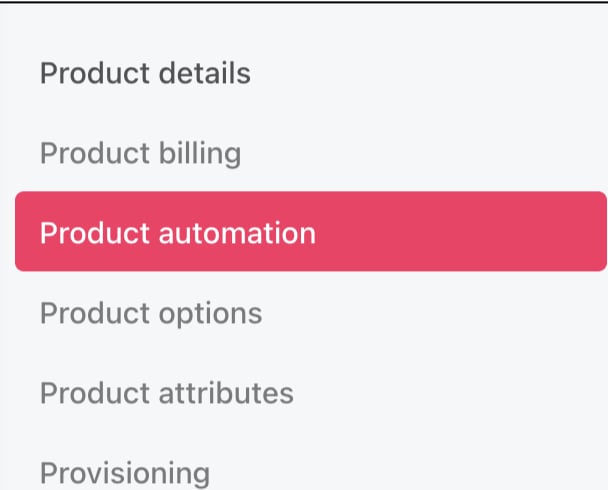
Product automation
Set interval timings
Customise interval settings at the top of theProduct Automation page:
- Suspend: Enter the number of days after expiration before suspending the subscription (default enabled).
- Cancel: Set days after suspension when a subscription is cancelled.
- Close: Define the time after cancellation when the subscription is closed, invoices are credited, and unpaid balances are written off.
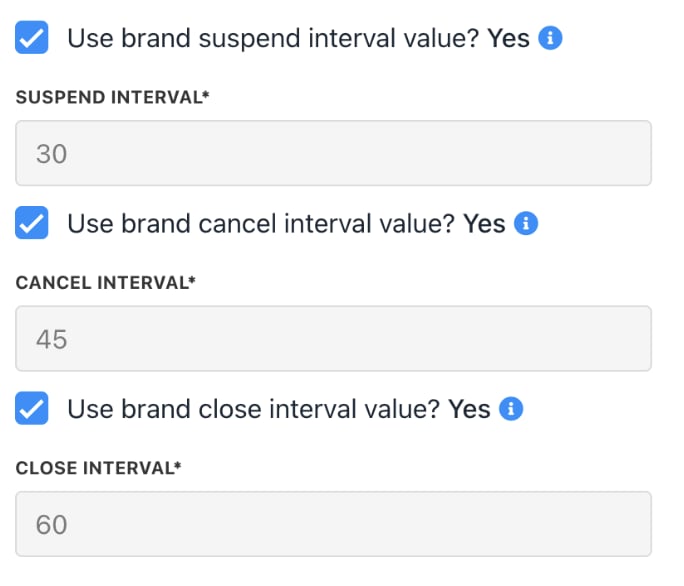
Setting intervals
Define restrictions
- Restrict Future Due Date: If the box is checked, you can limit subscription contract length (e.g., maximum 24 months). Leave unchecked for no limit.
- Restrict Reactive Status: If the box is checked, define contract statuses under which clients can renew. If unchecked, renewal is allowed regardless of contract status.
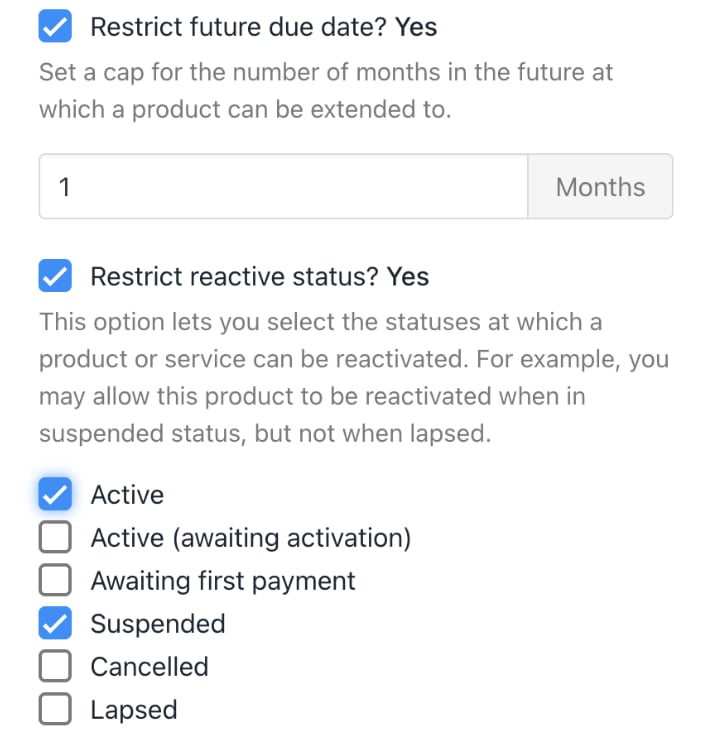
Restrictions
Recurring invoice settings
- Invoice Generation: Set when recurring invoices are created (default 30 days before period end).
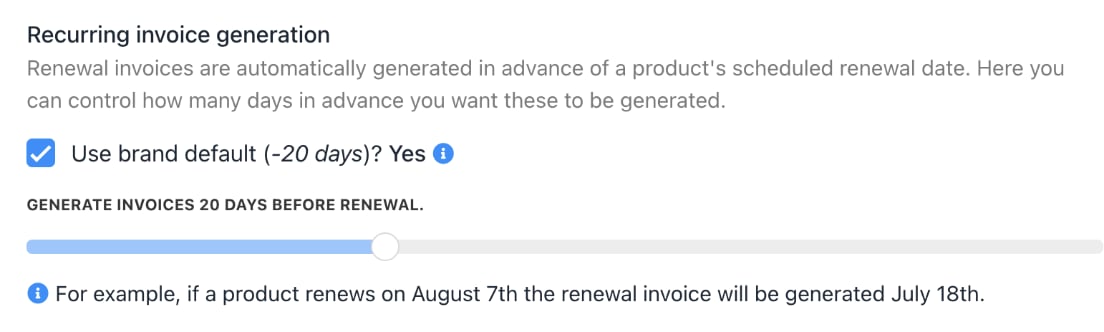
Recurring invoice
- Invoice Due Dates: You can configure due dates relative to subscription renewal (default 0 days before period end).
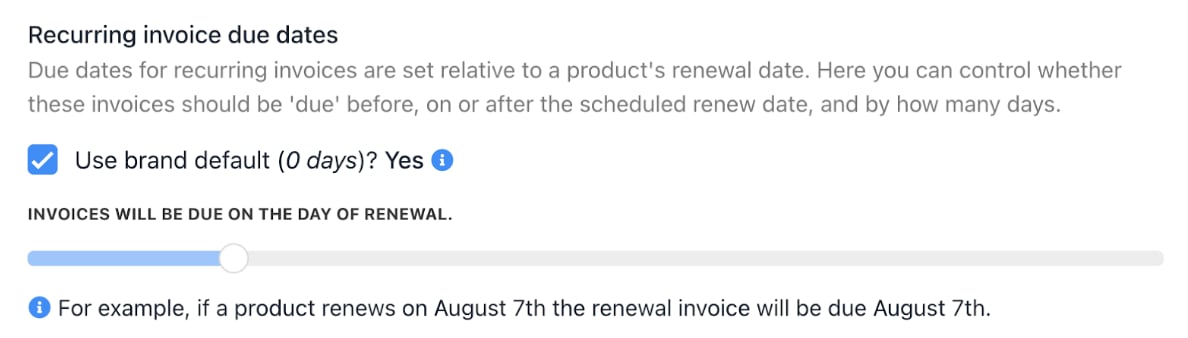
Recurring invoice due dates
Support
Support tickets opened by clients related to the product will be automatically routed to the selected department.