

Opening the invoices page
- Go to the Upmind dashboard.
- Click Billing in the left menu.
- Select the Invoices tab.
- Click an invoice name to open it.
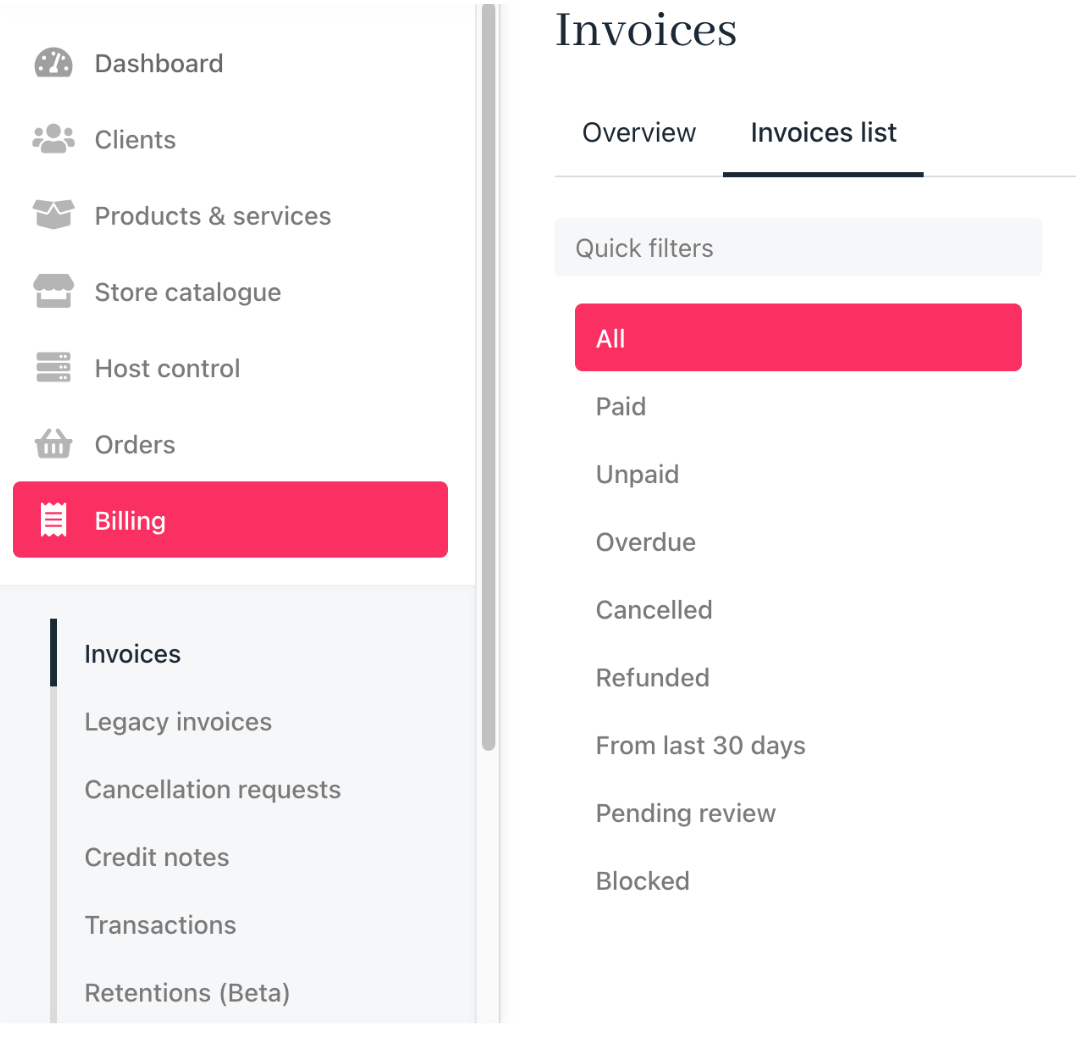
Invoices list
Use the Quick filters options to filter invoices.
Regenerating an invoice
When regenerating an invoice, you have two options:- Regenerate just data - Updates the invoice with fresh data but keeps the address, company details, and tax rates unchanged.
-
Regenerate with address/company change - Updates the client’s address and company information and lets you decide if these changes apply to future contract renewals.
-
If the Invoice is Unpaid:
- Address and company details are updated.
- Taxes are recalculated based on new information.
- Invoice number remains the same, but Total, Tax, and Net amounts may change.
-
If the Invoice is Paid:
- The invoice is recalculated as an unpaid invoice.
- If the new total is higher, the status changes to unpaid, and the client must pay the difference.
- If the new total is lower, a partial credit note is issued, and the difference is refunded as account credit.
-
If the Invoice is Unpaid:
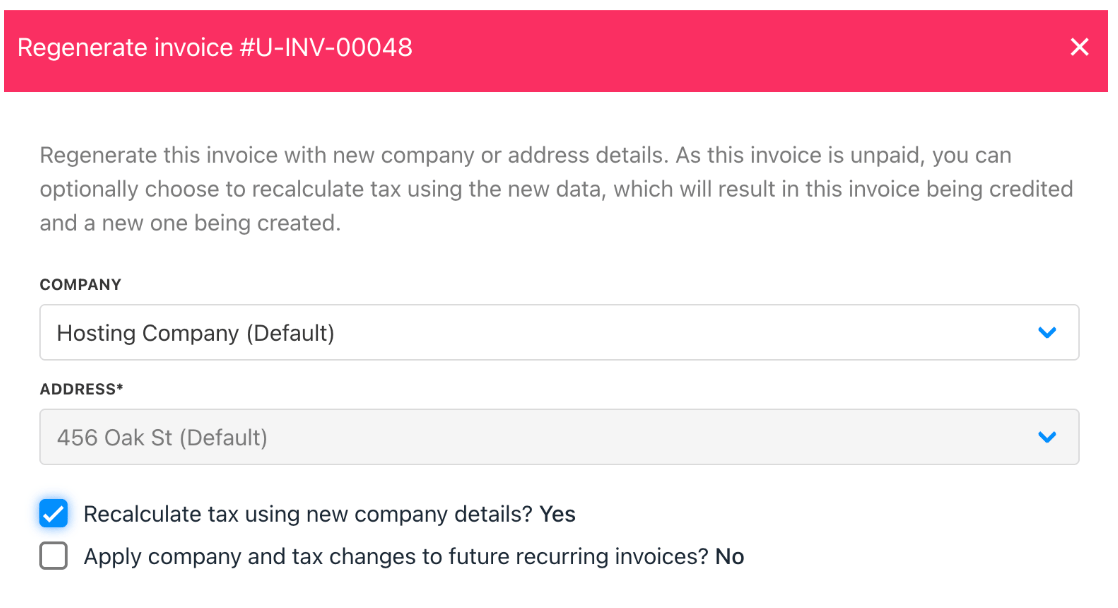
Regenerate invoice details
Steps to regenerate an invoice
- Select the invoice you want to regenerate and scroll down the invoice page.
- Click the Regenerate invoice button under Quick Actions.

Regenerate invoice
- On the next page, update the company name or address. (Optional)
- Click Regenerate to complete the process.
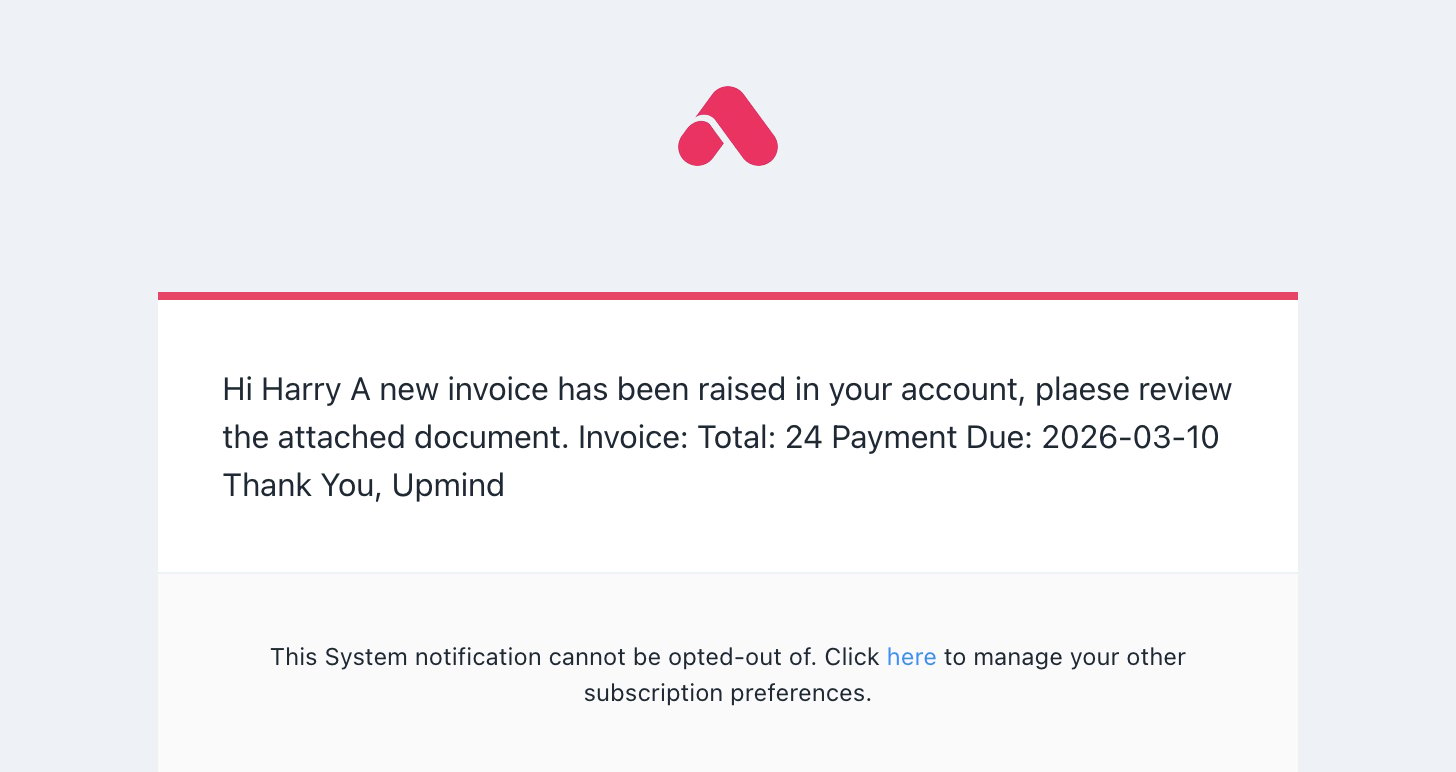
Email notification
Common scenarios
Regenerating an invoice to apply tax
If tax was missing during initial creation, regeneration can apply updated tax rules. Key behaviour:- Tax recalculation through regeneration is only possible on unpaid invoices. Once an invoice has been paid, regeneration cannot be used to apply or correct tax. For paid invoices, the correct approach is to process a refund and generate a new invoice with the updated tax settings in place.
- Regeneration recalculates totals and tax.
- A new invoice replaces the original through crediting.
Changing the billing cycle by regeneration
Attempting to change billing periods through regeneration alone will not work as expected. Example: Changing:- February 2 → March 2 to
- February 10 → March 10

Clients > Products & Services > Modify Product