

Base currency
Choose your base currency during setup, as it cannot be changed after the first invoice. All other currencies use exchange rates relative to this base. Prices are set in the base currency, with other currencies calculated through automatic or manual rates, enabling global price display with automatic conversions.Product pricing
Upmind allows flexible pricing for each product, supporting multiple currencies on a per billing term basis.- Manual Multi-Currency Pricing: Set explicit prices for each currency and billing cycle inside the product’s billing settings.
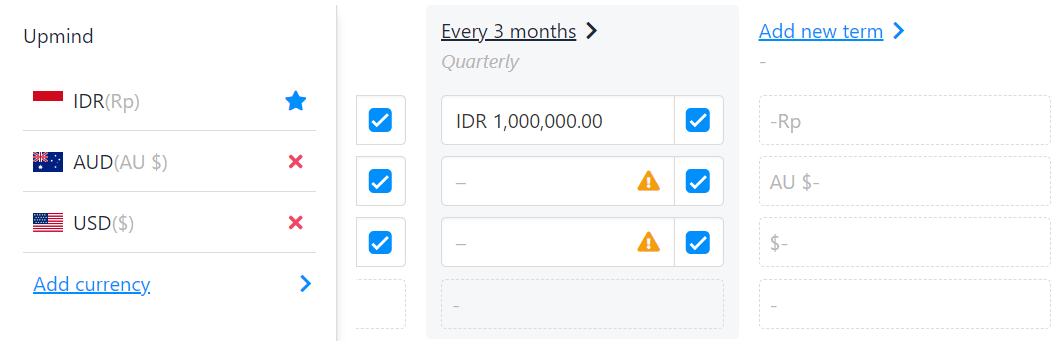
Set each product's price under the product billing
- Auto-Convert Pricing: Enable automatic conversion based on current exchange rates.
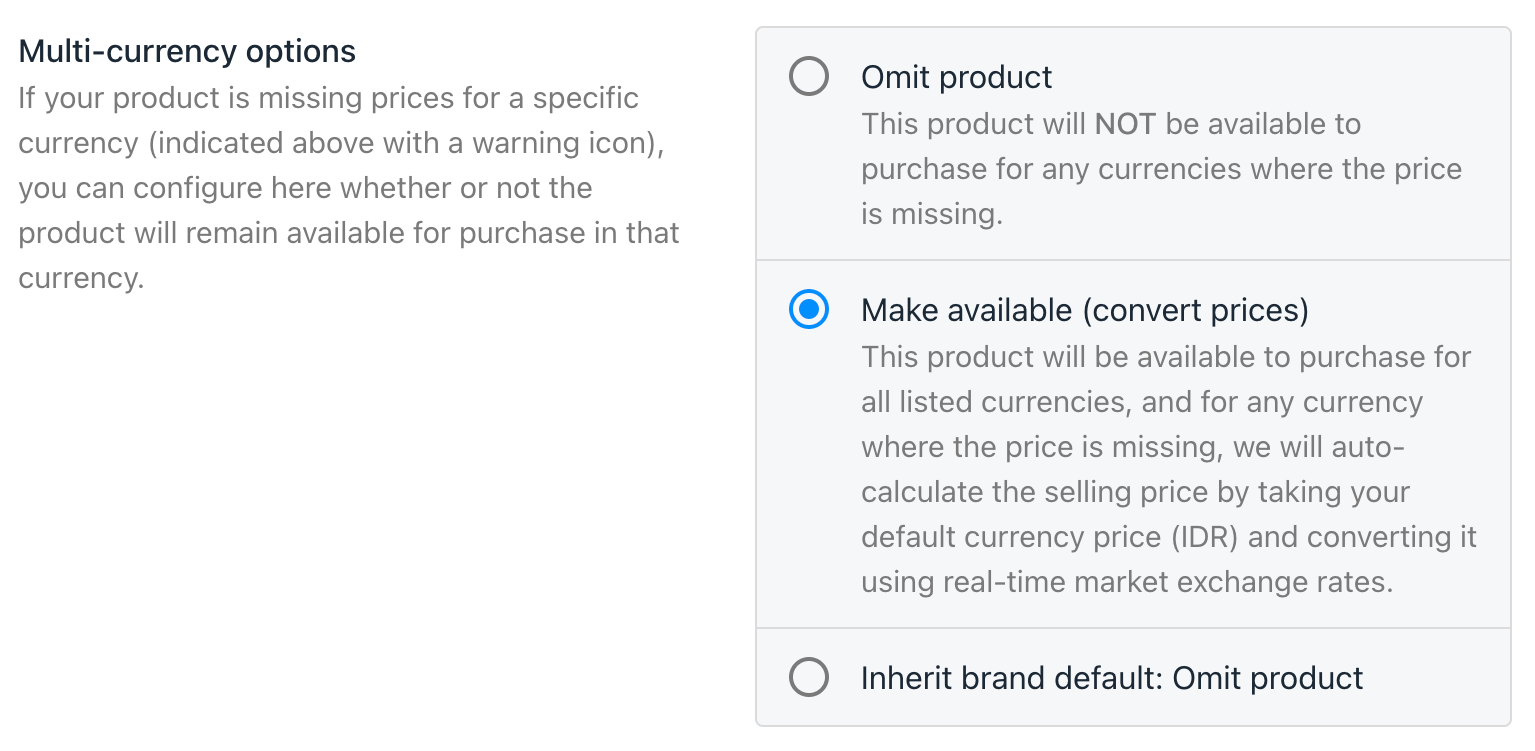
Can be configured on a per-product basis
Manage the currency from the payment providers
Currencies are added or removed by linking them to payment gateways, making them available as store currency options.- Log in to your Upmind account and go to Settings > Payment Providers under the E-commerce settings.
-
Add a new provider by filling out the required fields. Scroll down to the
Currenciessection. - Choose the currencies supported by the payment provider. These currencies will automatically appear in Settings > Currencies for exchange rate management.
- Click Create to save the payment provider. It will then appear as an option on the client checkout page.
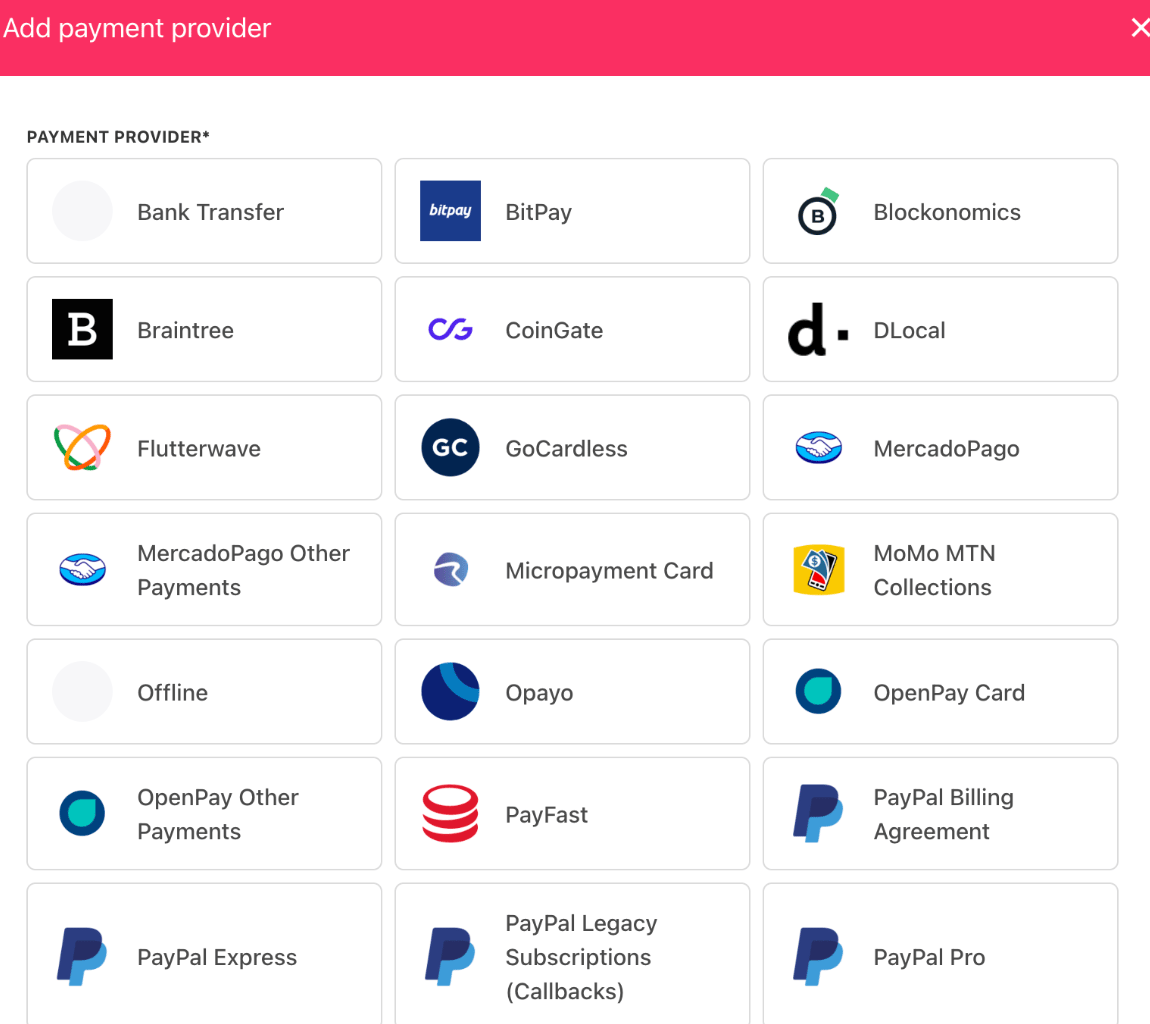
Add payment providers based on your preferences
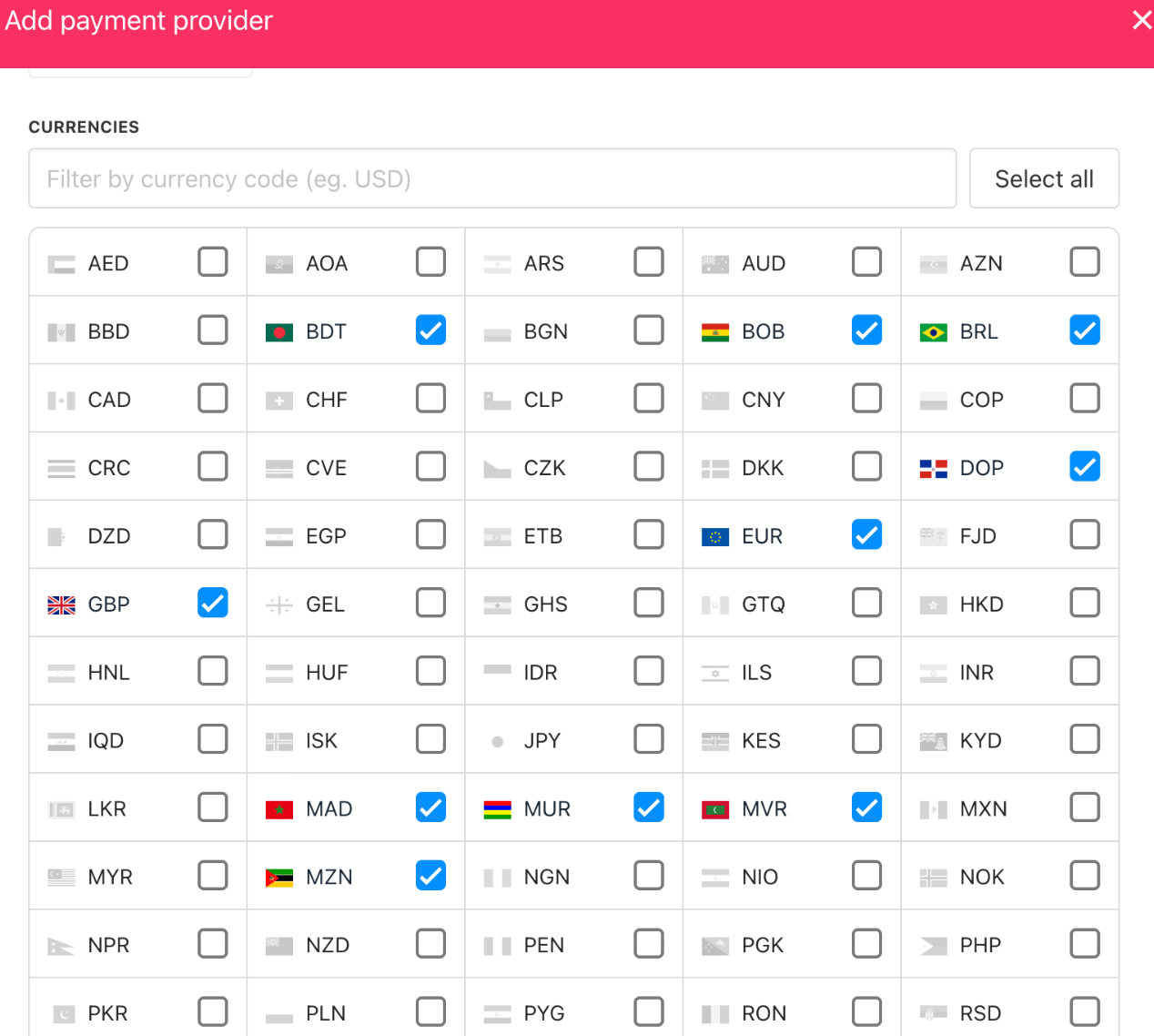
Either choose some or all currencies here
Manage exchange rates on Upmind
By default, Upmind auto-converts prices using current market exchange rates, providing quick and accurate currency conversions. If you prefer to set exchange rates manually:- Go to Settings > Currencies under Brandings and Customisations.
- For each currency, uncheck the Dynamic rate box to disable automatic updates.
- Enter your preferred exchange rate manually.
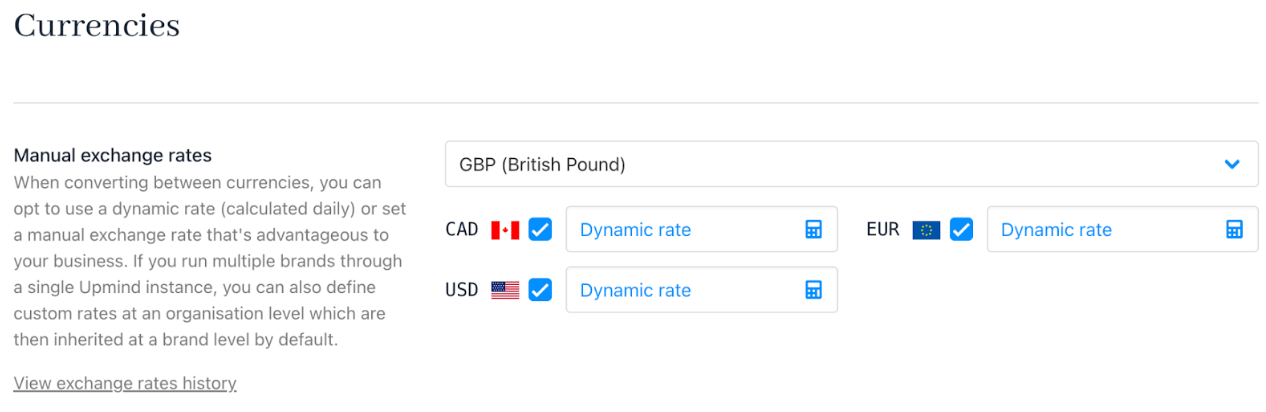
Set the exchange rate manually
Paying an invoice in a different currency
Clients can set their preferred payment currency; otherwise, all documents will default to this currency. As an admin, you can enable this option under Settings > Payment Options.
Different currency invoice payment
Recurring price calculation
For recurring products or services, you can set price adjustments related to currency fluctuations. Click the field to choose:- Keep the Original Rate: Prices remain fixed regardless of exchange rate changes.
- Recalculate with Current Exchange Rate: Prices adjust with each billing cycle according to the latest rates.
- Use Current Rates but Keep Price for Existing Clients: New clients get recalculated rates, and existing clients retain their original pricing.

Recurring price recalculation
Auto-conversion of missing prices
Upmind can auto-calculate missing prices in other currencies using current exchange rates, keeping all prices updated without manual entry.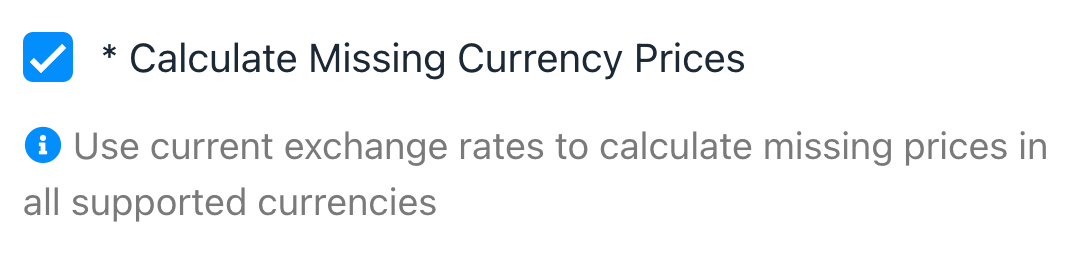
Auto conversion
Client default currency
Each client has a default currency they see on your storefront when placing new orders. Clients can change their default or override currency on their order forms. Changing a client’s default currency will not affect existing subscriptions or contracts, which must be updated individually if needed.Changing the currency of a service
Staff can update the currency of an active service from the subscription’sSettings tab:
- Navigate to the specific subscription.
- Scroll to the Change Currency section.
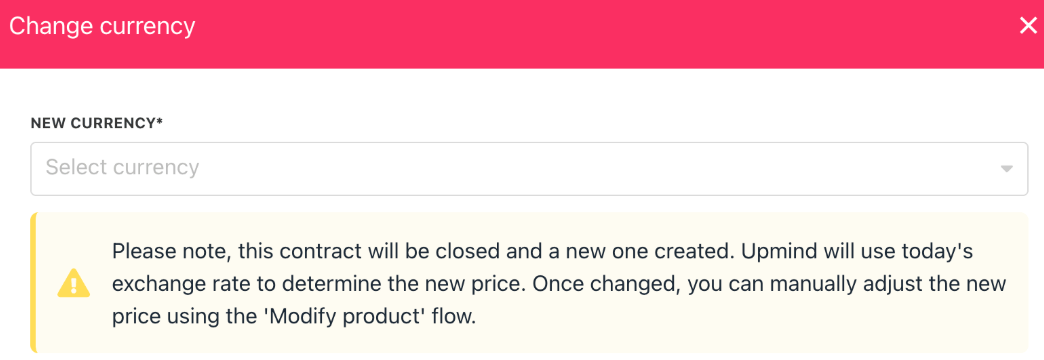
Change currency