

Configuring the credit limit at the brand level
- Go to Settings > Payment Options under Ecommerce Settings.
- Scroll to Client Wallet.
- Check the box to enable Credit Limit and set the maximum amount you want to allow.
- Choose the day of the month for generating the wallet statement.
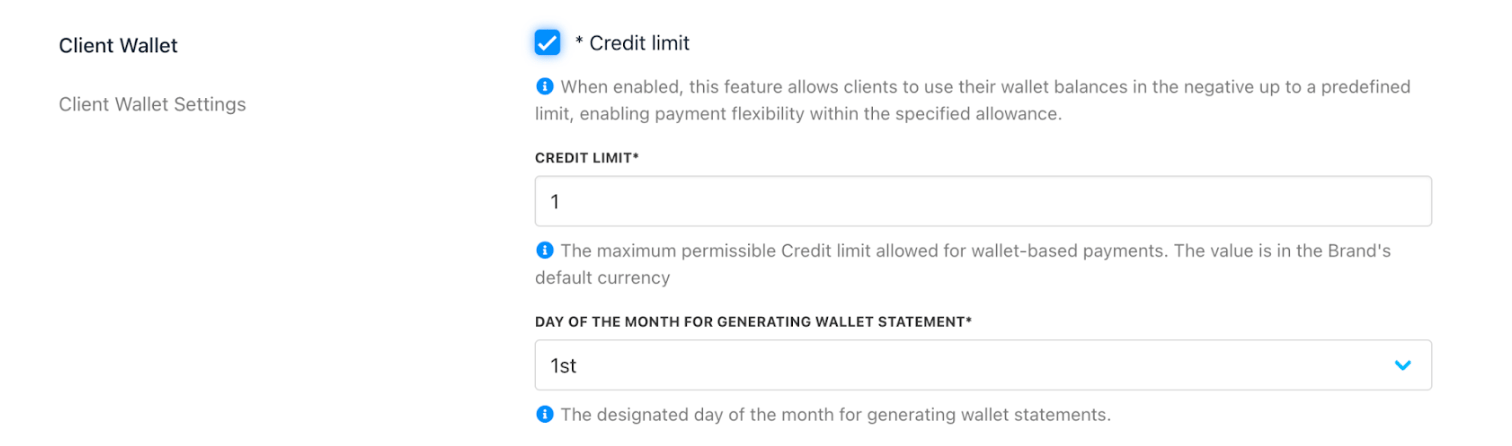
Payment options > Client wallet
Setting the credit limit at the client level
-
Go to
Clientsand select a client. - Click Billing > Account Credit.
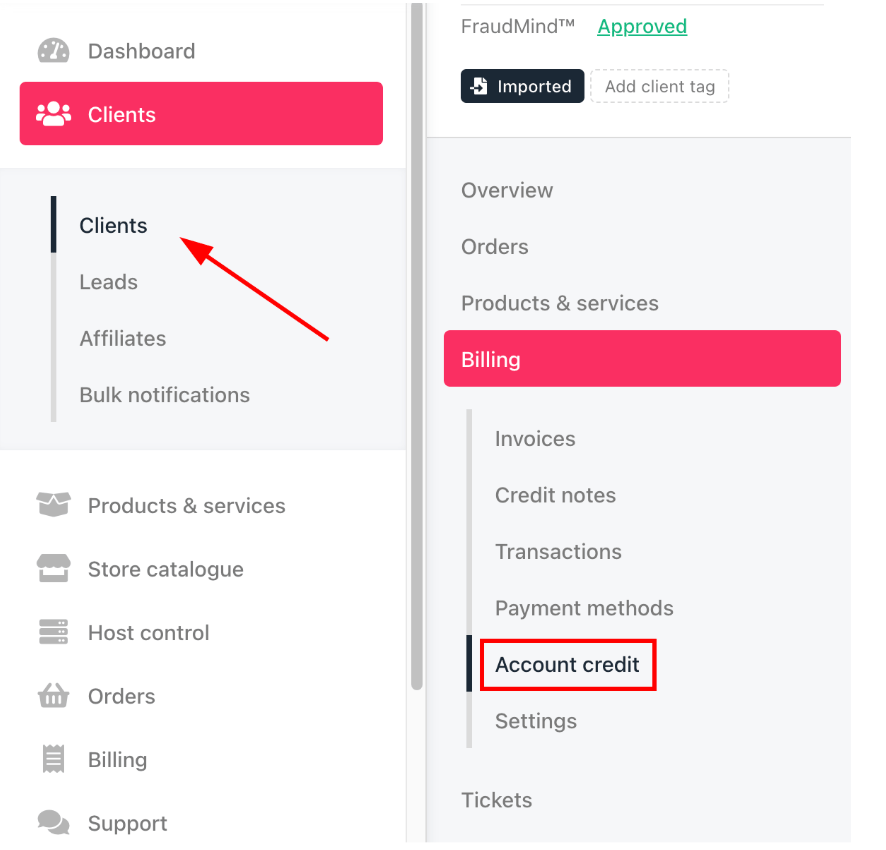
Billing > Account credit
- Check the box to enable credit balance usage and set a specific limit or use the brand default.
- Choose the statement generation day (optional).
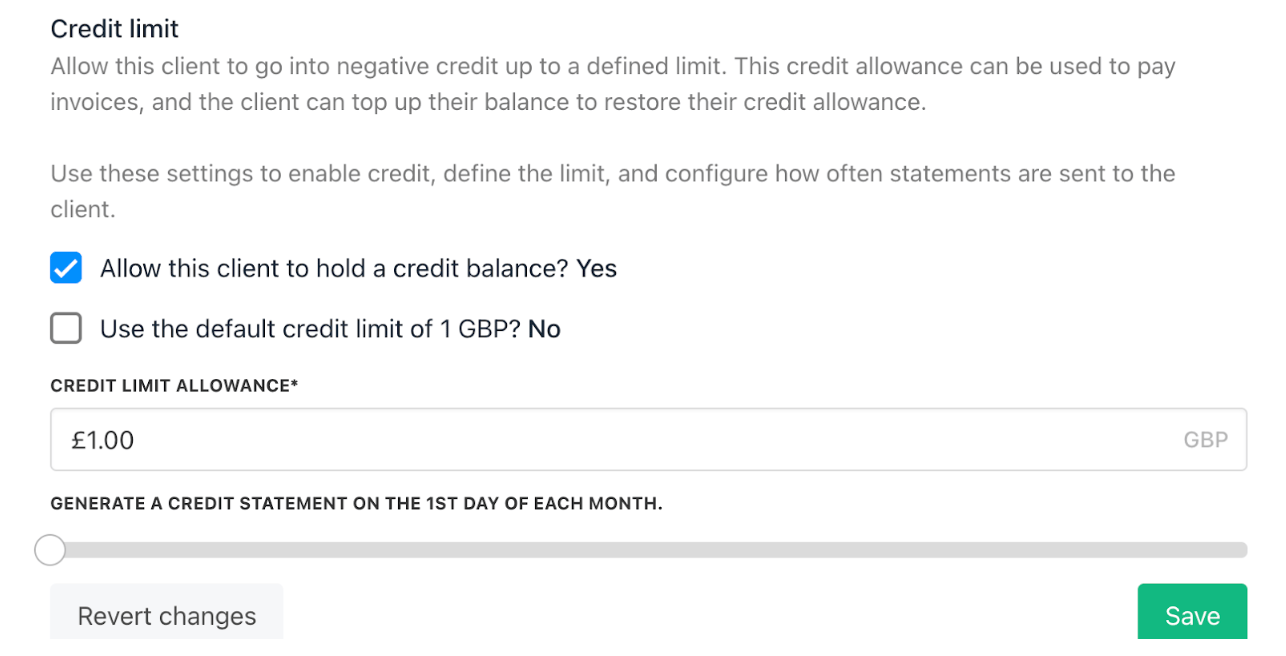
Credit limit setting
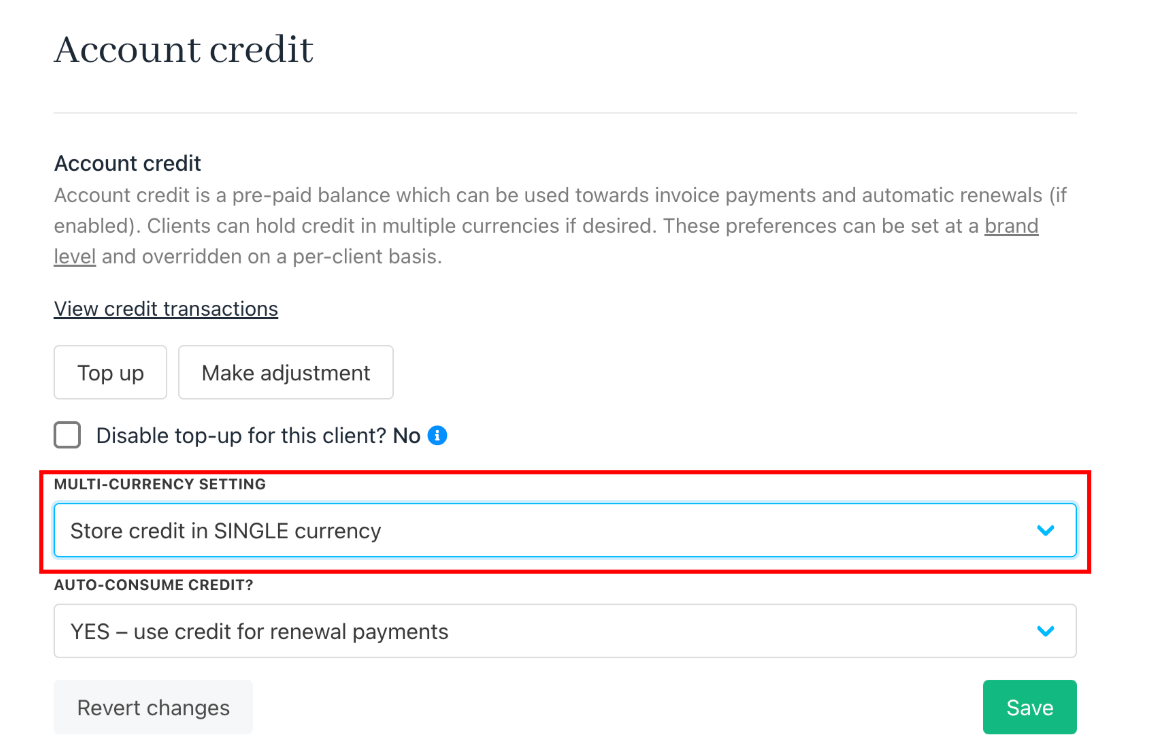
Store credit in single currency
How clients see credit limits in the client area
- Clients see their credit limit in their preferred currency from Billing > Account Credit > Credit Limit.
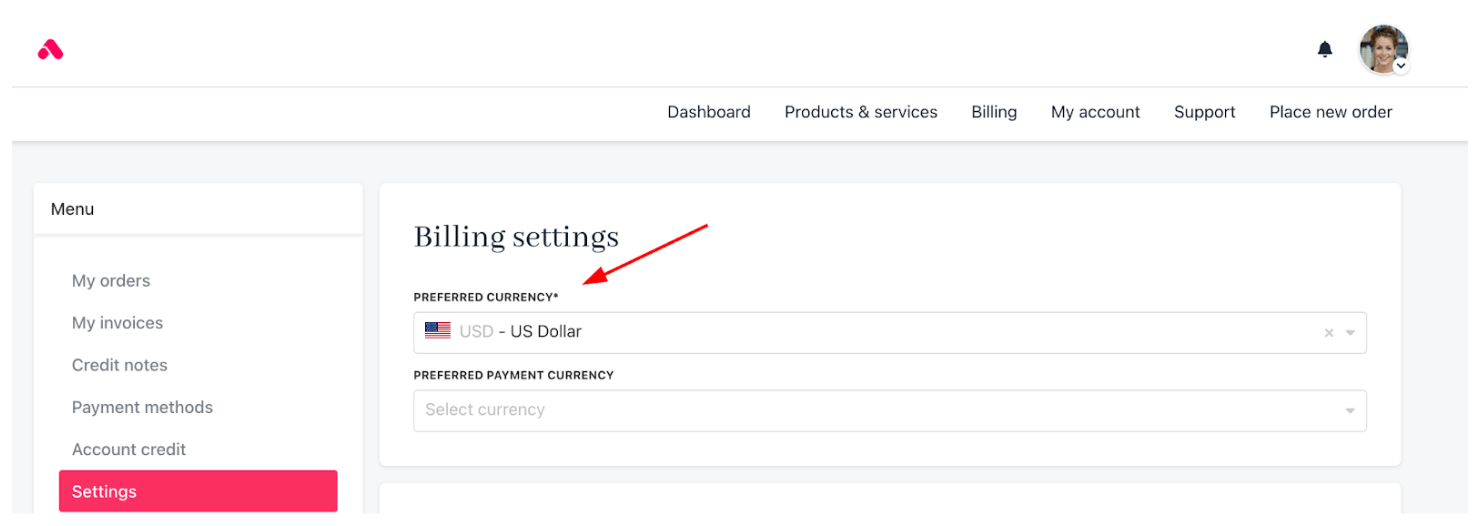
Billing > Settings
- Once a currency is used for payment, all future credit payments must use the same currency.
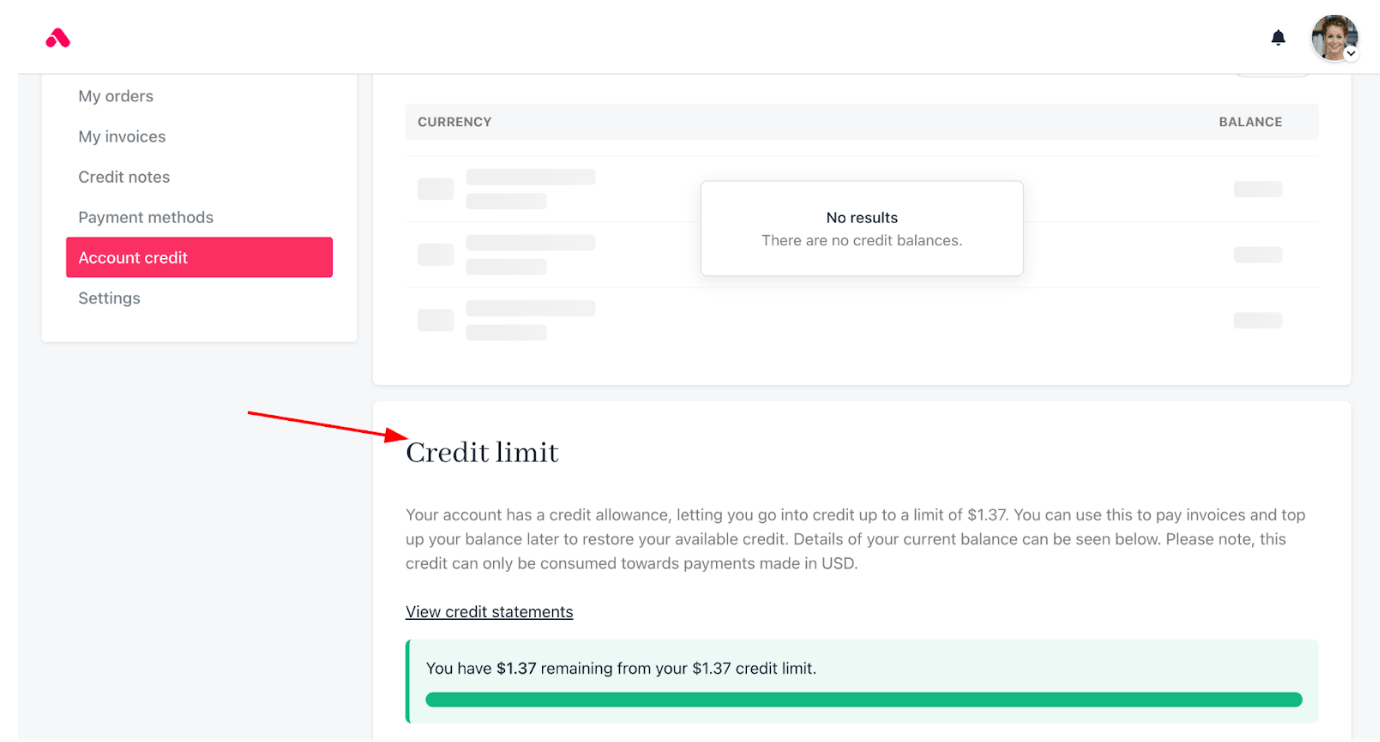
Credit limit in client area
How to enable auto consume balance on the invoice due date
- Go to Settings > Payment Options under E-commerce Settings.
- Scroll to the Client Wallet section.
- Toggle Auto Consume Balance on Invoice Due Date on or off as needed.
- Save your changes.
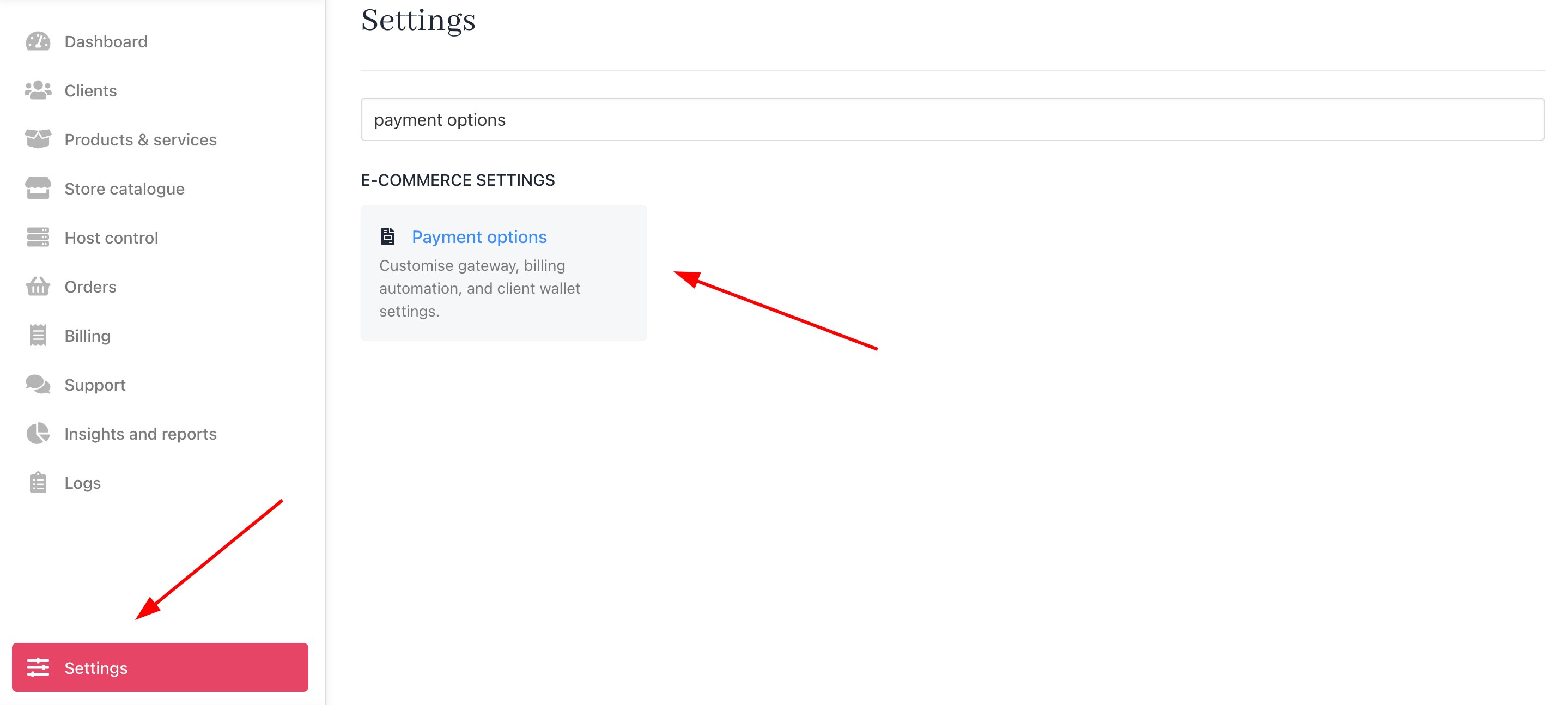
Settings > E-commerce Settings > Payment Options

Auto consume balance on invoice due date
Accessing and editing the wallet statement template
You can customise your brand’s wallet statements.- From Settings, go to PDF Templates under E-commerce Settings.
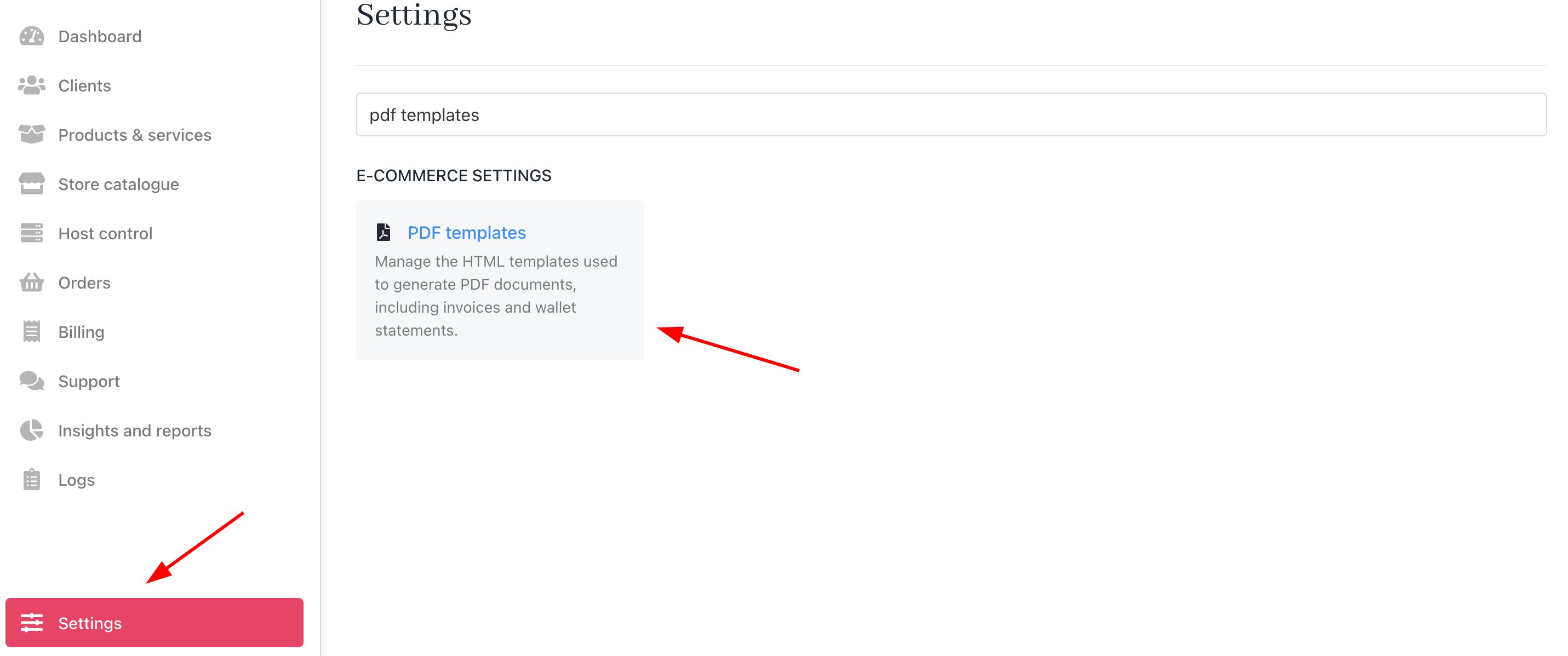
Settings > E-commerce settings > PDF templates
- Select Wallet Statement Template.
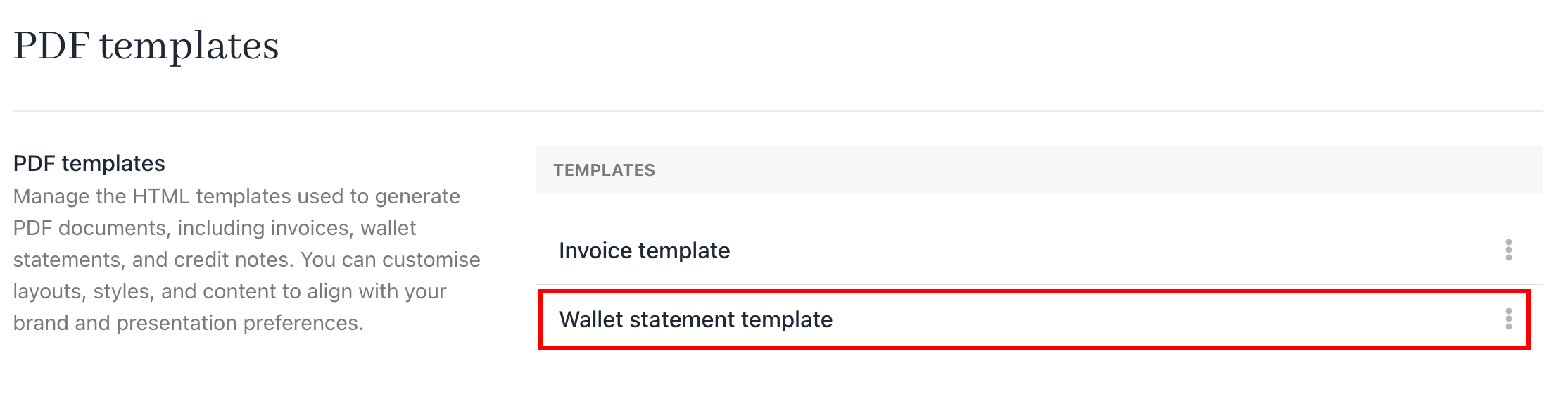
Wallet statement template
- Use the HTML editor to customise the template code.
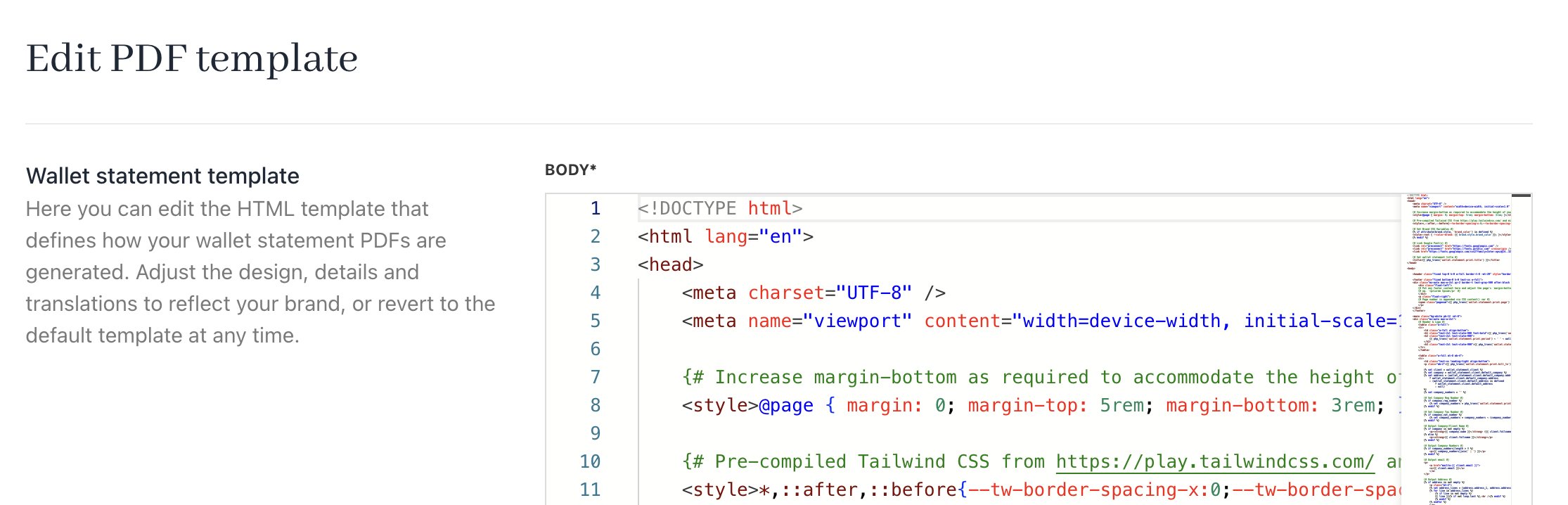
HTML editor
- Two tabs, Brand and Invoice, appear at the bottom for easy access to code snippets. Copy snippets by clicking their label and paste them where needed in the template.
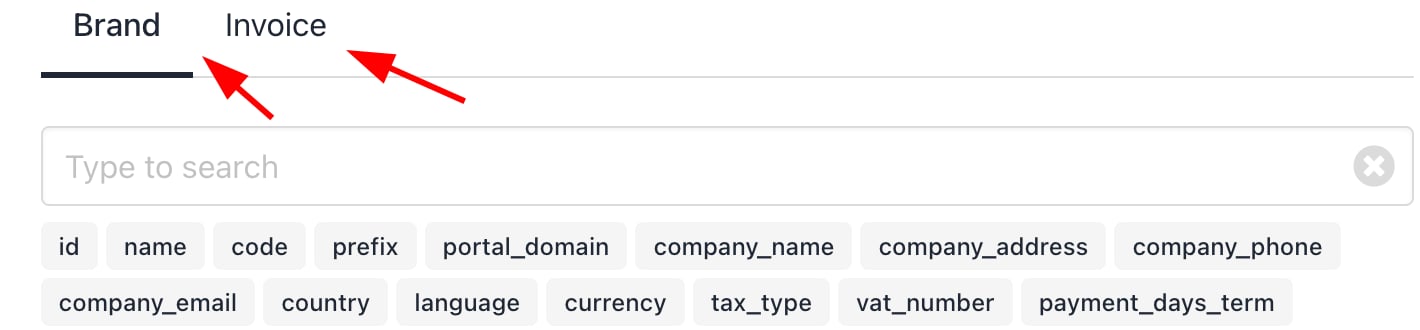
Brand and invoice
Download PDF or CSV credit statements
From the admin area
- Go to Clients > Billing > Account Credit.
- Click View Credit Statements.
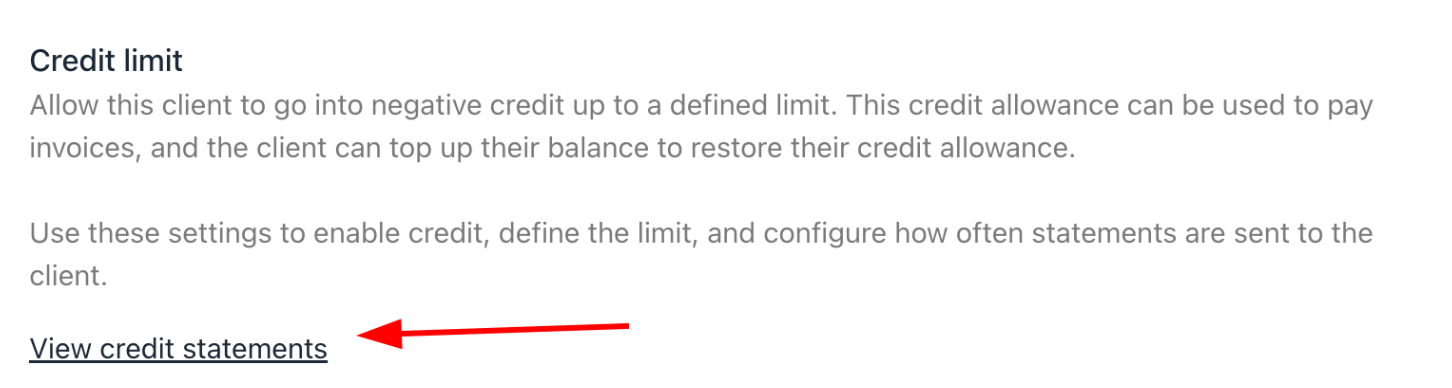
View credit statements from admin
- Select the desired statement.
- Click to download either PDF or CSV.
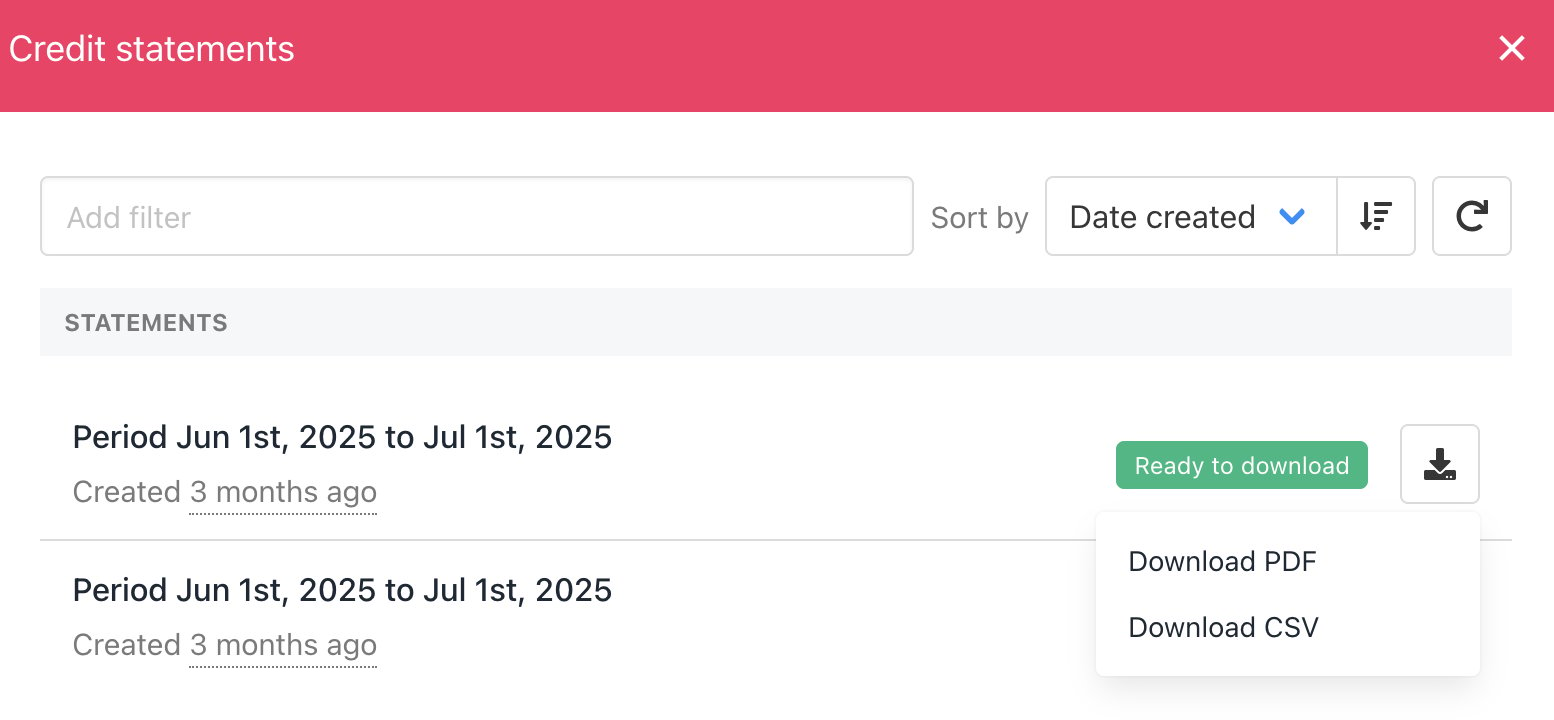
Download PDF or CSV from admin
From the client area:
-
Go to
Billing. - Click Account Credit.
- Click View Credit Statements.
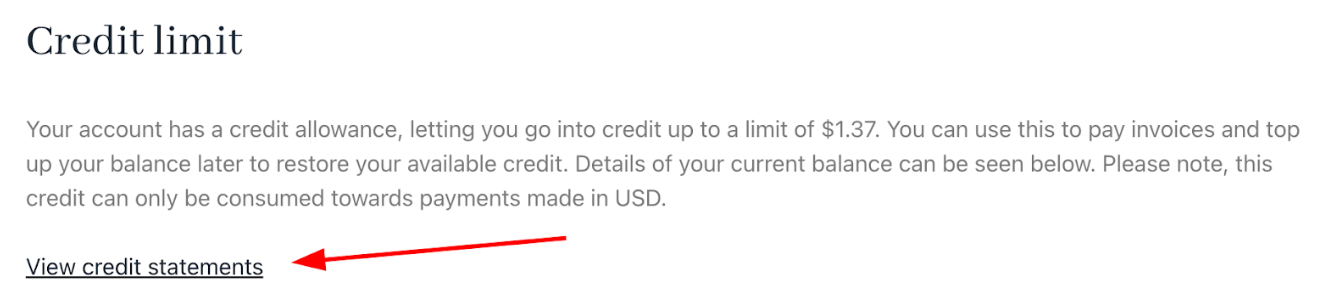
View credit statements from admin
- Select the desired statement.
- Click to download either PDF or CSV.
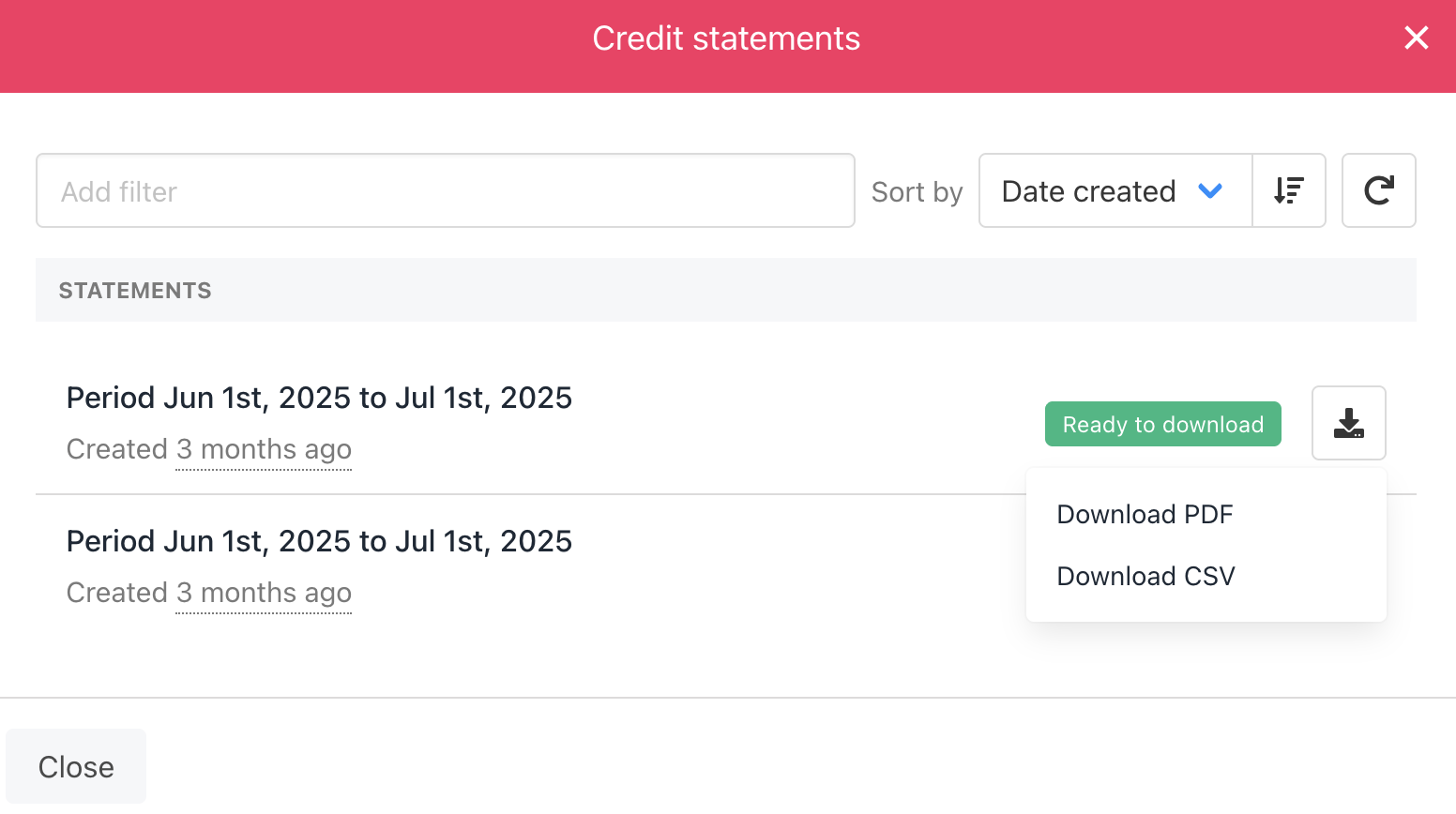
Download PDF or CSV from client
Common scenarios
Partial payments with account credit
Enable partial payments for clients from the following:- Go to Settings > Payment Options under E-commerce Settings.
- Scroll to the Gateway Settings section.
- Toggle Enable partial payments for clients on.

Enable partial payments for clients
- Account credit may automatically apply on invoice creation or due date.
- The remaining balance stays unpaid until cleared.
- Invoice total: $100
- Account credit available: $60
- Auto cancel unpaid pro-rata invoices - Automatically cancels pro-rata invoices that still have an unpaid balance after the configured period.
- Auto cancel unpaid invoice, which have partial payments - Automatically cancels invoices that received a partial payment but were never fully settled.
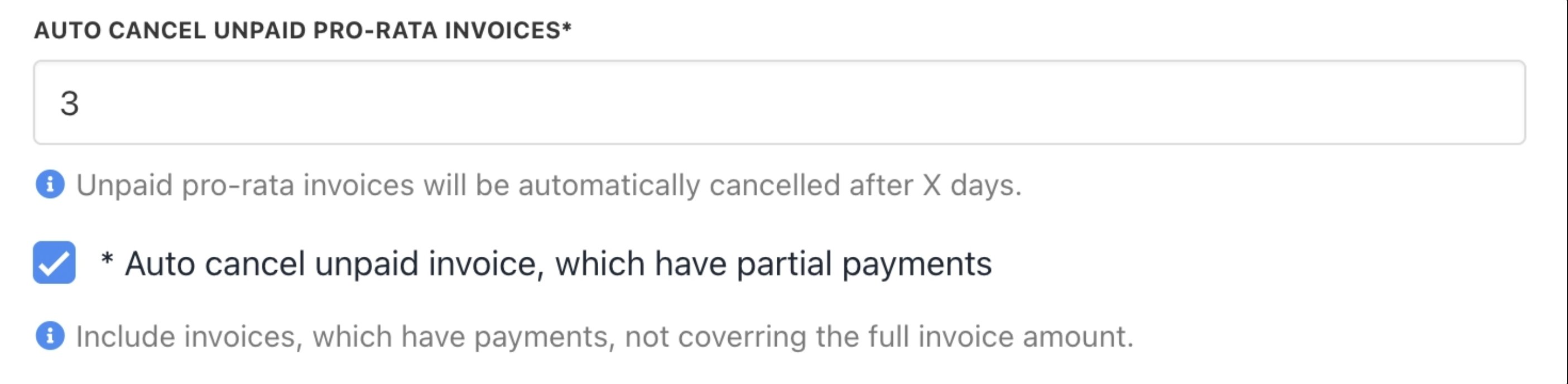
Auto cancel unpaid pro-rata invoices & Auto cancel unpaid invoice, which have partial payments