

- UK/EU VAT
- US sales taxes (state and federal)
- Indian GST
- Service charges
- Card processing fees
Accessing tax settings
- Log in to Upmind.
-
Go to
Settings. - Select Tax Settings from the Ecommerce Settings.
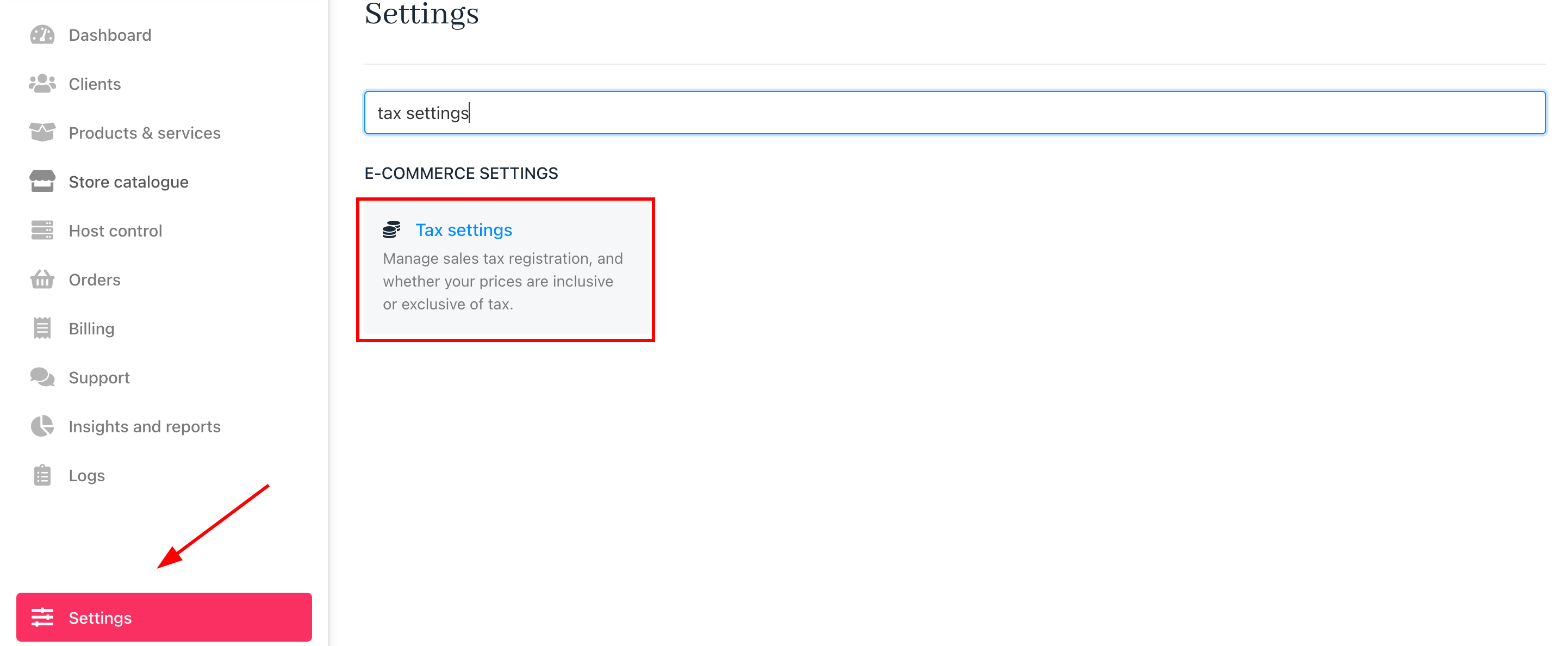
Settings > Tax settings
Enabling tax features
Switch theTAX Registered? ON if your business is tax registered, and then enter your tax number for official documentation. This enables tax options throughout your store.
By default, the toggle is OFF, so you can switch it ON if applicable.
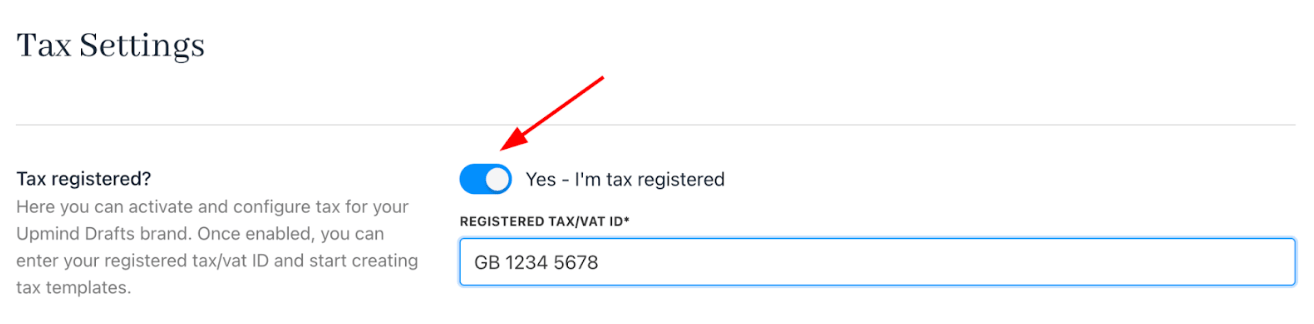
Toggle tax settings
Tax inclusion setting
You can decide if your product prices are tax inclusive (tax included) or tax exclusive (tax added). By default, the setting is off, so Upmind adds tax (if applicable) to the price. Toggle itON to indicate prices include tax, and Upmind will deduct tax accordingly.

Toggle tax inclusion
How Upmind handles taxes
Upmind uses tax templates and tax tags to manage taxes efficiently.Tax templates
Tax templates are sets of tax rules assigned to products. Each product can have only one tax template, but a template can apply to many products. Templates allow you to apply different tax rules based on product type, location, or client type. Example: A web design firm might charge local tax on design work, but tax hosting based on the client’s location. Food and beverage businesses may charge higher tax rates on alcohol than on food.You can optionally import our system default tax templates, which cover the most common tax options.
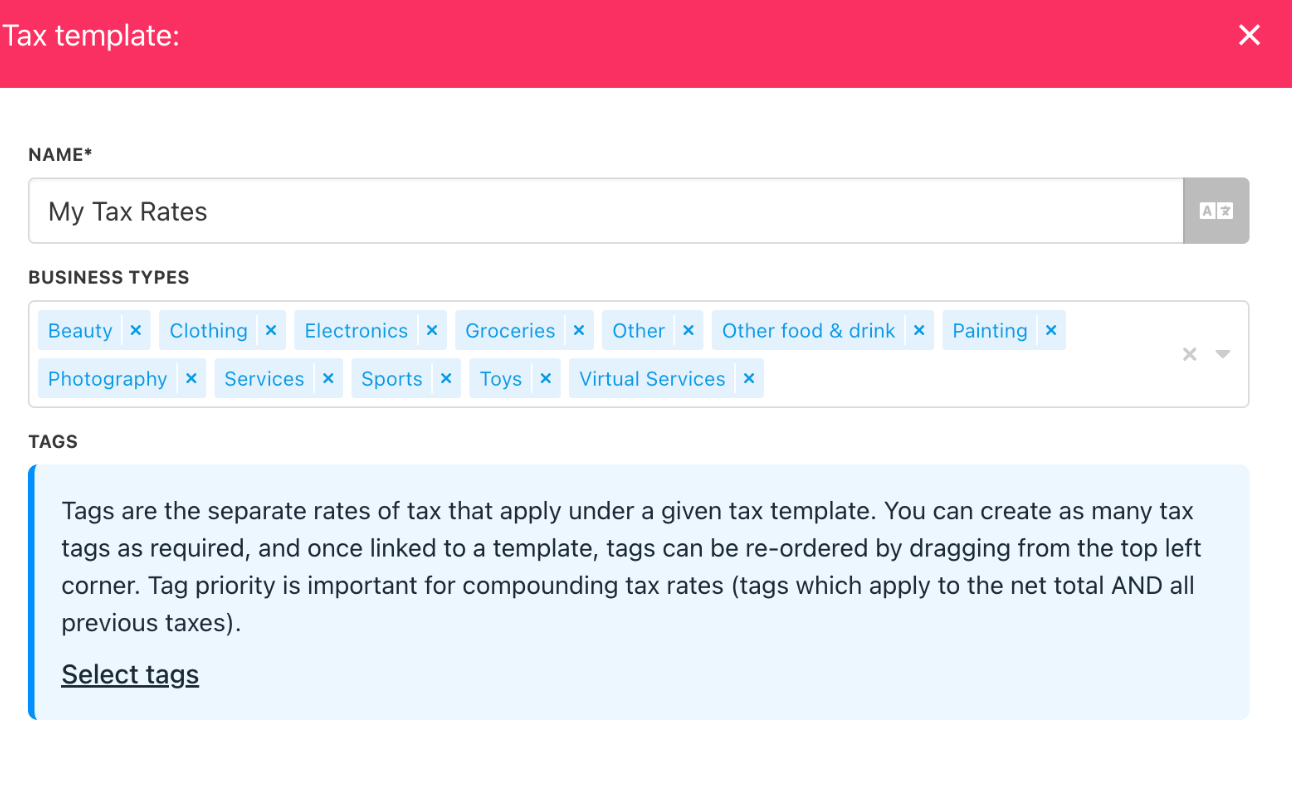
Tax template
Tax tags
Tax tags are individual tax rules within a template. They can be fixed fees or percentages and may include secondary rates. When applied, Upmind processes tax tags in order, applying those relevant to the invoice. Example: Two tax tags applied: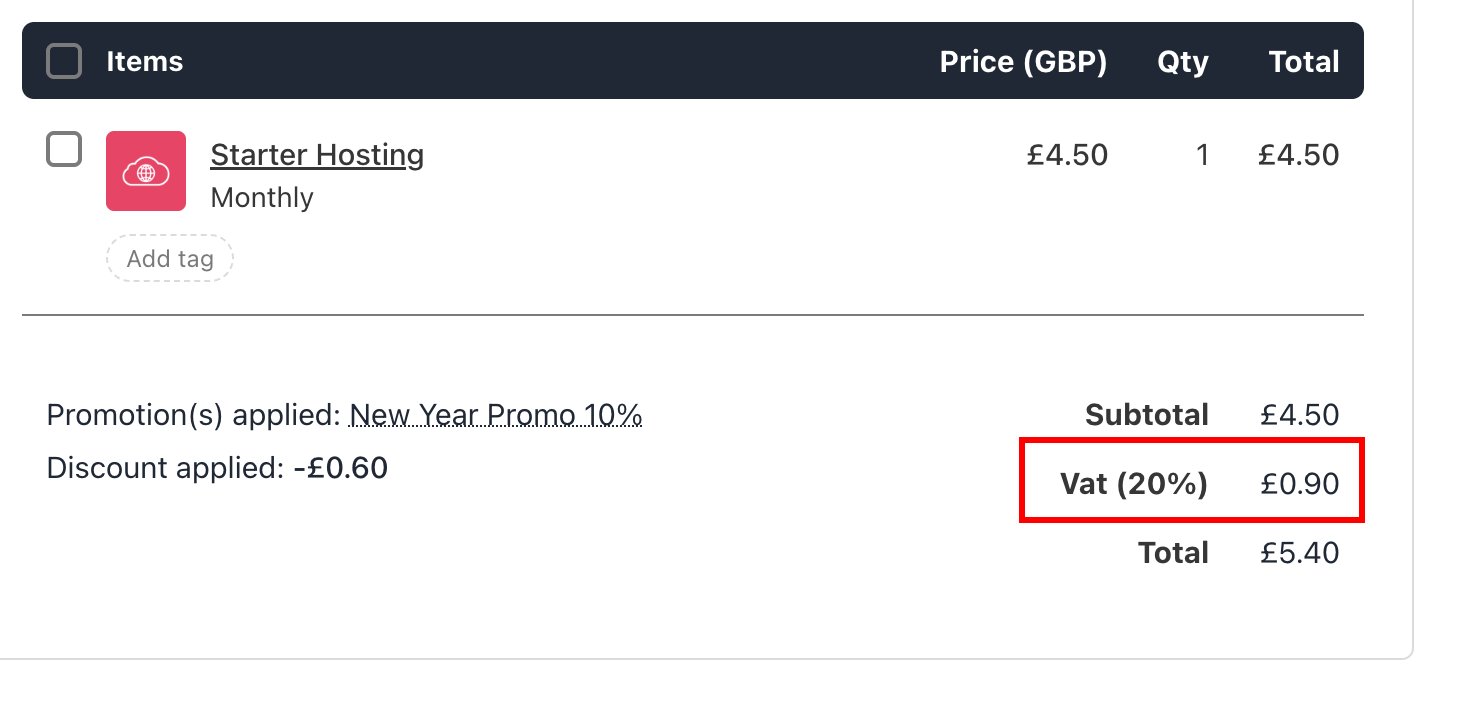
Tax tag
- Name the tag.
- Choose the default fixed or percentage fee and enter the amount and currency.
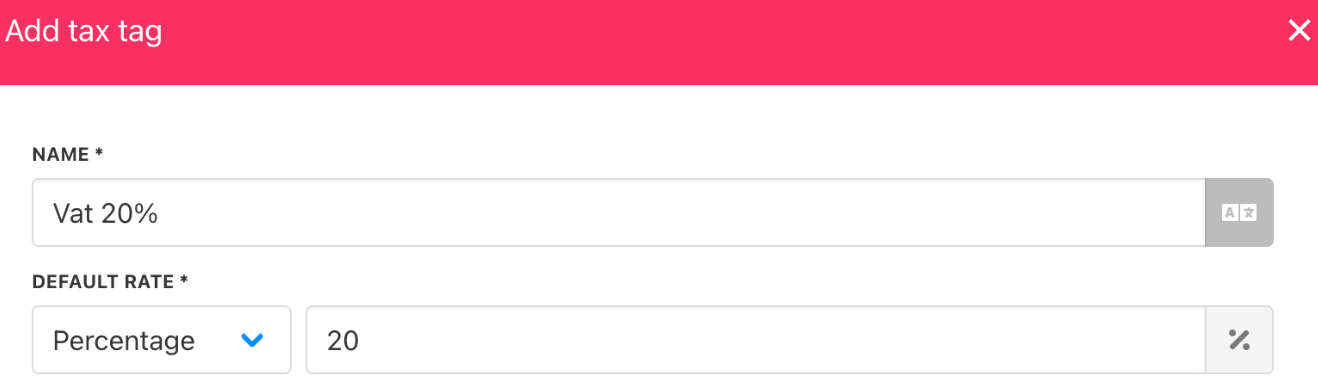
Tax tag name and fee
- Optionally add a secondary rate for specific business types, such as businesses rather than individuals. This is common in the EU under the reverse charge mechanism for applicable countries.
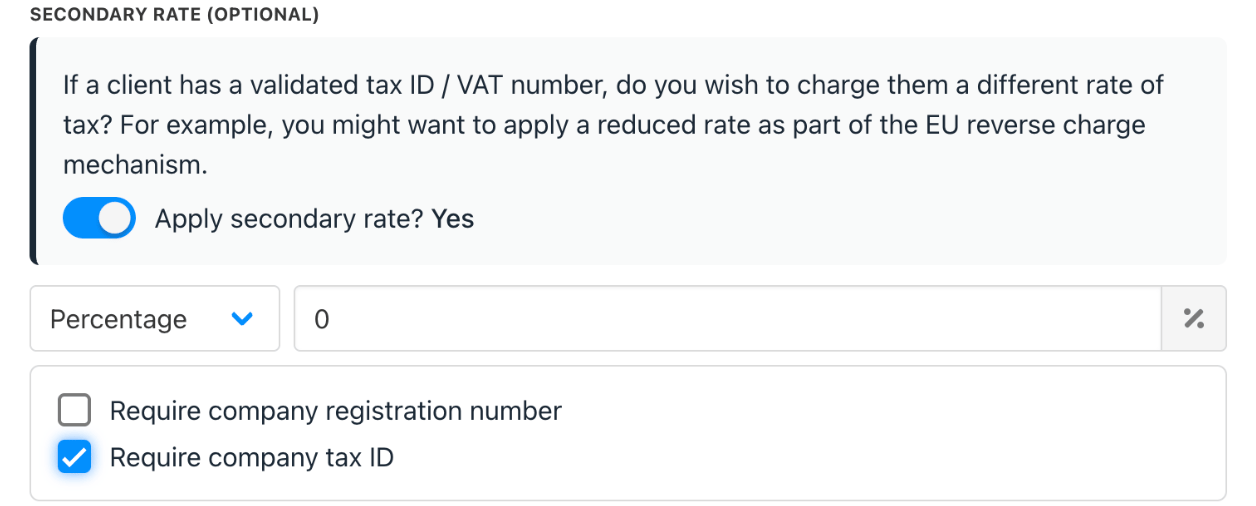
Secondary rate
- Set display options (show tax at invoice or item level).

Display options
- Choose whether the tax applies to the subtotal only or the subtotal plus previous taxes.
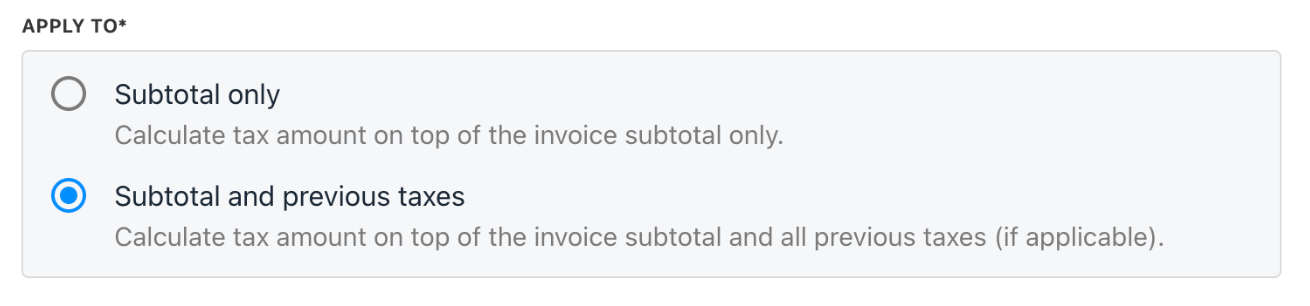
Apply to
- Assign applicable locations (countries, regions, client types).
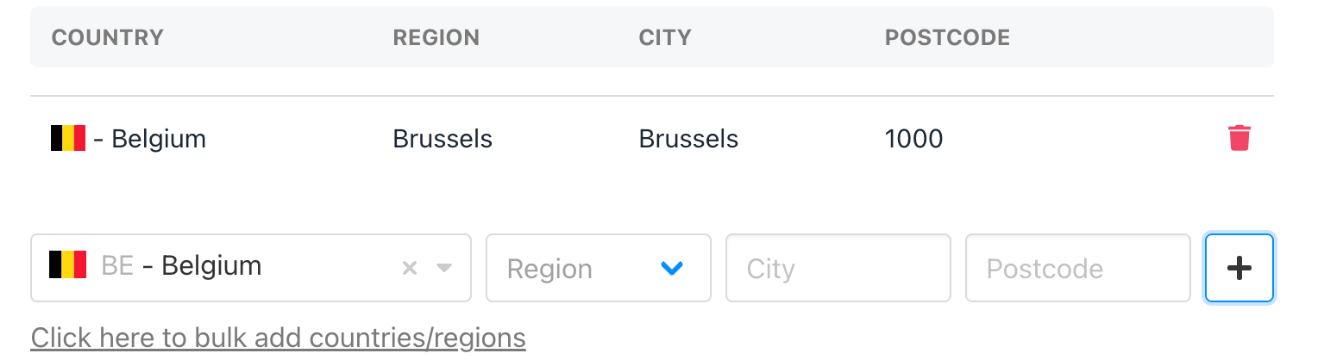
Locations
Tax settings
Tax settings control how Upmind calculates and applies taxes across invoices and products.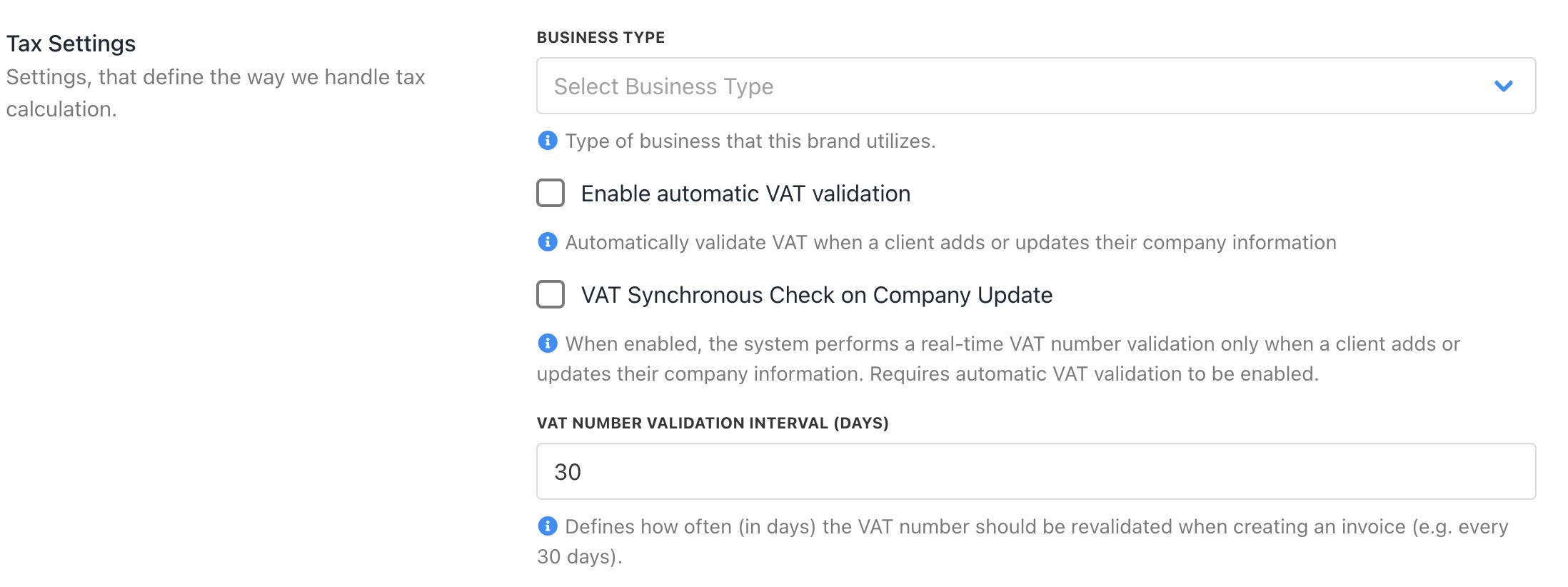
Tax settings

Business type

Automatic VAT validation

VAT synchronous check on company update

VAT number validation interval
Tax on invoices
When an invoice is generated, Upmind shows a tax summary and a breakdown of taxes charged.Applying taxes by location
Upmind determines applicable taxes based on the client’s address or, if none is provided, their IP geolocation at the country level. If a client adds an address, the tax rate is recalculated for greater accuracy. Since IP geolocation only identifies the country, regional tax rules require a client’s address to apply correctly; otherwise, no tax rate will display for specific regions. Example: Indian GST System India has three sales tax types:- IGST: Charged on inter-state transactions.
- CGST: Charged on intra-state transactions by the central government.
- SGST: Charged on intra-state transactions by the state government.

Tax Exemption Codes are added under the tax tag
Consult your accountant for tax advice. Upmind provides software support but does not replace professional guidance. You can import system default tax templates covering common tax scenarios.
Common scenarios
The invoice has no tax applied
A frequent issue occurs when tax is configured after invoice creation. Why does this happen:- Tax is calculated at the time the invoice is generated.
- If tax settings are not active at that moment, the invoice will not include tax.
- Regenerate the invoice with updated tax settings. This option is only available for unpaid invoices. Upmind recalculates tax when the invoice is regenerated, so the corrected tax amount will reflect on the new version.
- For paid invoices where tax should have been applied before payment, regeneration is not an option. In this case, process a refund against the original invoice, then generate a new invoice with the correct tax calculation applied. This keeps your records accurate and the tax figures legally correct.