

What is a locked invoice?
A locked invoice is an invoice that temporarily cannot be changed or paid, because Upmind is still processing a payment or related billing action against it. This protects both you and your customers from duplicate or conflicting charges. A lock is applied at the invoice level, so it affects that specific invoice only, not the whole client account.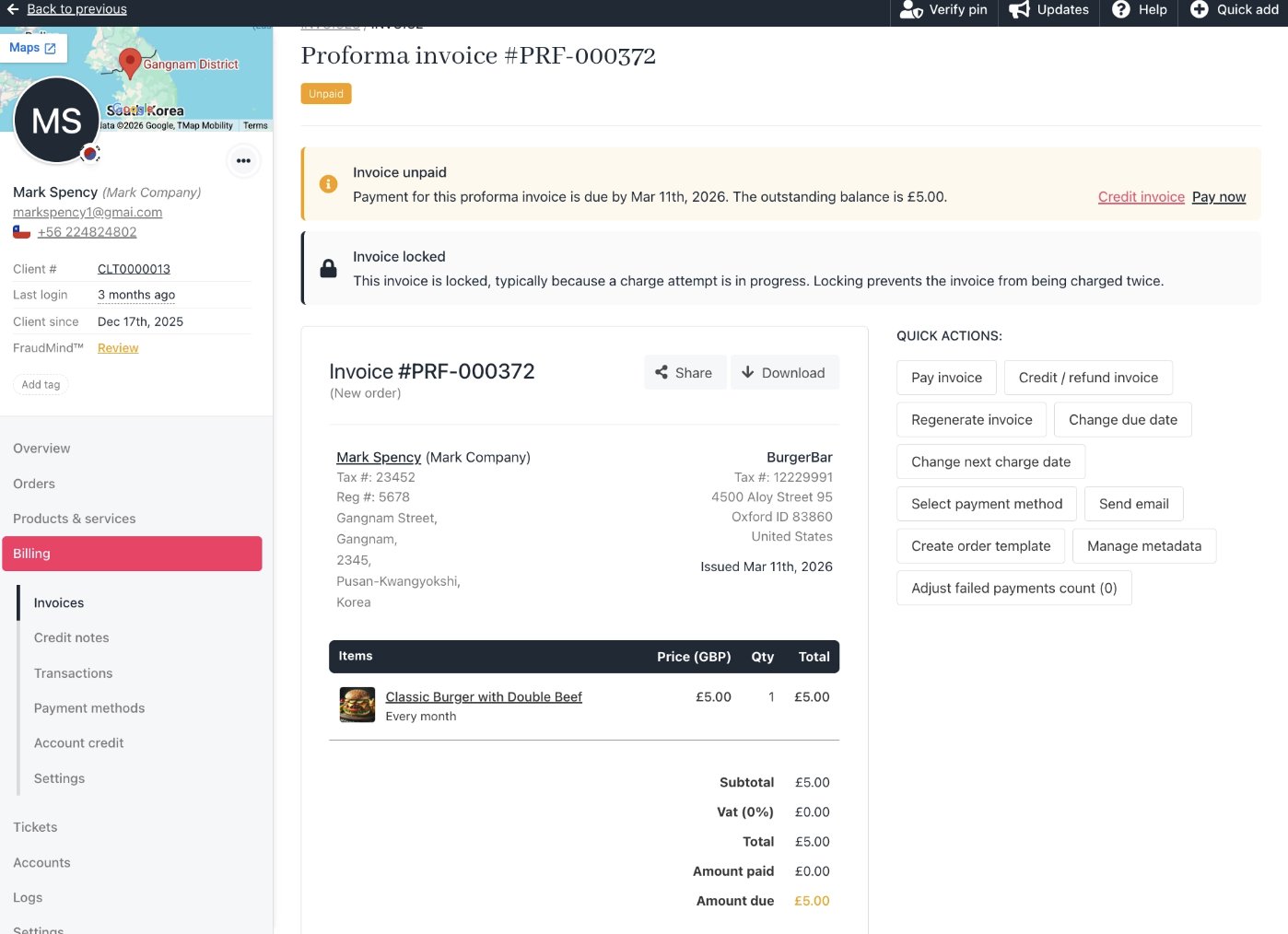
Locked Invoice
When invoices become locked
Invoices can become locked in several common situations:- A card, wallet, or bank payment is currently being attempted against the invoice and has not been completed yet.
- Upmind or your gateway reported an unknown or interrupted transaction state, so the system holds the invoice until it can be sure whether the customer was charged.
- An external system or integration briefly reports conflicting information about the invoice balance or payment status.
How long do invoices stay locked
In most cases, an invoice lock is short-lived and resolves itself.- Typical lock time is around 90 minutes while Upmind waits for a final response from the payment gateway or retries a pending task.
- On rare occasions, the Upmind system may have a large number of invoices to process and charge, and the lock might stay in place for longer than 90 minutes.
- If an invoice remains locked for more than 24 hours, this is longer than normal and should be checked by Upmind’s support.
Why can an invoice be locked even when no payment method exists
You can sometimes see a locked invoice even where the client has no active payment method on file. This usually means:- A payment attempt was started when a method was still present (a saved card that was later removed).
- An automatic collection attempt or background process triggered right after invoice creation, then failed or timed out, leaving the invoice in a locked state.
What you can and cannot do with a locked invoice
When an invoice is locked, Upmind restricts certain actions to avoid conflicts and double-billing. You cannot:- Charge the invoice again or start a new payment attempt from the admin or client area.
- Modify amounts, taxes, or line items on the locked invoice.
- Regenerate or replace the invoice number while the lock is active.
- View the invoice in Billing > Invoices and in the client area.
- Review related orders, services, and transactions for context.
- Add internal notes for your team on the client or order.
What customers see
When a customer tries to pay a locked invoice from the client area, they will see a message explaining that the invoice is locked and cannot be paid right now.How to handle a locked invoice as an admin
Use the following approach when you or your team see a locked invoice.1. Open the invoice and check the context
- Go to the Upmind dashboard > Billing > Invoices.
-
Open the locked invoice and review:
- Client name and account
- Linked order or subscription
- Current status and timestamps (when it was created, when it was last updated).
2. Review recent payment activity
- Open the client’s payment methods and transaction history.
- Check your payment gateway dashboard to confirm whether any charge succeeded, failed, or is still pending for that invoice reference.
- The customer was charged successfully, but Upmind has not yet updated the invoice.
- The customer was not charged at all, and the lock is stuck after a failed or abandoned attempt.
3. Decide how to proceed
-
If the customer was charged at the gateway:
- Record or sync the successful payment against the invoice once the lock clears or support resolves it.
- Do not attempt another charge.
-
If the customer was not charged:
- Wait a short period for the lock to clear automatically (up to around 90 minutes in normal circumstances).
- Ask the customer to try again once the invoice shows as unpaid and unlocked.