

- Change subscription terms
- Update subscription prices
- Reactivate a subscription
- Change to a new product
Opening a client subscription page
- Log in to Upmind.
- Click
Products & Serviceson the left menu. - Make sure the
Subscriptionsmenu tab is selected
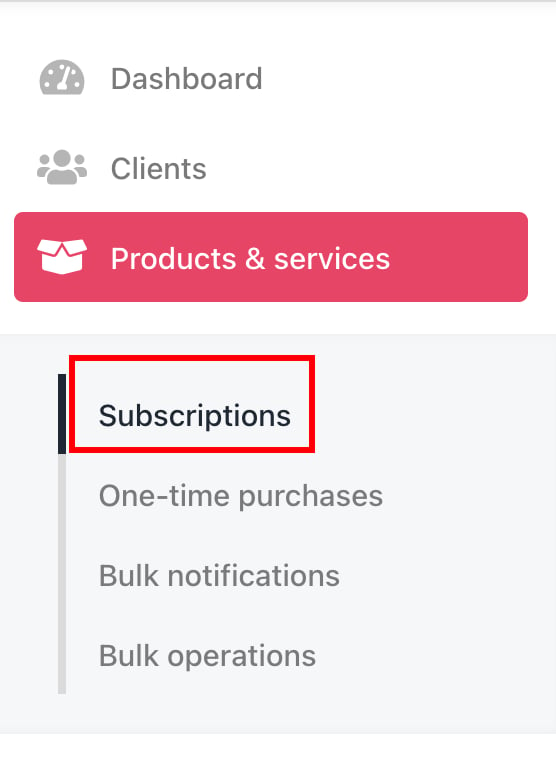
Products & Services > Subscriptions
- Go through the list and click the client subscription you want to review or modify.
- Scroll down on the Overview tab, and you will find several
Quick Actionbuttons.
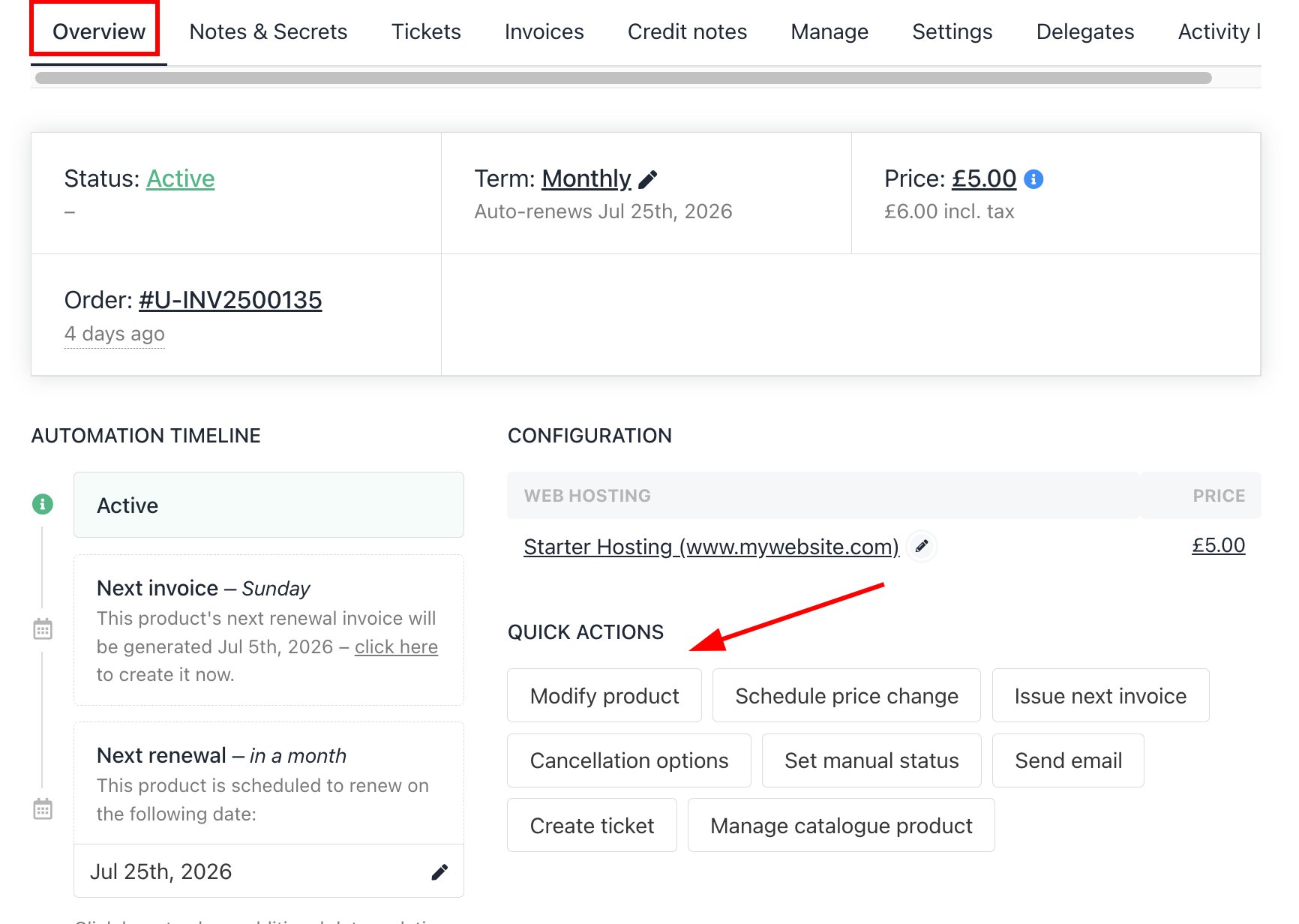
Quick Actions
Changing the subscription term
You can change the payment period (term) of the subscription on the Modify page.- Click the edit icon next to Term, or click the Modify Product button under
Quick Actions.
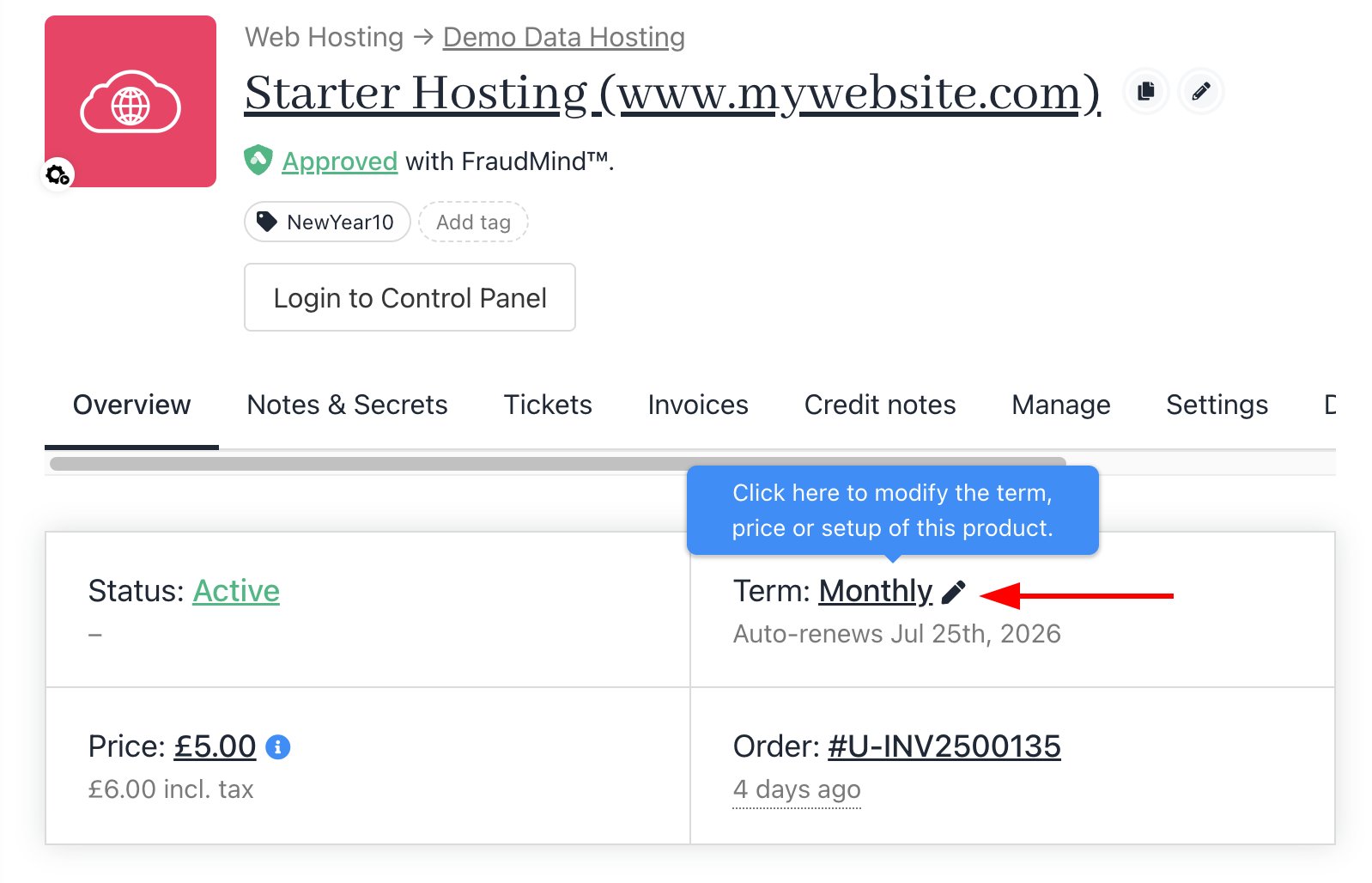
Term edit icon
- The Modify page will be displayed.
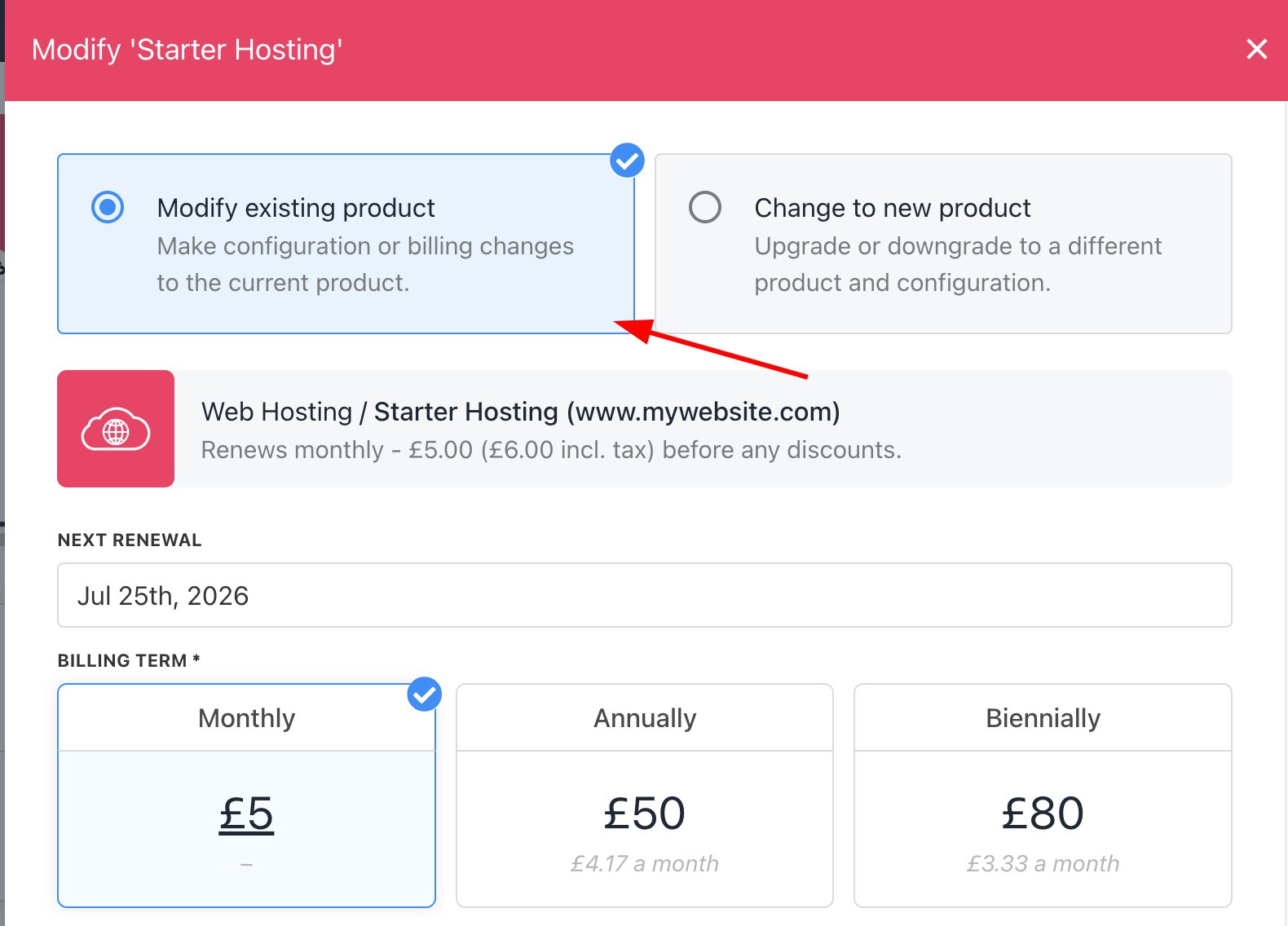
Modify page
- Choose the
Billing Term(Monthly/Annually/Biennially) and set the effective date for theNext Renewal.
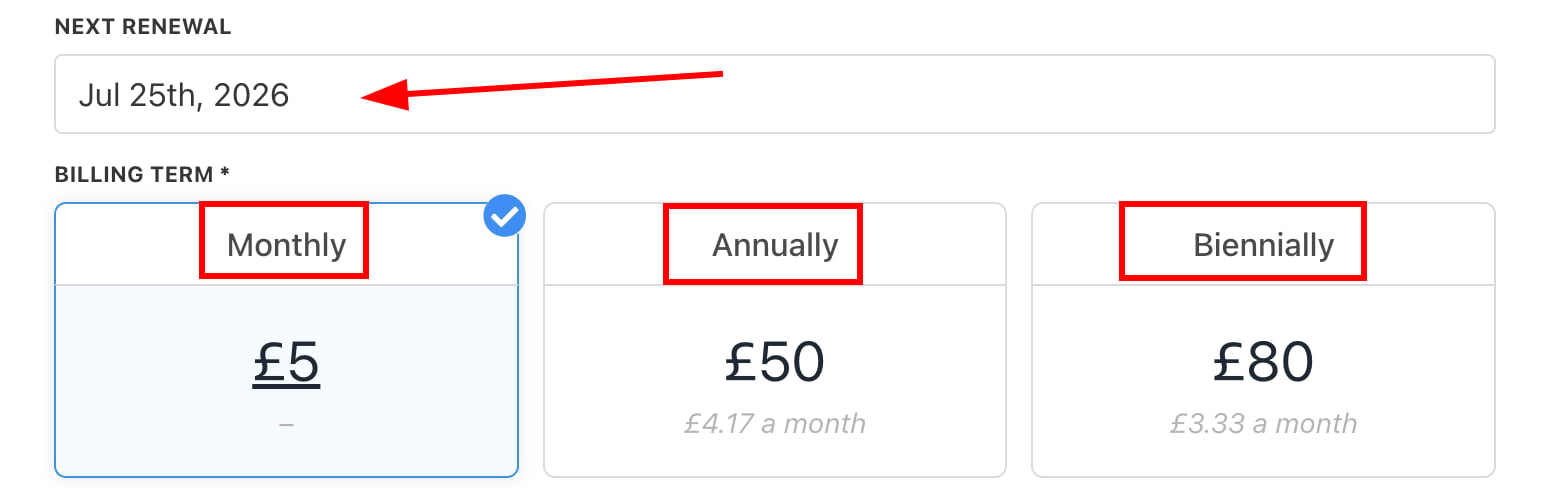
Set billing terms and next renewal date
- If an invoice for renewal has already been created, Upmind will automatically credit the old invoice and generate a new one with the updated billing cycle.
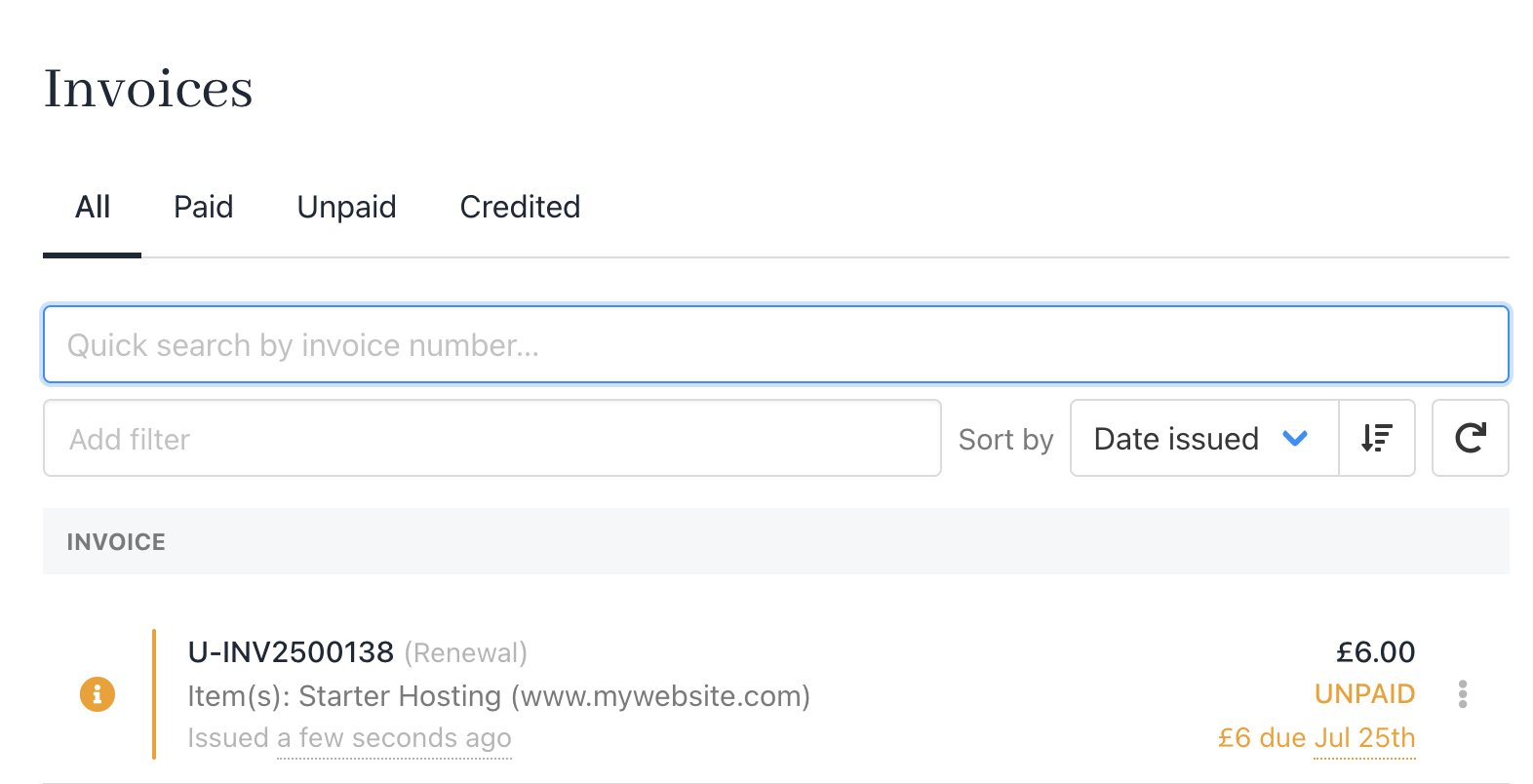
Renewal invoice
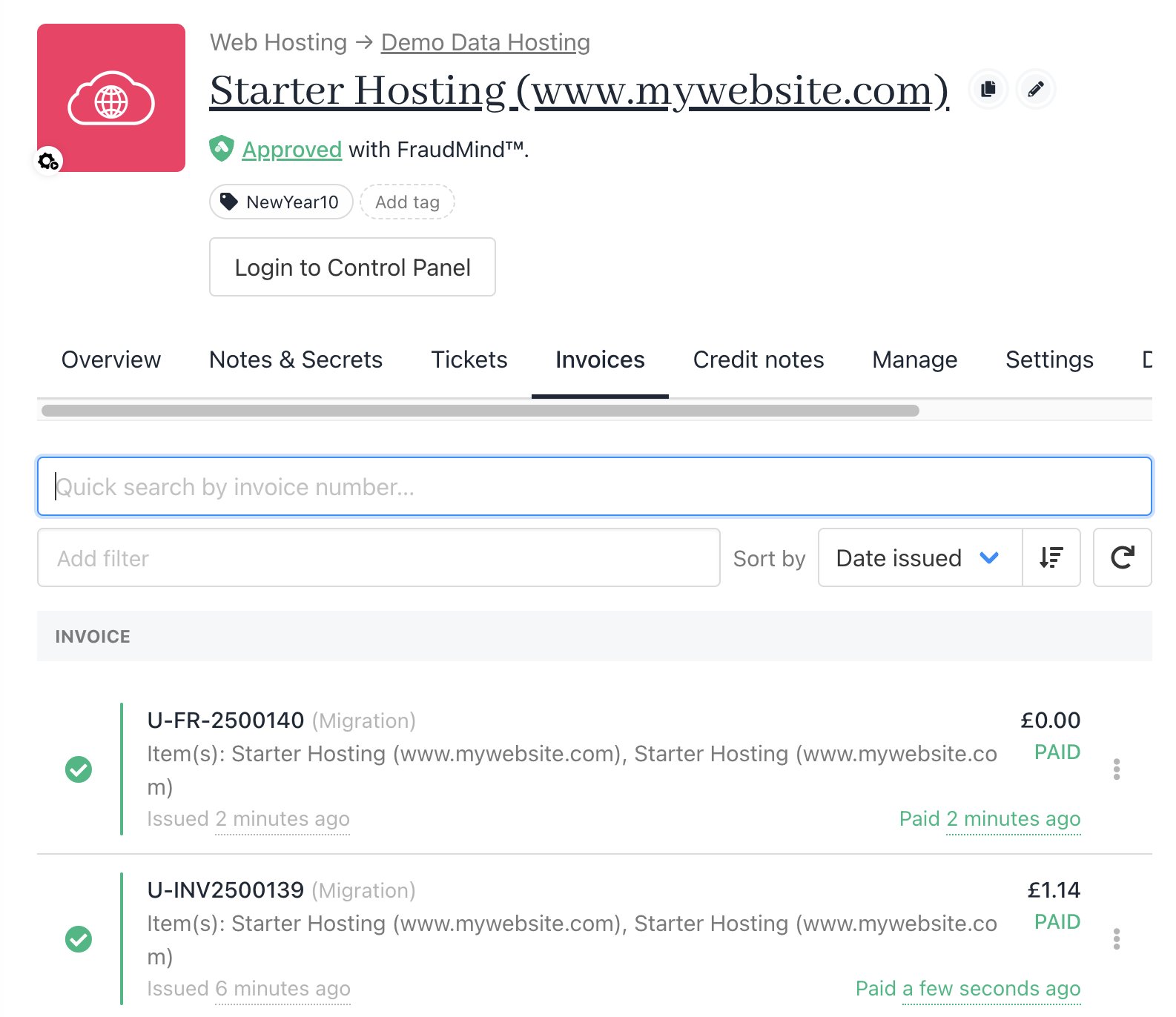
New invoice created
Changing subscription prices
To manually set the price on the client’s next invoice, you can follow these steps:- Click on the
Priceamount. - Enter an amount.
- Click Apply.
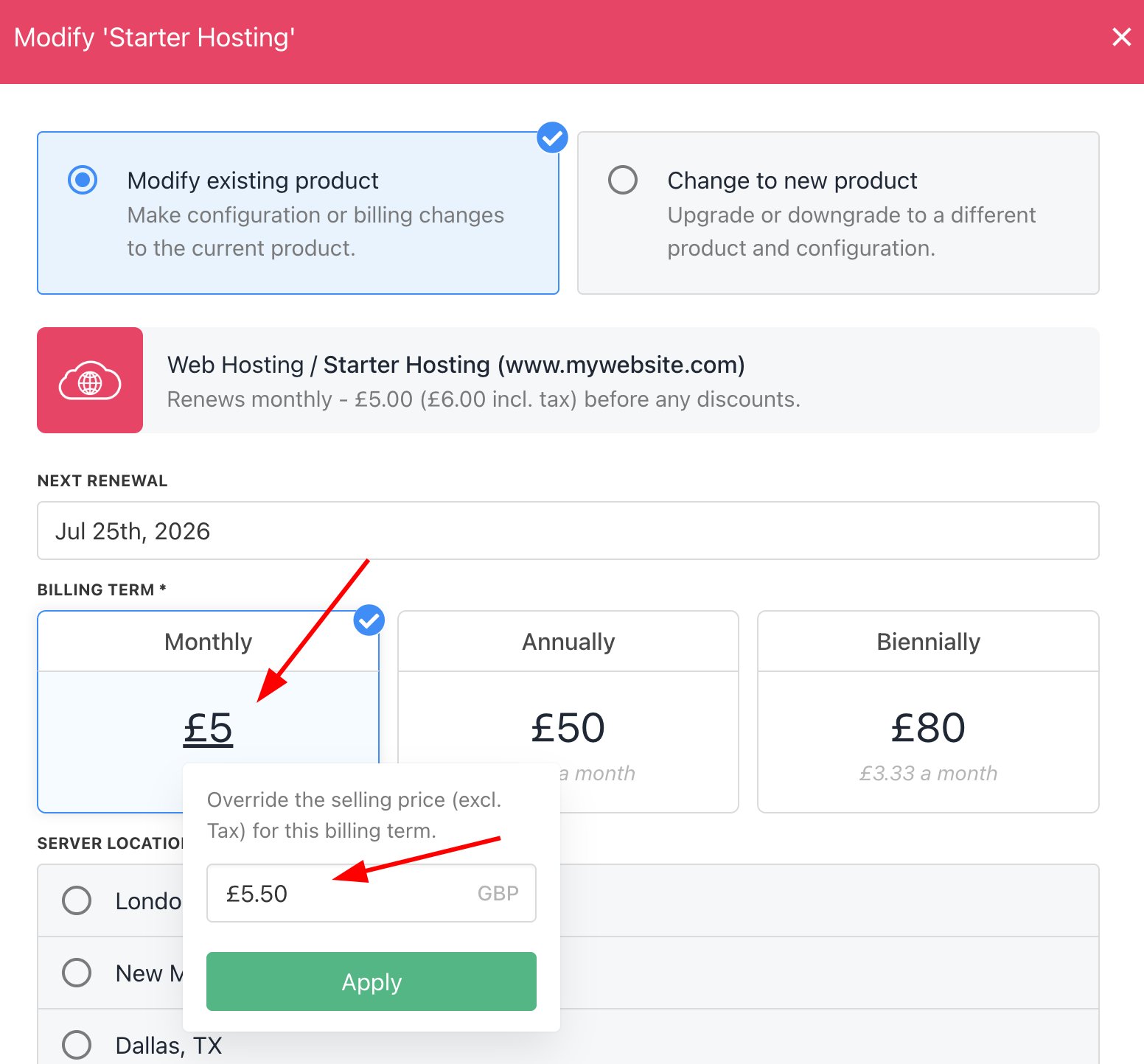
Enter a price
- For the existing term, if a client renewed monthly but switches to an annual plan at a lower average monthly price, Upmind recalculates the price as if they had been on the annual plan since the last renewal.
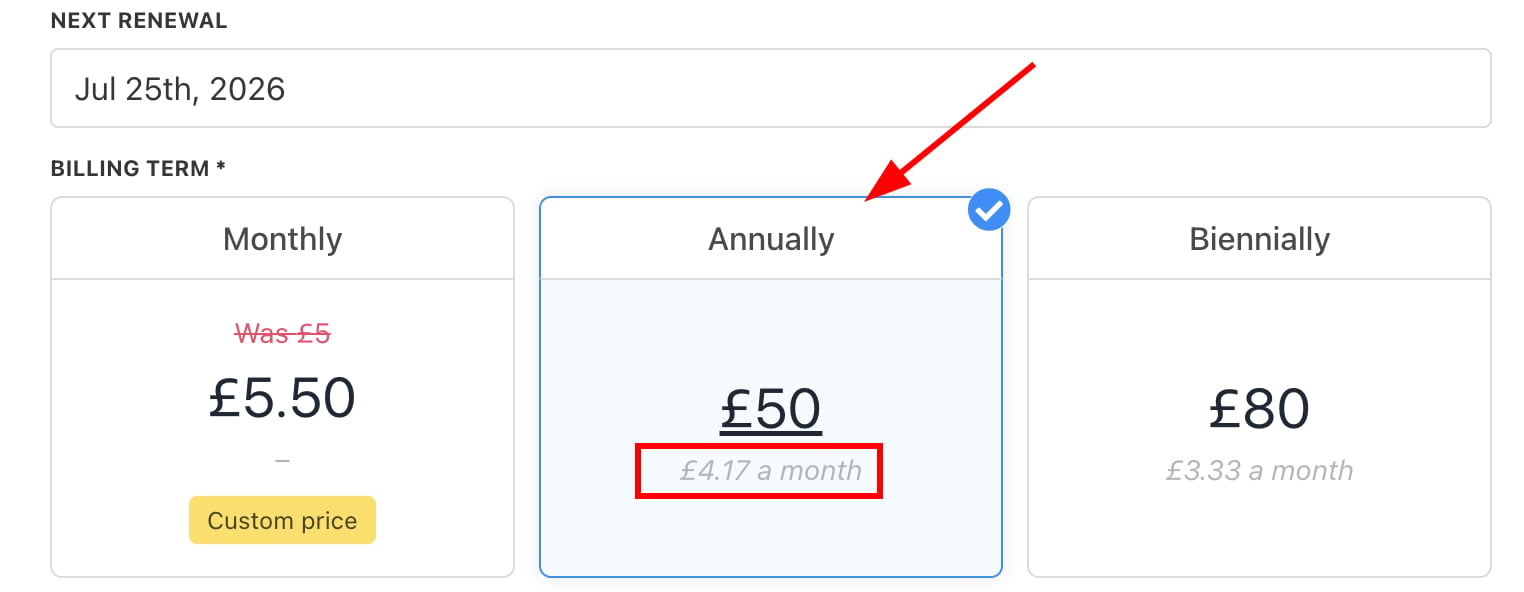
Average lower monthly price
- If you want to change the next renewal price, you can set the charge to free.
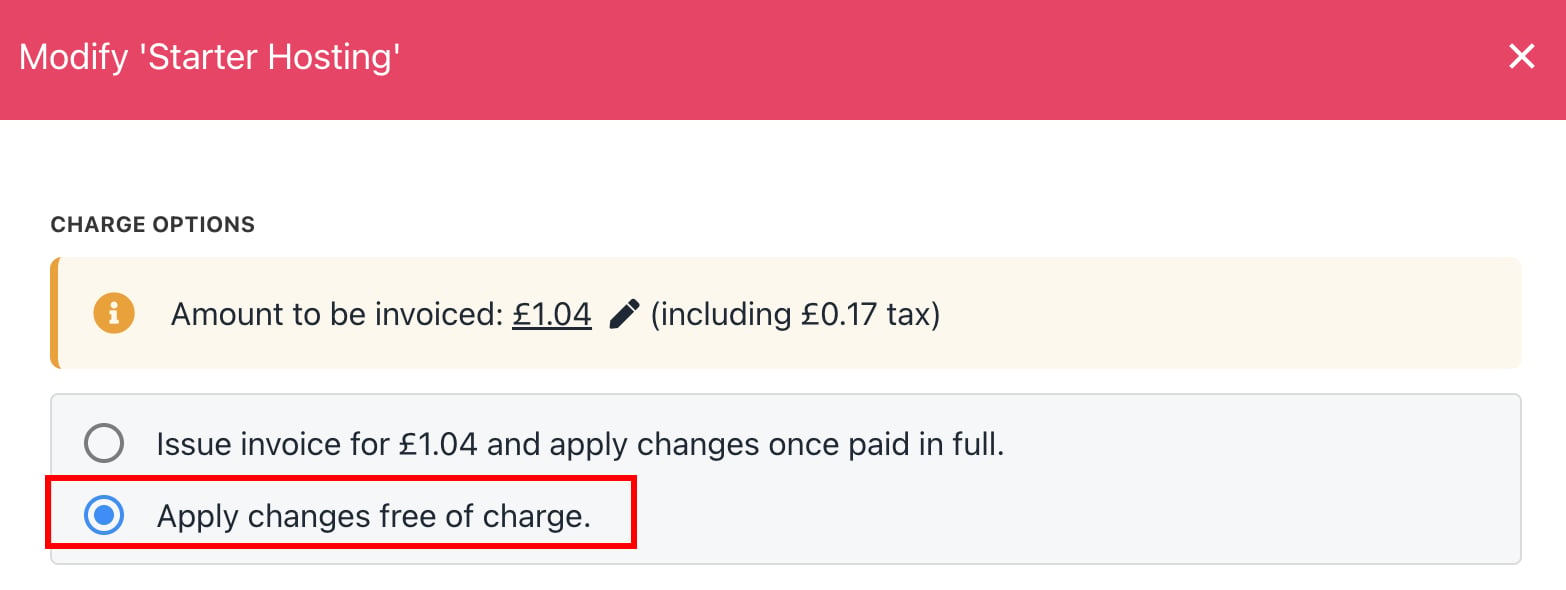
Free of charge
- Moreover, you can also schedule the price change from
Quick Actions. For more on Schedule Price Changes, follow this guide.
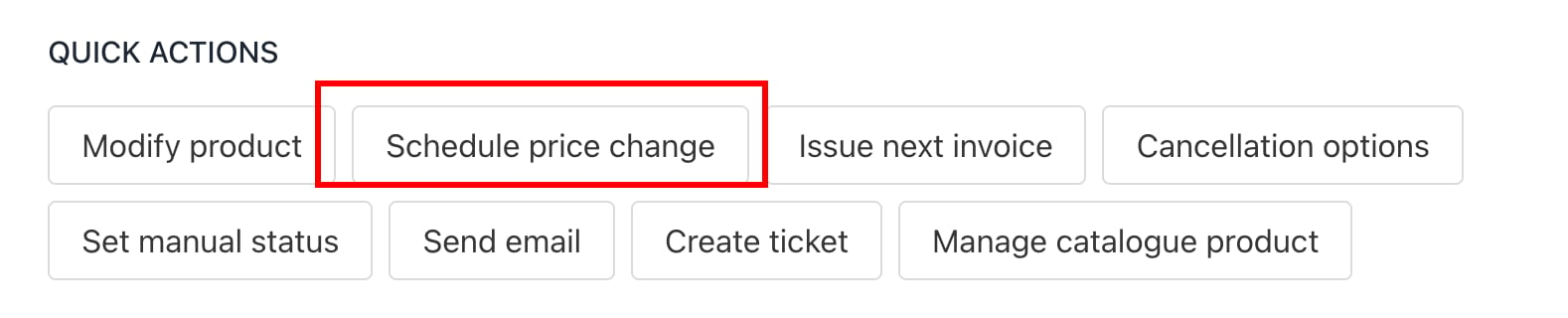
Schedule price change action
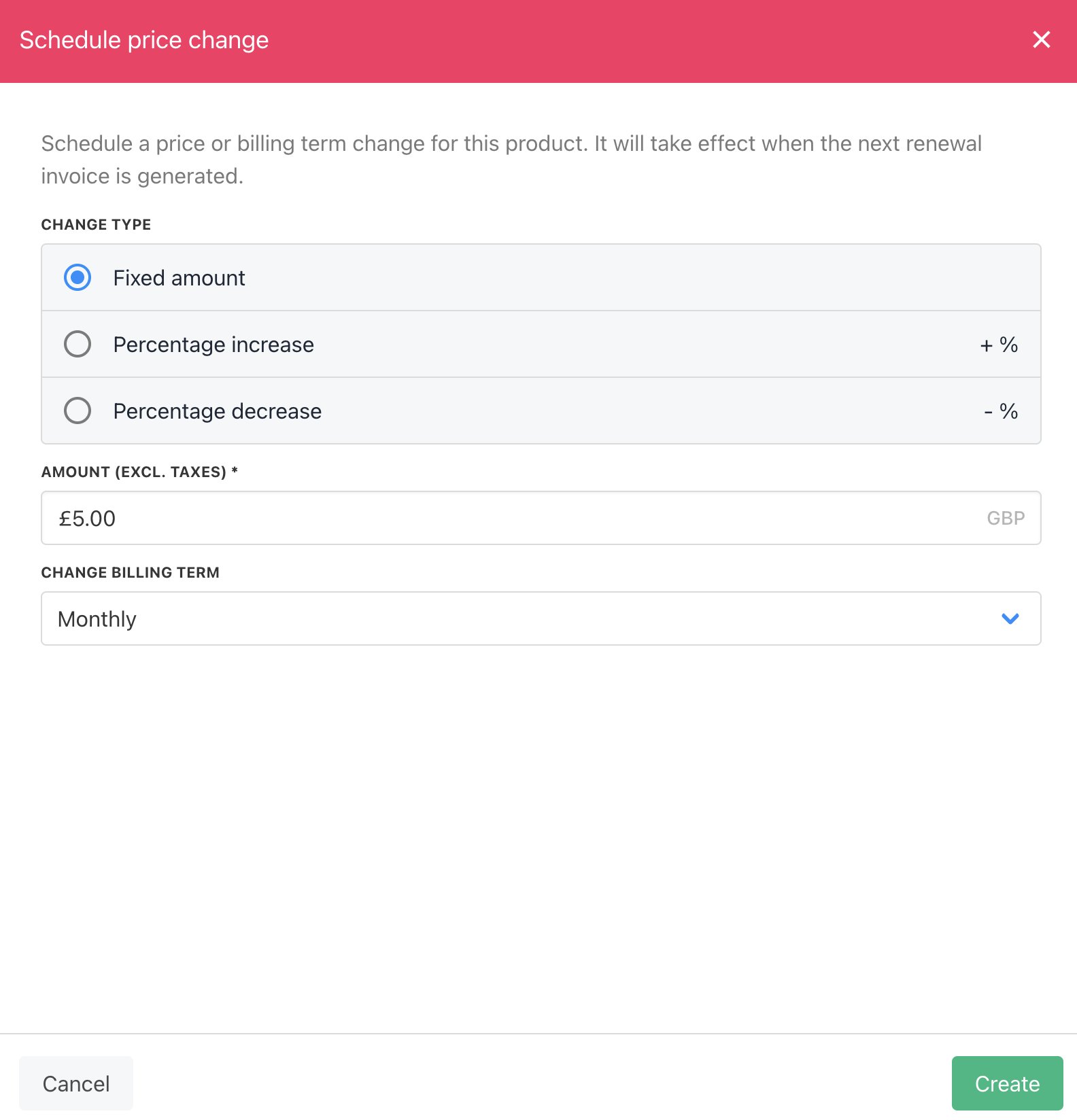
Schedule price change
Reactivating a product
You can change the status of a Lapsed orCancelled Subscription to Active.
- Scroll down to
Quick Actions. - Click the Reactivate product button.
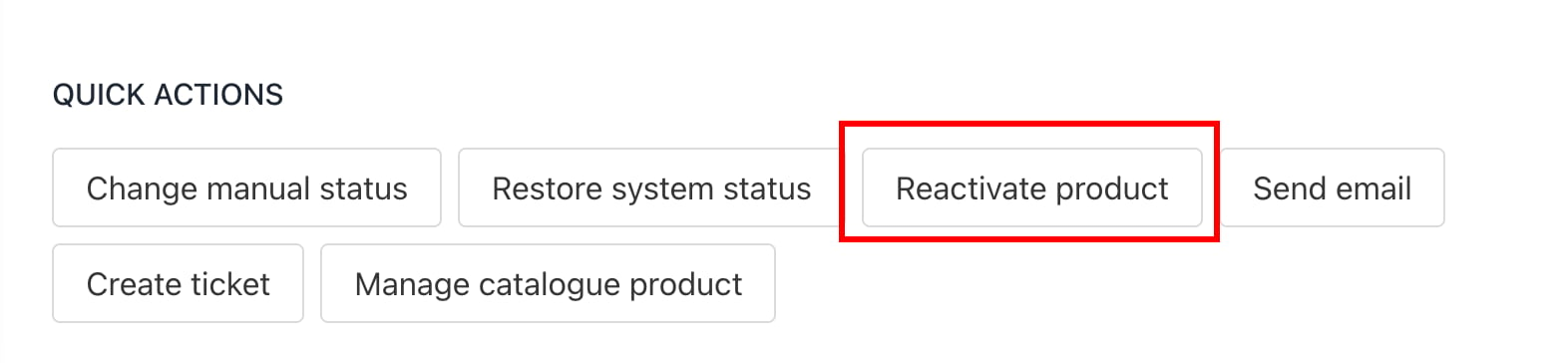
Reactivate product
- In the new window, set the conditions, including
Renewal DateandPrice. - Click Submit.
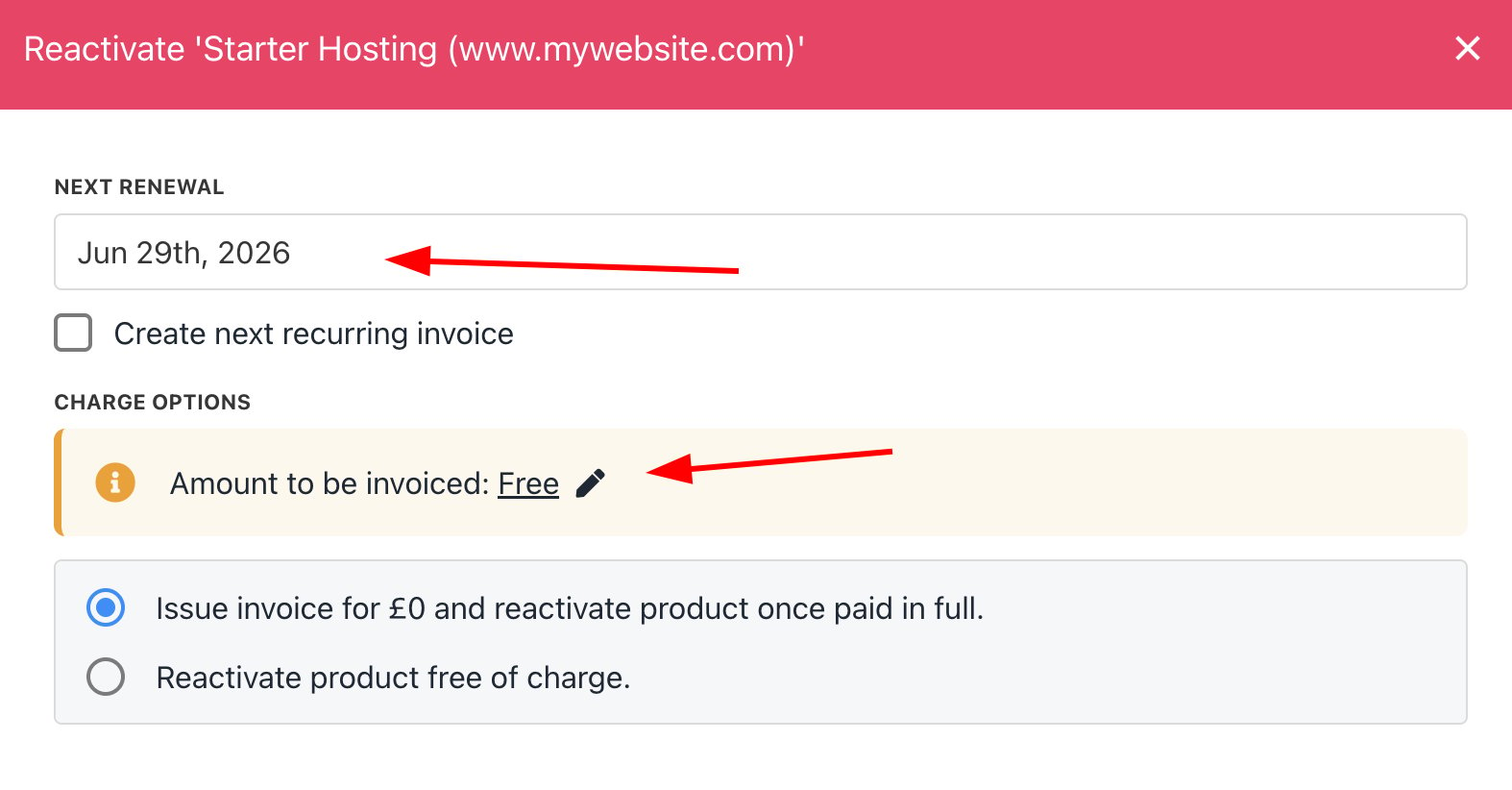
Select renewal date and price
- If you want to offer a discount on an existing raised invoice, you can go to the invoice and add a ‘credit’ against that invoice.
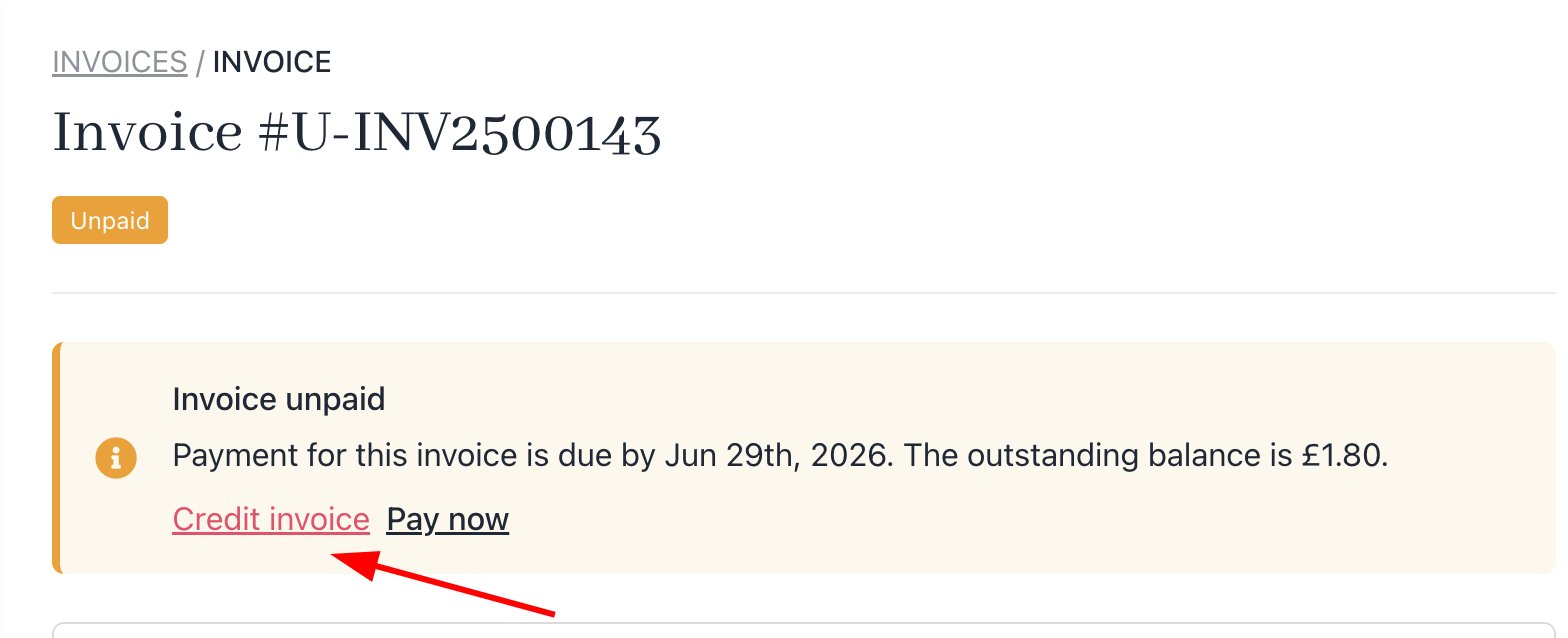
Credit invoice
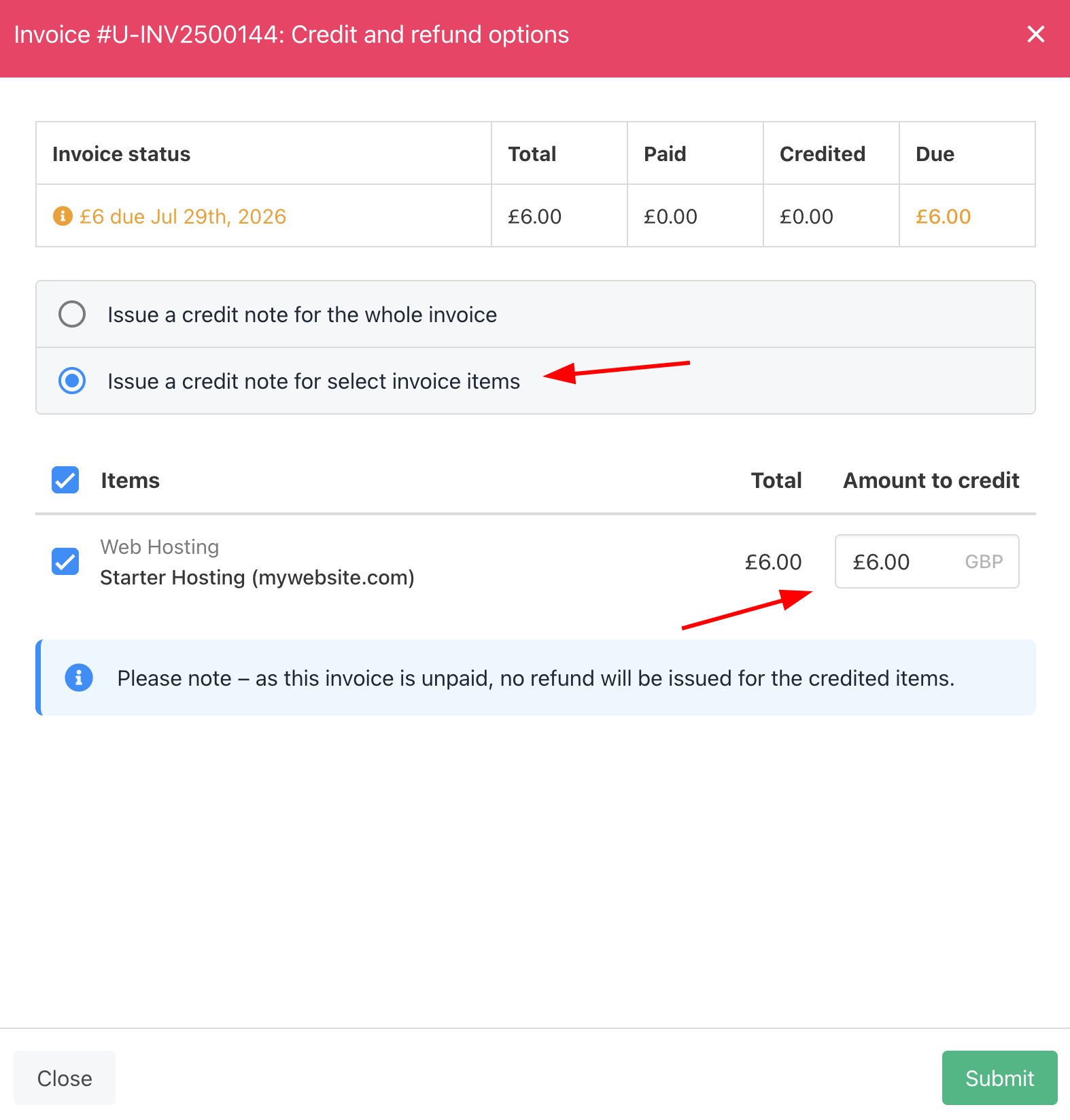
Credit amount
Change to a new product
You can upgrade or downgrade to a new product and configuration.- On the Modify page, select the
Change to New Producttab and then choose a new product.
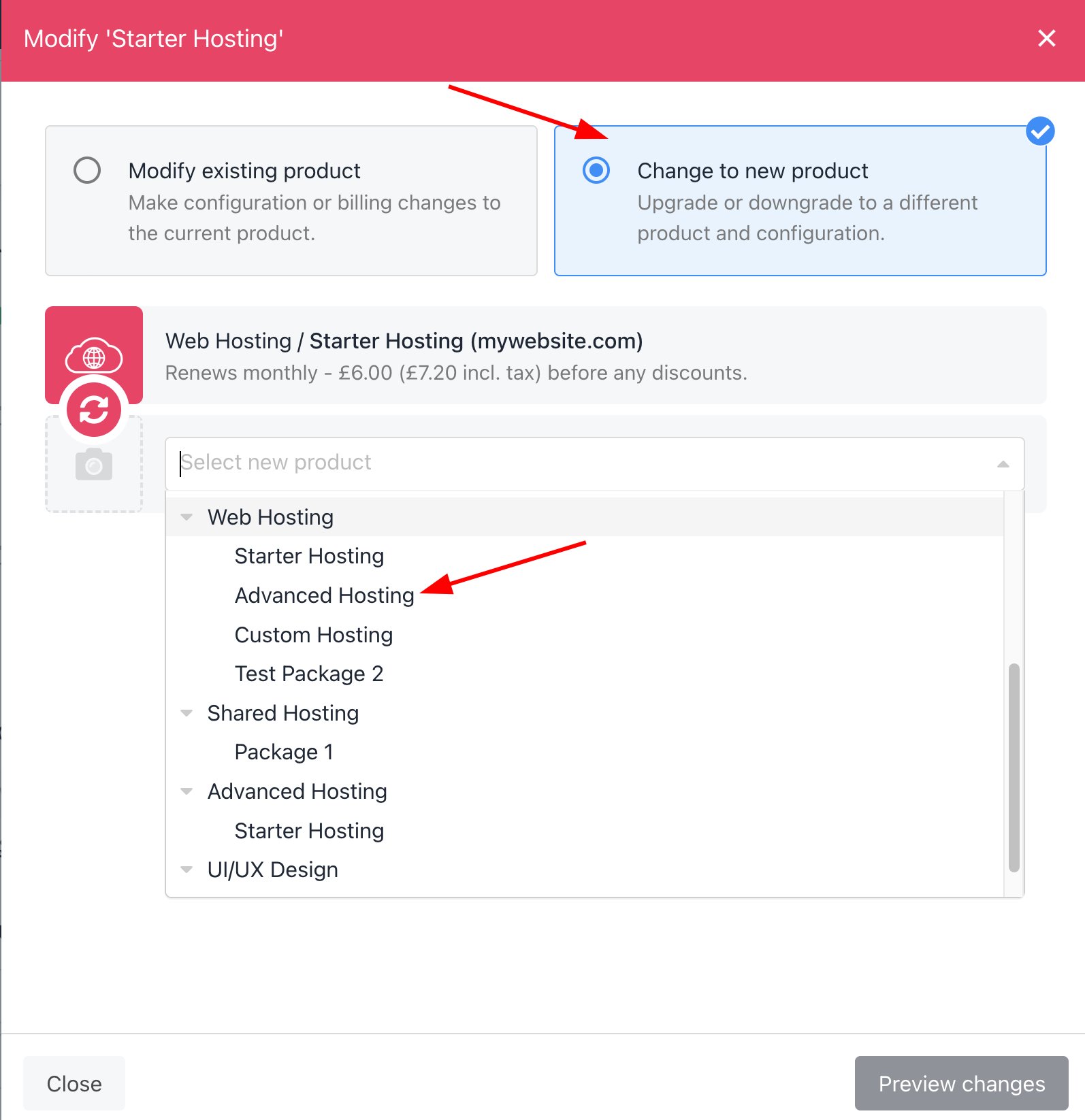
Change to new product
- You can choose new billing terms and the charge options.
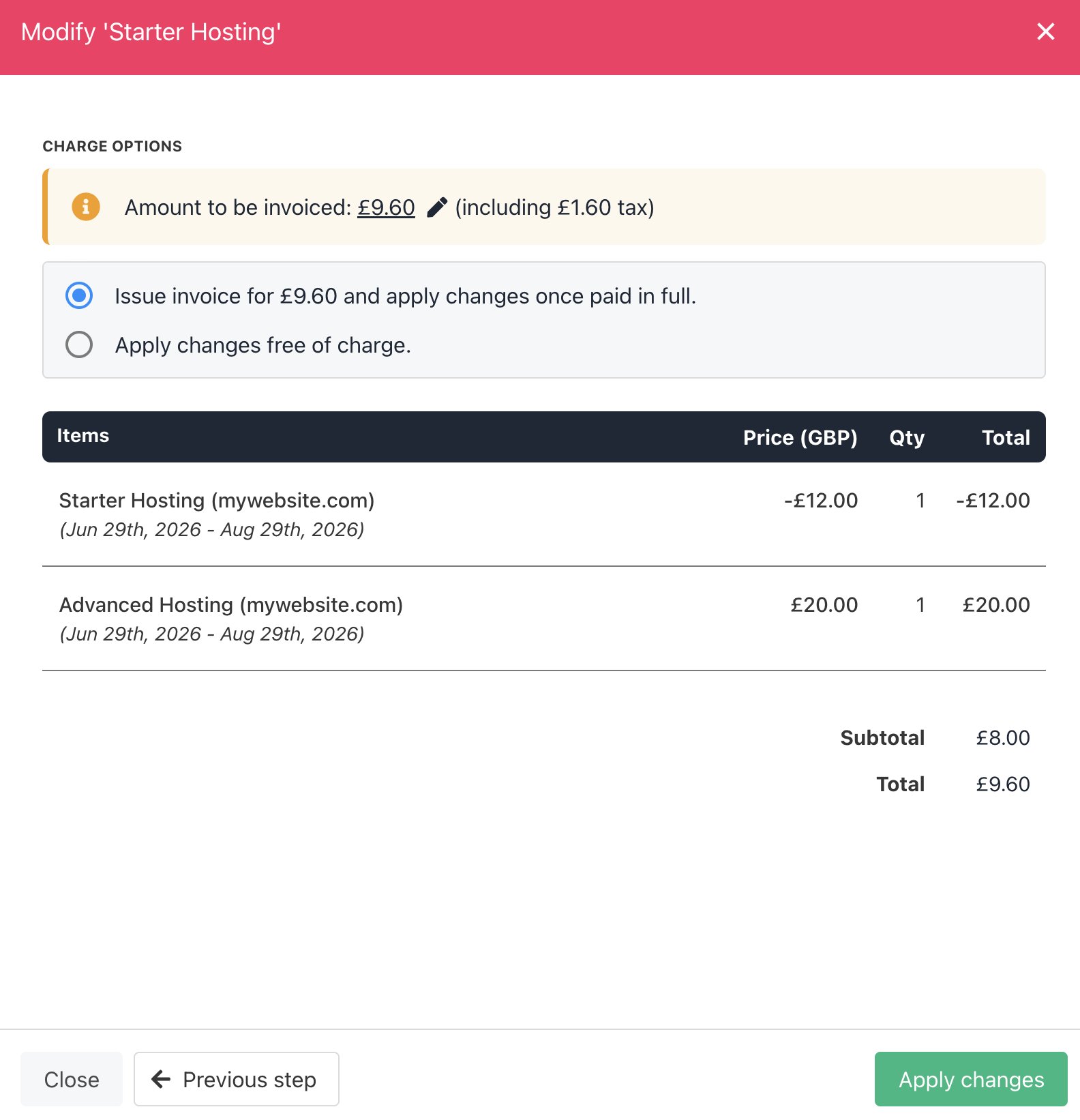
Choose billing terms and charge options
Apply pro-rata modifications without impacting existing invoices
- Go to Settings > Order Options.
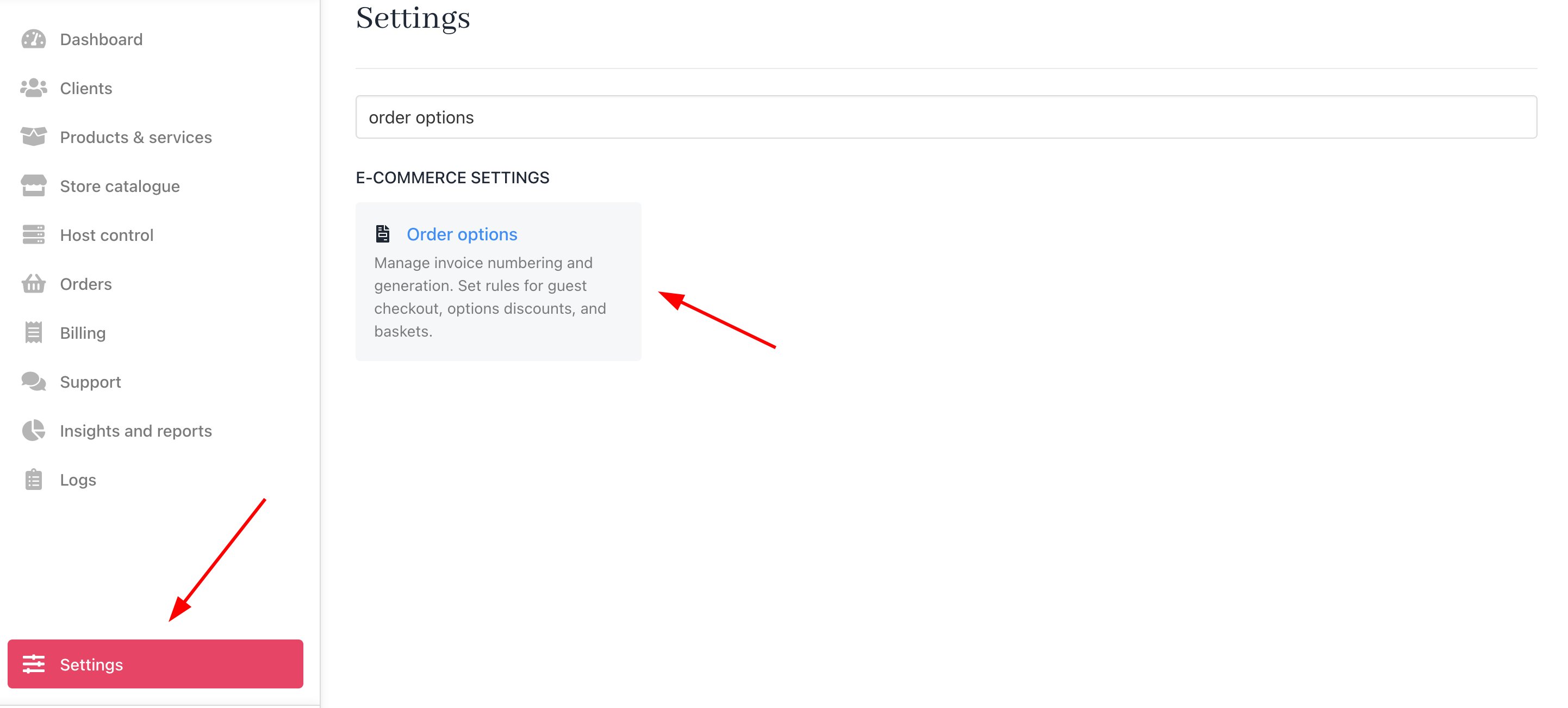
Settings > Order Options
- Under the Misc section, click Enable control over pro rata/modify crediting invoices. This controls whether crediting or refunding of invoices is disabled during pro-rata adjustments. When enabled, an additional parameter can be passed when pro-rating a product to suppress the automatic credit or refund on affected invoices.

Enable control over pro rata/modify crediting invoices
- Then, when you modify a product and click Preview changes, you will see the option Only apply these changes to future invoices.
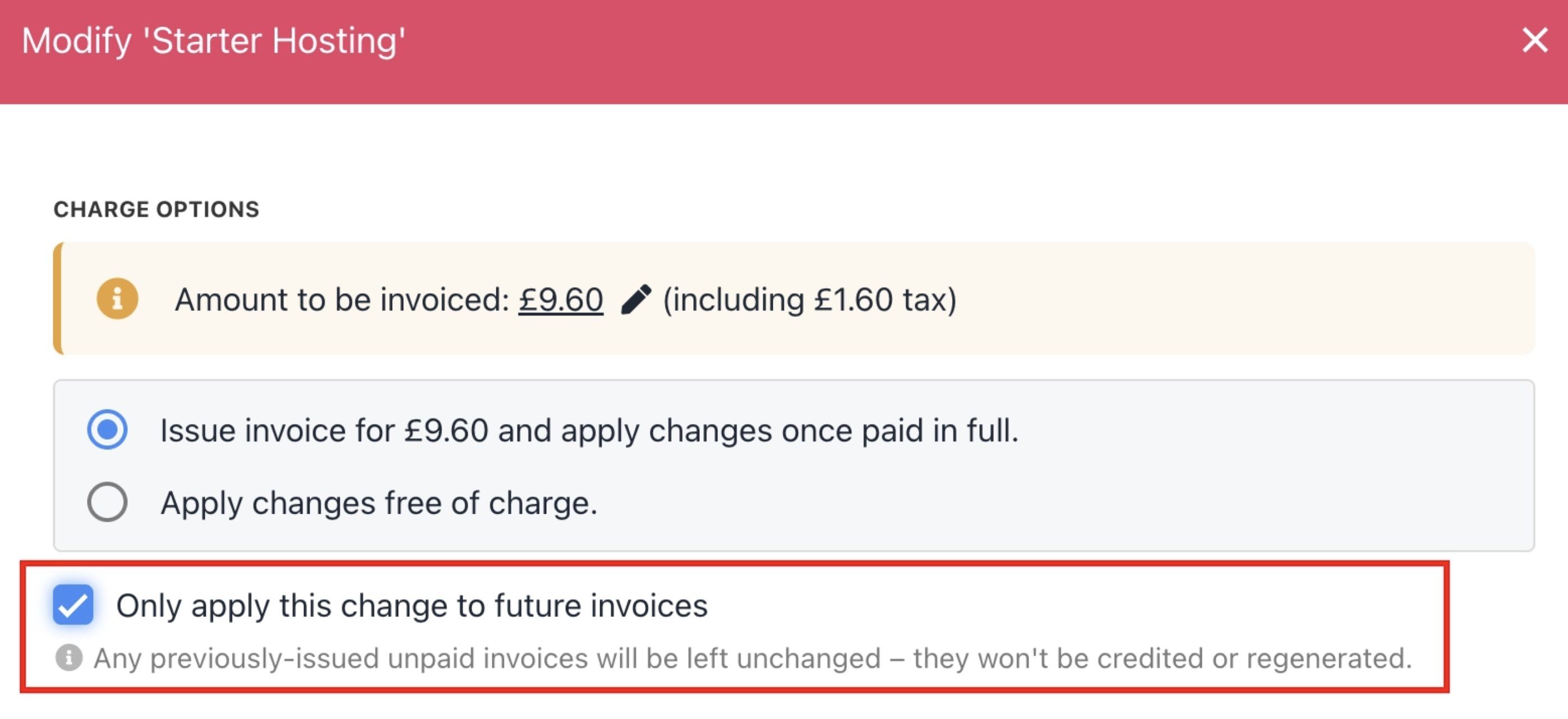
Only apply these changes to future invoices
How to reactivate a contract with a past date
Reactivating with a past date
- Go to the client’s profile and open Products & Services.
- Scroll to Quick Actions and click Reactivate Product.
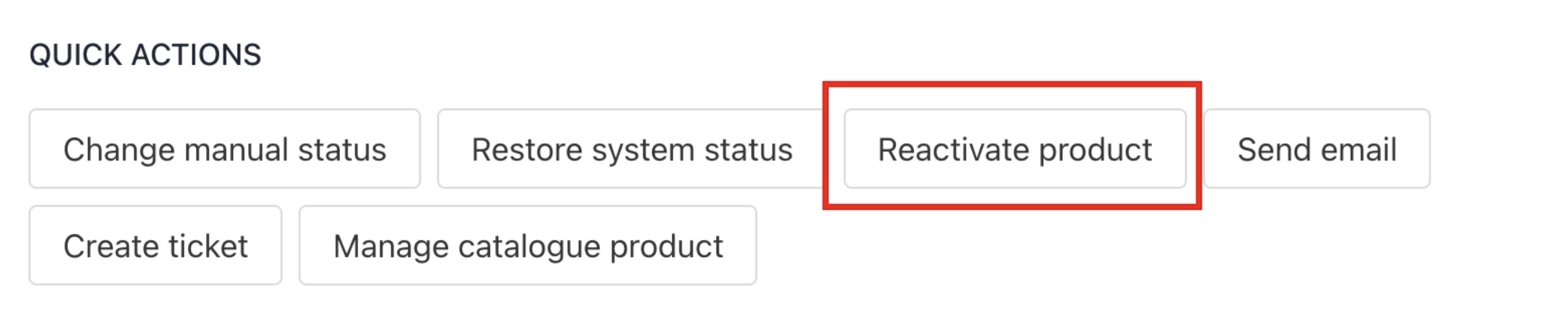
Reactivate product
- In the window that appears, locate the Renewal Date and set it to your desired past date.
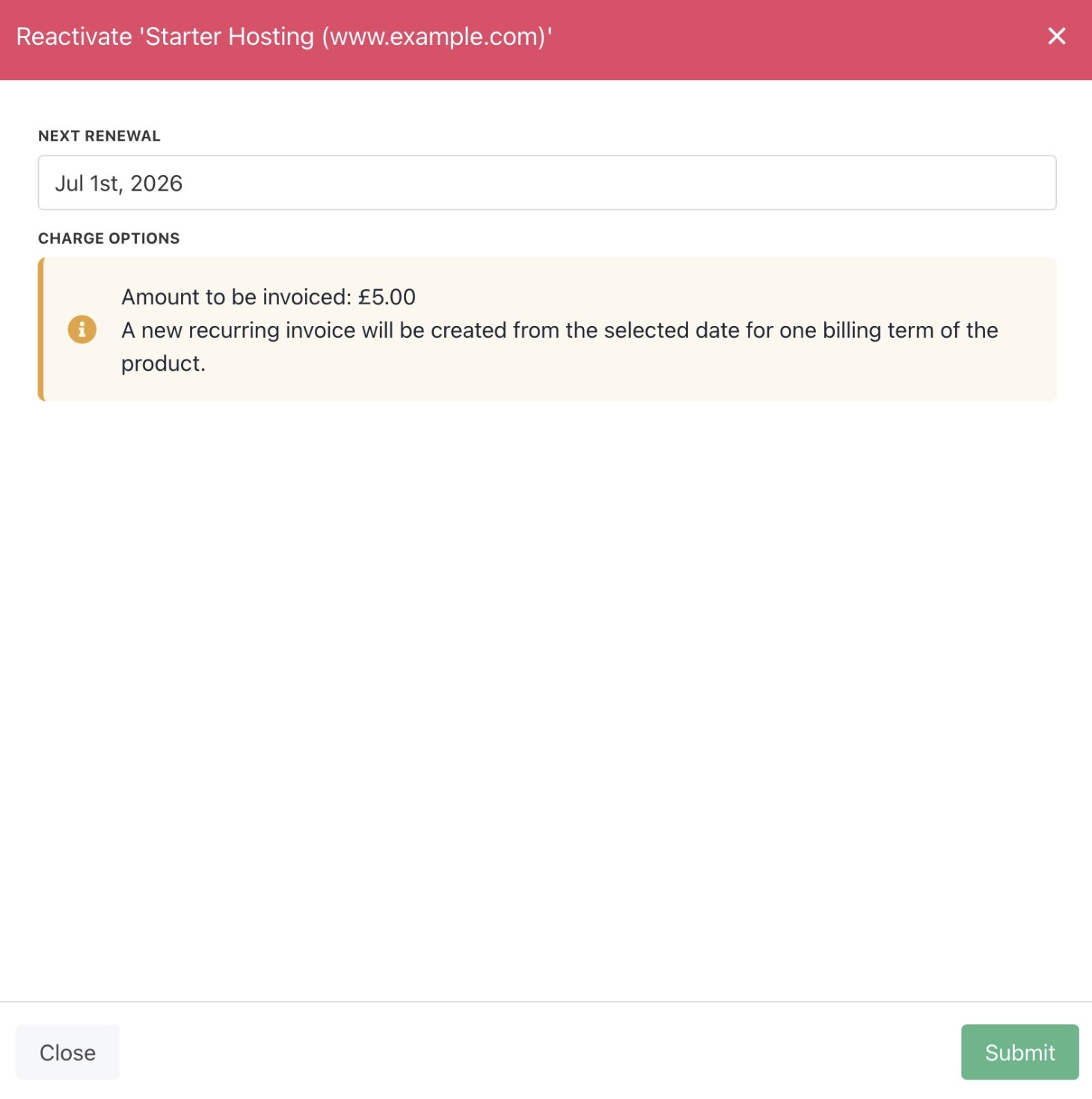
Choose a past date
- Set the product price (if applicable) and click Submit.
How far back can you backdate?
The backdated renewal date cannot be set earlier than one billing cycle before the current next due date. In practice, this means if a product Lapsed or was Cancelled in a given month, you can only backdate it to one month prior to that date. Example 1: Cancelled - 27 July 2026 to 27 June 2026 (one month back).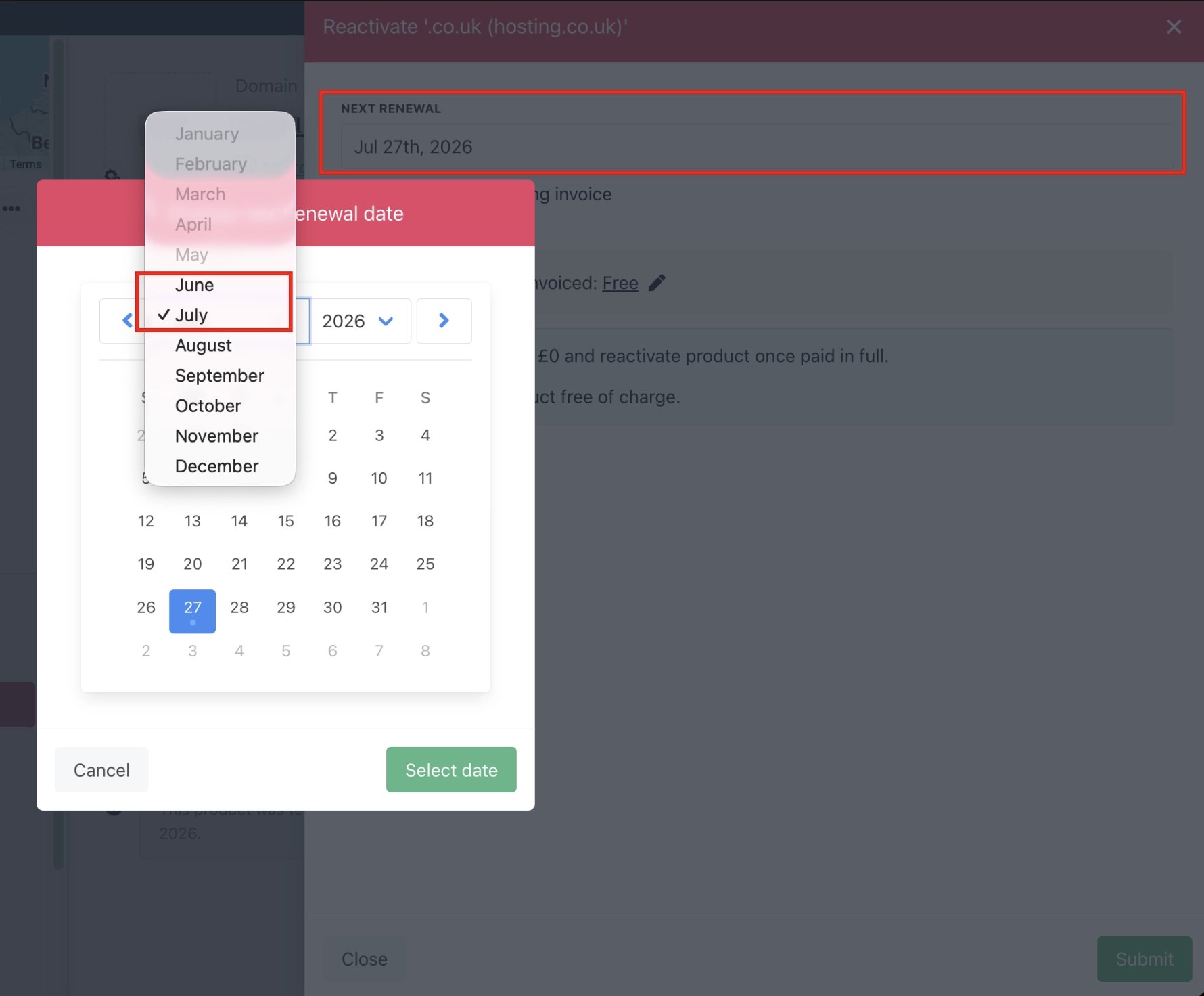
Cancelled contract product
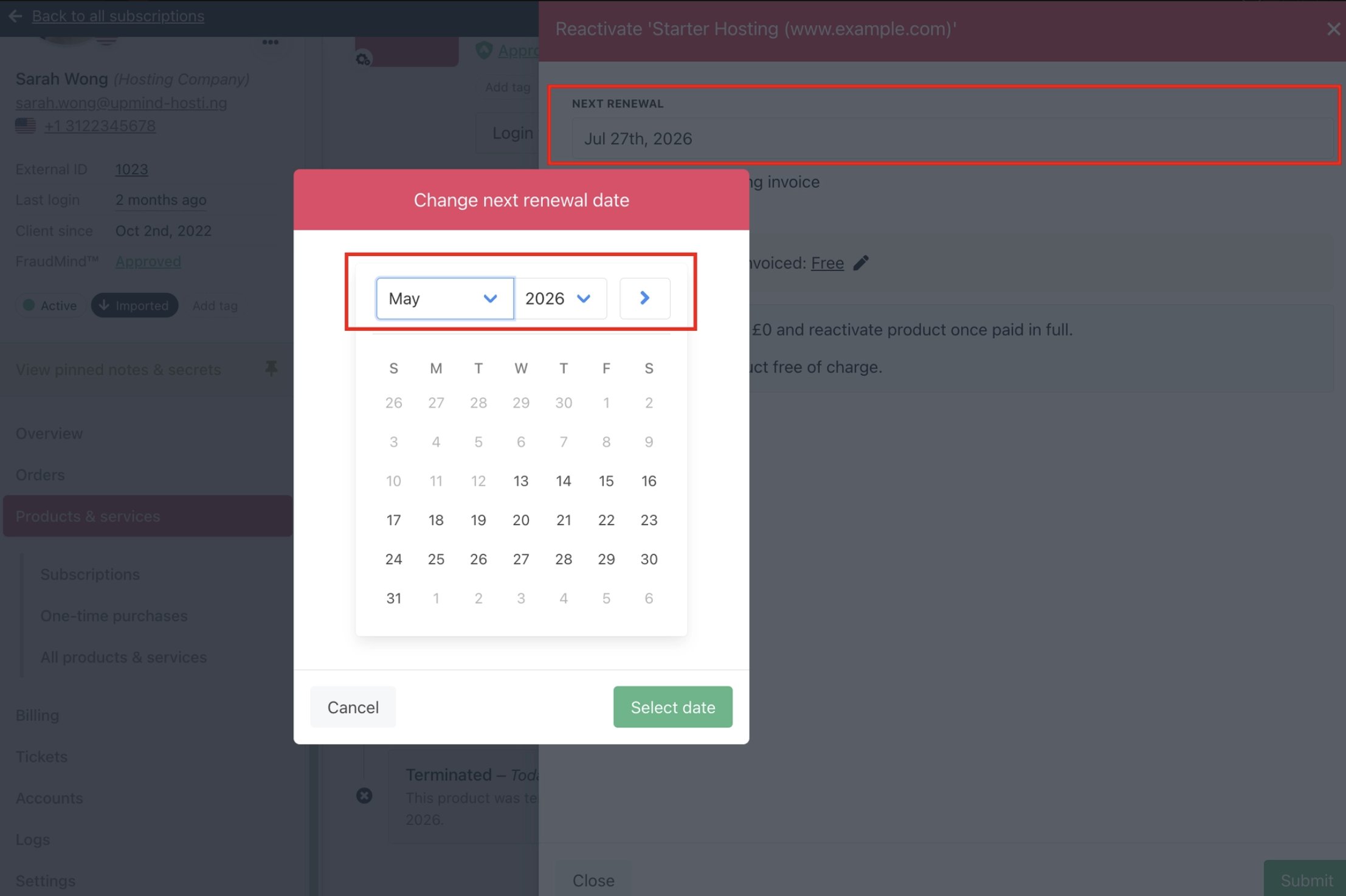
Lapsed contract product
How billing works when backdating
When reactivating with a past date, the flow differs from a standard reactivation:- A recurring invoice is issued from the calculated next invoice date at its full amount, not a pro-rata invoice.
- The Activate for Free and Issue Next Recurring options are not available in this flow.
- The reconciliation setting controls how billing is calculated when you backdate a reactivation.
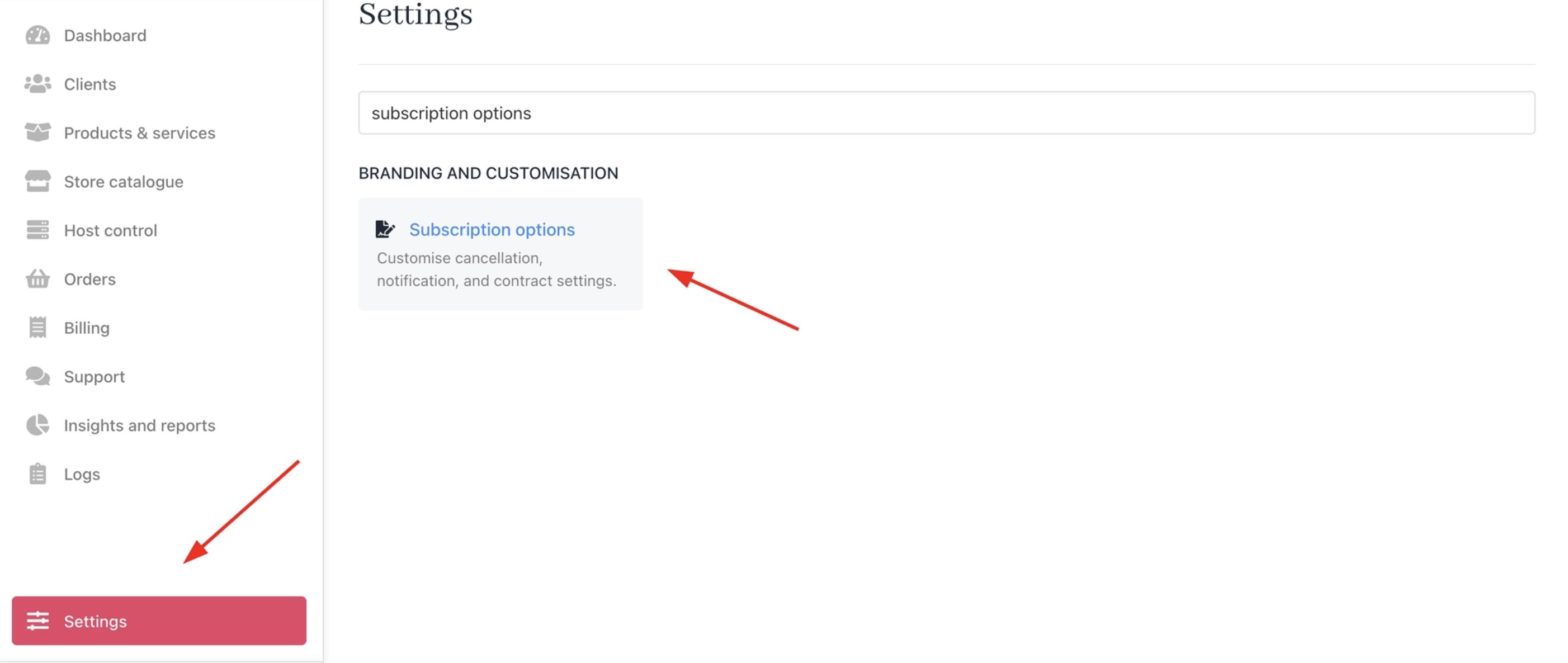
Settings > Subscription Options

Contract Settings > Reconciliation Strict Mode