

The Bulk Operations feature is currently in Beta, and its setup and customisation may change over time. Use caution when making changes, as future operations may affect its functionality.To update specific billing terms, configure segment parameters correctly to filter the billing cycle. Currently, selecting a billing term in the bulk update window applies changes to all products unless properly filtered.All changes made through Bulk Update are recorded in the activity log for each contract product.
- Go to Products & Services > Subscriptions Overview.
- Apply filters.
- Choose Bulk Update from the menu.
Watch the YouTube tutorial on Bulk Operations for subscription pricing, billing, and status.
Creating a segment
- Go to Product & Services > Subscriptions.
-
Find
Subscription Segmentsand click Add.
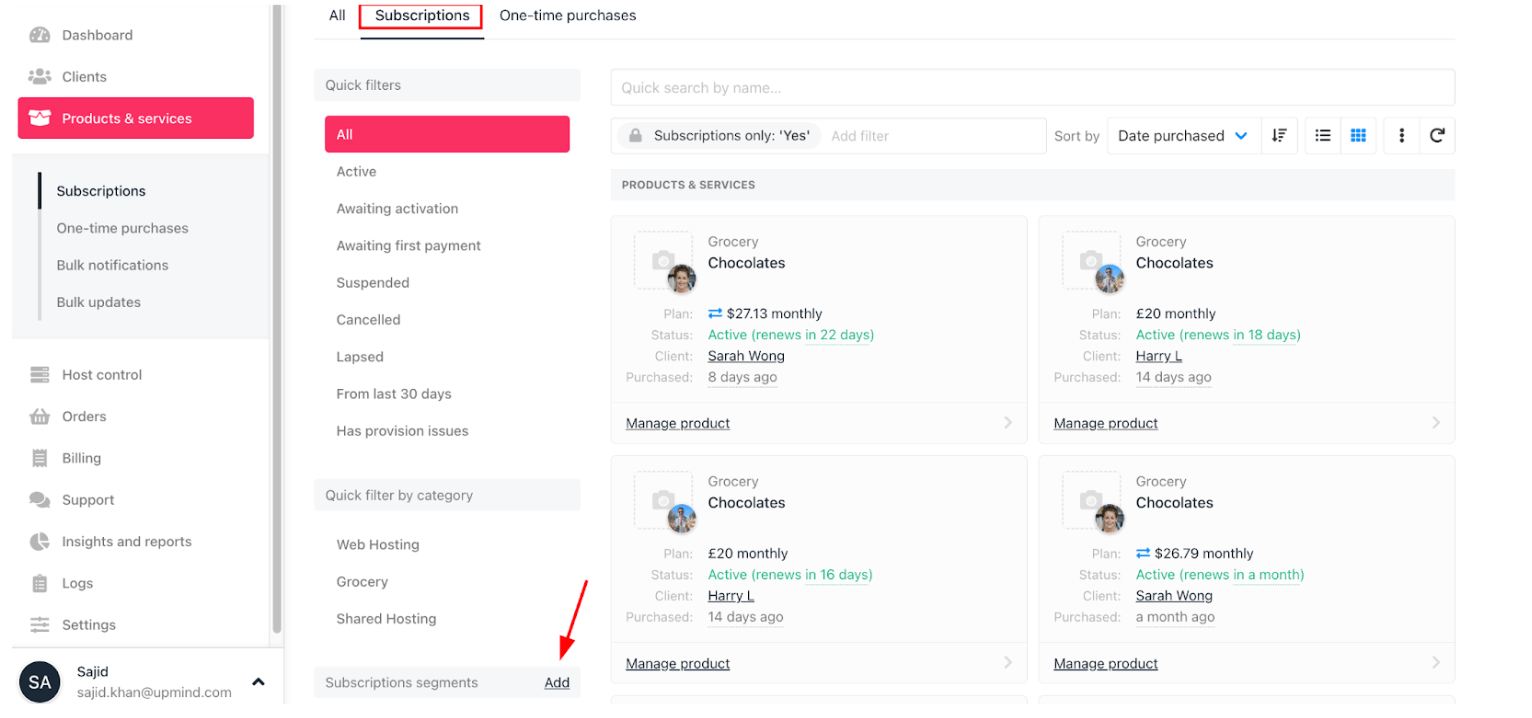
Product & services > Subscriptions
- Enter a segment name and set filters (e.g., product, billing term, status).
- Click Create.
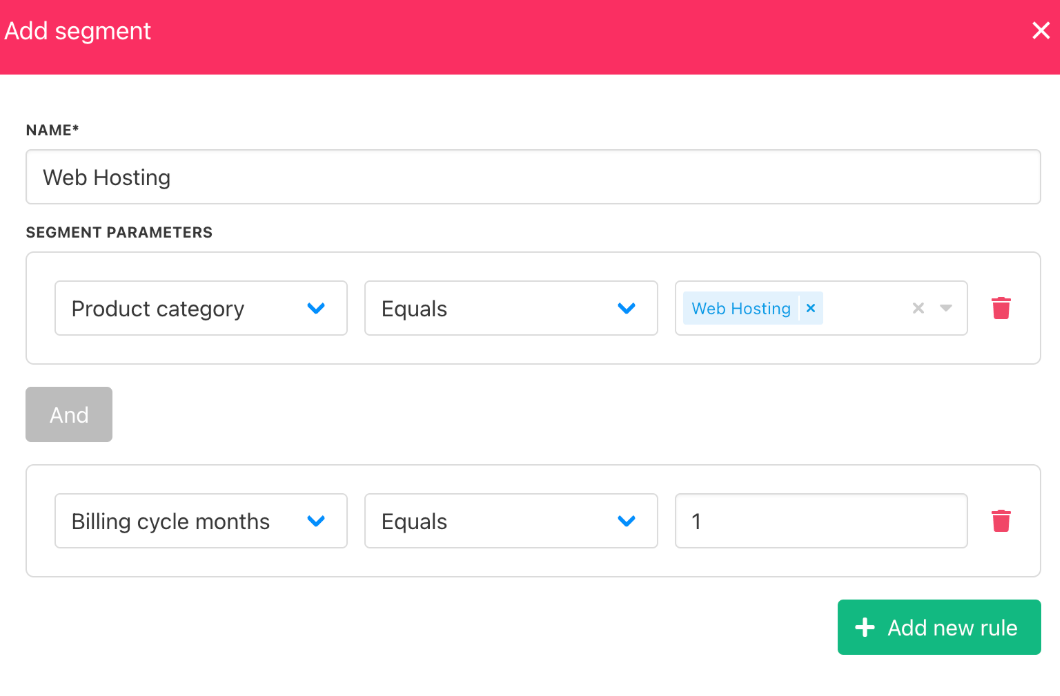
Set segment parameters
Applying bulk operations
For price changes
- Open the segment.
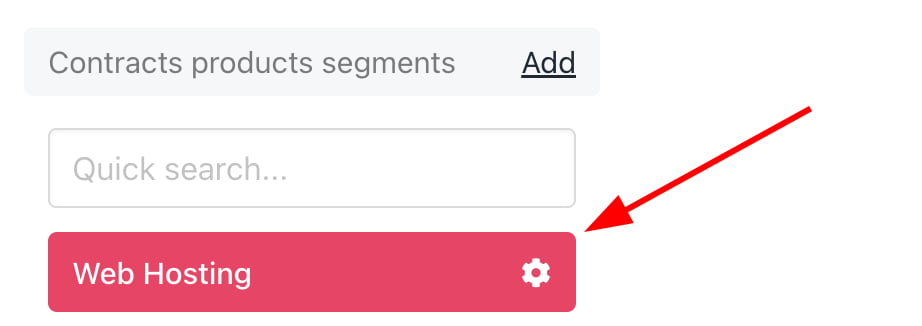
Open segment
- Click the three dots and select Create bulk operation.
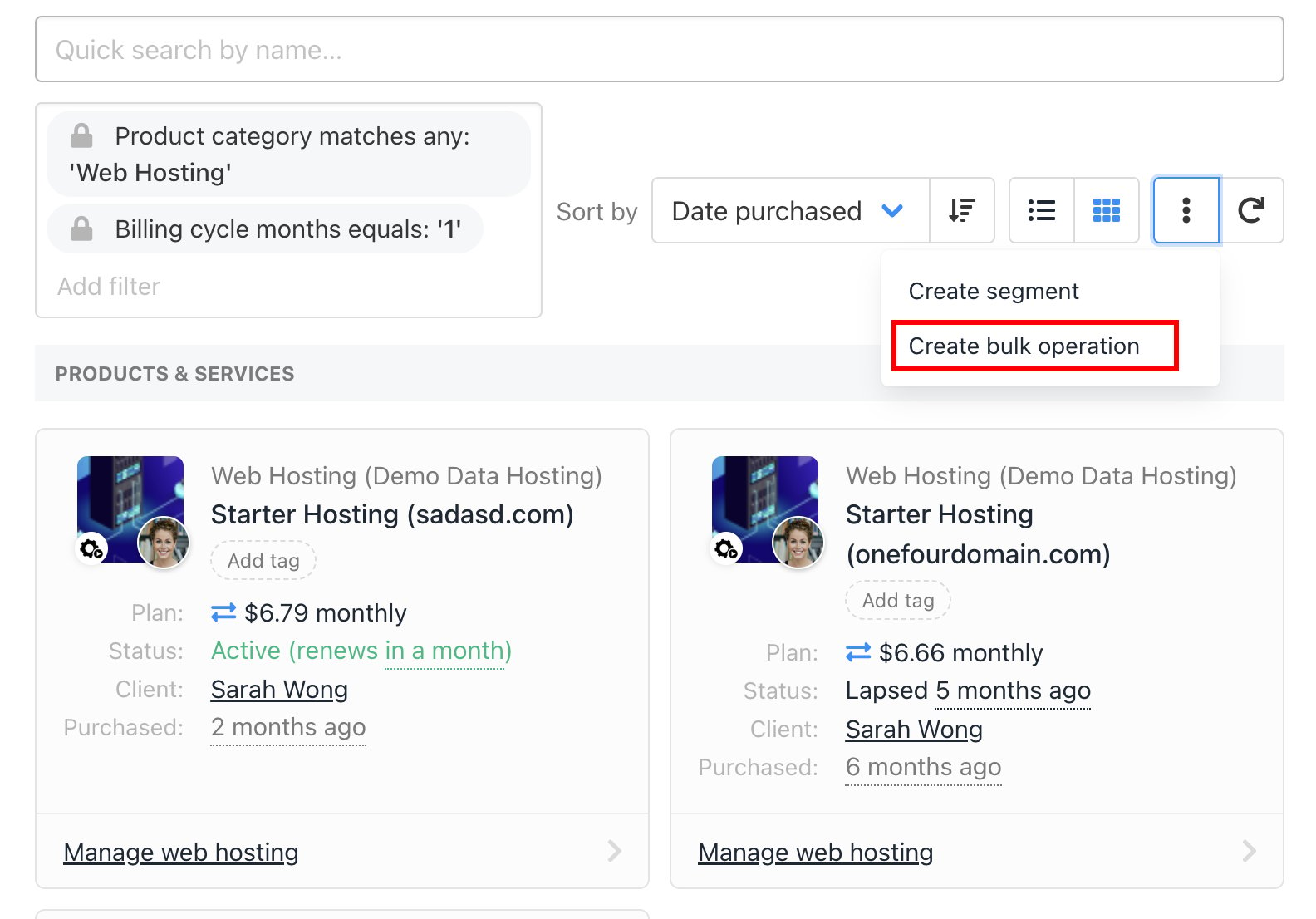
Create bulk operation
- Select Schedule price or term change.
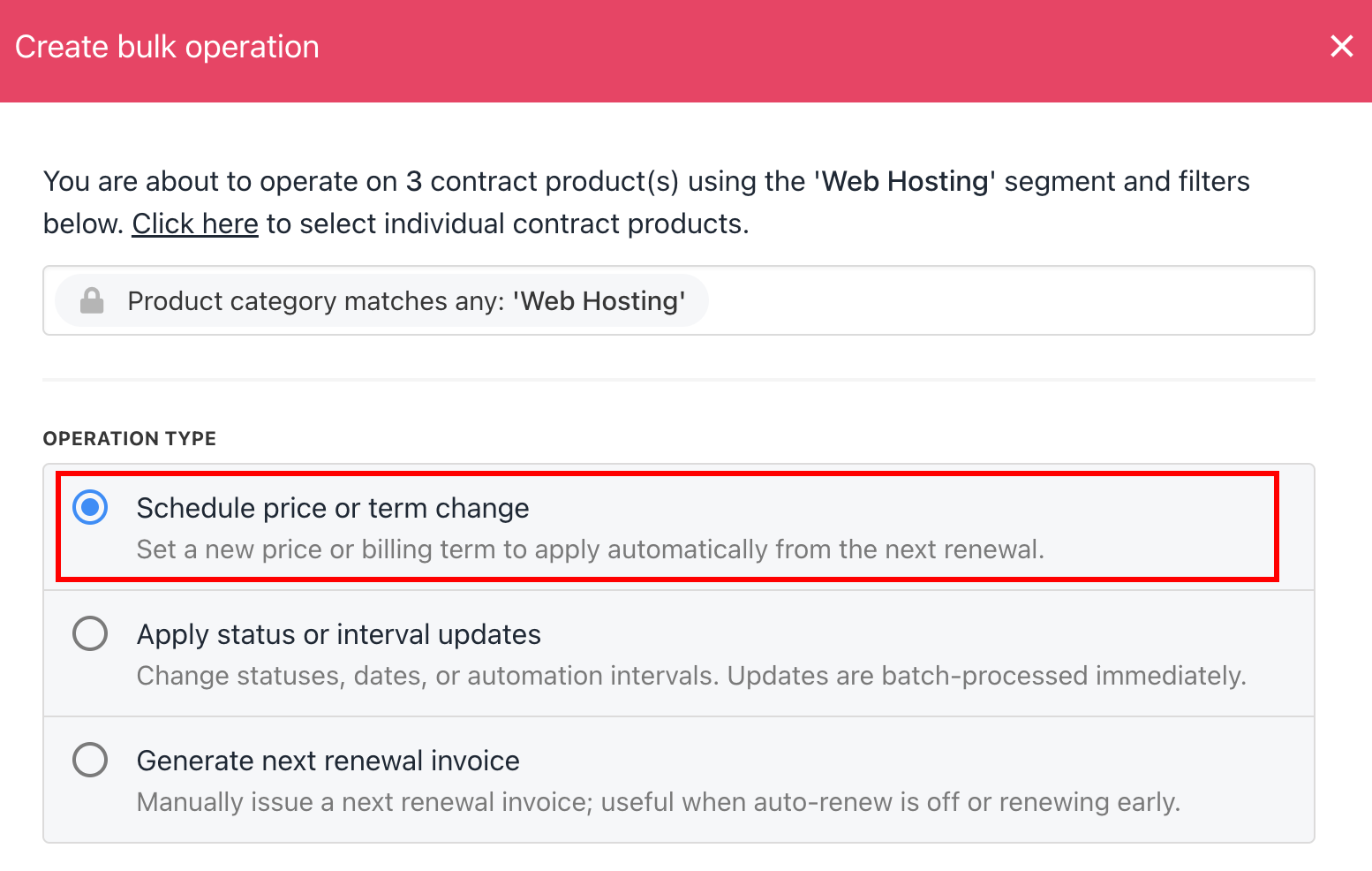
Schedule price or term change
- Select the method to either Apply change across entire product configuration or Apply change to main product only.
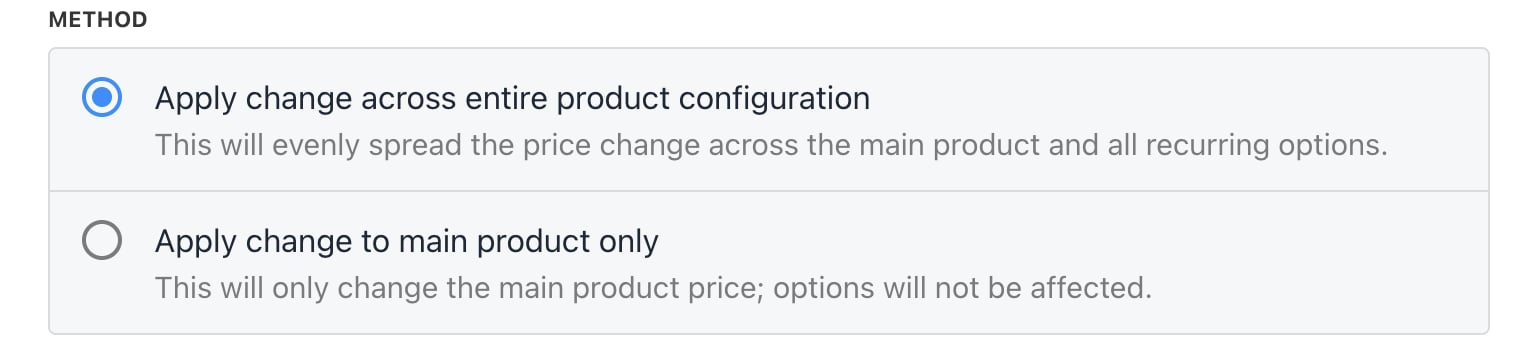
Select method
- Enter new pricing (fixed or percentage), adjust billing intervals, or update status.
- Click Create to apply.
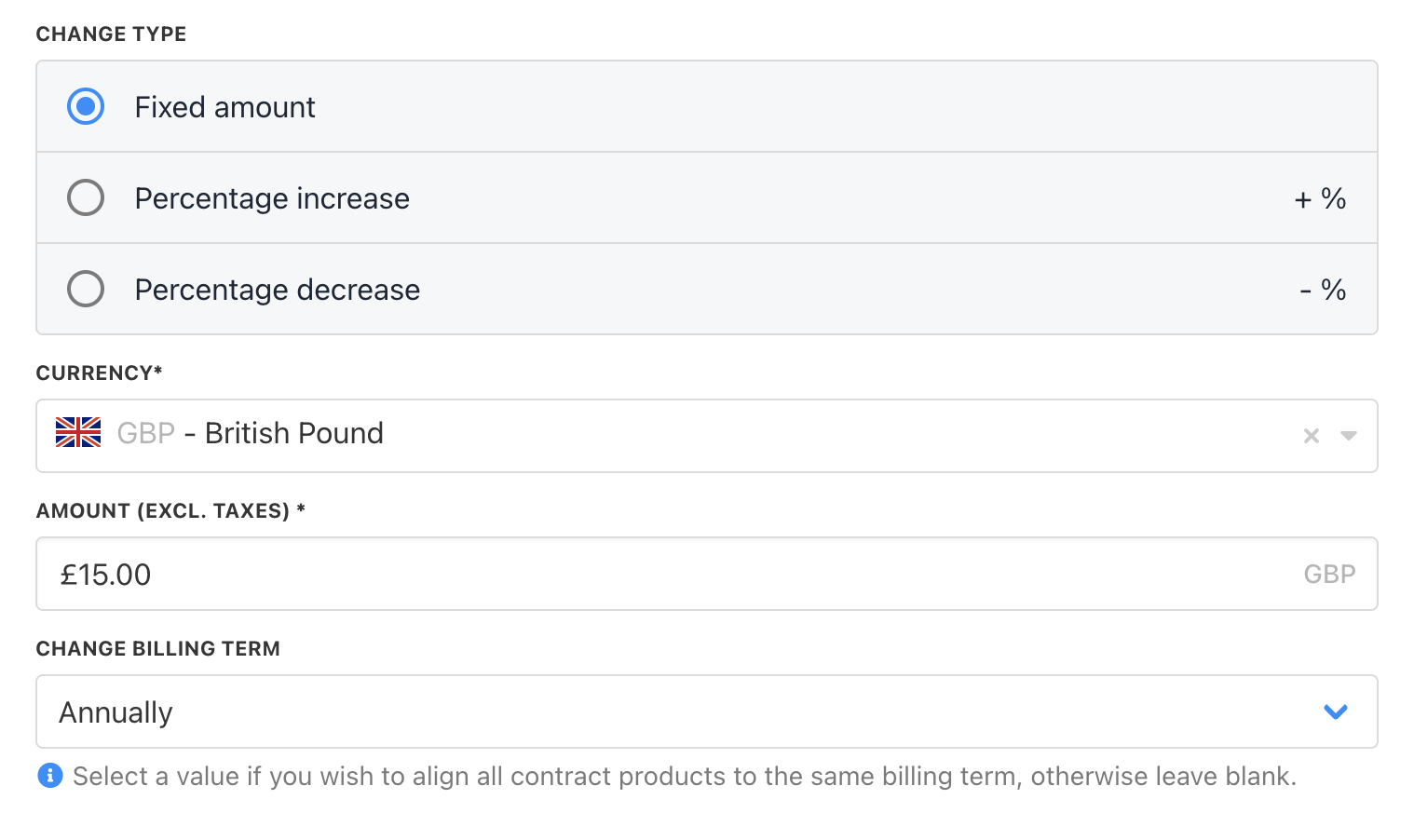
Change price or billing term
For interval or status changes
- Select Apply status or interval updates.
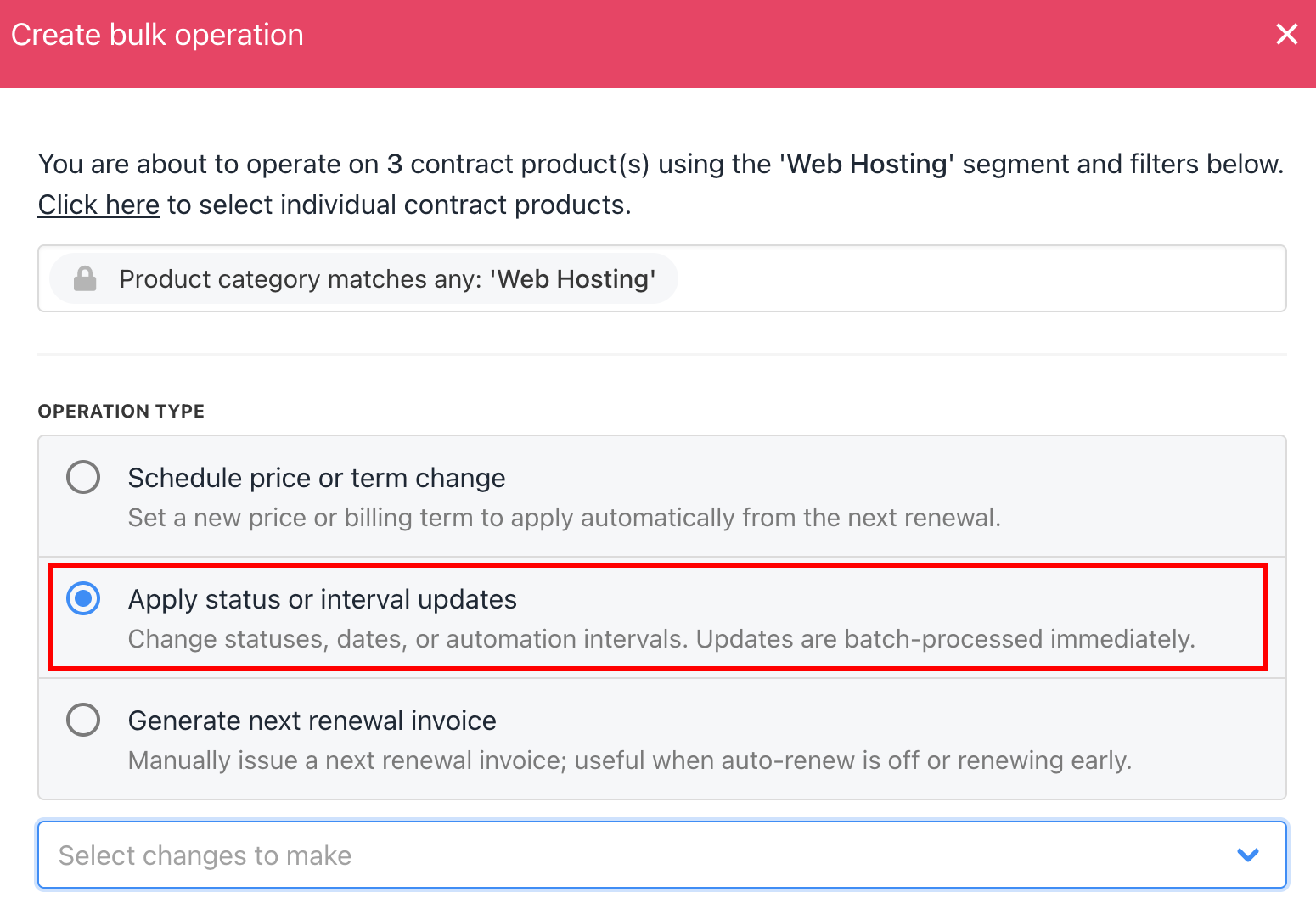
Apply status or interval updates
- Choose the interval or status.
- Click Create.
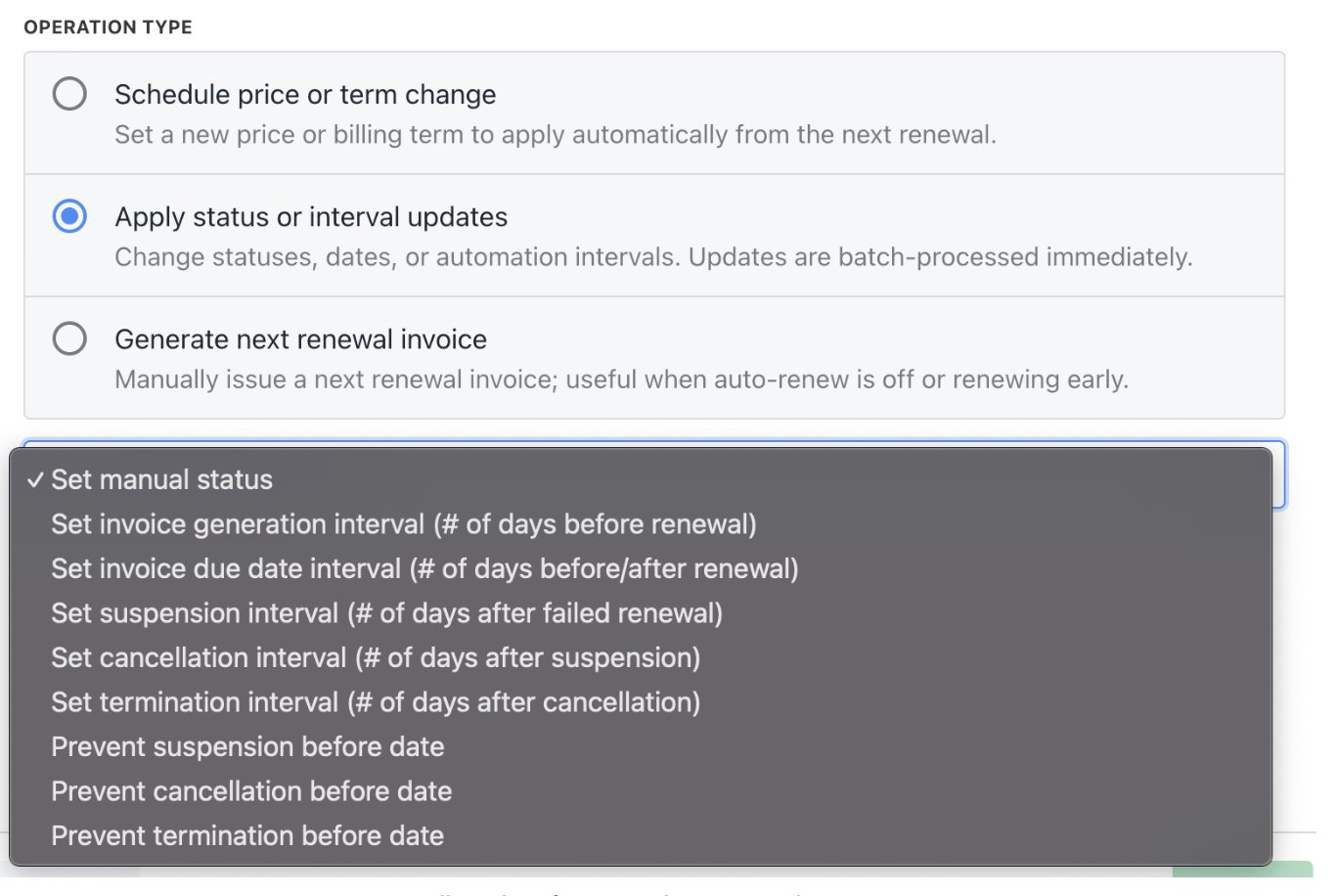
Update interval or status changes
For renewal invoices
- Select Generate next renewal invoice, write a reason, and click Create.
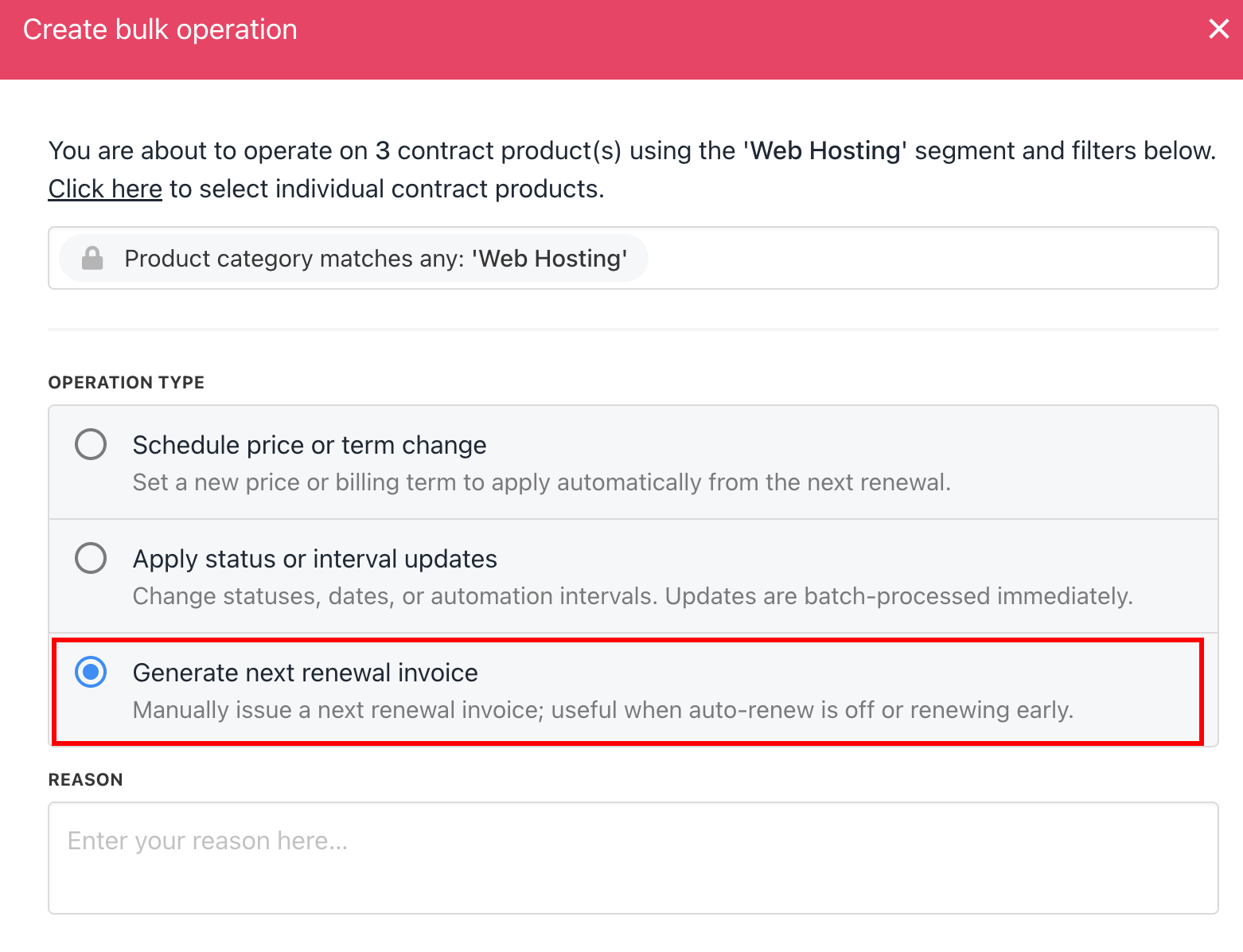
Generate next renewal invoice
Viewing bulk operations history
- Go to Product & Services > Bulk operations.
- Review all past and current bulk operations, including those in progress.
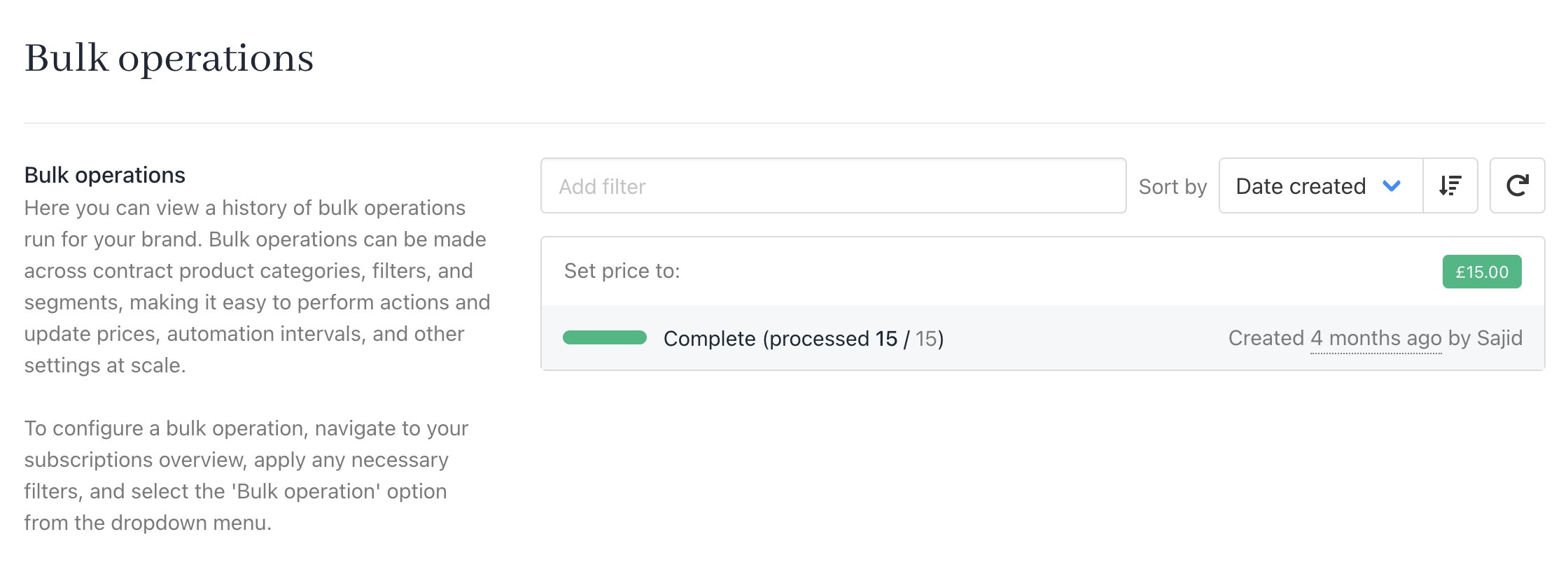
Product & services > Bulk operations
Common scenarios
Adjusting billing dates or pricing (Single contract vs. Bulk)
The right tool depends on the scope of the change you need to make. For a single contract product, use the Modify Product option on the contract product’s Overview tab. This updates the billing date or price for that specific subscription. Note that modifying a contract product this way will generate a migration invoice or a prorated invoice, depending on the nature of the change.
Modify single contract product
- Schedule price or term change - For pricing and billing interval updates
- Apply status or interval updates - For automation interval changes.
- Invoice regeneration cannot be used to change billing dates. Regenerating an invoice only updates client details on the invoice, such as the company name or billing address, and does not affect the billing cycle, renewal date, or service period in any way.
- Billing date changes affect future invoice cycles only.
- Update the contract product renewal date.
- Allow the system to generate new invoices based on the updated cycle.