

Accessing advanced pricing
-
Go to the
Product Billingpage for any product. - Click the Advanced button under Subscription Terms to enter advanced pricing mode from the dropdown menu.
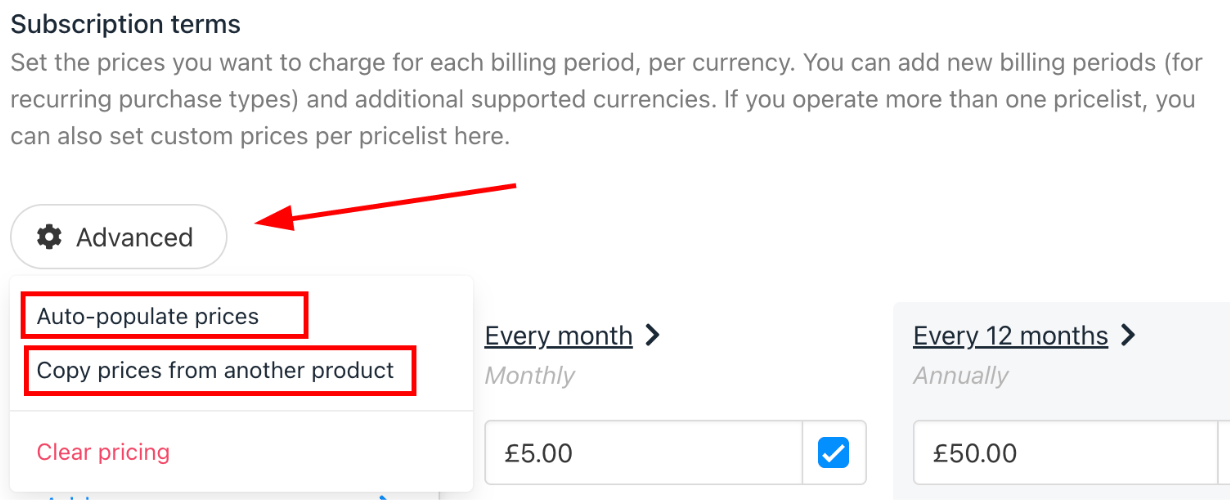
Advanced pricing
Auto-populate prices
You can quickly generate pricing for multiple terms and currencies based on a single entry.- Enter the price for one term (e.g., annual).
- Select the billing cycle and currencies you want to auto-populate.
- The system will fill in prices for the selected terms/currencies, using your base price as a reference.
- Optionally, you can choose to overwrite existing prices or only fill empty fields.
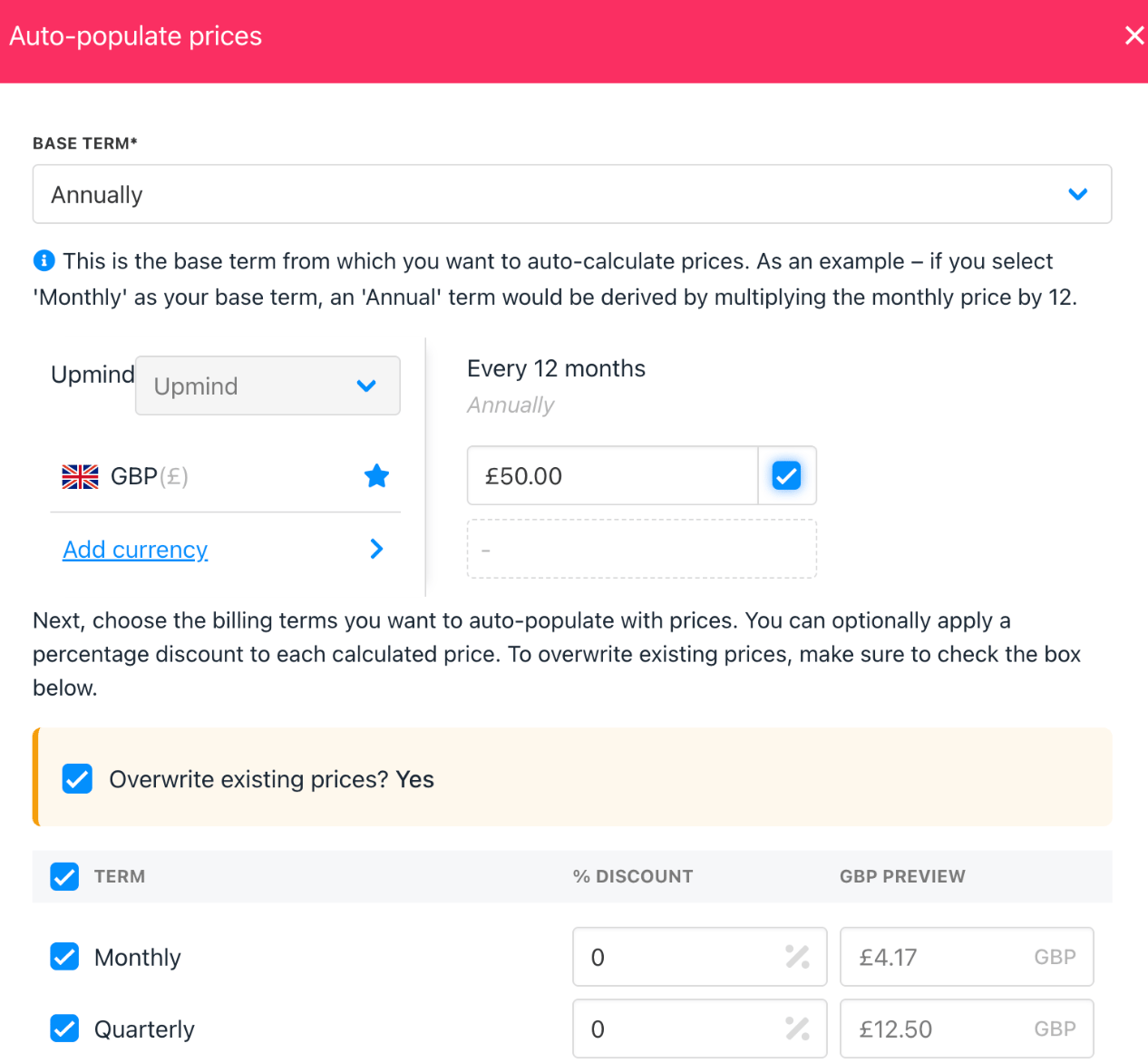
Auto-populate prices
Copy prices from another product
You can easily duplicate pricing from an existing product to a new one.- Select the source product to copy from.
- Choose which terms and currencies to copy.
- Apply the copied prices to your current product.
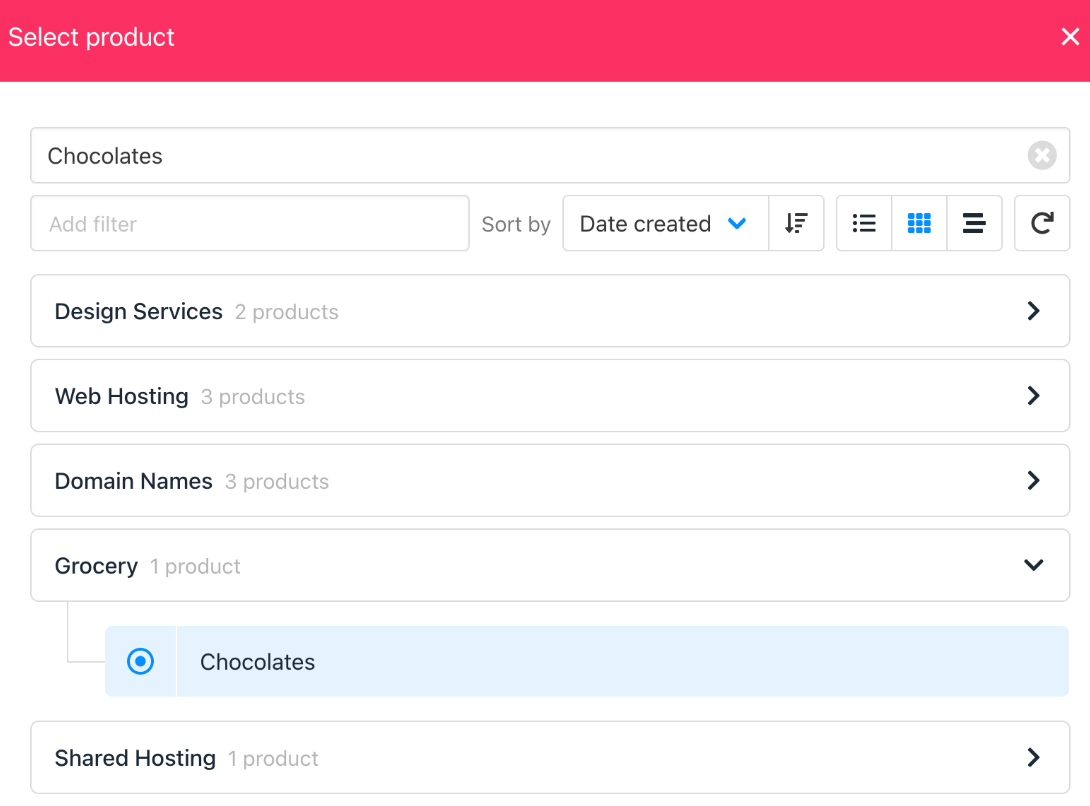
Copy prices from another product