

- Time — 30 minutes
- Difficulty — Beginner
- An active Upmind account with Cart access.
- At least one brand configured in Upmind (see How to Add Brands).
- Products created with pricing and billing cycles defined (see How to Create Products).
- A supported payment provider account (e.g., Stripe).
- Access to your domain’s DNS management to set up a CNAME record.
- A read-through of Using the Decision Guide to confirm the ready-made Cart is the right path for your business.
- DNS / CNAME setup
- Basic configuration
- Enabling products
- Payments
- Testing
- Go-live checklist
When to choose this path
- You want a working checkout live as quickly as possible.
- You are comfortable using a standard, proven checkout flow.
- You want to customise behaviour and content through configuration rather than building UI.
- You may choose to adopt a headless setup in the future, but not immediately.
Step 1: DNS / CNAME setup
The Cart is hosted by Upmind but designed to appear as part of your own domain. To use the ready-made Cart on your domain, a DNS record must be configured.Choose a domain or subdomain
Decide which domain or subdomain customers will use to access the Cart. Common examples include:store.yourdomain.com or checkout.yourdomain.com.
This can be accessed from Settings > Domains under Branding and customisation.
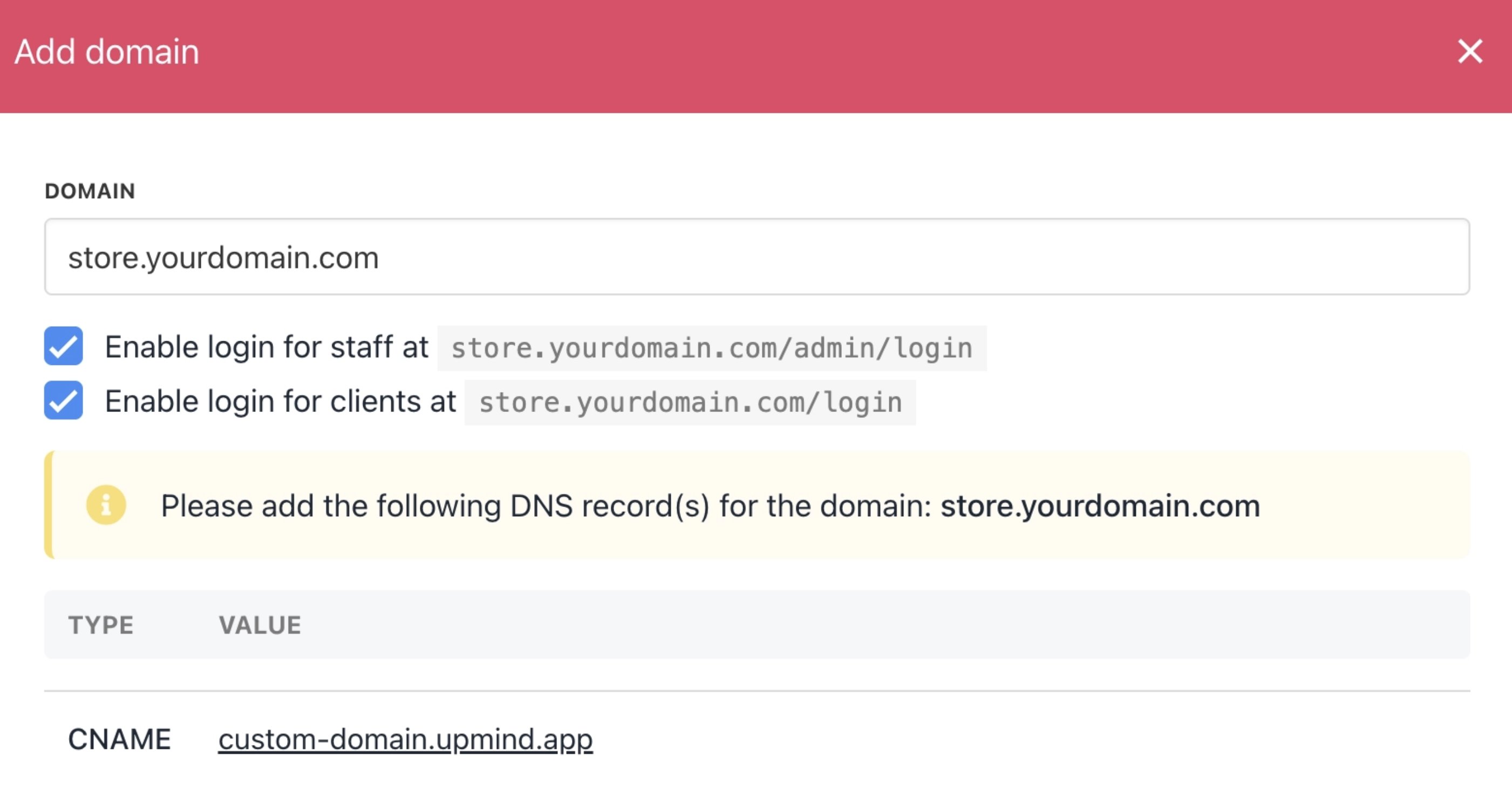
Add a custom domain
Create a CNAME record
- Create a CNAME record for your chosen domain.
- Point it to the Upmind Cart hostname (provided by Upmind).
- The TTL can usually remain at the default value.
Verify DNS propagation
- DNS changes may take anywhere from a few minutes to several hours to propagate.
- Once propagation is complete, the Cart will be accessible through your domain.
Confirm HTTPS
- TLS/SSL is handled automatically by Upmind once the domain resolves correctly.
- No manual certificate setup or management is required.
Step 2: Basic configuration
This stage focuses on enabling core commerce behaviour only. You can change brand settings from Settings > Brand Settings under Branding and customisation, and business settings from Settings > Business Settings under E-commerce settings.Brand and business settings
Review and confirm key brand-level settings, including:- Company name and contact details.
- Business logo, colour, and font.
- Multiple language options.
- Default currency.
- Locale and regional settings.
- Business location and contact details.
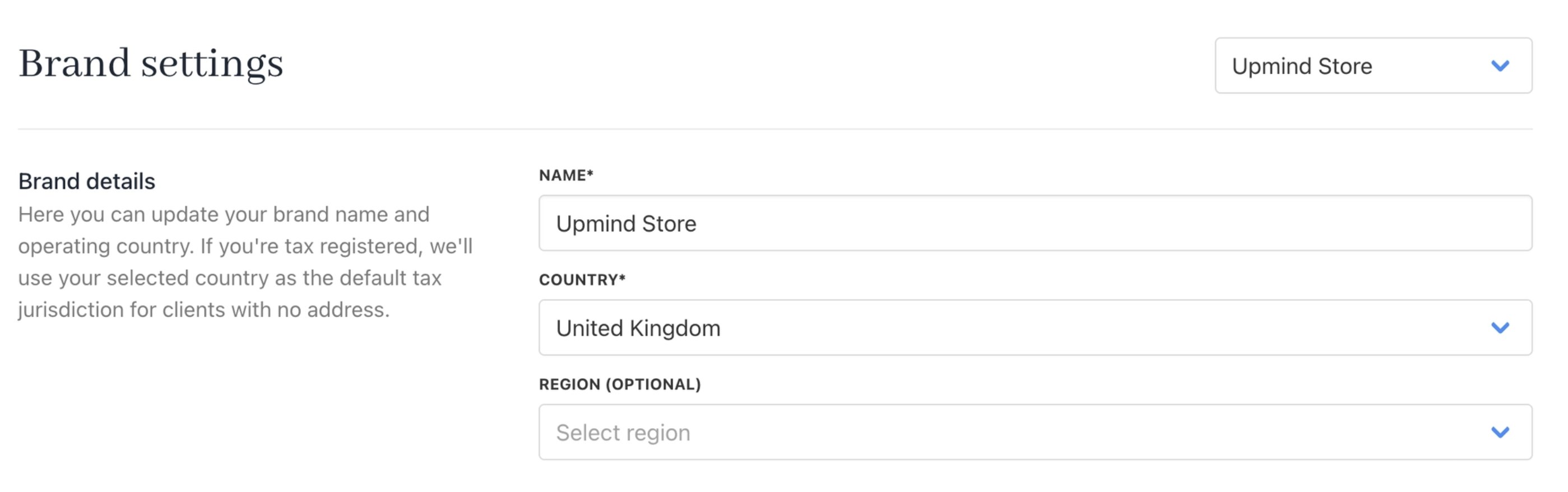
Brand settings
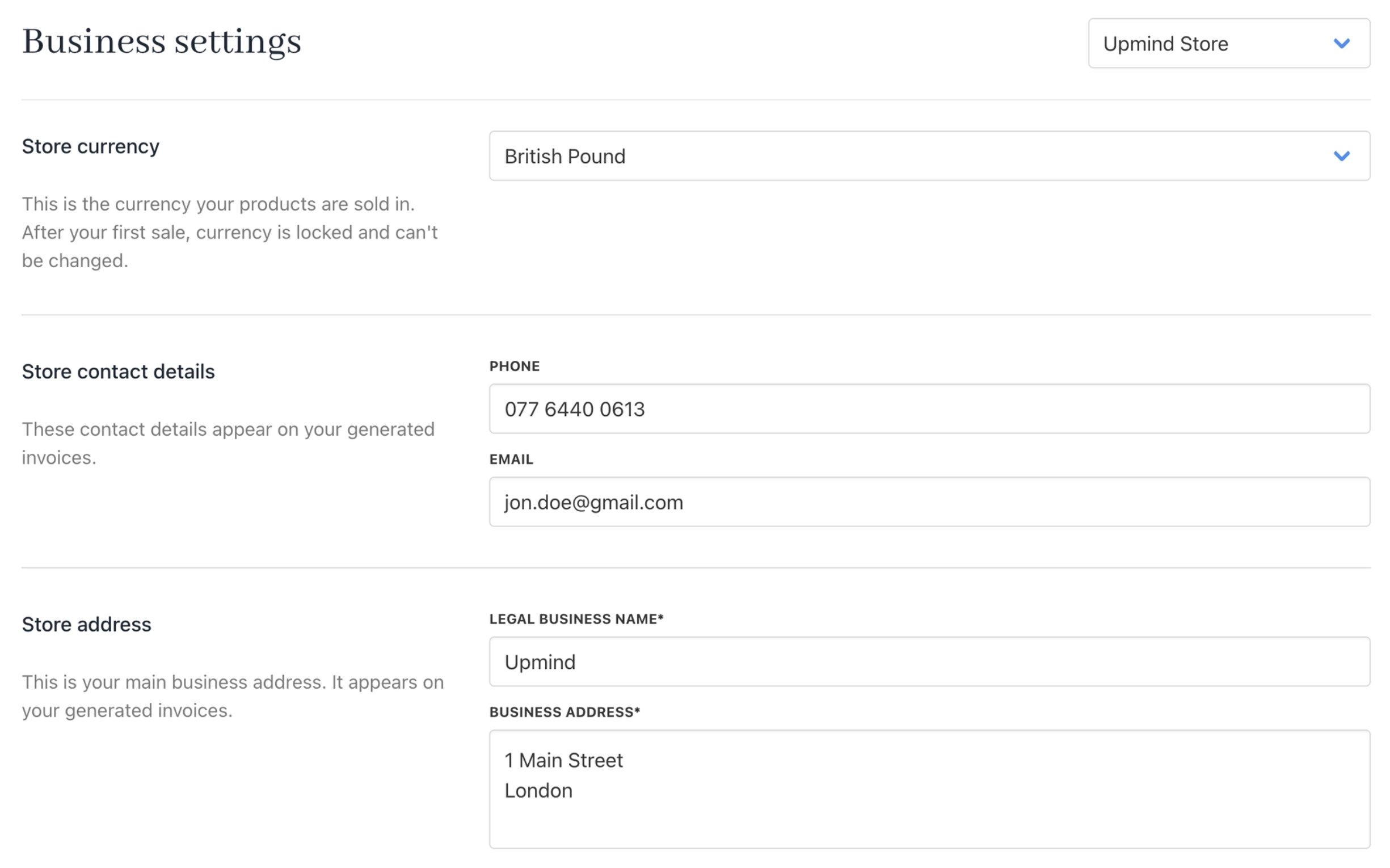
Business settings
Checkout behaviour
Confirm the default checkout rules, such as:- Whether checkout allows guest users or requires account creation (Settings > Order Options).
- Which customer details are required at checkout.
- Tax configurations for products (Settings > Tax Settings).
- Billing and invoicing preferences (for example, invoice generation or payment timing).

Guest checkout
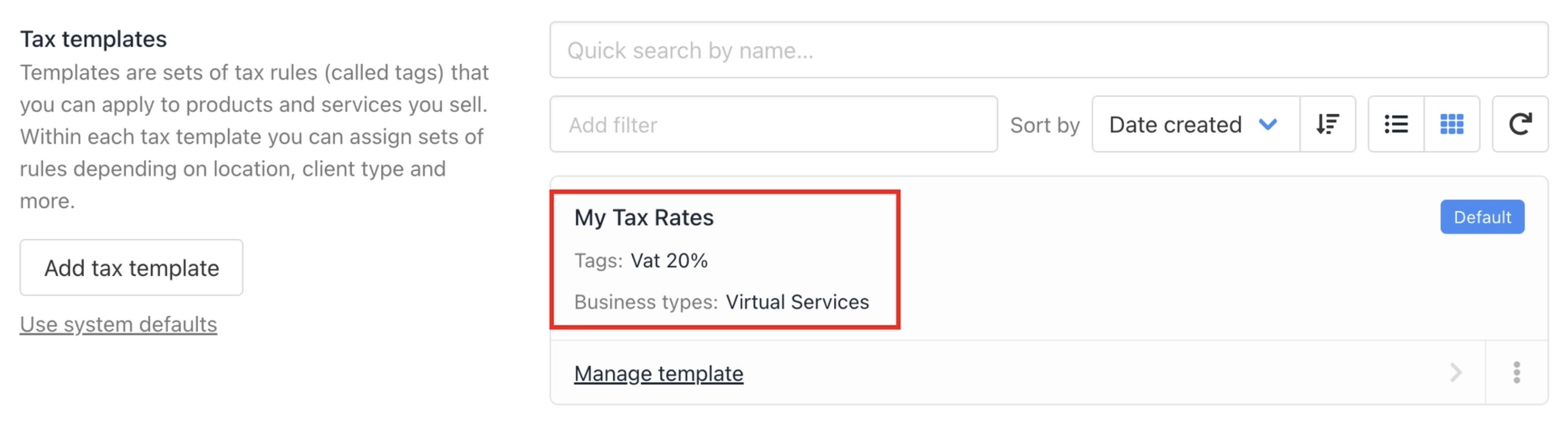
Tax calculation
Email and notification basics
To receive order notifications and provide support through email, set up the following:- Set up your support department (Settings > Support Department).
- Ensure order confirmation emails are enabled.
- Verify sender name, sender address, and reply-to address.
- Confirm any required system notifications are active. For more on notifications, follow this guide.
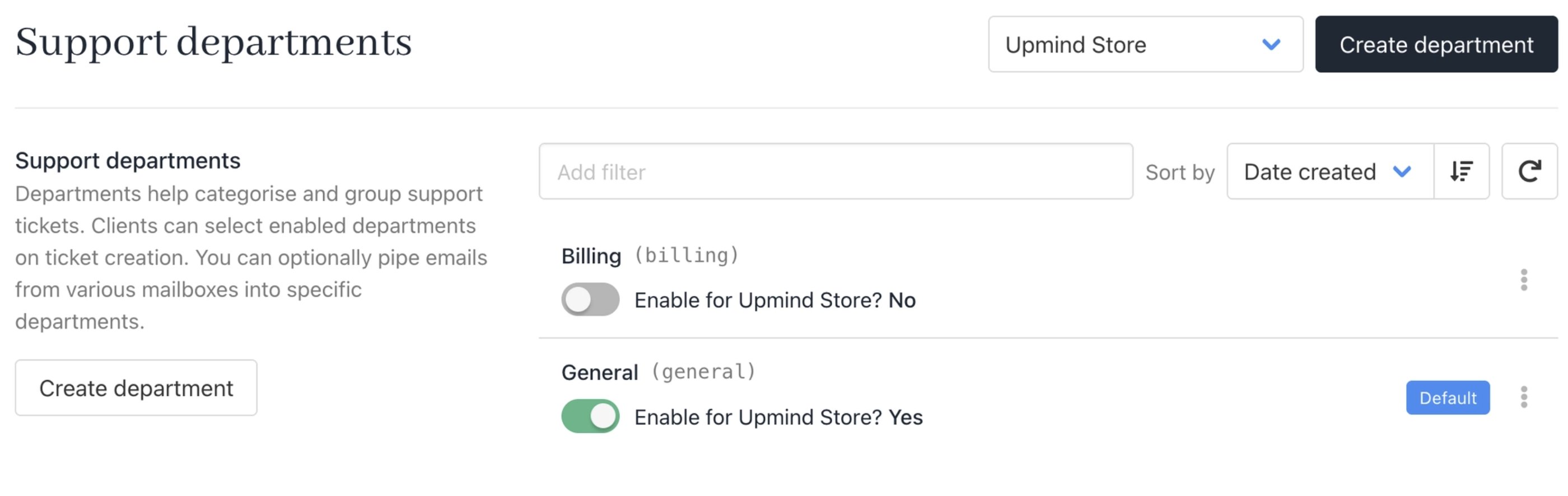
Support department
Step 3: Enabling products
To make products available in the Cart:Create or review products
- Ensure products exist in Upmind by creating product categories and products (Settings > Product Catalogue or Dashboard > Store Catalogue).
- Confirm pricing, billing cycles, and availability are correctly defined.
- Review any required configuration options for configurable products.
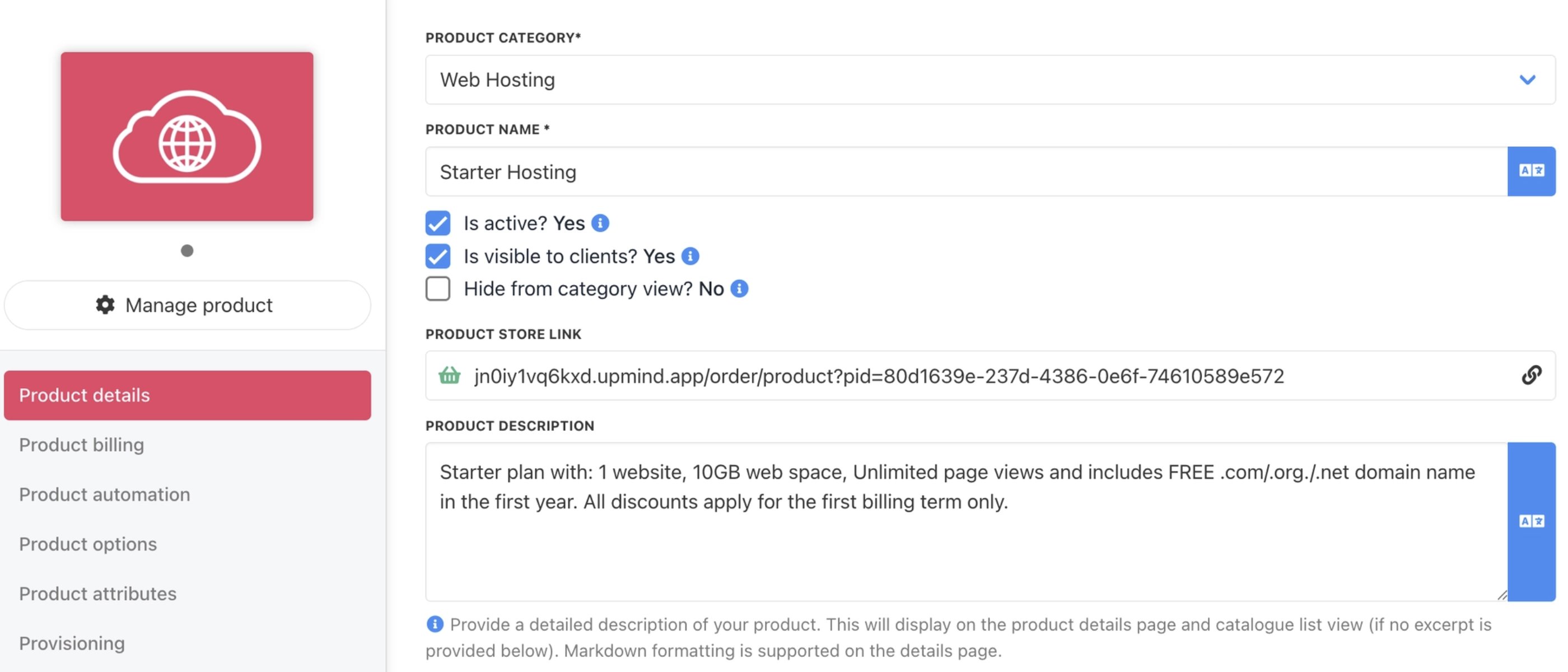
Create product
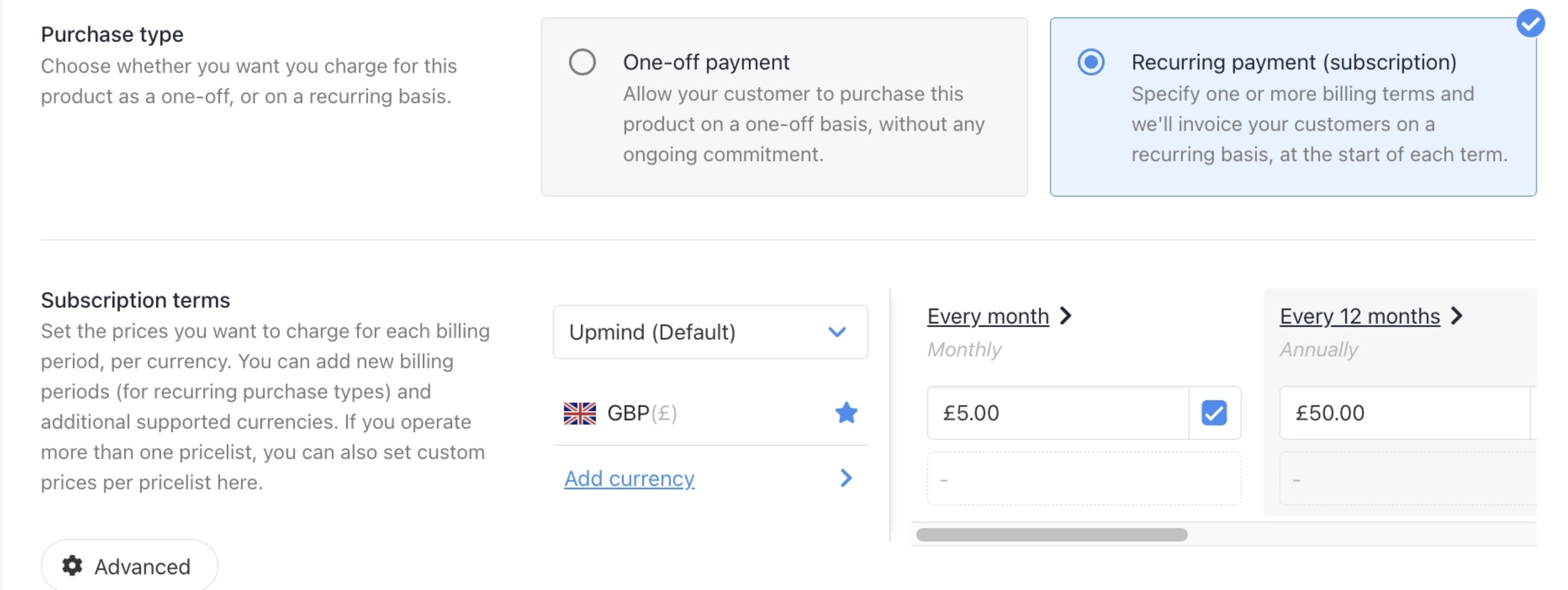
Configure product billing
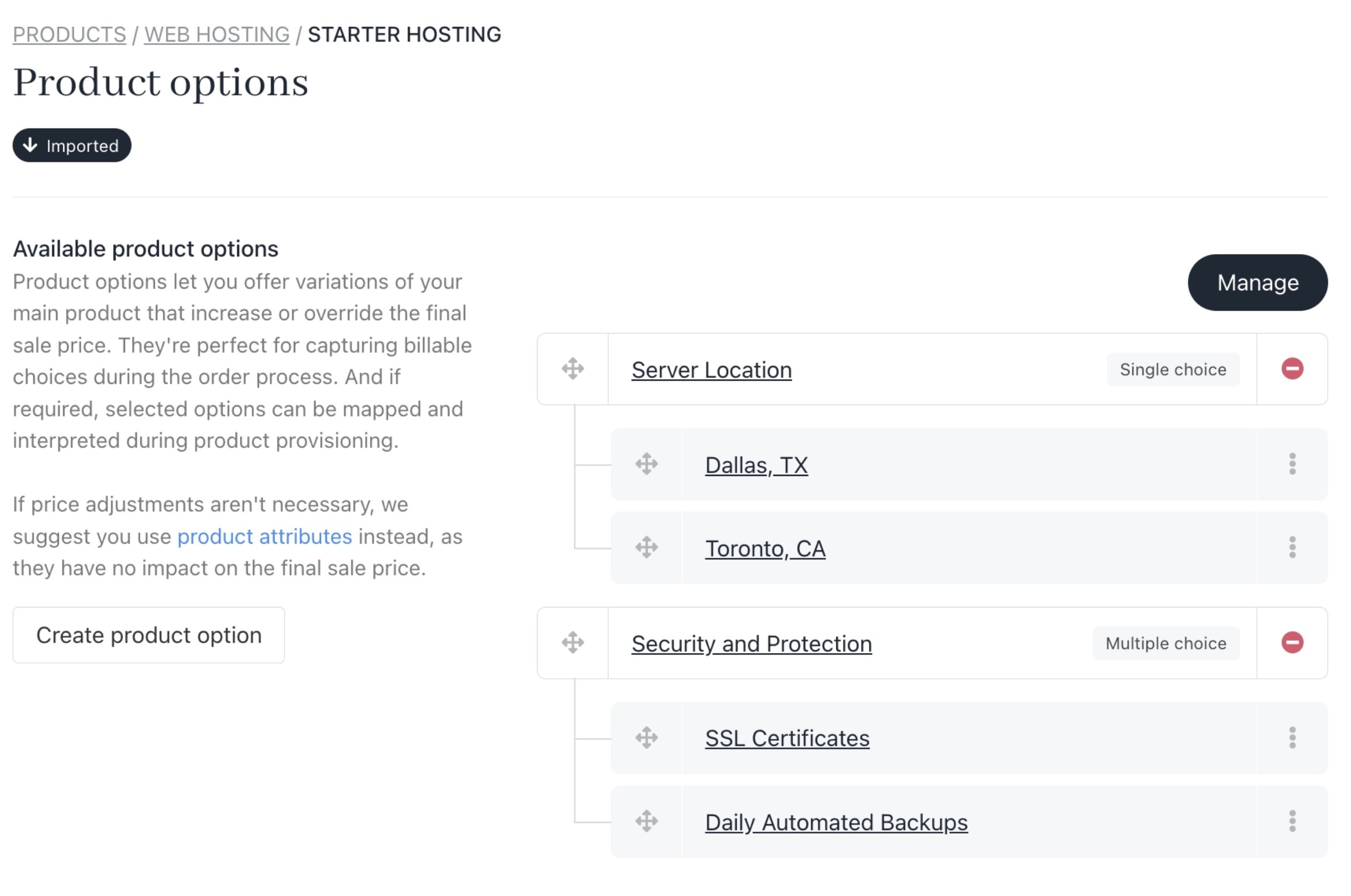
Add product options
Assign products to the Cart
- Mark products as available for storefront purchase.
- Apply visibility rules to control whether products appear in the catalogue.
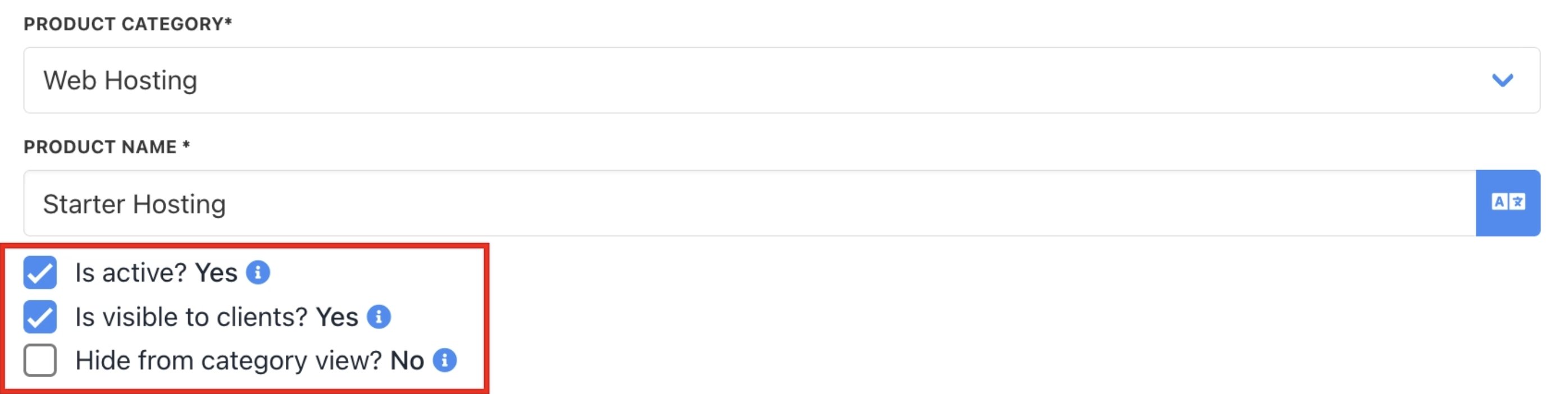
Control product visibility
Validate product behaviour
- Add products to the cart in a sandbox environment.
- Confirm configuration steps, pricing updates, and validation behave as expected.
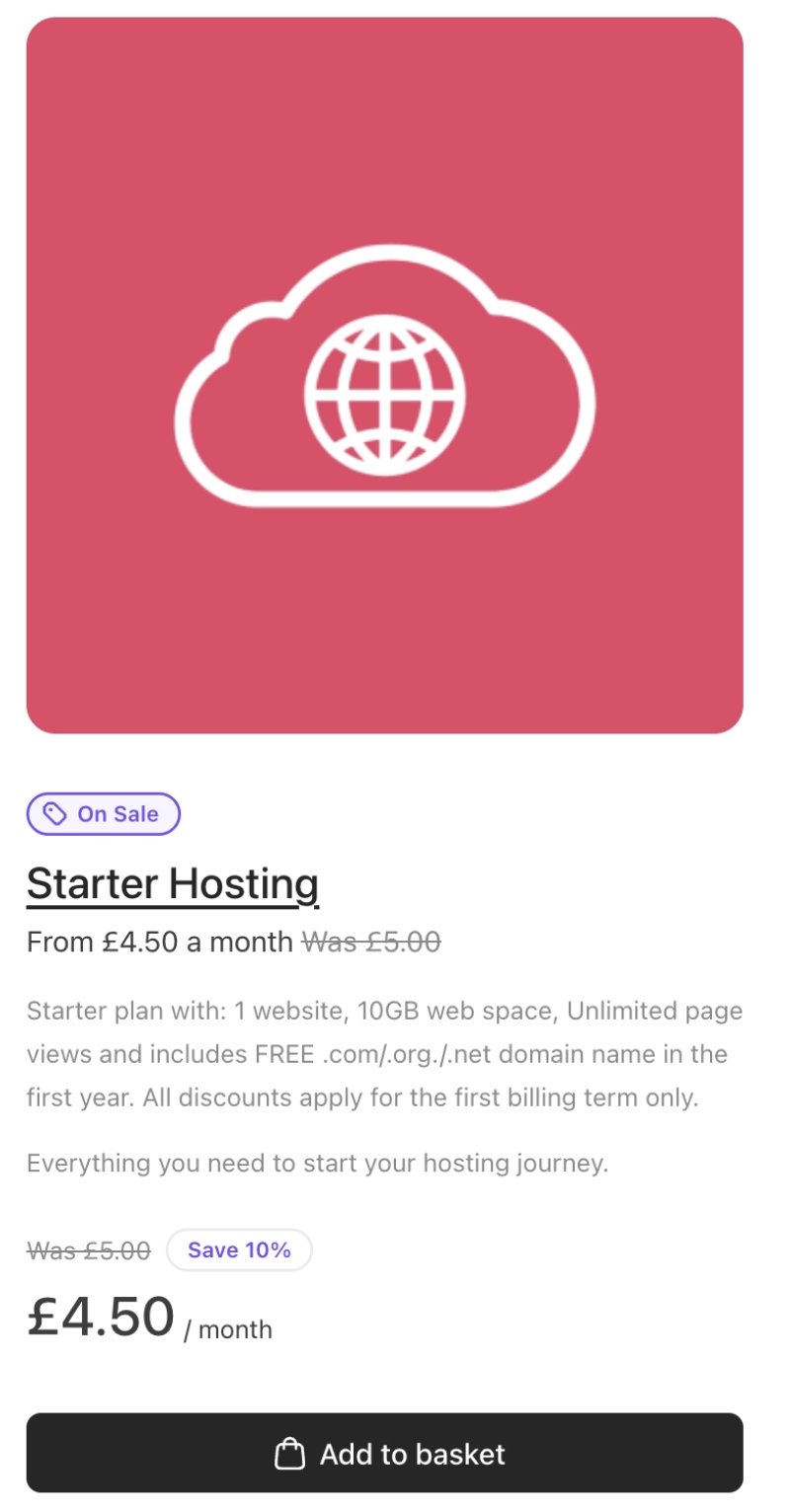
Sample product in the cart
Step 4: Payments
Configure payment in Upmind for your cart.Connect a payment provider
- Configure a supported payment gateway in Upmind (Settings > Payment providers).
- Use test credentials while working in the sandbox.
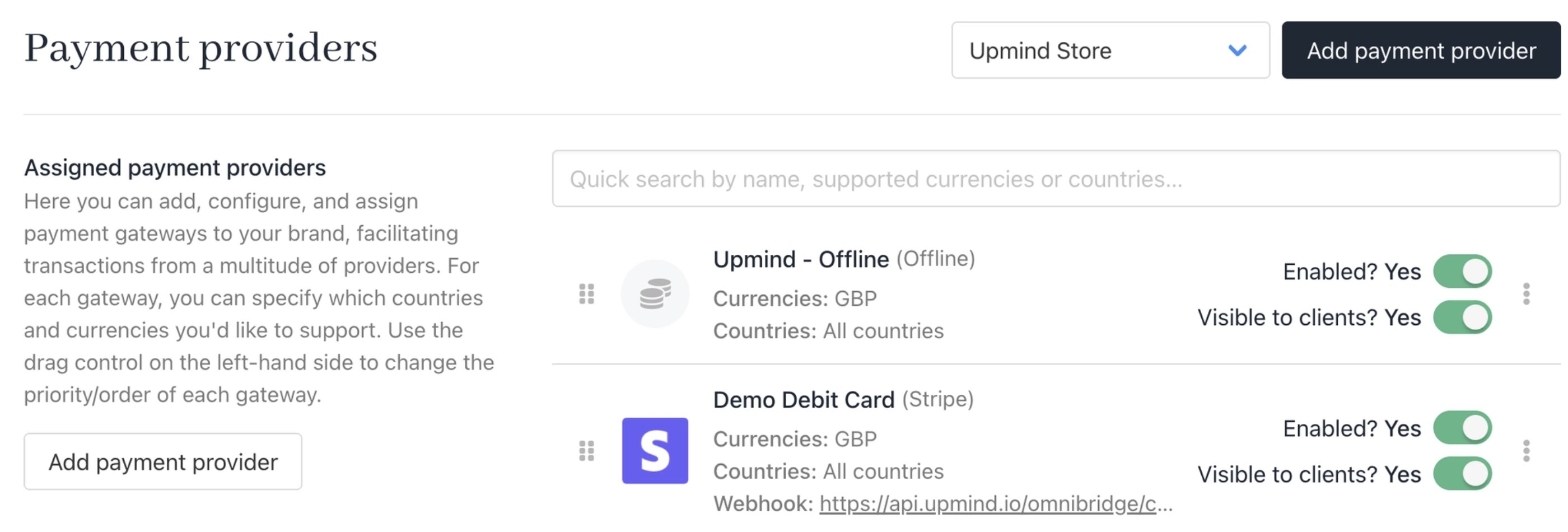
Add payment providers
Configure payment methods
- Enable supported payment methods (for example, cards or wallets).
- Apply any restrictions by currency or region if needed.
Test payment flows
- Complete test transactions using sandbox payment methods.
- Verify successful payments, failures, and retry behaviour.
Verify post-payment actions
- Confirm orders are created correctly.
- Ensure confirmation pages and emails are sent as expected.
Step 5: Testing
Before going live, complete end-to-end testing in the sandbox environment:- Browse the catalogue and add products to the cart.
- Complete checkout using test payment methods.
- Validate:
- Pricing accuracy.
- Tax calculation.
- Order creation.
- Confirmation messaging.
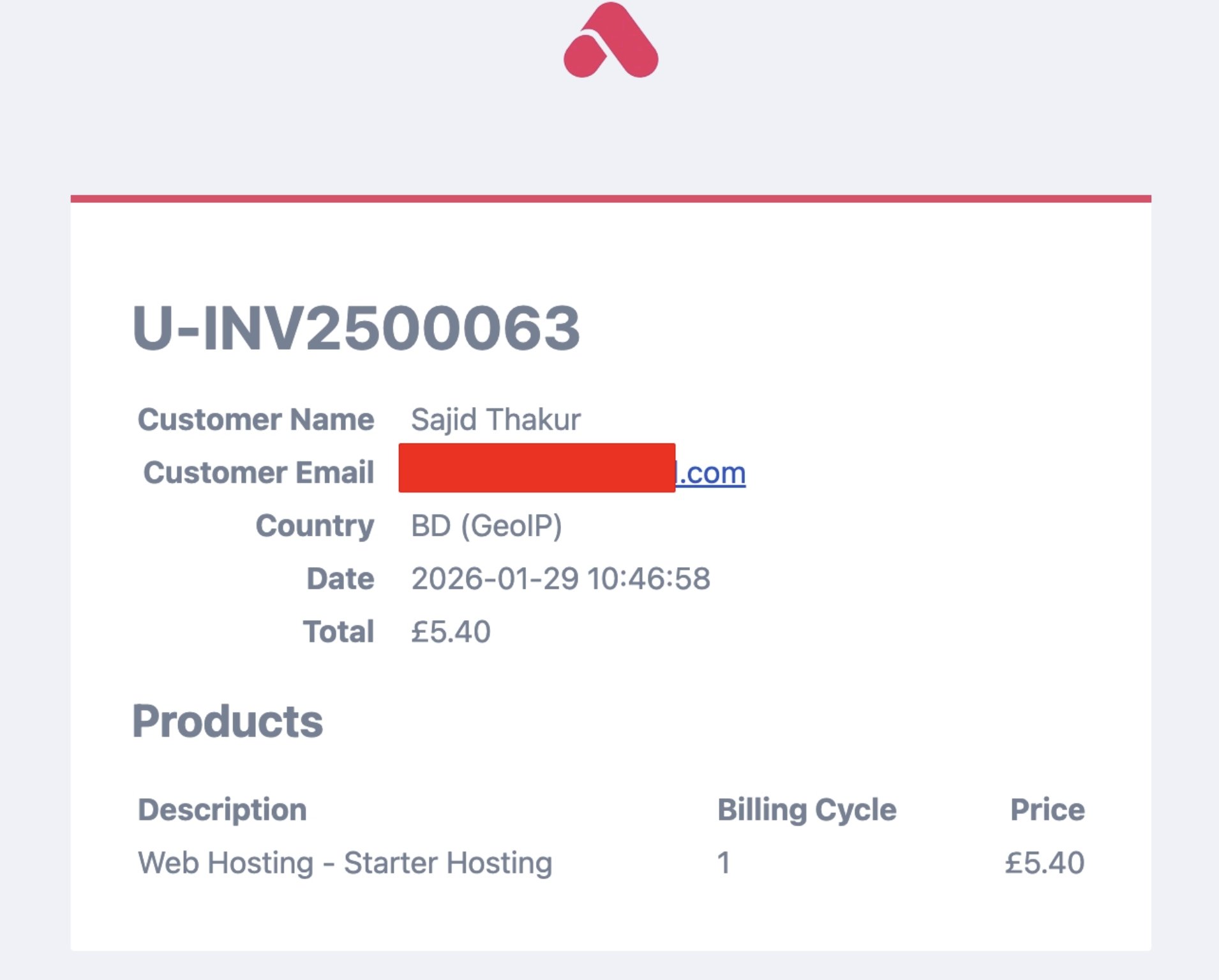
Order completion
- Test across devices.
- Review common edge cases, such as:
- Invalid or missing input
- Abandoned checkouts
- Payment failures
Step 6: Go-live checklist
Before switching traffic to the live Cart, confirm the following:- DNS and the domain are correctly configured and resolving.
- Live payment credentials are enabled.
- Products are visible and purchasable.
- Order confirmation pages and emails are working.
- Internal teams can access order and customer data.
- A rollback plan exists (for example, reverting DNS if needed).