

Adding a custom cancellation field
- Go to Settings > Custom Cancellation Fields under E-commerce Settings.
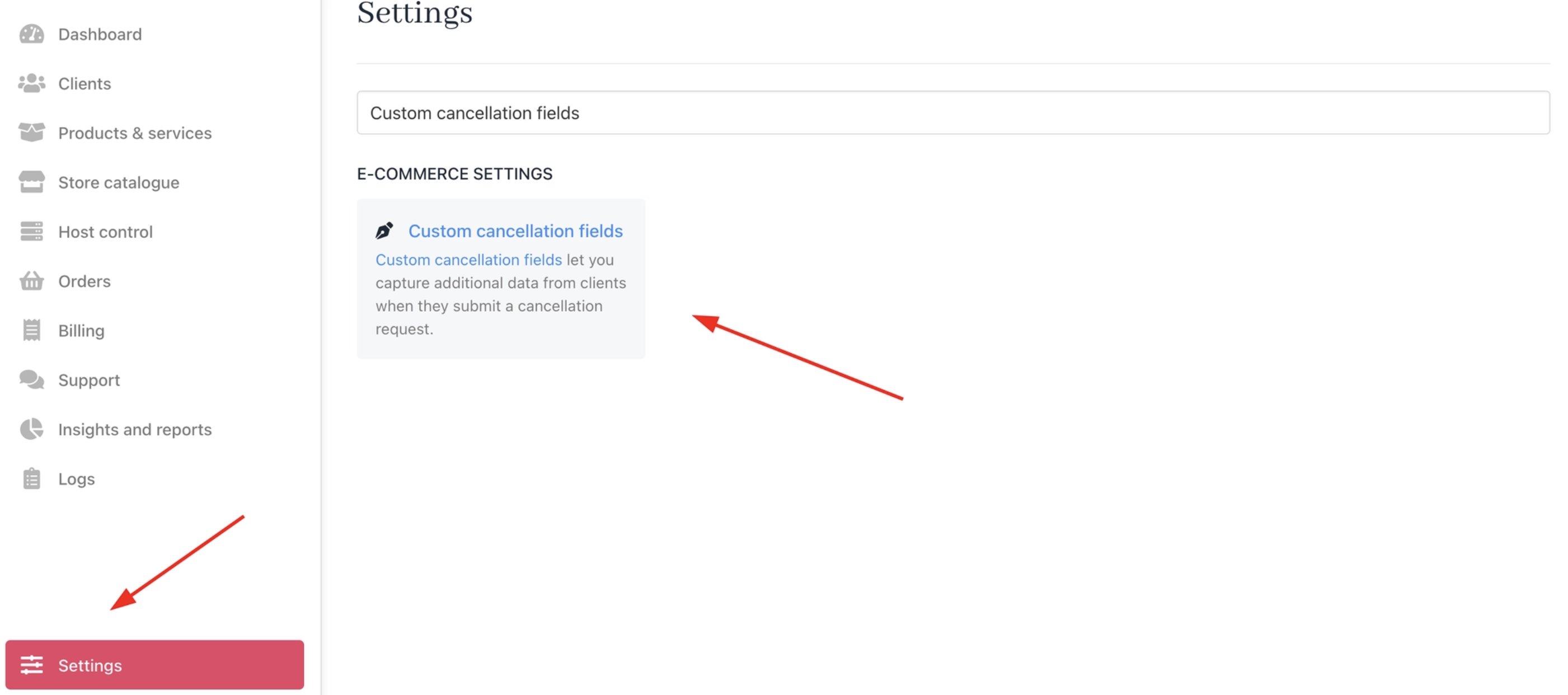
Settings > E-Commerce Settings > Custom Cancellation Fields
- Click Create Custom Field.
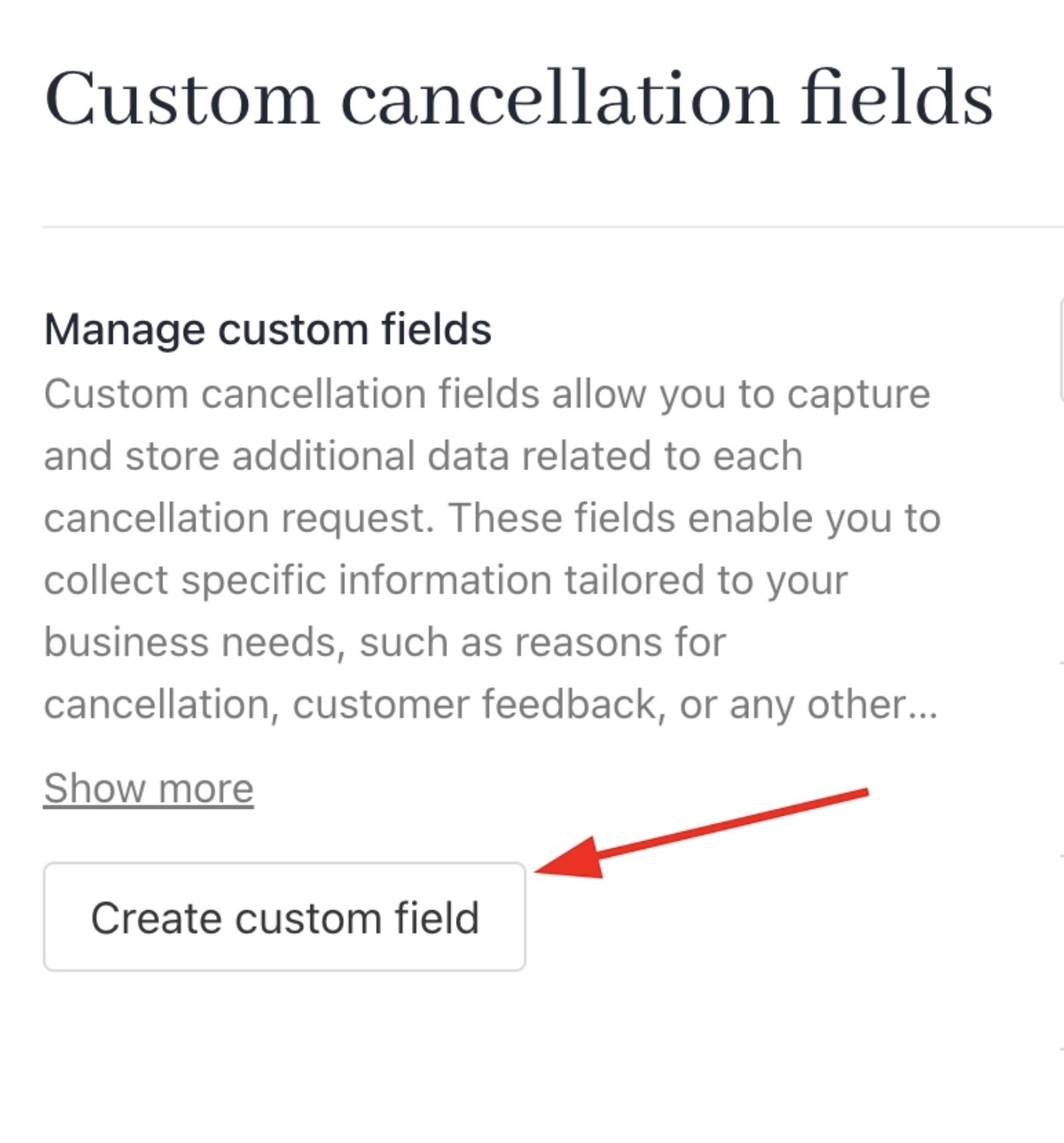
Create custom field
- Set the custom field type and custom field name.
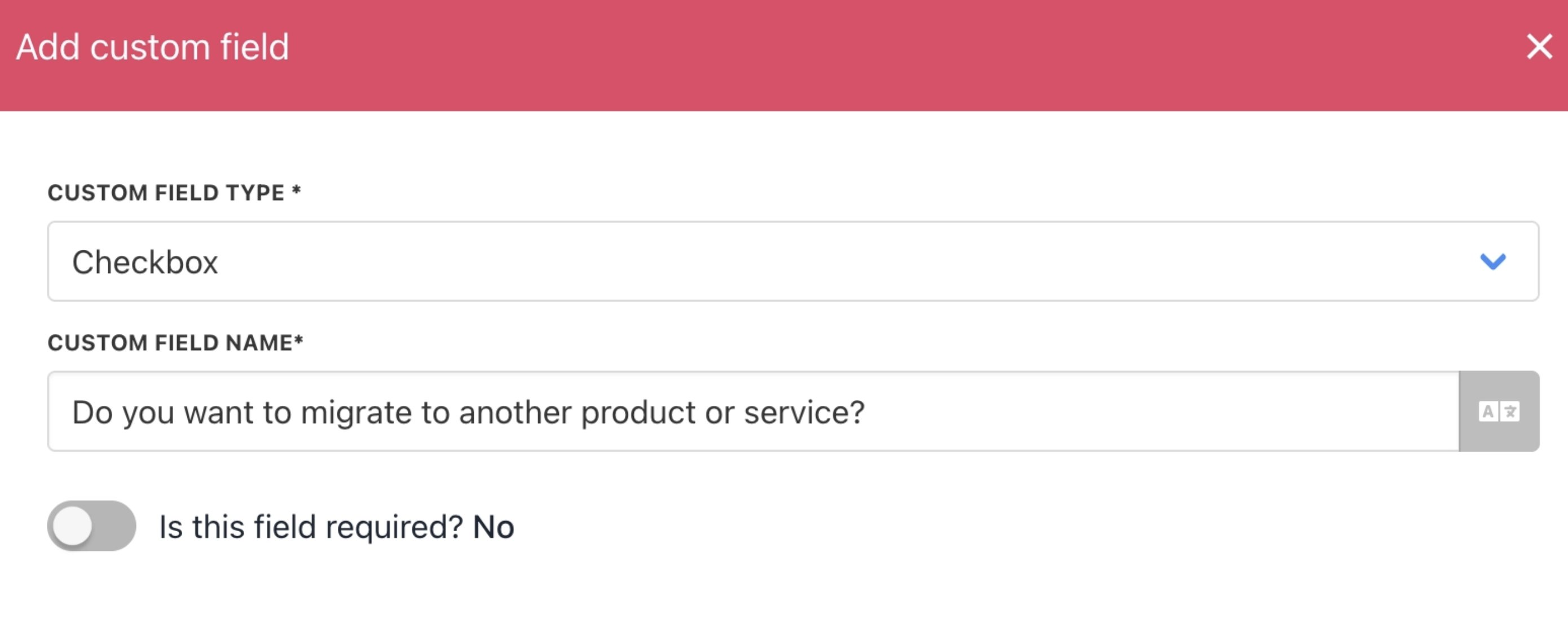
Set custom field type and name
- Click save.
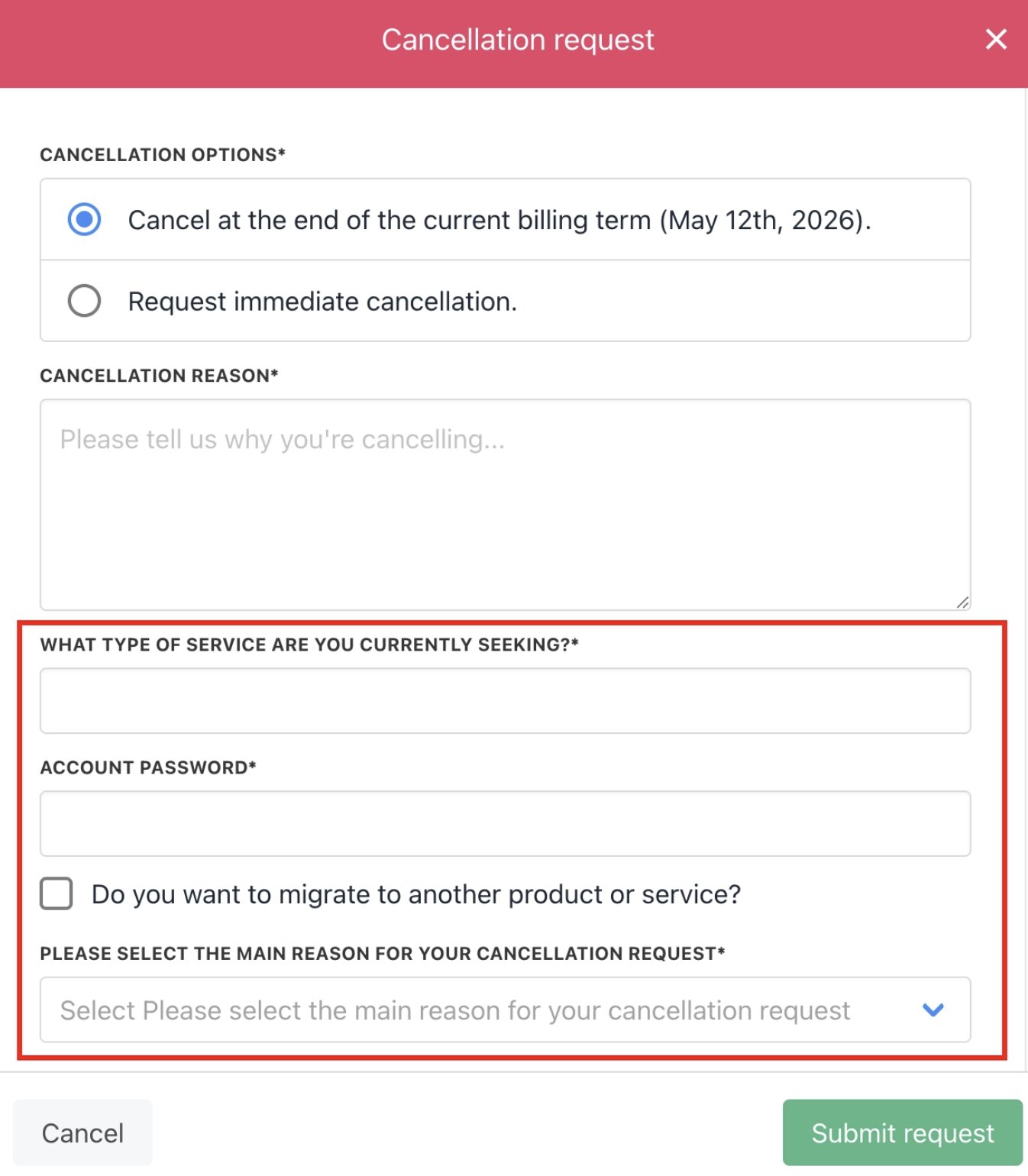
Custom cancellation field examples
Custom cancellation field types
You can choose from the following cancellation field types:- Text input
- Password
- Select
- Checkbox
- Text area
- Date
- Number
- Image
Text input
A free-form text field (ideal for short answers).
Text input
Password
A password text field that obscures the data.
Enter password
Select
Creates a drop-down menu. Users can click the Add option button to add items to the drop-down menu.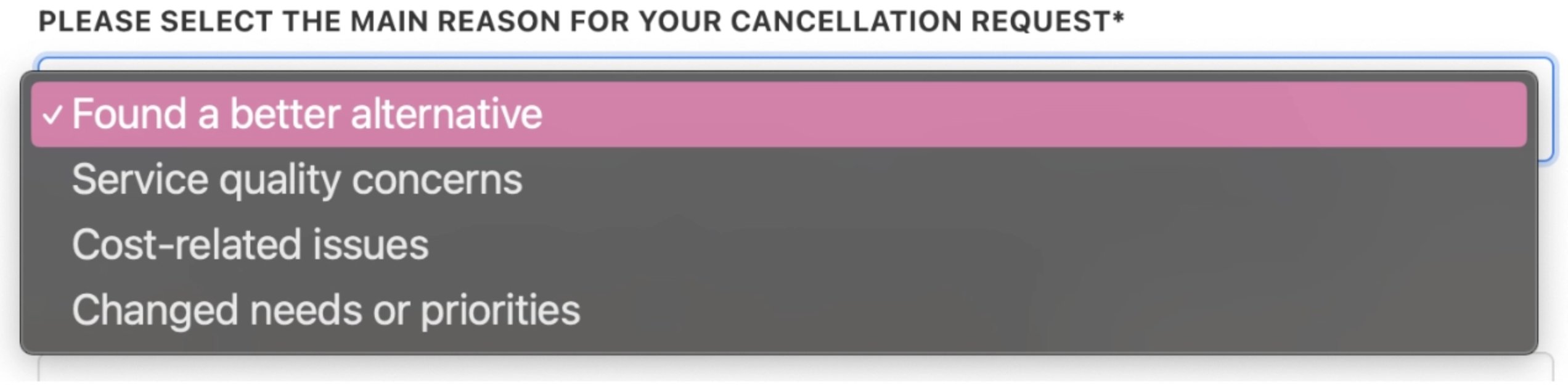
Create drop-down
Checkbox
A Yes/No tick box. A checked box means Yes (The default setting is unchecked - No).
Yes - No tick box
Text area
Clients enter a long-form response.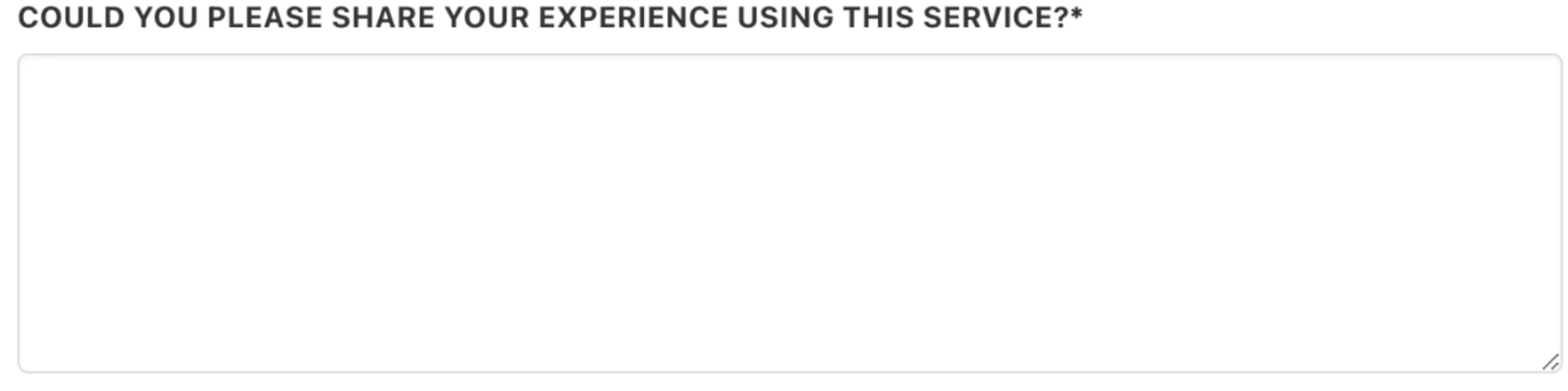
Text field
Date
Clients click the field and enter a date with the calendar.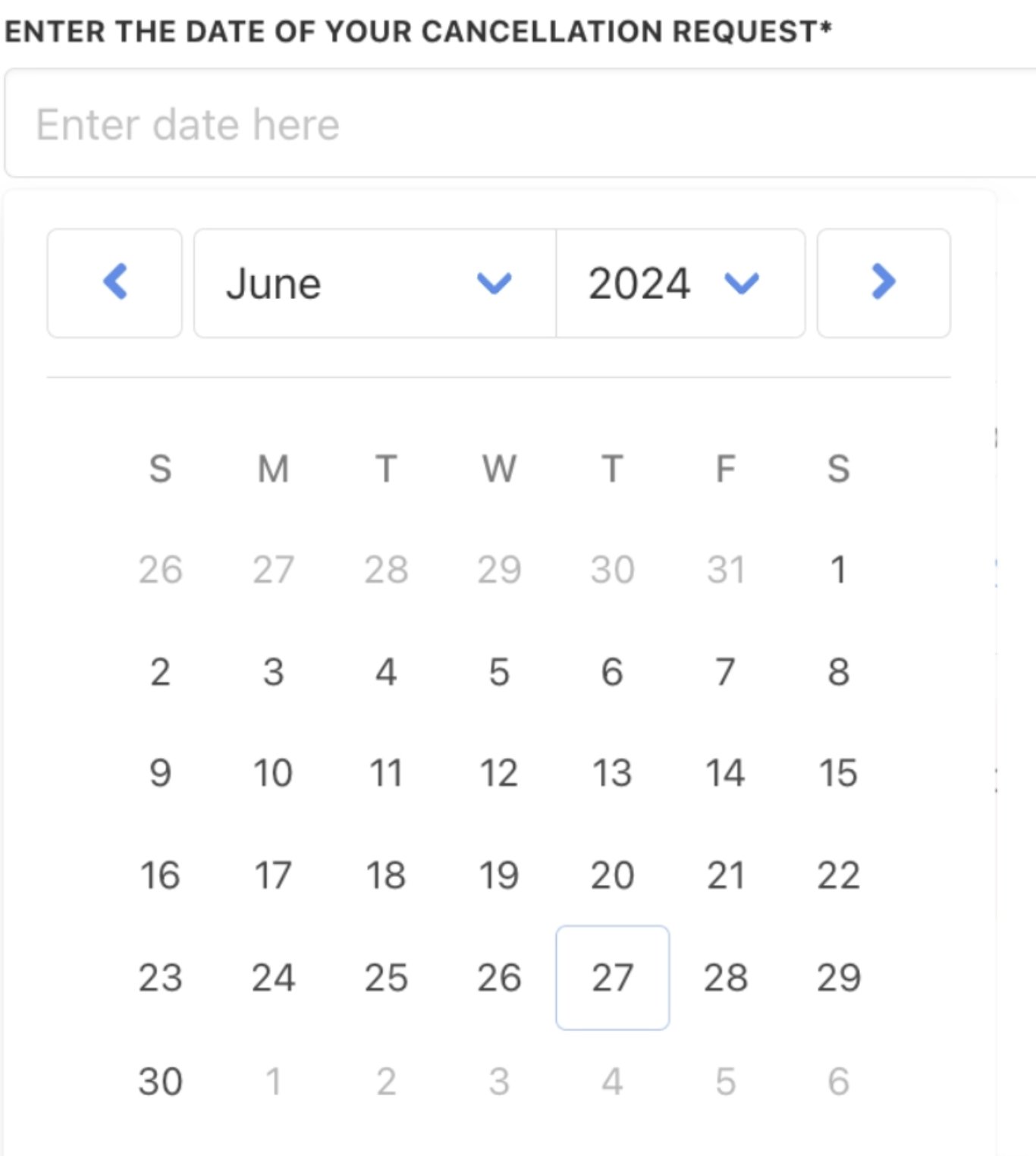
Select a date
Number
Clients click the field and enter a number.
Enter a number
Image
Clients click the field and upload an image file.
Upload image
Custom field options
When creating a custom field, you can set a number of customisation options.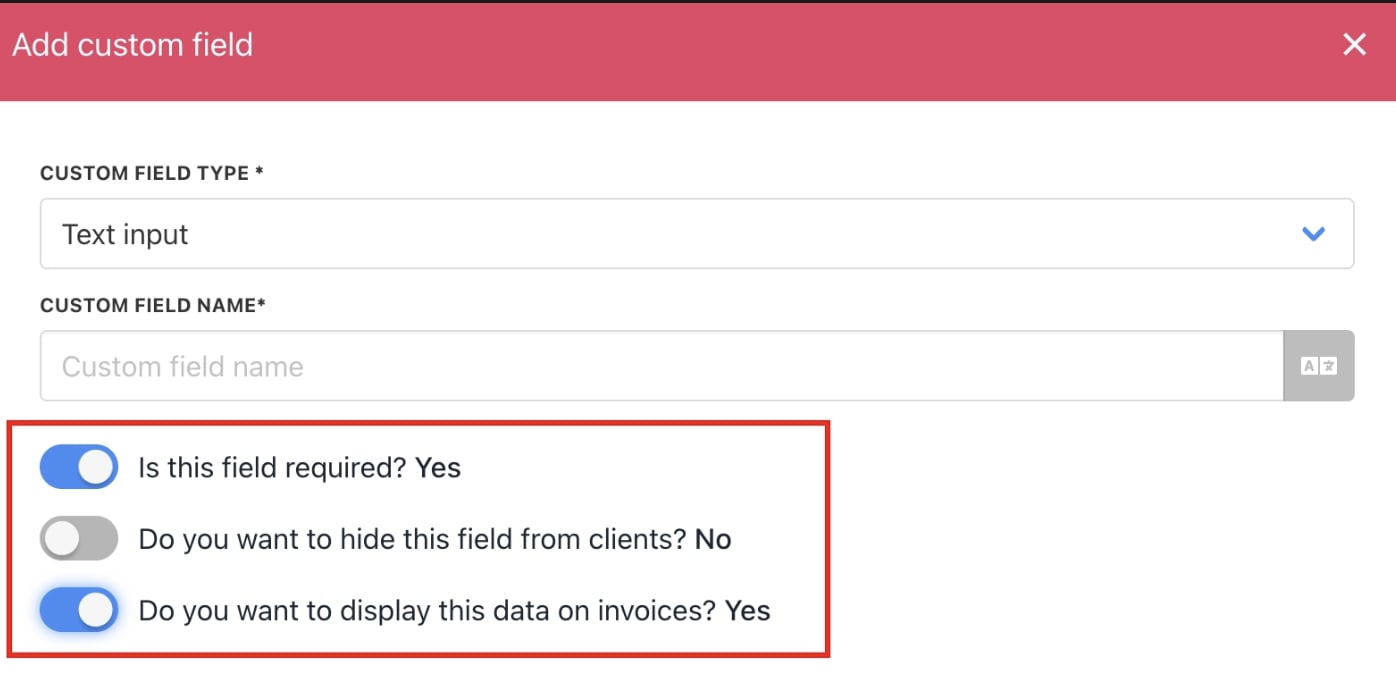
Custom field options
Show reason and custom cancellation fields at the end of the billing term
Access subscription options
- Log in to Upmind admin.
- Go to Settings > Subscription Options under Branding and Customisation.
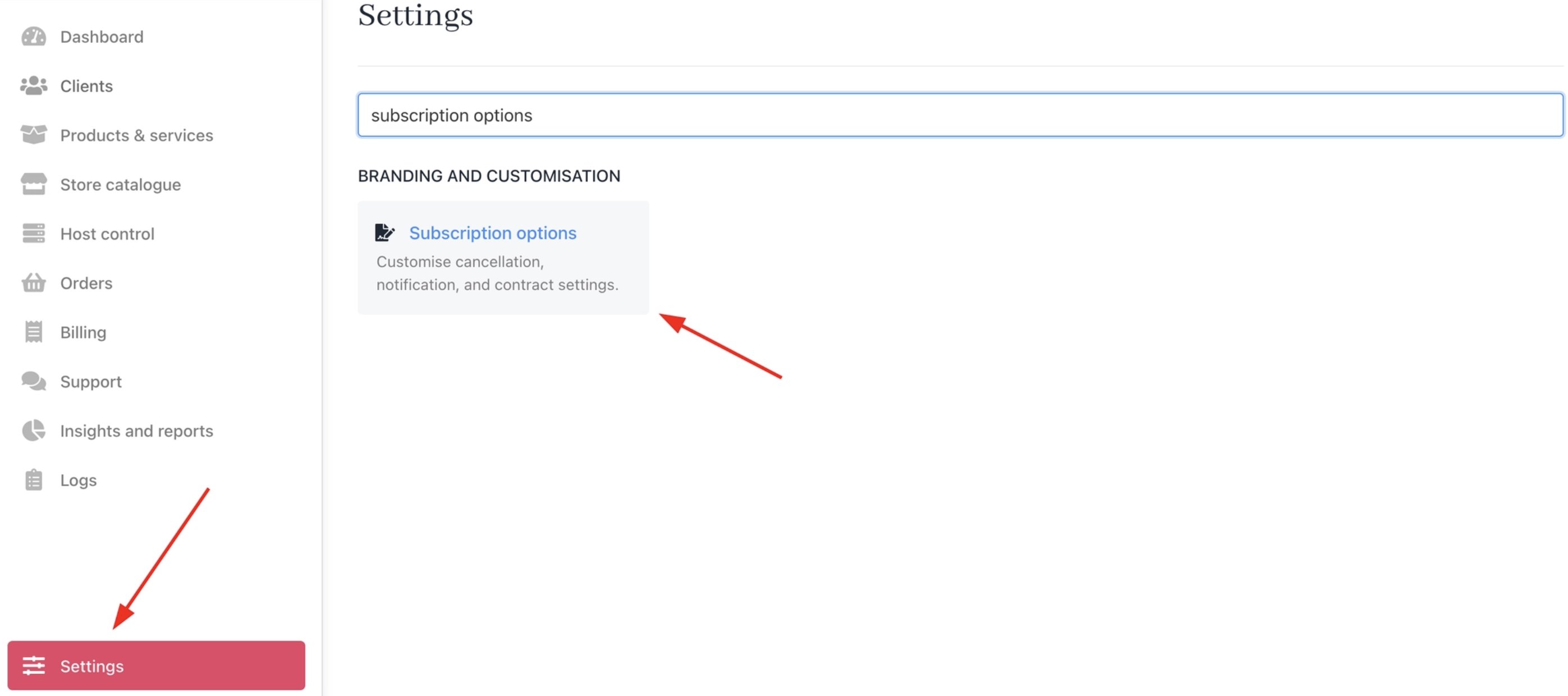
Settings > Branding and Customisation > Subscription Options
For clients
- Show Custom Cancellation Fields and Reason for End-of-Term Cancellation: When on, clients fill in the custom fields or enter a reason when requesting cancellation at the end of the billing cycle.

Client custom fields for cancellation
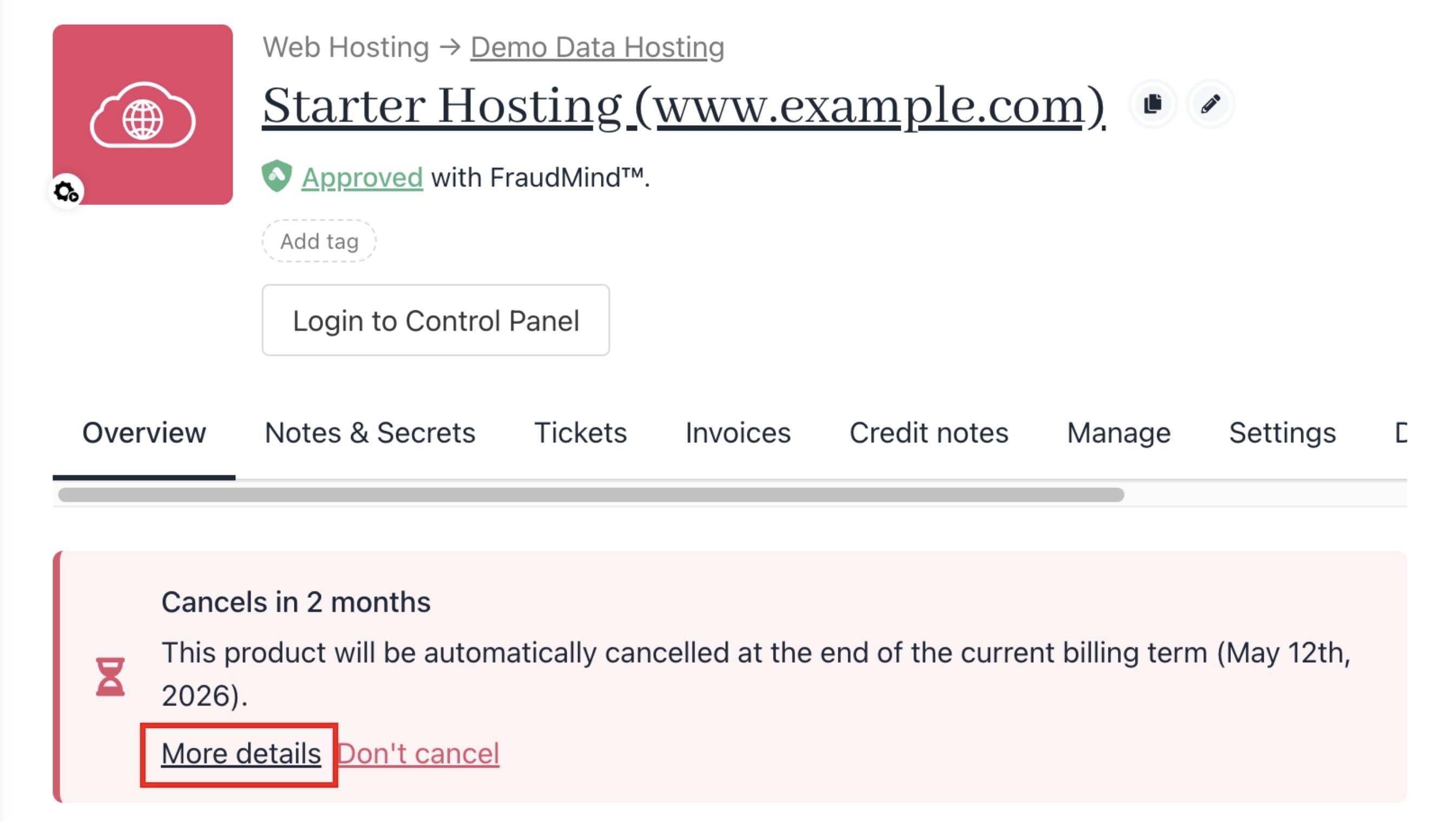
More cancellation details
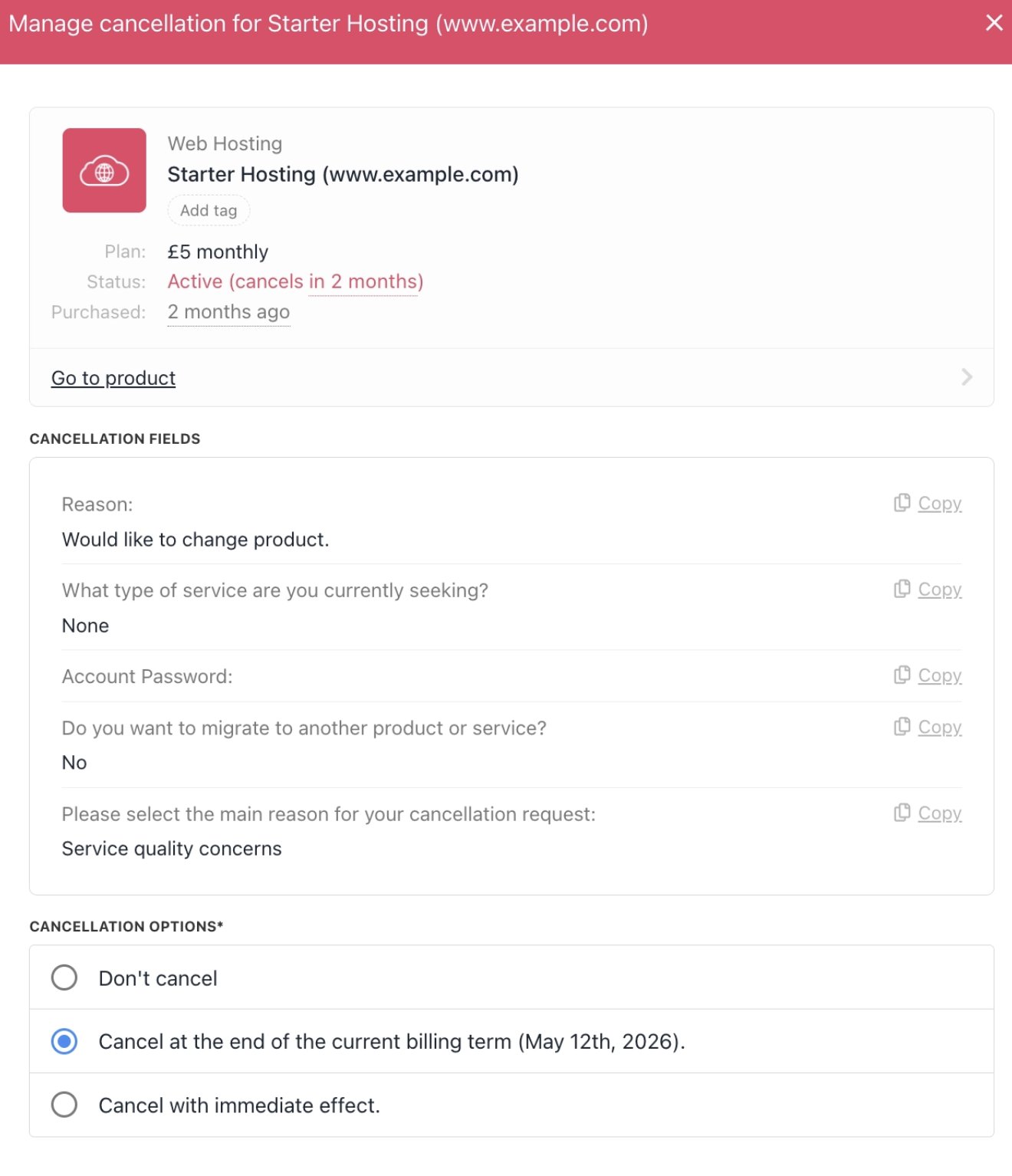
Manage cancellation
For users
- Require Users to Fill Custom Fields or Provide Cancellation Reason: Prompts clients to enter a reason or complete custom fields when cancelling or setting end-of-term expiry. Also creates a contract request record.

User custom fields for cancellation

Client > Products & Services > Client
Manage cancellation requests
You can view and handle client cancellation requests under Billing > Cancellation Requests. When Show Custom Cancellation Fields and Reason for End-of-Term Cancellation is enabled, submitted requests appear here with client-provided reasons and custom field responses.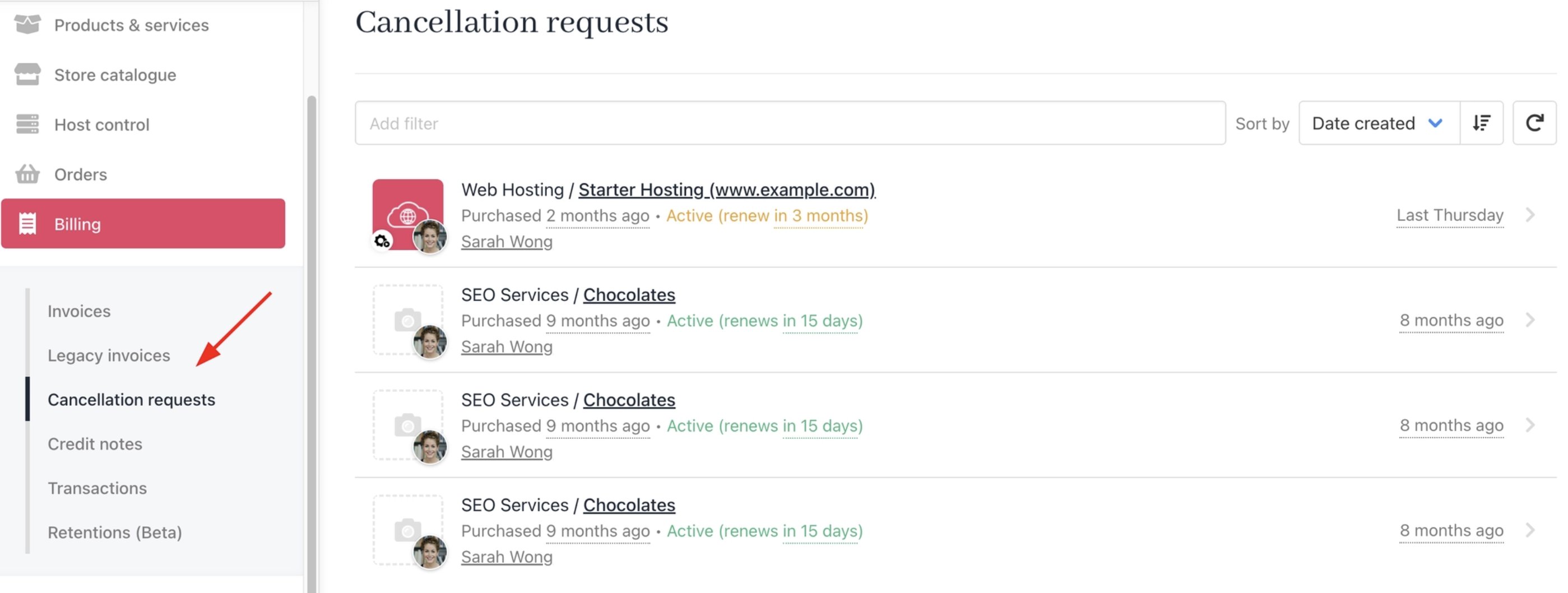
Billing > Cancellation requests