

- Time — 25 minutes
- Difficulty — Intermediate
- An active Upmind account.
- Access to Settings > Brand Settings in your Upmind admin panel.
- Basic familiarity with CSS and how CSS variables work.
- A read-through of Configuring Your Store with UI Metadata to understand how the
@context.themesetting is applied. - Your brand’s colour palette, font choices, and any design guidelines you want to follow.
- Centralised control of your brand styling
- Consistent appearance across cart and portal
- Upgrade-safe customisation
- No need to modify component code
Brand-specific theming
For multi-brand setups, you can define brand-specific theme tokens. Navigate to Settings > Brand Settings.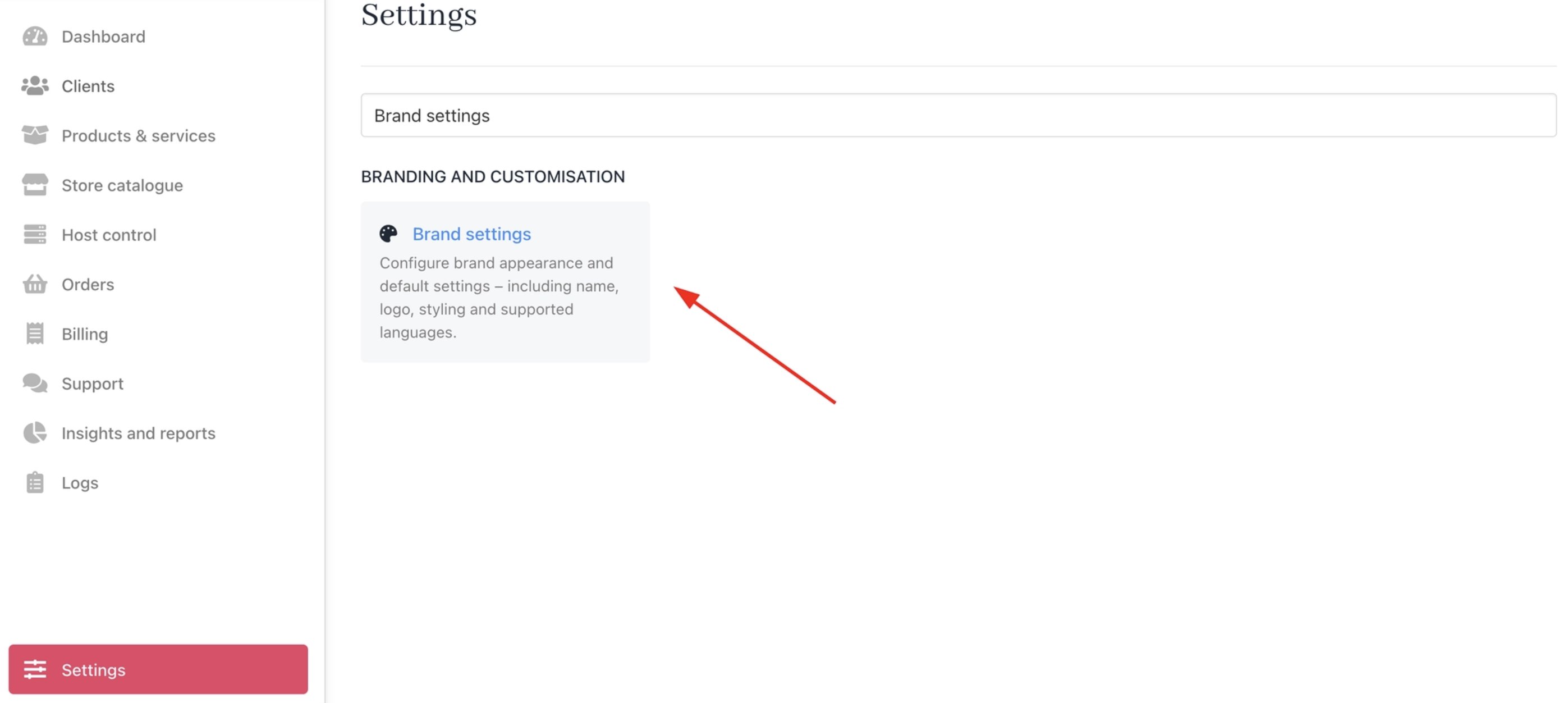
Settings > Brand settings
CSS Example:
webcentral) with its own colour system.
Applying the theme
To apply a theme to a brand, define it in the Brand Meta (UI Metadata) field.JSON Example:
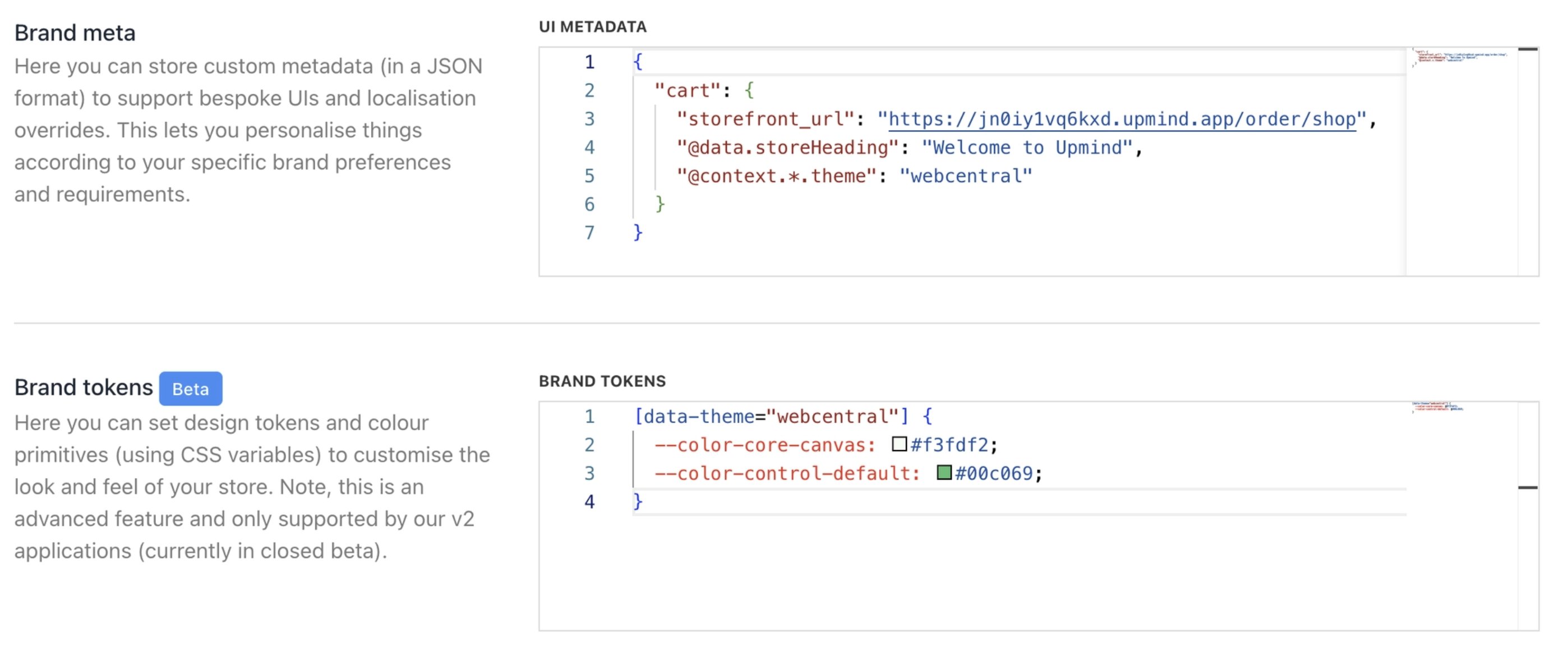
Applying theme and token
- You can align the cart and portal with your brand quickly.
- Styling updates can be made centrally without refactoring components.
- Theming remains consistent across checkout and post-purchase views.
- Future updates to Cart 2.0 remain safe and compatible.
Primitive tokens
These are the foundational values that define colours for the entire interface. Changing a primitive token will cascade through the theme, affecting all derived styles. Core Colors: Base greys and backgrounds for general layout.--color-core-canvas– The main page background colour behind all content (e.g., page canvas). Usually, a very light neutral tone to reduce eye strain.
CSS Example:
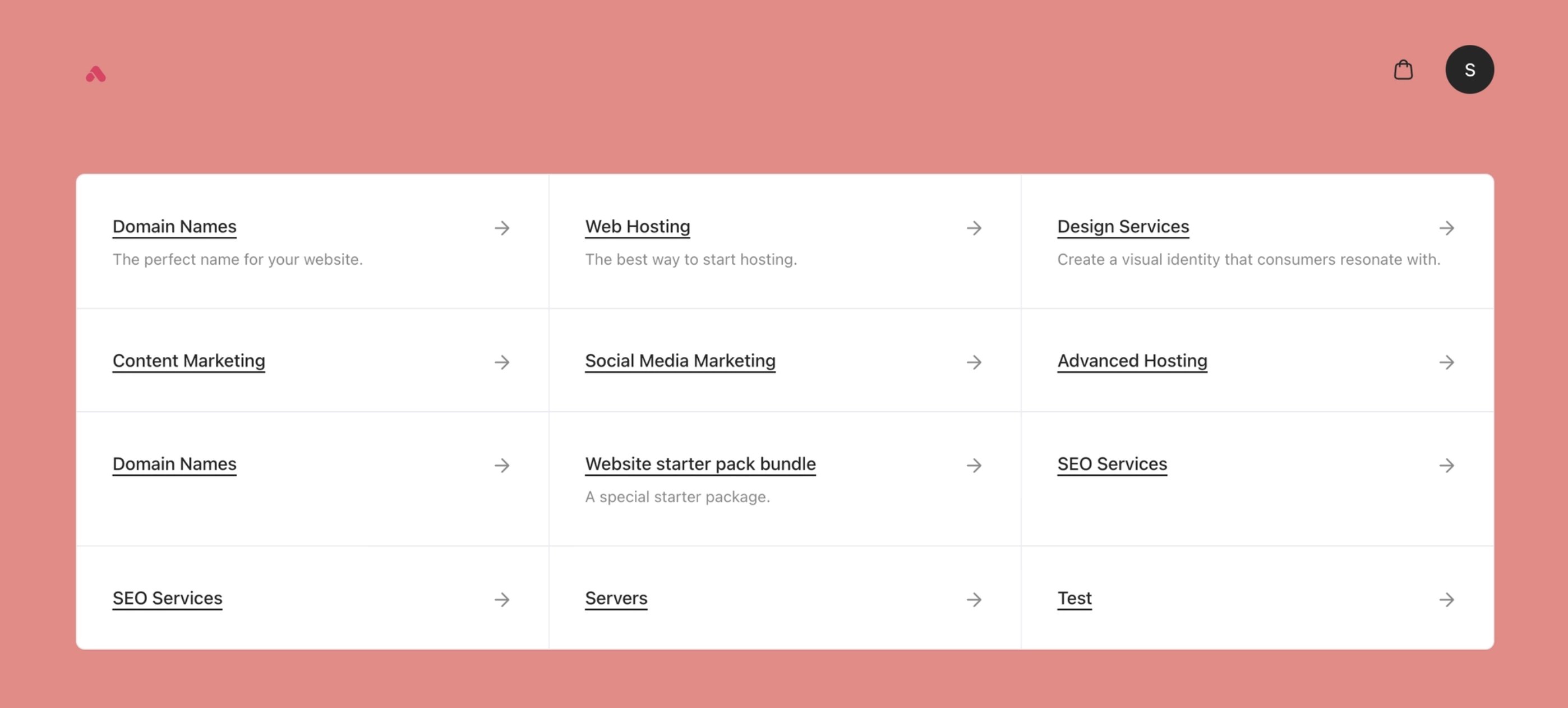
Core canvas colour
--color-core-surface– Background colour for elevated containers (cards, modals, panels). Contrasts with the canvas to create depth.
CSS Example:
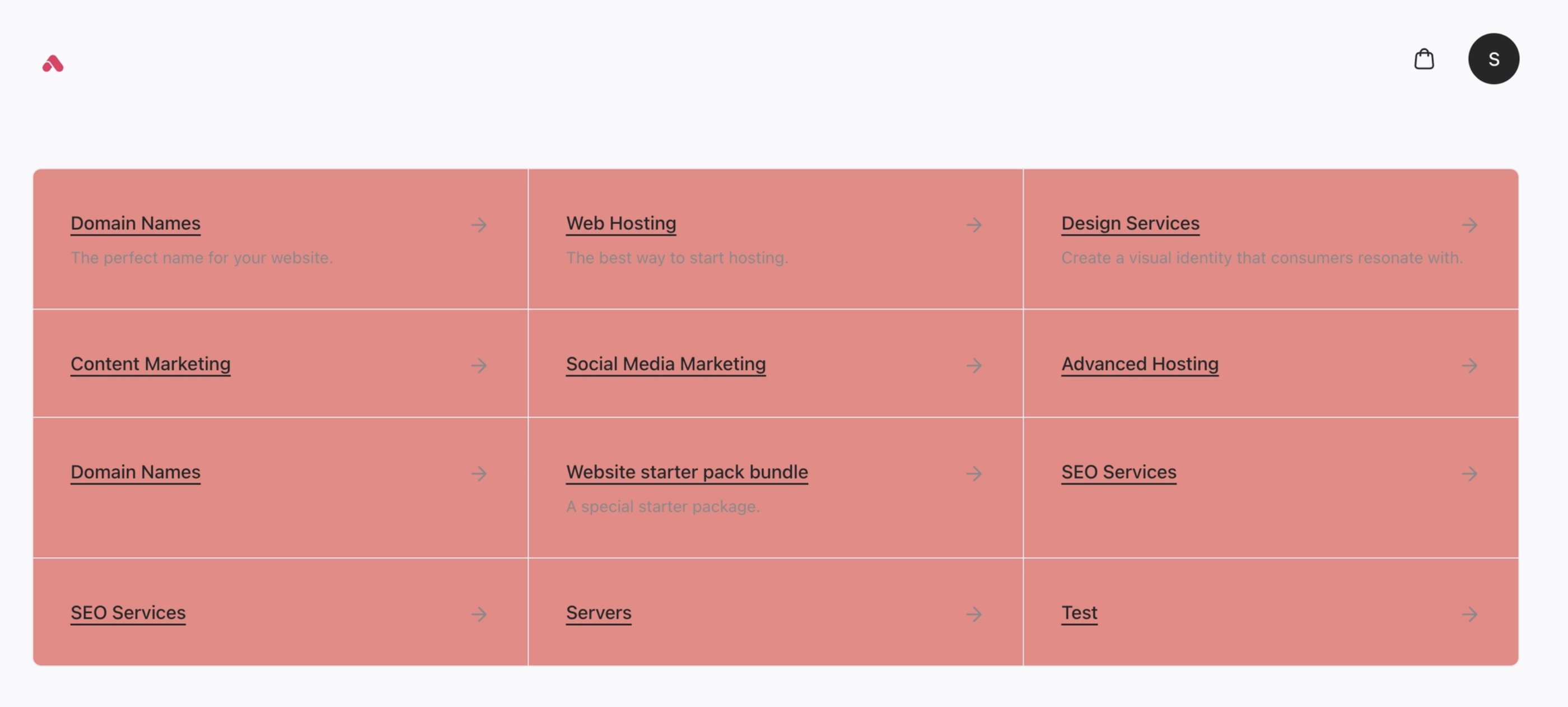
Core surface colour
--color-core-base– Default body text colour. Used for paragraphs and standard content.
CSS Example:

Core base colour
--color-core-display– High-emphasis text (headings, titles, prices). Darker than-color-core-basefor emphasis.
CSS Example:
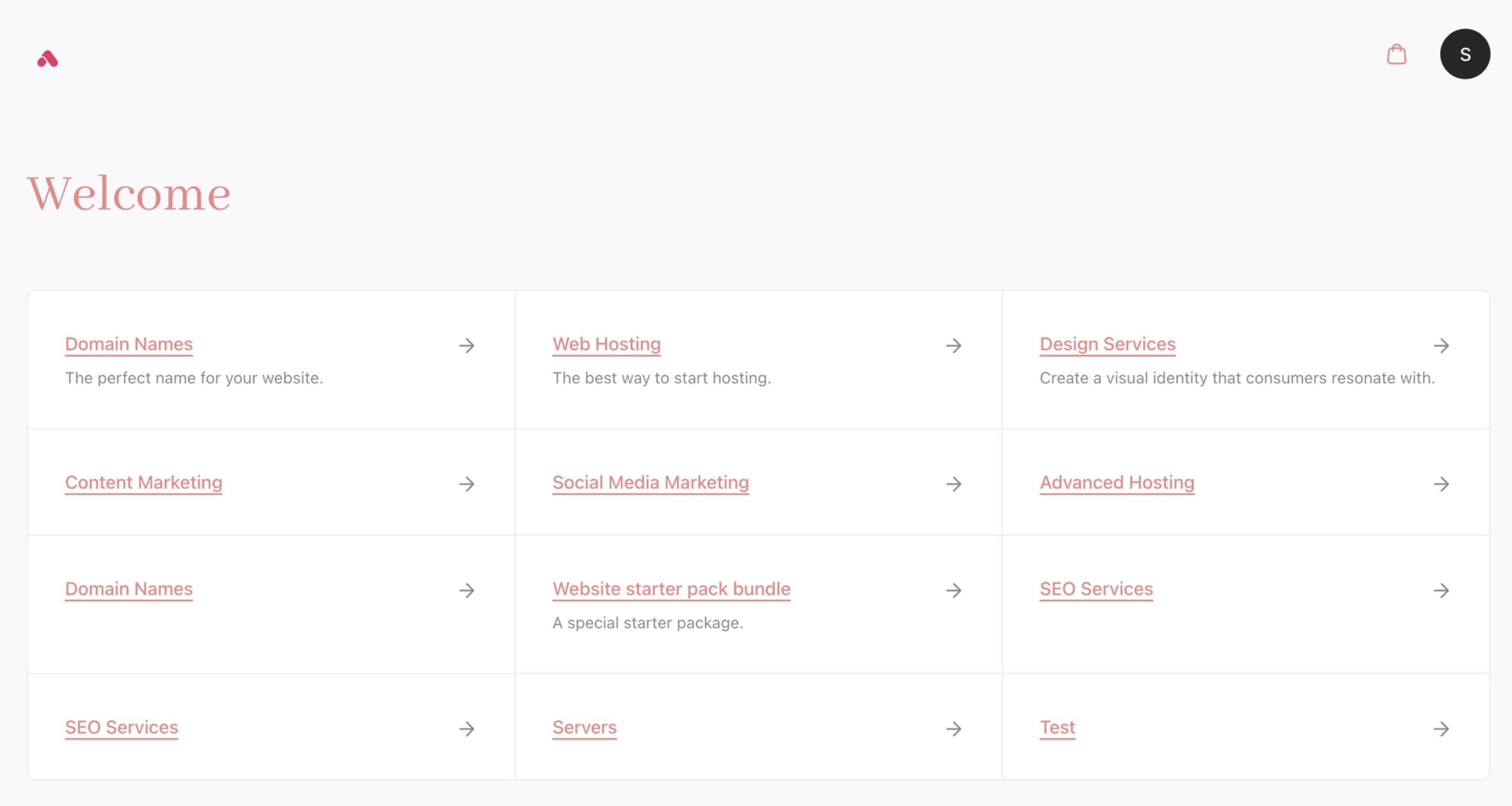
Core display colour
--color-core-muted– Secondary text (captions, metadata, timestamps). A softer grey for supporting info.
CSS Example:
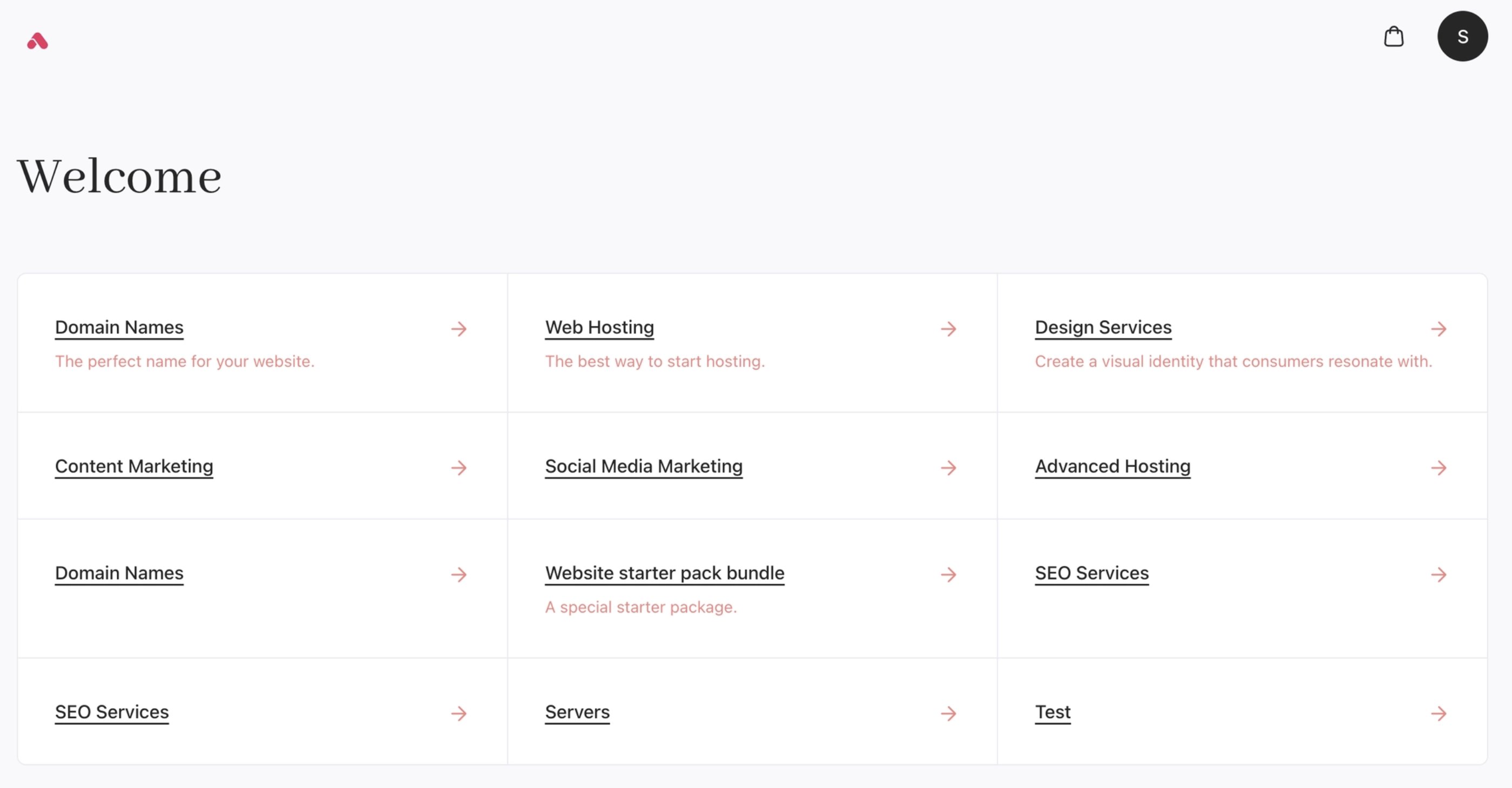
Core muted colour
--color-core-faint– Lowest-emphasis text (placeholders, disabled text, very subtle labels). Light grey near the edge of legibility.
CSS Example:

Core faint colour
--color-core-skeleton– Semi-transparent grey for loading placeholders (skeleton screens). Applied behind content while data loads.
CSS Example:
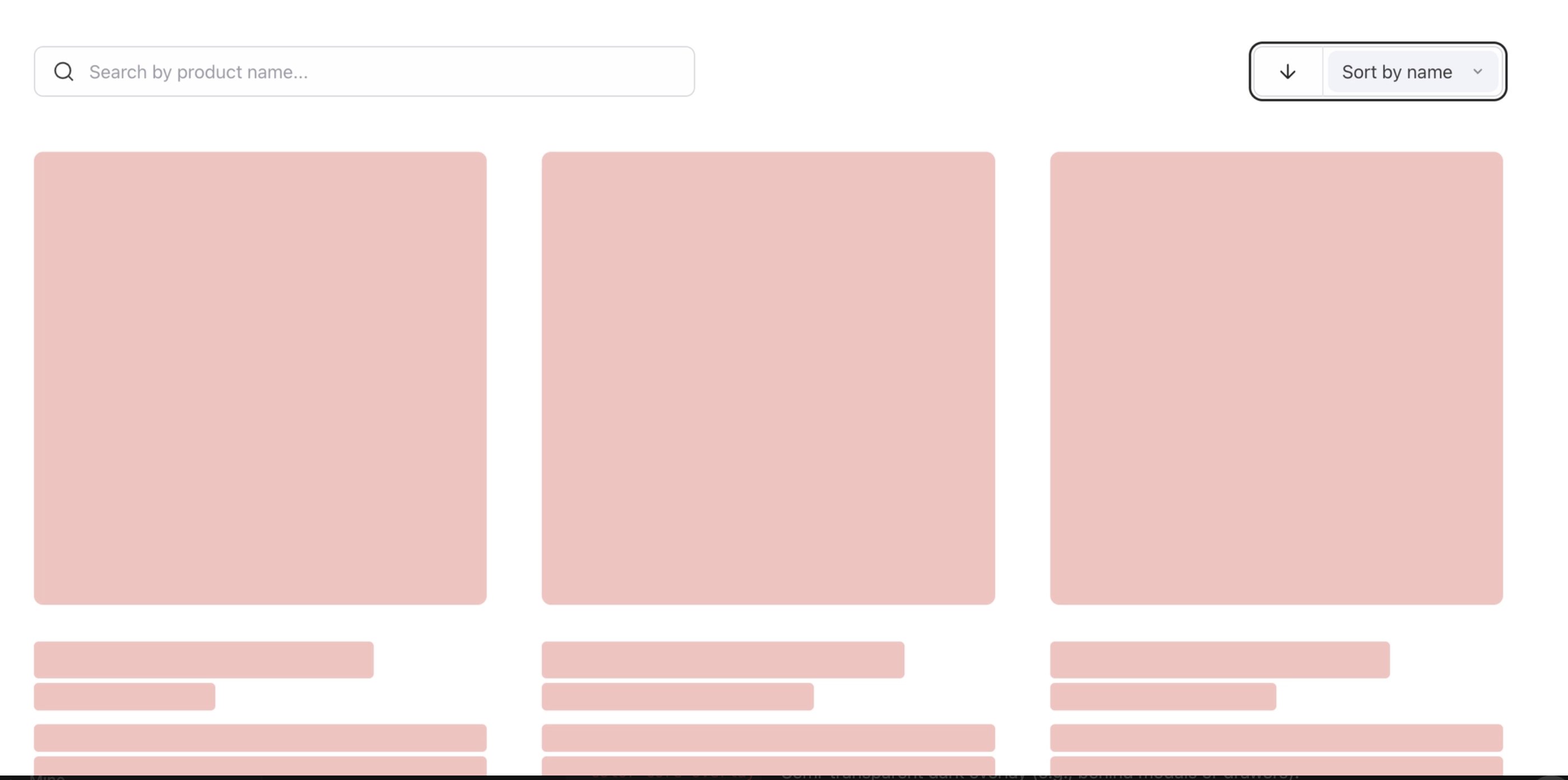
Core skeleton colour
--color-core-overlay– Semi-transparent dark overlay (e.g., behind modals or drawers). Dims the background content.--color-core-overlay-contrast– Text/icon colour on top of-color-core-overlay. Typically white or very light to stand out against the dark overlay.
-color-control-default– Fill colour for checked/on controls (checkbox, active radio, enabled toggle). The primary active state colour (usually dark grey/black).
CSS Example:

Control default colour
--color-control-default-contrast– The icon or checkmark colour shown on a checked control. Must contrast with-color-control-default(typically white).
CSS Example:

Control default contrast colour
--color-control-default-delta– Darker variant of the on-colour, used for hover/active feedback on checked controls.--color-control-muted– Background highlight for focused/selected items in dropdowns or option lists. A very light shade to indicate focus.
CSS Example:
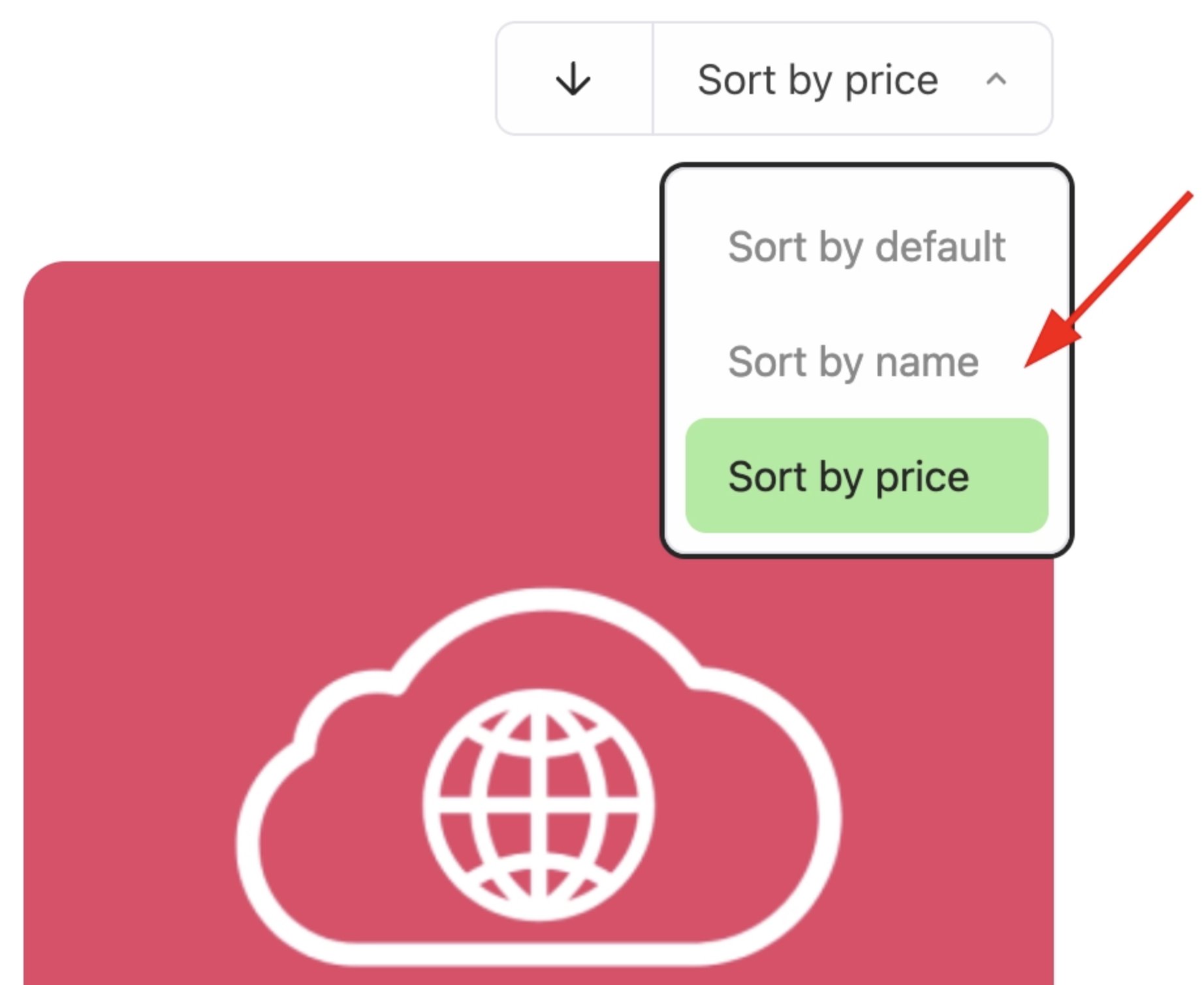
Control muted colour
--color-control-muted-contrast– Text colour used on a selected option (shown on top of-color-control-mutedbackground).
CSS Example:
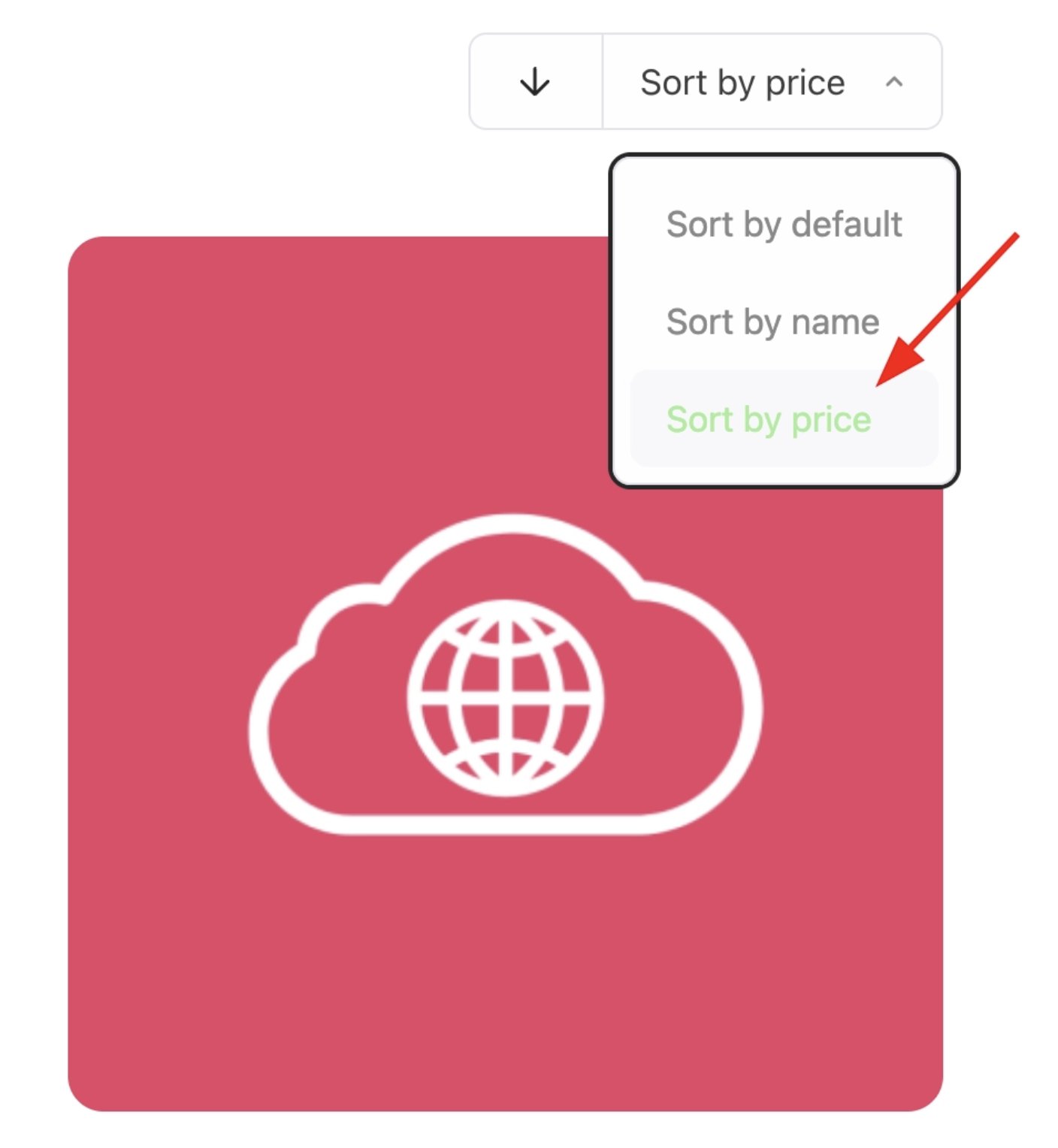
Control muted contrast colour
--color-control-stroke– Default border colour for inputs, checkboxes, radios, etc. Light grey for resting state.
CSS Example:

Control stroke colour
--color-control-stroke-delta– Darker border for hover state on controls. Provides subtle interactive feedback.
--color-primary-default– The primary colour (e.g., brand blue). Used as the base for primary button backgrounds and key accents.
CSS Example:
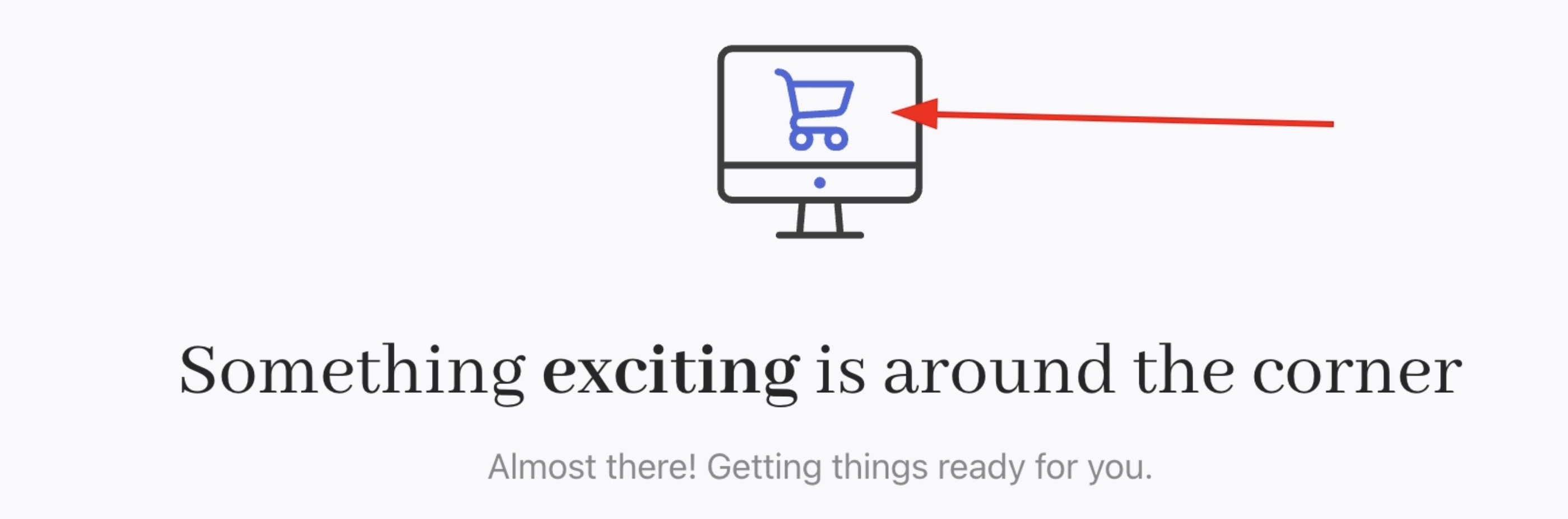
Primary default colour
--color-primary-default-stop– End colour for a primary button gradient. Changing this can create a gradient effect. If same as-default, buttons are solid.--color-primary-default-delta– Darker shade of primary for hover/active states on primary elements (buttons, links).
CSS Example:

Primary default delta colour
--color-primary-default-contrast– Text/icon colour on primary backgrounds (e.g., white text on primary button). Ensures accessibility contrast.
CSS Example:

Primary primary default contrast
-color-primary-muted– Very light tinted version of the primary colour (for subtle highlights). Used for badges or soft backgrounds instead of full primary.-color-primary-muted-contrast– Text colour on the muted-primary background (usually the primary colour itself or dark text).
--color-secondary-default– Base colour for secondary buttons/backgrounds. Usually a neutral tone (like very light grey).
CSS Example:
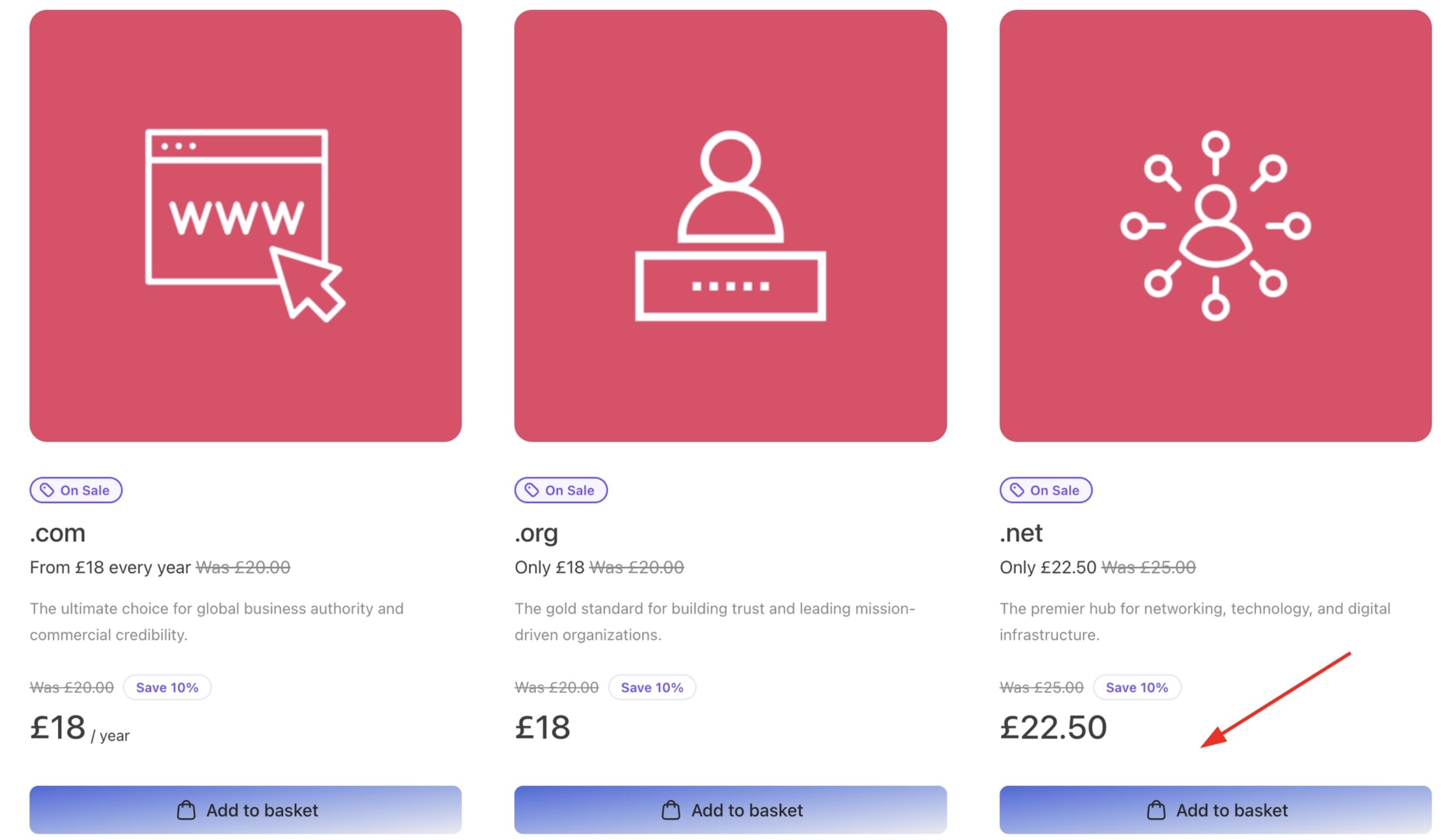
Secondary default colour
--color-secondary-default-stop– Gradient end for secondary buttons. If different from default, creates a subtle gradient on secondary CTAs.--color-secondary-default-delta– Darker shade for hover/active on secondary elements.
CSS Example:
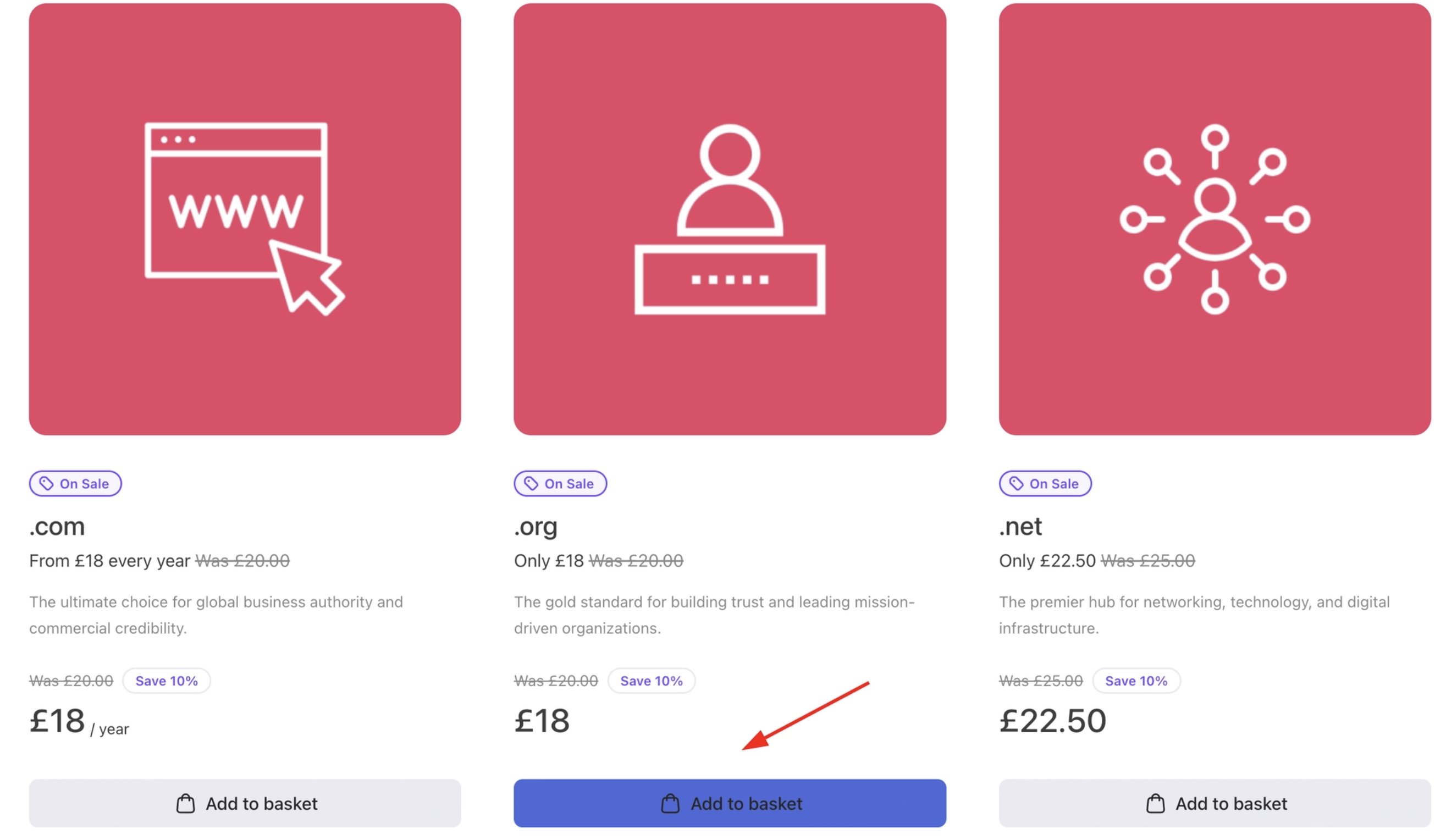
Secondary default delta colour
--color-secondary-default-contrast– Text/icon colour on secondary backgrounds (commonly dark text on the light secondary colour).
--color-neutral-default– Medium-grey used for neutral buttons or UI elements that shouldn’t draw attention.--color-neutral-default-delta– Darker variant for neutral buttons on hover or focus.--color-neutral-default-contrast– Text colour onneutral-defaultbackgrounds (often white for readability).--color-neutral-muted– Very light grey (almost white) for backgrounds of subtle elements (chips, tags, low-emphasis containers).--color-neutral-muted-delta– Slightly darker version for hover on muted backgrounds.--color-neutral-muted-contrast– Text colour onneutral-mutedbackgrounds (dark grey for contrast).--color-neutral-stroke– Border colour for surfaces (cards, dividers, table rows). Subtle light line.--color-neutral-stroke-delta– Darker border for hover or emphasis on neutral outlines.
--color-promo-default– Bold colour (often a vivid purple/blue) for sale badges, discount banners, or promotional highlights.
CSS Example:
Promo default colour
--color-promo-default-contrast– Text colour on promo backgrounds (usually white).--color-promo-muted– Very light tint of promo colour for subtle emphasis.
CSS Example:
Promo muted colour
--color-promo-muted-contrast– Text colour on soft promo backgrounds (often the promo colour itself).
--color-danger-default– Vivid red for error badges, delete buttons, and alerts. Grabs immediate attention.--color-danger-default-delta– Darker red for hover on danger elements.--color-danger-default-contrast– Text colour on danger backgrounds (often a very light pink or white).--color-danger-muted– Light pink background for inline error messages or validation hints.--color-danger-muted-contrast– Text colour on muted-danger backgrounds (usually the danger red itself).
--color-warning-default– Amber/yellow for warnings, alert banners, or pending states. High visibility.--color-warning-default-contrast– Text colour on warning backgrounds (dark brownish-amber).--color-warning-muted– Very light yellow for inline caution notes.--color-warning-muted-contrast– Text colour on soft-warning backgrounds (darker amber for readability).
--color-success-default– Bright green for success messages, completed status, etc. Conveys “all good.”--color-success-default-contrast– Dark green text onsuccessbackgrounds.--color-success-muted– Pale green for inline confirmations or subtle success indicators.--color-success-muted-contrast– Text colour on muted-success backgrounds (usually a mid-green).
--color-info-default– Calm blue for tooltips, help badges, or info banners.--color-info-default-contrast– Text colour on info backgrounds (usually white).--color-info-muted– Very light blue tint for inline tips or notices.--color-info-muted-contrast– Text colour on muted-info backgrounds (the info blue itself).
Semantic Tokens
These tokens map primitives to actual UI uses (backgrounds, text, borders, accents). They help maintain consistency by using the core colour values where needed. Background (Layout): Surface and canvas layers.--bg-canvas: var(--color-core-canvas)- The overall page background in layout.--bg-surface: var(--color-core-surface)- Used for card and panel backgrounds.--bg-skeleton: var(--color-core-skeleton)- Background for loading skeleton screens.--bg-overlay: var(--color-core-overlay)- Dark overlay behind modals/drawers.--bg-tooltip: var(--color-core-overlay)– Usually same as overlay. Background for tooltip bubbles (dark background).
--bg-control-checked-contrast: var(--color-control-default-contrast)- Background of a checked/on control (checkbox, radio, toggle).--bg-control-checked: var(--color-control-default)- Hover fill for an already-checked control.--bg-control-checked-hover: var(--color-control-default-delta)- The checkmark/radio dot colour on checked controls.--bg-control-unchecked: var(--color-control-stroke)- Background (track) colour of an unchecked/off toggle.--bg-control-unchecked-hover: var(--color-control-stroke-delta)- Hover fill for an unchecked toggle track.--bg-control-selected: var(--color-control-muted)- Background for focused/selected dropdown items or options.--bg-control-surface: var(--color-control-default-contrast)- Background for form fields (usually white).--bg-control-ring: var(--color-control-default)- Colour used for focus rings on form controls.
--bg-button-primary-0: var(--color-primary-default)- Primary button start colour (often same as-primary-default).--bg-button-primary-1: var(--color-primary-default-stop)- Primary button end colour (for gradient).--bg-button-primary-hover-0: var(--color-primary-default-delta)- Hover start for primary button.--bg-button-primary-hover-1: var(--color-primary-default-delta)- Hover end for primary button.--bg-button-primary-ring: var(--color-primary-default-delta)- Focus ring colour for primary buttons.--bg-button-secondary-0: var(--color-secondary-default)- Secondary button start colour.--bg-button-secondary-1: var(--color-secondary-default-stop)- Secondary button end colour.--bg-button-secondary-hover-0: var(--color-secondary-default-delta)- Hover start for secondary button.--bg-button-secondary-hover-1: var(--color-secondary-default-delta)- Hover end for secondary button.--bg-button-neutral-ring: var(--color-neutral-default-delta)- Focus ring for secondary buttons.--bg-button-neutral-0: var(--color-neutral-default)- Neutral (tertiary) button colour.--bg-button-neutral-1: var(--color-neutral-default)- (Solid colour, no gradient by default).--bg-button-neutral-hover-0: var(--color-neutral-default-delta)- Hover start for neutral buttons.--bg-button-neutral-hover-1: var(--color-neutral-default-delta)- Hover end for neutral buttons.--bg-button-subtle-ring: var(--color-neutral-default-delta)- Focus ring for neutral buttons.--bg-button-subtle-0: var(--color-neutral-muted)- Subtle (minimal) button background.--bg-button-subtle-1: var(--color-neutral-muted)- (Solid light colour).--bg-button-subtle-hover-0: var(--color-neutral-muted-delta)- Hover start for subtle buttons.--bg-button-subtle-hover-1: var(--color-neutral-muted-delta)- Hover end for subtle buttons.--bg-button-danger-ring: var(--color-danger-default-delta)- Focus ring for subtle buttons.--bg-button-danger-0: var(--color-danger-default)- Hover start for danger buttons.--bg-button-danger-1: var(--color-danger-default)- Hover end for danger buttons.--bg-button-danger-hover-0: var(--color-danger-default-delta)--bg-button-danger-hover-1: var(--color-danger-default-delta)- Focus ring for danger buttons.--bg-button-outline– Transparent (default for outline buttons).--bg-button-outline-hover: var(--color-neutral-muted-delta)- Hover fill for outline buttons.--bg-button-outline-ring: var(--color-neutral-default-delta)- Outline button focus ring.-bg-button-ghost– Transparent (default for ghost buttons).--bg-button-ghost-hover: var(--color-neutral-muted-delta)- Hover fill for ghost buttons.--bg-button-ghost-ring: var(--color-neutral-default-delta)- Ghost button focus ring.
--bg-accent-primary: var(--color-primary-default)- Solid background for primary accents (featured badges, selected tabs).--bg-accent-primary-muted: var(--color-primary-muted)- Lighter tint of primary for inline tags or subtle highlights.--bg-accent-neutral: var(--color-neutral-default)- Solid neutral background for generic tags/status.--bg-accent-neutral-muted: var(--color-neutral-muted)- Light neutral background for subtle chips or pills.--bg-accent-promo: var(--color-promo-default)- Bold promotional background (sale badges, etc).--bg-accent-promo-muted: var(--color-promo-muted)- Soft promo tint for less intense callouts.--bg-accent-danger: var(--color-danger-default)- Solid danger background for error badges or alerts.--bg-accent-danger-muted: var(--color-danger-muted)- Light danger background for inline error messages.--bg-accent-warning: var(--color-warning-default)- Solid warning background for attention badges.--bg-accent-warning-muted: var(--color-warning-muted)- Soft warning background for subtler notices.--bg-accent-success: var(--color-success-default)- Solid success background for completion badges.--bg-accent-success-muted: var(--color-success-muted)- Soft success background for inline confirmations.--bg-accent-info: var(--color-info-default)- Solid info background for informational badges.--bg-accent-info-muted: var(--color-info-muted)- Soft info background for tips or notes.
--border-surface: var(--color-neutral-stroke)- Default border colour for cards, panels, tables, and dividers (a light grey).--border-button-outline: var(--color-neutral-stroke)- Border for outline buttons (same as surface border).--border-button-outline-hover: var(--color-neutral-stroke-delta)- Darker border on hover for outline buttons.--border-control-default: var(--color-control-stroke)- Default border on form inputs and controls.--border-control-hover: var(--color-control-stroke-delta)- Hover border on inputs to signal interactivity.--border-control-selected: var(--color-control-default)- Border on focused/selected inputs (darker than default).--border-accent-primary: var(--color-primary-default)- Coloured border for emphasis (active nav items, featured cards).--border-accent-secondary: var(--color-secondary-default)- Coloured border for secondary grouping.--border-accent-neutral: var(--color-neutral-default)- Bold neutral-coloured border.--border-accent-promo: var(--color-promo-default)- Promotional coloured border for marketing emphasis.--border-accent-danger: var(--color-danger-default)- Danger border for error highlighting.--border-accent-warning: var(--color-warning-default)- Warning border for cautionary emphasis.--border-accent-success: var(--color-success-default)- Success border for positive states.--border-accent-info: var(--color-info-default)- Info border for informational emphasis.
--icon-primary: var(--color-primary-default)- Brand-coloured icons (sparingly for key actions).--icon-neutral: var(--color-core-base)- Default grey icon colour (matches body text).
--text-base: var(--color-core-base)- Default paragraph text colour.--text-display: var(--color-core-display)- High-emphasis text (used on headings, etc).--text-muted: var(--color-core-muted)- Secondary/de-emphasised text (captions, helper text).--text-faint: var(--color-core-faint)- Low-emphasis text (placeholders, disabled text).-text-primary– #ffffff. Always used on a primary-colored background (white text on primary buttons/areas).--text-tooltip: var(--color-core-overlay-contrast)- Text colour inside tooltips (light text on dark tooltip).
--text-control-selected: var(--color-control-muted-contrast)- Text for currently selected/highlighted items in dropdowns, comboboxes, and option lists.--text-button-primary: var(--color-primary-default-contrast)- Text on primary buttons (white or light).--text-button-secondary: var(--color-secondary-default-contrast)- Text on secondary buttons (dark).--text-button-neutral: var(--color-neutral-default-contrast)- Text on neutral buttons (white).--text-button-subtle: var(--color-neutral-muted-contrast)- Text on subtle buttons (dark grey).--text-button-danger: var(--color-danger-default-contrast)- Text on danger buttons (light).--text-button-danger-link: var(--color-danger-default)- Used for text links styled as danger (red link).--text-button-danger-link-hover: var(--color-danger-default-delta)- Darker red on hover for danger links.--text-button-outline: var(--color-core-display)- Text on outline buttons (dark text on transparent bg).--text-button-ghost: var(--color-core-display)- Text on ghost buttons (dark text).--text-button-link: var(--color-core-display)- Text for inline link-style buttons.--text-button-link-hover: var(--color-control-default)- Text on link-hover (slightly darker).--text-button-muted-link: var(--color-core-muted)- De-emphasised link text (grey link).--text-button-muted-link-hover: var(--color-control-default)- Hover color for muted link (darkens).
--text-accent-primary: var(--color-primary-default)- Primary coloured text (emphasis colour).--text-accent-primary-muted-contrast: var(--color-primary-muted-contrast)- Text on solid primary backgrounds.--text-accent-primary-contrast: var(--color-primary-default-contrast)- Text on light primary tints.--text-accent-neutral: var(--color-neutral-default)- Neutral accent text.--text-accent-neutral-contrast: var(--color-neutral-default-contrast)- Text on solid neutral backgrounds.--text-accent-neutral-muted-contrast: var(--color-neutral-muted-contrast)- Text on light neutral backgrounds.--text-accent-promo: var(--color-promo-default)- Promotional text colour.--text-accent-promo-contrast: var(--color-promo-default-contrast)- Text on solid promo backgrounds.--text-accent-promo-muted-contrast: var(--color-promo-muted-contrast)- Text on light promo backgrounds.--text-accent-danger: var(--color-danger-default)- Danger text colour (red text).--text-accent-danger-contrast: var(--color-danger-default-contrast)- Text on solid danger backgrounds.--text-accent-danger-muted-contrast: var(--color-danger-muted-contrast)- Text on light danger backgrounds.--text-accent-warning: var(--color-warning-default)- Warning text colour (amber text).--text-accent-warning-contrast: var(--color-warning-default-contrast)- Text on solid warning backgrounds.--text-accent-warning-muted-contrast: var(--color-warning-muted-contrast)- Text on light warning backgrounds.--text-accent-success: var(--color-success-default)- Success text colour (green text).--text-accent-success-contrast: var(--color-success-default-contrast)- Text on solid success backgrounds.--text-accent-success-muted-contrast: var(--color-success-muted-contrast)- Text on light success backgrounds.--text-accent-info: var(--color-info-default)- Info text colour (blue text).--text-accent-info-contrast: var(--color-info-default-contrast)- Text on solid info backgrounds.--text-accent-info-muted-contrast: var(--color-info-muted-contrast)- Text on light info backgrounds.
Component Tokens
These tokens control component-specific styling like shapes, spacing, and typography. They ensure consistency across UI elements. Corner Radii: Rounding for component corners.--button-radius– Rounding for buttons. Higher value makes more rounded buttons.
CSS Example:

Button radius
--control-radius– Rounding for inputs, selects, toggles. Usually same asbutton-radius.
CSS Example:
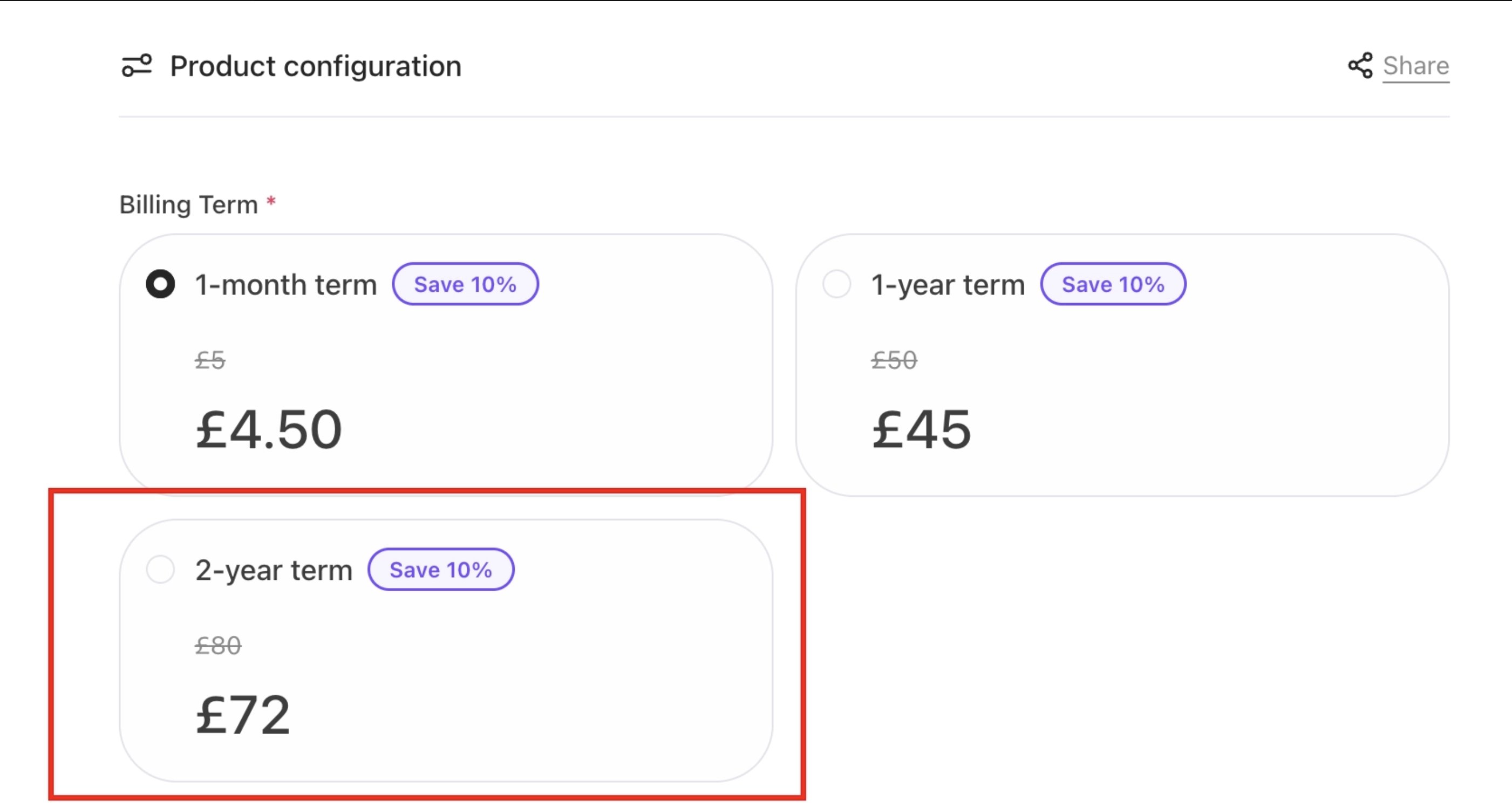
Control radius
--badge-radius– Rounding for badges/tags (often pill-shaped).--image-radius– Rounding for images or avatars (corners on images).
CSS Example:
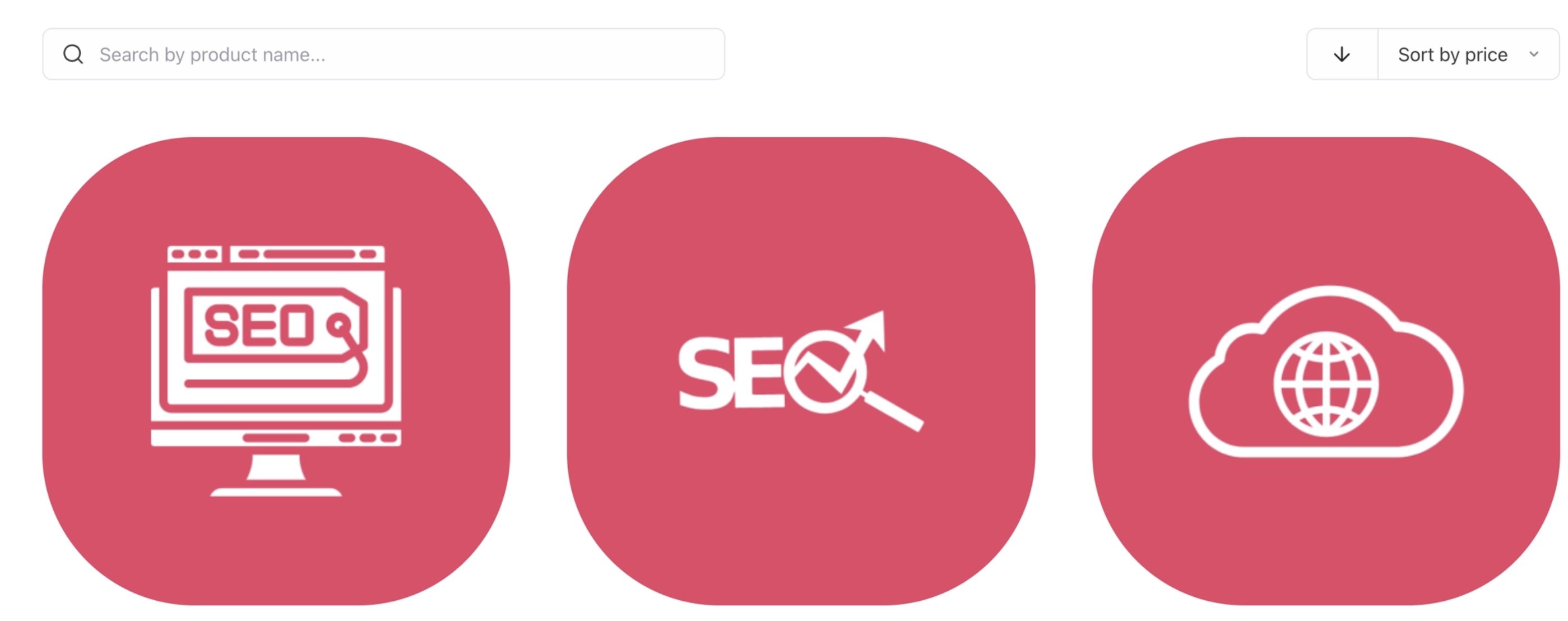
Image radius
--card-radius– Rounding for cards, panels, modals.
CSS Example:
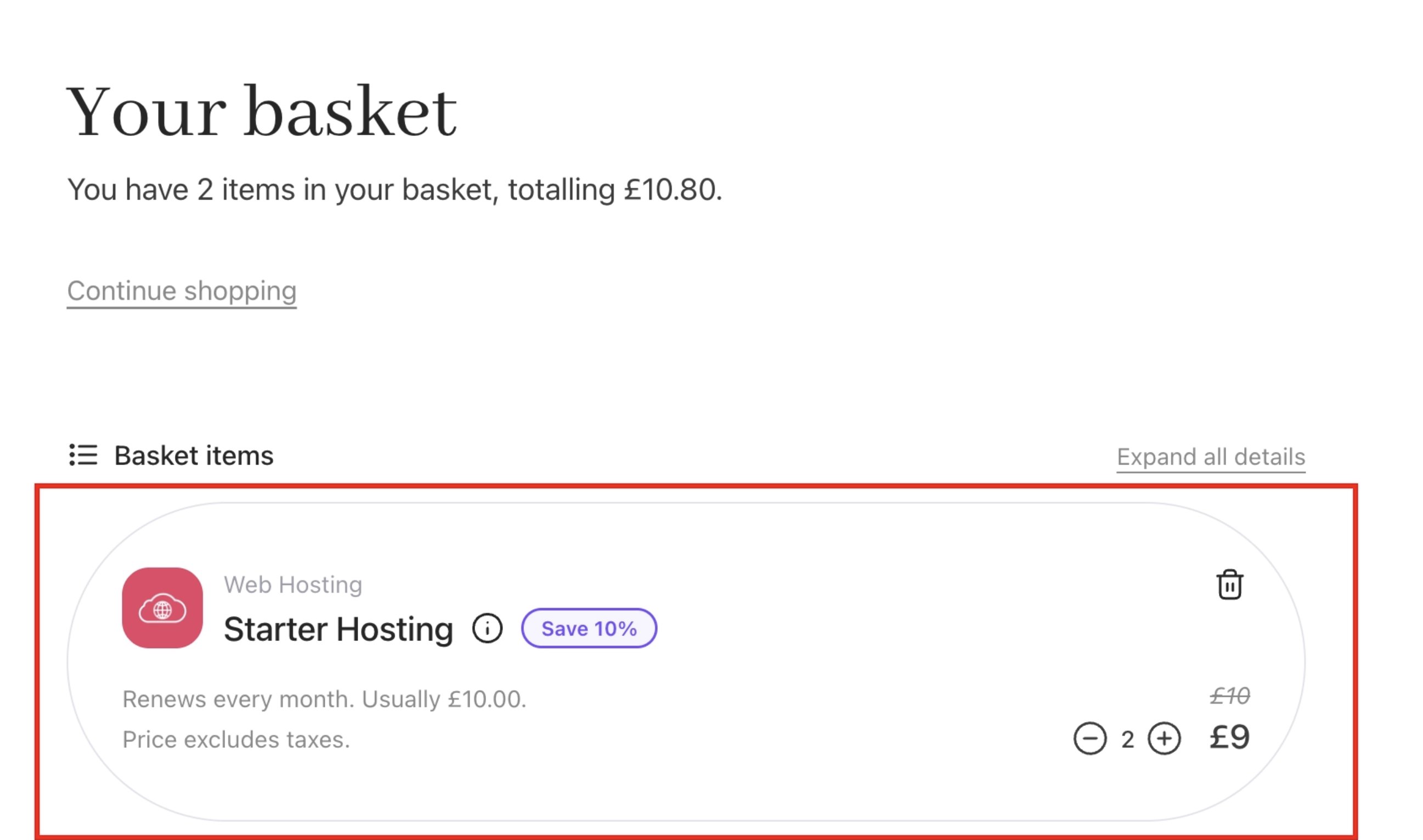
Card radius
--message-radius– Rounding for alerts/toasts messages.
--stroke-icon– Line thickness for general icons. Adjusts how bold or light icon strokes appear.
CSS Example:
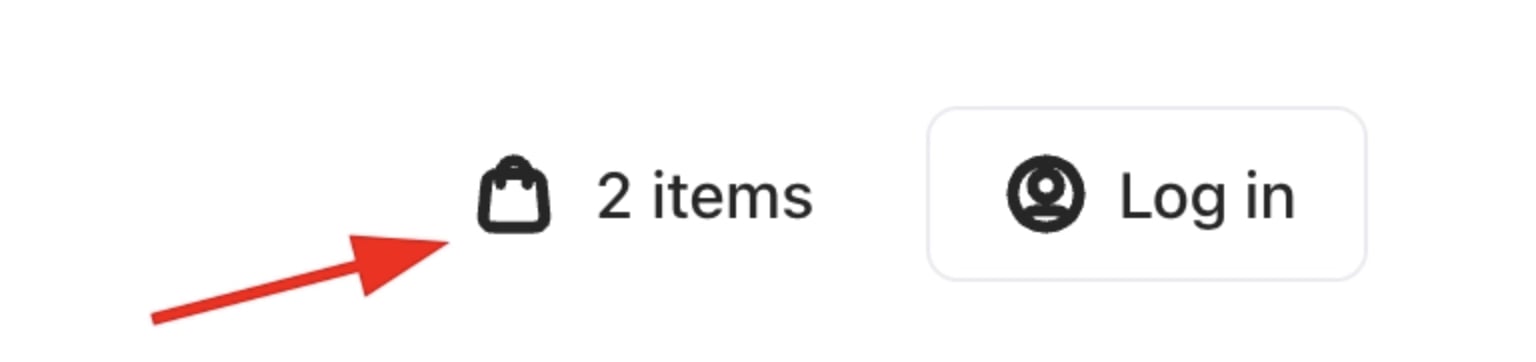
Stroke icon
--stroke-badge– Thickness for badge iconography (slightly bolder for small icons).
--tracking-normal– Default spacing (used for most body text).--tracking-tight– Condensed spacing (for large headings or condensed text).--tracking-wide– Expanded spacing (for uppercase labels or small-caps).
--font-display-weight– Base font weight for display text (headings).
CSS Example:

Font display weight
--font-display-transform– Text-transform for headings (e.g. uppercase if set).--font-display-tracking– Letter spacing for display text (usuallytightfor big headings).
--font-display-bold: var(--font-display)– Font family for bold display text (inherits default display font).--font-display-bold-weight– Font weight for bold headings (commonly 700).--font-display-bold-transform: var(--font-display-transform)– Text-transform for bold display (usually same as display).--font-display-bold-tracking: var(--font-display-tracking)– Letter spacing for bold display (same as display).
line-height (and tight/loose variants). Base font sizes from extra-small (0.75rem) up to 6xl (3.75rem).
--text-xs: 0.75rem; /* 12px */ --text-xs--line-height: 20px; --text-xs--line-height-tight: 16px; --text-xs--line-height-loose: 24px;--text-sm: 0.875rem; /* 14px */ --text-sm--line-height: 24px; --text-sm--line-height-tight: 20px; --text-sm--line-height-loose: 28px;--text-md: 1rem; /* 16px */ --text-md--line-height: 28px; --text-md--line-height-tight: 24px; --text-md--line-height-loose: 32px;--text-lg: 1.125rem; /* 18px */ --text-lg--line-height: 28px; --text-lg--line-height-tight: 24px; --text-lg--line-height-loose: 32px;--text-xl: 1.25rem; /* 20px */ --text-xl--line-height: 32px; --text-xl--line-height-tight: 28px; --text-xl--line-height-loose: 36px;--text-2xl: 1.5rem; /* 24px */ --text-2xl--line-height: 36px; --text-2xl--line-height-tight: 32px; --text-2xl--line-height-loose: 40px;--text-3xl: 1.875rem; /* 30px */ --text-3xl--line-height: 44px; --text-3xl--line-height-tight: 40px; --text-3xl--line-height-loose: 48px;--text-4xl: 2.5rem; /* 40px */ --text-4xl--line-height: 44px; --text-4xl--line-height-tight: 40px; --text-4xl--line-height-loose: 48px;--text-5xl: 3rem; /* 48px */ --text-5xl--line-height: 60px; --text-5xl--line-height-tight: 56px; --text-5xl--line-height-loose: 64px;--text-6xl: 3.75rem; /* 60px */ --text-6xl--line-height: 72px; --text-6xl--line-height-tight: 64px; --text-6xl--line-height-loose: 80px;
-text-md--line-height = 28px) and tighter/looser variants.
Each token above can be overridden in your theme to customise the look and feel of the cart. They work together to ensure consistent design: primitives set the base colours, semantic tokens apply them to UI elements, and component tokens handle shapes and typography.
Complete example
The following CSS and JSON blocks bring together primitive, semantic, and component tokens into a single working theme definition. It covers colours, typography, spacing, and component shapes, and shows how a named theme is structured and applied to your storefront.Step 1: Define your theme in Brand Tokens
Add the following to the Brand Tokens field under Settings > Brand Settings (CSS Example):
Step 2: Apply your theme in UI Metadata
Add the following to the Brand Meta (UI Metadata) field under Settings > Brand Settings (JSON Example):
Step 3: Load a custom font (optional)
To use a custom font alongside your theme, add the font URL as a data property in the same UI Metadata field (JSON Example):
Error handling and invalid values
CSS variable overrides in Cart 2.0 do not produce visible errors when an invalid value is used. The browser will silently ignore any unrecognised or malformed value and fall back to the inherited default for that token. This means a typo or unsupported value will not break your storefront’s layout, but the styling change will have no effect, which can be easy to miss.CSS Example:
brandblue is not a valid CSS colour value. The browser will ignore it and fall back to the default primary colour already defined in the theme. No error will appear in the UI.
Common mistakes to watch for:
- Using an invalid colour format (e.g.
brandblueinstead of a hex, RGB, or HSL value). - Missing the
pxunit on spacing or radius tokens (e.g.-button-radius: 32instead of-button-radius: 32px). - A typo in the token name (e.g.
-color-primary-defualtinstead of-color-primary-default) — The token is silently skipped, and the default value is used. - Applying a token outside its
[data-theme]block can cause it to override the wrong theme or apply globally when not intended. - Mismatched theme name between Brand Tokens and the
@context.themevalue in UI Metadata — If the names do not match exactly, no theme tokens will be applied.