Video tutorial
In this video tutorial we cover:
- How to create client custom fields.
- What the different settings on client custom fields mean.
- How to segment clients by custom fields.
Custom field placement
Add custom fields to the Create account window or checkout basket to collect and store additional structured data against customer records. You can collect a wide range of data types, including:- client information (e.g. age, date of birth, favourite band)
- answers to questions (e.g. How did you find us?)
- verification information (e.g. support pin numbers)
- If you want to create unstructured notes against a client, you can use Upmind’s client notes.
Defining custom fields
- Open the Upmind Admin dashboard and click the Settings button.
- Click the Client custom fields tile.
- Click the Create custom field button.
- Click the field under CUSTOM FIELD NAME and select an option on the drop-down menu.
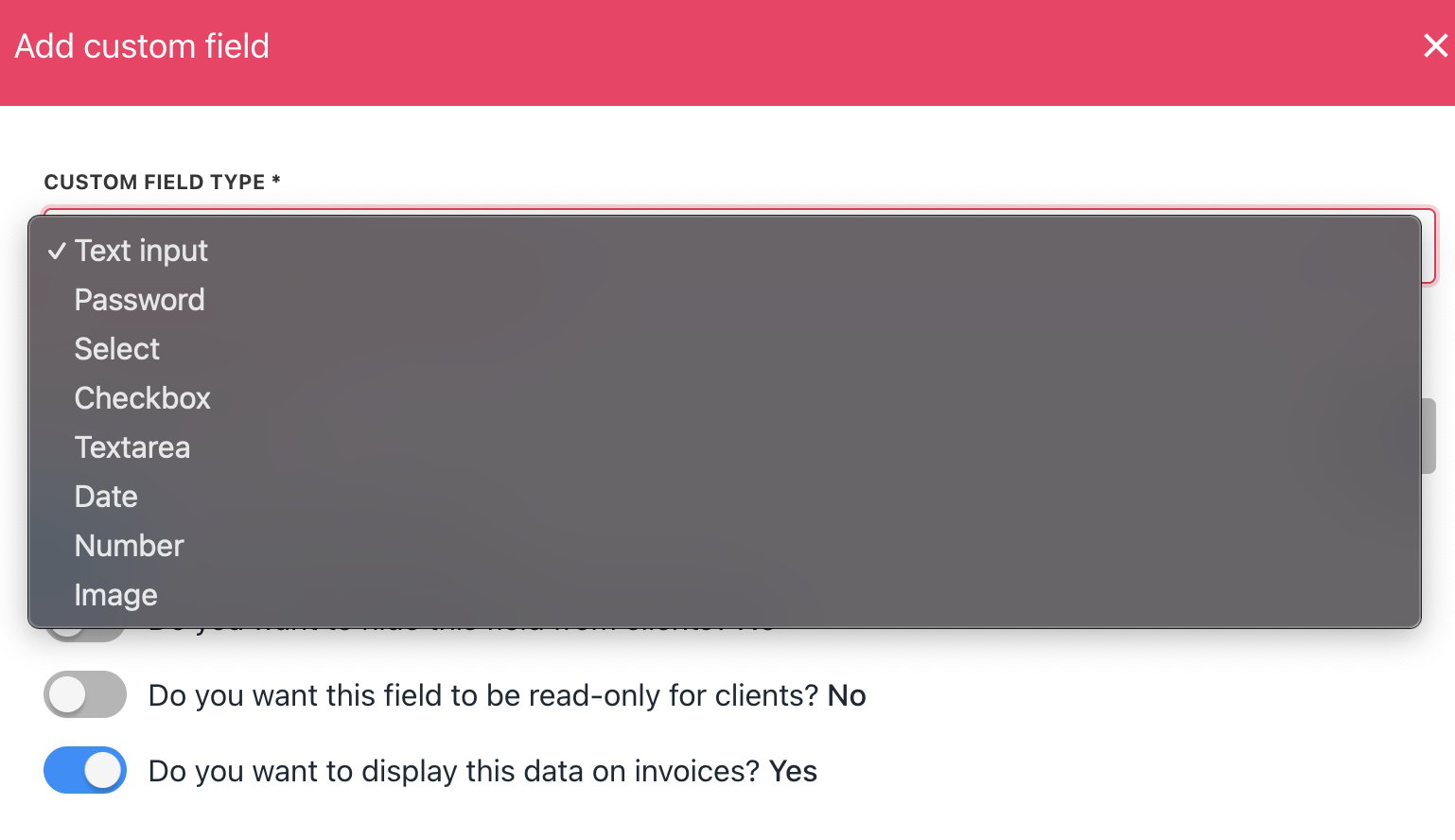
Custom field options
- Is this field required?
- Do you want to hide this field from clients?
- Do you want this field to be read only for clients?
- Do you want to display this data on invoices?
Text input
- A free form text field (ideal for short answers).

Text input
Password
- A password text field that obscures the data.

Enter password
Select
- Create a drop-down menu.
- Click the Add option button to add items to the drop-down menu.
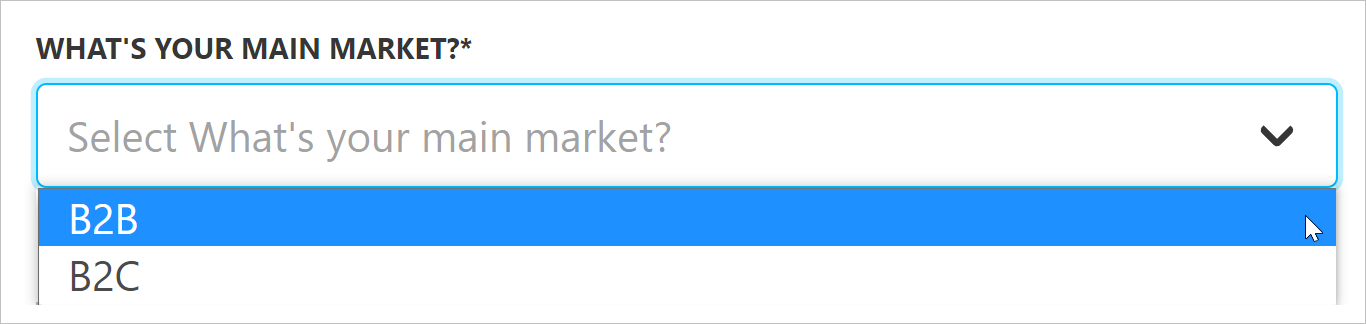
Select option
Checkbox
- A Yes - No tick box.
- A checked box means Yes.
- The default setting is unchecked (No).

Yes - No tick box.
Text area
- Clients enter a long-form response.
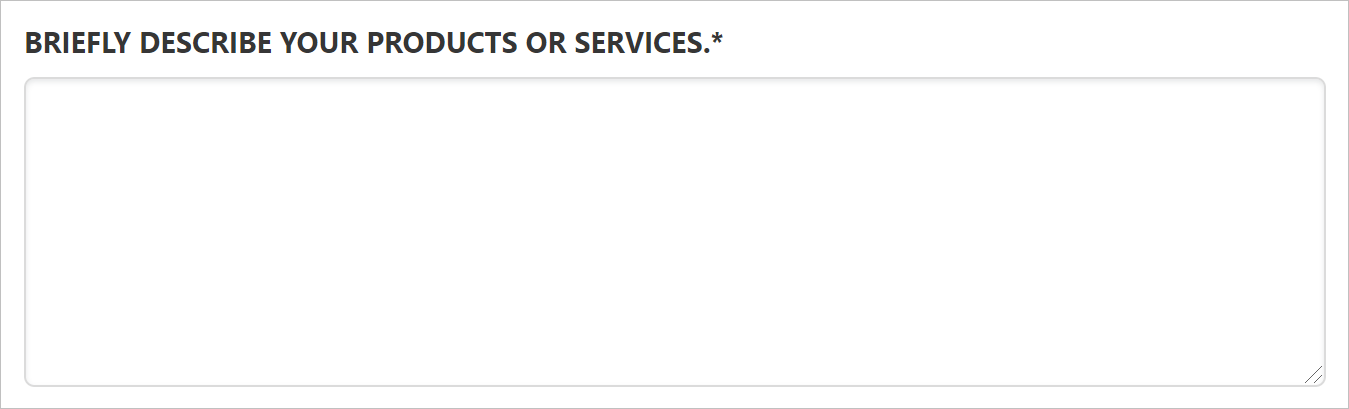
Text field
Date
- Clients click the field and enter a date with the calendar.
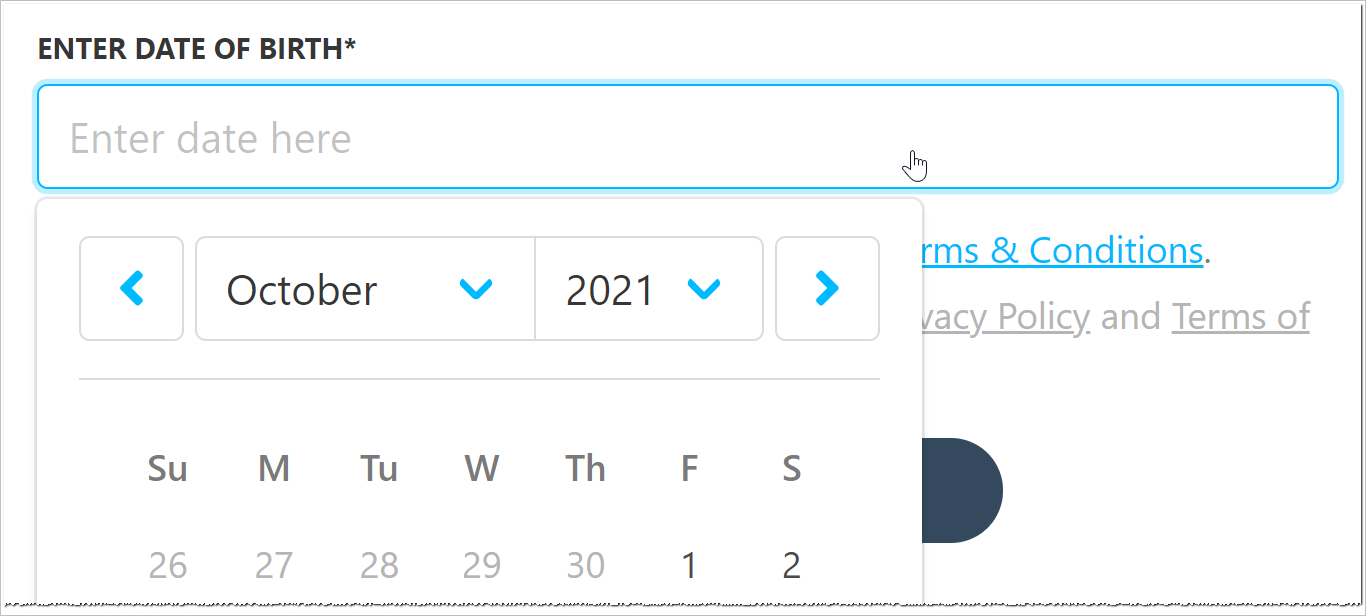
Enter a date
Number
- Clients click the field and enter a number.

Enter a number
Image
- Clients click the field and upload an image file.