

Opening Account Notes
- Log in to your account.
- Click Clients on the left menu.
- Click the Clients list menu tab.
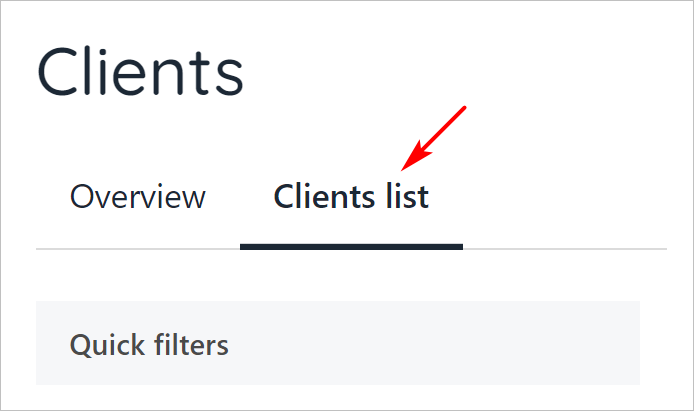
Clients list tab
- Scroll through the client list and click a name.
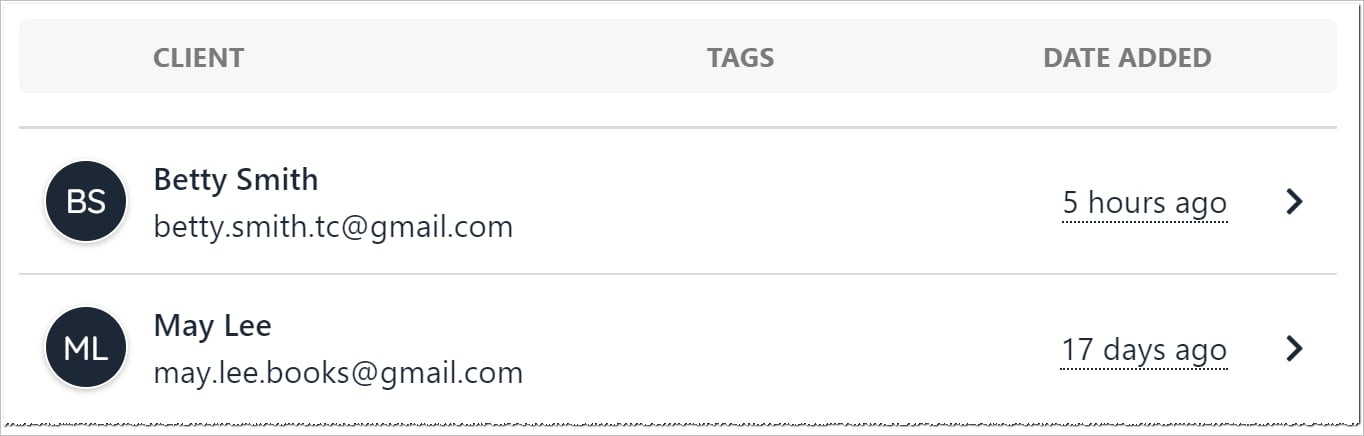
Client names
- On the Client overview page, enter text into the Account notes field.
- Click Save note.
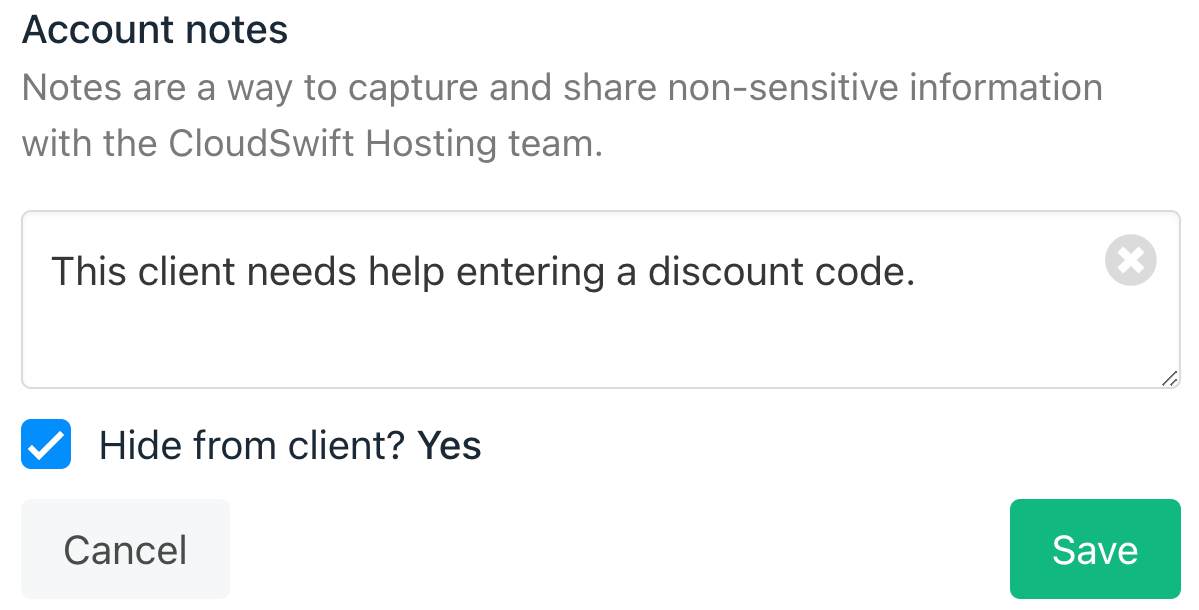
Notes field
Editing and Deleting Account Notes
Saved notes display under the Account Notes field. Each note can be edited or deleted by staff users.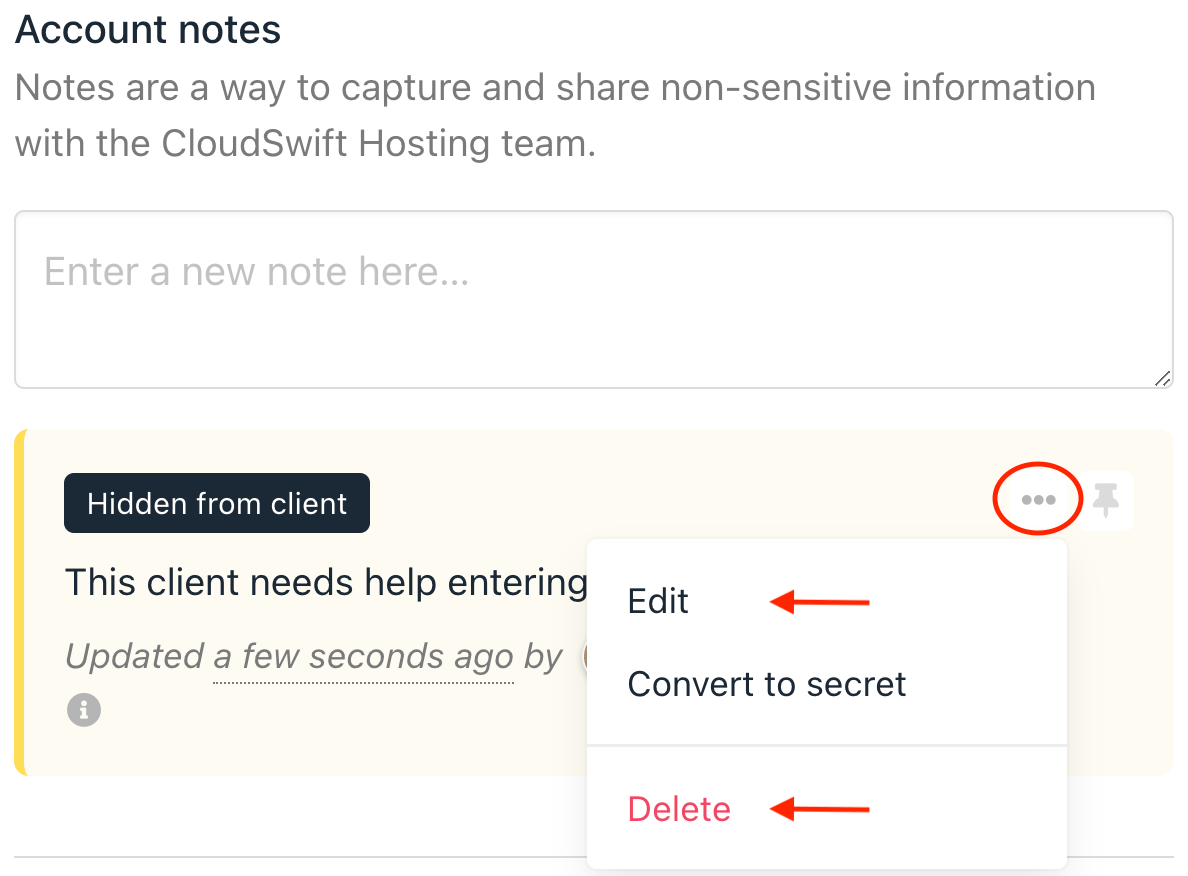
Edit note
Pinning a note
Click the Pin icon to keep the note close to the Account Notes field. Pinned notes do not move when admins or staff add notes to the list.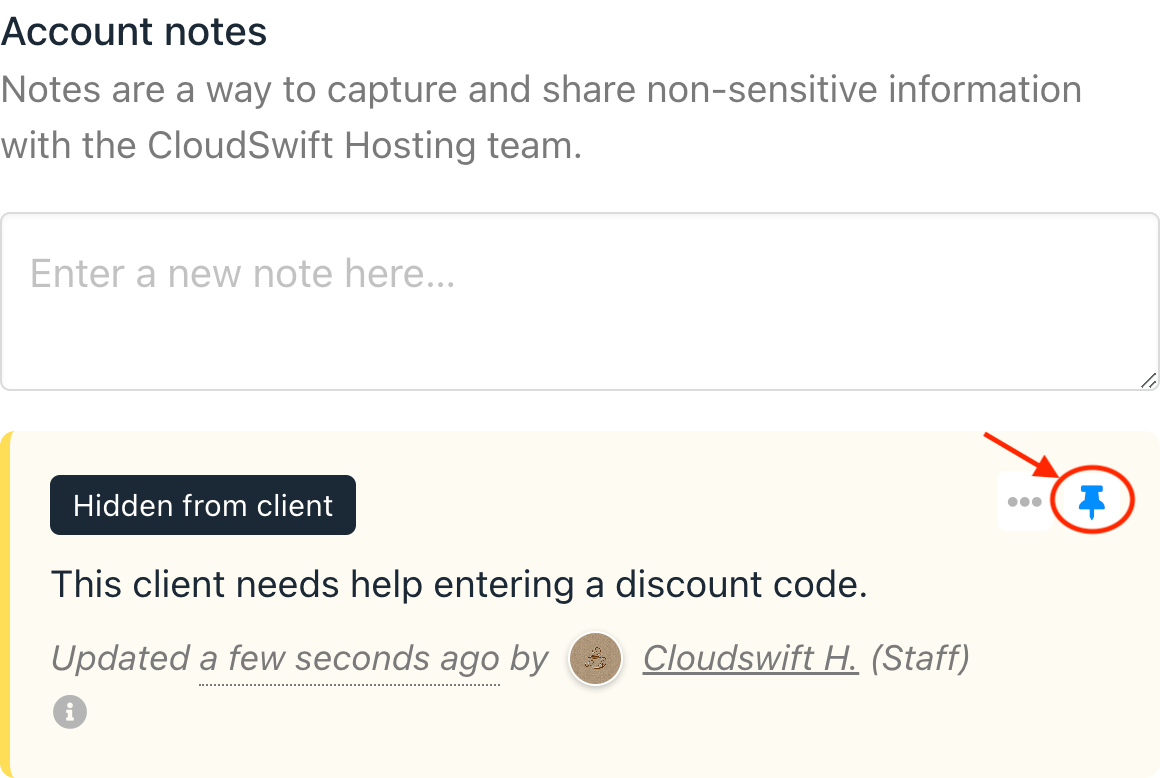
Pinned note
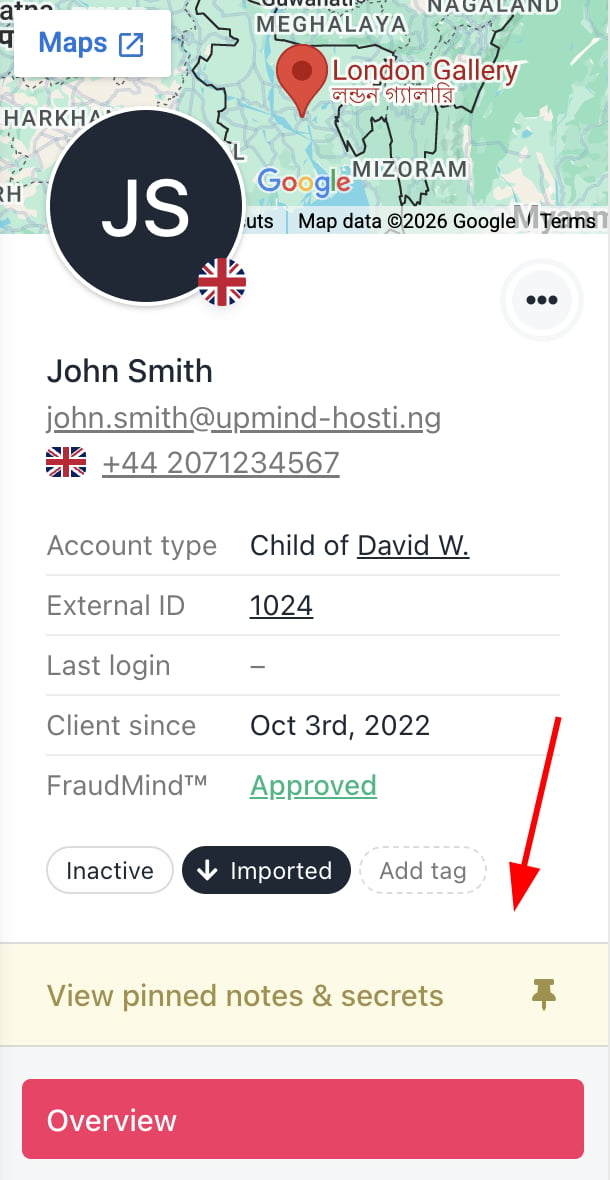
View notes
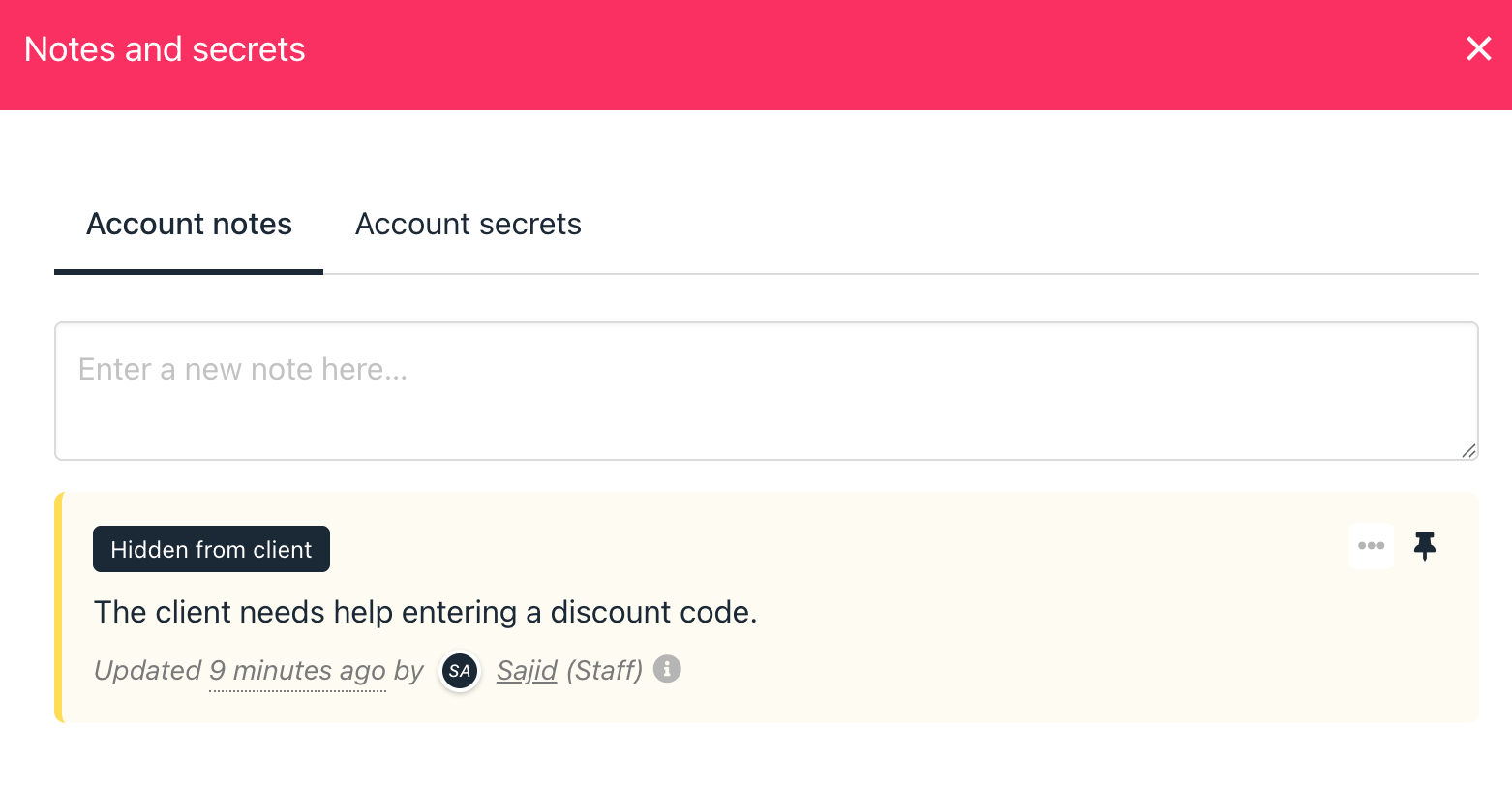
Creating Account Secrets
When you want to add Account Secrets to a client’s account, the steps are similar to adding Account Notes. However, you need to find the Account Secret field below the Account Notes.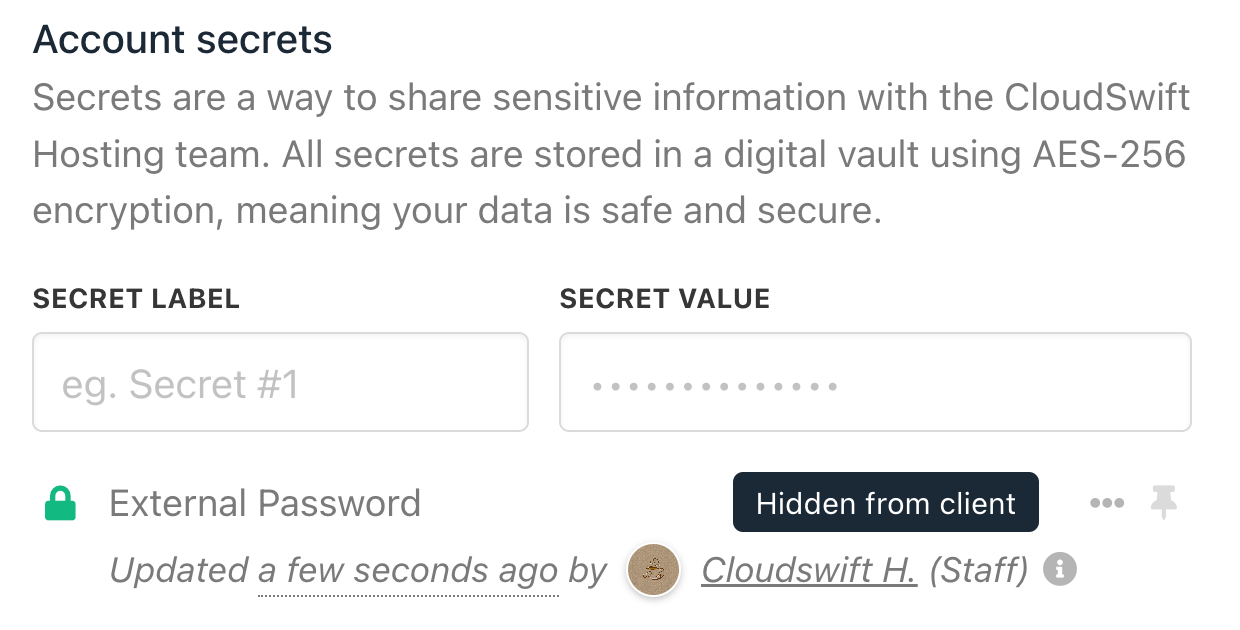
Account Secrets