

Access the automation page
- Log in to Upmind.
- Go to Settings > Actions under Automation.
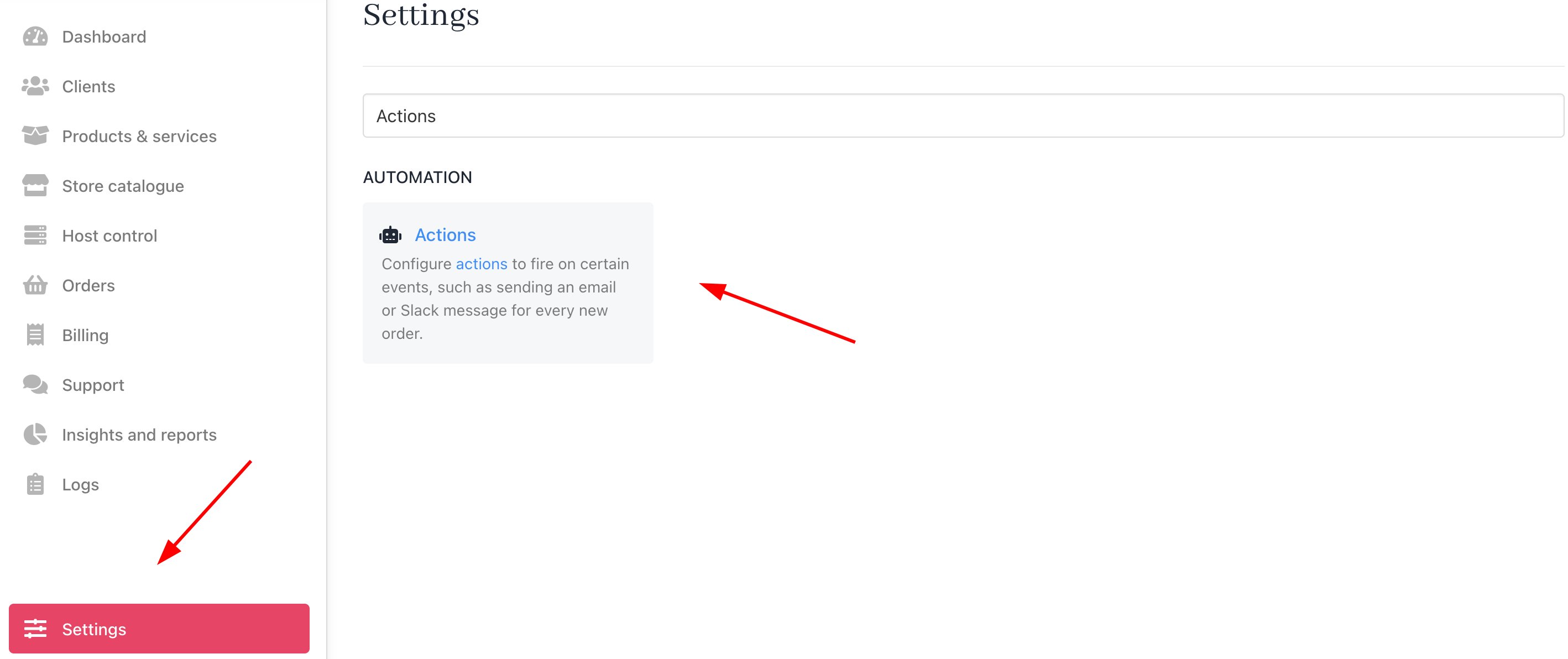
Settings > Automation > Actions
Review existing actions and triggers
Actions tab
Click the Actions tab to view all notifications (20+ defaults and custom actions, including Slack integrations). Click channel icons to see a list of all actions associated with that notification channel.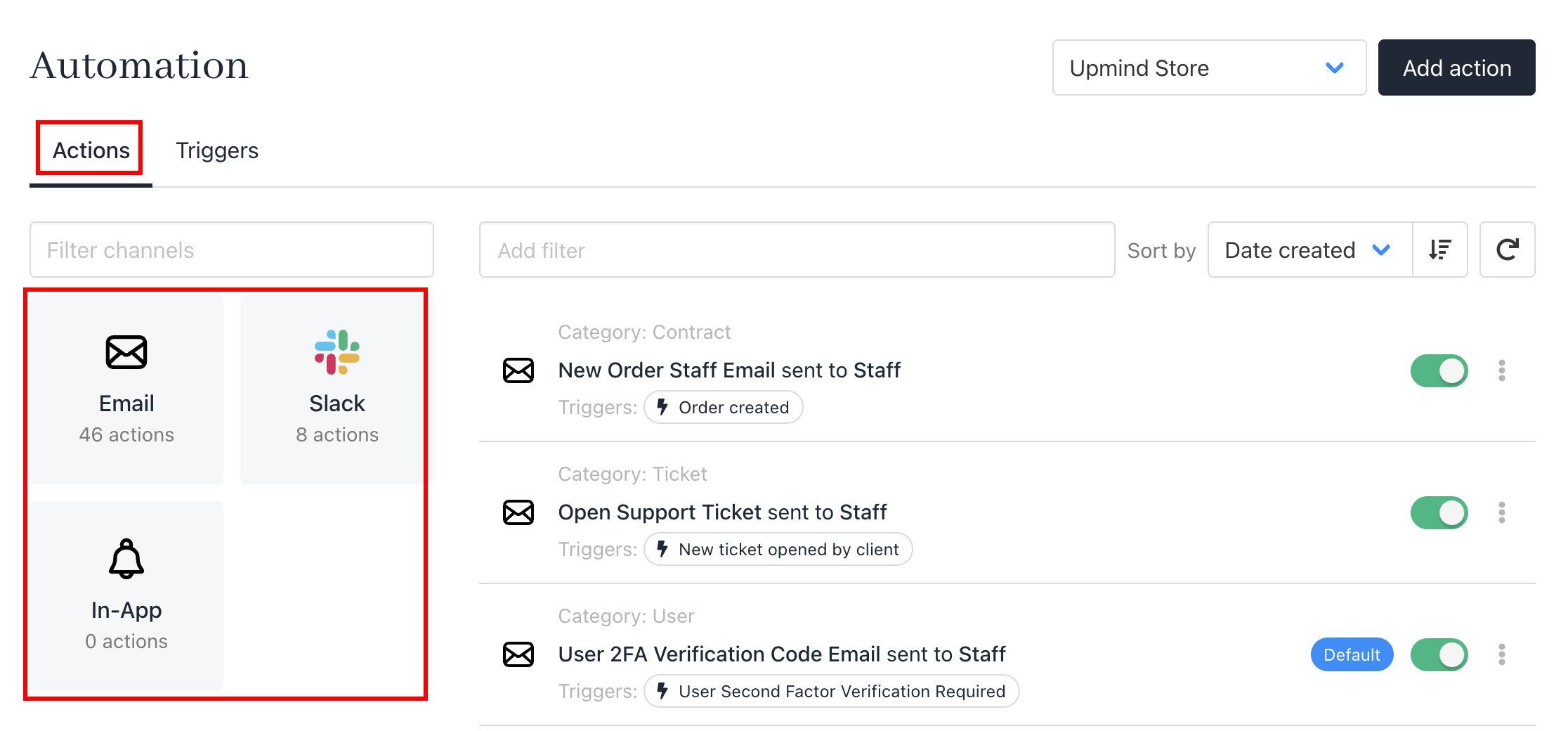
Actions tab
Triggers tab
Click the Triggers tab to browse 30+ categories, each with multiple specific events (e.g., 2–10+ per category).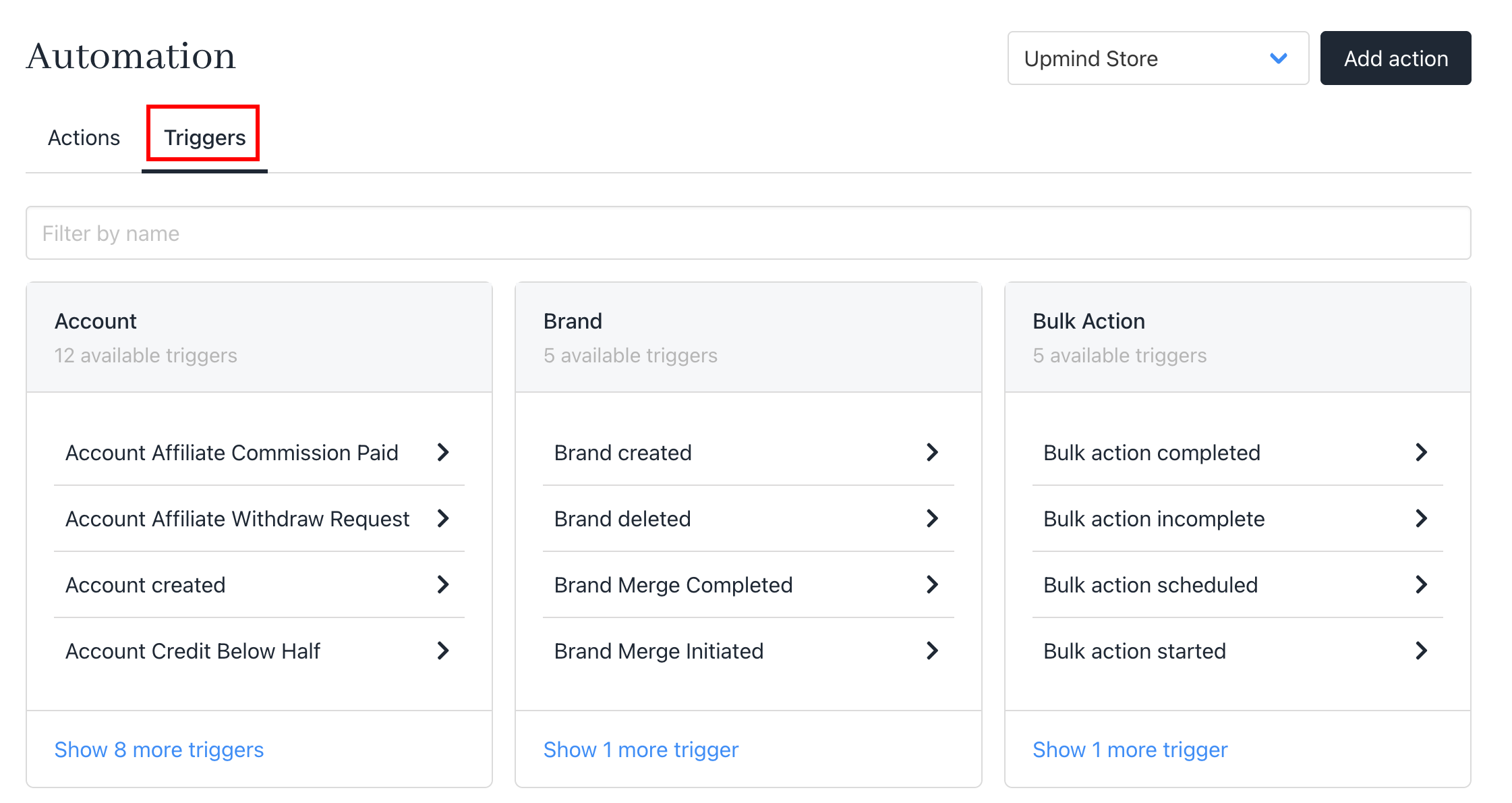
Triggers tab
Create a new action
- Select Actions tab > Add action.
- Toggle Enabled to
ON. (Default) - Name the action and choose a channel.
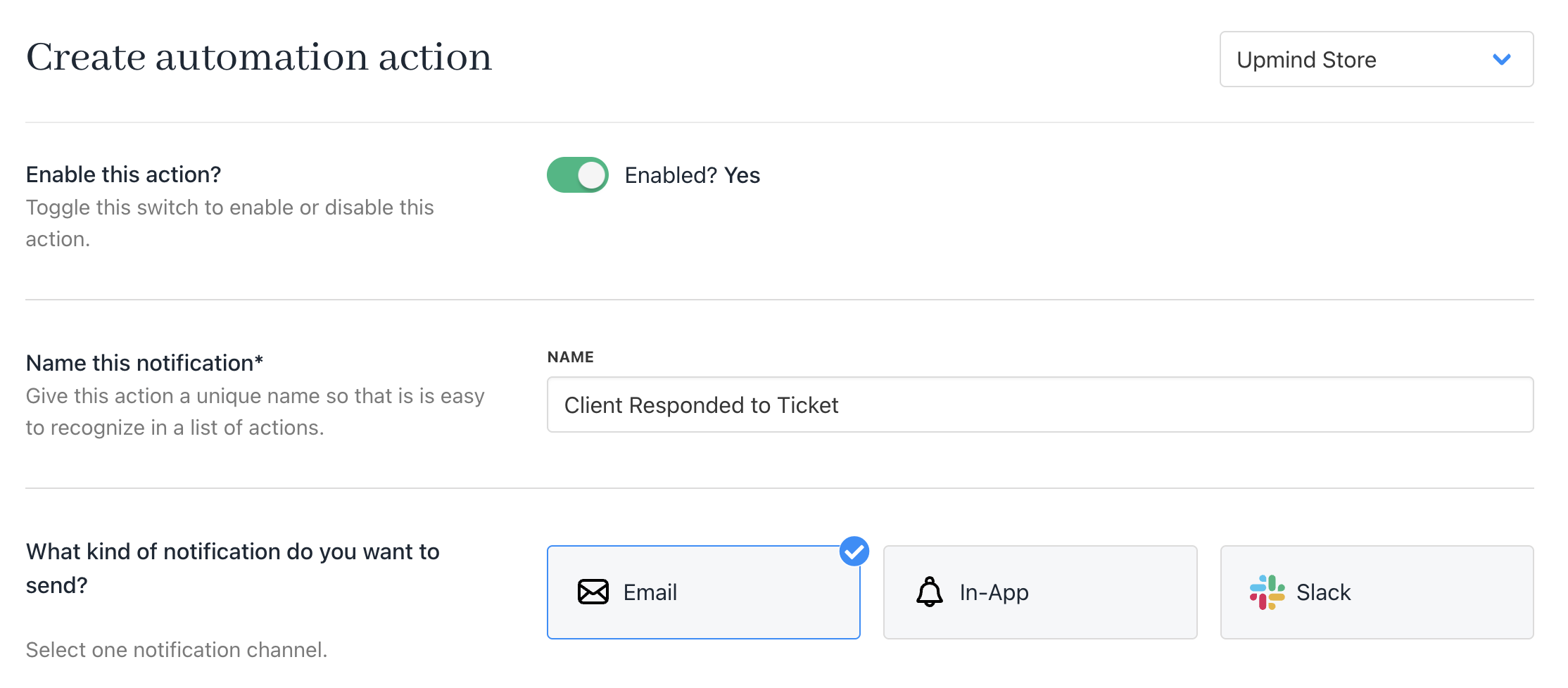
Create action
Add a trigger
- Click the trigger field, search if needed, and select one.
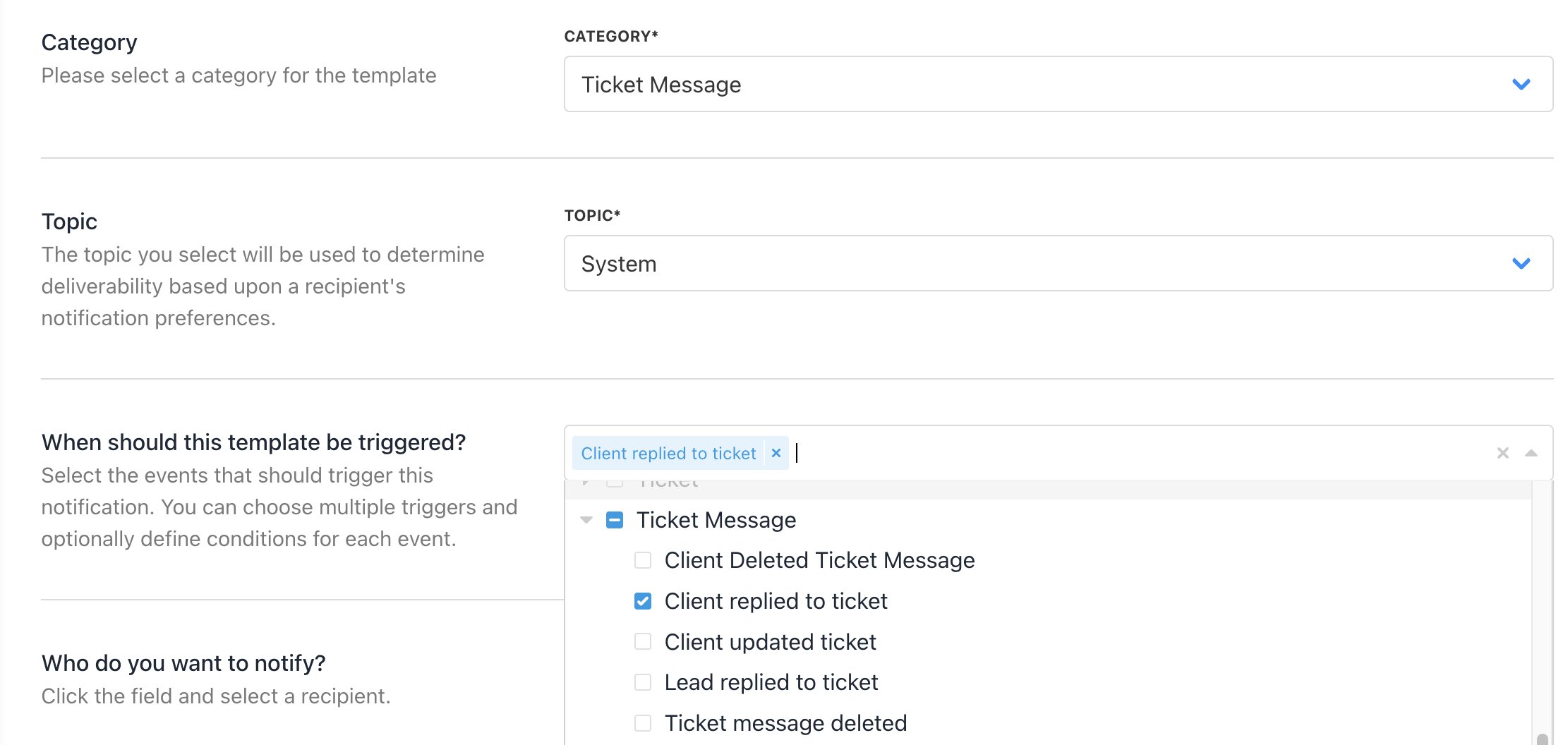
Add trigger
- Save. You can now manage the conditions of your trigger.

Manage conditions
The Manage Condition button will only appear after you save the action template.
Select recipients
ChooseWho do you want to notify? from the options.

Choose who to notify
The list of options varies with the notification channel and your current configuration.Example: There is only one option (Brand) for Slack.
Build the template
- Scroll to Template and create the message with Twig syntax for variables.
- Click Save.
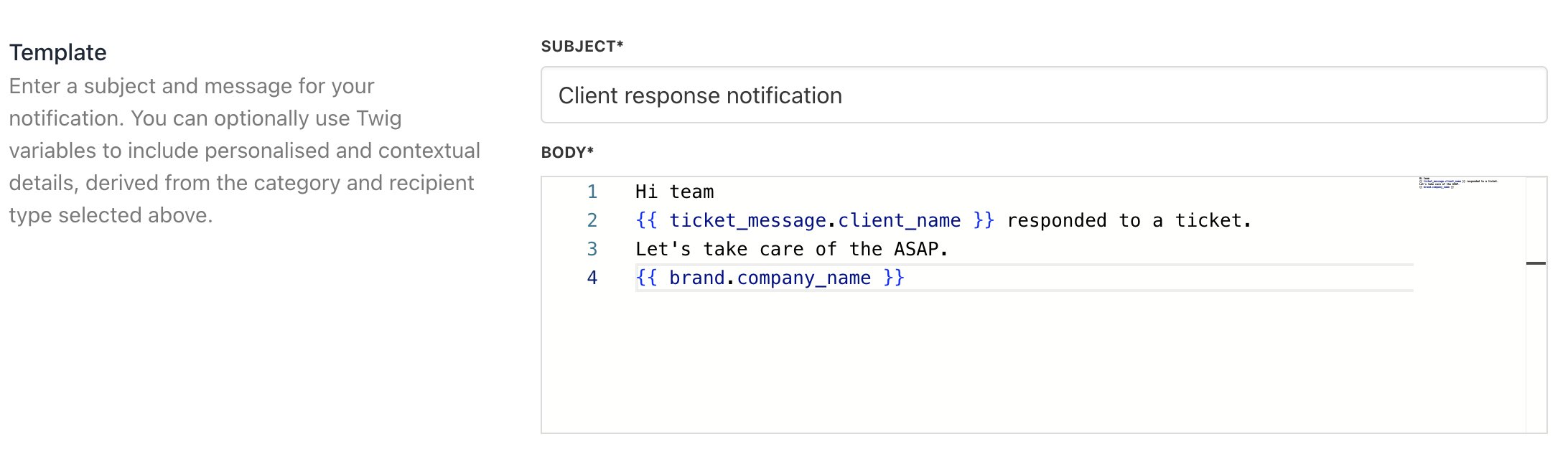
Insert Twig syntax
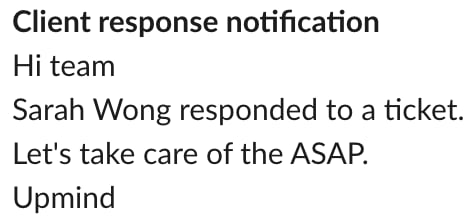
Final message
Edit or delete actions
- Go to the Actions tab.
- Click the three dot icon next to an action.
- Here you can view to Edit or Delete it.
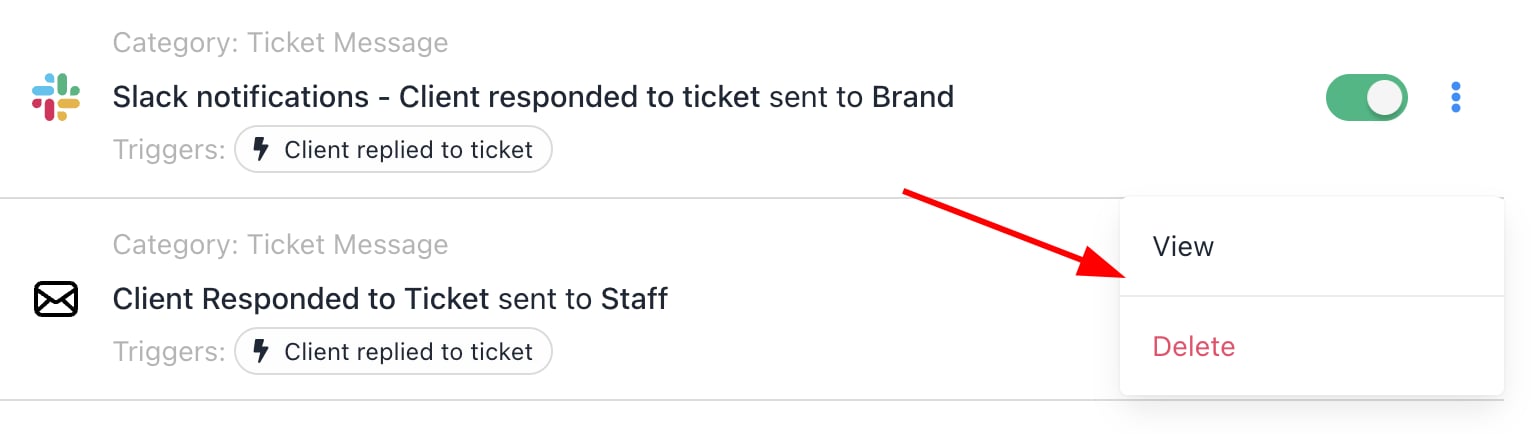
View or delete
Disable notifications
If you want to stop notifications from being sent to your clients, there are three methods you can use:For a specific client
- Go to Clients > Client Profile > Settings > Profile.
- Toggle Disable Email Notifications.
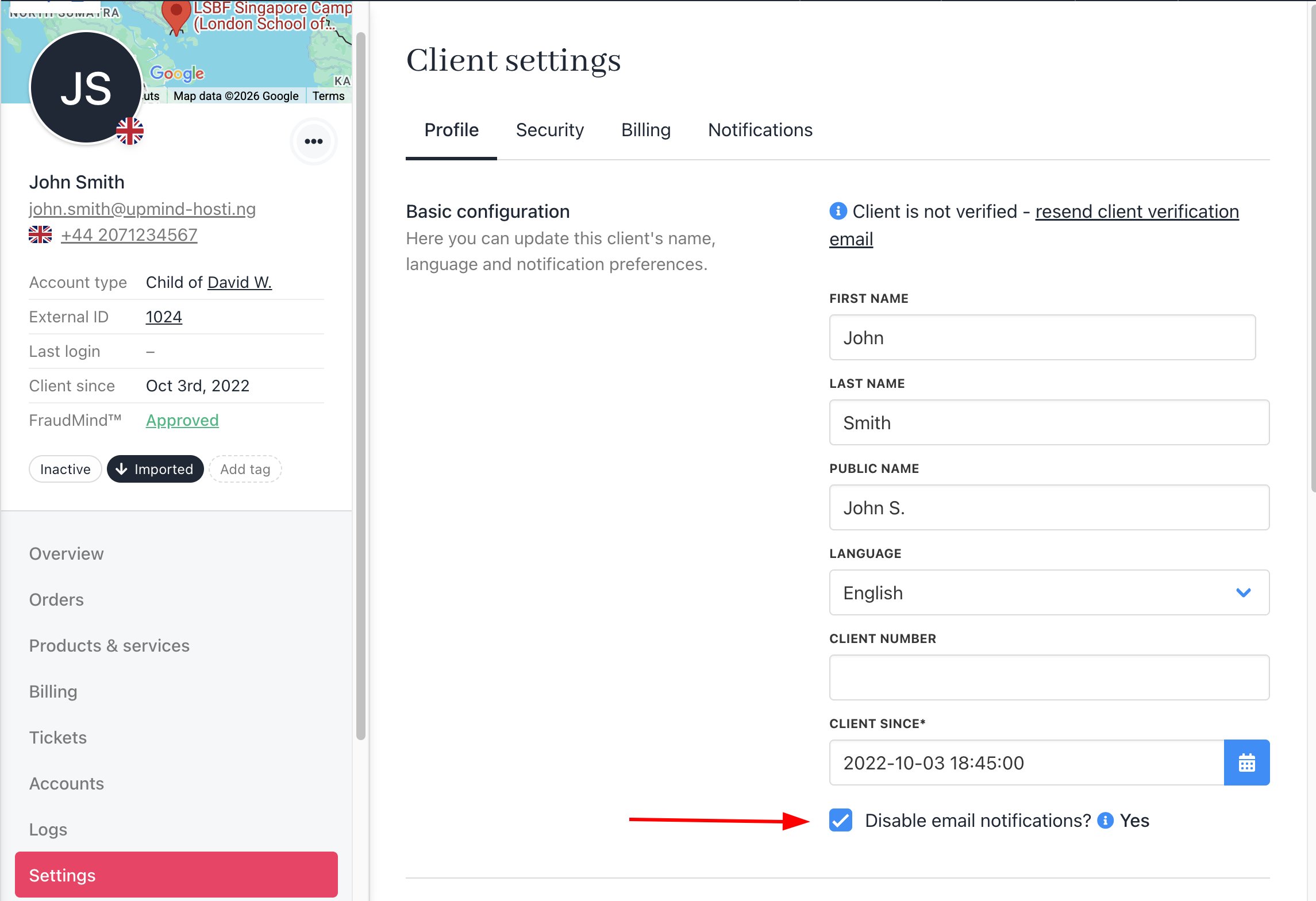
Disable email notifications
Per action
- Go to Settings > Actions.
- Choose an action and toggle Enabled to OFF.

Disable action