

Create a Webhook
- Visit the Slack help center.
- Create a new Slack app by clicking Sign Up and following the instructions.
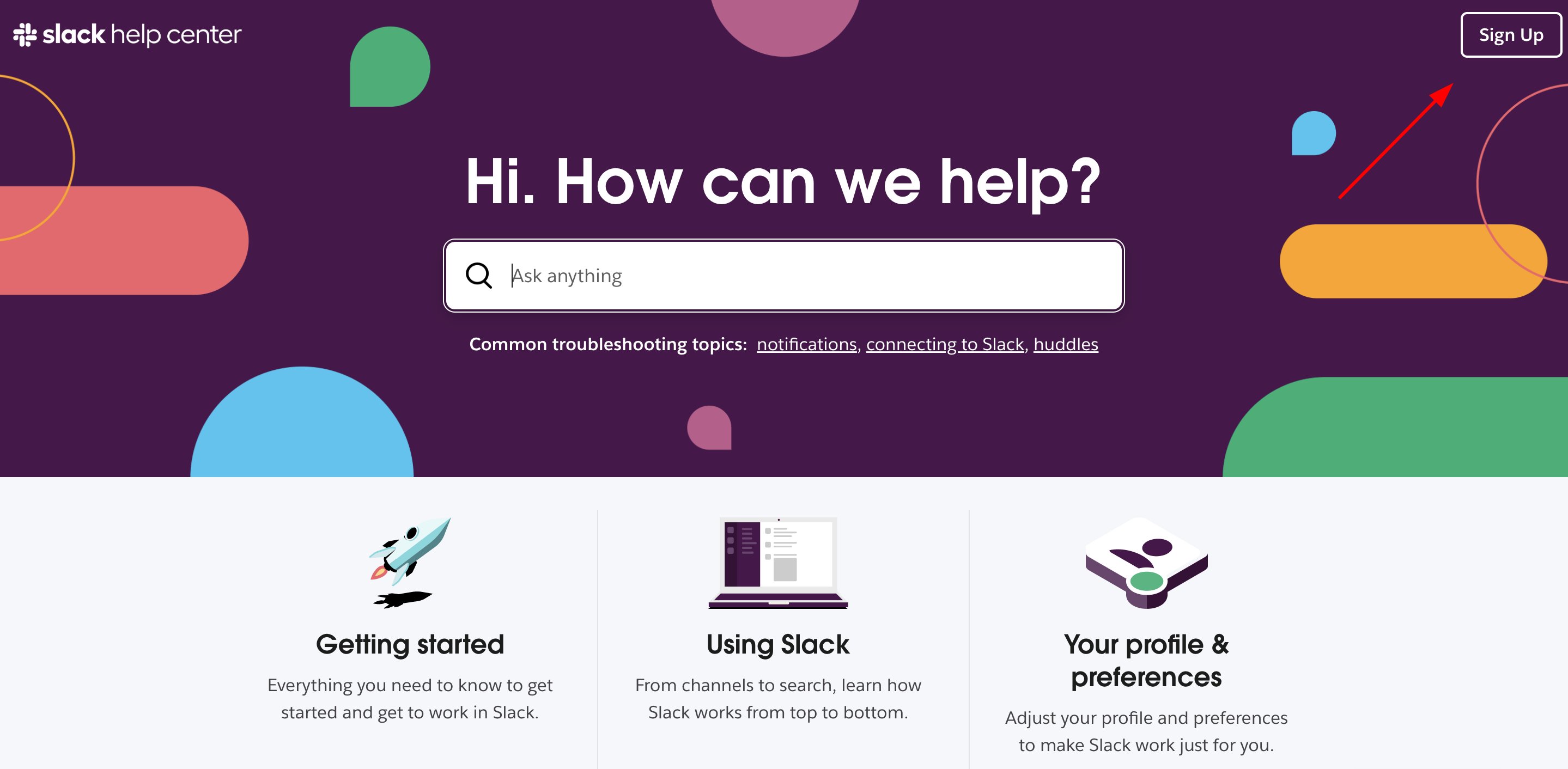
Slack help center
- In your Slack workspace, click the three dots icon and select Tools.
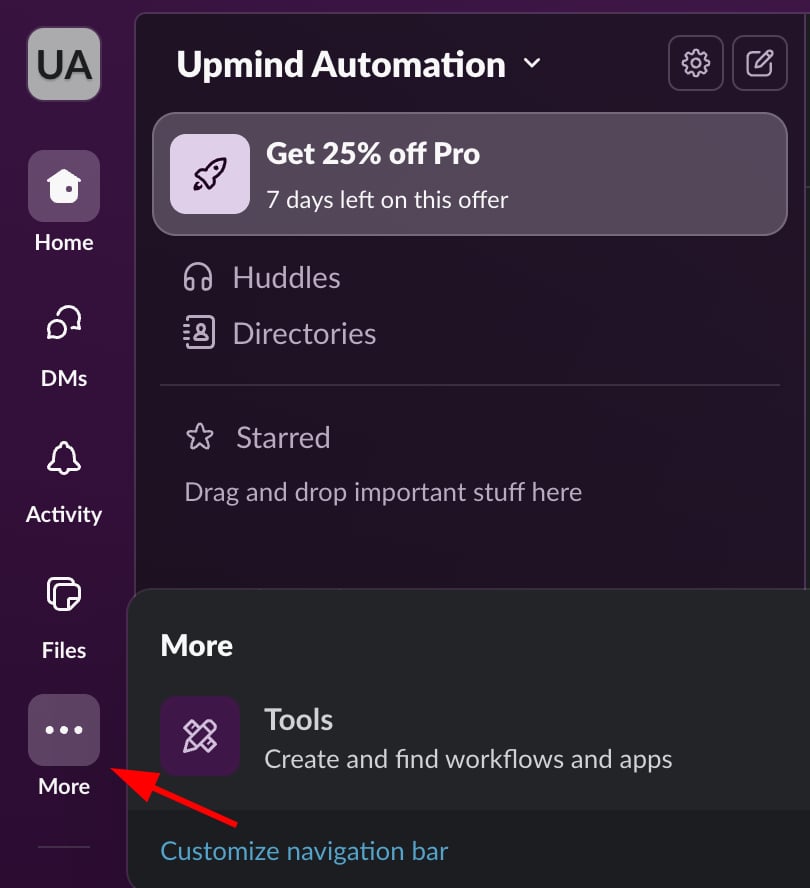
Tools
- Go to
Apps, search for Incoming Webhooks, click Install.
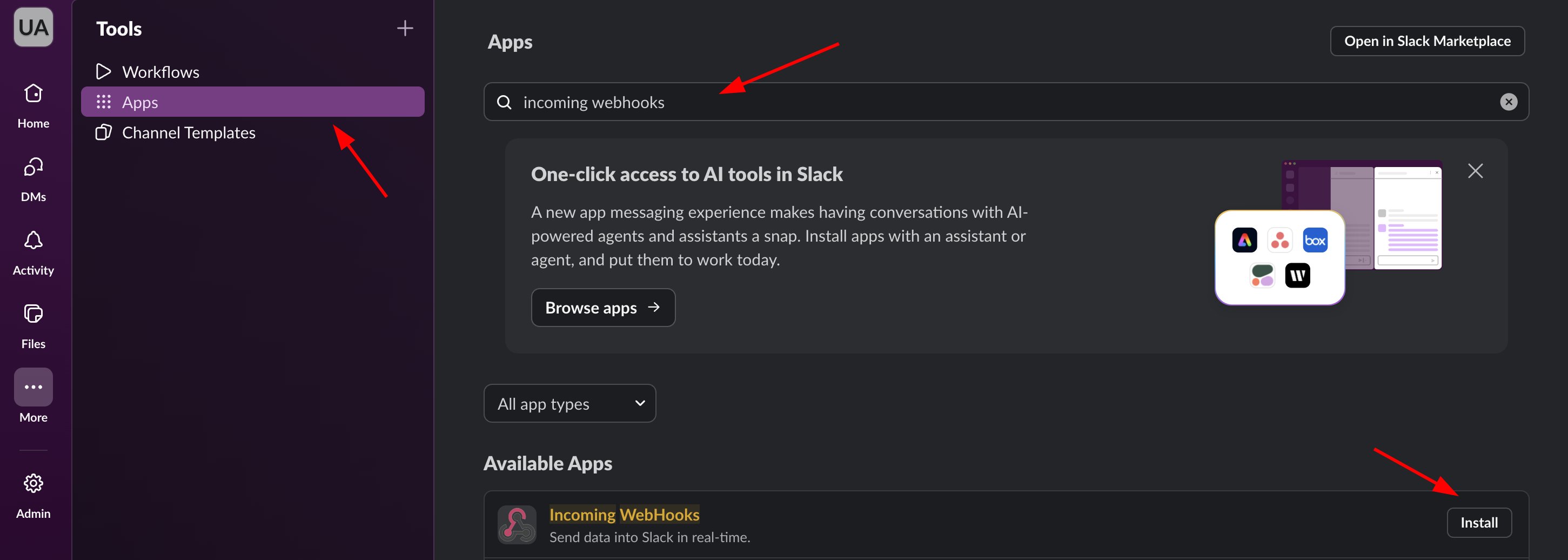
Install Incoming Webhooks
- Click Add to Slack.
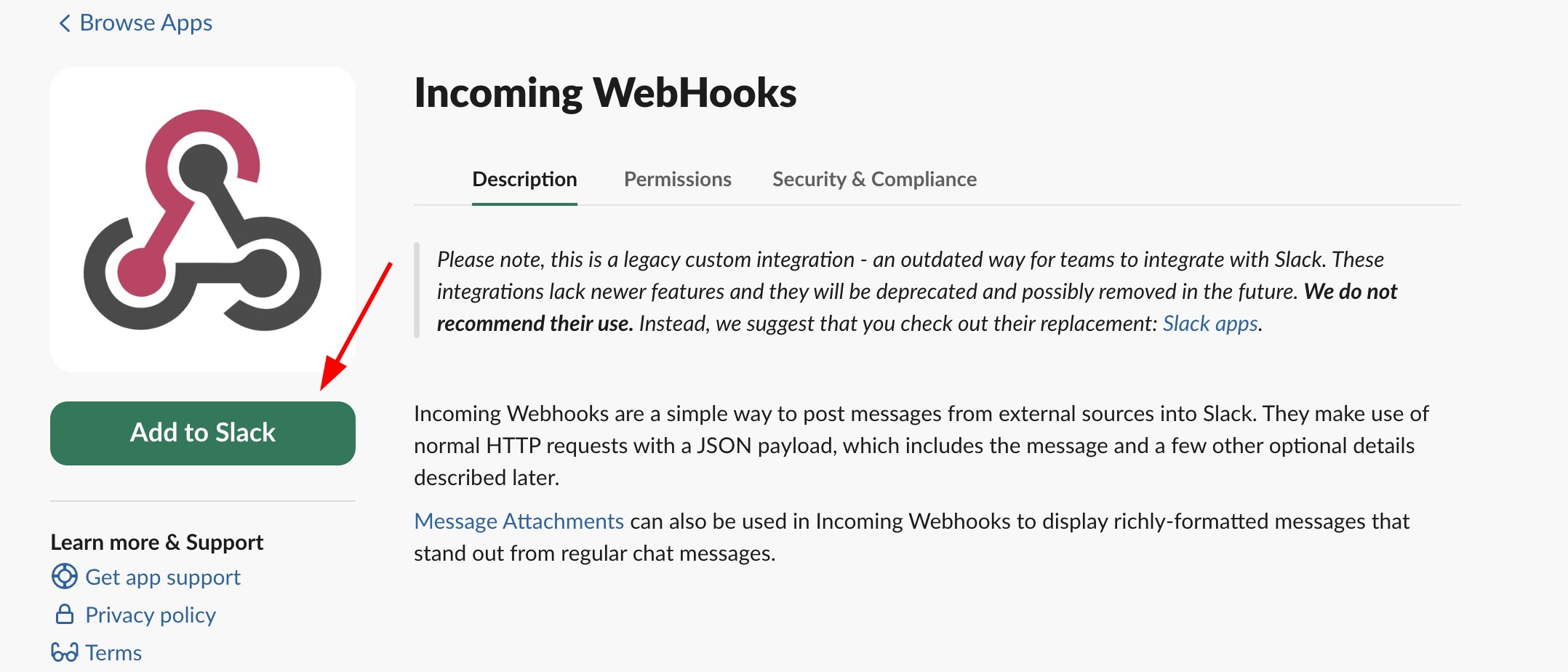
Add to Slack
- Choose the
channelunder Post to Channel (e.g., “ticket-notification”).
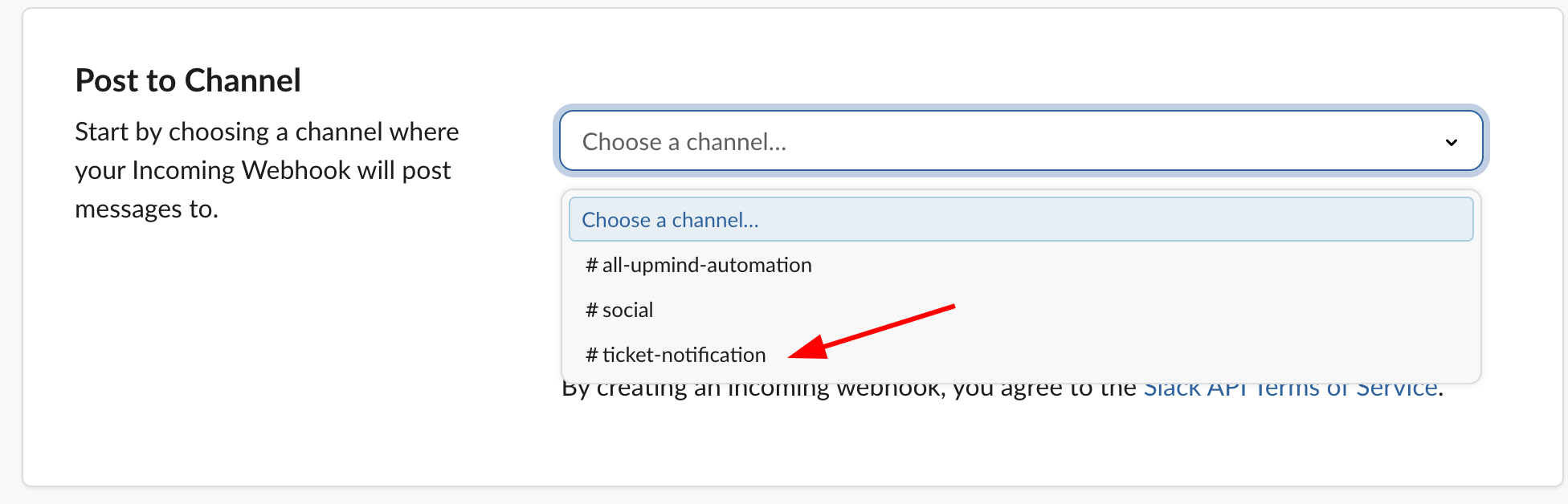
Post to channel
- Click Add Incoming Webhooks Integration.
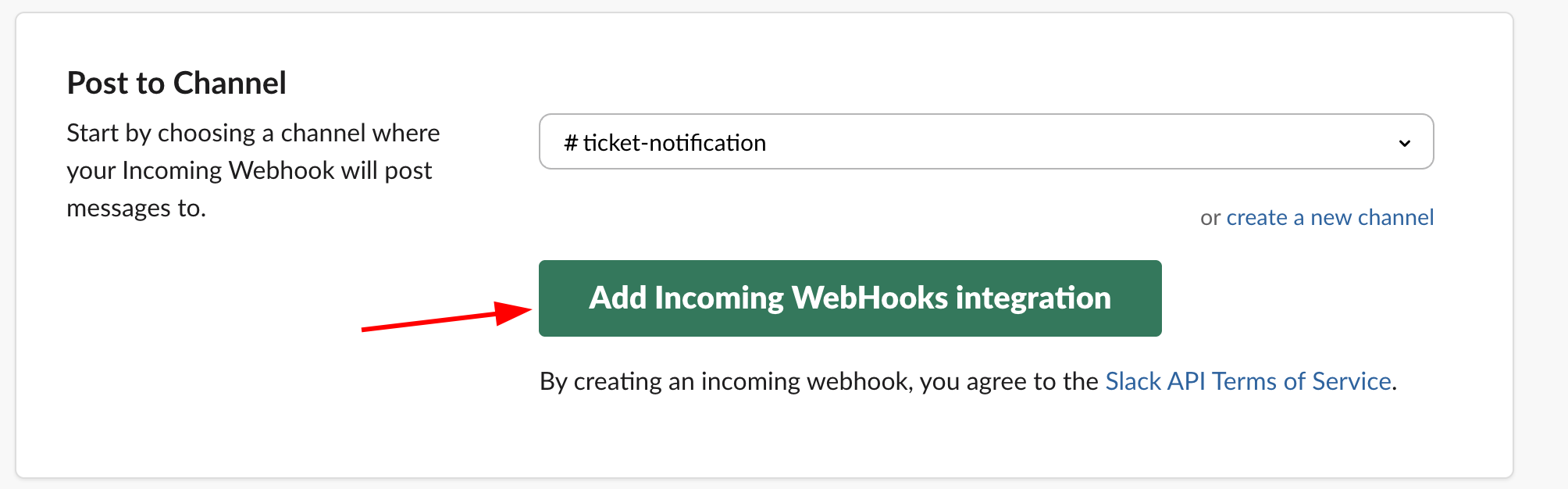
Add incoming Webhooks integration
- Copy the generated Webhook URL.

Copy Webhook URL
Insert the Webhook in Upmind
- Log in to your Upmind dashboard.
- Navigate to Settings > Notification channels under Automation.
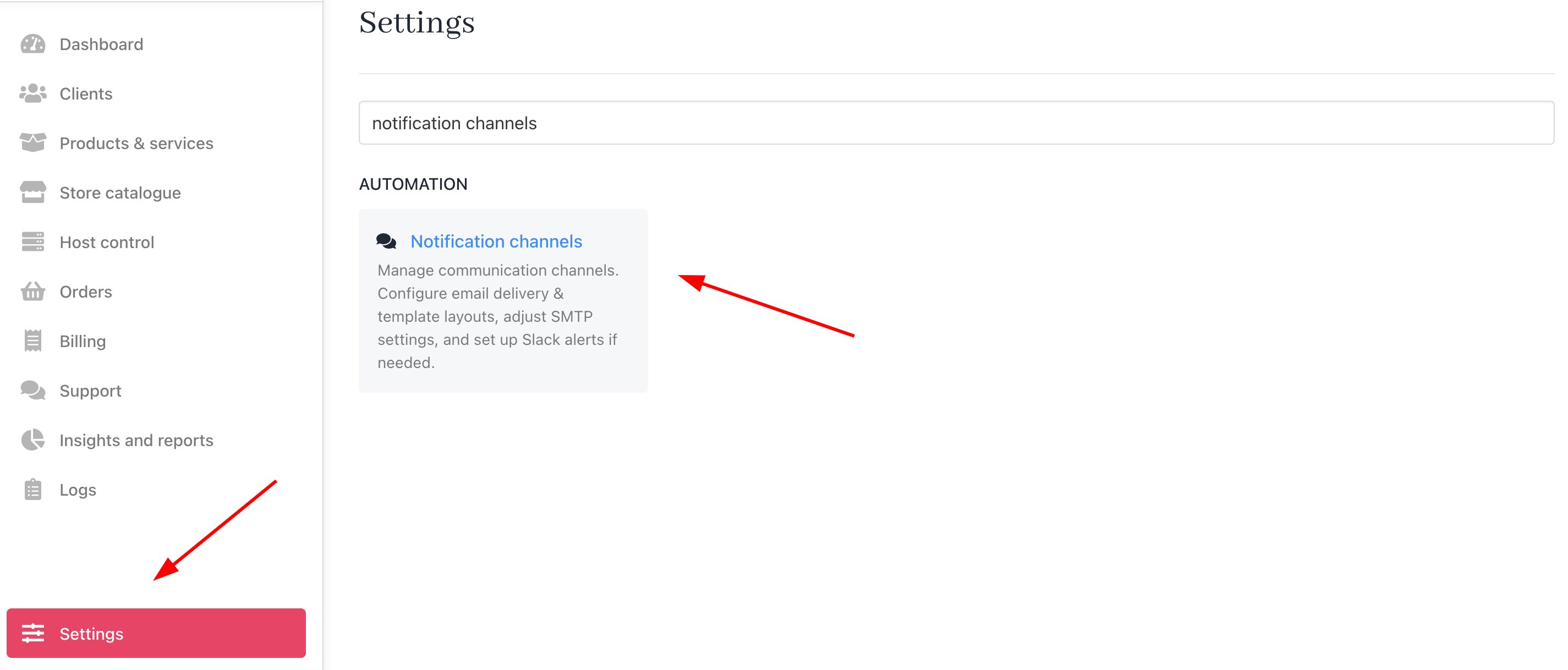
Settings > Automation > Notification Channels
- Go to the
Slack Channeland toggle the switch to ON. Paste the webhook URL into the field and click Save.

Toggle switch and paste Webhook URL