

- Text: The plain content visible to recipients.
- HTML: Enables rich formatting, branding, and layout control.
- Snippets of Twig code: Insert dynamic data (e.g., client name, invoice number) that updates for each recipient.
Accessing email templates
You can access the templates from Settings > Automation > Email Templates.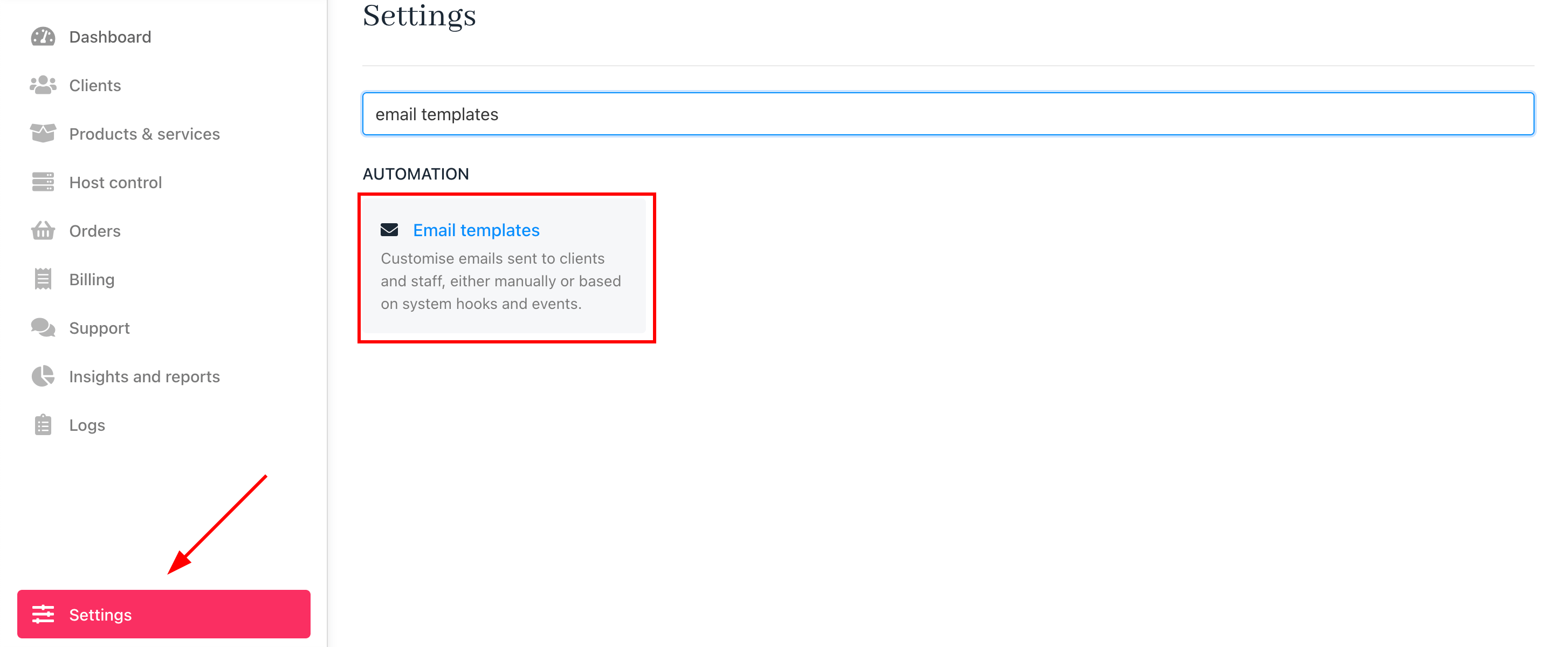
Settings > Email templates
Formatting text and HTML
Upmind supports basic formatting for the text in the body with standard HTML tags for headings, bold, italics, and links. You can also use “ for line breaks as needed. Combining HTML and plain text also helps to make the emails visually appealing and accessible.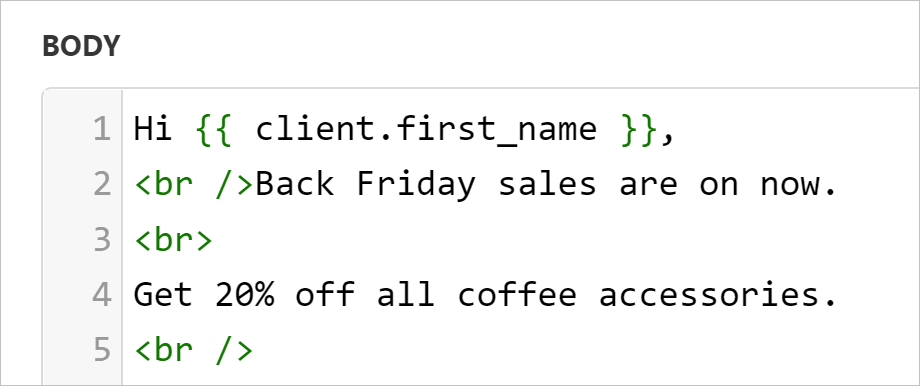
Use br / inside <> to insert line breaks
Adding Twig snippets
Twig is a flexible templating language for logic and formatting. It is used for conditional content, loops, and formatting dates or numbers. Code snippets personalise emails by inserting dynamic content that updates with live data from Upmind when recipients open the message.How to insert a snippet
- Scroll to the bottom of the template editor.
- Click a menu tab (e.g., Client, Invoice, Order) to view available snippets for that context. Each tab contains a unique set of related code snippets, with available options varying based on the message type you create.
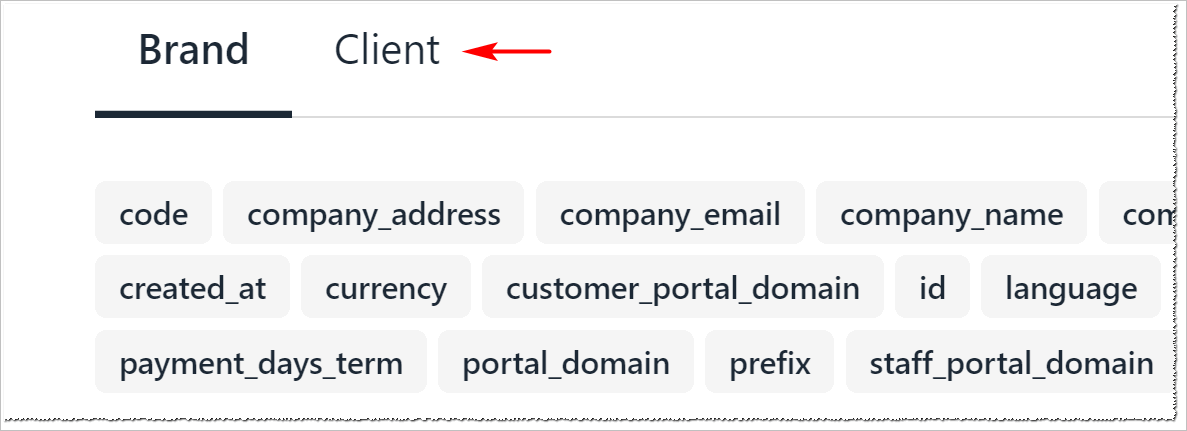
Menu tab
- Click a snippet to copy it to your clipboard.
- Paste the snippet into the Subject or Body field where you want the dynamic content to appear.
- You can also add snippets when you type
{{in the email body.
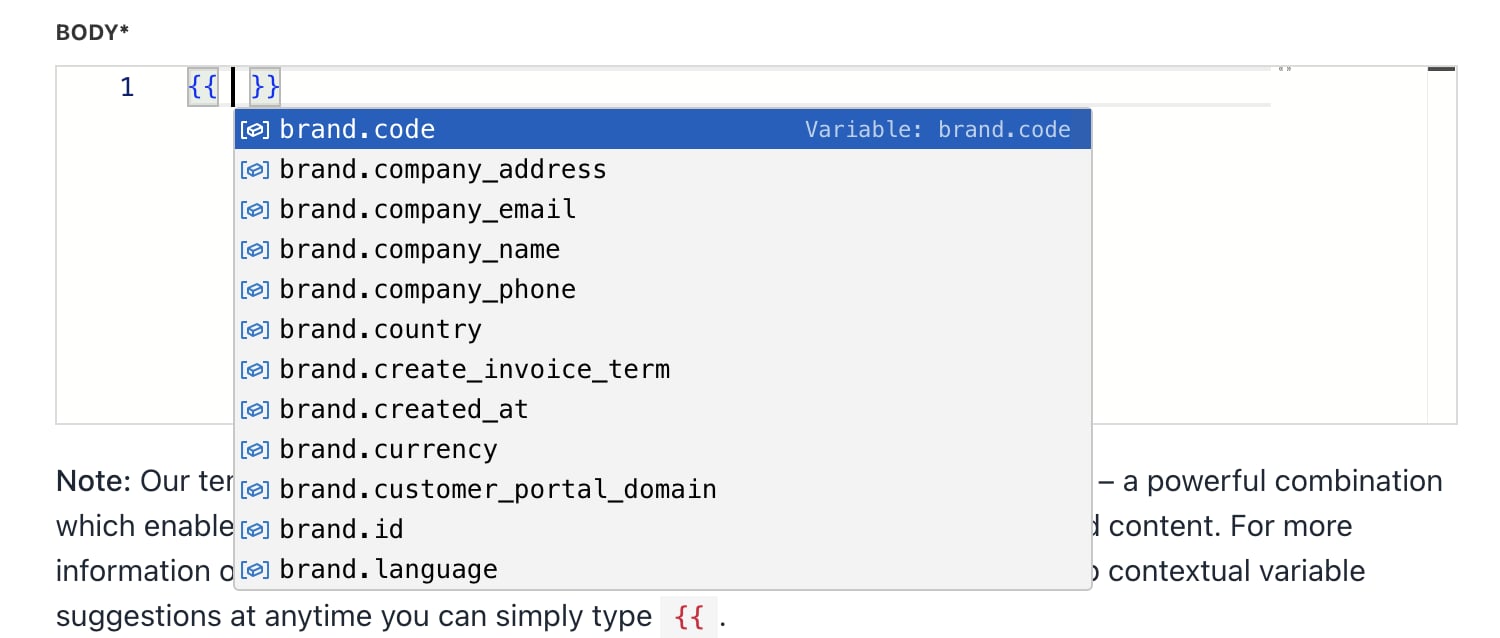
Add snippets
- Add as many snippets as needed to customise the message.
- Click Save to apply changes.
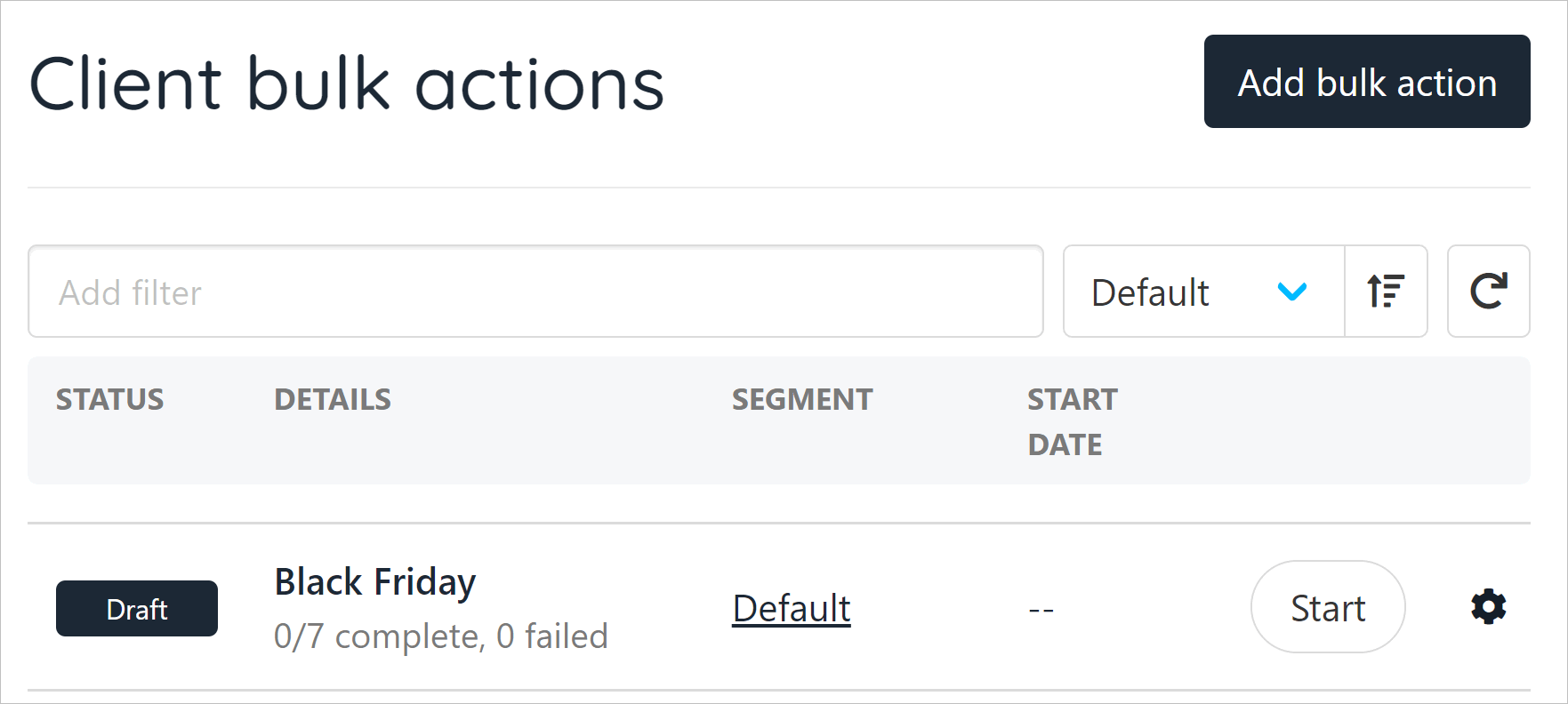
Draft bulk action template
Previewing and testing templates
- After saving, Upmind displays a preview of the message.
- Choose a client
- From the overview, under
Quick Actions, use the Send Email function to test your email and check formatting and dynamic content before activating the template. - Adjust as needed for different email clients and devices.

Clients > Quick actions > Send email
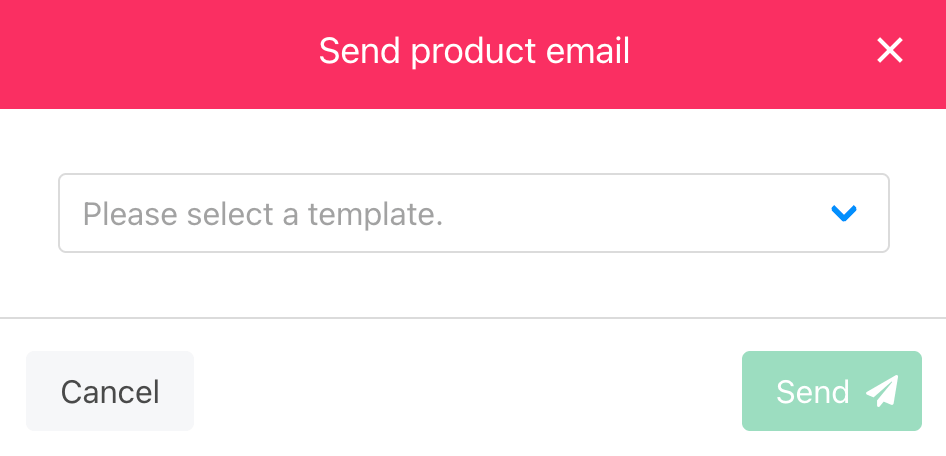
Send test email