

Opening the shop page
The first step is to open the Shop page. This is where clients can see your catalogue and read product information.- Log in to the store account.
- Click the Place new order menu tab.

Click Place new order tab
- On the next page, select a product category on the left menu (if available).
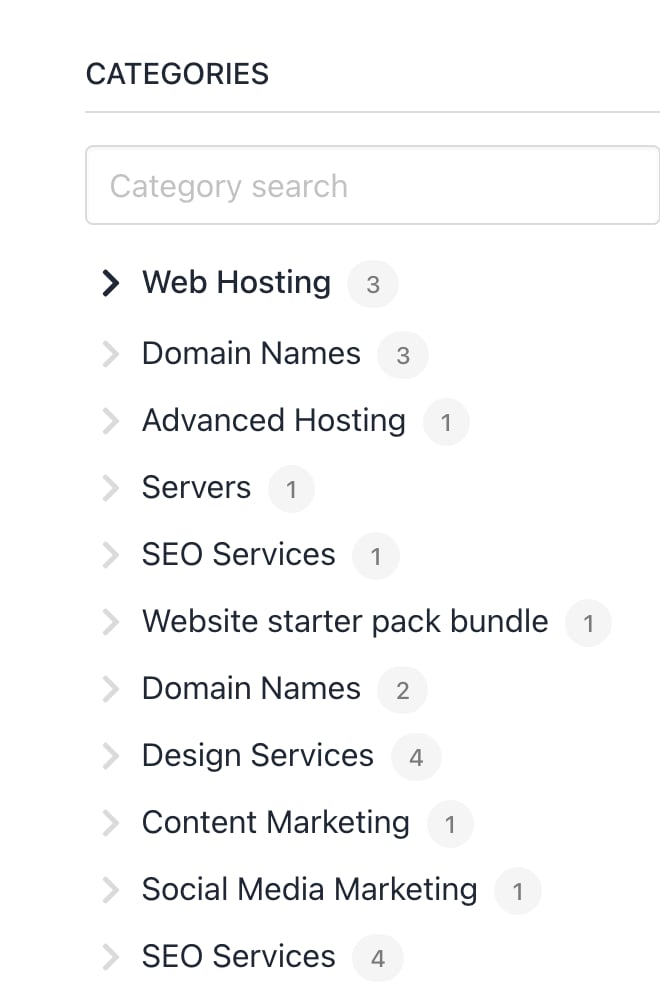
Select product category
Product information
Clients can read the product description and decide whether or not to buy the product. At this point, clients have two options:- Click the button to add the product to the basket.
- Click the back button to exit the product information page and return to the catalogue.
Clients can click the image (if available) to open the product information page.
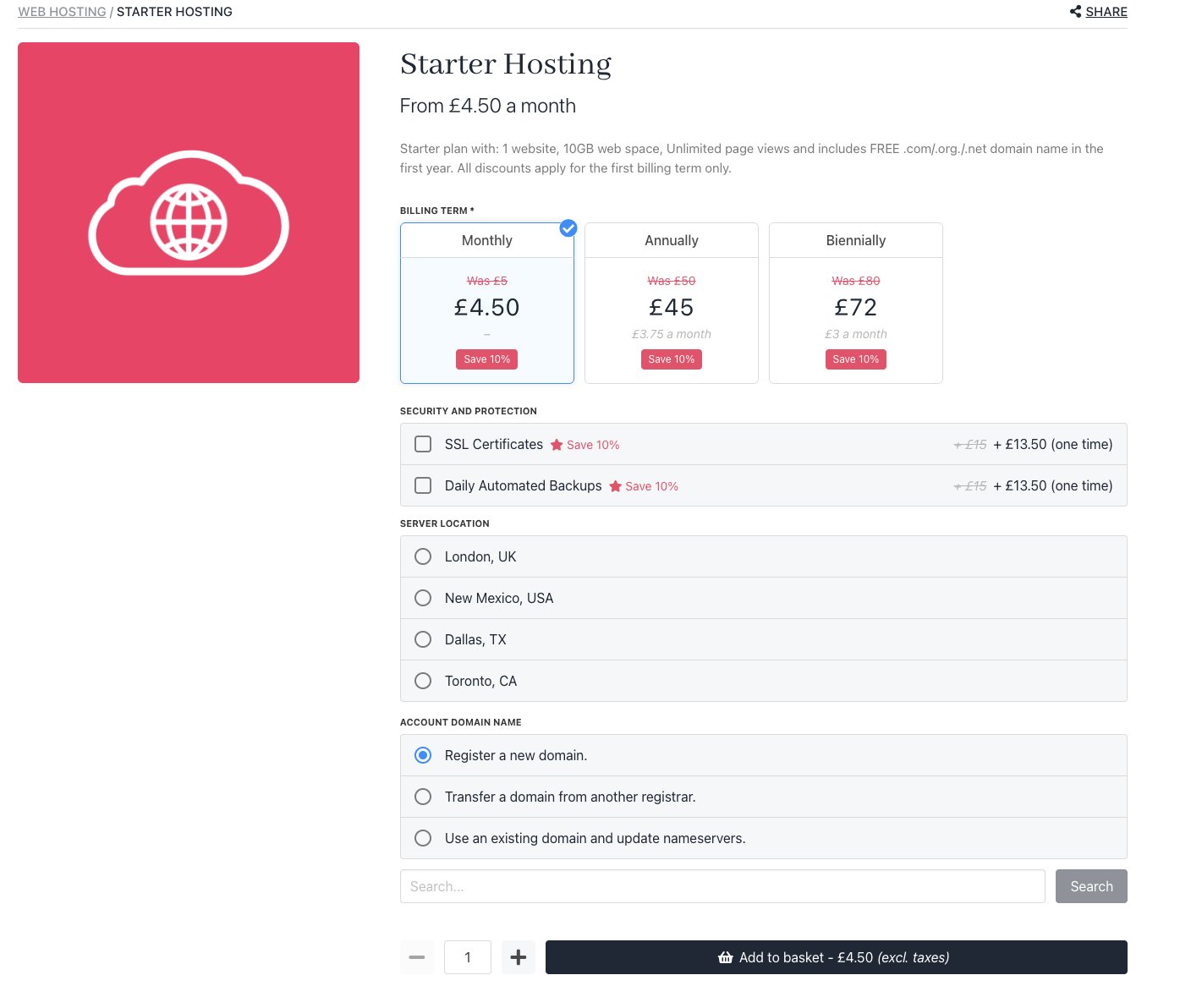
Add to basket or go back
Understanding the basket page
On the Basket page, clients have several options.- Click the Trash icon to remove the item.
- Add information to the custom field (if created by the store owner).
- Click the Continue shopping button.
- Add a discount code, if available.
- Click the Continue to checkout button to complete the transaction.
This is the client’s last chance to confirm the items in the basket before paying.
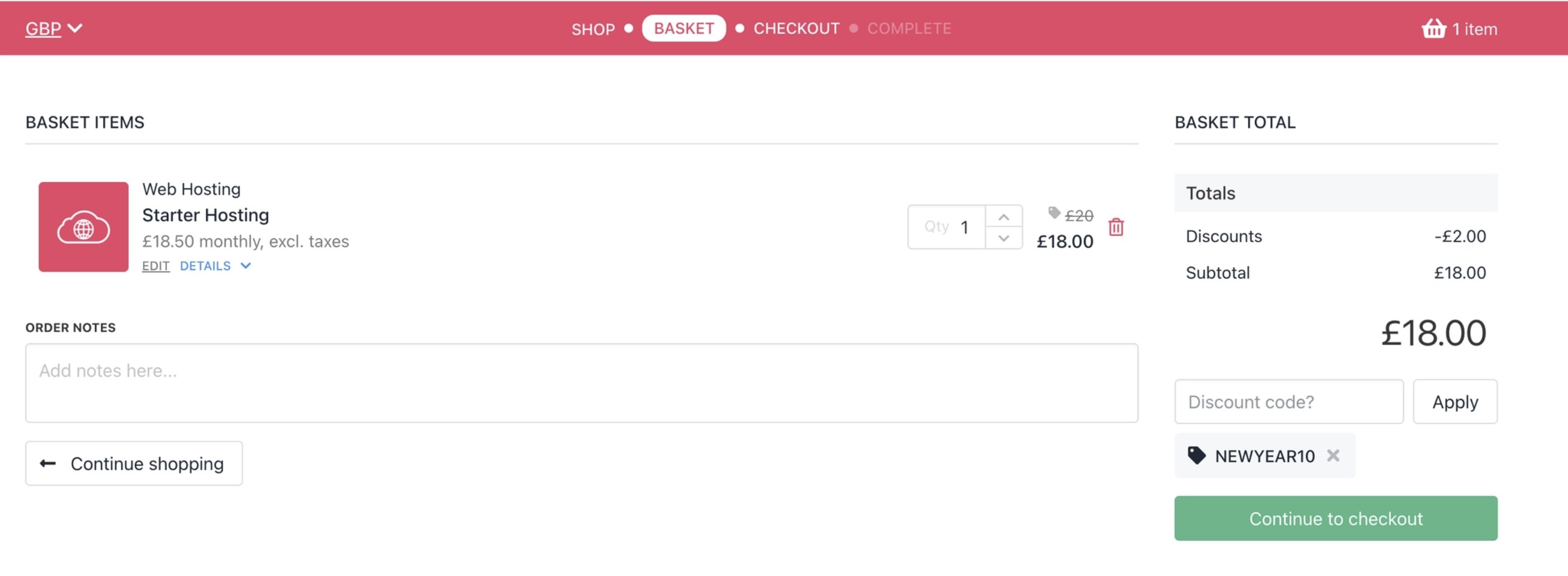
Confirm product details
Understanding the checkout page
The client-side Checkout page design depends on how the store owner configures store settings. Generally, clients should complete four steps.- Confirm or edit the shopping address.
- Add or confirm the payment method.
- Add a discount code, if available.
- Click Place order & pay.
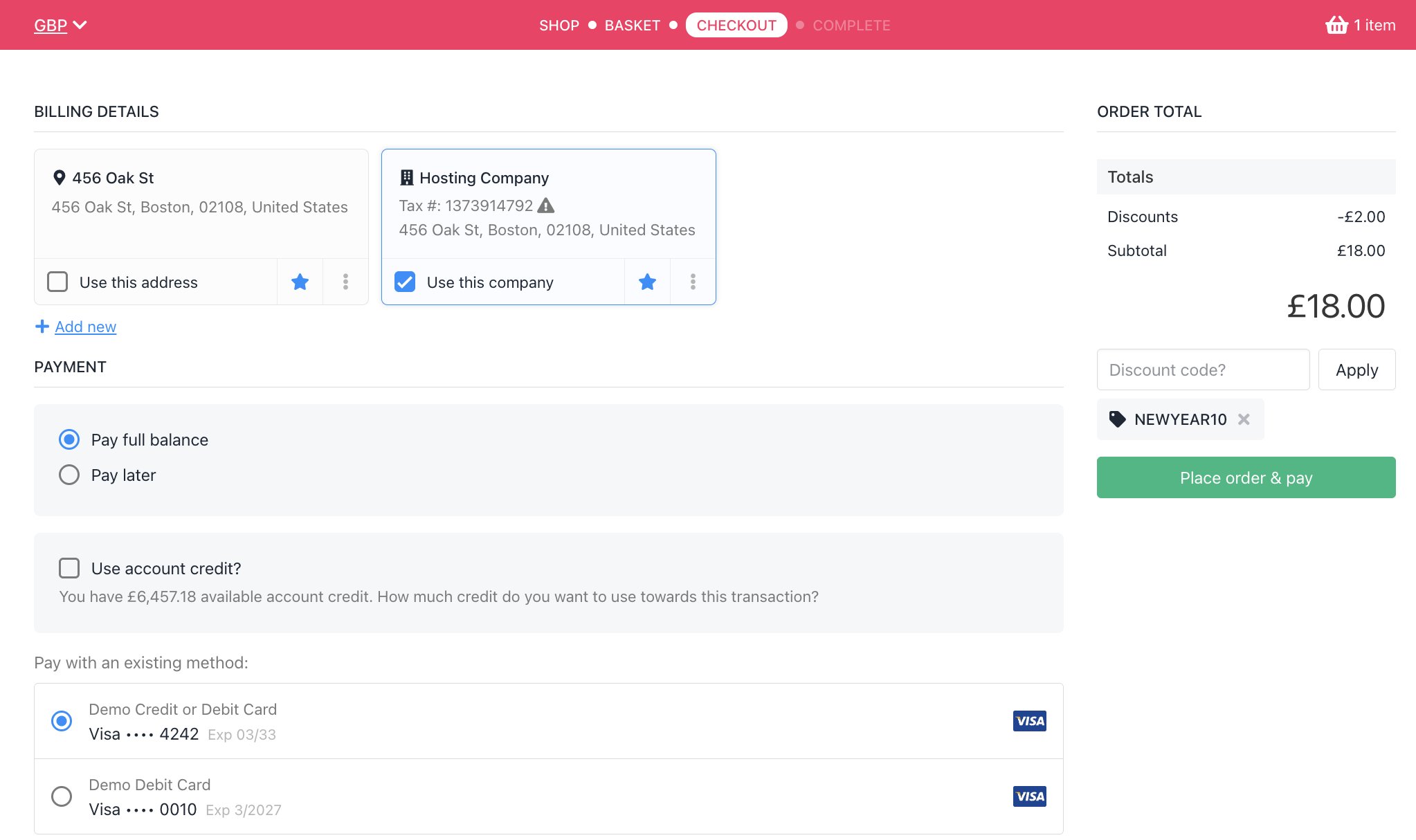
Place order & pay
Reviewing the order
After the client pays, Upmind displays the Order summary page.- Clients can review the order.
- View the invoice.
- See the order number.
- Cancel the order.
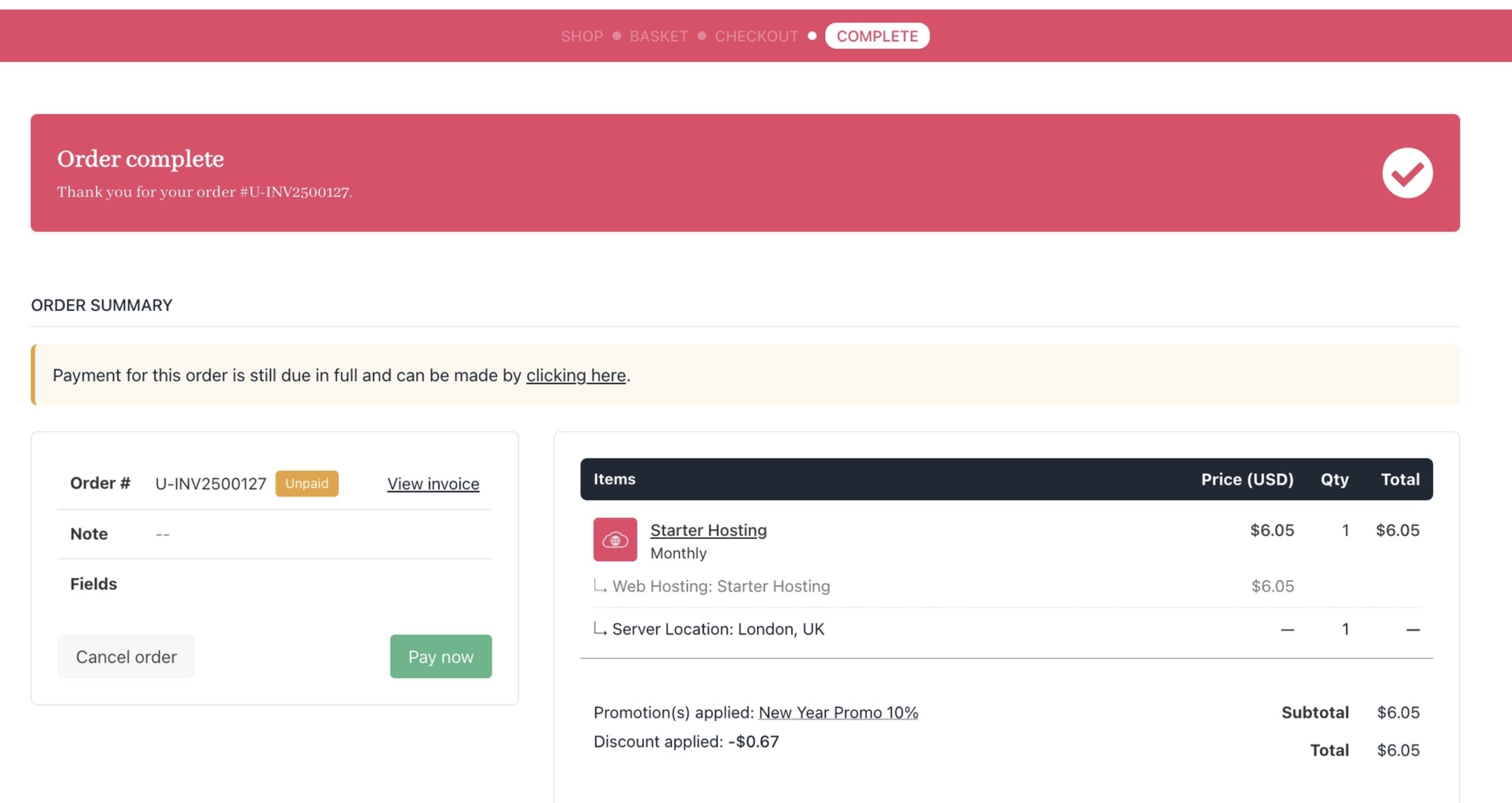
Clients review order
- Click the Products & Services menu tab.
- Click Subscriptions or One-time purchases on the left menu.
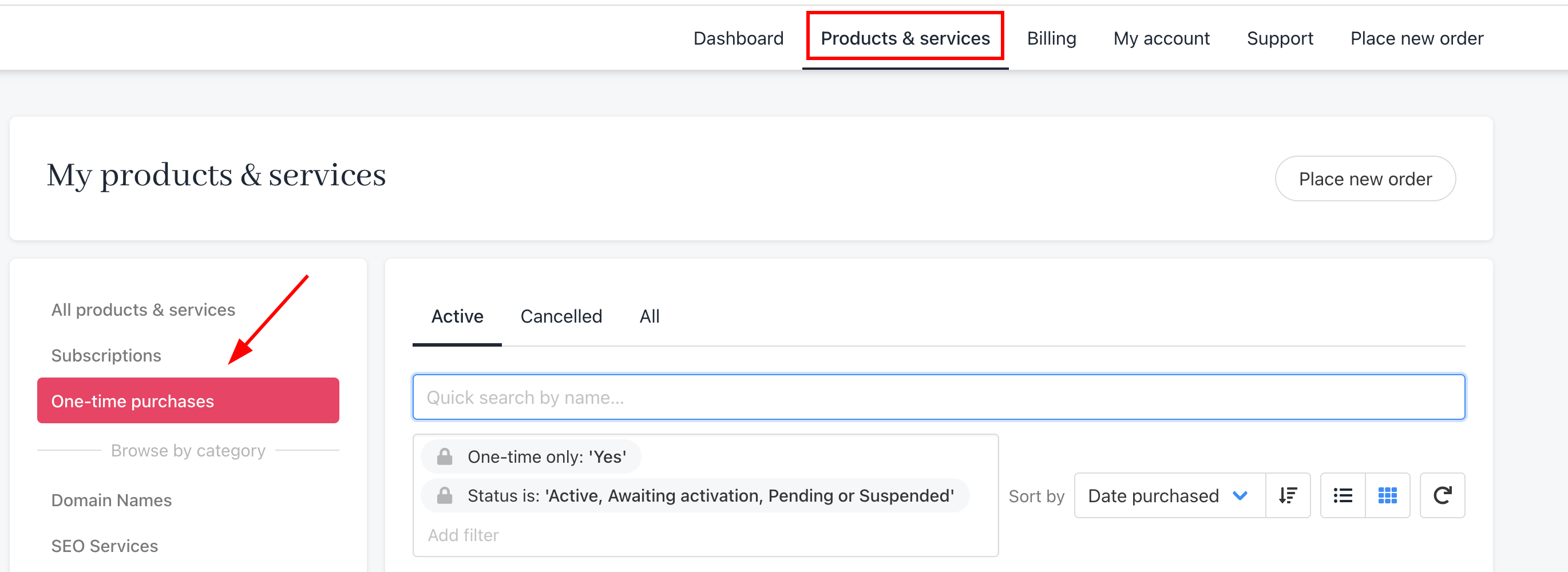
Subscriptions or One-time purchases