

Use case example
Here’s a scenario to demonstrate the delegate tool in action.- Company A is a web hosting reseller.
- Company B purchases a web hosting contract for two years.
- Company B adds Dev Team 1 as a delegate to redesign Company B’s website.
Access rights
Any client can invite one or more delegates to access the client-side of a contract with your Upmind store. These delegates can:- view contract product registration, renewal dates, and status
- undertake provisioning actions (e.g., log in to a hosting account, update domain nameservers)
- create support tickets in relation to the contract product
- view tickets others have created in relation to the contract product, from the point at which they were added as a delegate
- manage billing for a contract product
- cancel, upgrade, or modify the contract product
- add or remove delegates
Clients can invite delegates to access a subscription contract. This feature does not work with one-off purchases.
Inviting a delegate
The first step is to open a contract and invite a delegate. The client should:- Log in to the store account.
- Click the Products & Services menu tab.

Click Products & Services tab
- Click Subscriptions on the left side menu.
- Under the Subscriptions heading, select a contract.
- Click the Settings menu tab.
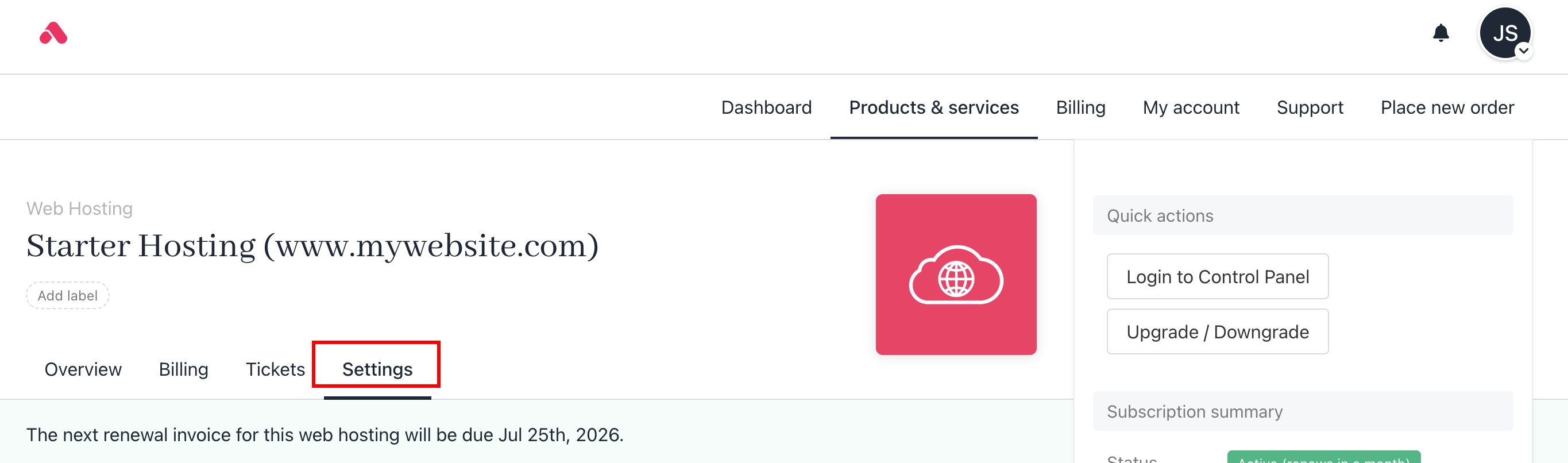
Click Settings tab
- Click the Invite delegate button.
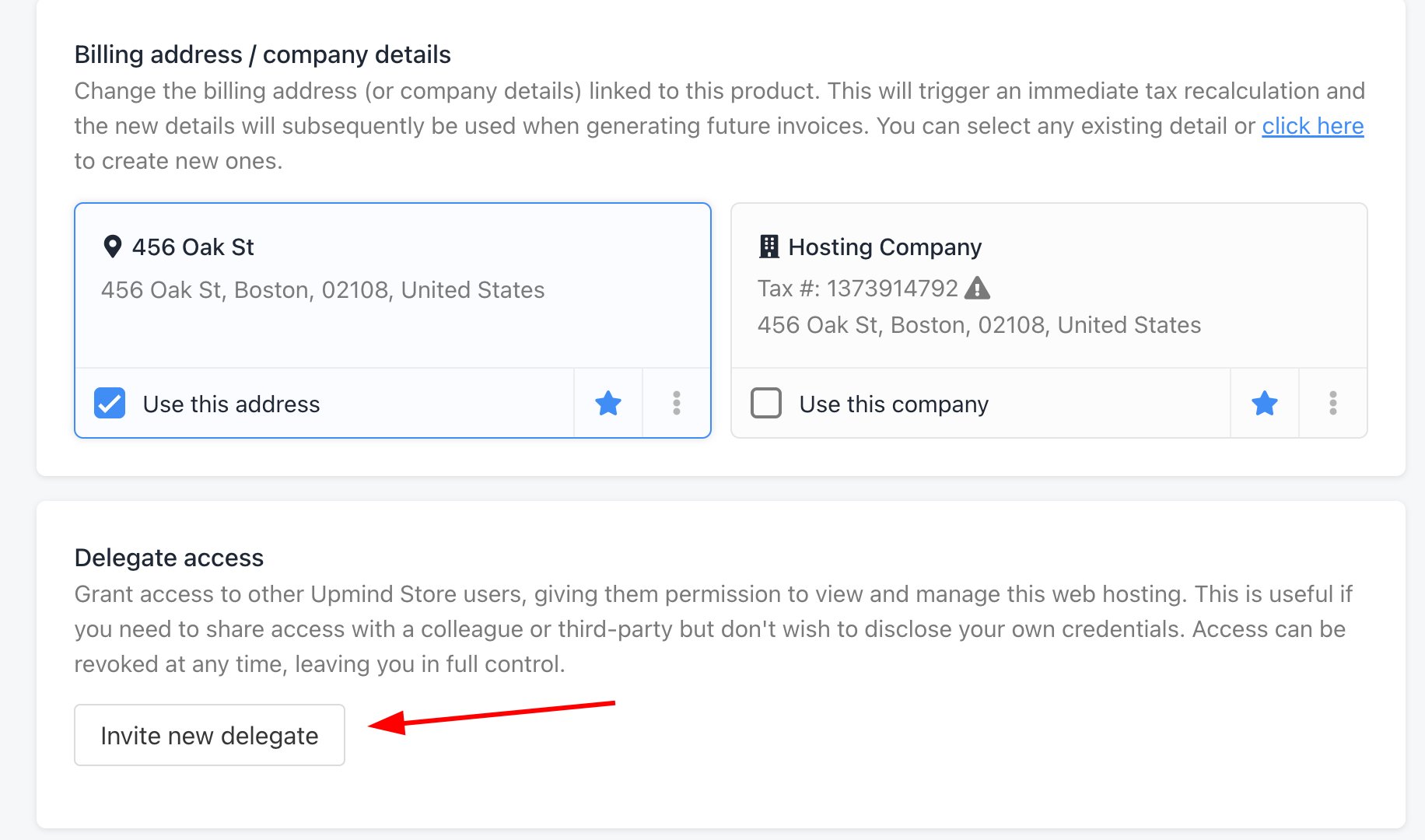
Invite new delegate
- Enter the delegate’s email address.
- Click Send invite.
To receive an invite, the delegate must have a store account.
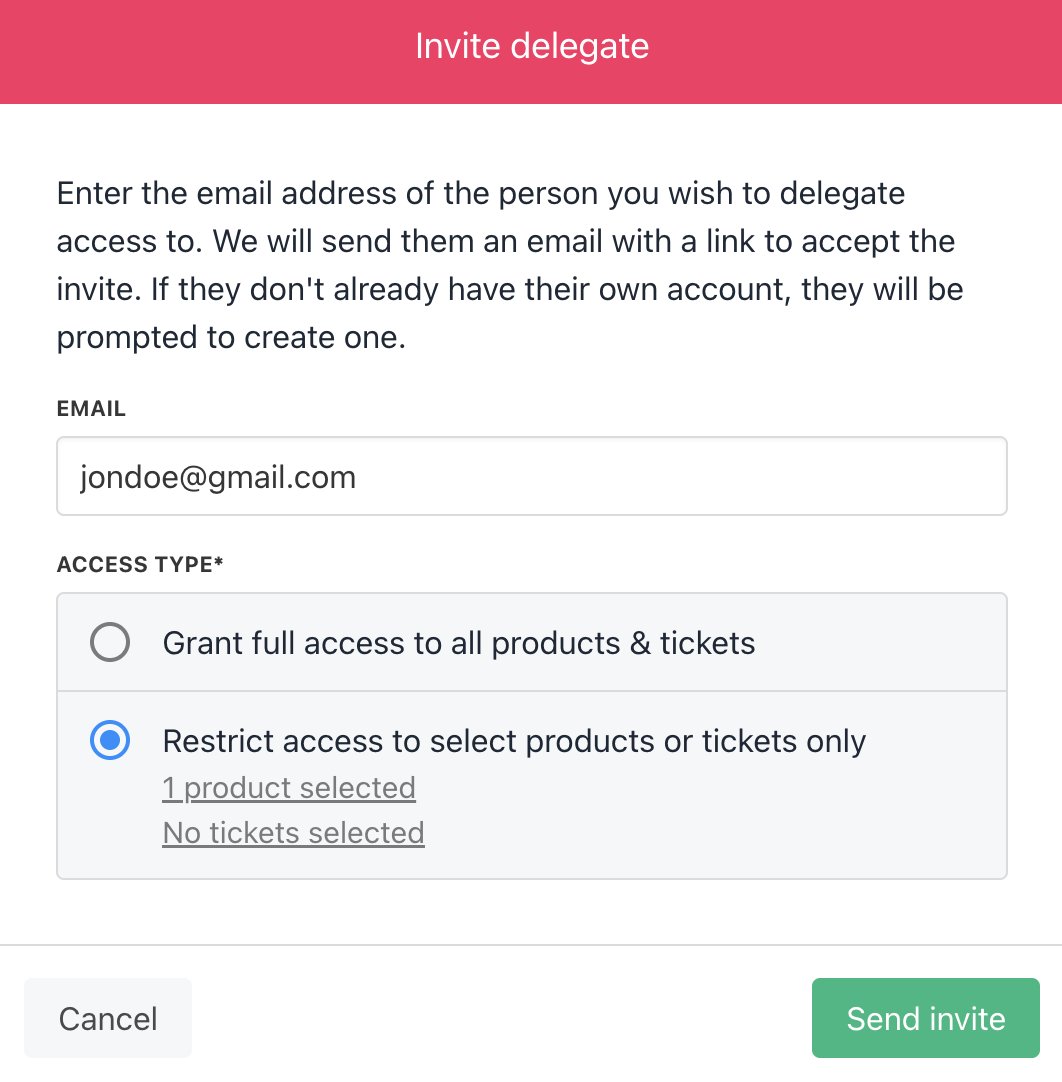
Enter delegate email
Delegate view
The delegate receives an email message with a link to accept the invitation.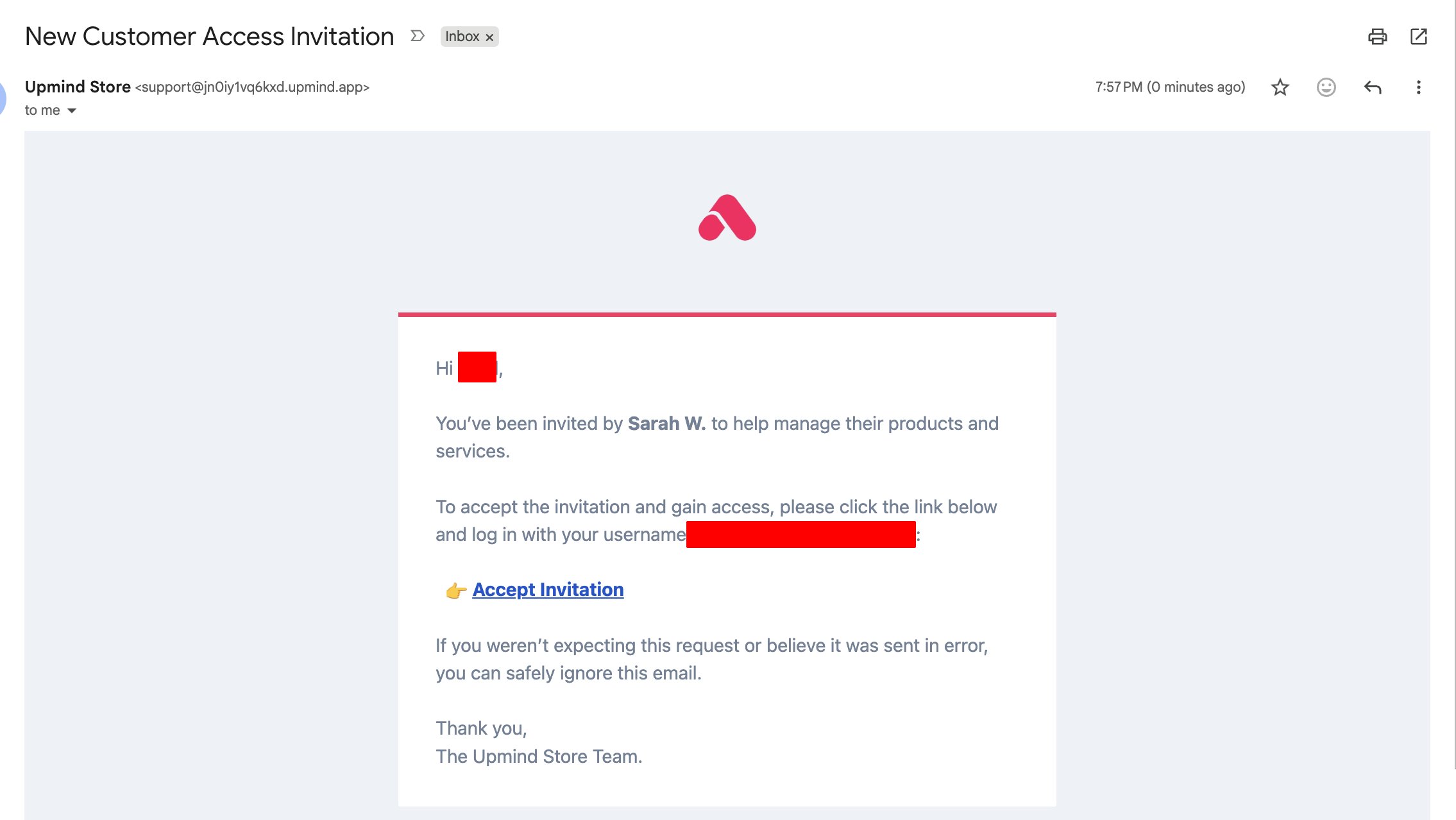
Delegate email
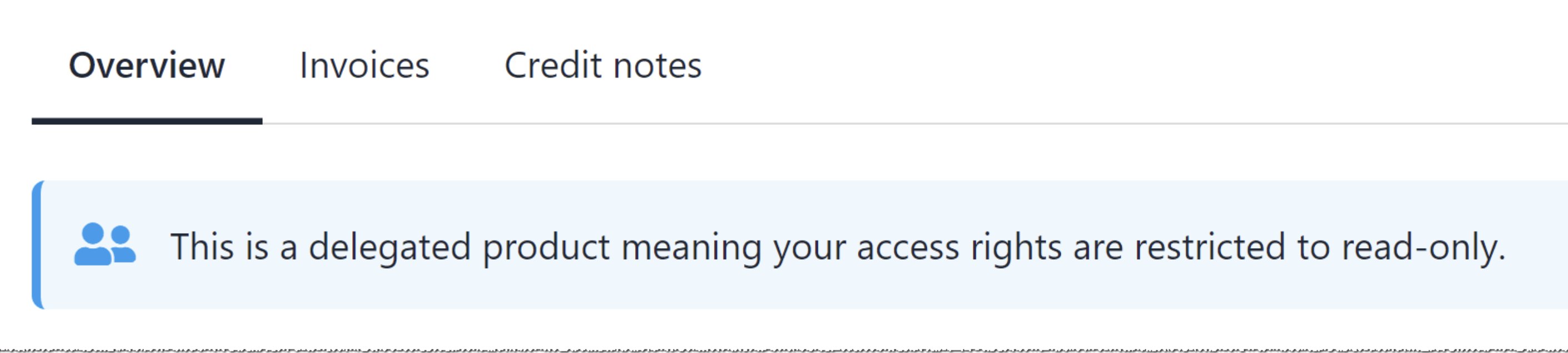
Delegate account
Cancelling delegate access
The client can cancel delegate access to the contract at any time.- Click the Products & Services menu tab.
- Click the contract.
- Click the Delegates menu tab.
- Hover the person icon next to Accepted.
- Click Revoke access. Upmind removes the delegate from the contract.
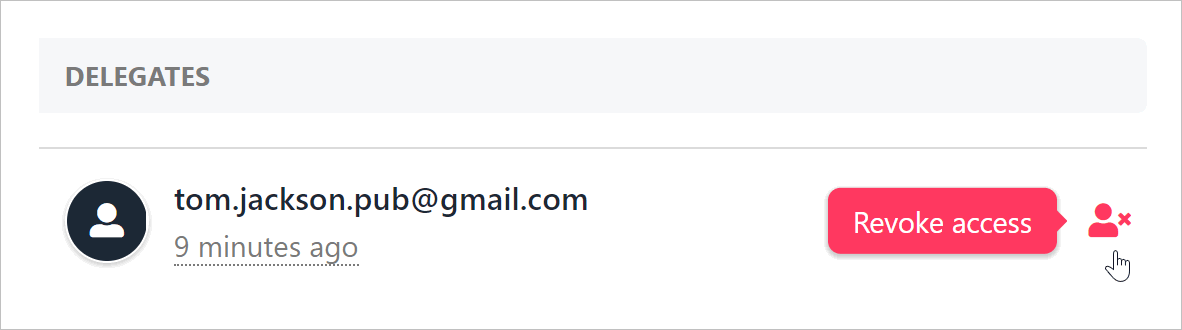
Click Revoke access