

Opening my tickets page
- Log in to the store account.
- Click the Support menu tab.

Click Support tab
Viewing open tickets
The My tickets page displays a list of open tickets and their status. To view a ticket in detail:- Click a ticket name.
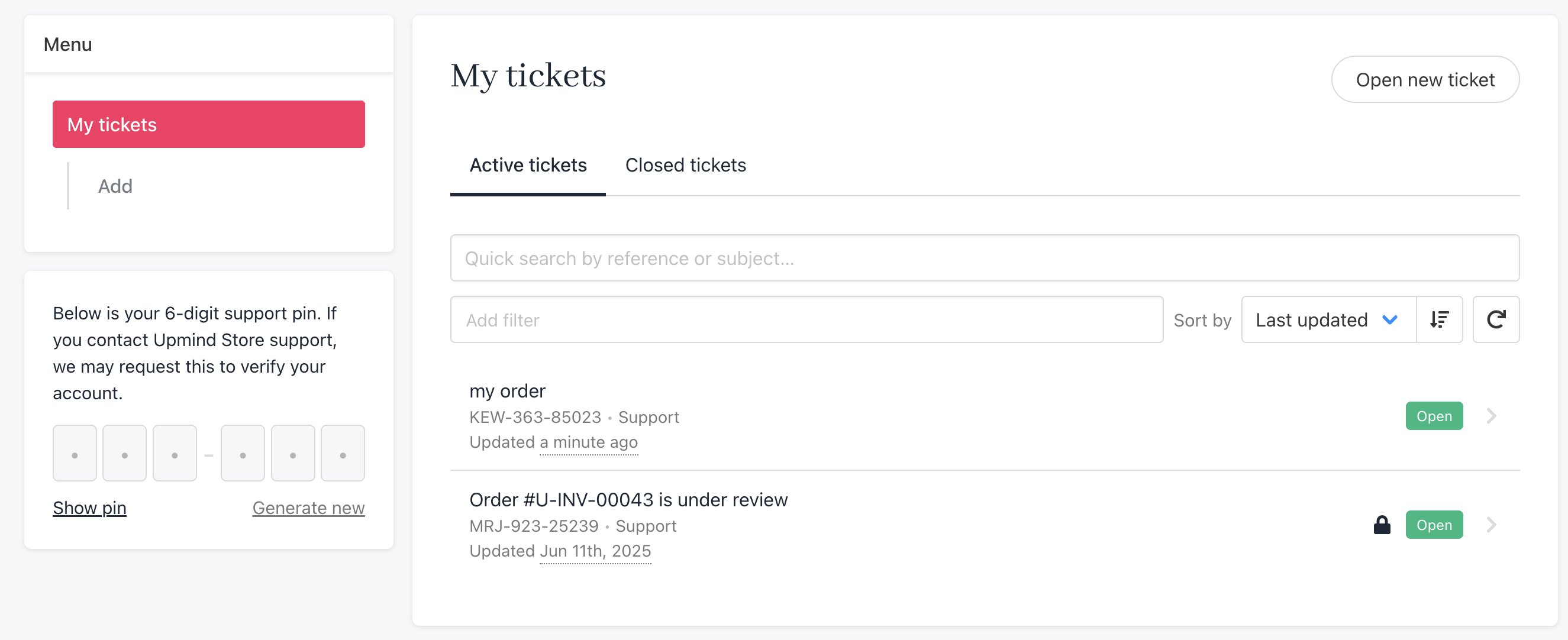
List of open tickets
- Scroll down the page to view the messages (if any) in the thread.
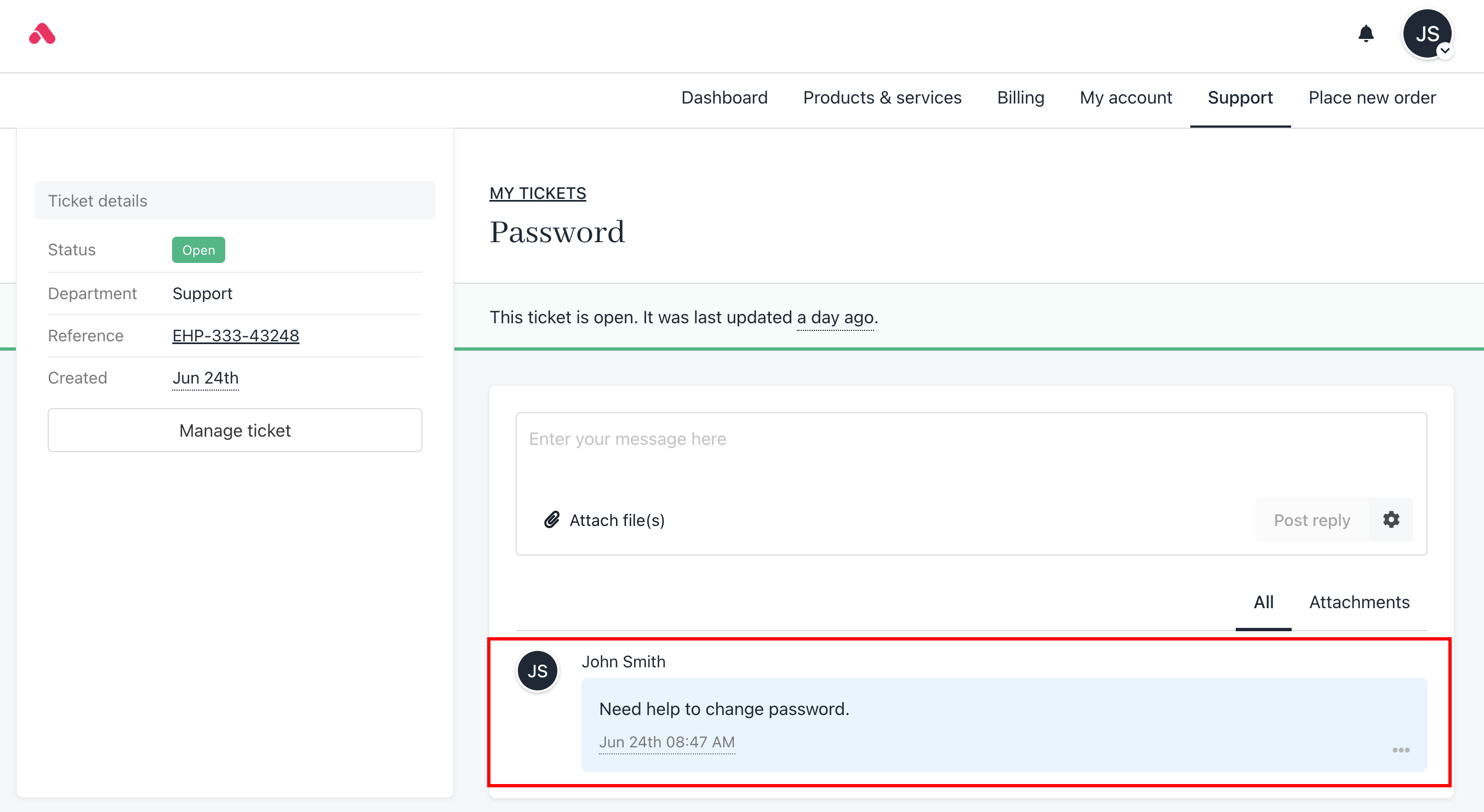
View messages
Sending a reply
To reply to an active ticket:- Go to the top of the page.
- Enter a message in the field.
- Click Post reply.
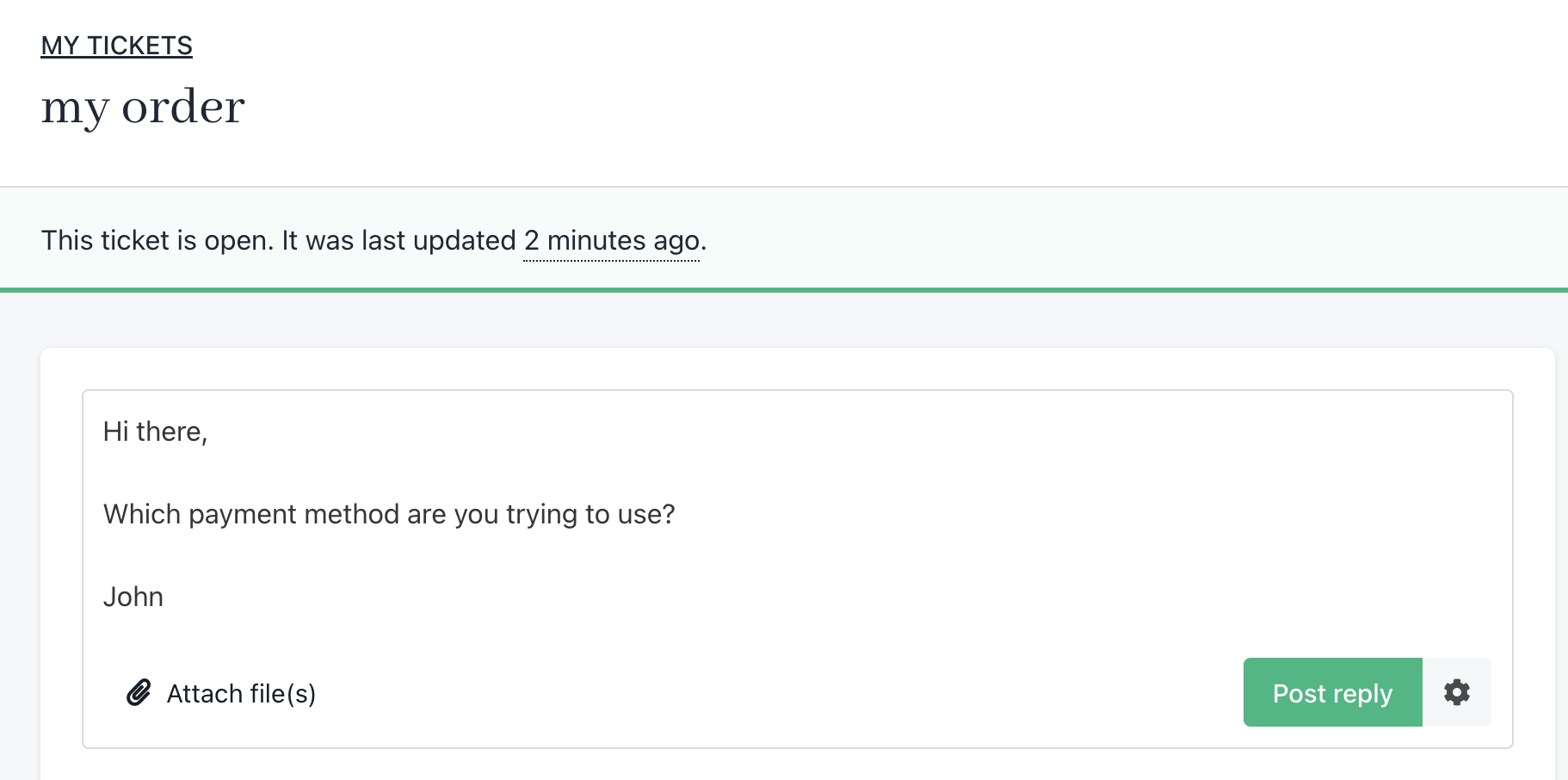
Enter message in field
Opening a ticket
There are two ways to open a new ticket.Opening a ticket from support
- You can either click the Add button on the left menu or click Open new ticket.
Clients can also click the Open new ticket button.
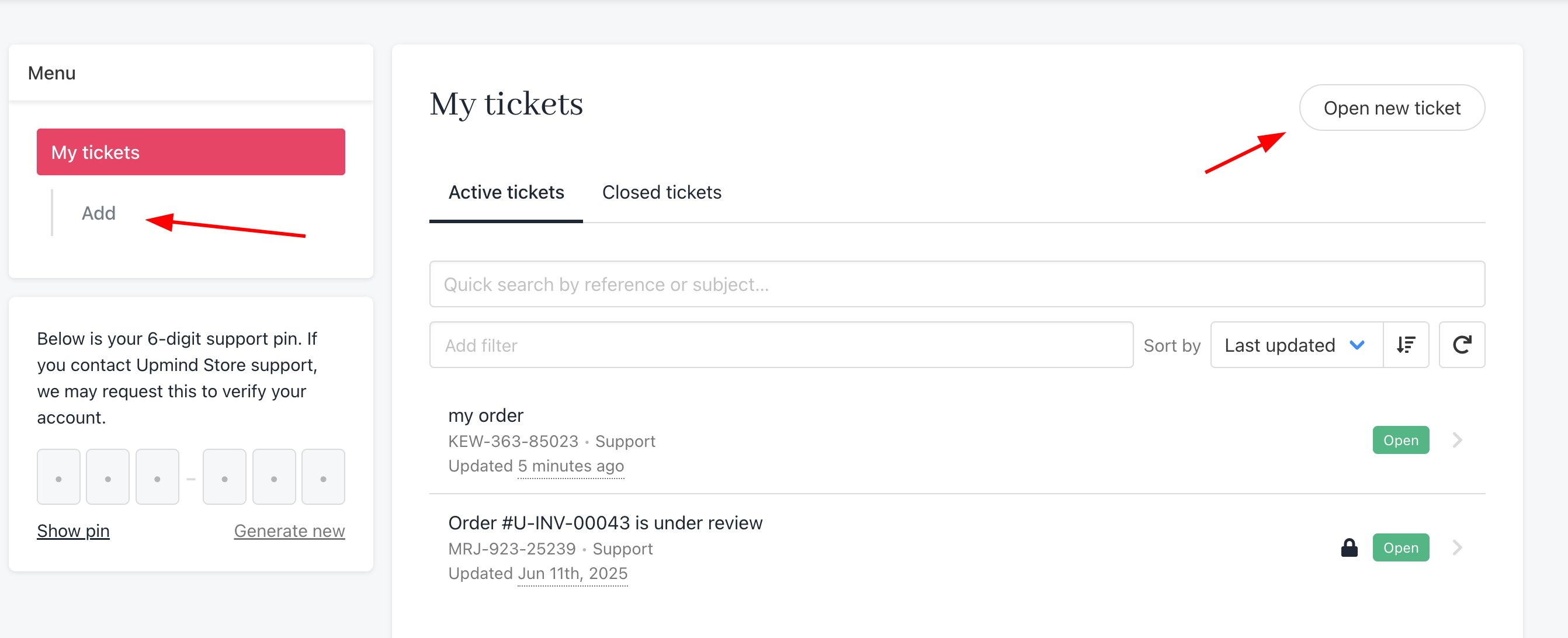
Open new ticket
- Fill the fields.
- Click the Department button and select a specific store department (optional)
- Click the Select product button to reference a specific item. (optional)
- Click Create ticket.
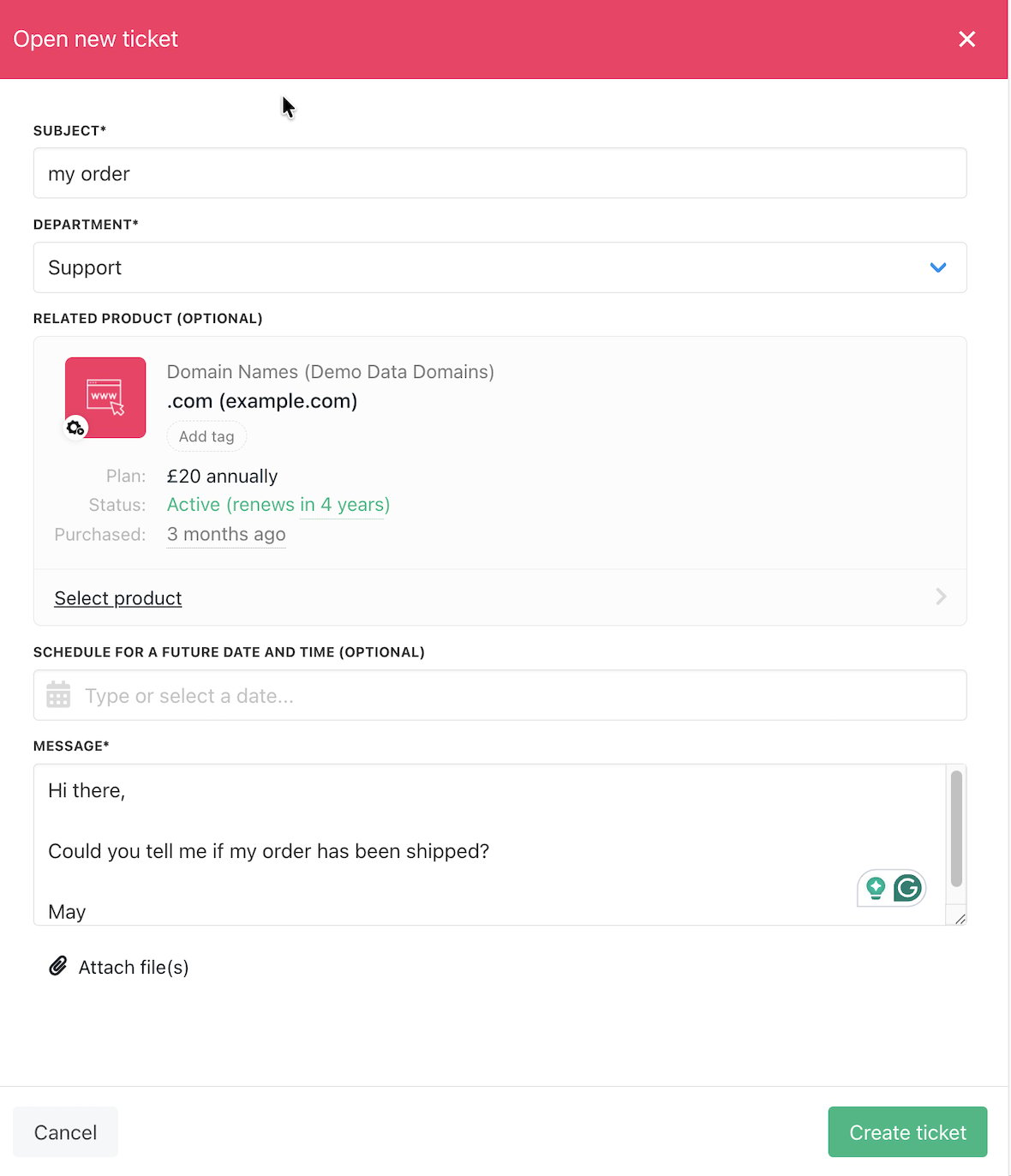
Click Create ticket
- Upmind adds the open ticket to the Active ticket list.
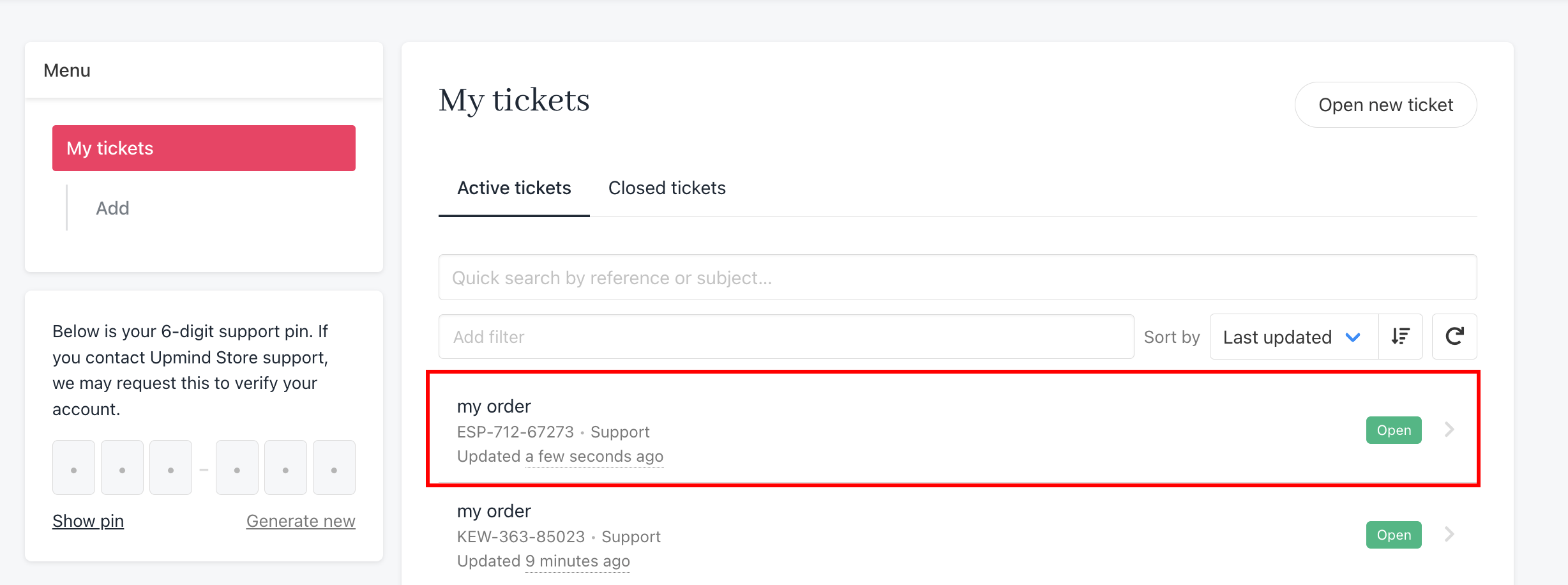
Active tickets list
Opening a ticket from products & services
If a client has a question related to a specific product, they can open a support ticket directly from the product page:- Go to Product & Services and select the relevant product.

Products & services
- Click Open Support Ticket and fill in the necessary details.
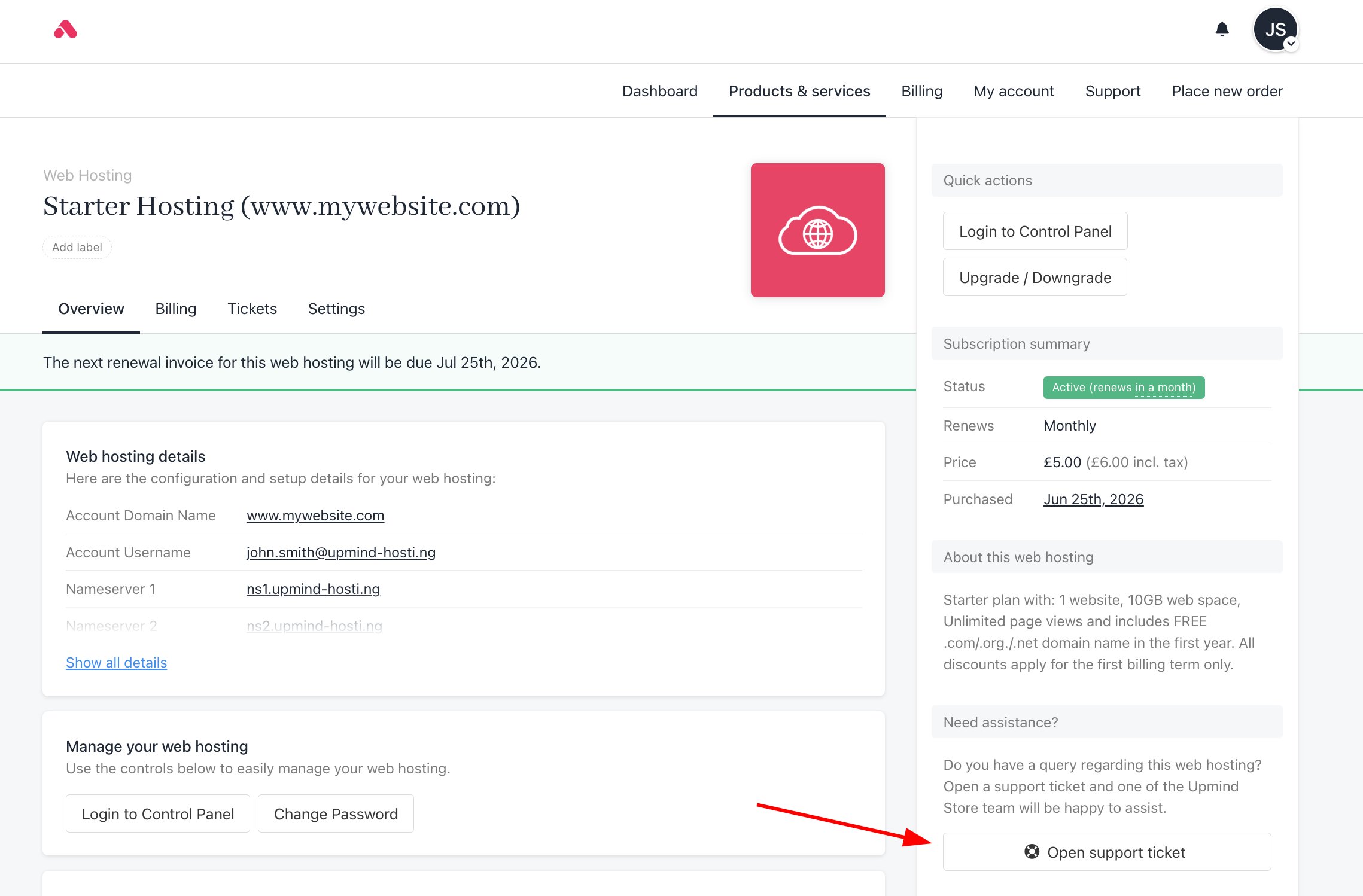
Click Open Support Ticket
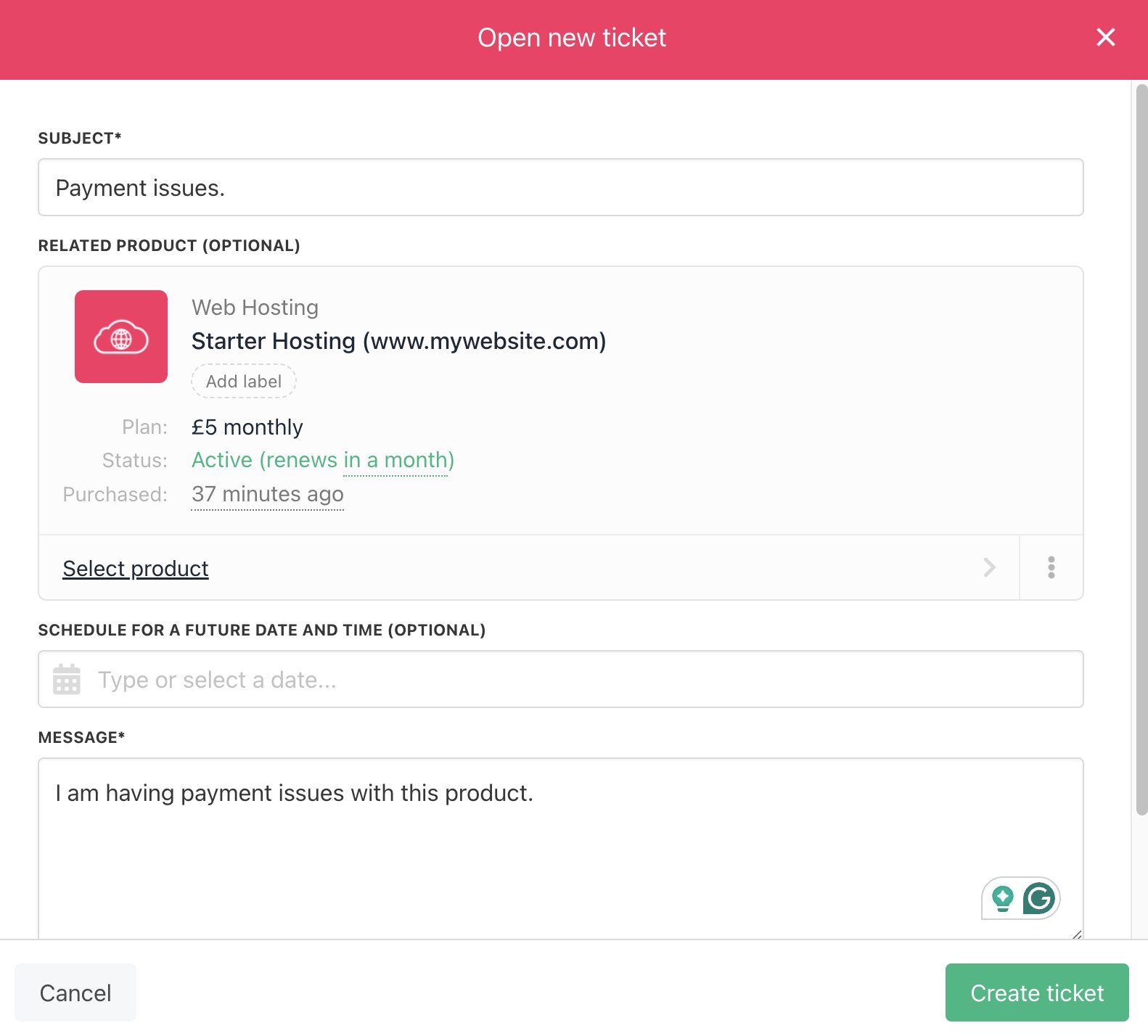
Fill in the details
- Once the ticket is created, clients will have access to the following options.
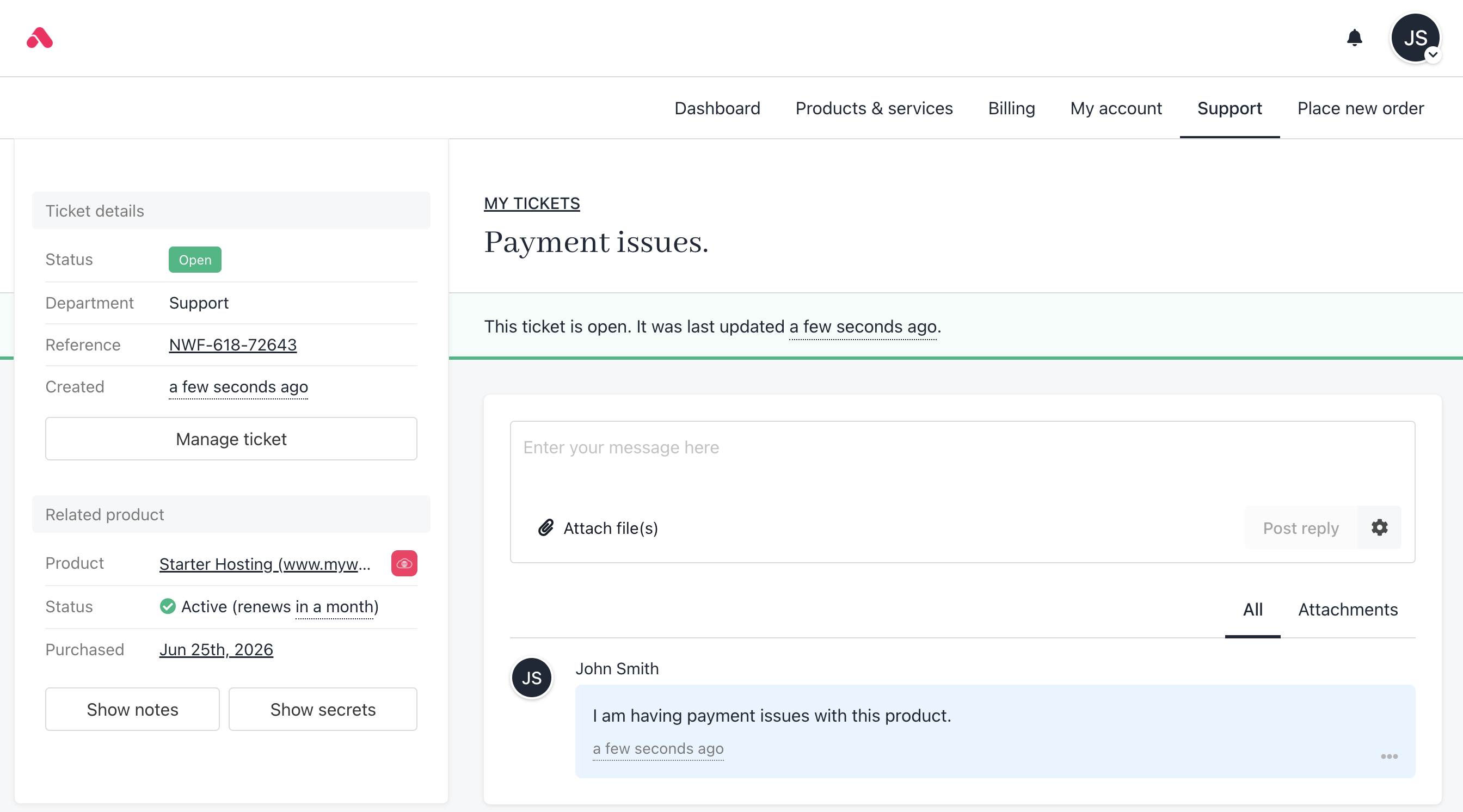
Ticket options
- Show Notes – View internal notes related to the ticket.
- Show Secrets – Access sensitive information tied to the request.
Manage Ticket includes the following actions:
- Edit Subject – Modify the ticket title.
- Delegate Access – Allow another user to handle the ticket (see our guide here).
- Change Related Product – Link the ticket to a different product.
- Remove Product Relation – Unlink the ticket from the product.
- Close Ticket – Mark the ticket as resolved.
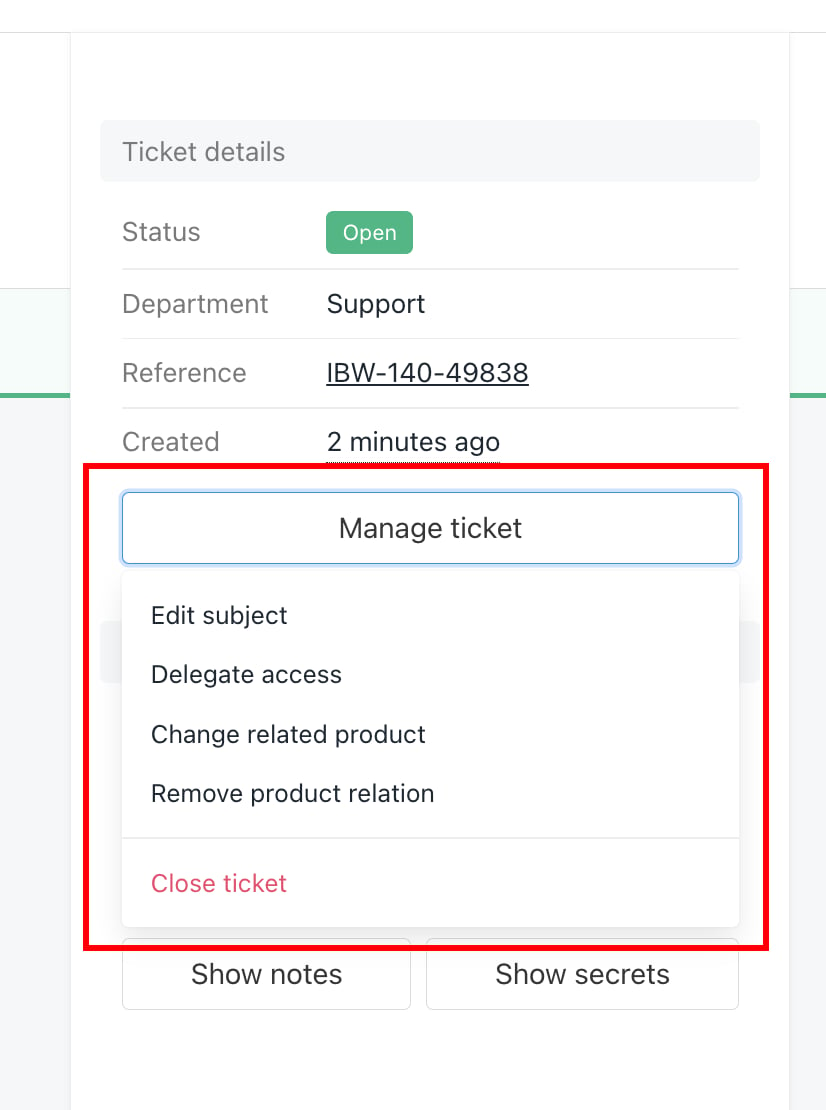
Manage ticket