

Viewing invoices
- Log in to the store account.
- Click the Billing menu tab.

Click Billing tab
- On the left menu, click the My Invoices menu tab. A list of all invoices will be displayed.
- Click a subheading to view Paid, Unpaid, or Credited invoices.
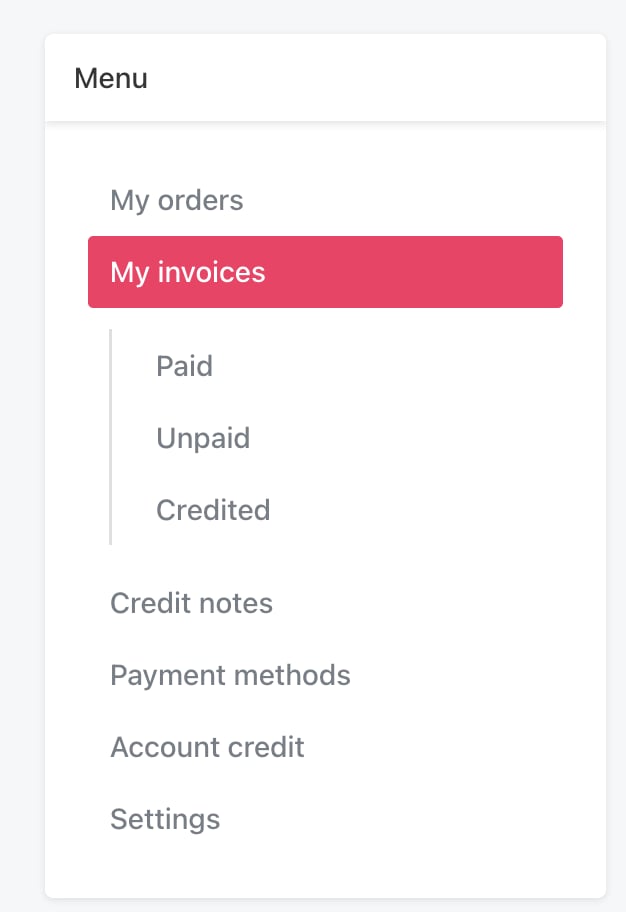
Choose invoice type
Making a payment
To make a payment from an invoice page:- Go to My invoices.
- Click Unpaid on the left menu.
- Click an invoice.
- Click Pay now at the top of the invoice.
- Select a payment method and fill in the fields.
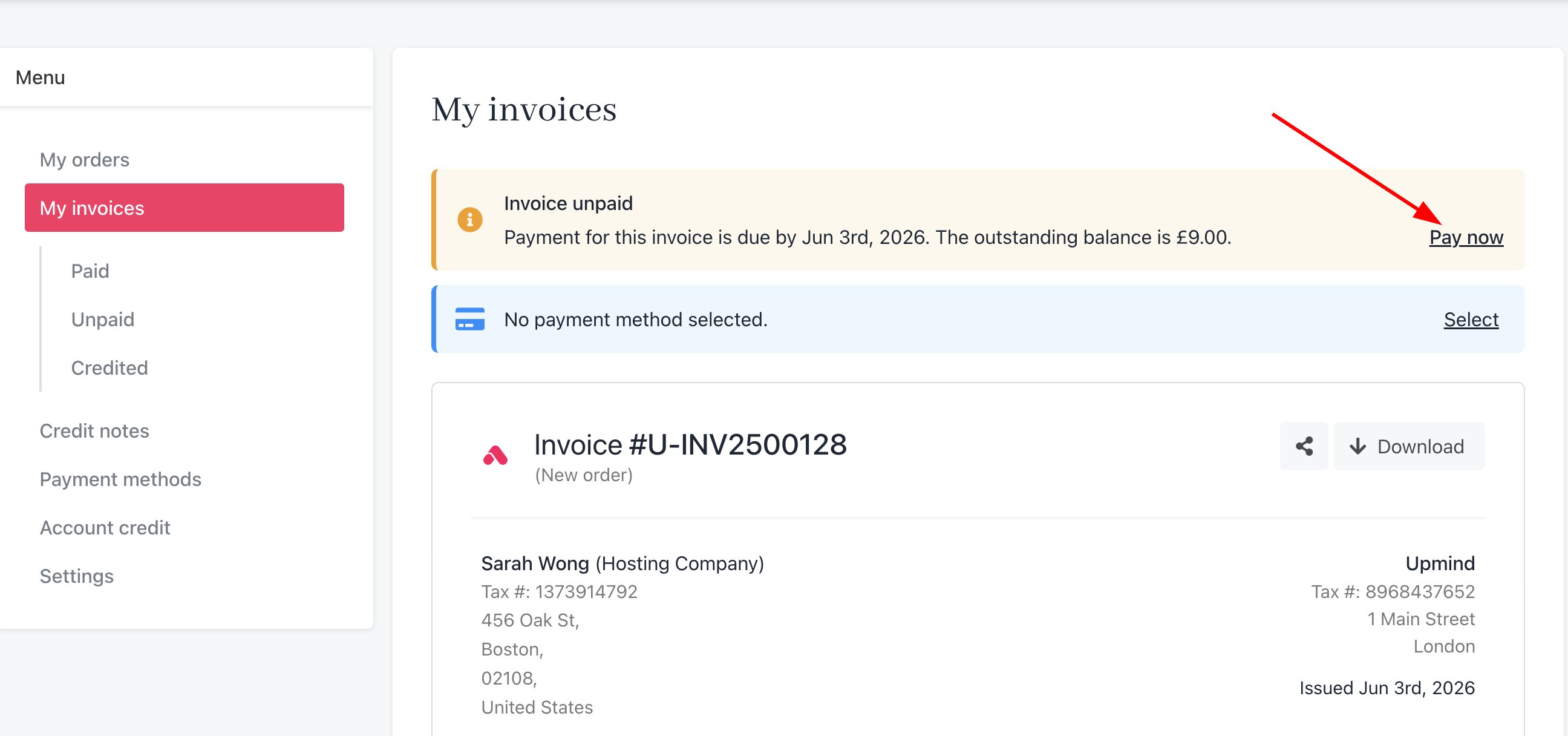
Pay now
Changing a payment method
Clients can change the payment method on the invoice page. For more information, follow this guide.- Click Change on the invoice page.
- Fill in the fields.
Viewing credit notes
Clients can see a list of credit notes (refunds) from your store.- Go to the My invoices page.
- Click Credit notes on the left menu.
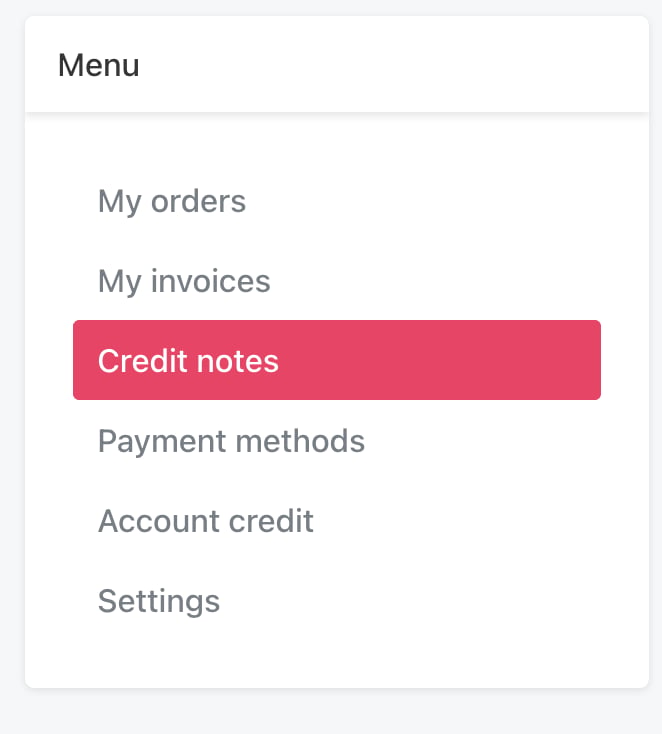
Credit notes
- Click an item to review details.
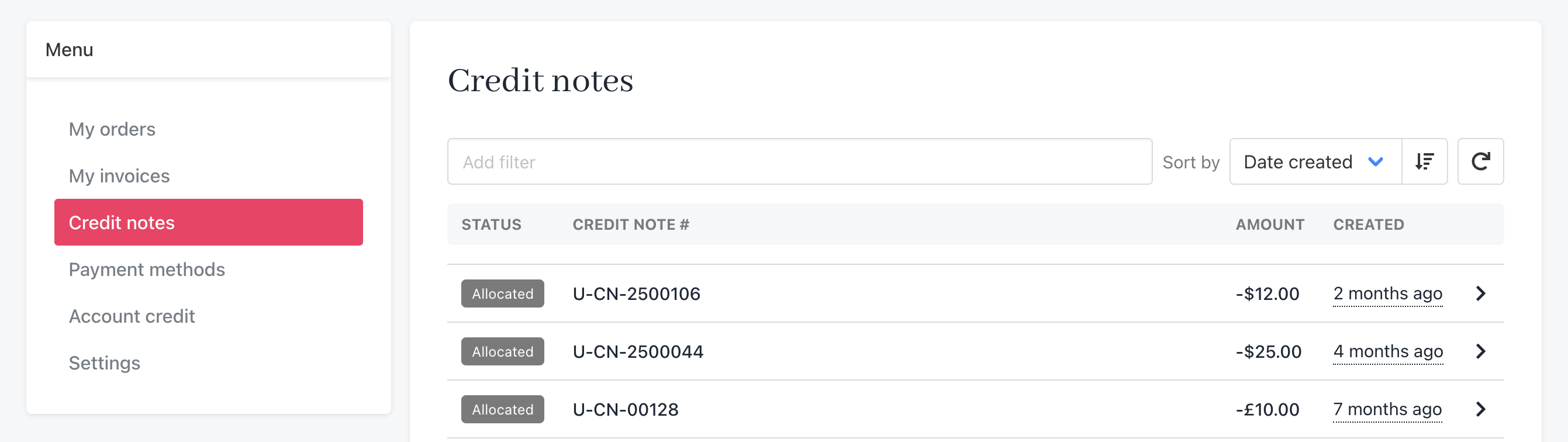
Review details
Reviewing account credit
Your clients can view and top up their account credit (if they choose to use this payment method).- Go to the My invoices page.
- Click Account credit on the left menu. This page shows current funds available.
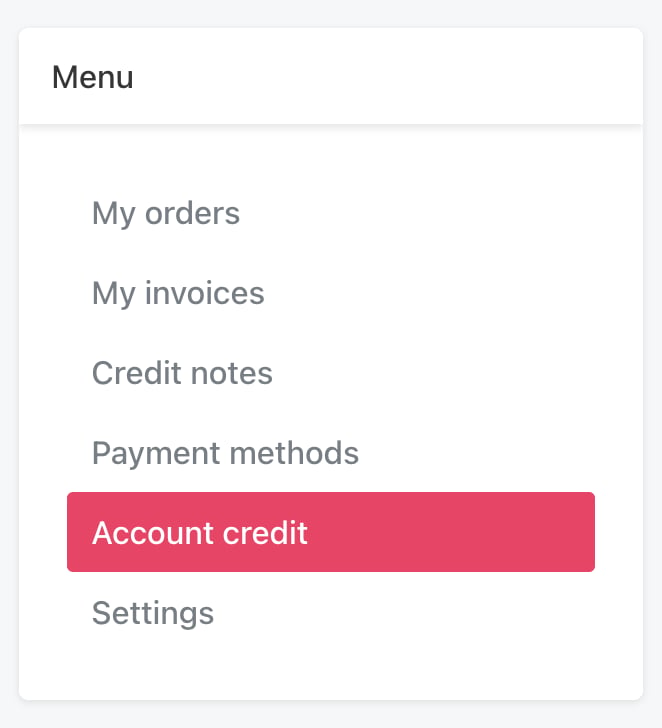
Account credit
Adding funds
To add money to an account:- Click the Top up button.
- Enter an amount.
- Fill in the fields on the payment page.
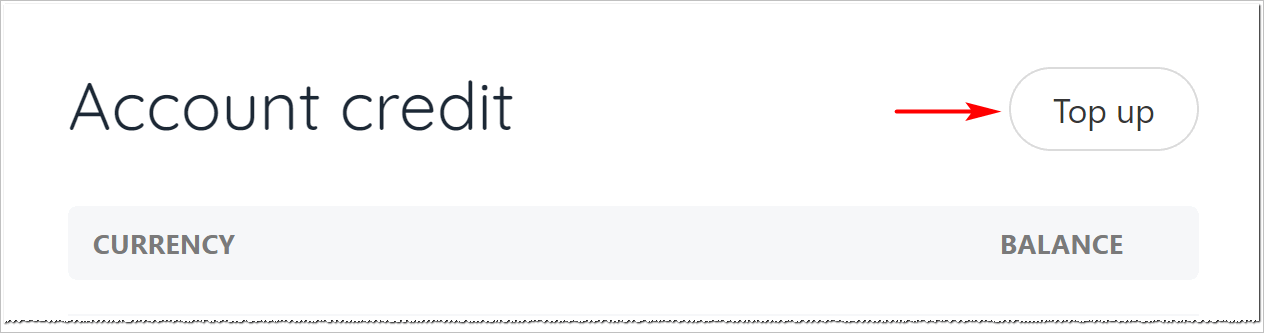
Top up
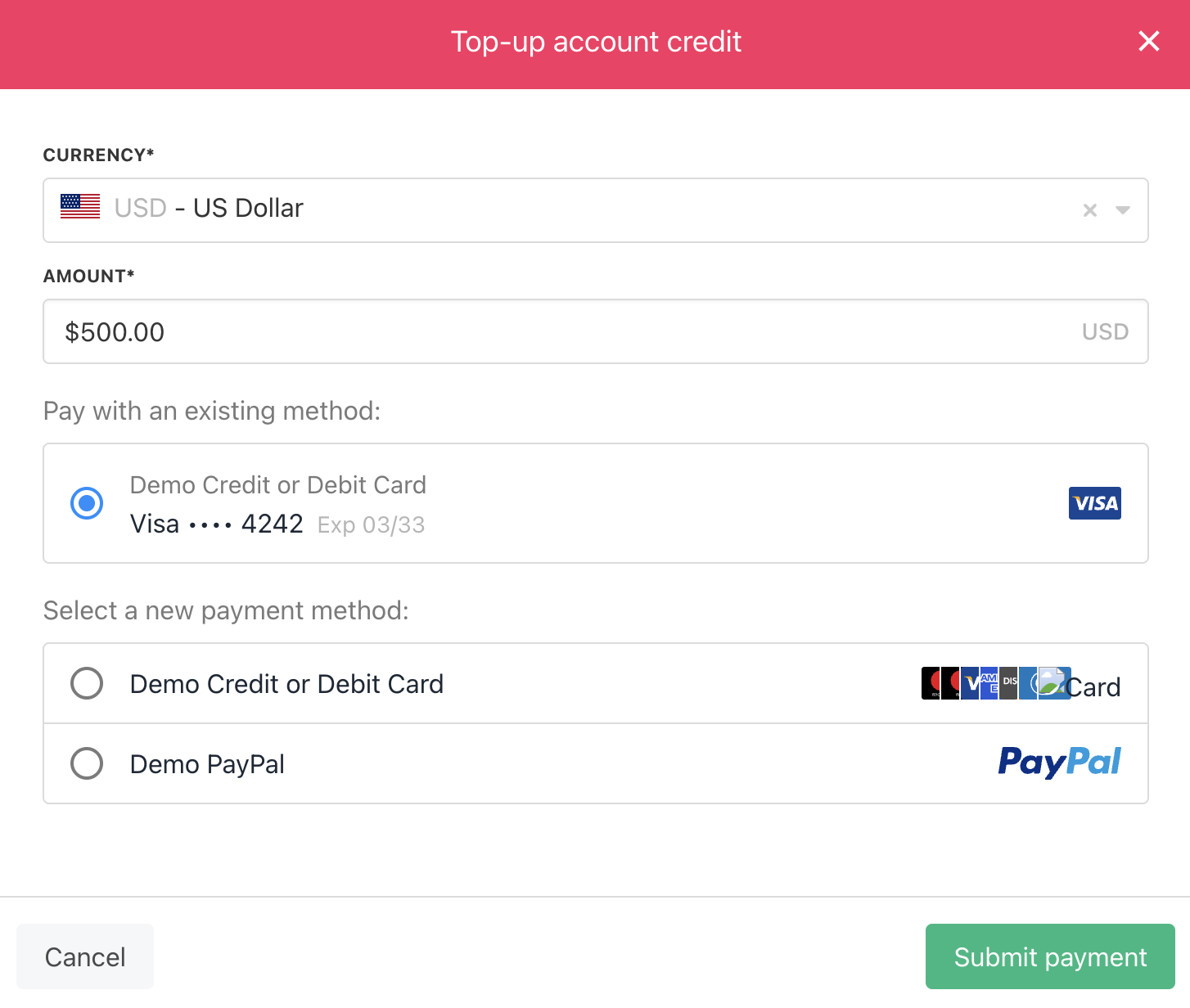
Add amount
Updating address/company details for individual services
Clients can update their address and VAT number by adding company details in their profile settings. The new company details can then be applied to future renewal invoices by assigning them to individual contract products.- Go to Products and Services.
- Select the contract product you would like to update.
- Go to the Settings tab.
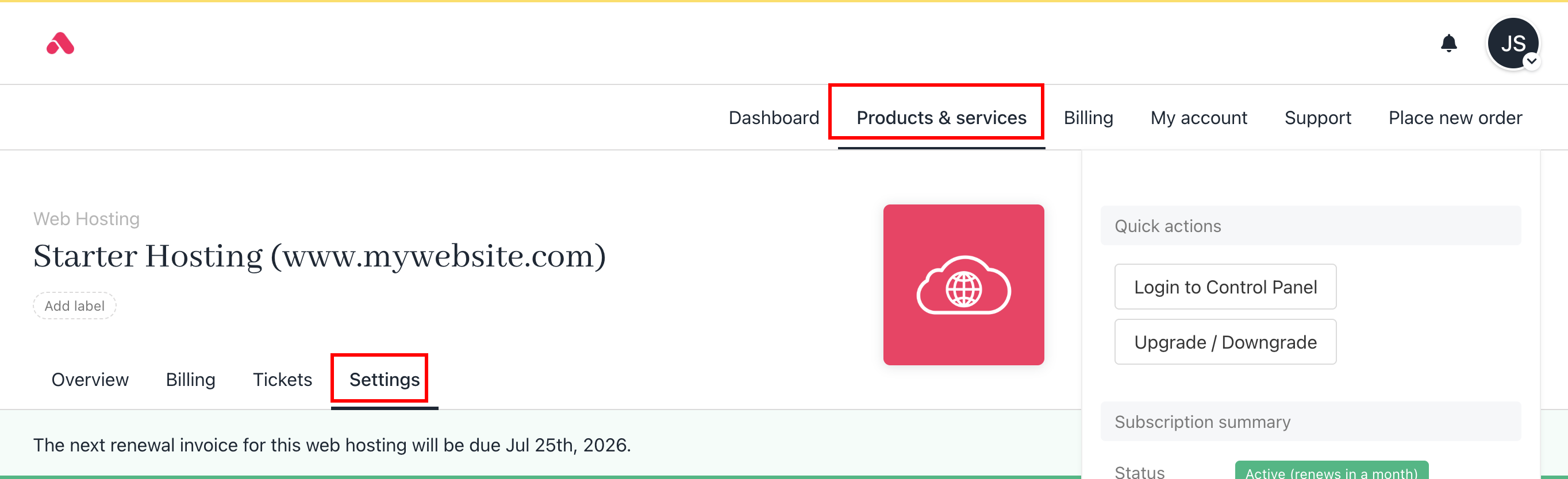
Settings tab
- Scroll down to the Billing Address/Company Details section.
- Select the company details you wish to use and click Save.
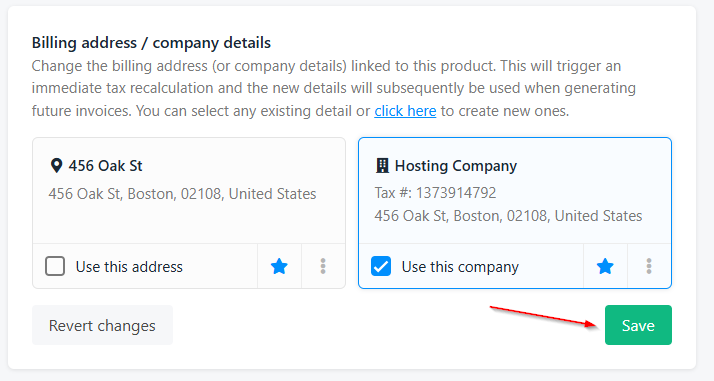
Billing address/company details in the individual contract product