

- Time — 20 minutes
- Difficulty — Intermediate
- An active Upmind account with Cart 2.0 enabled.
- Access to Settings > Brand Settings in your Upmind admin panel.
- A read-through of Configuring Your Store with UI Metadata to understand how context and data settings work.
- A read-through of Setting Up Theming with CSS Variables to understand how design tokens are applied.
- Basic familiarity with JSON and CSS syntax.
What is configurable in the Cart
The Cart is the customer-facing purchase experience, from browsing products to confirmation. Nearly every visible and behavioural element can be adjusted without rewriting core logic. You can configure the following:- Layout and structure
- Content and copy
- Visual styling and branding
- Feature visibility and behaviour
1. Layout and structure
Templates
Templates can be set on the various contexts to allow users to customise pages in their store with different layouts. These are configured through the UI Schema in your brand settings. The setting key follows this format:*) to apply that template to all applicable pages.
JSON Example:
{page} context specifically, such as (@context.checkout.template) for the checkout page to use the “full” template.
JSON Example:
- @context.*.template = two-column-ltr > all pages default to this
- @context.auth.template = canvas-card > login/register pages override to this
JSON Example:
- Login & Registration (auth)
Auth template context does not support
full template.JSON Example: Registration (Split) - Full-width horizontal split. No header or footer visible. Clean, minimal design with the form centred.
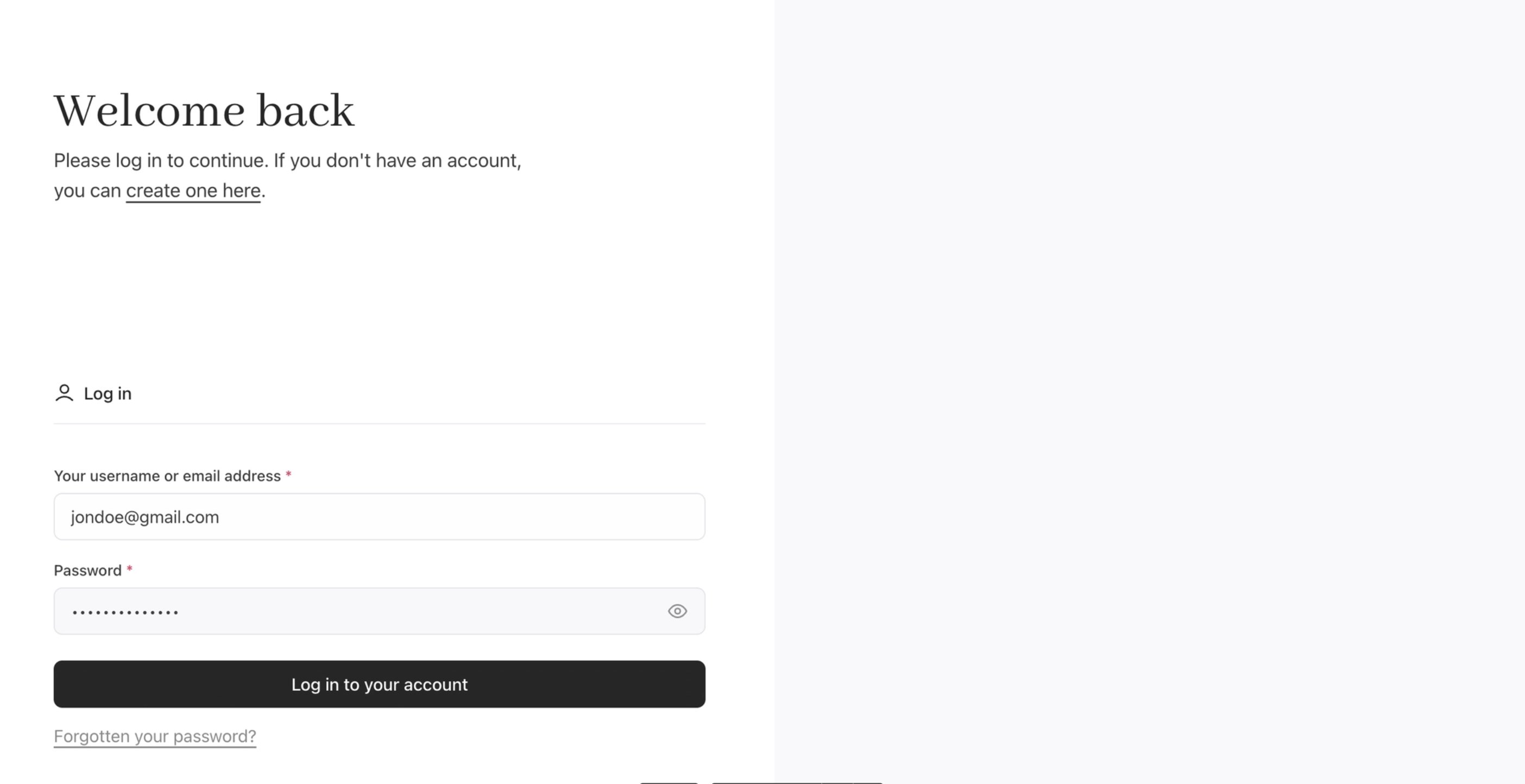
Split registration layout
- Product Configuration (configure)
JSON Example: Product Configuration (full) - Full-width single column. All configuration options and product details stack vertically. Good for simple products with few options.
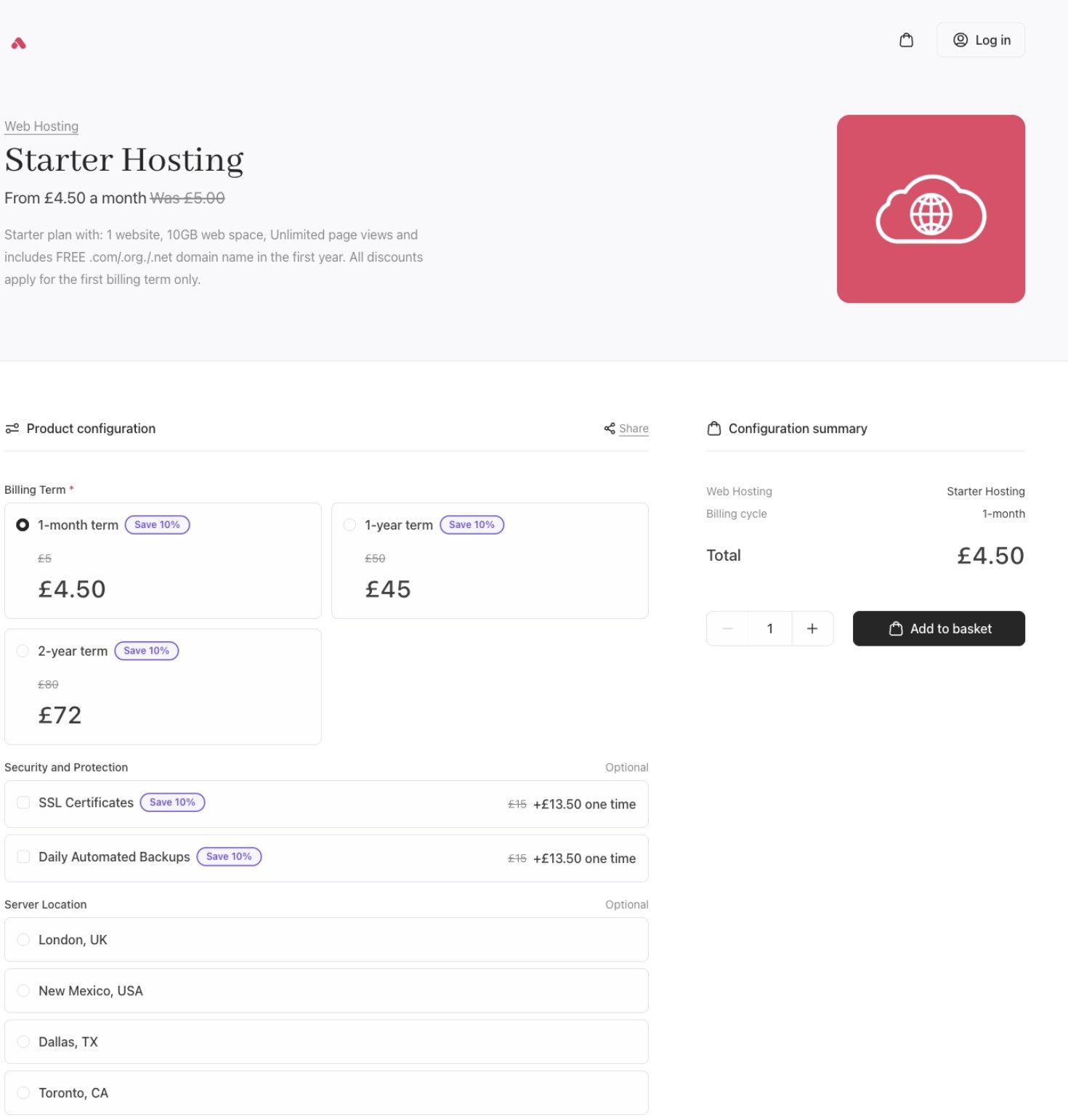
Full configure layout
- Basket (basket)
JSON Example: Basket (two-column-rtl) - Order summary on the left, product list on the right.
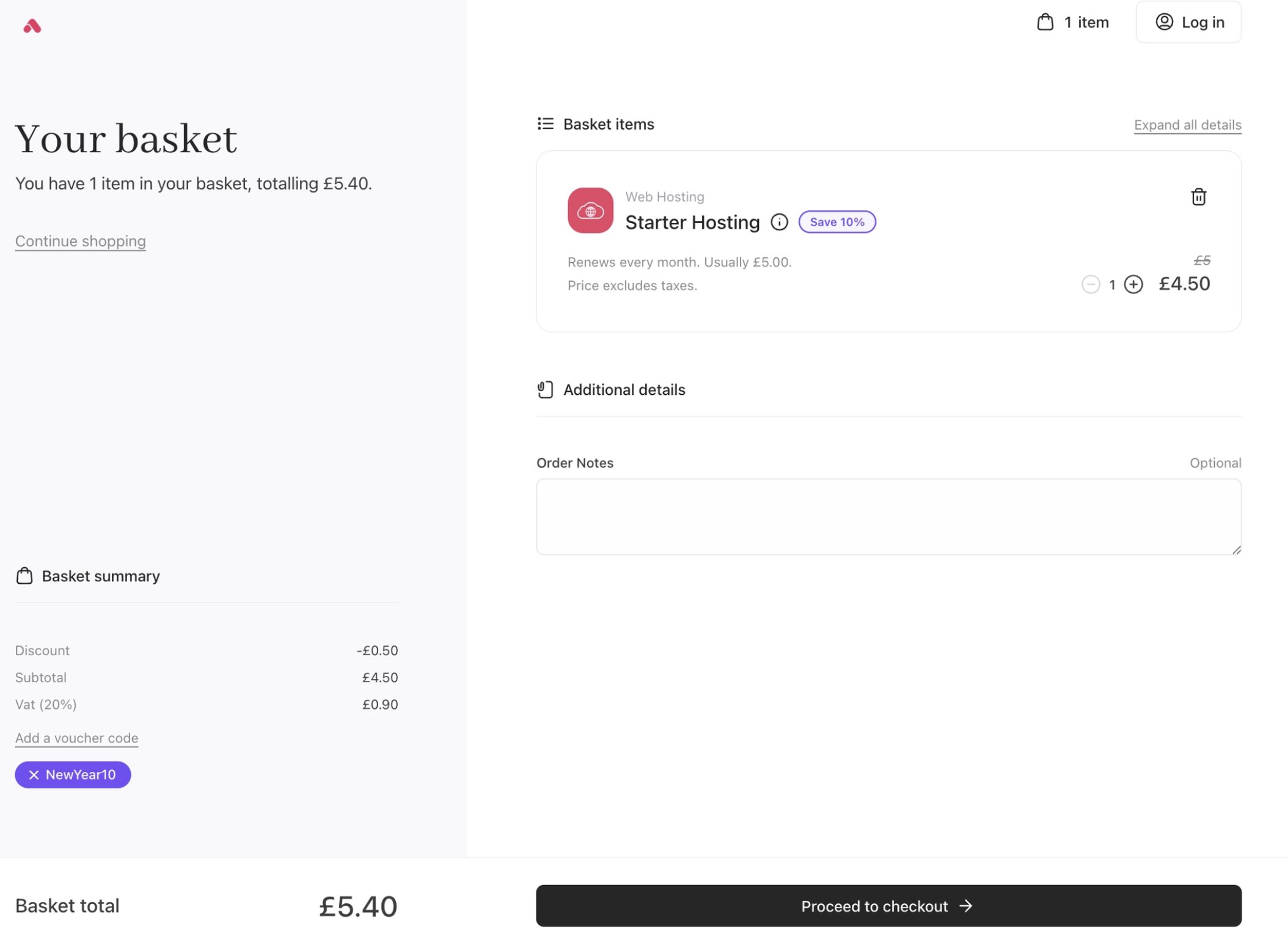
Two column right to left basket layout
- Checkout (checkout)
JSON Example: Checkout (enclosed) - Checkout content wrapped in a card container. Gives a self-contained, focused checkout experience.
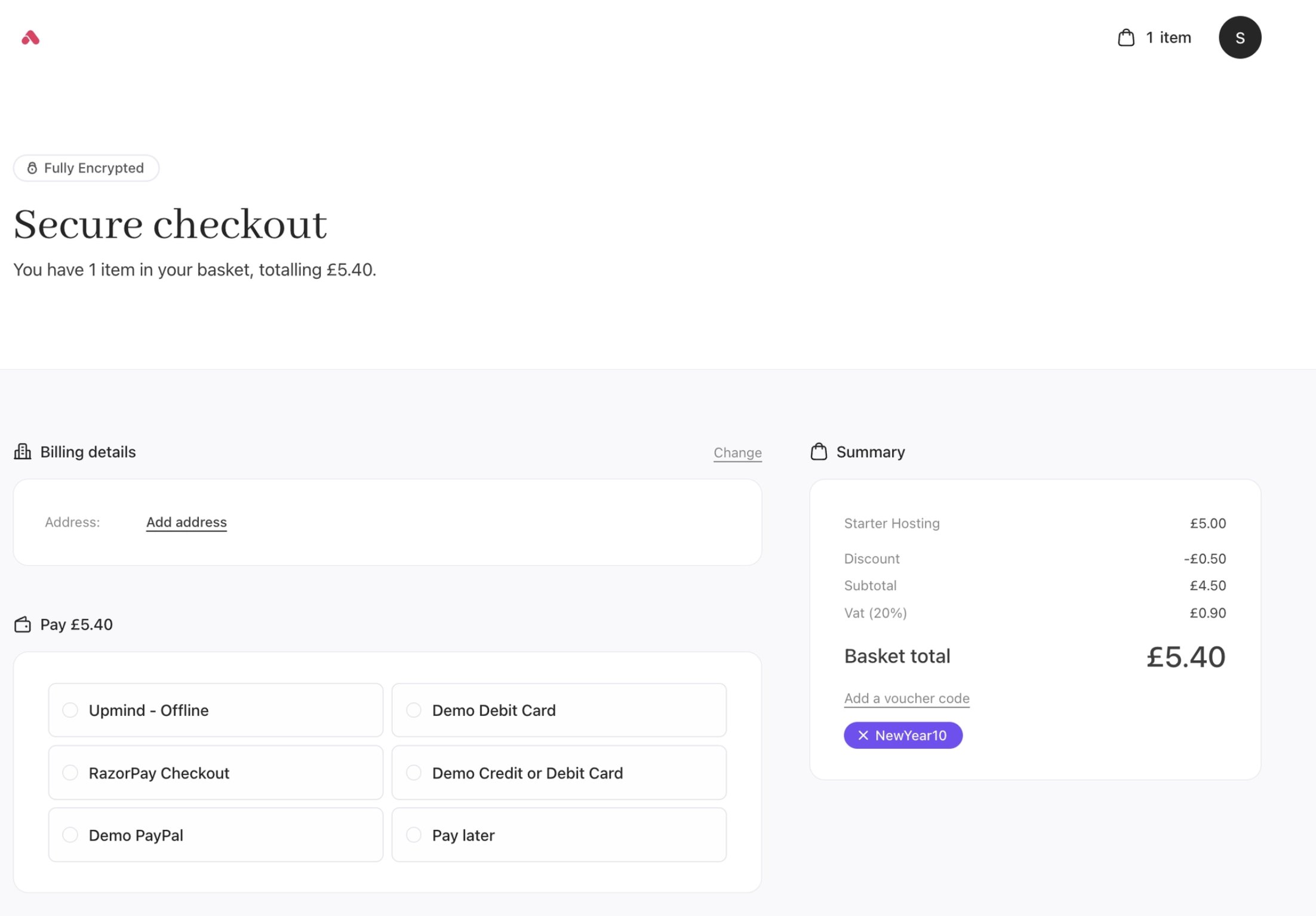
Enclosed checkout layout
- Billing Details (billing_details)
JSON Example: Billing details (full) - Full-width single column.
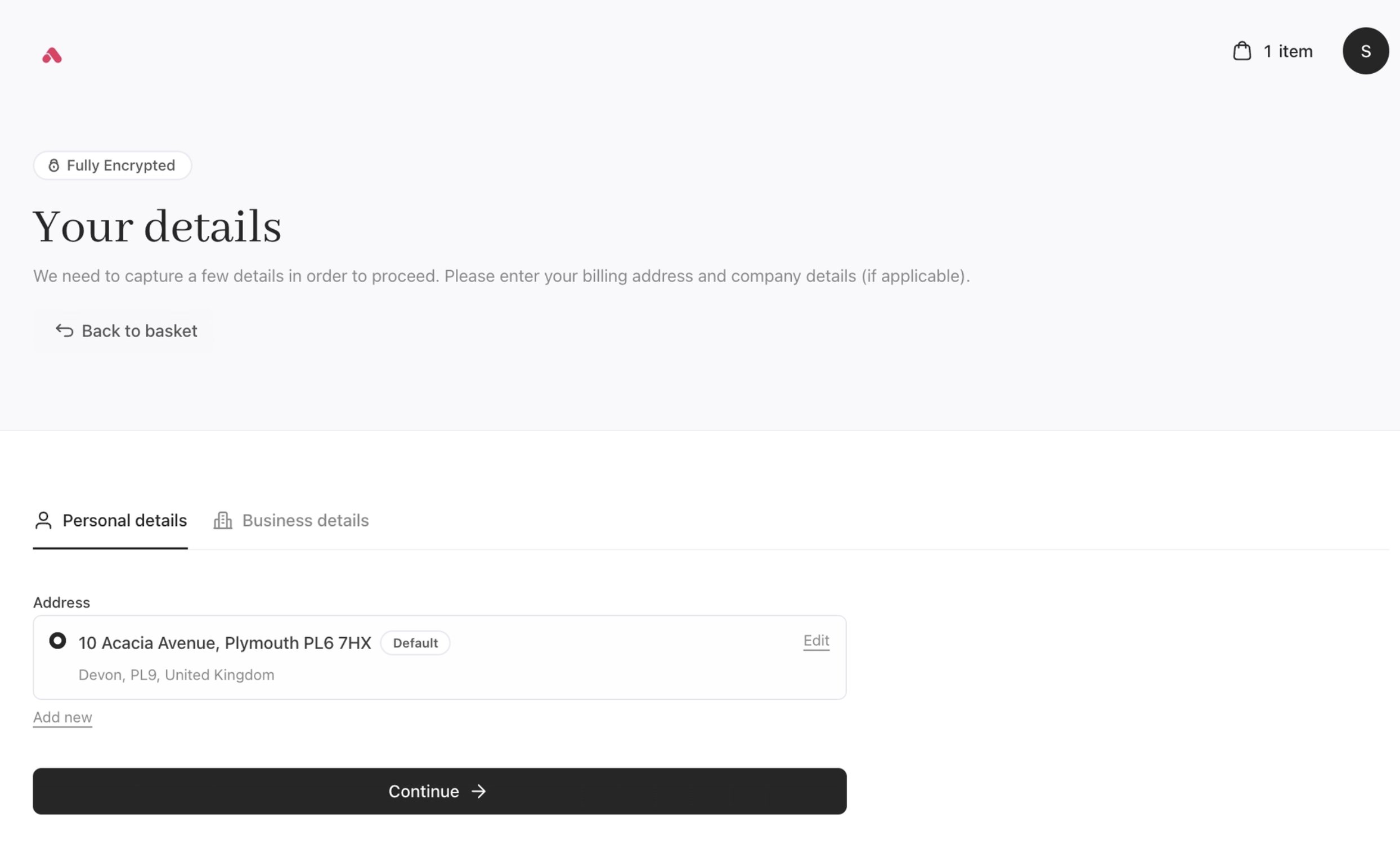
Full billing details layout
- Order Confirmation (confirmation)
JSON Example: Order Confirmation (full) - Full-width single column.
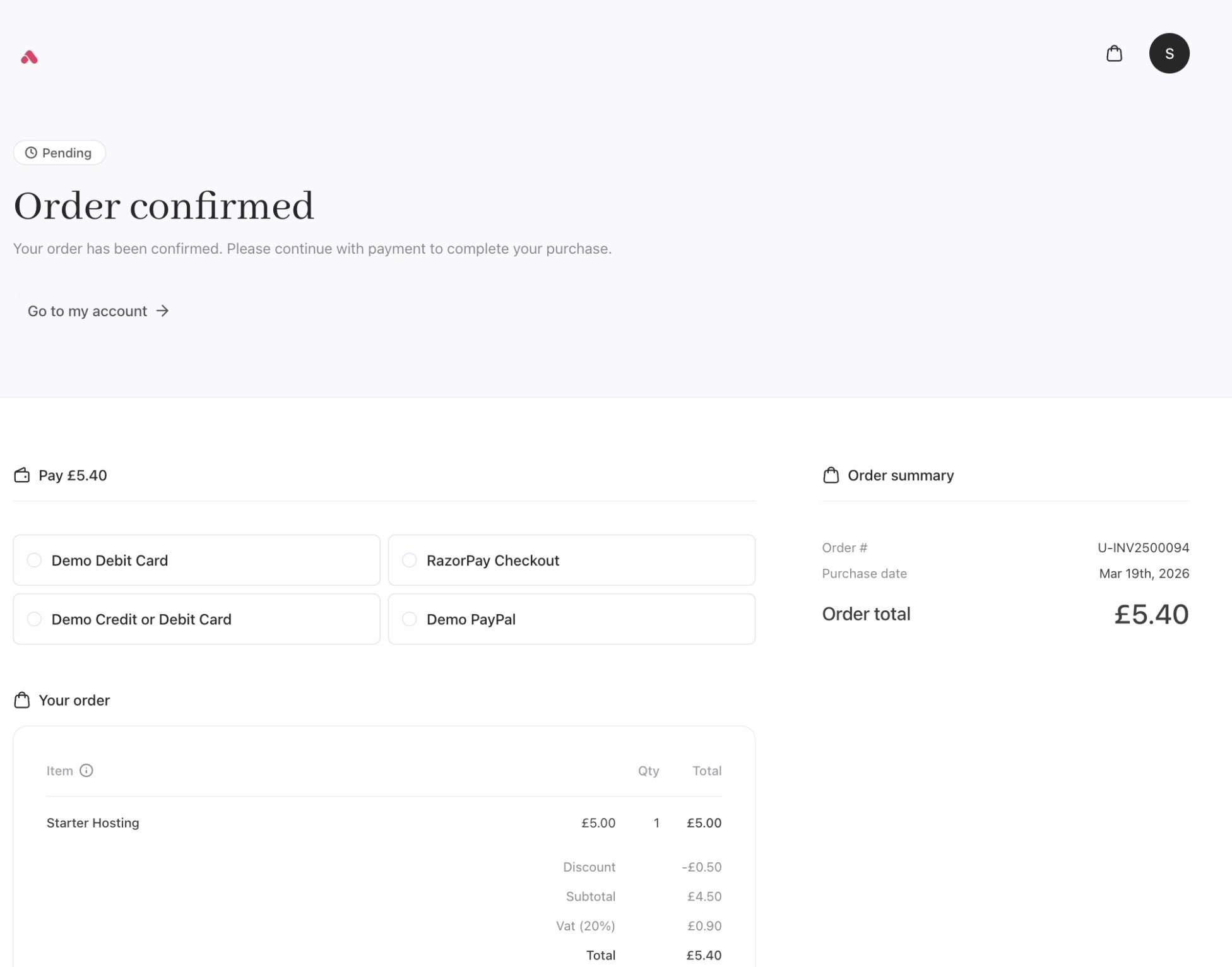
Full confirmation layout
Appendix: Template Properties
Other layout and structure settings
You can control how pages are structured across contexts such as catalogue, configuration, basket, checkout, and confirmation. These changes are driven by context settings, allowing different behaviour on different screens without duplication. Configurable elements include: JSON Examples- Product listing layout (grid, list, column count by viewport). The product catalogue list appears with a 2-column layout. The default is a
3-column layout.
JSON Example: productListLayout column.
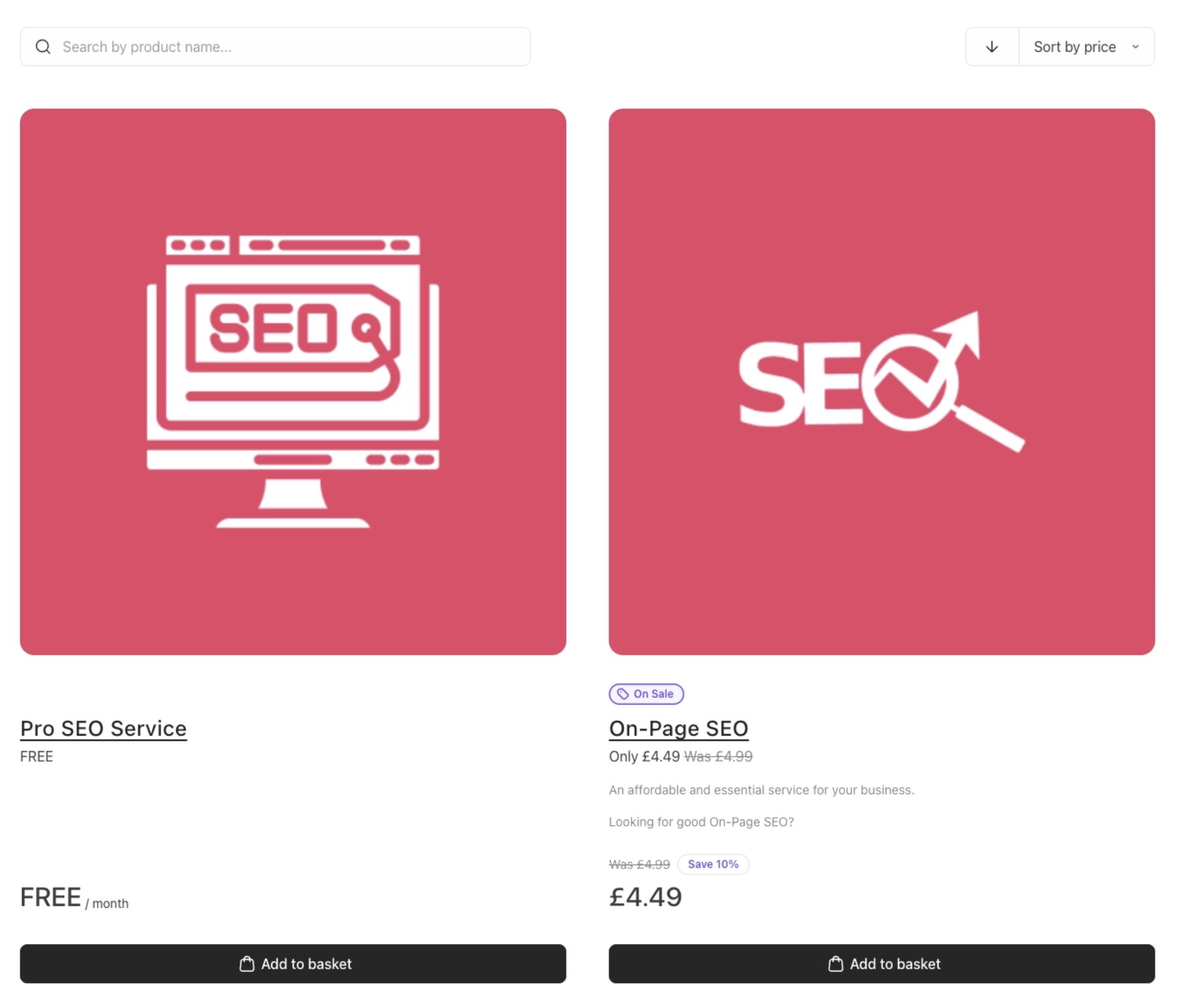
2 column product catalogue list layout
- Visibility of sections such as categories, recommendations, or breadcrumbs. Breadcrumbs can be hidden globally. It is
visibleby default.
JSON Example: Breadcrumbs visibility.
Breadcrumbs hidden on category
- Placement of summaries, totals, and action buttons. Even when product options are selected, these will not show in your configuration summary. The default is
visible.
JSON Example: productConfigOptionsSummary visibility.
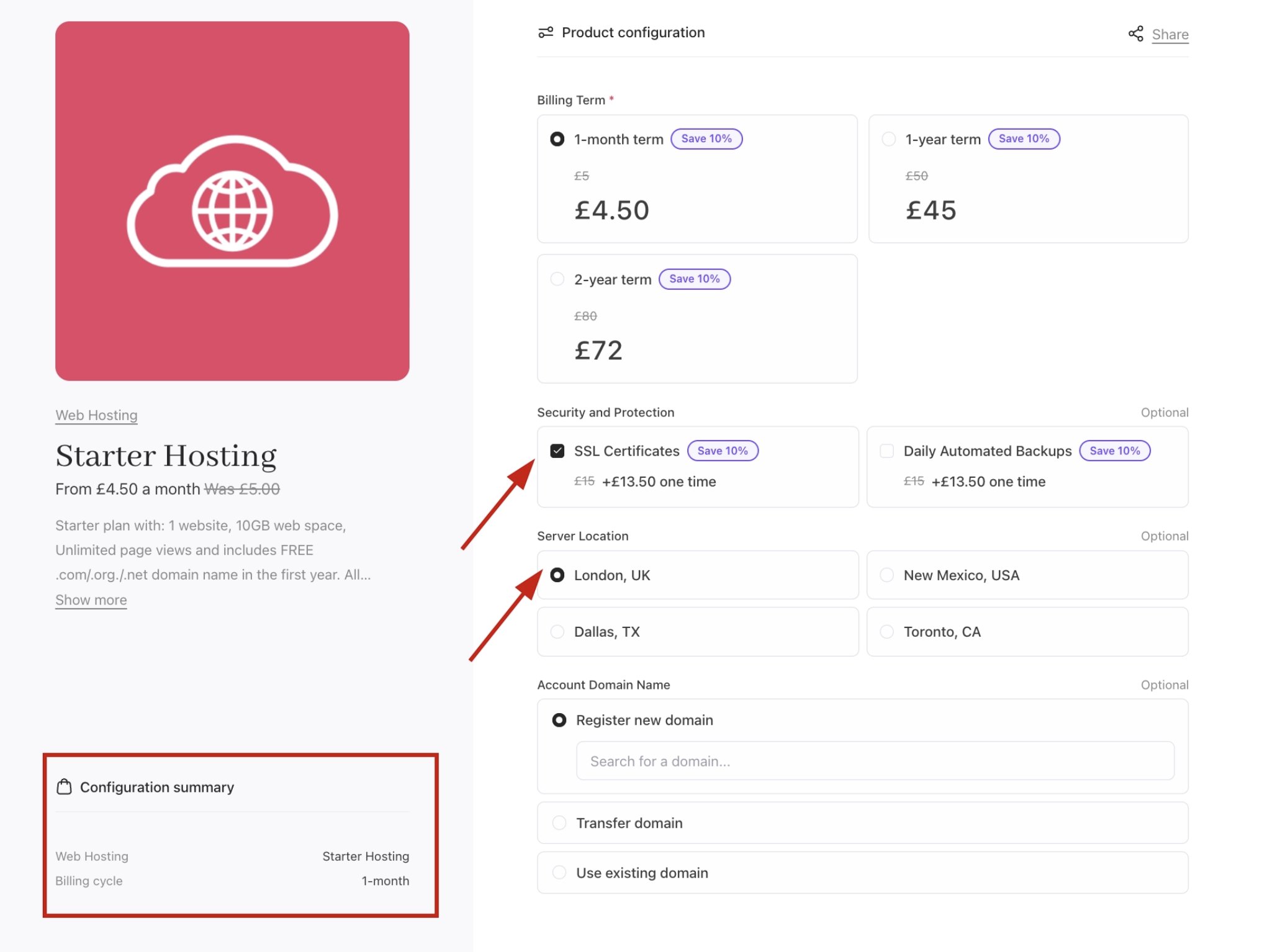
Product configuration option summary hidden
- Step ordering and visibility within the checkout flow. Basket items can be visible in the checkout. The default is
hidden.
JSON Example: basketItems visibility.
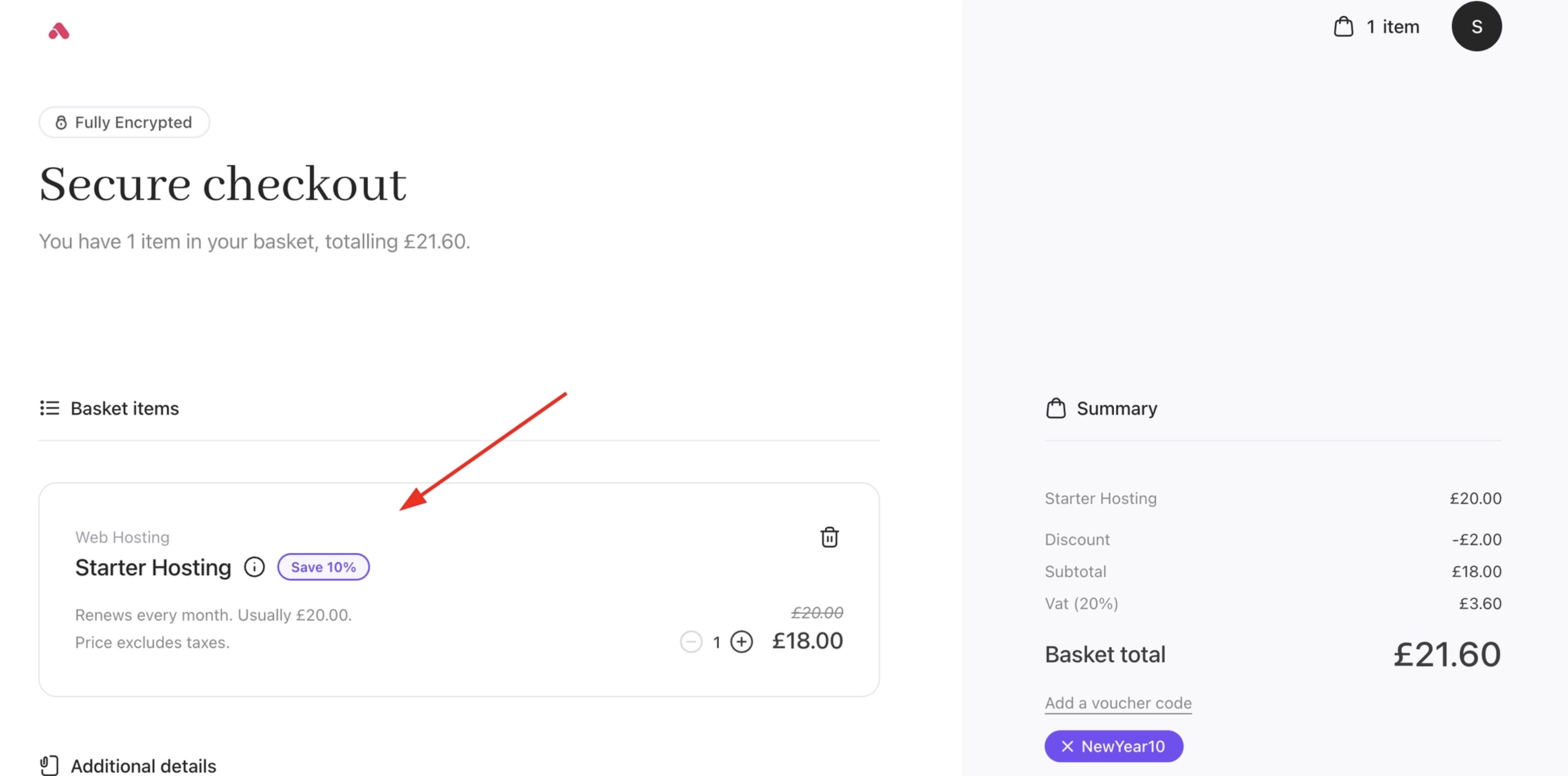
Basket items in checkout visibility
- Control how product options are displayed and selected by the customer. Renders the option selector in particular layouts. The default is
radio-rows.
JSON Example: optionSelector structure.
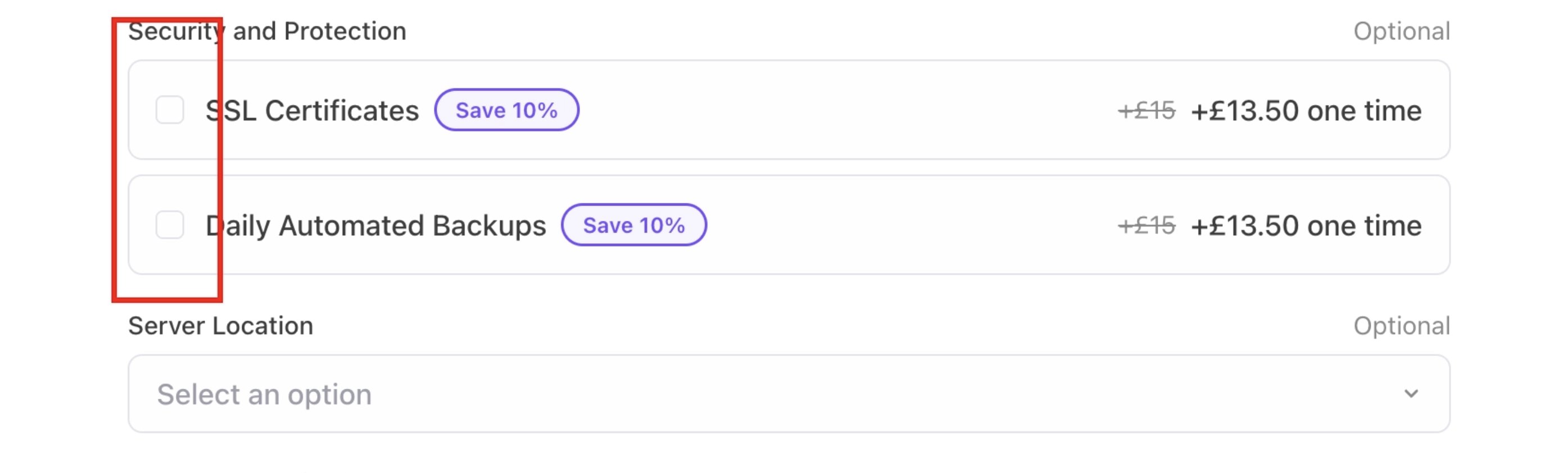
Select option selector
- Set the number of columns in the option selector when using the
radio-gridlayout. Displays option cards in a column grid, adjustable from 1 to 4 columns to suit your product listing layout. The default is2-col.
JSON Example: optionSelectorGrid columns.
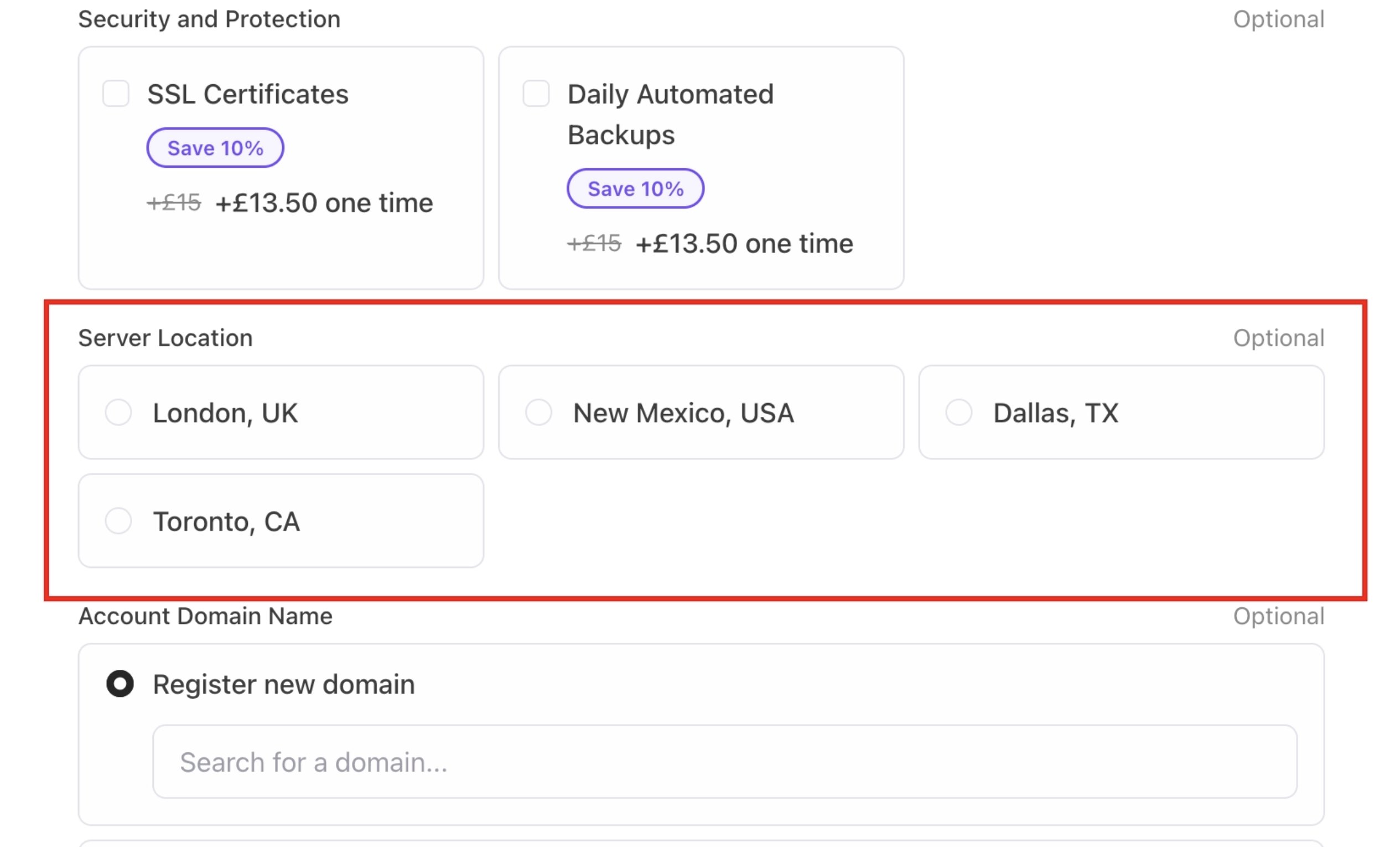
3-col option selector grid
- Toggle the visibility of icons displayed alongside each selectable option. Option icons are
visibleby default. You can hide them to display option labels only.
JSON Example: optionSelectorIcons visibility.
- Assign a display name to a group of options when using the select-grouped selector layout. Shows a labelled group heading within the grouped dropdown, making it easier for customers to scan and identify related options.
JSON Example: optionGroupLabel.
- Assign an icon to an option group, displayed next to the group label in a
select-groupedlayout. Shows a visual icon beside the group label to help customers quickly identify and differentiate option categories.
JSON Example: optionGroupIcon.
- Control how billing term options (e.g., monthly, yearly) are presented to the customer. Renders billing terms structure accordingly. The default is
radio-grid.
JSON Example: termSelector structure.
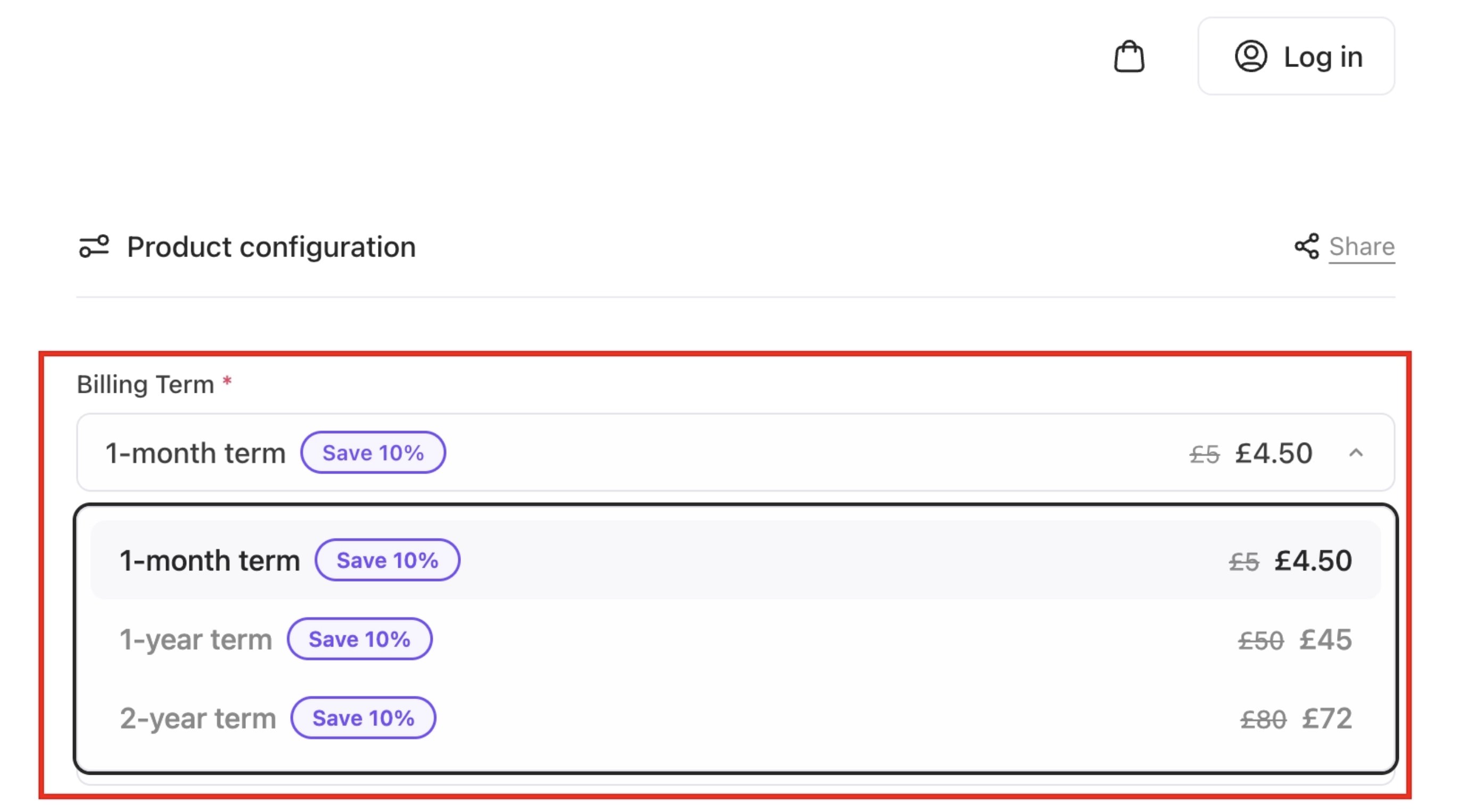
termSelector select
- Set the number of columns in the term selector when using the
radio-gridlayout. Display billing term cards in various columns. The default is2-col.
JSON Example: termSelectorGrid columns.
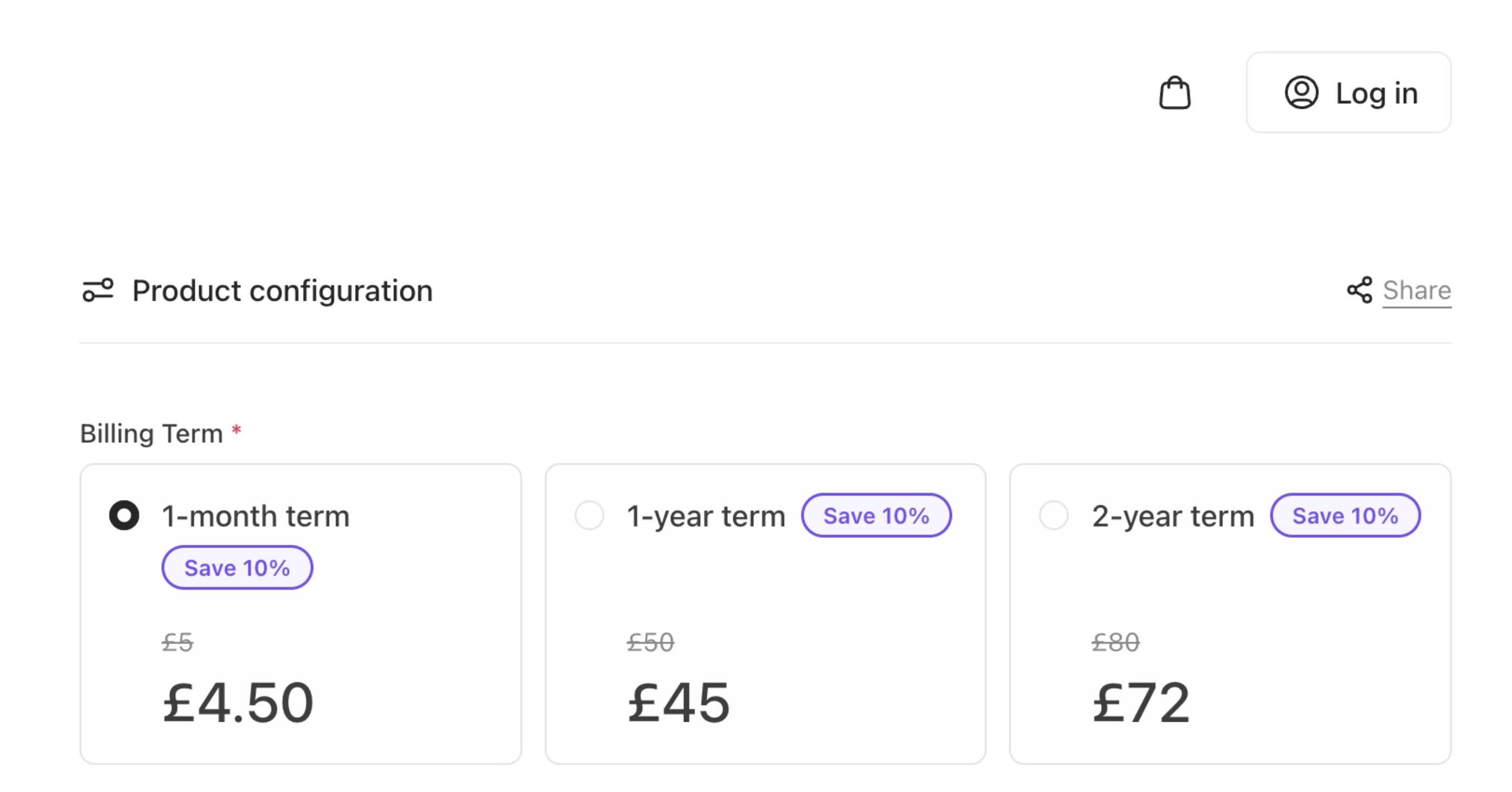
termSelectorGrid 3 column
- Toggle the visibility of the billing summary shown beneath the selected term. Show a cost summary line (e.g., “Pay X.XX/mo”). The default is
visible.
JSON Example: termSelectorSummary visibility.
2. Content and copy
All user-facing text is controlled through i18n configuration in UI metadata. Content can be overridden at brand, category, product, or option level, allowing targeted messaging where it matters most. This includes: CSS Examples- Headings and subheadings. You can change the colour of headings in your cart.
CSS Example: Text colour display of headings.

Updated title colour
- Button labels and call-to-action text. Colour can be changed on the text on the primary buttons.
CSS Example: Colour display of primary buttons.
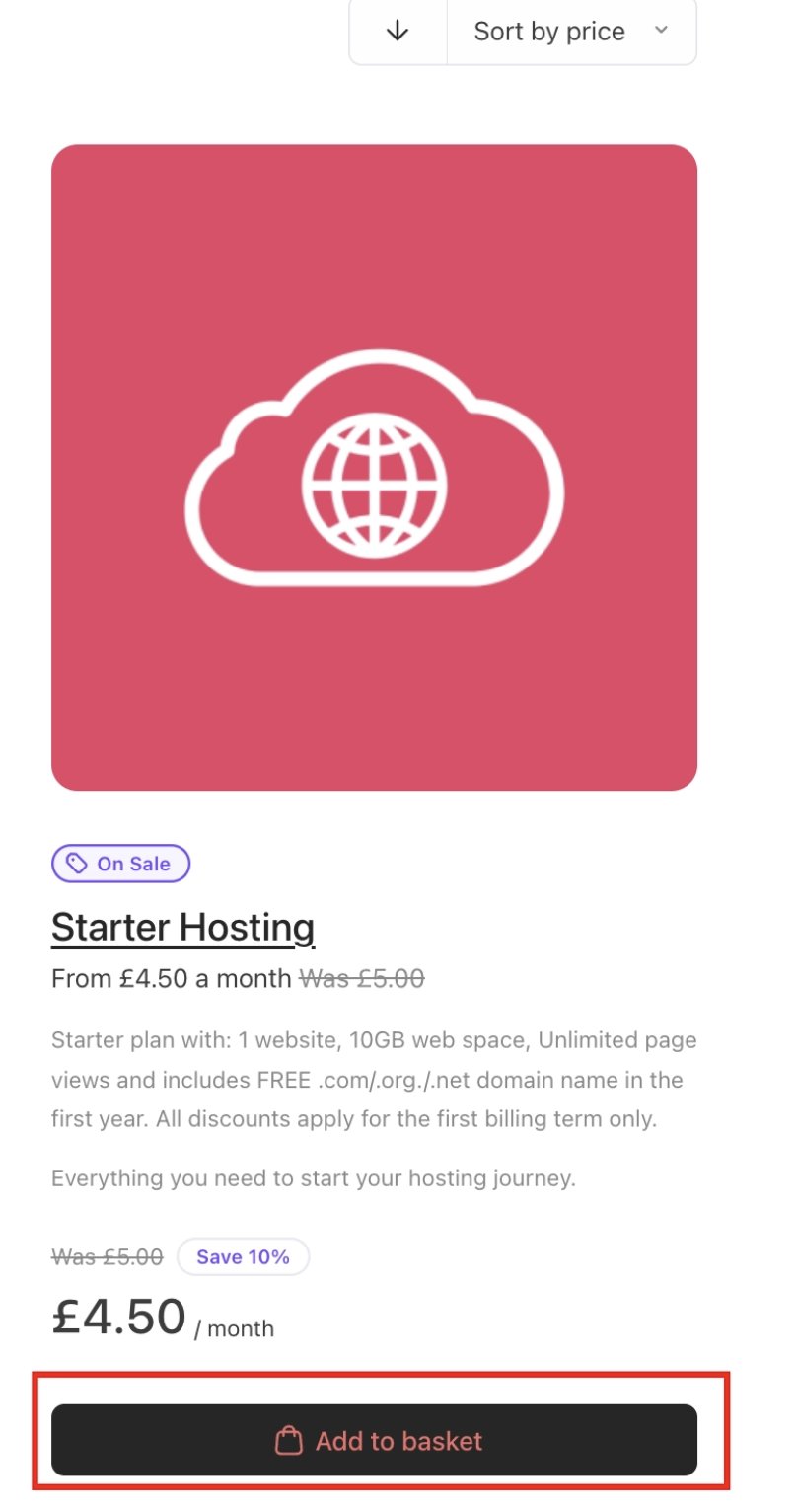
Updated button colour
- Empty-state messages. Colour can be changed on the text when the basket is empty.
CSS Example: Core text colour change display.
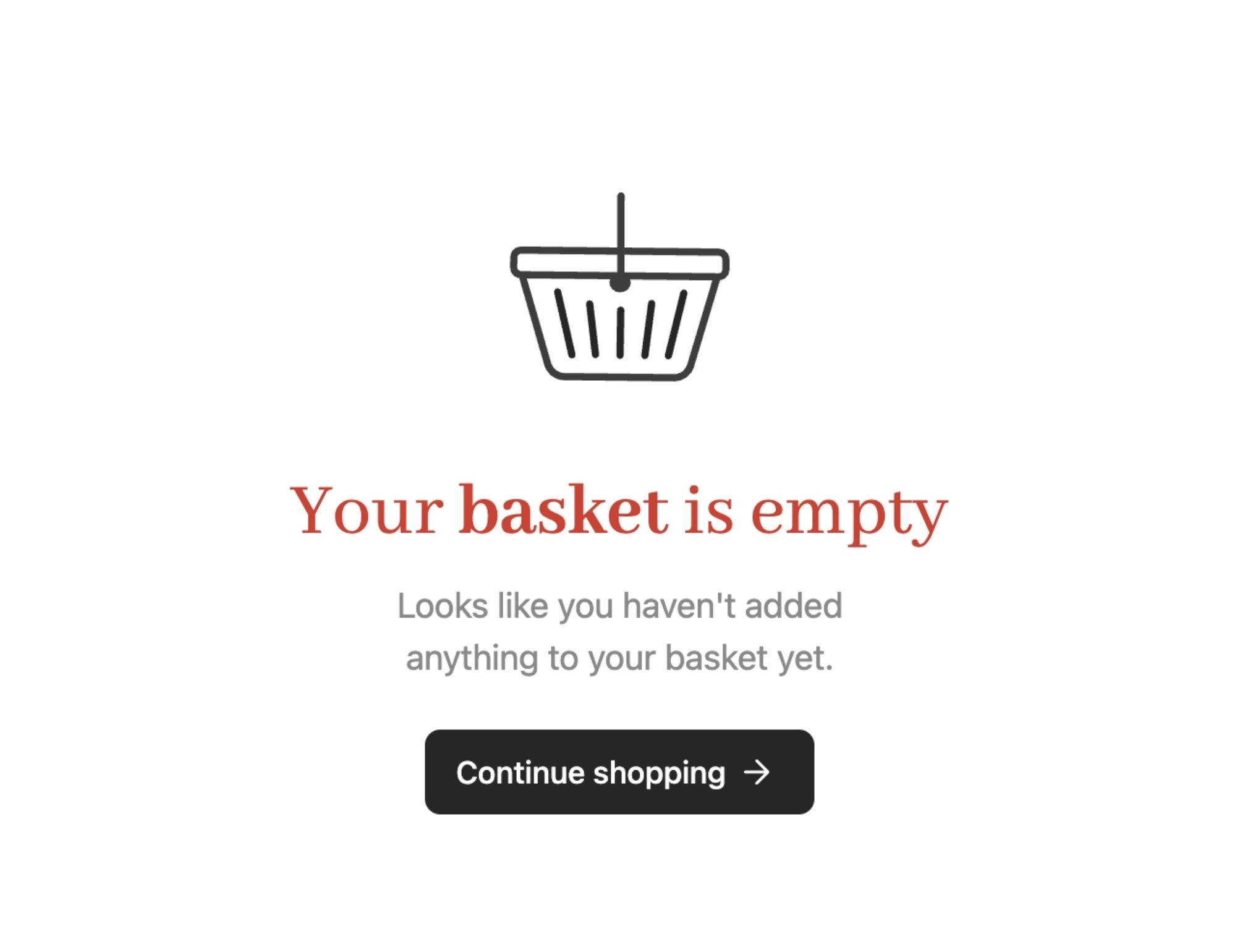
Empty basket colour change
- Informational banners and notices.
- Legal text references. You can create your store’s terms and conditions. For more information, follow this guide.
CSS Example: Core colour of legal texts.

Legal text colour change
- Assign a custom image URL to a specific product option, displayed within the option selector. Show the specified image alongside the option label, giving customers a visual reference for each selectable product option.
JSON Example: optionImgUrl.
3. Visual styling and branding
Cart styling is controlled through design tokens rather than fixed CSS overrides. Because tokens are semantic, updating a primary colour or font updates the entire cart consistently, including complex components like summaries and modals. You can configure: CSS Examples- Brand colours and accents.
CSS Example: Canvas colour.
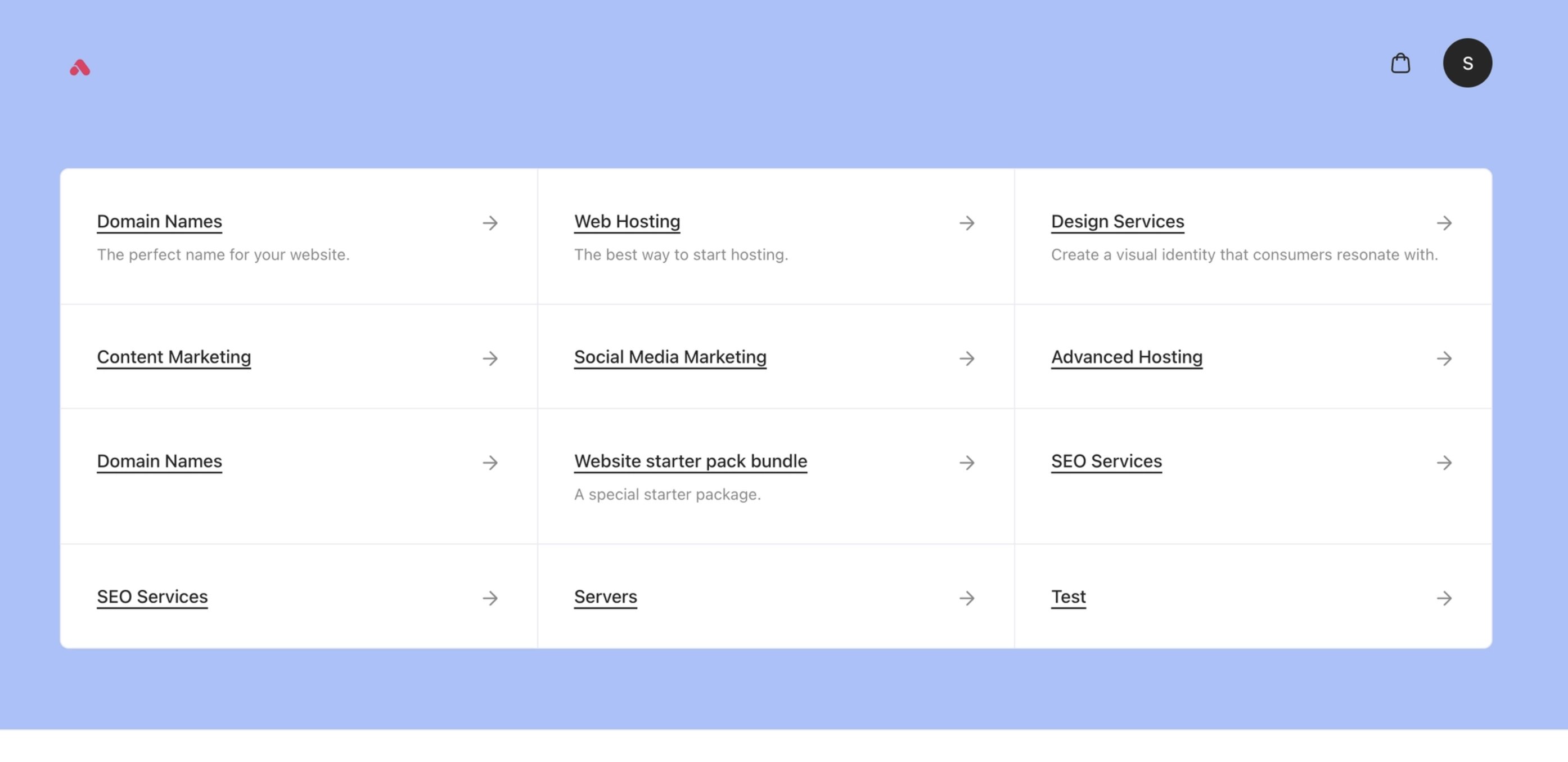
Updated canvas colour
- Typography scale and font families. You can change the font weight for display texts. Increase for bolder headings.
CSS Example: Font weight for display text.
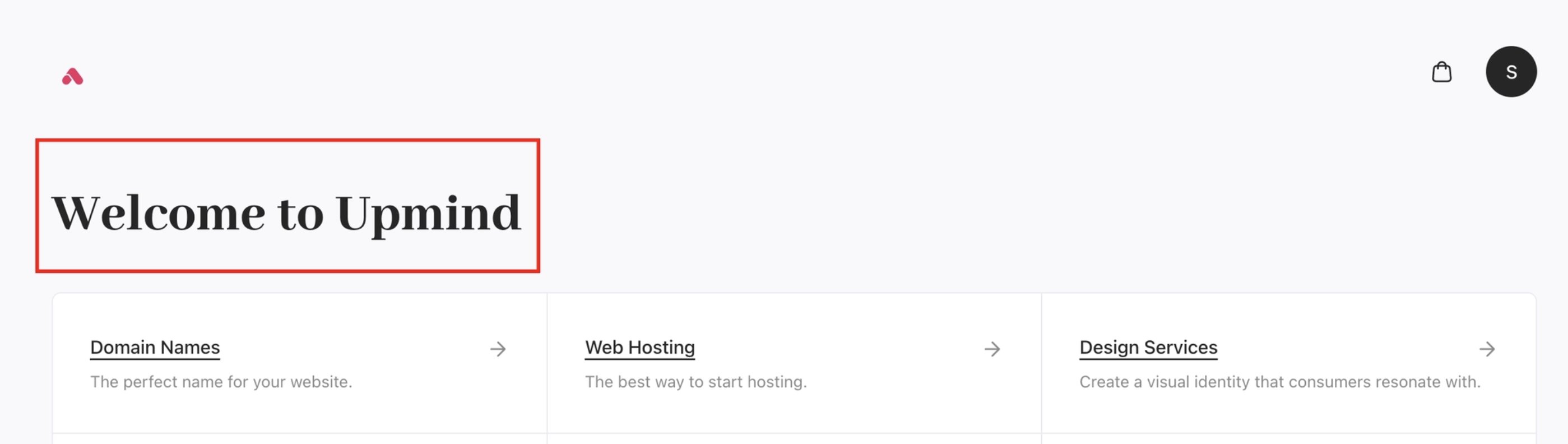
Font weight display
- Spacing and border radius.
- Button styles and variant colour values. You can change the primary button backgrounds, main CTAs, and key accent elements. Gradients can also be updated.
CSS Example: Button primary colour.
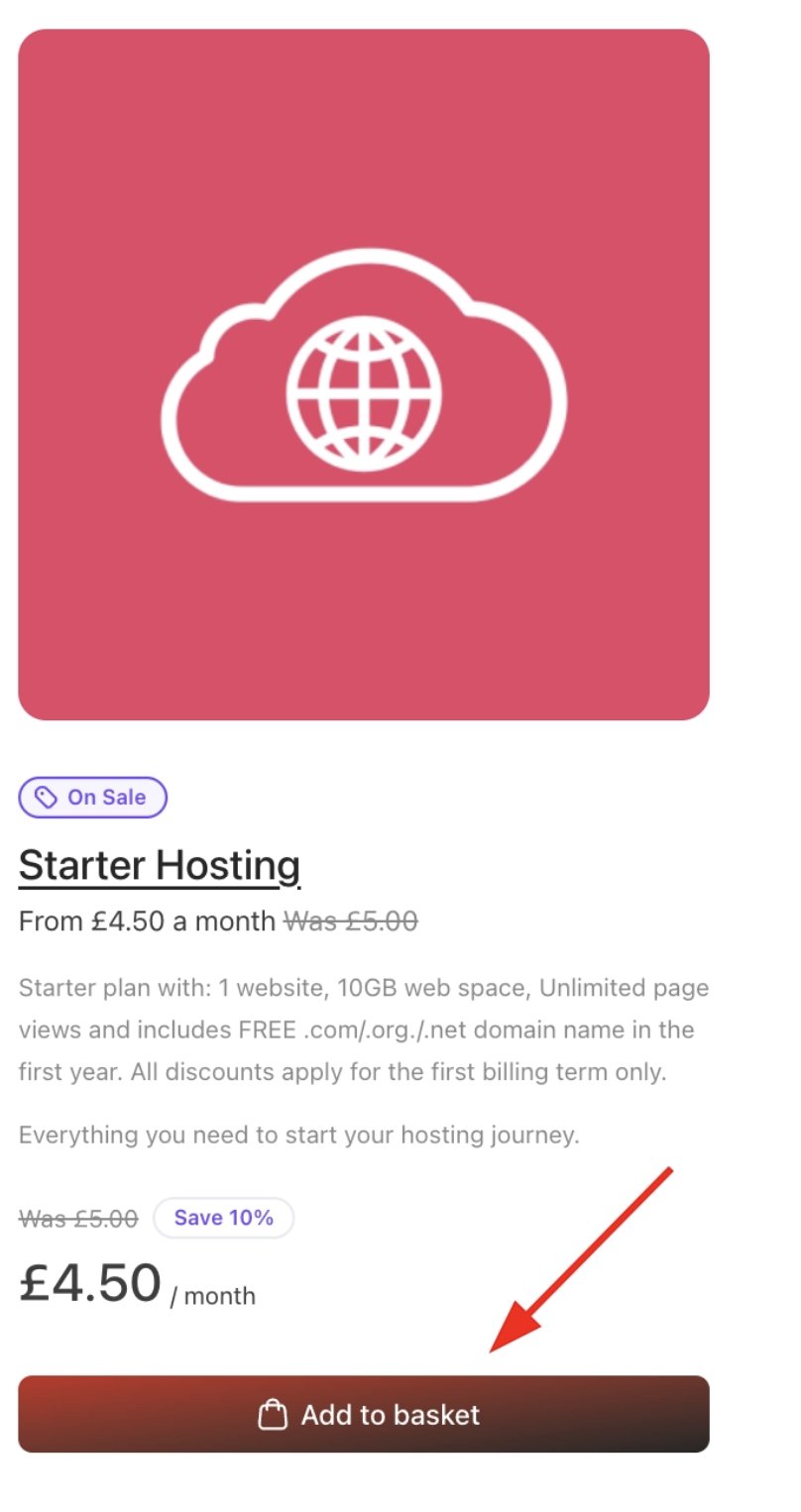
Primary button colour
- Badges and highlight styles. Bold promotional background for discount badges.
CSS Example: Default promo colour.
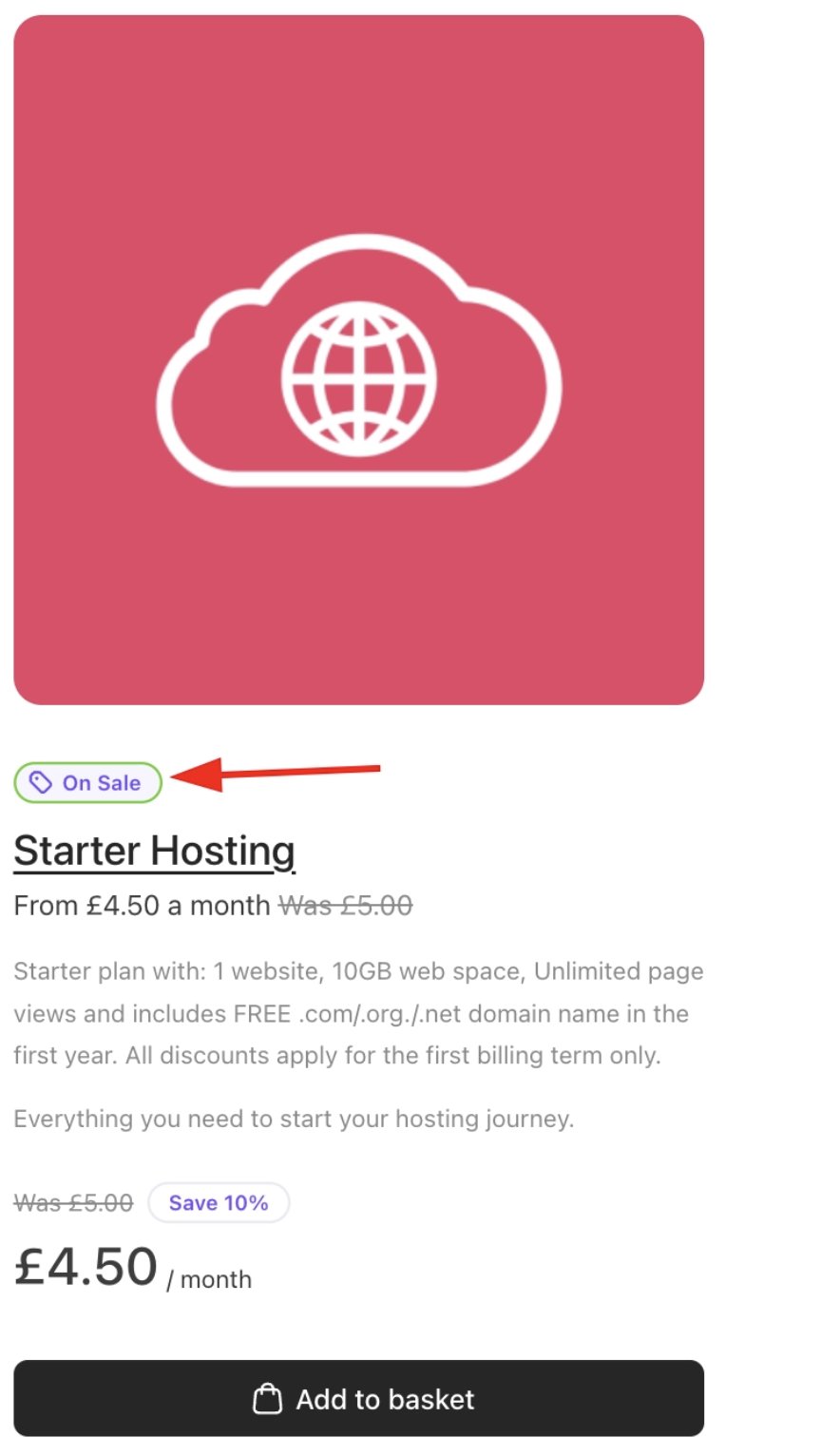
Default promo colour
4. Feature visibility and behaviour
Cart features can be enabled or disabled per context. This allows a checkout flow that feels intentional rather than generic. Examples include: JSON Examples- Showing or hiding product images. Product images in recommendations can be hidden from the customer’s view. The default is
visible.
JSON Example: productImages visibility.
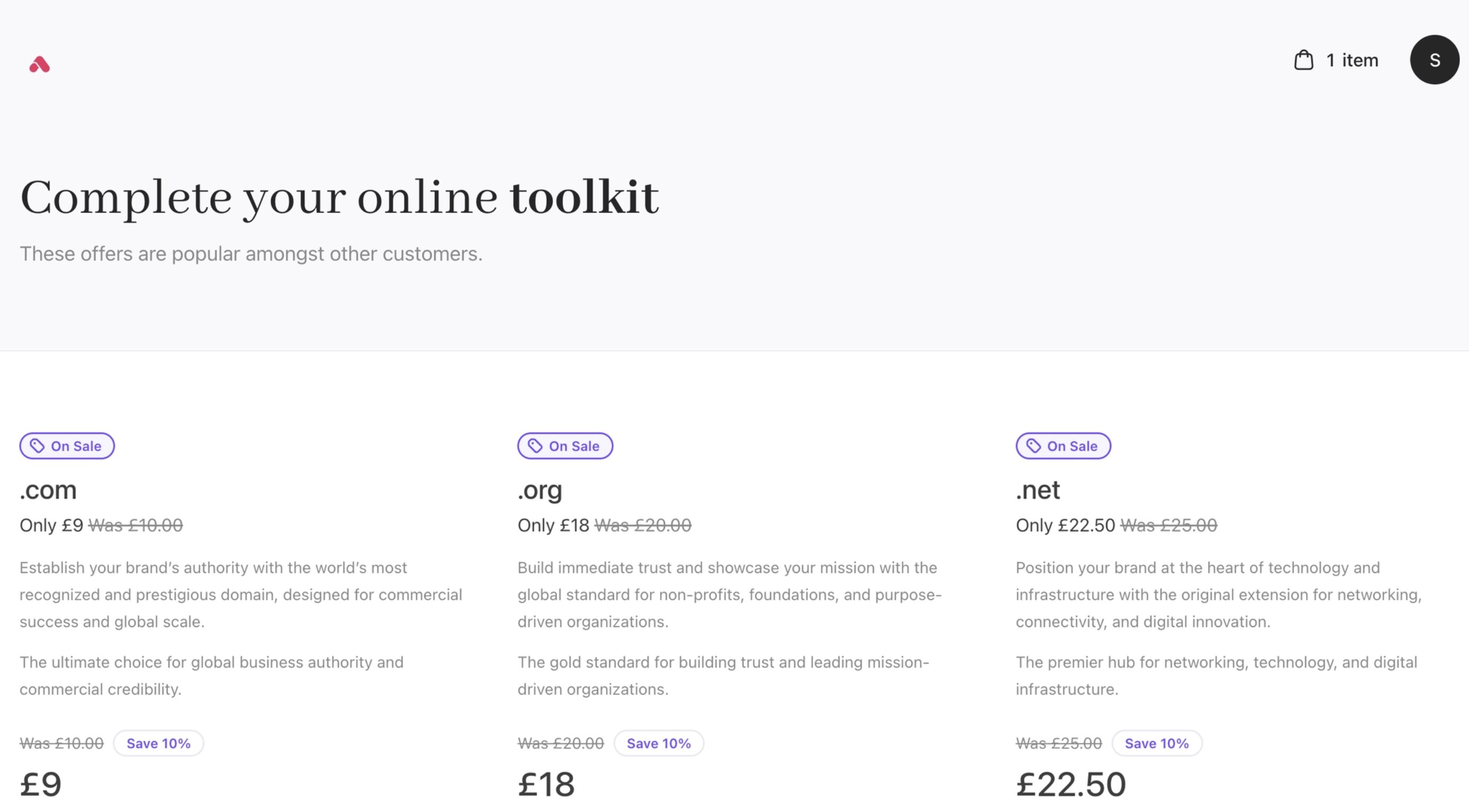
Product images hidden in recommendations
- Displaying or suppressing recommendations. Change the product style to
flushandcarded.
JSON Example: productStyle carded.
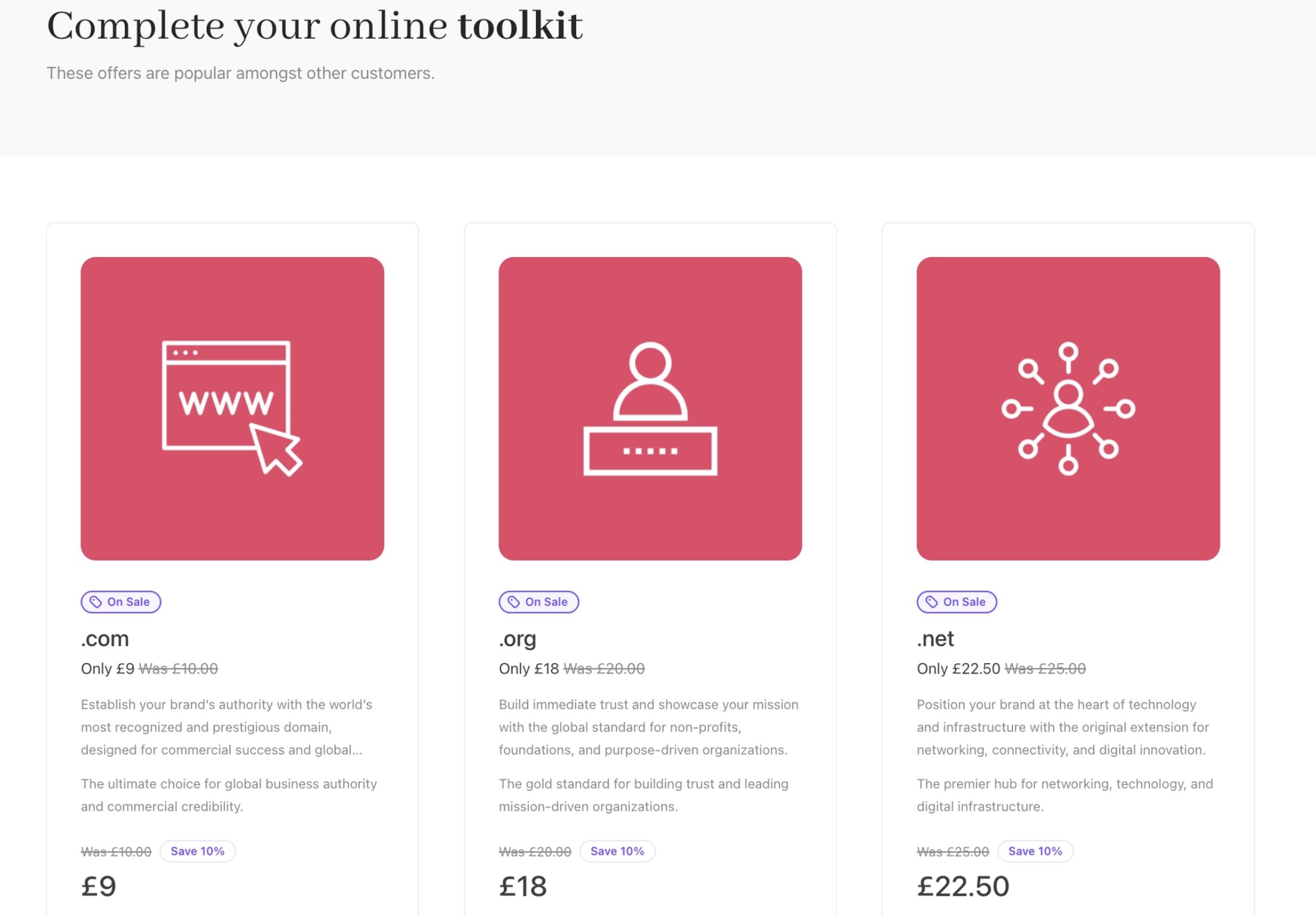
Carded product style in recommendations
- Controlling zero-price display behaviour.
JSON Example: zeroPriceDisplay value. Zero-price products will display 0.00 globally.
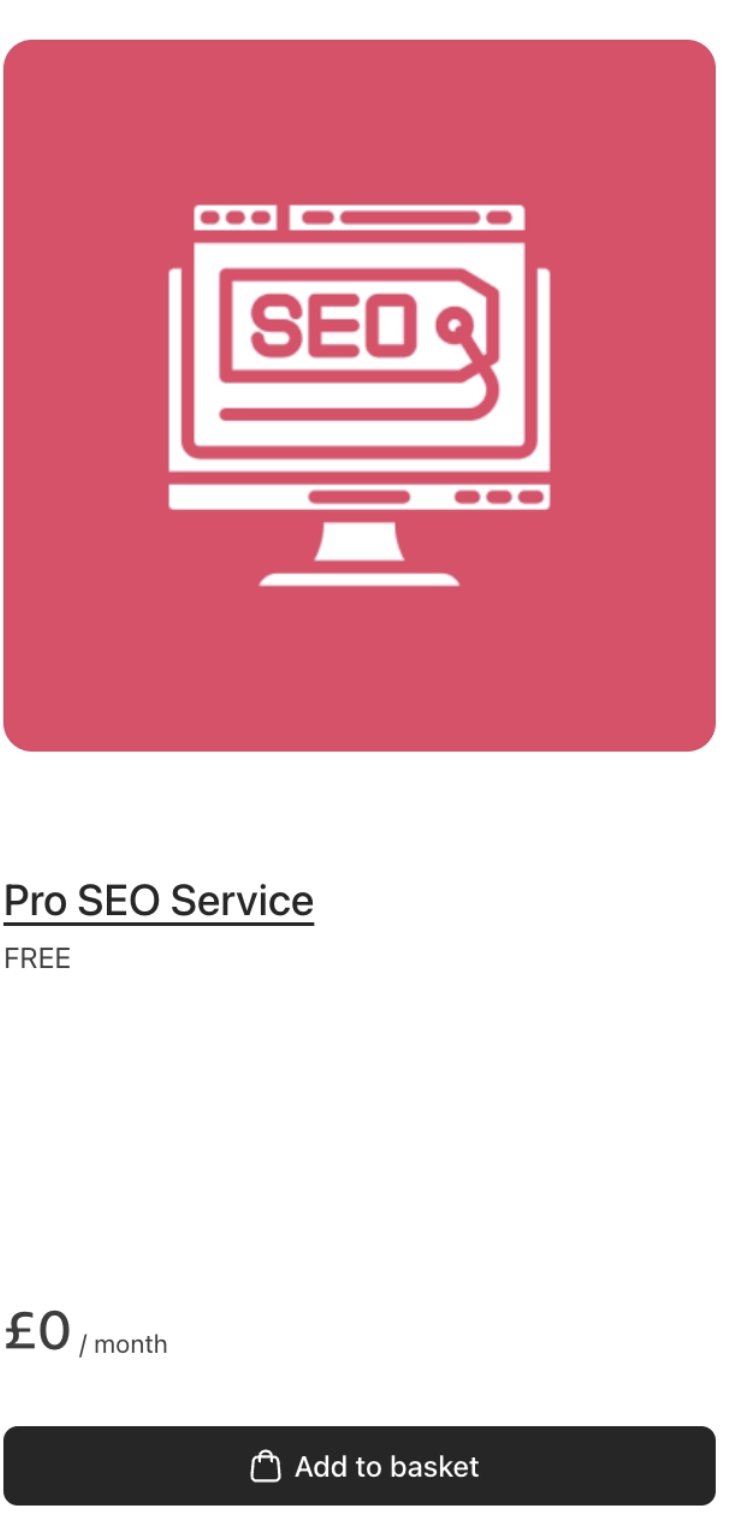
Zero-price display numeric
What is configurable in the Client Portal
The Client Portal is where customers manage services after purchase. It shares the same architectural principles as the Cart but focuses on account management rather than conversion.1. Branding and layout
Portal customisation includes:- Header and navigation structure.
- Brand identity and colour system.
- Page-level layout and spacing.
- Consistent typography across account views.
2. Features
You can configure the features in the portal:- Billing history and invoices
- Invoice listings with filtering and search.
- Invoice downloads (PDF or hosted views).
- Payment status indicators (paid, overdue, refunded).
- Credit notes and adjustments.
- Transaction history.
- Subscription controls
- Changing billing cycles.
- Applying promotional codes.
- Enabling or disabling auto-renew.
- Managing upgrades and plan changes.
- Viewing next billing dates and renewal pricing.
- Payment method management
- Adding new payment methods.
- Updating card details.
- Removing saved methods.
- Selecting a default payment method.
- Viewing stored payment methods for active subscriptions.
- Profile and security settings
- Update contact information.
- Manage company details.
- Configure tax or VAT information. (For the tax guide, find more information here).
- Change passwords. (For the security guide, find more information here).
- Manage authentication settings (including SSO, where enabled).