

Document categories
If you are new to e-commerce, there are a number of websites that can generate generic text for your T&C document. Be sure to read the text carefully and make changes that apply to your business. Generally, a T&C document should include categories of information like these:- Privacy policy
- Terms of sale
- Terms of use
- Pricing and payment terms
- Shipping and delivery
- Intellectual property
- Disclaimer of liability
- Third-party links
- Refunds and returns process
- Limitation of liability
- Information accuracy
- Dispute resolution
- Intellectual property/trademarks
Publishing a T&C document
There are two ways to publish a T&C document for your site:- Create a document on your Upmind site with Markdown.
- Add a link to an online document hosted on a different site.
Creating a T&C document
This step shows you how to create and update a T&C document hosted on your Upmind site.- Open the Upmind Admin dashboard.
- Go to Settings > Terms & Conditions under Branding and Customisation.
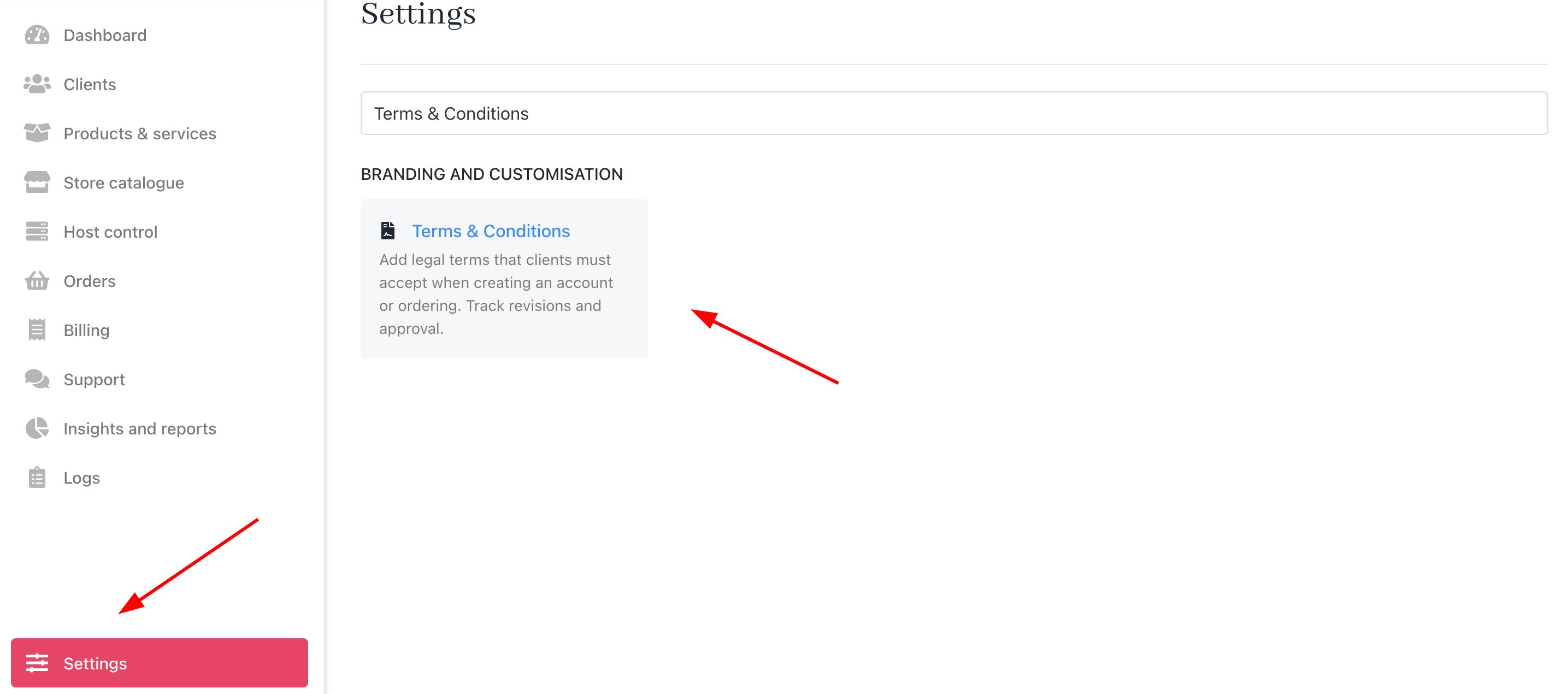
Settings > Terms & Conditions
Using markdown
- Enter the markdown text into the field.
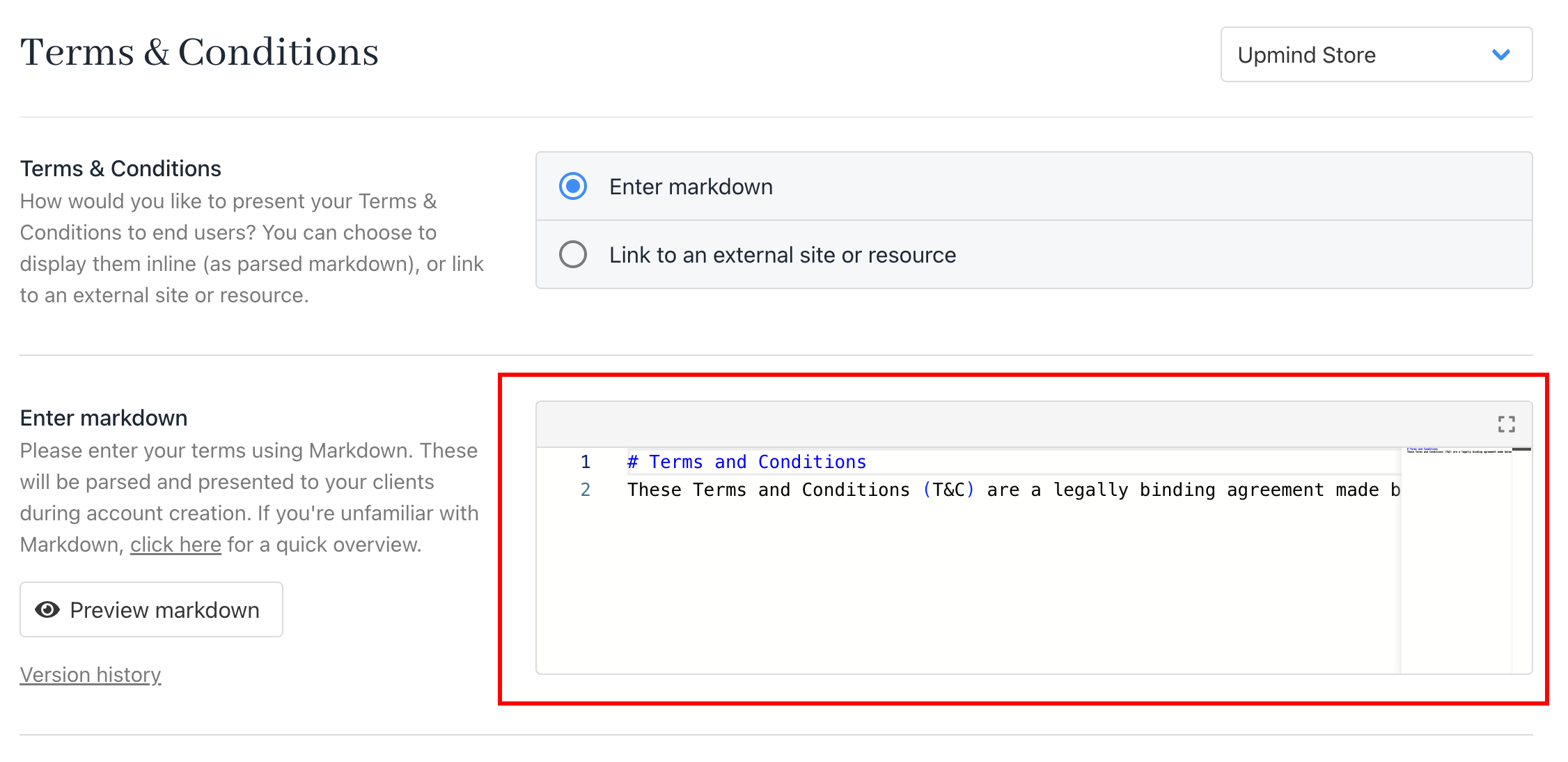
Enter markdown text
- Check the document text and layout in the Preview panel.
- Click Save.
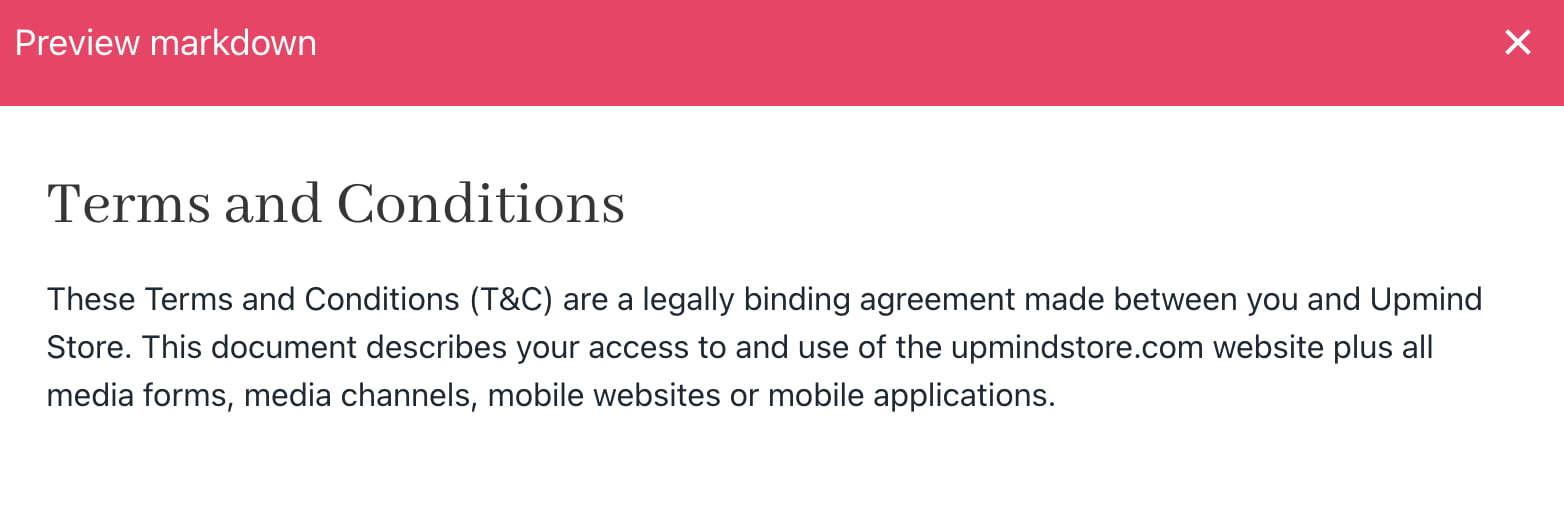
Preview panel
If you are unsure what Markdown is, click the link to find more information and examples.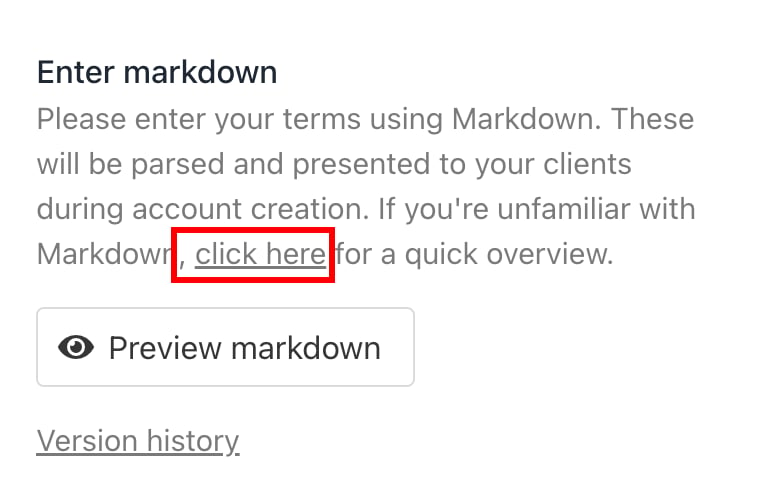
Viewing history
You can read previous versions of the T&C document.- Click Version History.
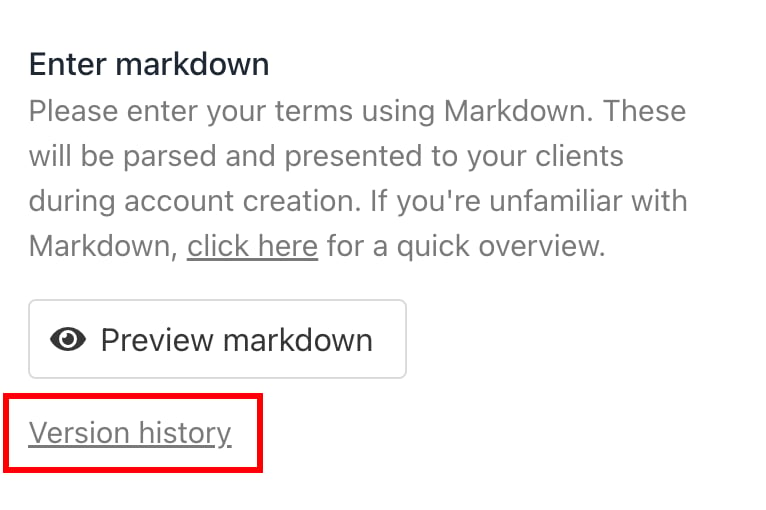
Version history
- You can check the complete list of versions, including the latest one.
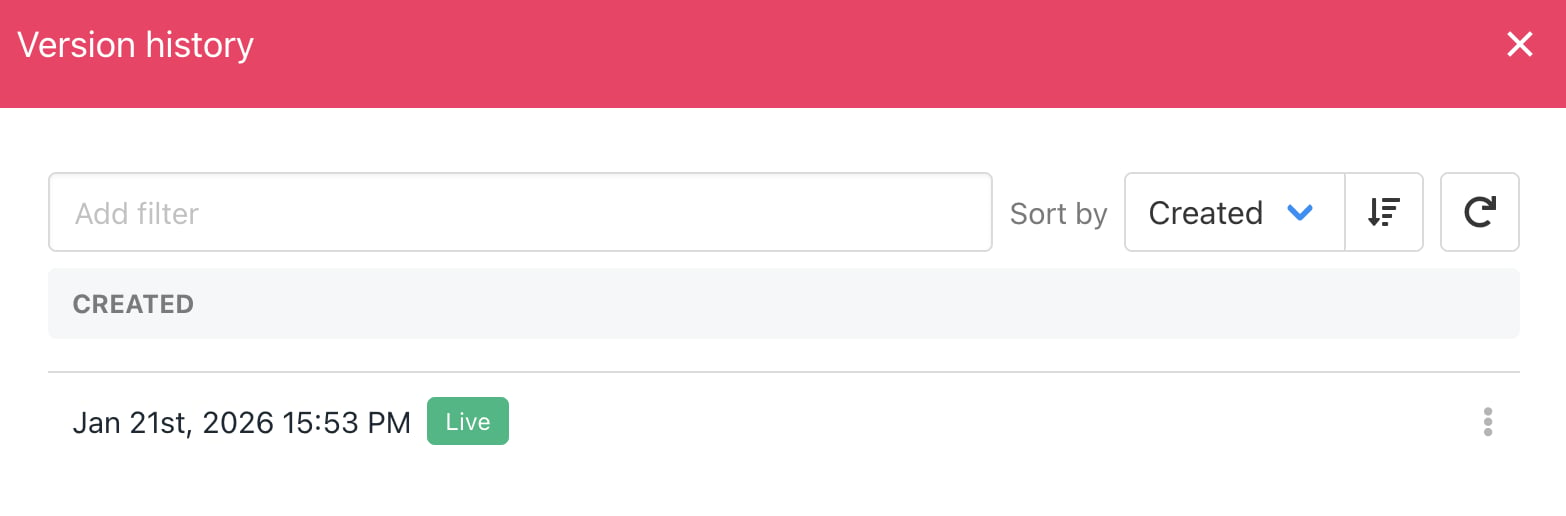
All T&C versions
- Click the Sort button to change the display order based on the date created. (optional). You can also refresh the list and read the previous versions by clicking on them.
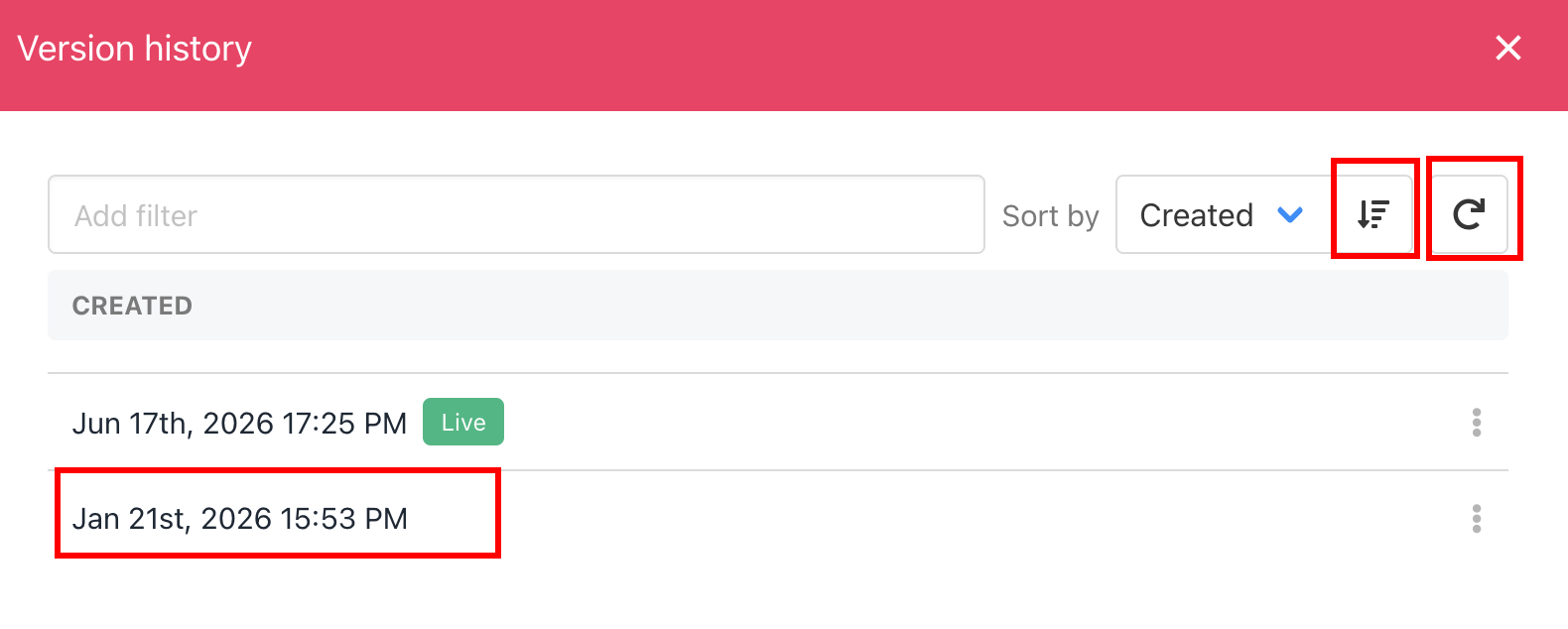
Sort, refresh or view
- Read the text in the side panel.
Reverting to a previous version
To replace the current T&C document with a previous version:- Open an older version.
- Click Revert to this version.
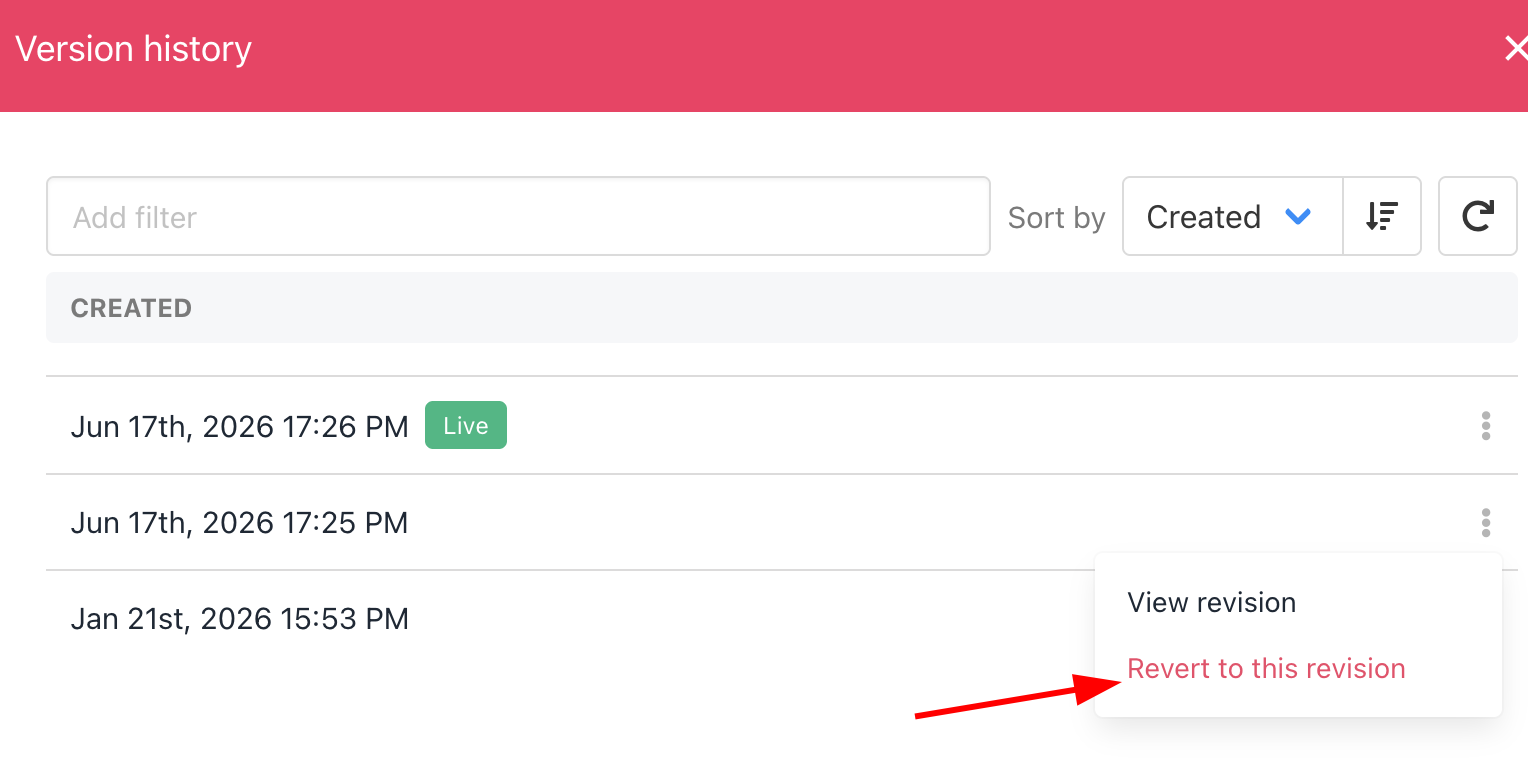
Revert to previous version
Updating sections
To update a passage in the current document without replacing all the text:- Copy a section from a previous version.
- Paste it into the current document.
- Click Save.
Linking to a published document
Instead of creating a T&C document in Markdown, you can link to a published online document on a different site.- Select Link to an external site or resource.
- Enter the URL for the published document.
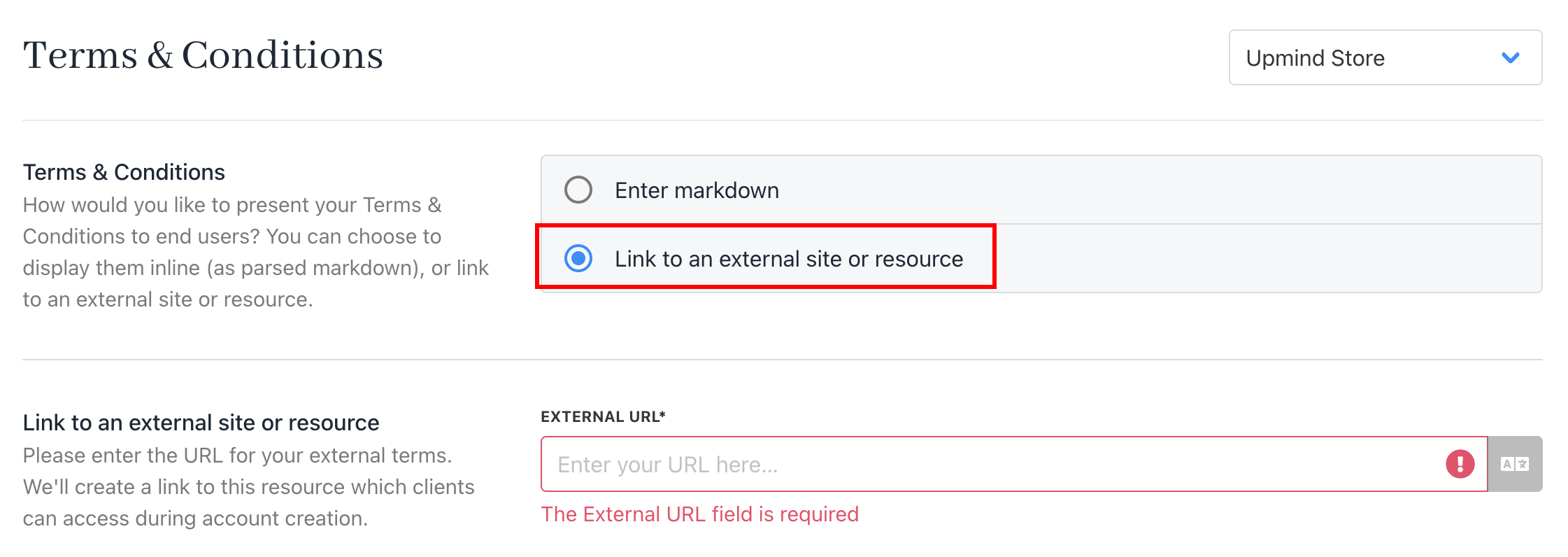
Link to an external site or resource
- Click Save.
Customer view
Upmind automatically places a link to your T&C document at the bottom of the Create account page. Depending on your T&C document choice, the link opens the Upmind document or your published page on a different site.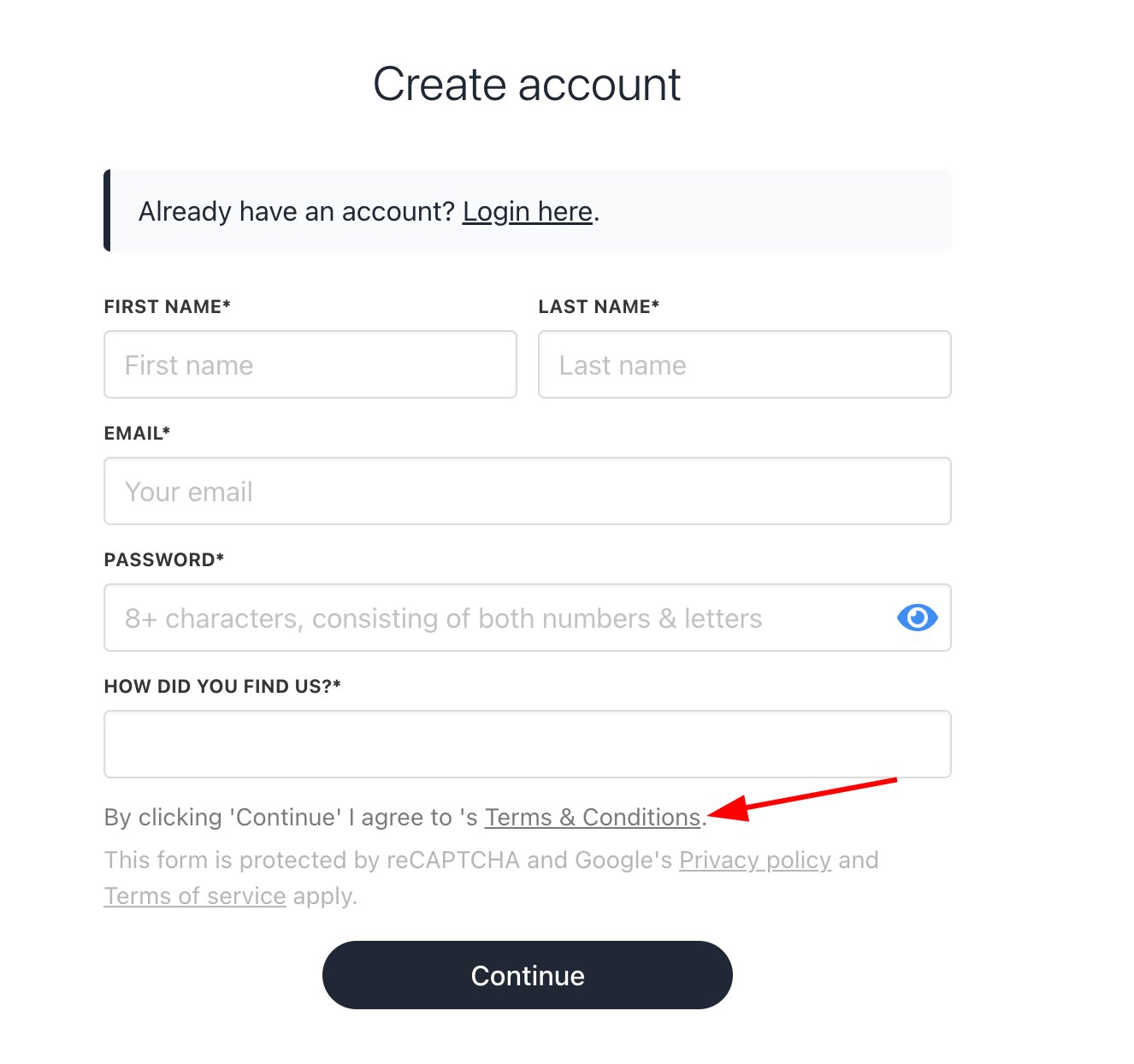
Link to your T&C document