

Enabling option discounts
This global toggle enables or disables the discounts on product options.- Go to the Upmind dashboard.
- Go to Settings > Order Options.
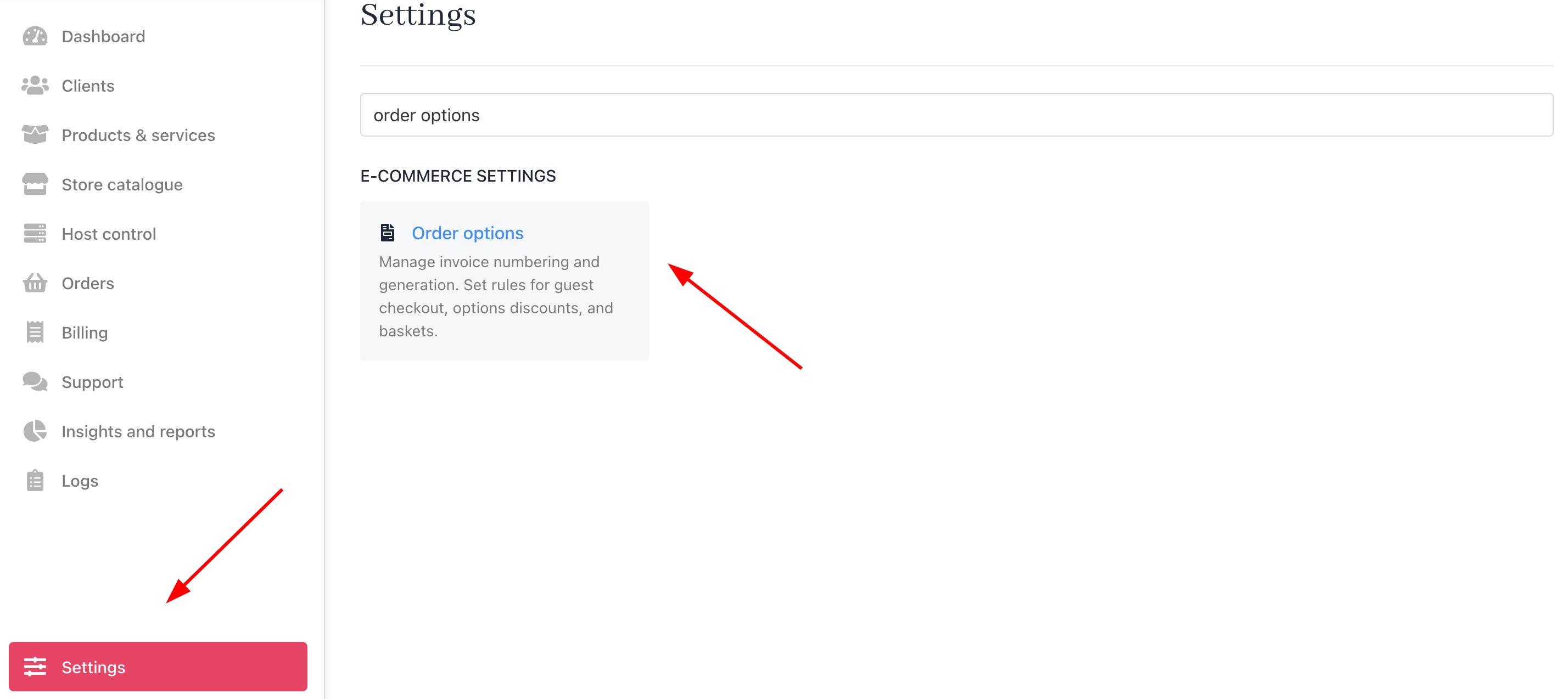
Settings > Order Options
- Scroll down to the Discount for options heading.
- Click the toggle to the ON position to enable this control.

Discount for product options
Defining an abandoned basket
Set the number of hours of inactivity before Upmind automatically abandons the customer’s basket.- Go to the Basket heading.
- Enter the number of hours of inactivity in the field.
- Check the box to change basket prices to the customer account’s preferred currency when possible.
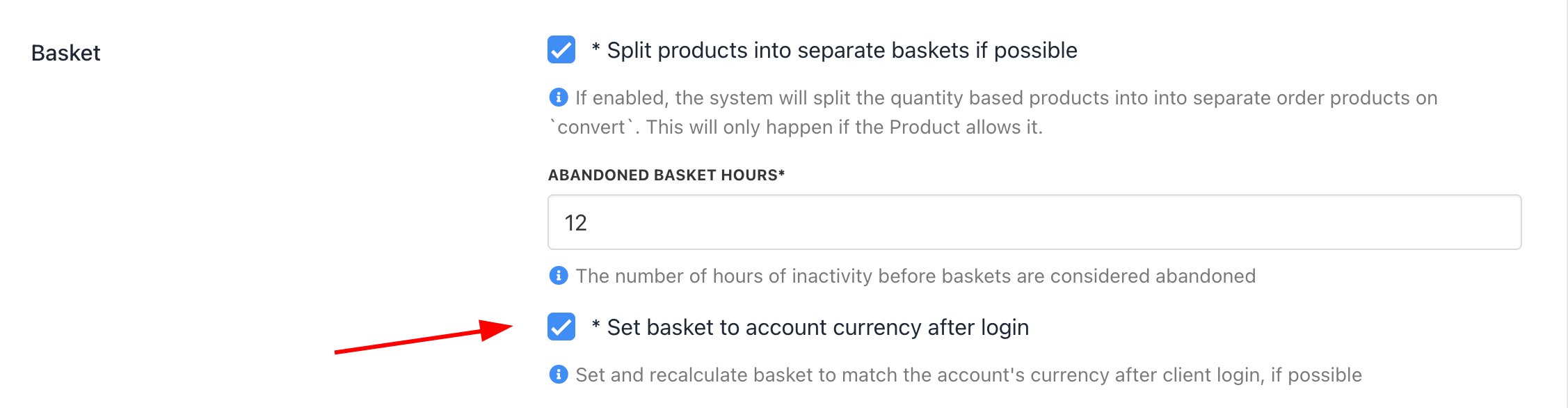
Set time to abandon basket
Setting miscellaneous terms
The Misc section lets you define specific invoice and checkout display settings.Invoice notes
Check the box to automatically generate a ticket when the customer enters text into the Notes field in the basket.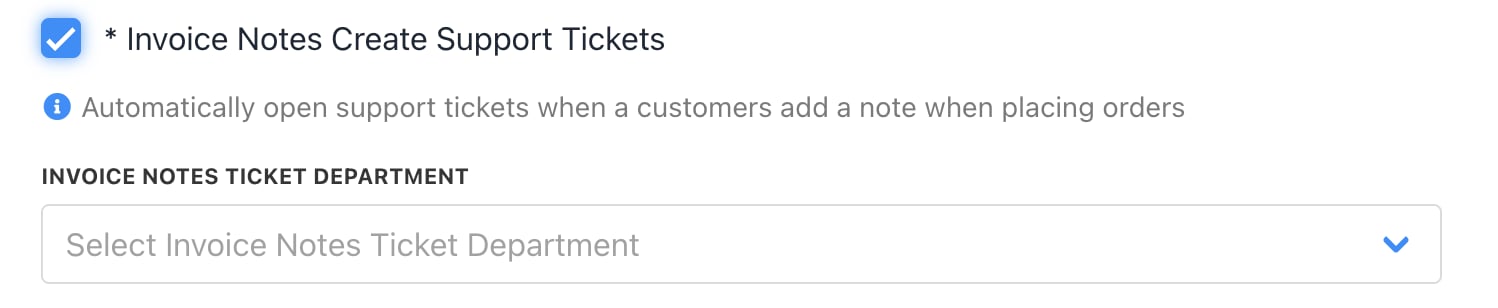
Invoice notes create support tickets
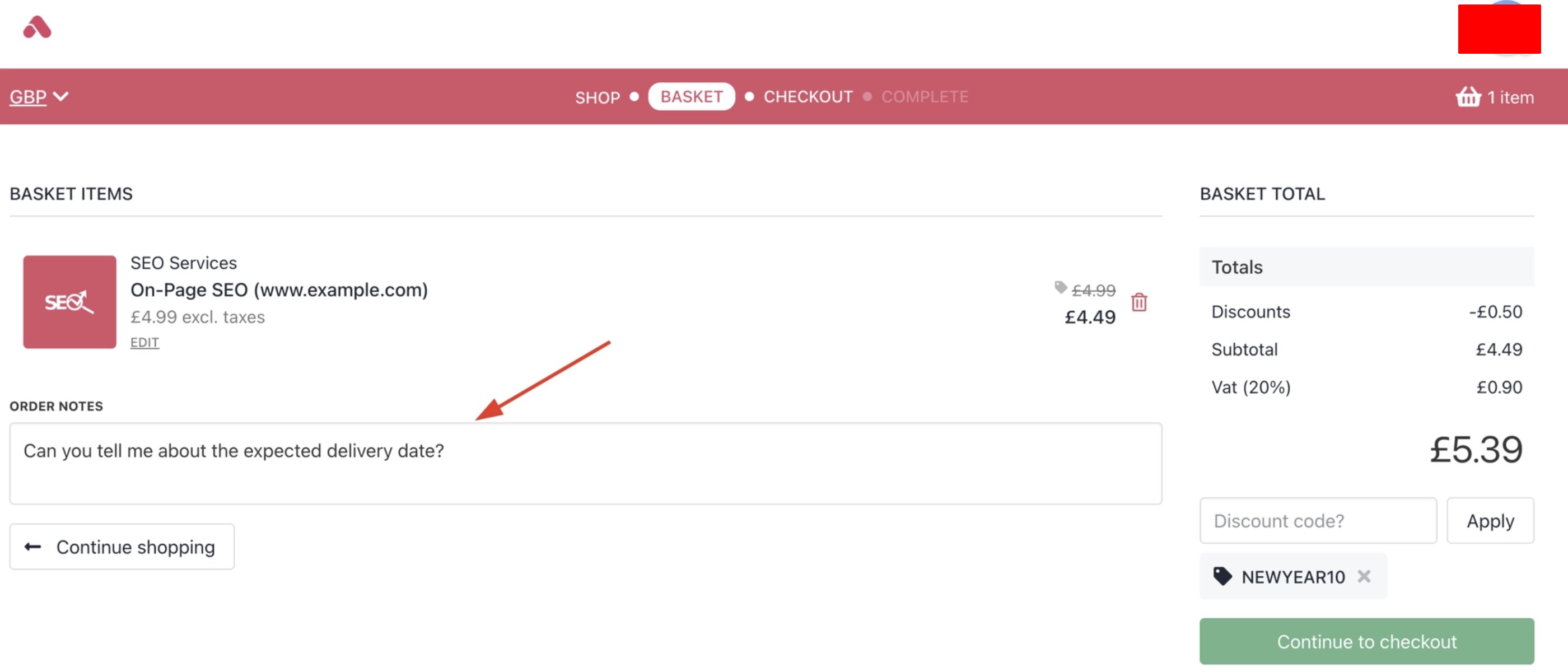
A note generates a ticket
Invoice terms
- Check the box to automatically open a support ticket when a client adds a note to a purchase.
- Set the number of days to cancel an unpaid initial invoice.
- Set the number of days to cancel an unpaid pro-rata invoice.
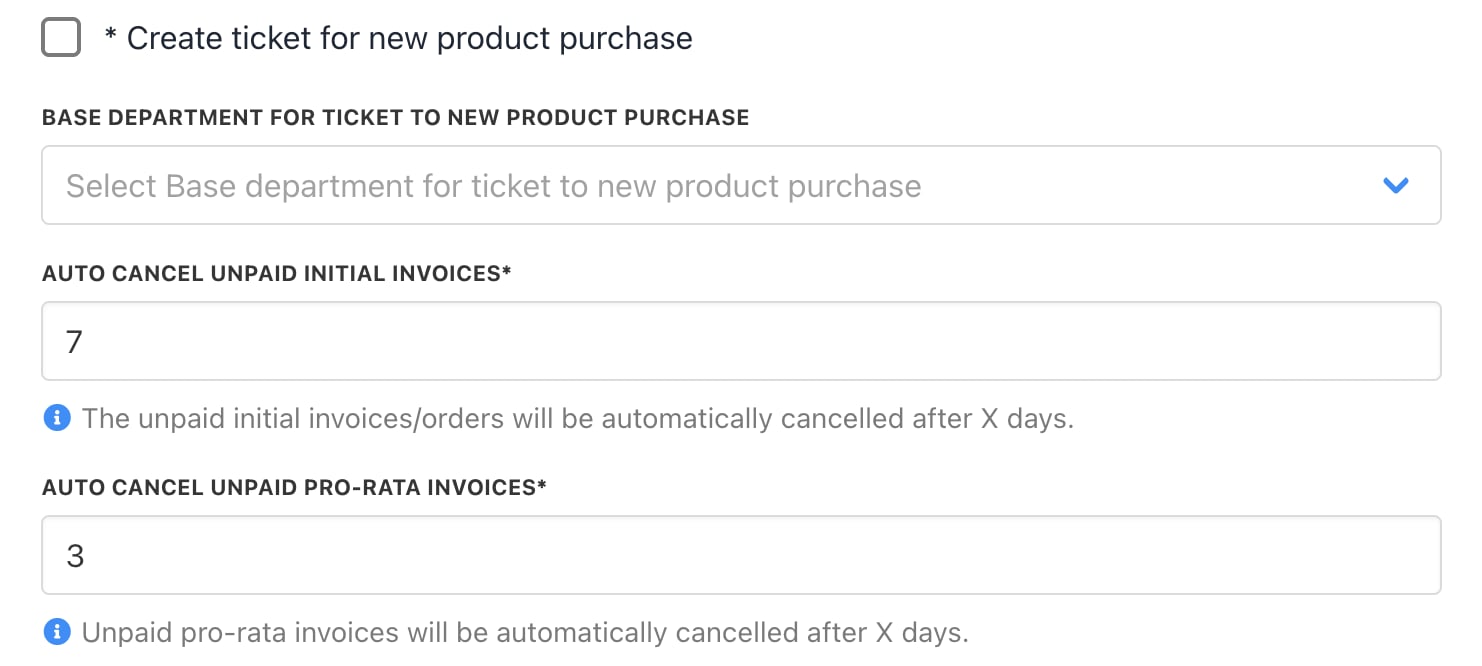
Cancel invoices
Checkout items
- Check the box to enable the Pay Later option in the checkout.
- Set the basket display price. Choose the highest or lowest figure price based on average monthly rates.
- Check the box to display promo prices.
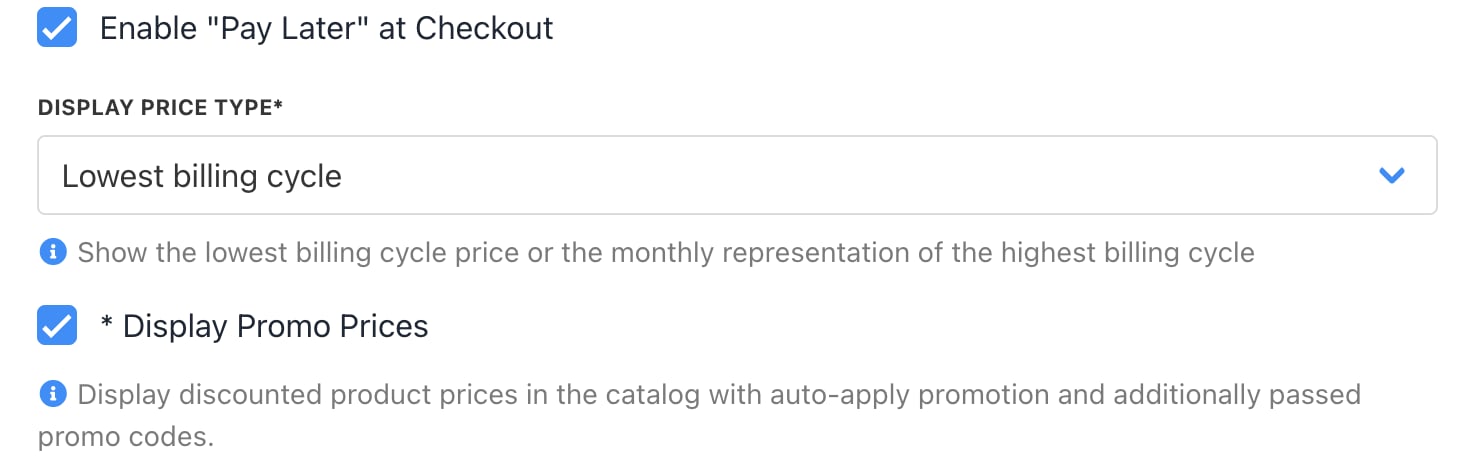
Enable Pay Later
- Check the box to show promos on the catalogue.
- Use the drop-down menu to select the promo display type.
- Click the drop-down menu to select a default payment period.
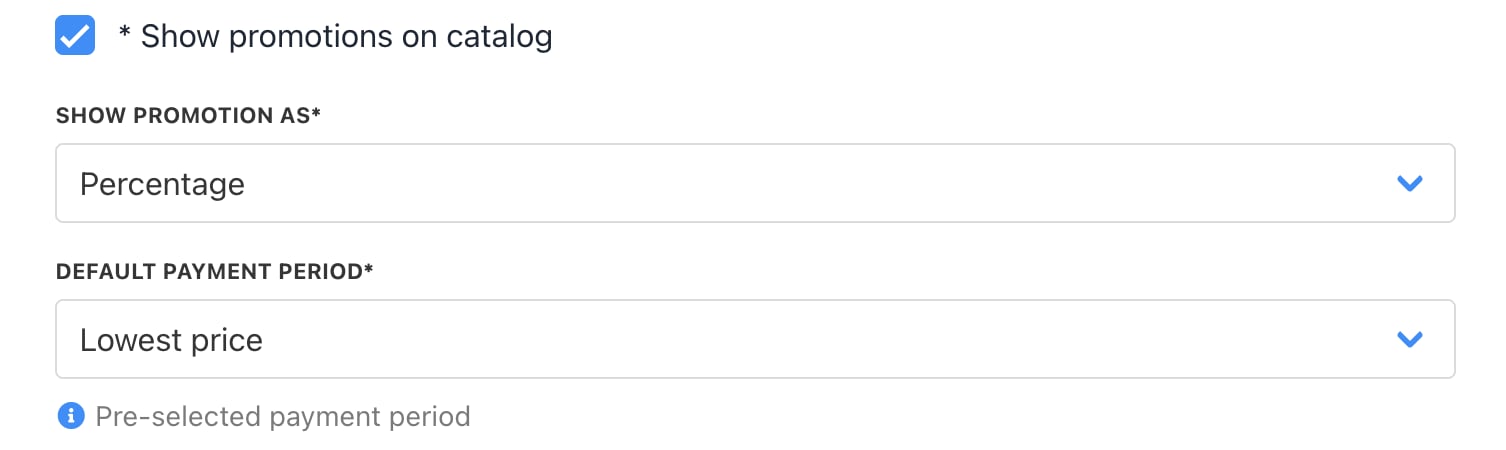
Promo and label
View baskets
You can view your baskets from Order > Baskets.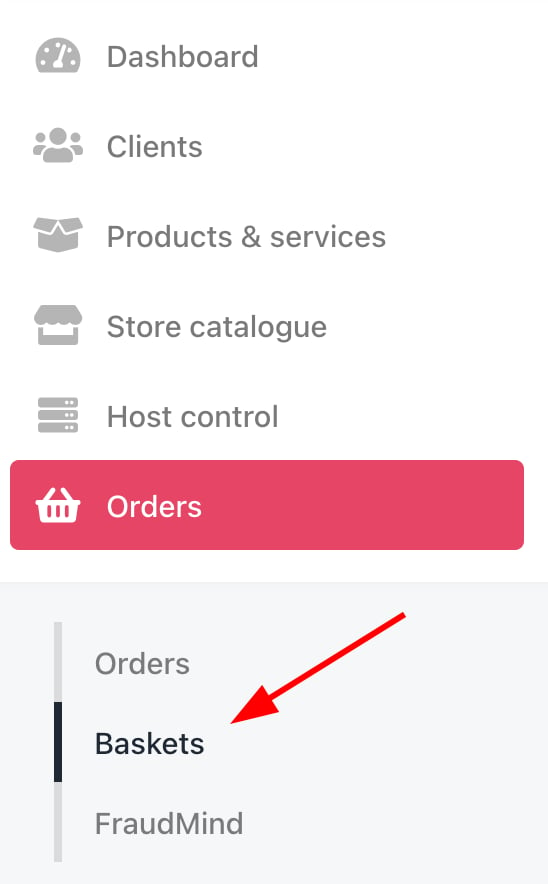
Order > Baskets
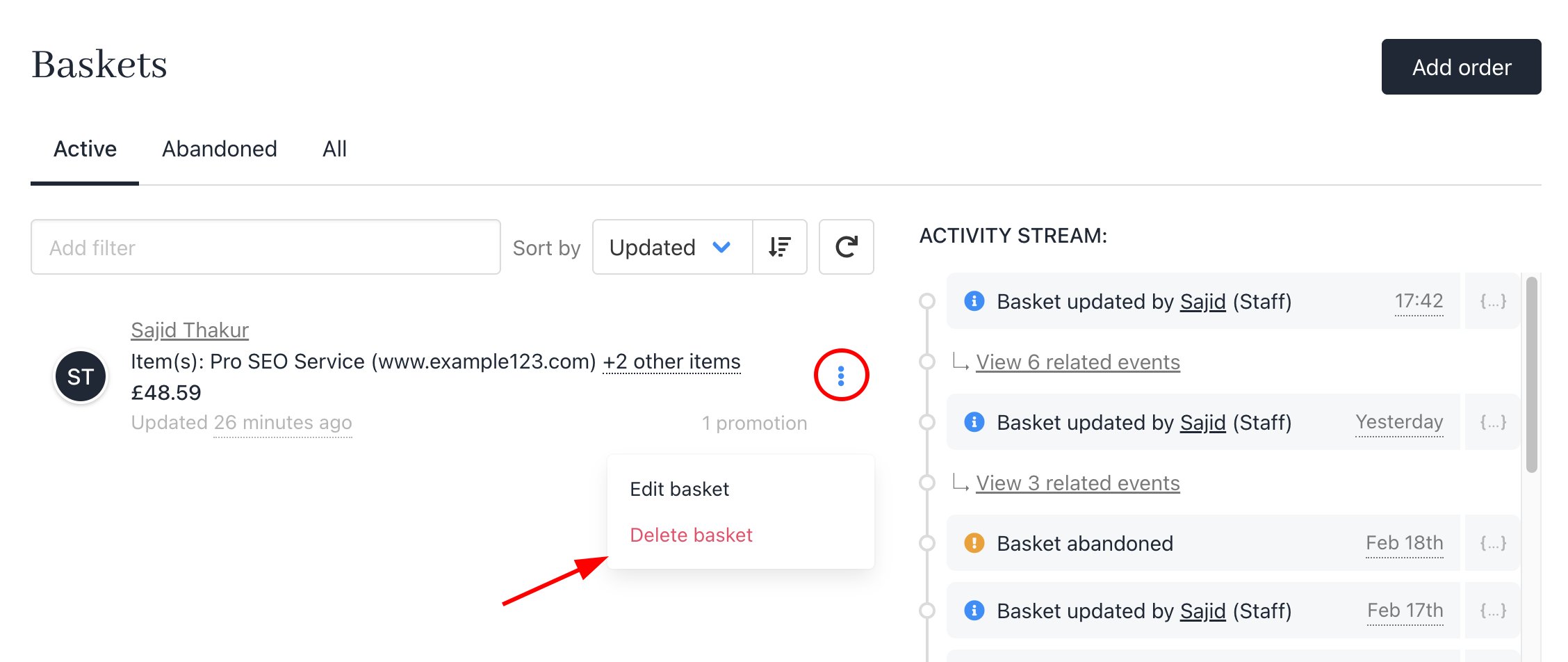
Delete basket