

How FraudMind™ works
FraudMind™ scores every order placed by a client out of 100. The higher the score, the more likely the order is fraudulent. To build a score, we look at a number of data points, including:- Client location
- Distance between the profile address and the IP address
- IP owner (for instance, are they using a proxy service)
- Order history
- Login history
Blocks and reviews
Blocks and reviews have separate functions.- Blocking an order stops the client from completing payment and prevents order activation. The order must be approved by a staff member (see below) before the client can make payment.
- Flagging an order for review allows the client to complete payment and order activation. However, Upmind flags the order in your staff dashboard. You can also configure a support ticket to be raised should an order be flagged or blocked.
Keywords fraud rules
Keyword fraud rules let you automatically take action on orders that contain high-risk terms in product identifiers (such as domain names). You can define specific keywords or regex patterns and choose whether to allow, review, or block any matching orders.How to set up:
- Go to Settings > Fraud Prevention.
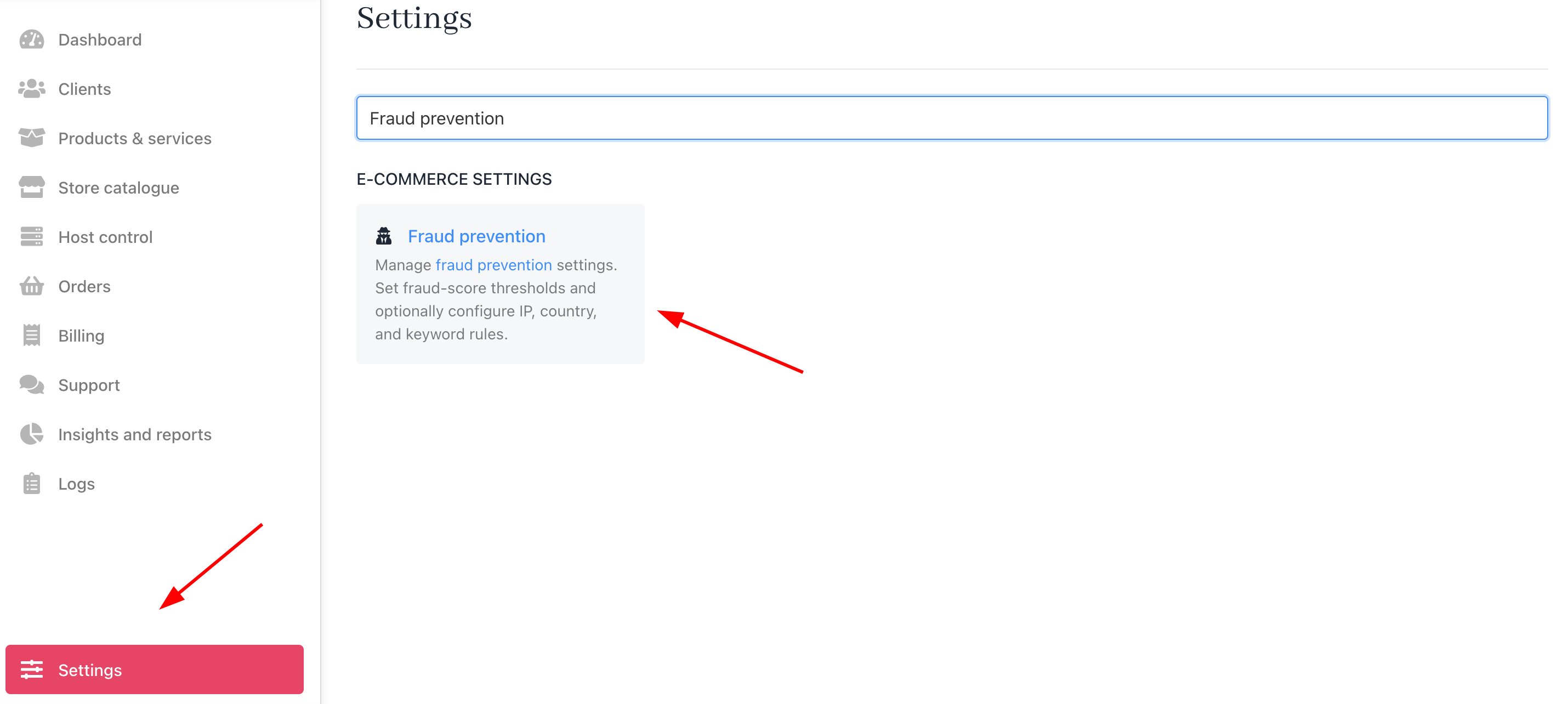
Settings > Fraud Prevention
- Under Keyword fraud rules, click Add keyword rule.
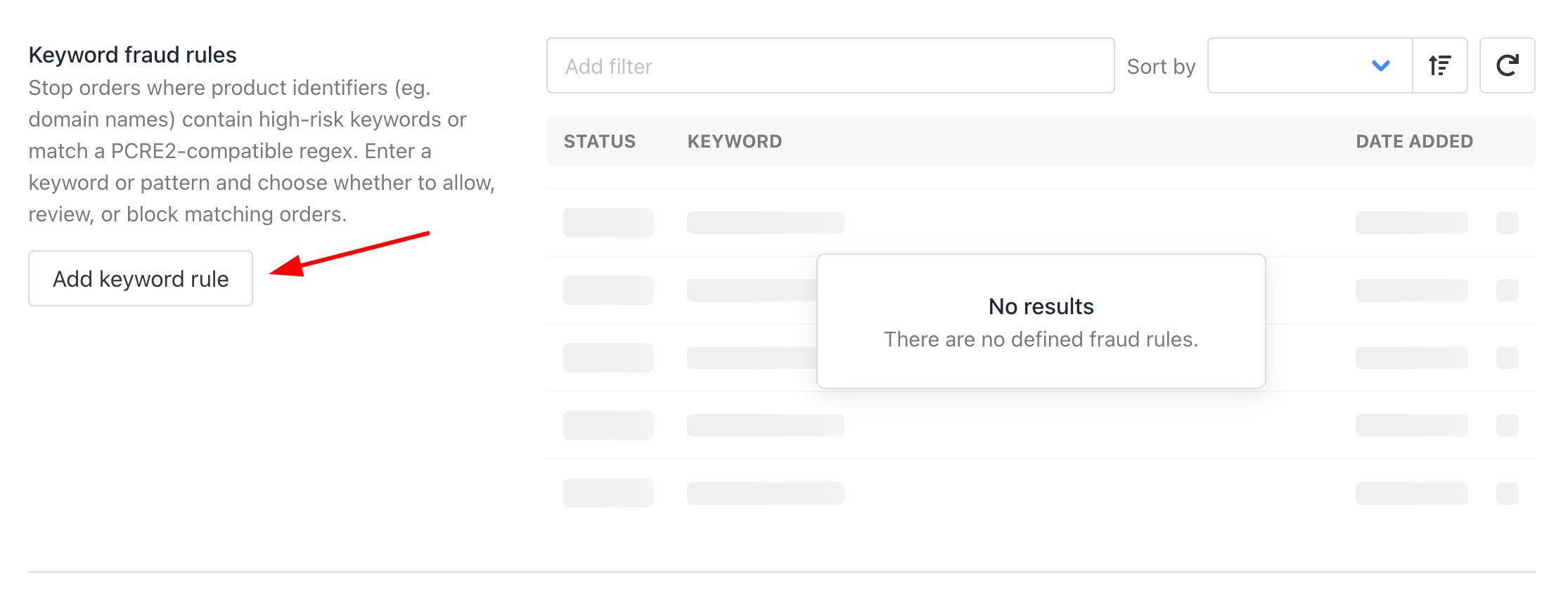
Add keyword rule
- Select an action:
- Allow – Let the order go through without checks.
- Review – Hold the order for manual review before activation.
- Block – Stop the order and require manual approval.
- Enter a keyword or PCRE2-compatible regex (e.g.
paypal,testdomain,\bexample.com\b). - (Optional) Add a comment for internal reference.
- If you have multiple brands, you can tick “Apply for all brands” to apply the rule across your entire account.
- Click Add to save the rule.
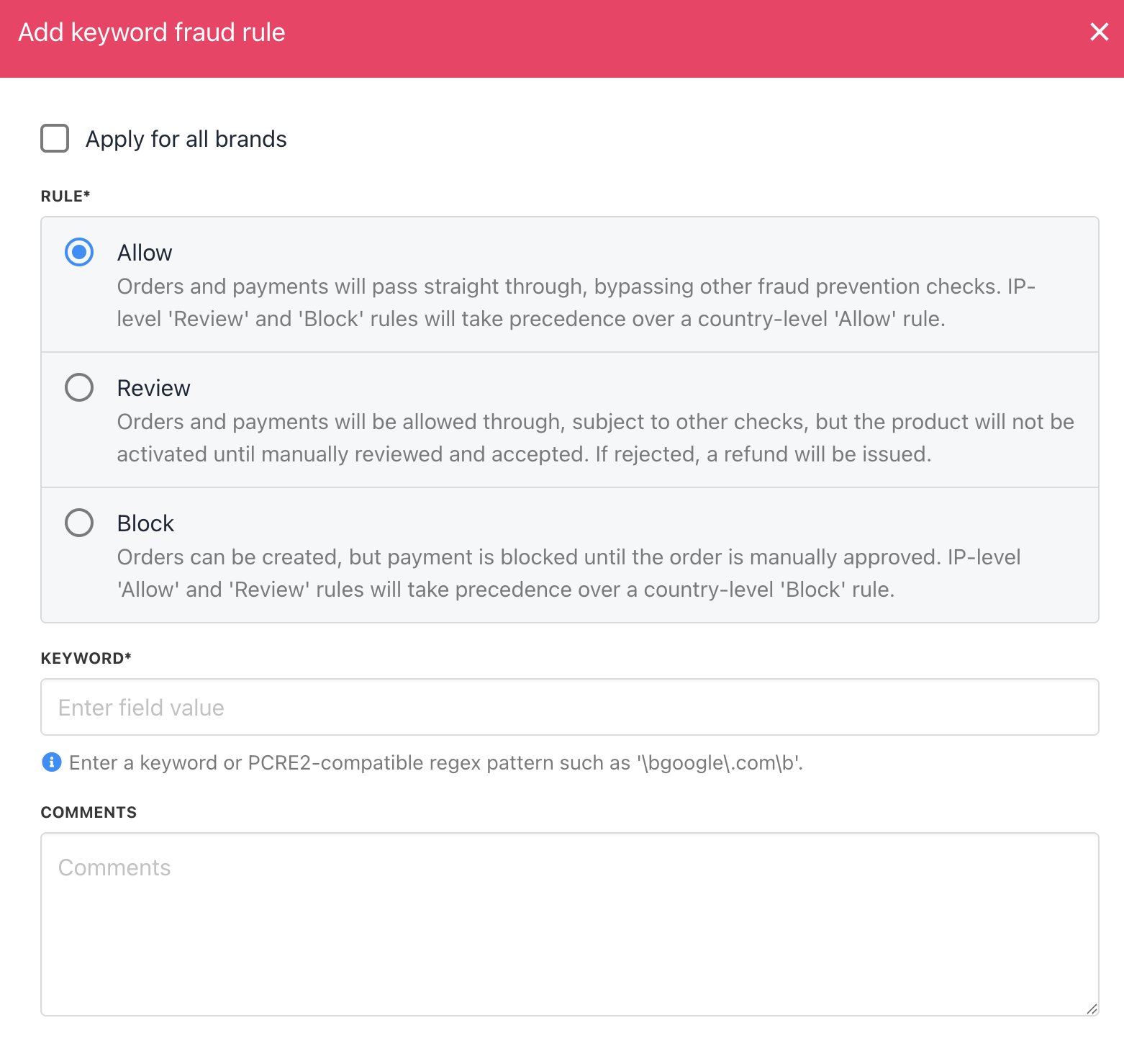
Keywords fraud rules
Setting fraud thresholds
Configure your own FraudMind thresholds in the Fraud Detection section. Use the sliding scale to set the threshold for what constitutes a possible fraud.- The lower the score, the more fraud warnings you receive.
- Check the first circle to open a ticket.
- Check the second circle to ignore fraud detections.

Set reaction when fraud detected
Changing a client’s fraud status
Each client has a fraud status:- Approved
- Review
- Blocked
- Go to the Client overview page.
- Click the fraud status.
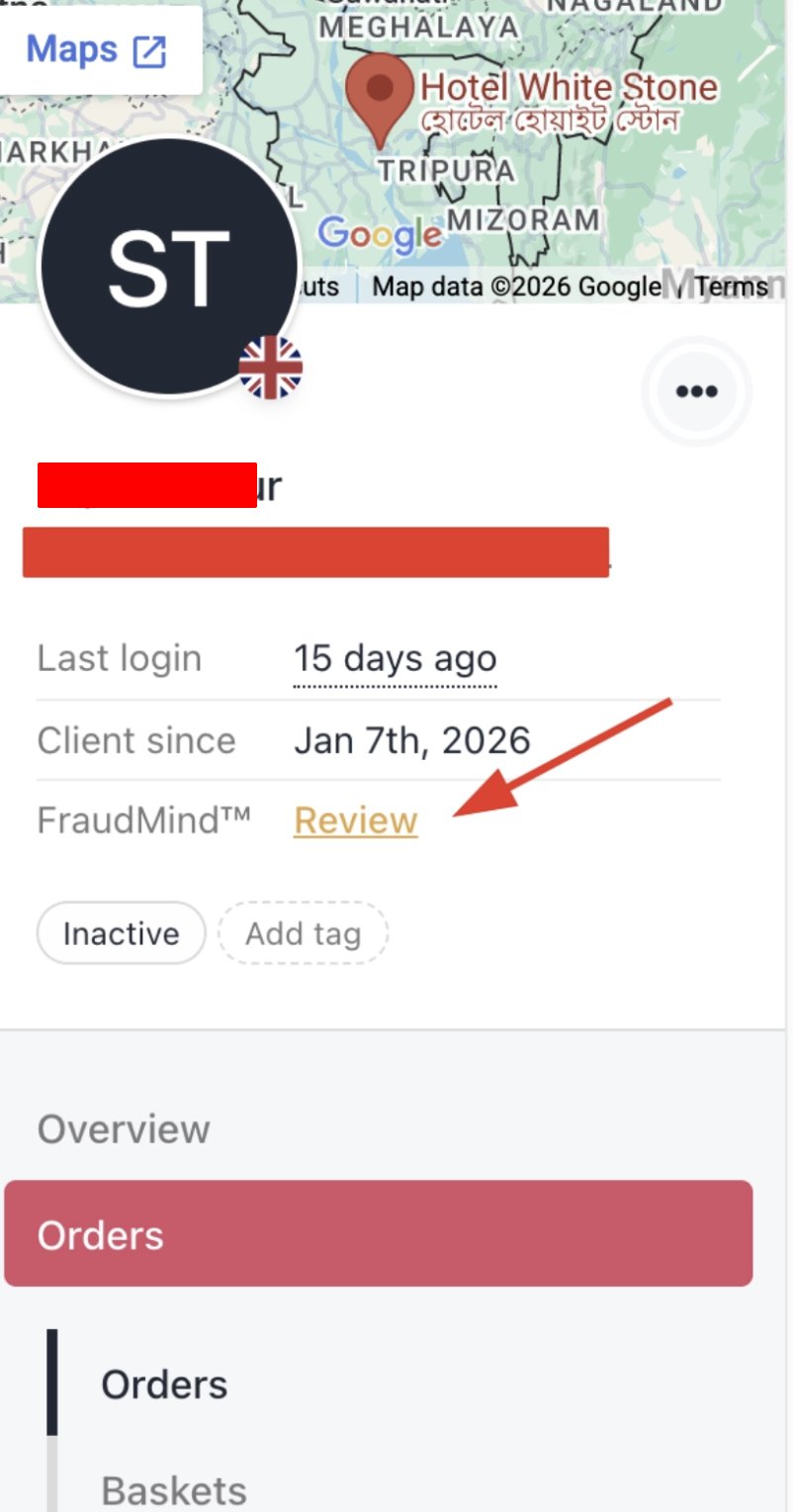
Change fraud status
- In the new window, click a tile to change the fraud status.
- To add more conditions, click the field and select an option from the drop-down menu.
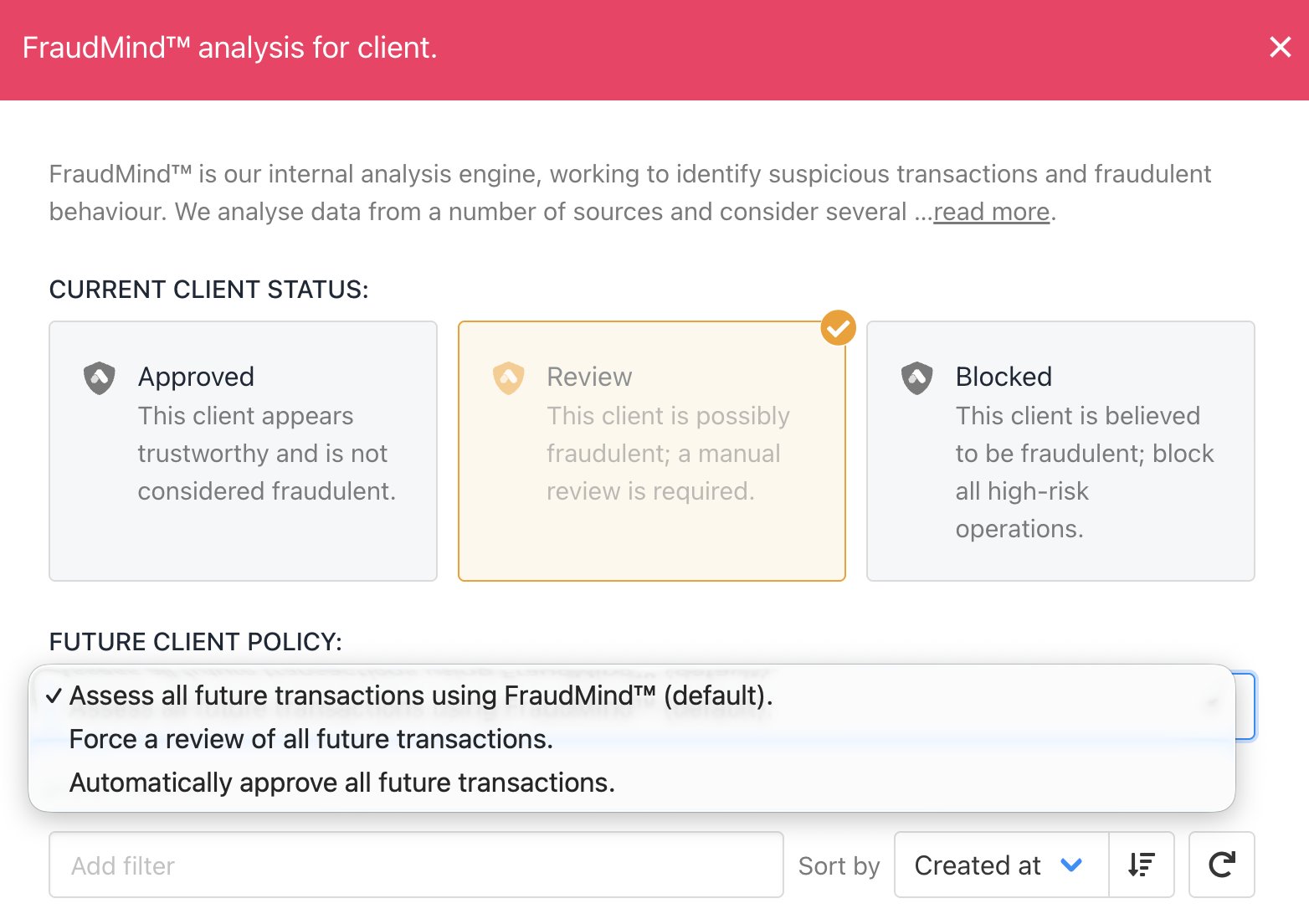
Click the tile to change the fraud status
High-level blocks
In addition to automated fraud scanning, you can configure manual country and IP blocks. On the Fraud settings page, in addition to the threshold scores, you can set:- Country rules
- IP rules
- Fraud detection
Creating country fraud rules
You may be forbidden from doing business with specific countries. In these cases, you might want to block any client in those countries from placing an order with you. When adding the country, choose to blacklist the country. The grey list rule allows orders subject to manual review.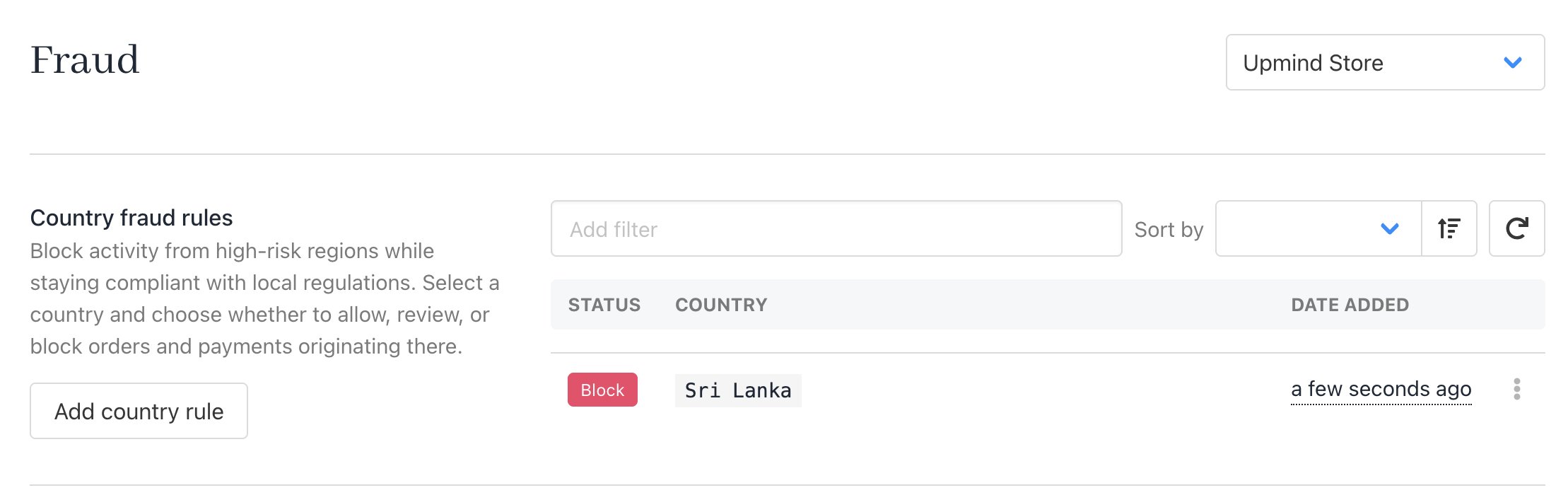
Block specific countries
Creating IP fraud rules
Create rules to whitelist, grey list, or black list based on an IP.- Click the Add IP rule button.
- Select a rule (white, grey, or black list).
- Enter the IP.
- Click Add.
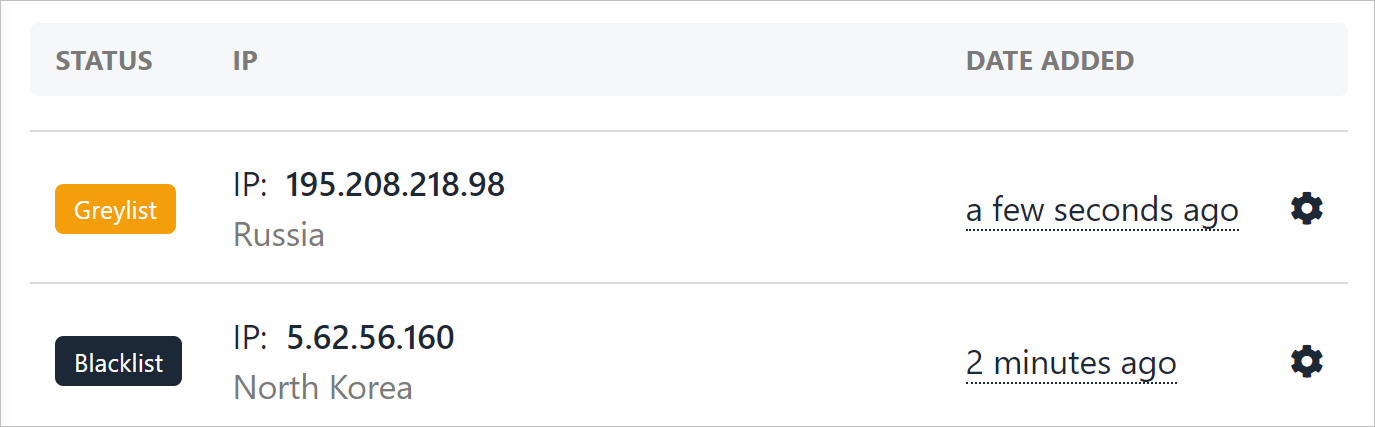
Block location based on IP
Fraud Detection
Tailor your fraud detection system with customisable thresholds for flagging suspicious or fraudulent orders.Watch the YouTube tutorial about Fraud Detection here.
- Adjust review scores and fraud score thresholds.

Adjust threshold score
- Set how many hours a client is considered “new” (set to 0 to disable), and adjust review/fraud scores for them.
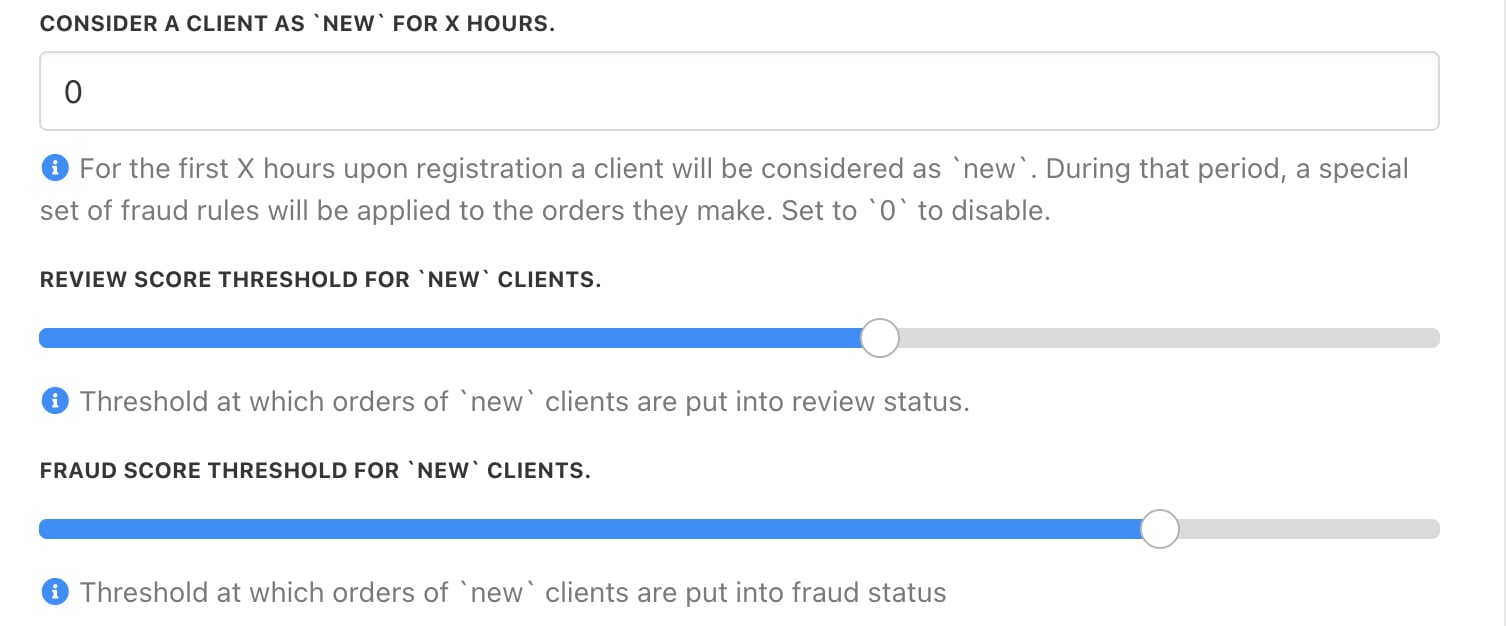
Adjust fraud threshold for new clients
- Set an order to go into review or fraud if the total value exceeds a certain amount.
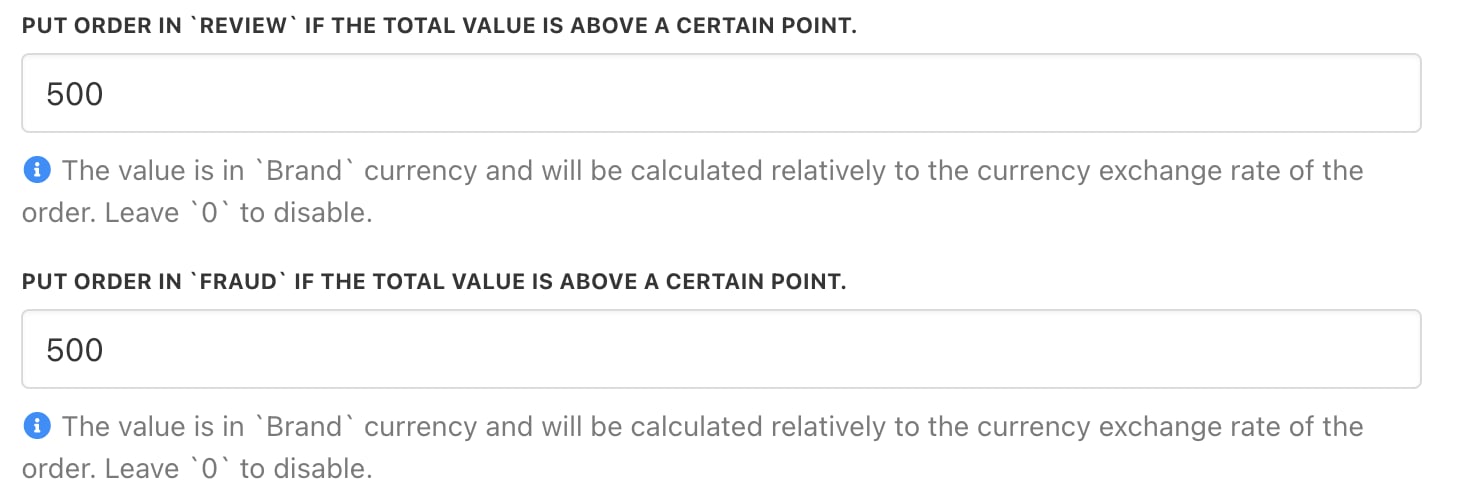
Put order in review if total value is exceeded
- Set orders to go into review or fraud if they include more than a certain number of products.
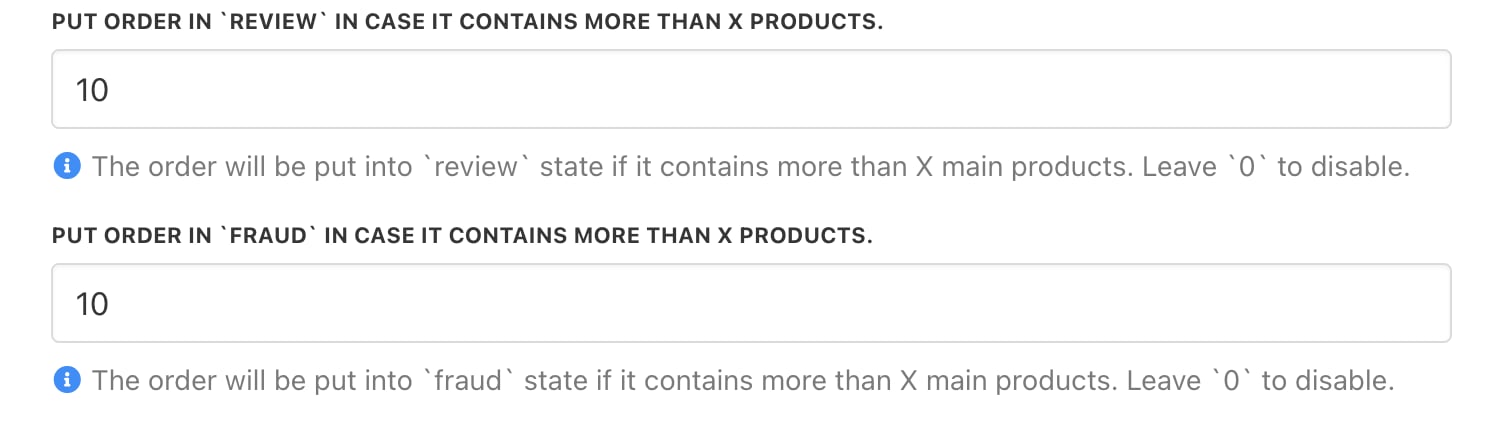
Put order in review if it contains more than certain number of products
- Set the order into review if it exceeds the total orders in the timeframe, and set the time in minutes if it exceeds the max orders in the timeframe.
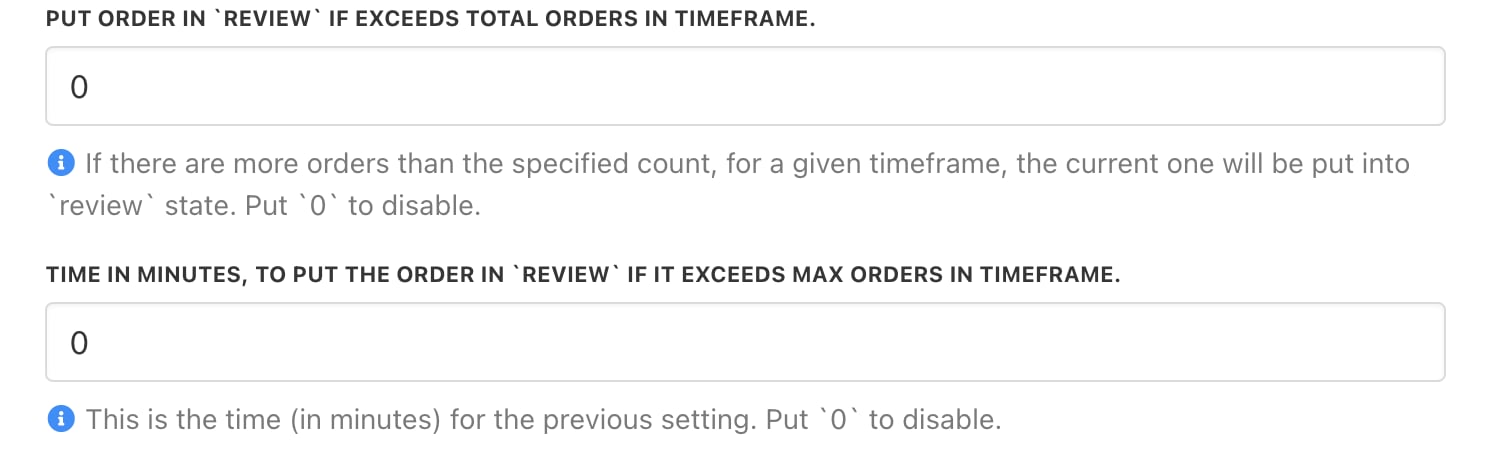
Put order in review if total value is exceeded in a certain timeframe
- Set order into fraud if it exceeds the total orders in the timeframe, and set time in minutes if it exceeds the max orders in the timeframe.
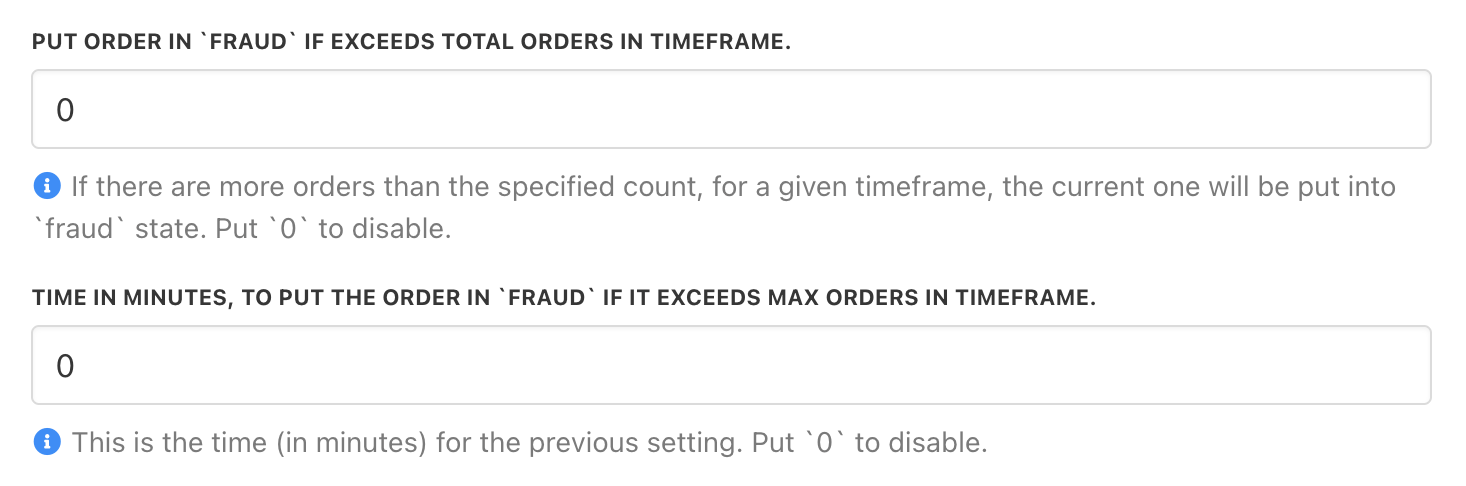
Put order in fraud if total value is exceeded in a certain timeframe
- Set order in review/fraud if there are more than X failed payments.
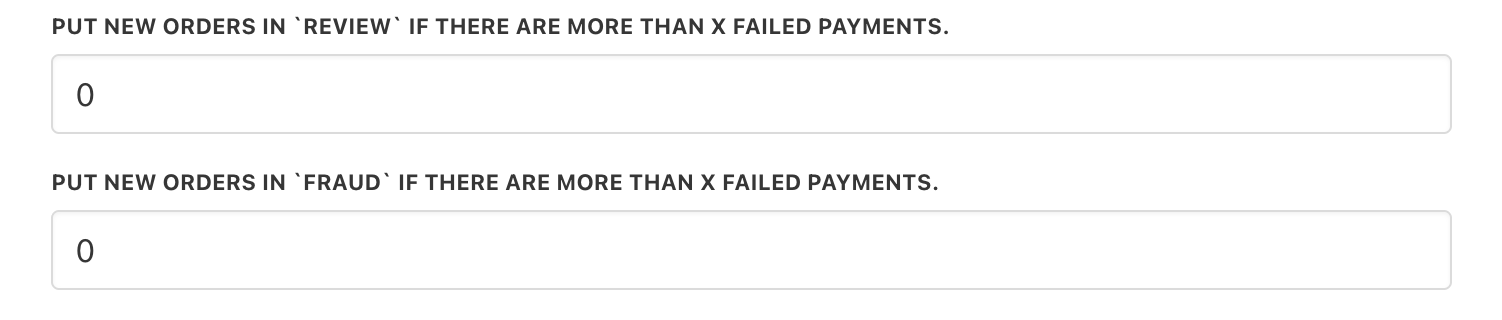
Put orders in review/fraud for failed payments
- Define actions based on review status, including preselected ticket departments for further investigation.
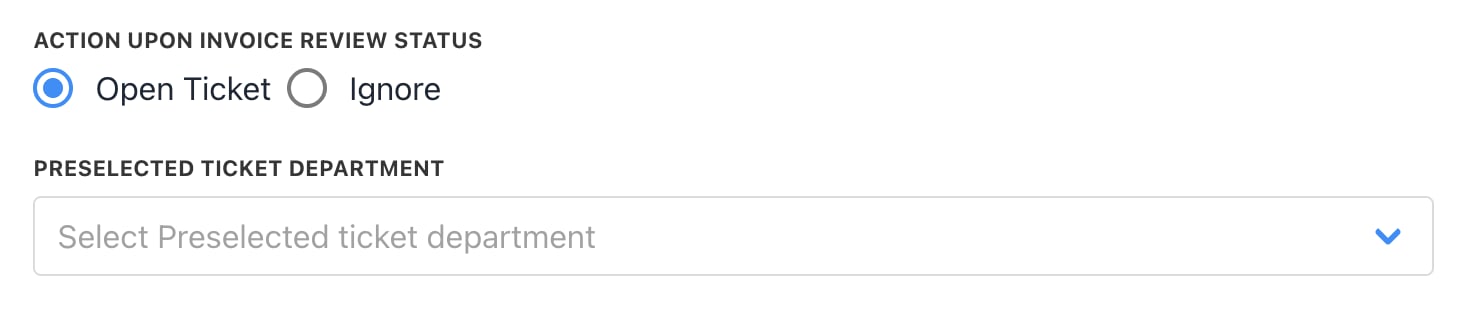
Choose the action upon invoice review status and department
- Set the duration for auto-closing orders in a fraudulent status.

Set duration to auto-close orders