

- For a group discount, create a single code that applies to multiple items.
- For an advanced discount, create a single code that applies a different discount to different products.
Opening the Promotions page
- Log in to your Upmind account.
- Click Settings.
- Click the Promotions tile.
- On the next page, click the Add promotion button.
Setting promotion details
Fill fields and customise options on the Add promotion page.- Check the box to activate the promotion code.
- Enter a name for the promotion.
- Enter a brief description.
- Enter a code.
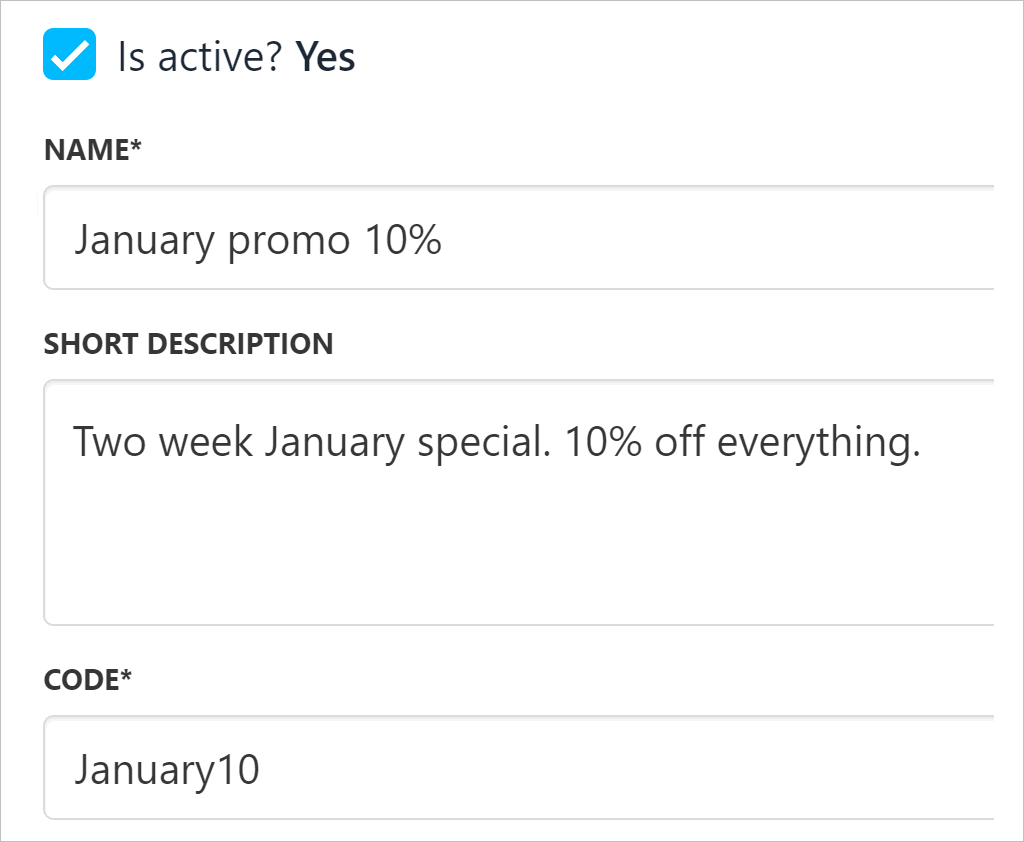
Enter code details
- Click the All products tile.
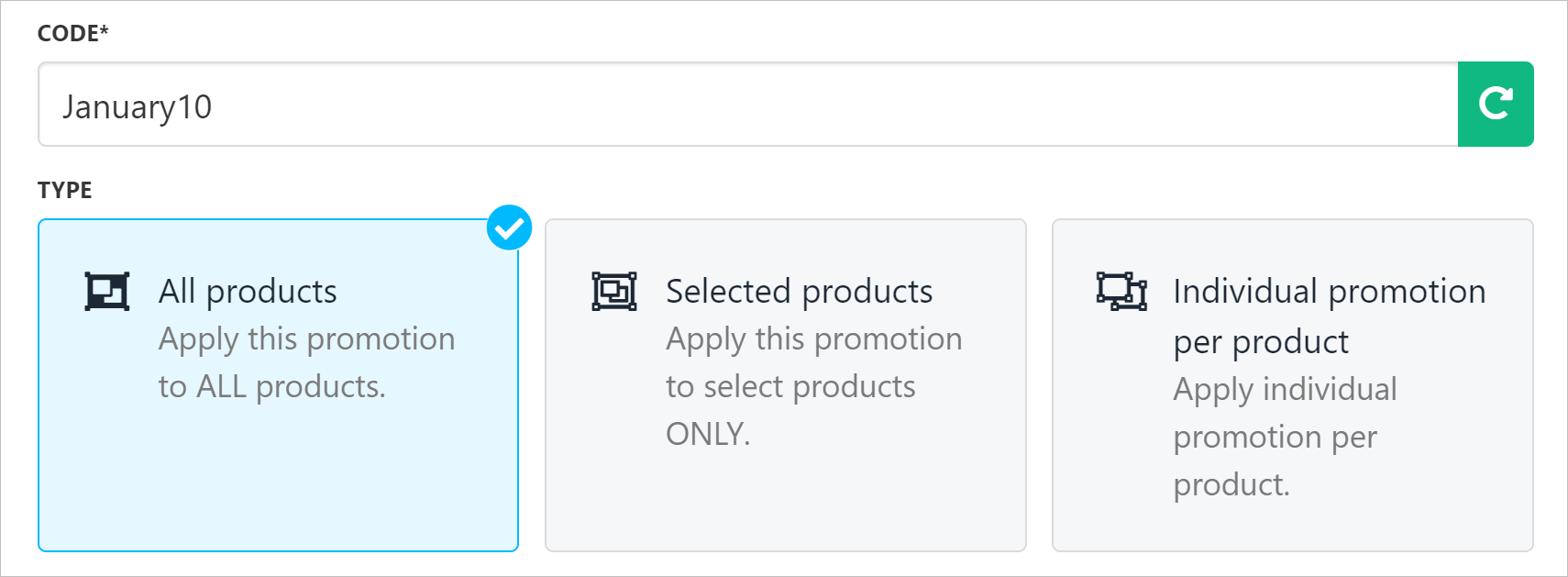
Choose All products
Setting the discount and conditions
Customise the settings.- Select a discount type: fixed amount or percentage.
- Enter a discount value.
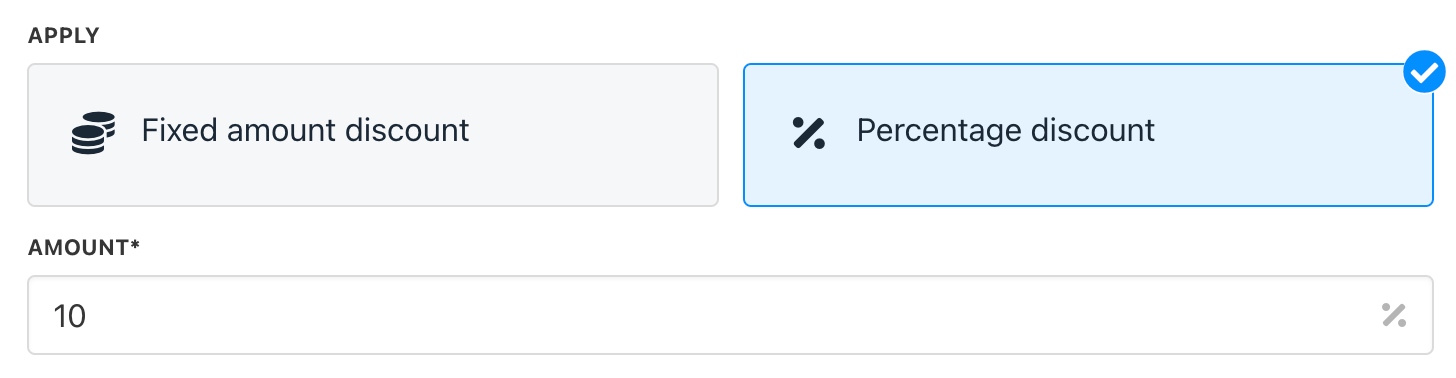
Select discount type
- Check or uncheck boxes as required. If you uncheck a box, select an option in the drop-down menu.
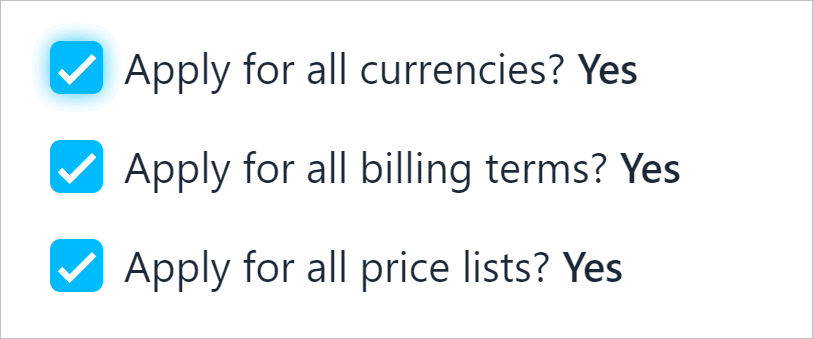
Check or uncheck boxes
Adding a mandatory product
You can make promotion codes conditional upon the purchase of one or more mandatory products.- Under the Mandatory products heading, click the Manage products button.
- Click Attach new products.
- Complete the workflow to add a product or service.
Setting availability and eligibility
Scroll down the page and set the conditions for all items attached to this promotion code.- Set the start and end dates.
- Check the maximum number of uses (all clients). The default is Unlimited.
- Select Single or Multiple if you want to limit the number of times this code can be used by all clients. (optional)
- Check the maximum number of times an individual client can use the promo code. The default is Unlimited.
- Select Single or Multiple if you want to limit the number of times this code can be used by any client. (optional)
- Review the Recurring count option.
- Review the checkboxes and customise as required.
- Click Save.
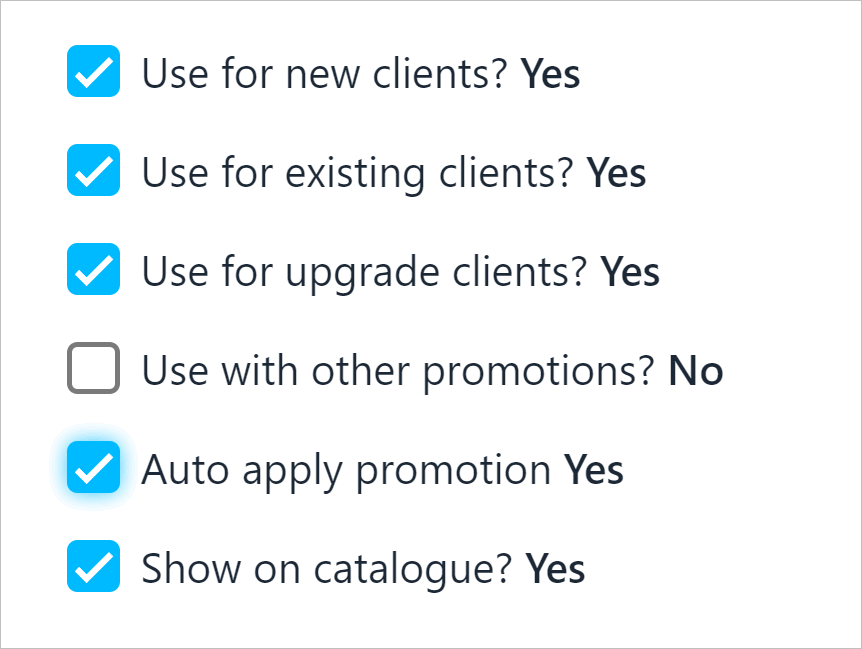
Review checkboxes
Editing a promotion
To modify a promotion:- Open the Promotions page.
- Click the three dots.
- Click Manage promotion.
- Make changes.
- Click Save.
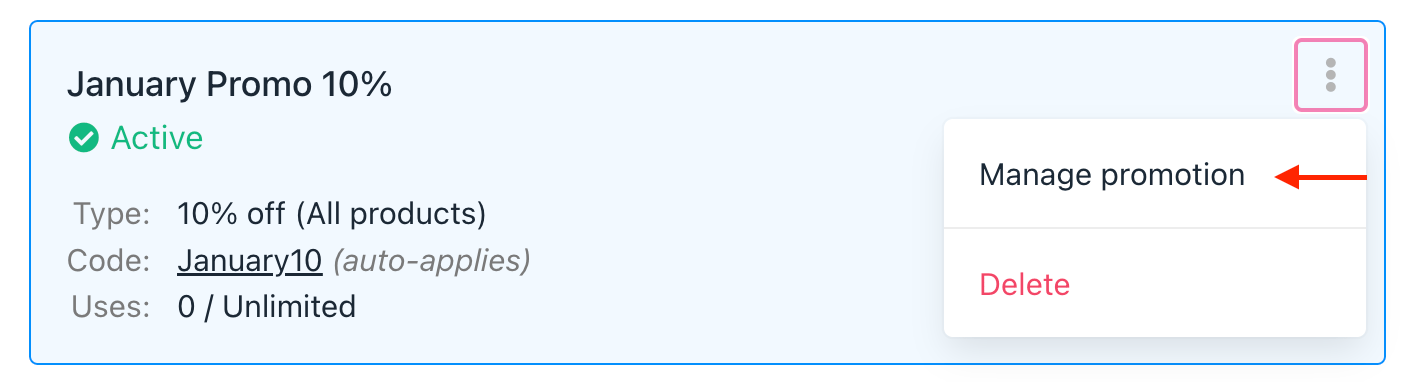
Click three dots
Removing a promotion
To delete a promotion:- Open the Promotions page.
- Click the three dots.
- Click Delete.
- Enter the number in the confirmation pop-up window.
- Click Delete.
Tracking promo code use
- Go to the Edit promotion page.
- Click the Uses menu tab.
- Upmind shows the clients who have used the code.
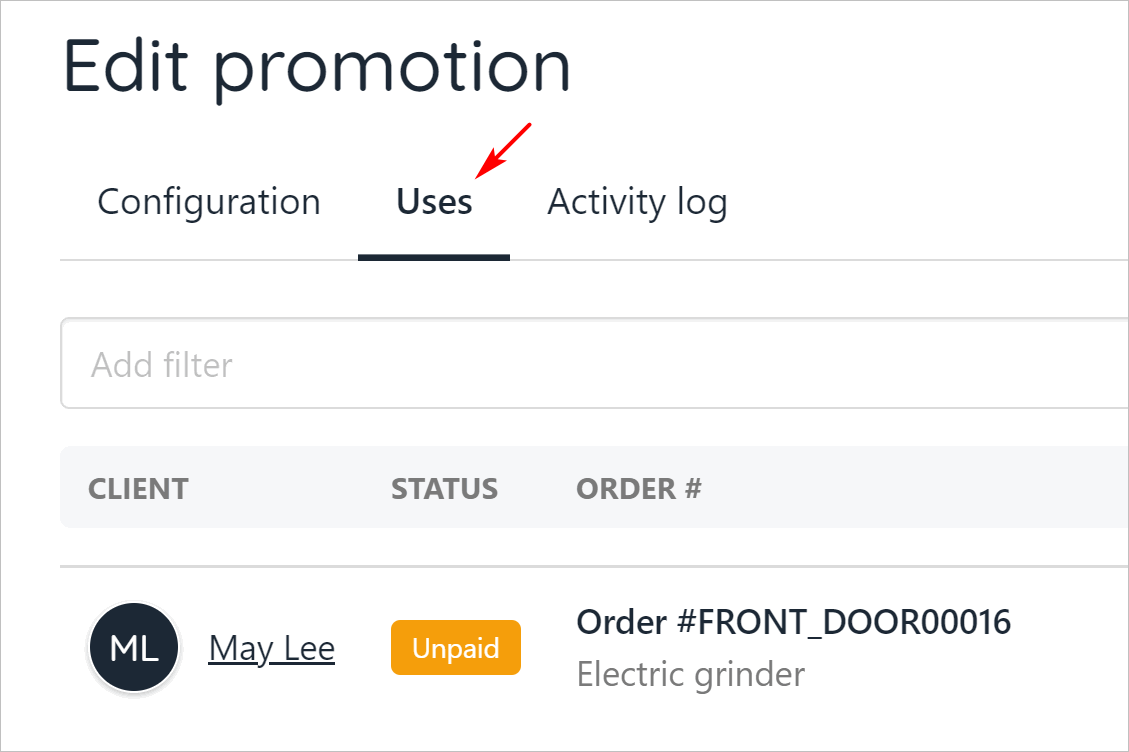
Click Uses menu tab
Customer view
Upmind applies the discount at the checkout.- If you enable the auto-apply option, the discount is applied automatically.
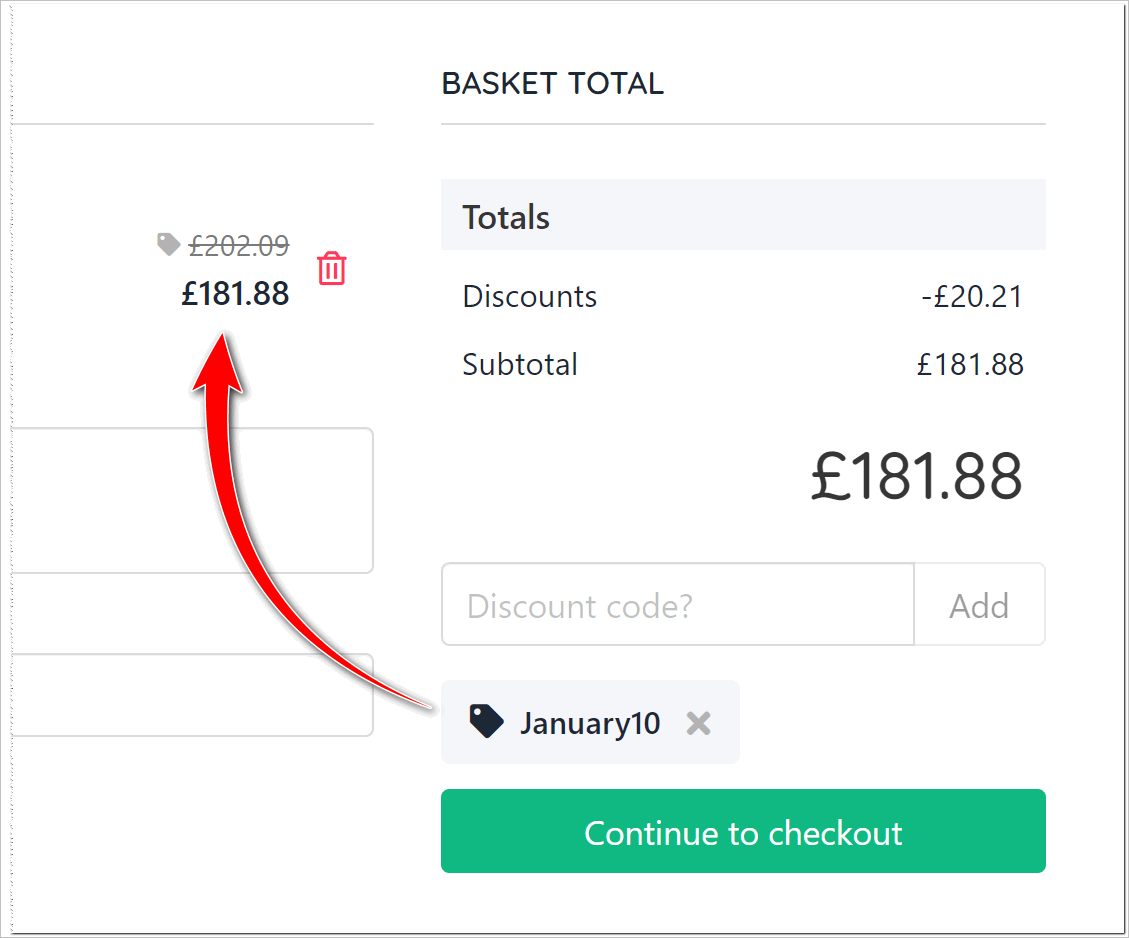
Auto-apply enabled
- If you disable the auto-apply option, the customer must enter the discount code and click the Add button.
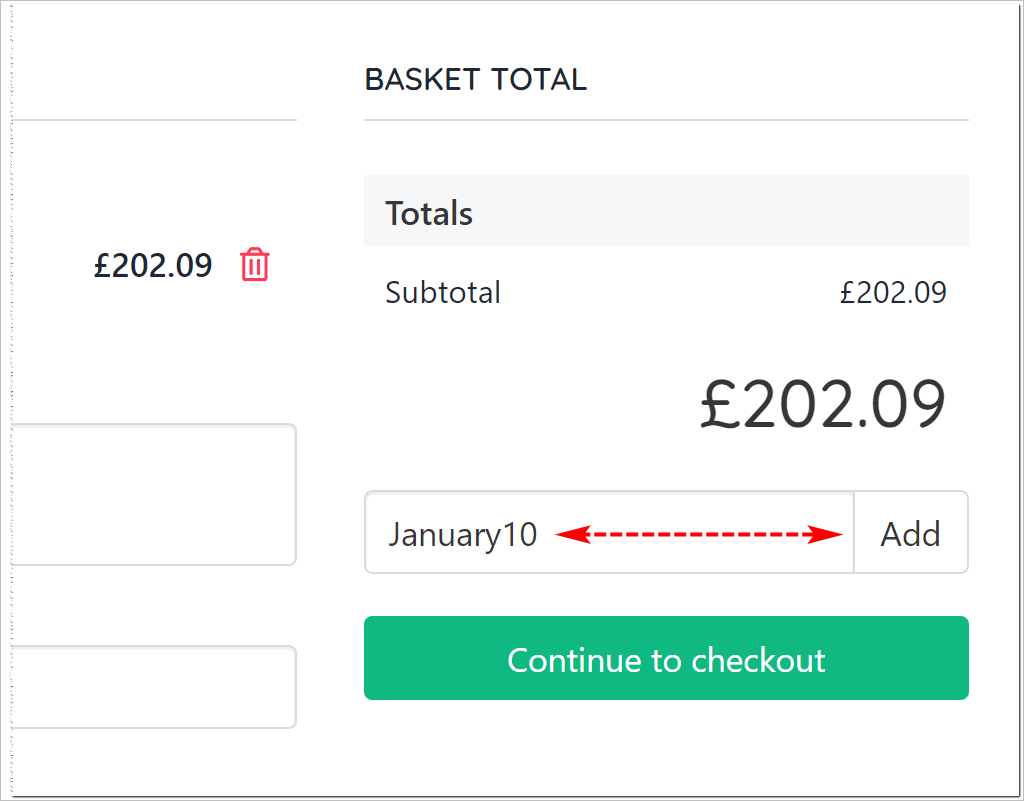
Auto-apply disabled