

Getting SPanel credentials
- To generate an API Key, go to Server Management > Manage API Tokens.
- Click Create API Token.
-
Select:
- API Token Type: Admin
- Enable SSO: On
- Admin Token Privileges: Unrestricted (all)
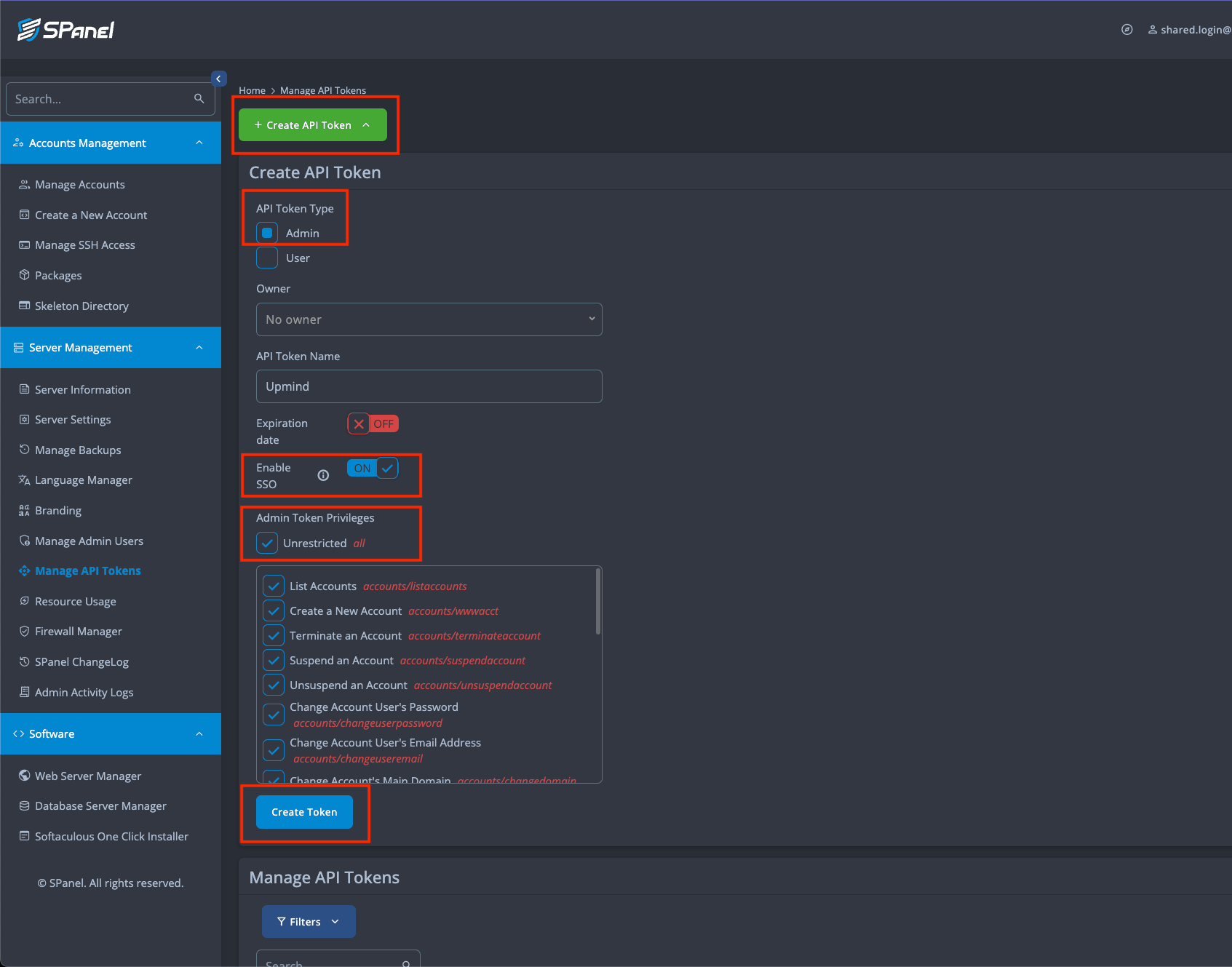
Select the following requirements
- Create and copy the API Token.
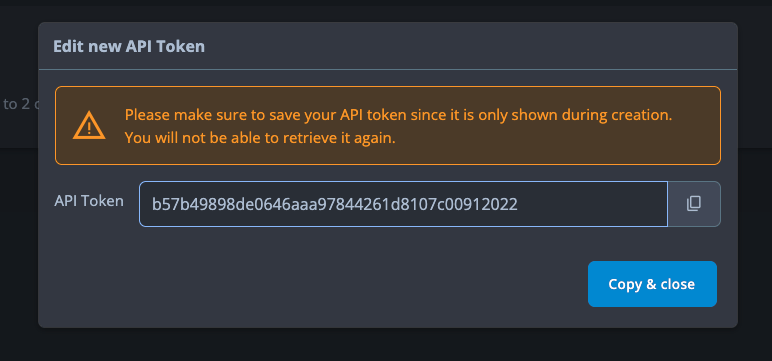
Copy the API Key
Configuring SPanel provisioning in Upmind
- In Upmind, go to Settings > Provision Configurations.
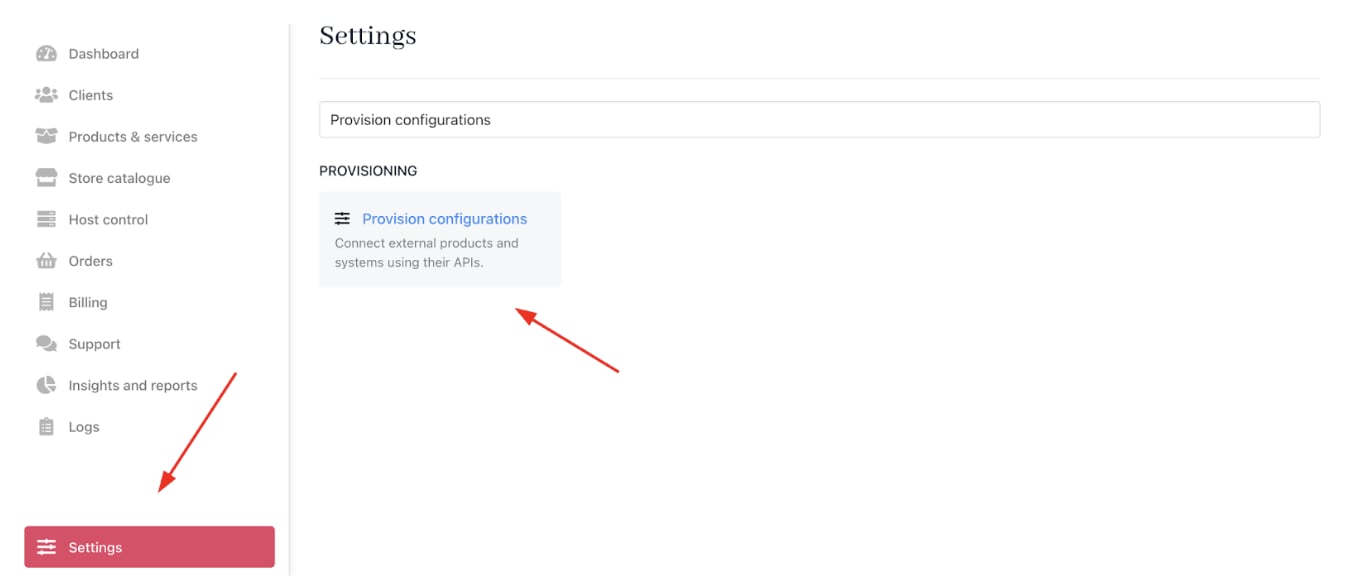
Settings > Provision configurations
- Click on Add New Configuration.

Add new configuration
- Provide a Name (e.g., SPanel Hosting Provision).
- Select Web Hosting as the product type.
- Choose SPanel as the provisioning provider.
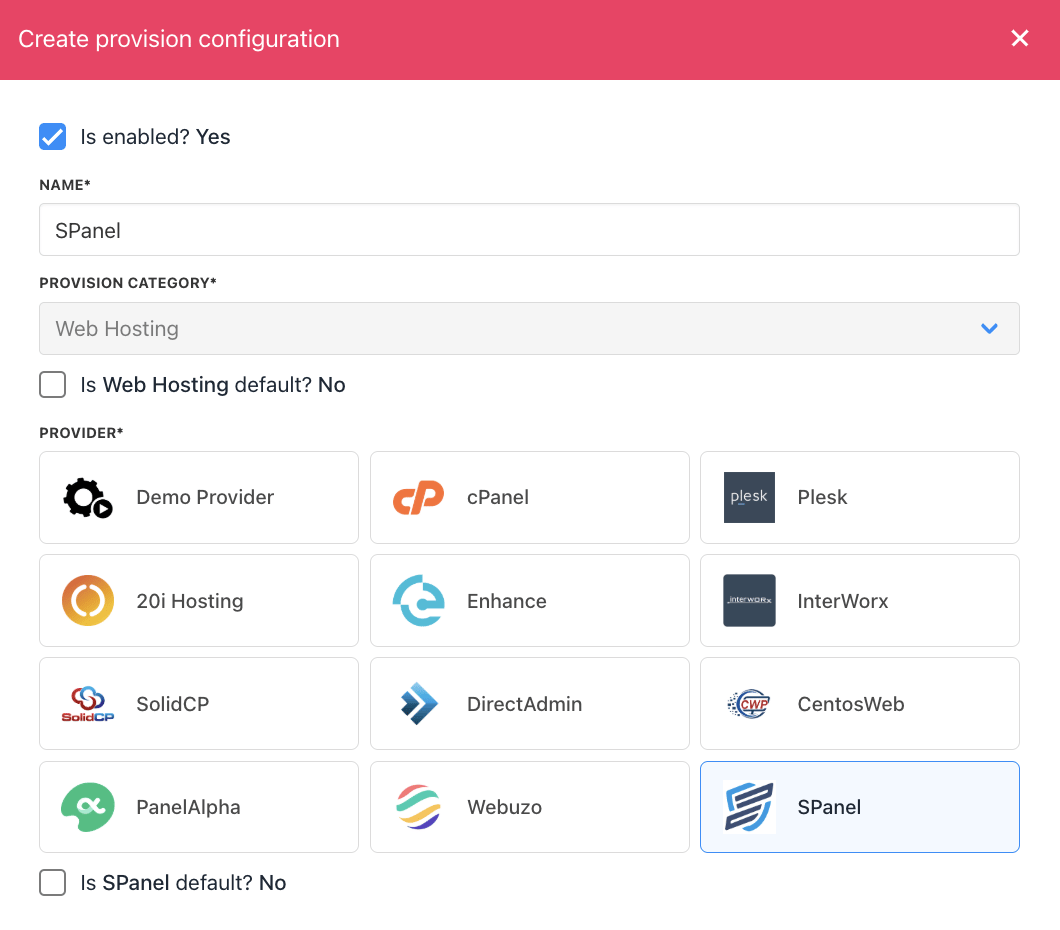
Choose SPanel
- Complete the following details:
- Your server’s Hostname and Username.
- Paste the API Token obtained from SPanel.
- Click Create.
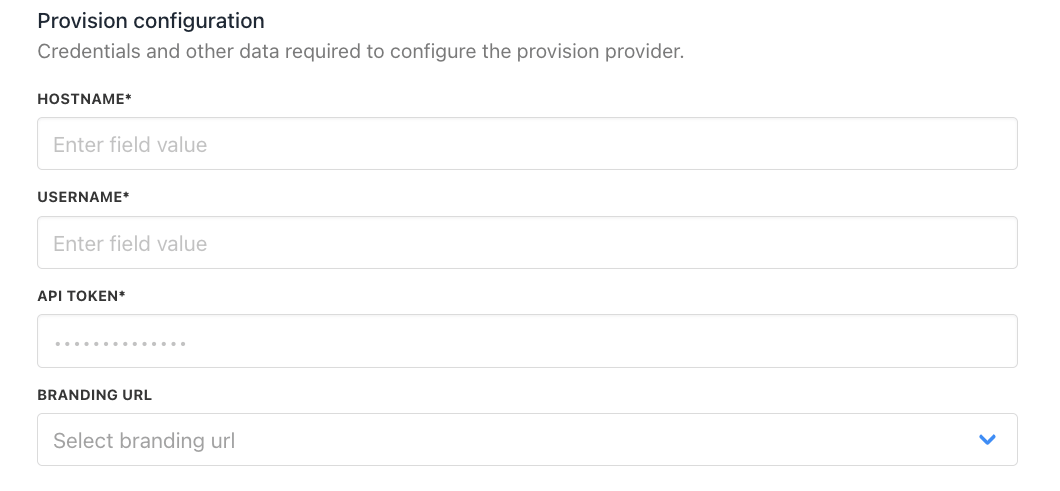
Enter provision configurations
Setting up SPanel products
Once you have set up your SPanel product, you will need a package identifier to configure it in Upmind.- Log in to the SPanel admin dashboard.
- Navigate to Accounts Management > Packages.
- Copy the package name you want to use.
- In Upmind, when creating a product, paste this value as the Package Identifier in the provisioning settings to match the SPanel package you created.
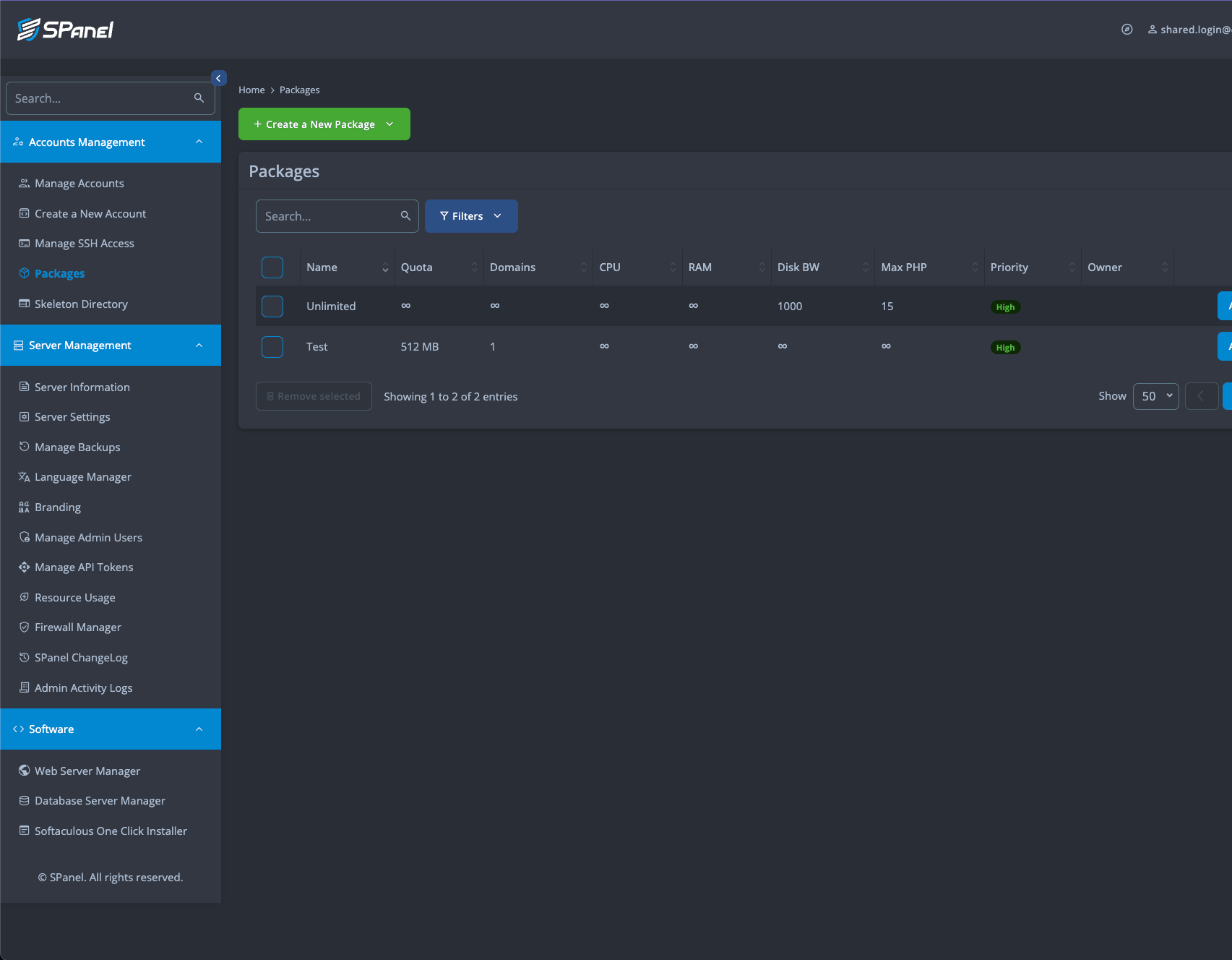
Account Management > Packages
Creating SPanel hosting products in Upmind
- Go to Host Control > Web Hosting in Upmind.
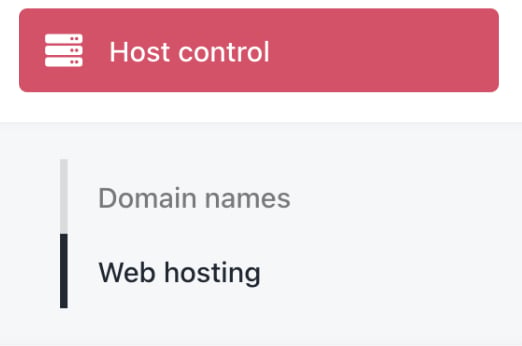
Host control > Web hosting
- Click Add New.

Add new
- Choose a category and fill in the details. Then click Create.
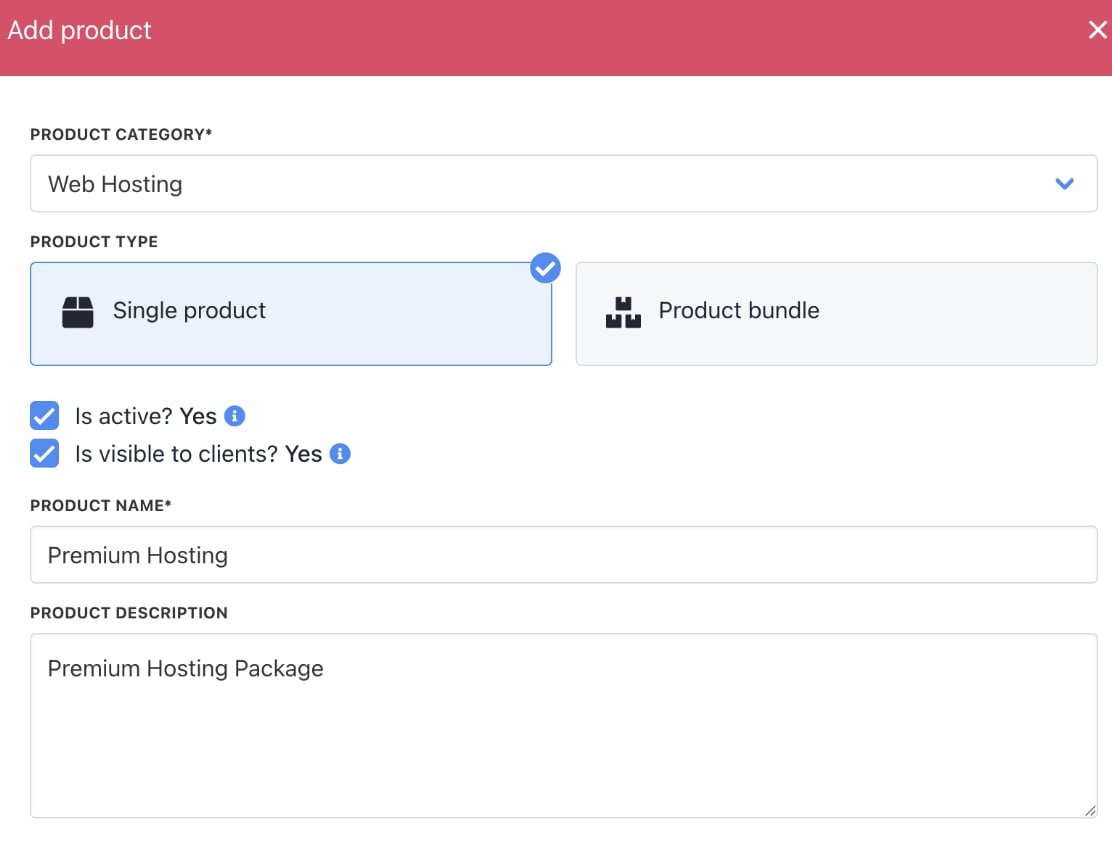
Fill in product details
- On Provisioning, set the Provision Provider to SPanel.
- Choose the Configuration Mode and Provider Configuration.
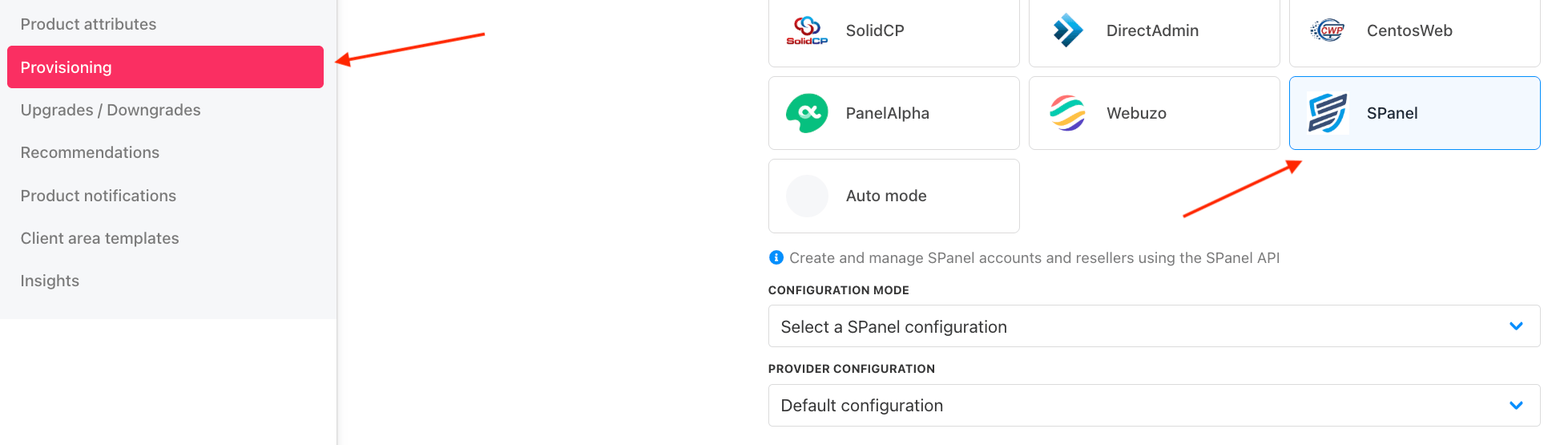
Set provision provider
- Enter the Package Identifier exactly as it appears in SPanel (matching the package name).
- Complete other product details like name, pricing, billing cycle, and permissions.
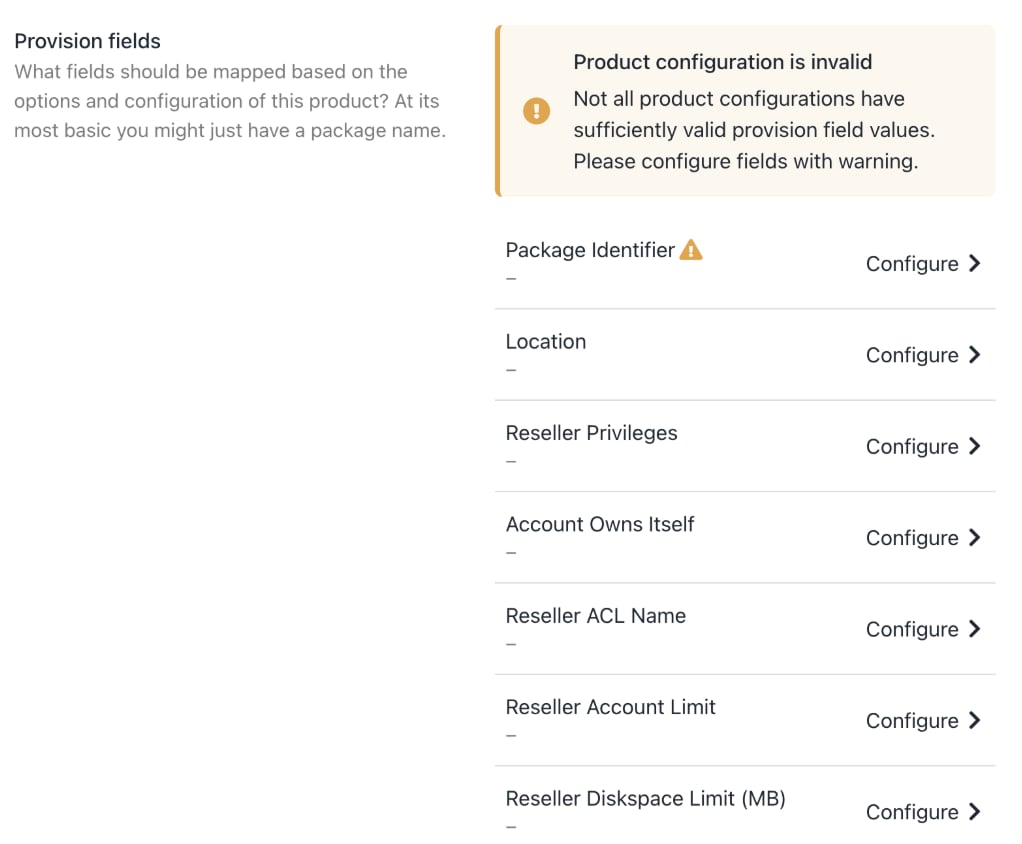
Complete other product details
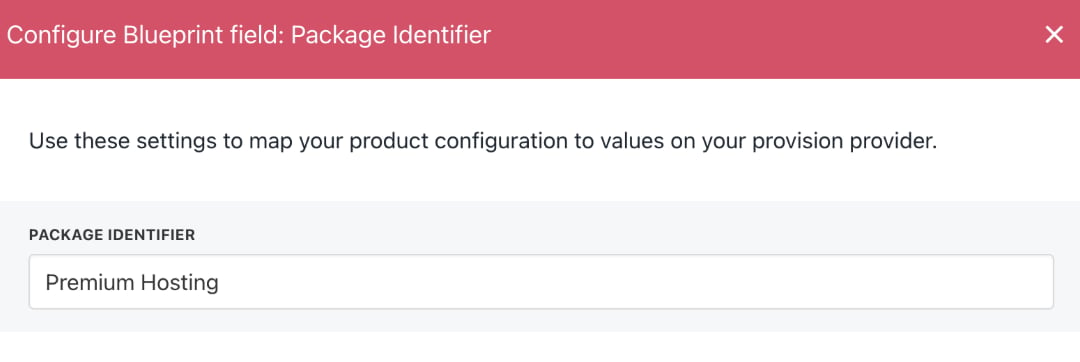
Enter package identifier
- Save the product.
Debugging 404 Errors: If SPanel is configured with a custom branding “Login URL”, change the provision configuration (Host Control > SPanel) “Branding URL” to either /spanel or /hostpanel as appropriate.