

Getting PanelAlpha credentials
- Within the PanelAlpha admin dashboard, go to Configuration > Admins.
- Click to enable API Access and copy the displayed API token.
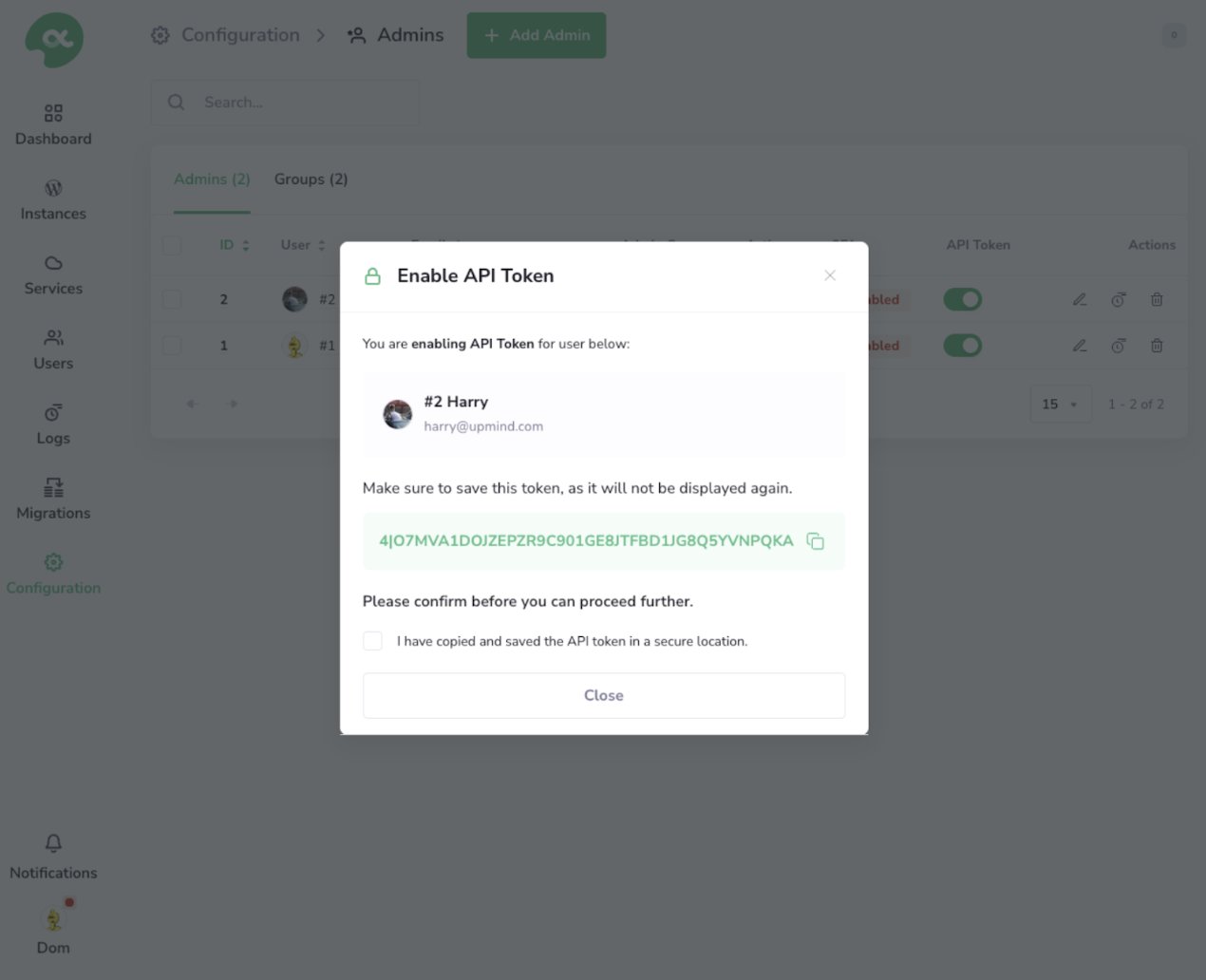
Enable API token
Configuring PanelAlpha provisioning in Upmind
- In Upmind, go to Settings > Provision Configurations.
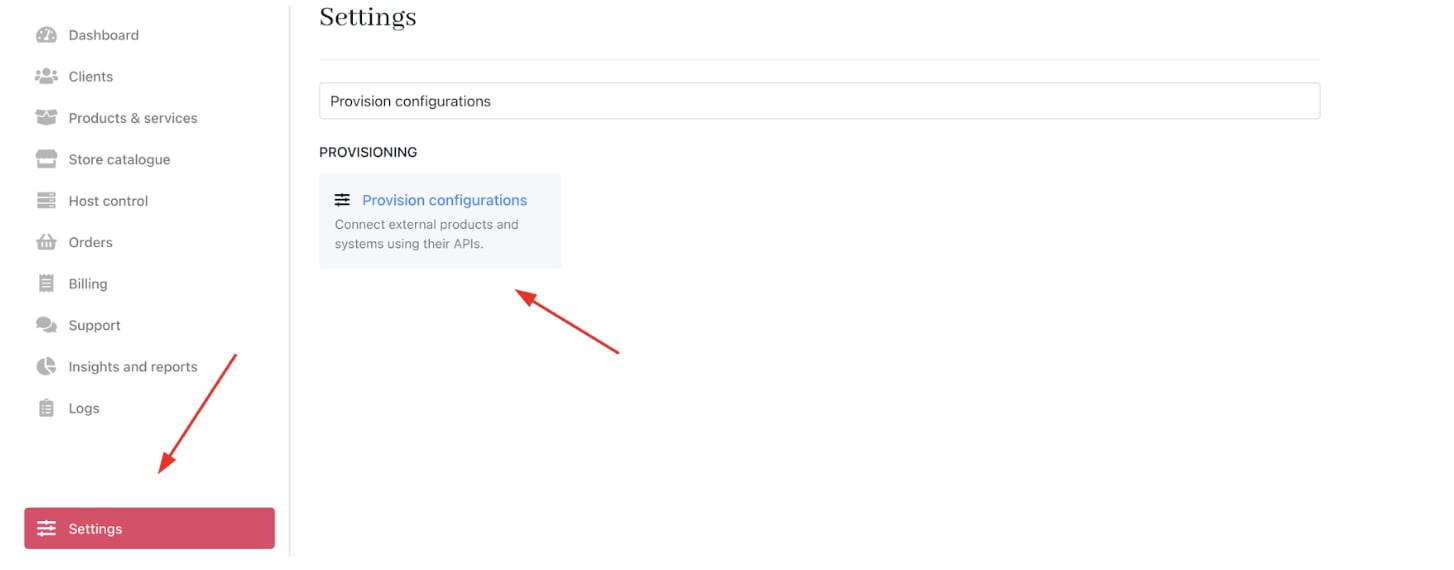
Settings > Provision configurations
- Click on Add New Configuration.

Add new configuration
- Provide a Name (e.g., PanelAlpha Hosting Provision).
- Select Web Hosting as the product type.
- Choose PanelAlpha as the provisioning provider.
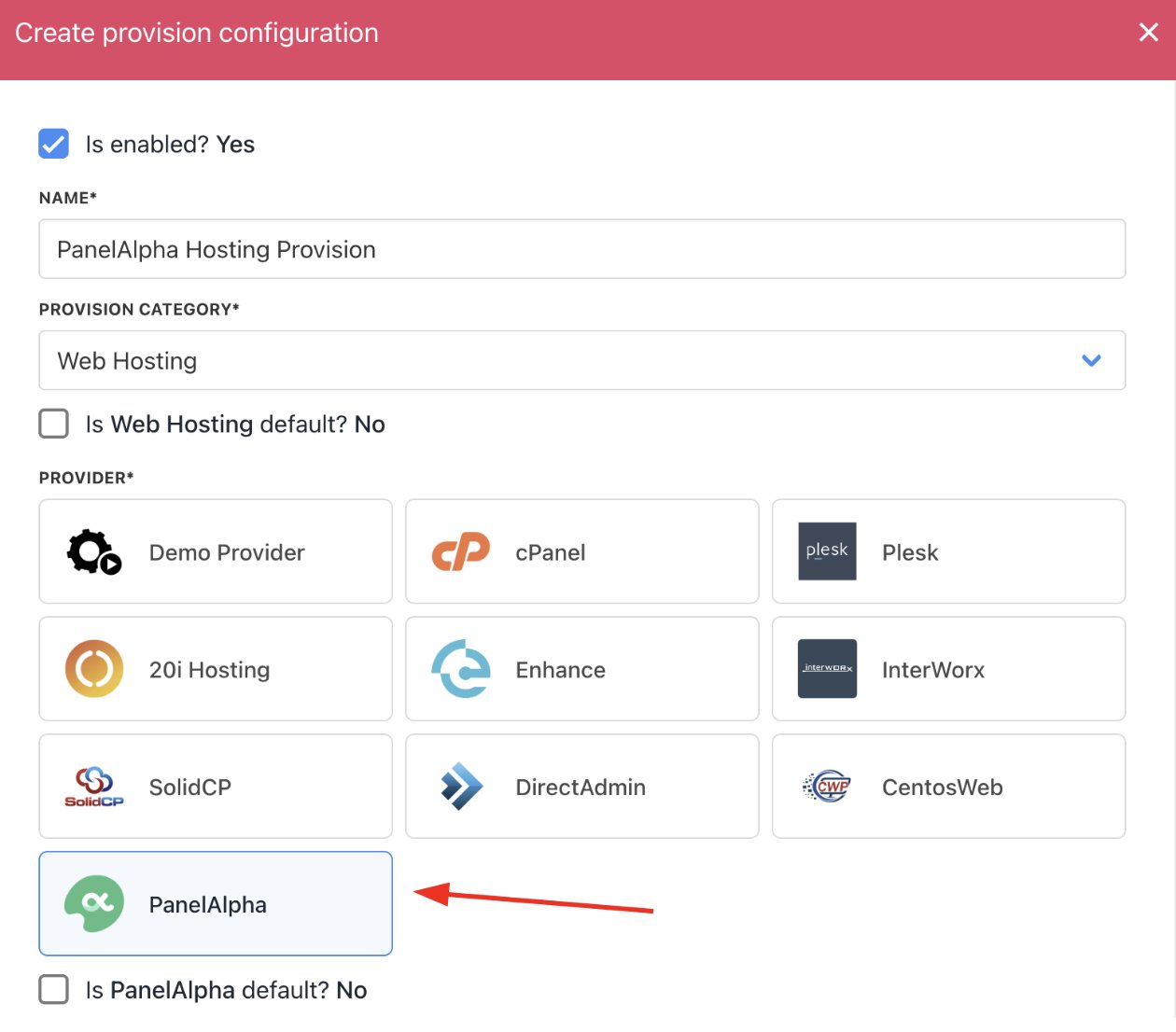
Choose PanelAlpha
- Complete the following details:
- Your server’s Hostname and Port.
- Paste the API token obtained from PanelAlpha.
- Fill in any Configuration Attributes, such as hosting location and hosting provider.
- Set whether to accept new accounts.
- Click Create.
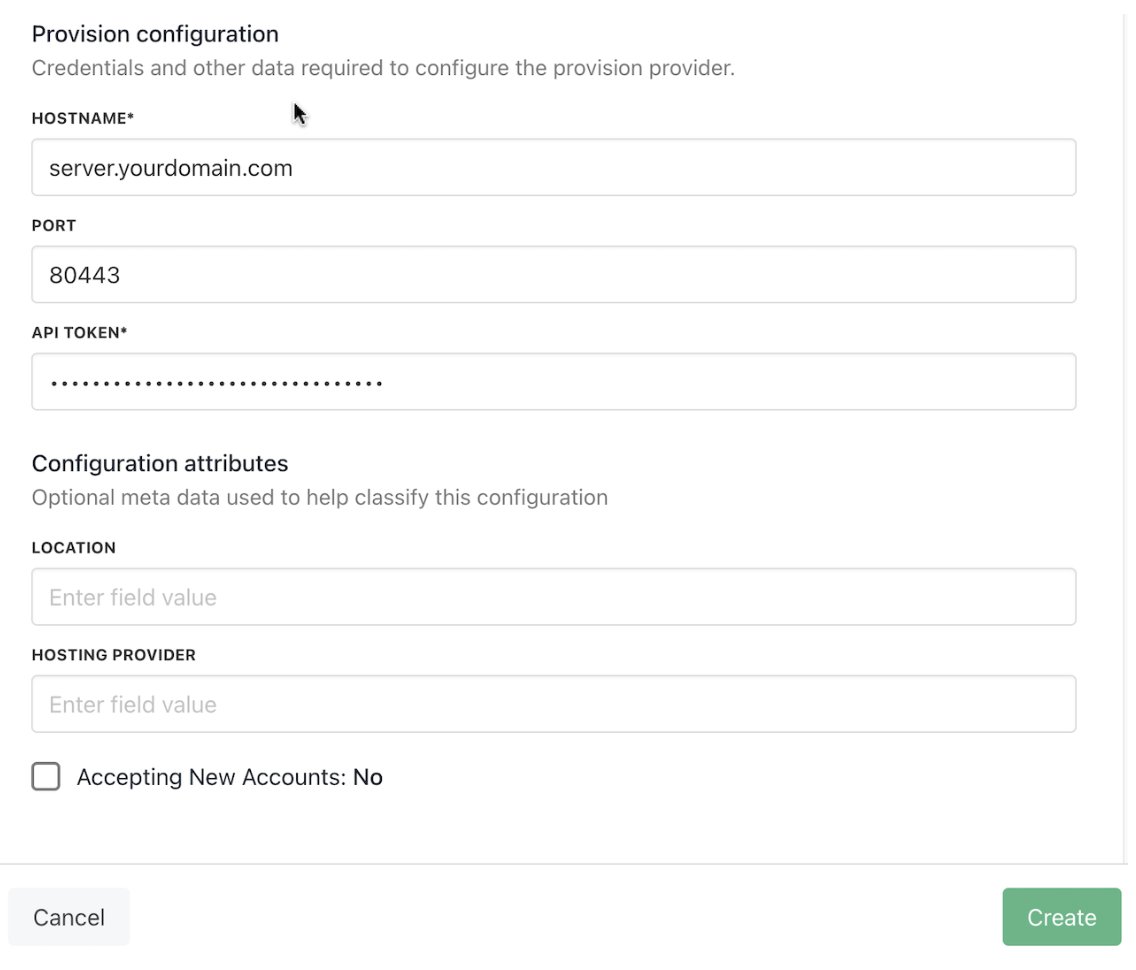
Enter provision configurations
Setting up PanelAlpha products
- Log in to the PanelAlpha admin dashboard.
- Navigate to Configuration > Plans.
- Identify the hosting packages you want to sell. Note the ID or Name of each package.
- In Upmind, when creating a product, use this Package Identifier in the provisioning settings to match the PanelAlpha package.
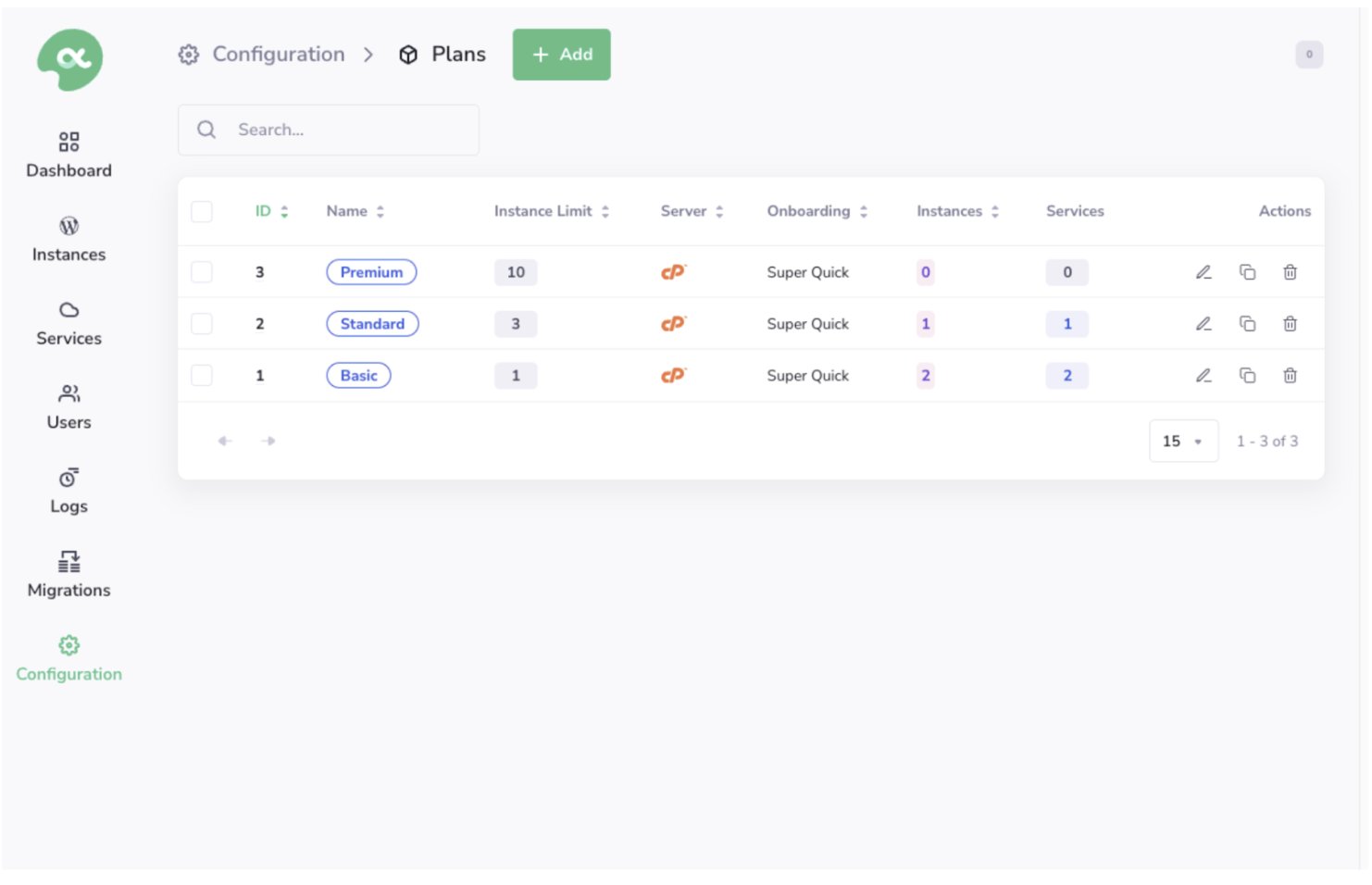
Configuration > Plans
Creating PanelAlpha hosting products in Upmind
- Go to Host Control > Web Hosting in Upmind.
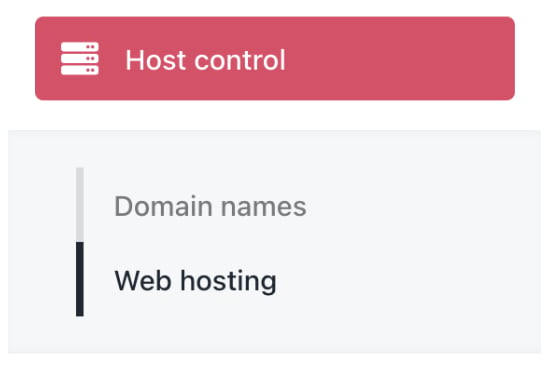
Host control > Web hosting
- Click Add New.

Add new
- Choose a category and fill in the details. Then click Create.
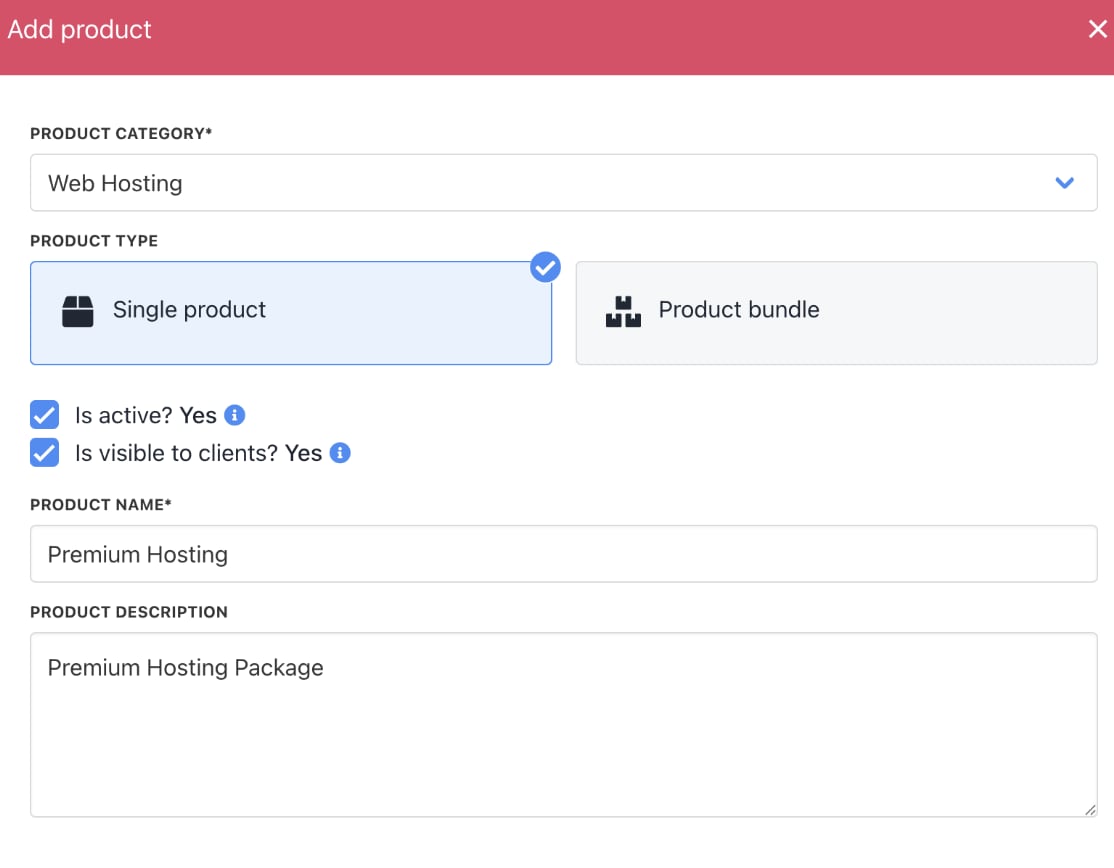
Fill in product details
- On Provisioning, set the Provision Provider to PanelAlpha.
- Choose the Configuration Mode and Provider Configuration.
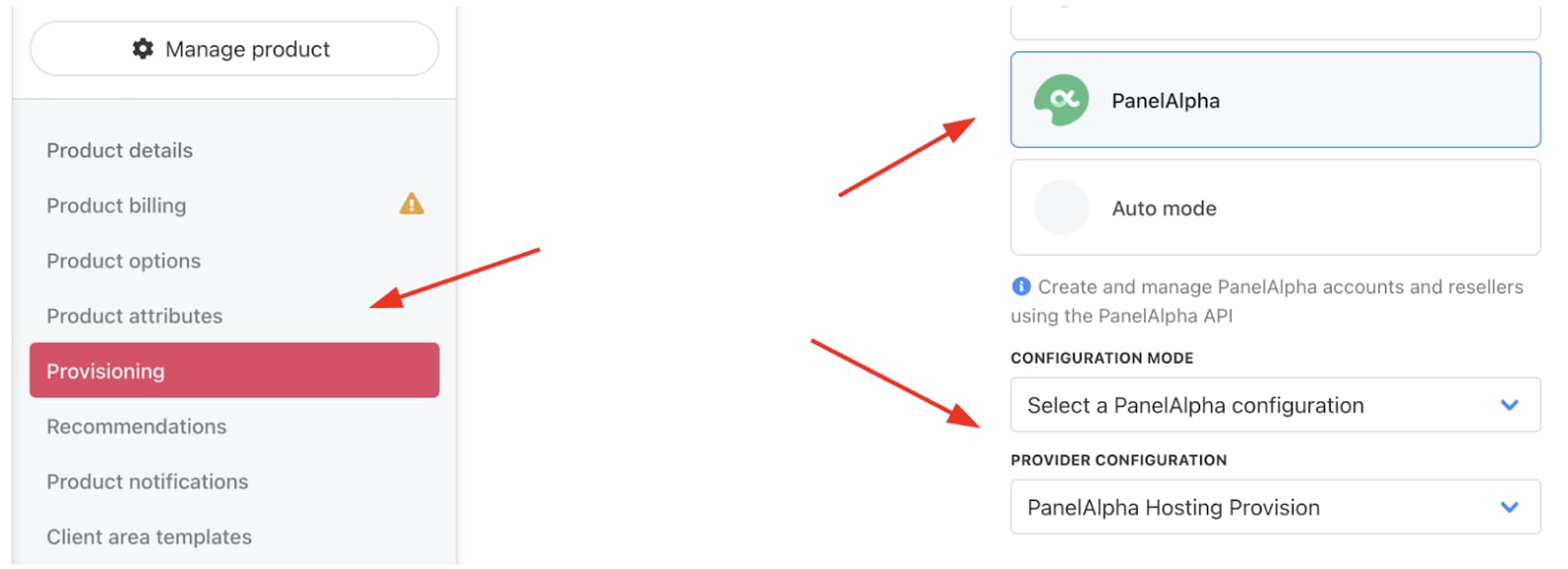
Set provision provider
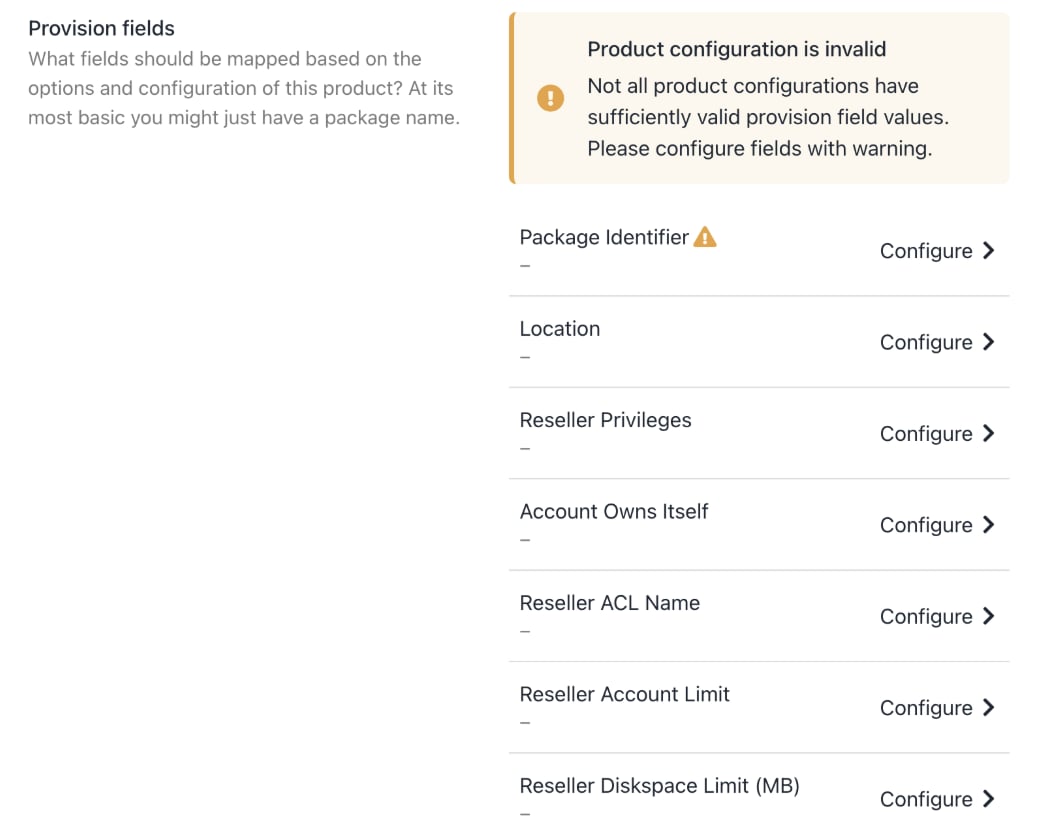
- Enter the Package Identifier exactly as it appears in PanelAlpha (matching the plan name or ID).
- Complete other product details like name, pricing, billing cycle, and permissions.
Complete other product details
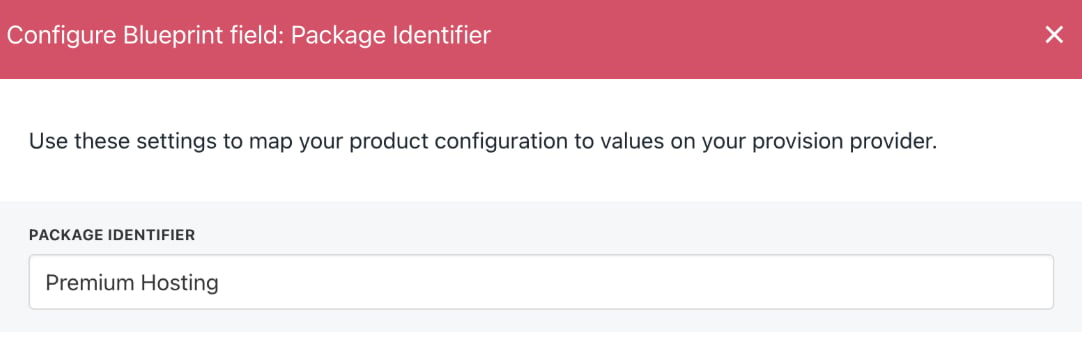
Enter package identifier
- Save the product.