

What you will need
- A server running Enhance. This can either be a server you run yourself, or a reseller account running the Enhance control panel.
- An Upmind account.
Create a provision configuration
Generate an Access Token in Enhance
In Enhance, you need to generate an Access token. This is done in your Enhance control panel under Settings> Access Token. When creating an access token, for now, you need to grant Super admin permissions. We recommend not setting an expiry date. We understand Enhance will be making more suitable granular permissions in the near future.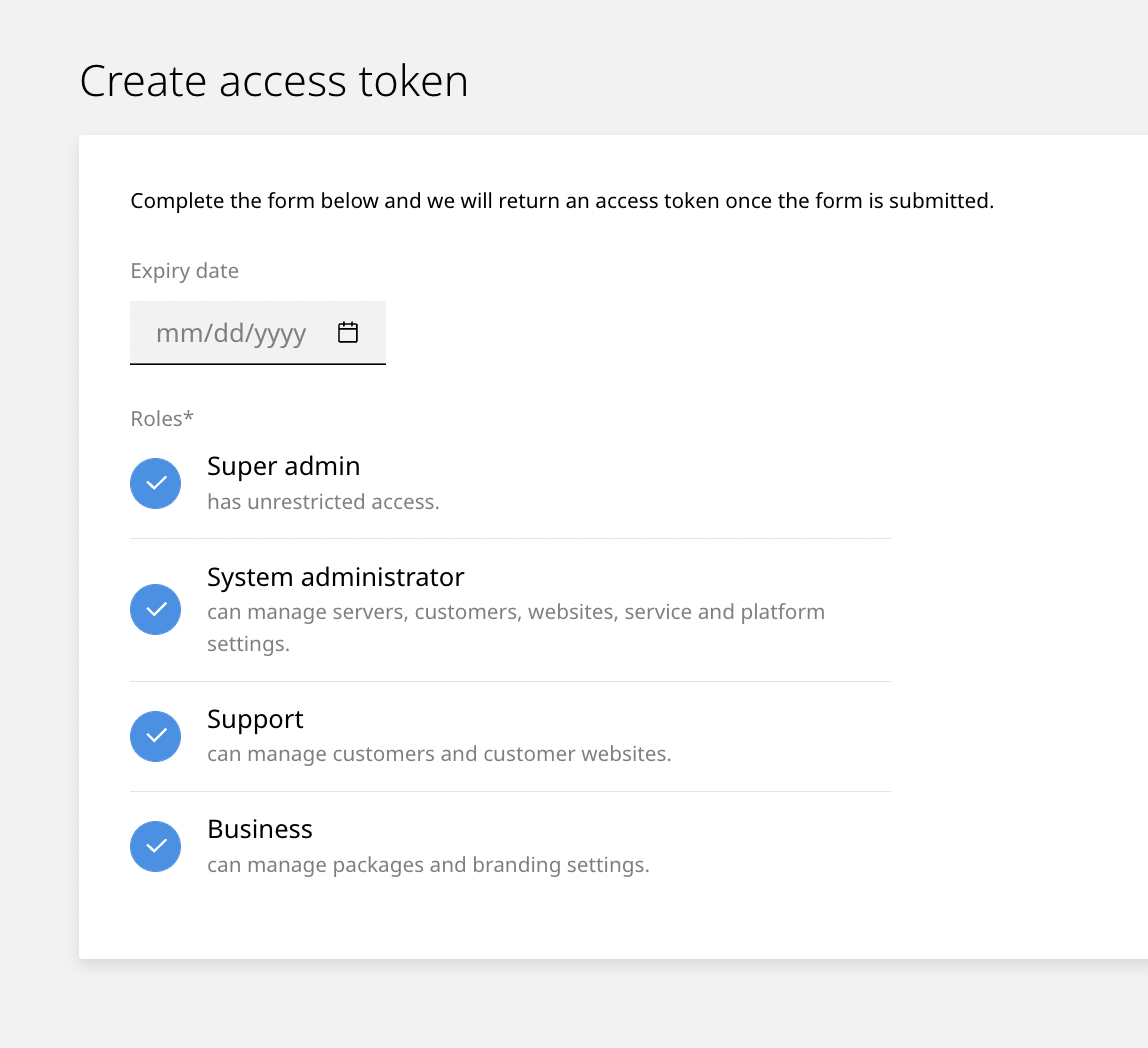
Create access token
Linking Enhance to Upmind
In Upmind, you should add Enhance as a provision configuration. You can either do this- On the sidebar, click Host Control > Web Servers> Add New. You can also select it from below.
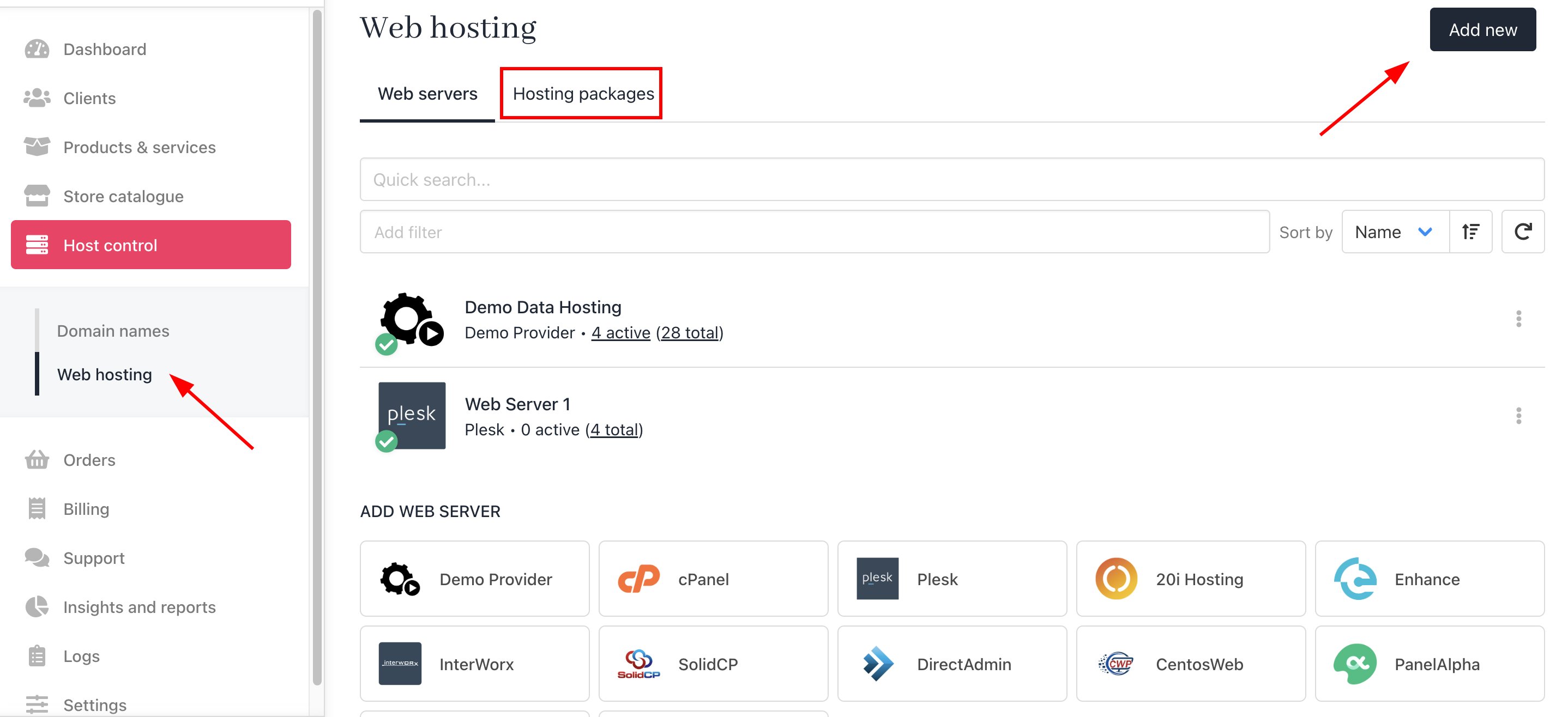
Host Control > Web Servers> Add New
- On the sidebar, go to Settings > Provision Configurations > Add New Configuration.
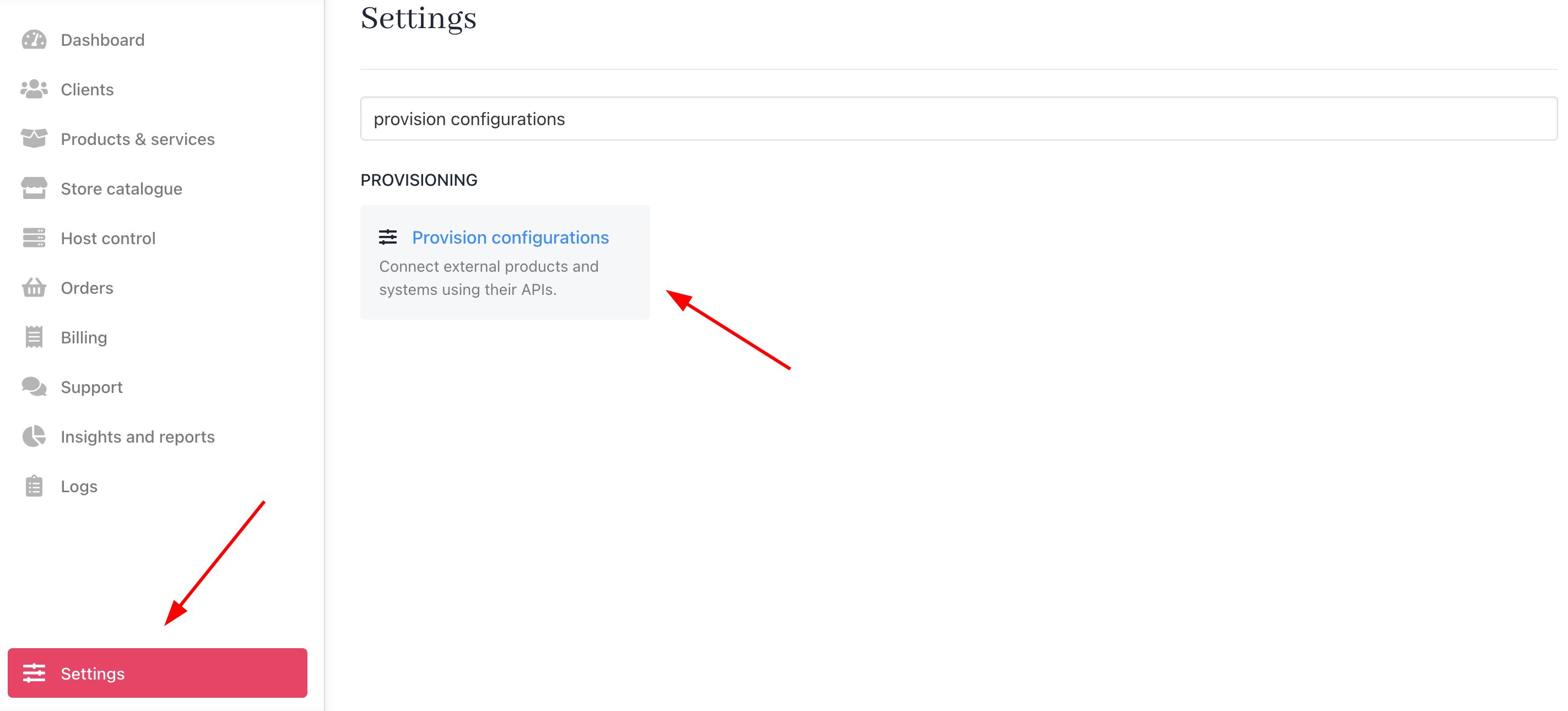
Settings > Provision Configurations > Add New Configuration
- Enter a server name. You may just want to use the Enhance control server name or give it a more familiar name.
- Under the Provision Category of Web Hosting, choose Enhance as the hosting panel type.
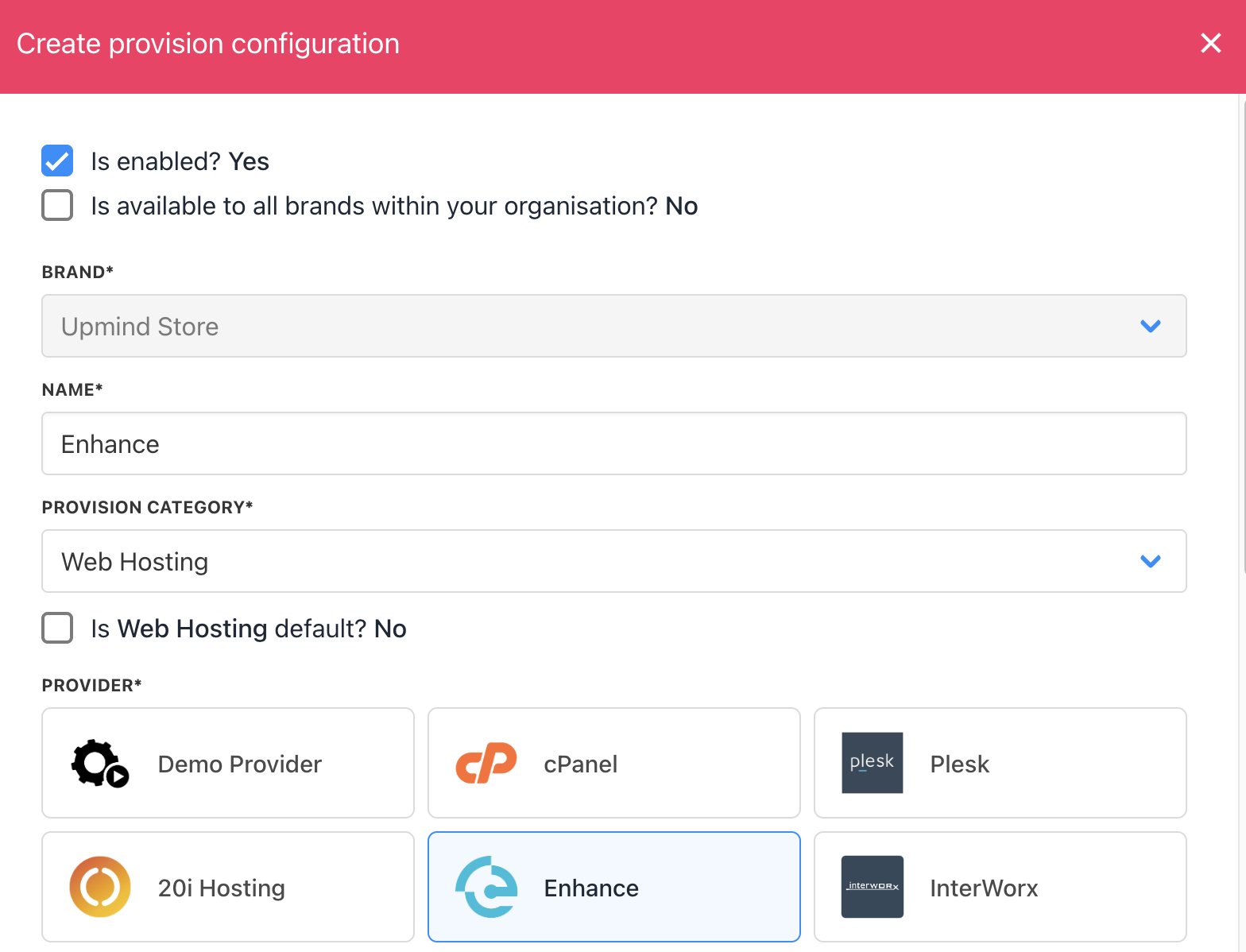
Enter name
- Enter your Hostname, Org ID, and Access Token.
- Click Create.
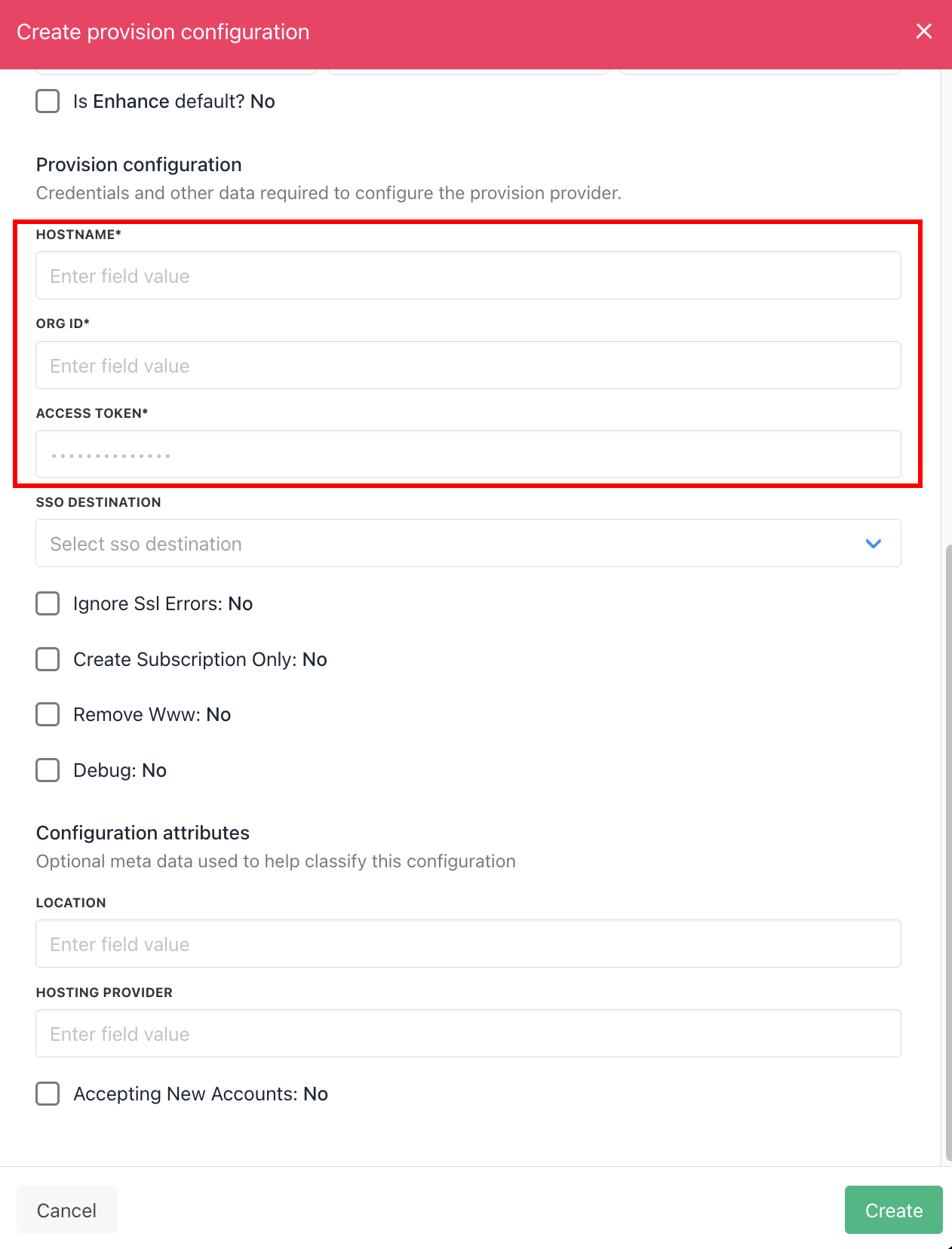
Enter details
Create packages
When you create hosting packages in Upmind, you can now choose Enhance as a provision provider. You will be asked for the Package Identifier. It’s recommended to use the Enhance package name (case sensitive), but if you need to change your package names in Enhance or if their names aren’t unique, you should instead use the Enhance package ID.Get Enhance package identifier
In your Enhance control panel, go to Settings> Packages and click to edit the package you want to configure in Upmind.- The package name is the one you set when you created the package in Enhance and can be copied from the Details section.
- The package ID can be seen in the URL.
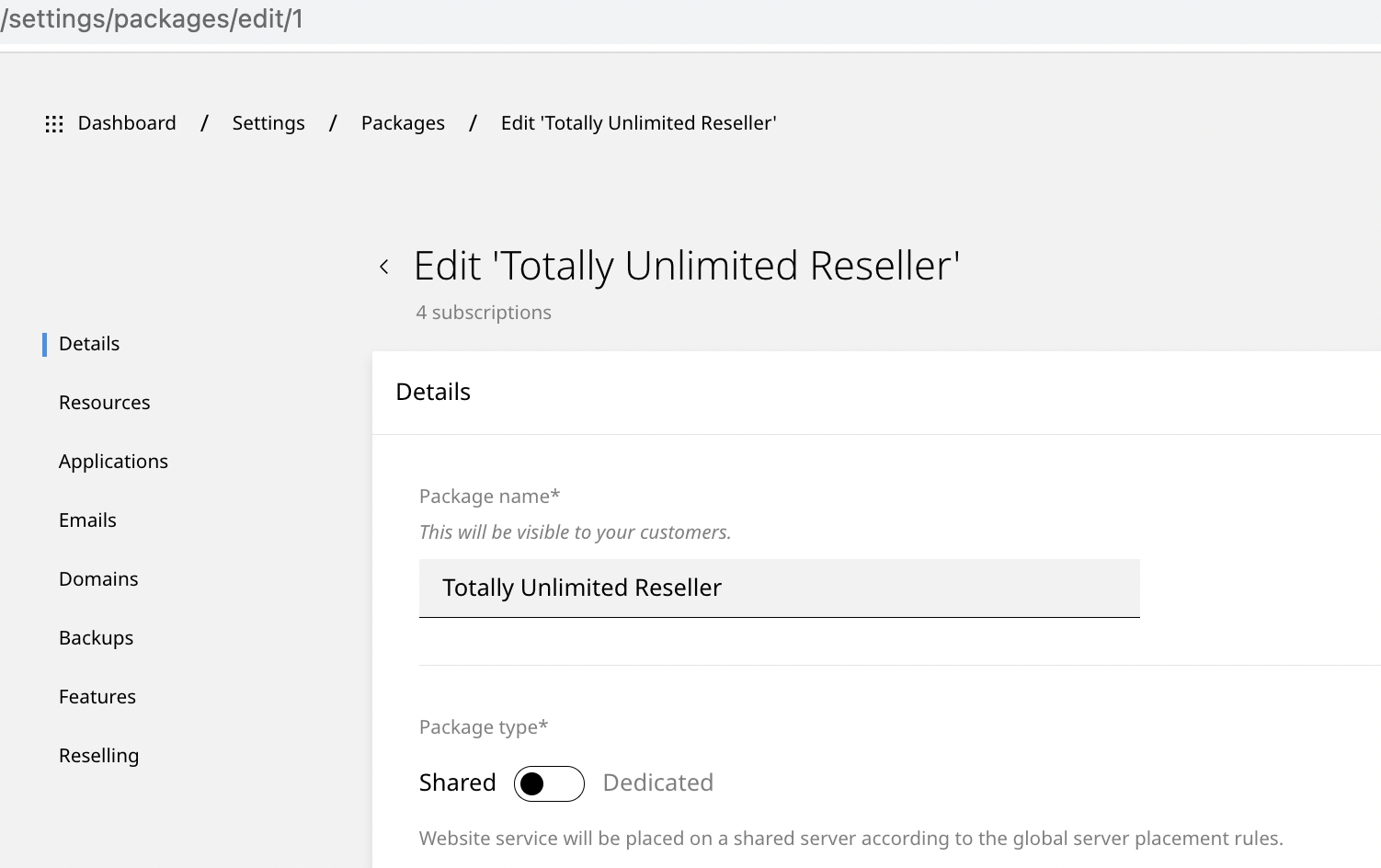
In this example, the package name is "Totally Unlimited Reseller" and the package ID is "1"
Configure Upmind products
In your Upmind admin area, under Host control > Web hosting, click on the Hosting packages tab and click the Add new button to start configuring a new hosting package.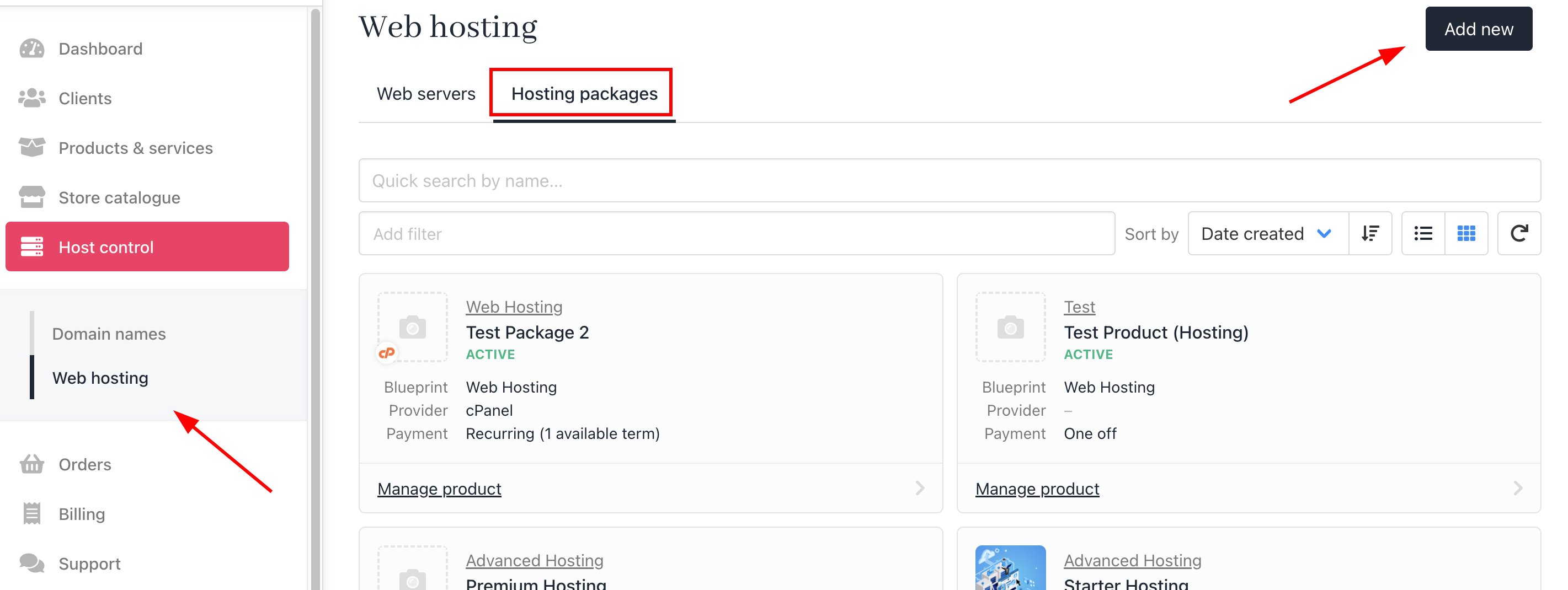
Host control > Web hosting > Add new
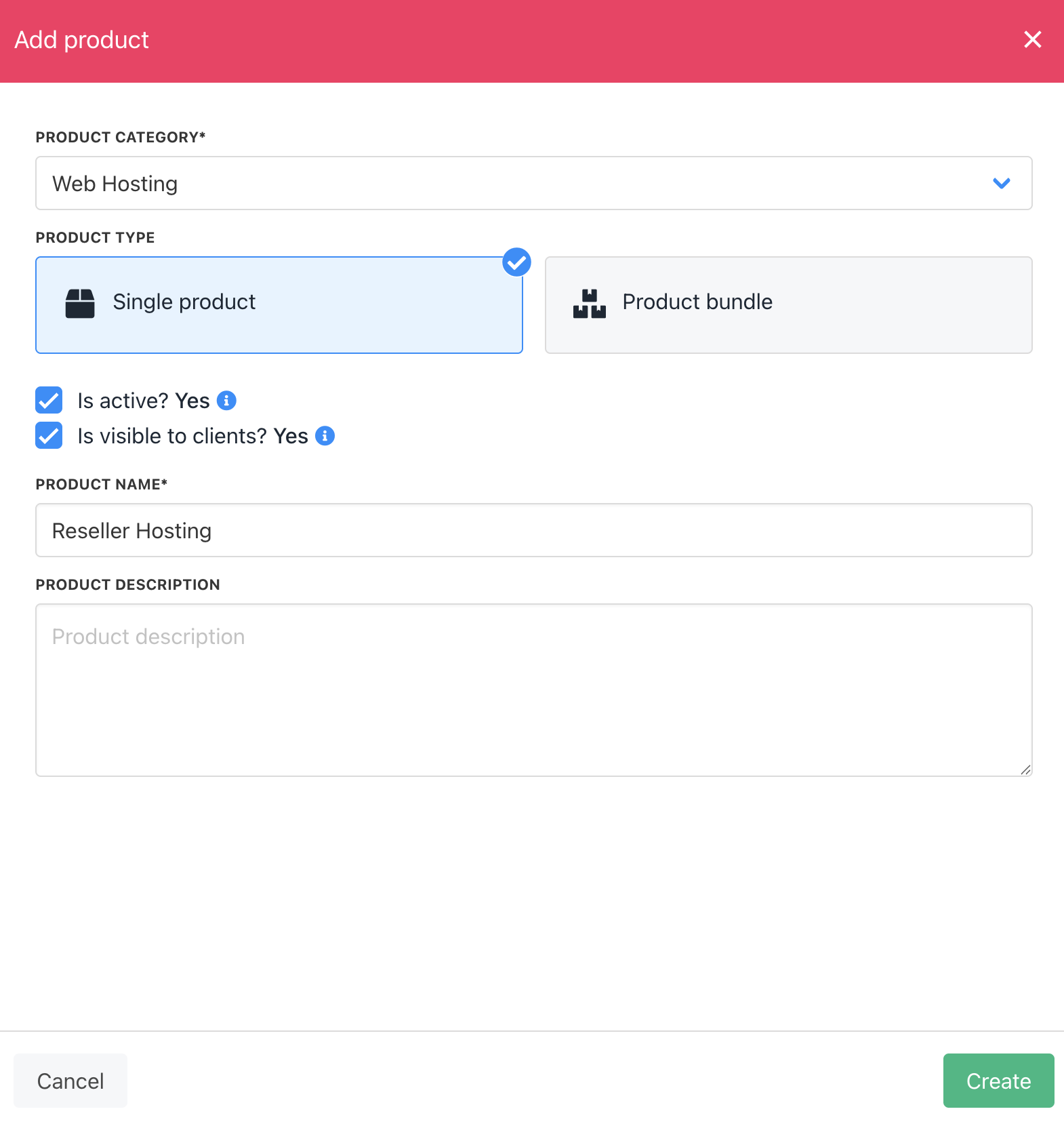
Create package
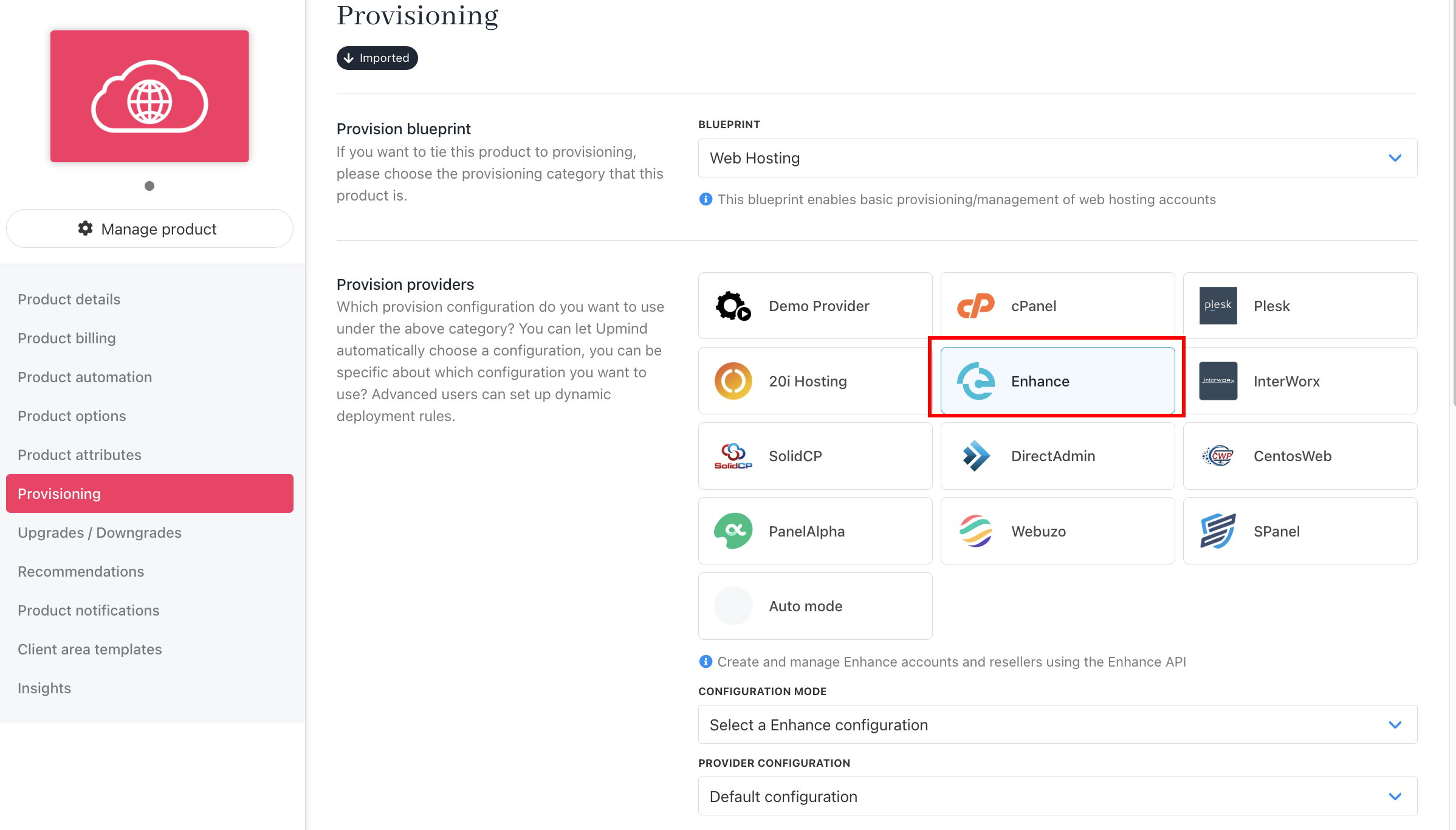
Set provision provider
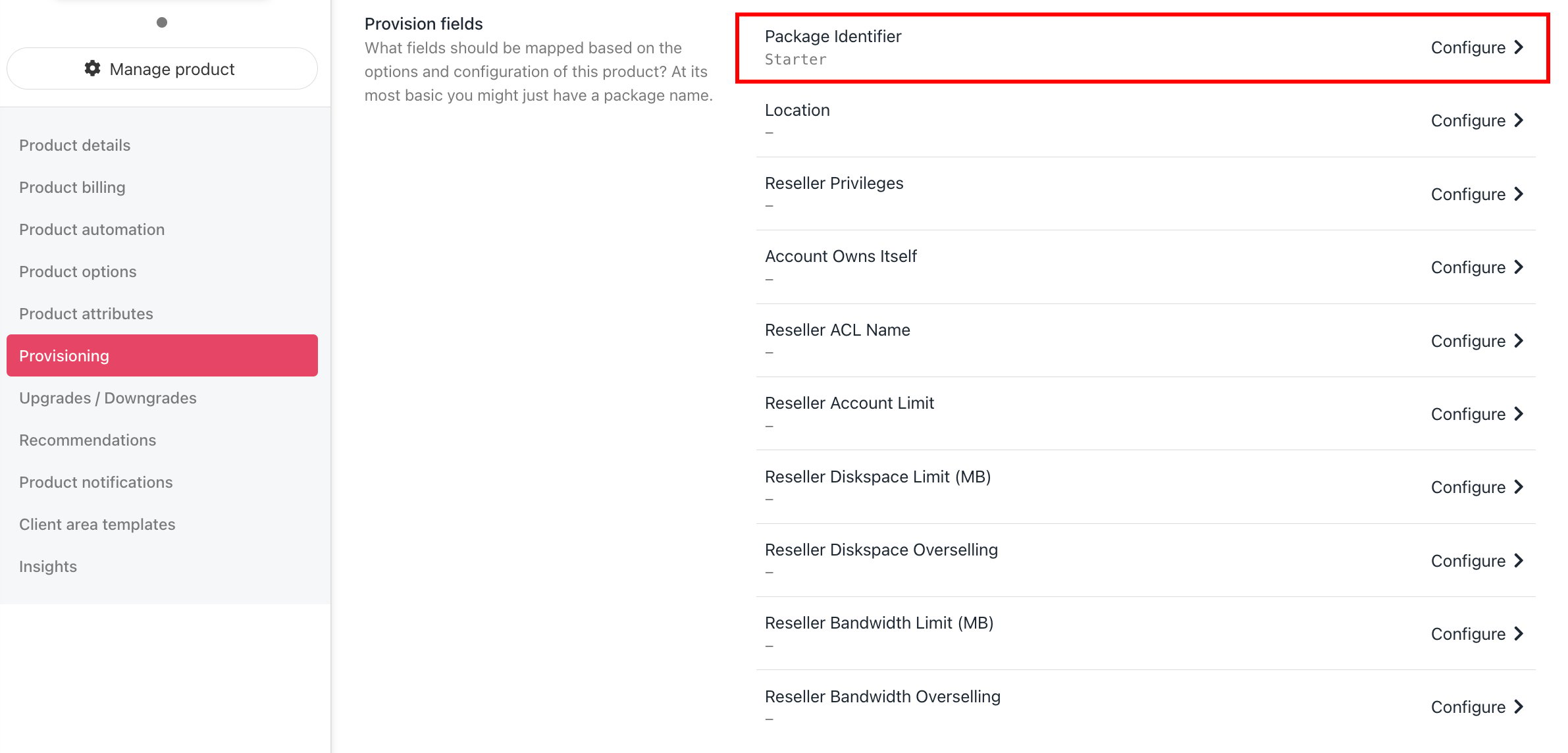
Set package identifier
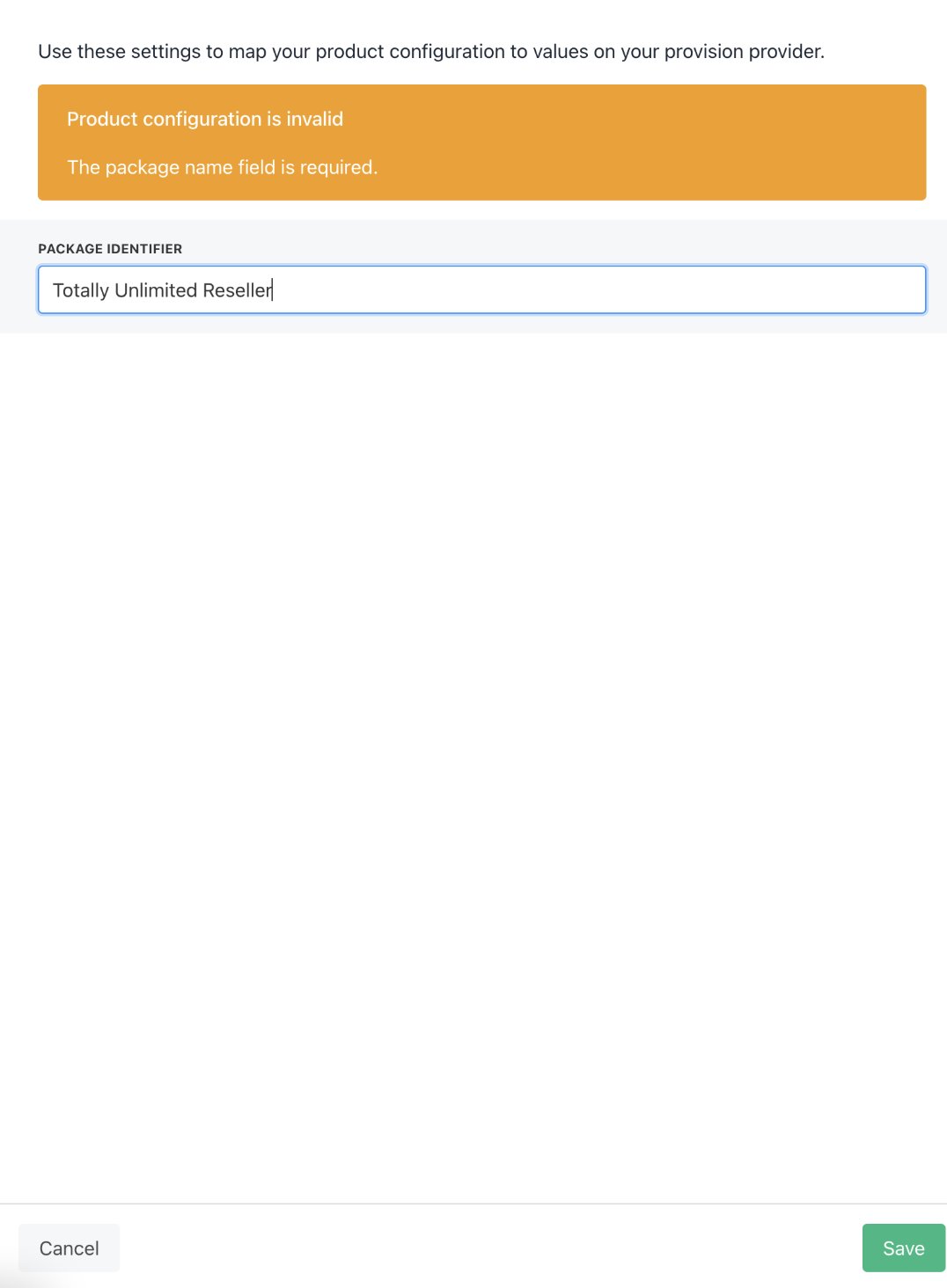
Package identifier must match the package name
Website locations
If you have multiple servers configured in Enhance, customers can have the option to choose the server location for new websites, according to your Enhance Server Group configuration. For more information on setting up server groups in Enhance, refer to their guide Add Location Based Hosting Packages. When Upmind creates an Enhance subscription for a new order, a website gets created for the domain name the customer provided in their order details. By default, this website will be automatically allocated to a server group according to your settings in Enhance. If you want to let your customers choose their server location for new orders, there are 2 options:- Skip website creation for new orders.
- Configure server groups in Upmind.
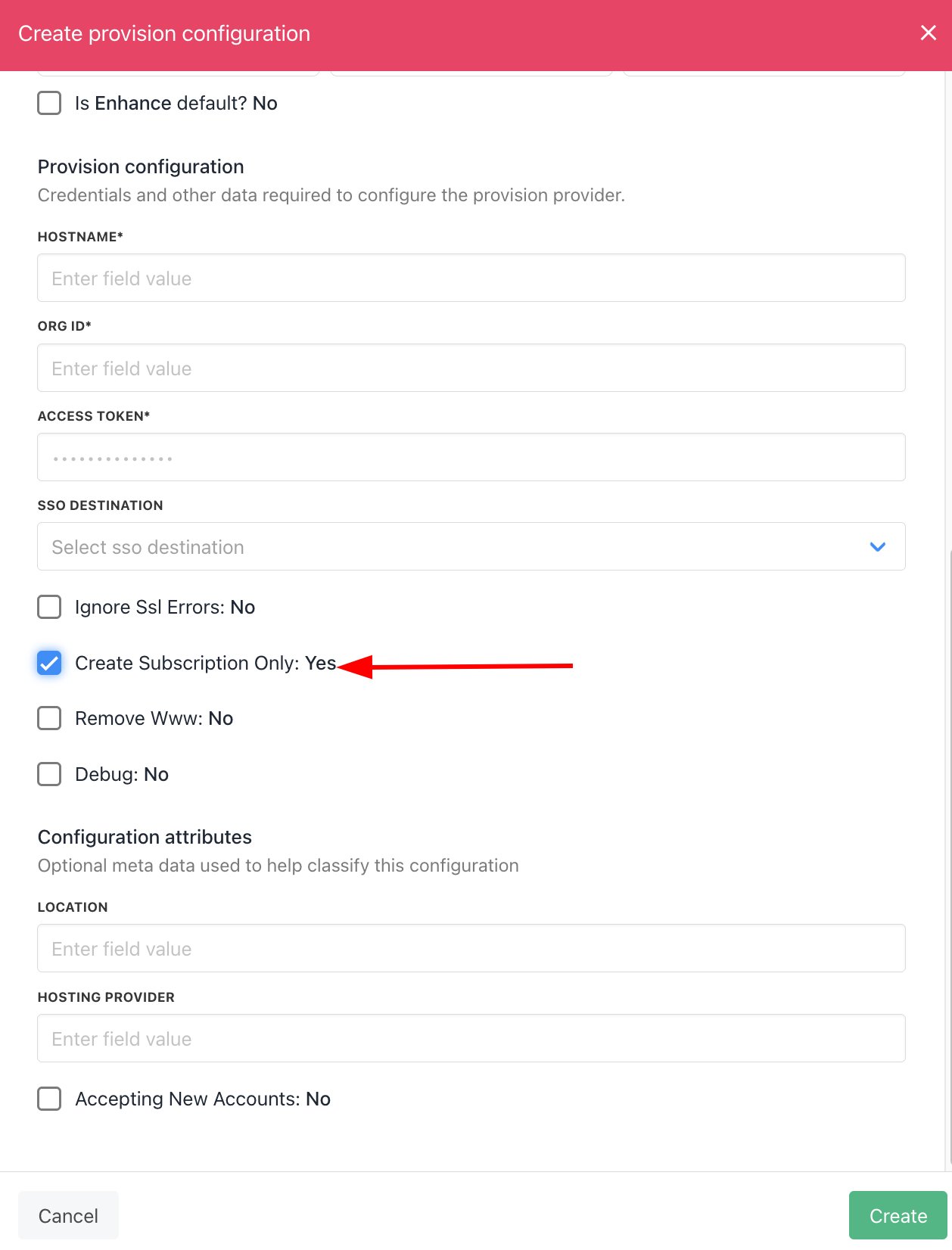
Create Subscription Only
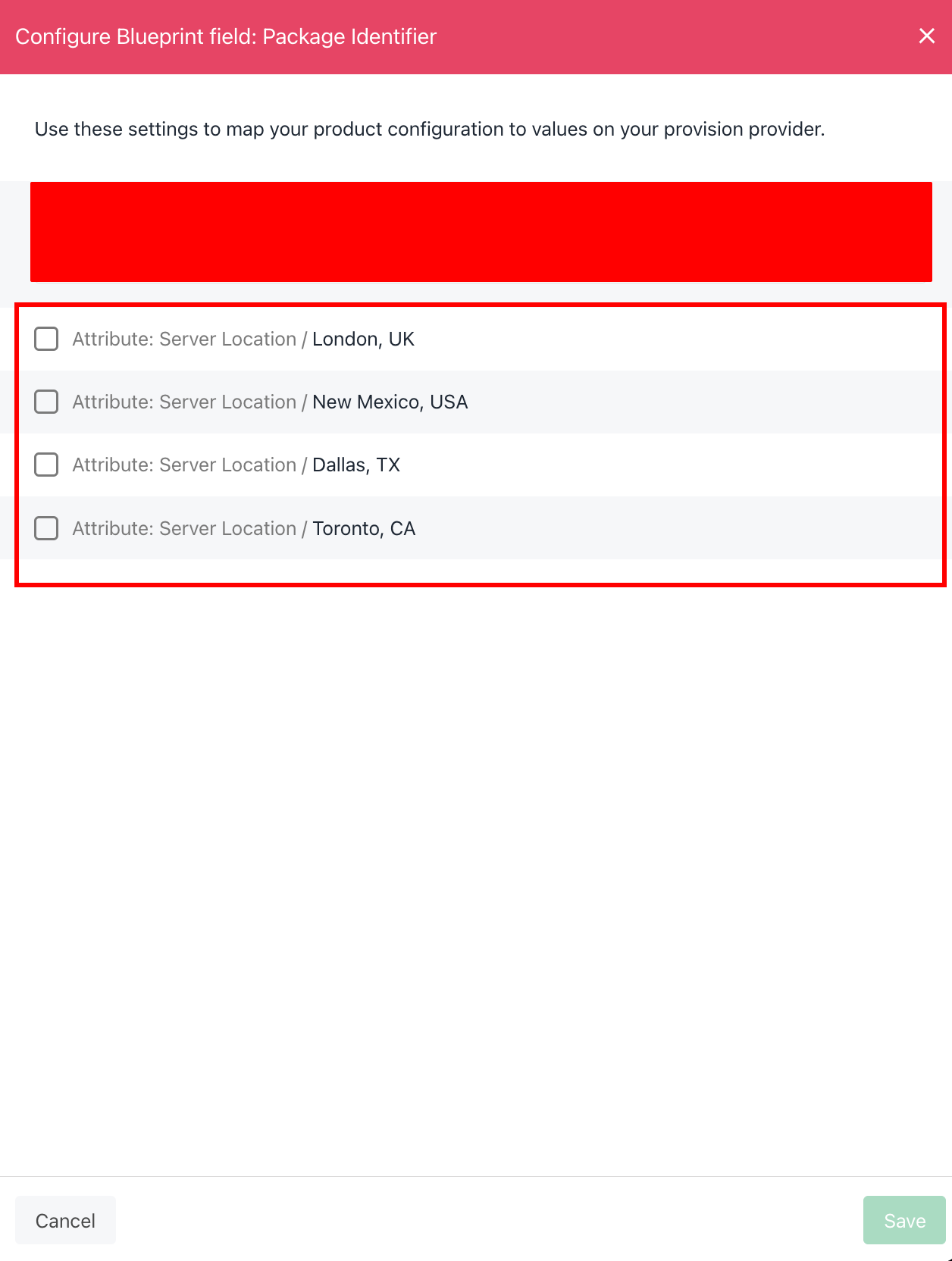
Choose attribute locations
Add existing subscription
- If you need to link an existing Enhance subscription with an order in Upmind, go to the order product’s Manage tab and run the Get Info function.
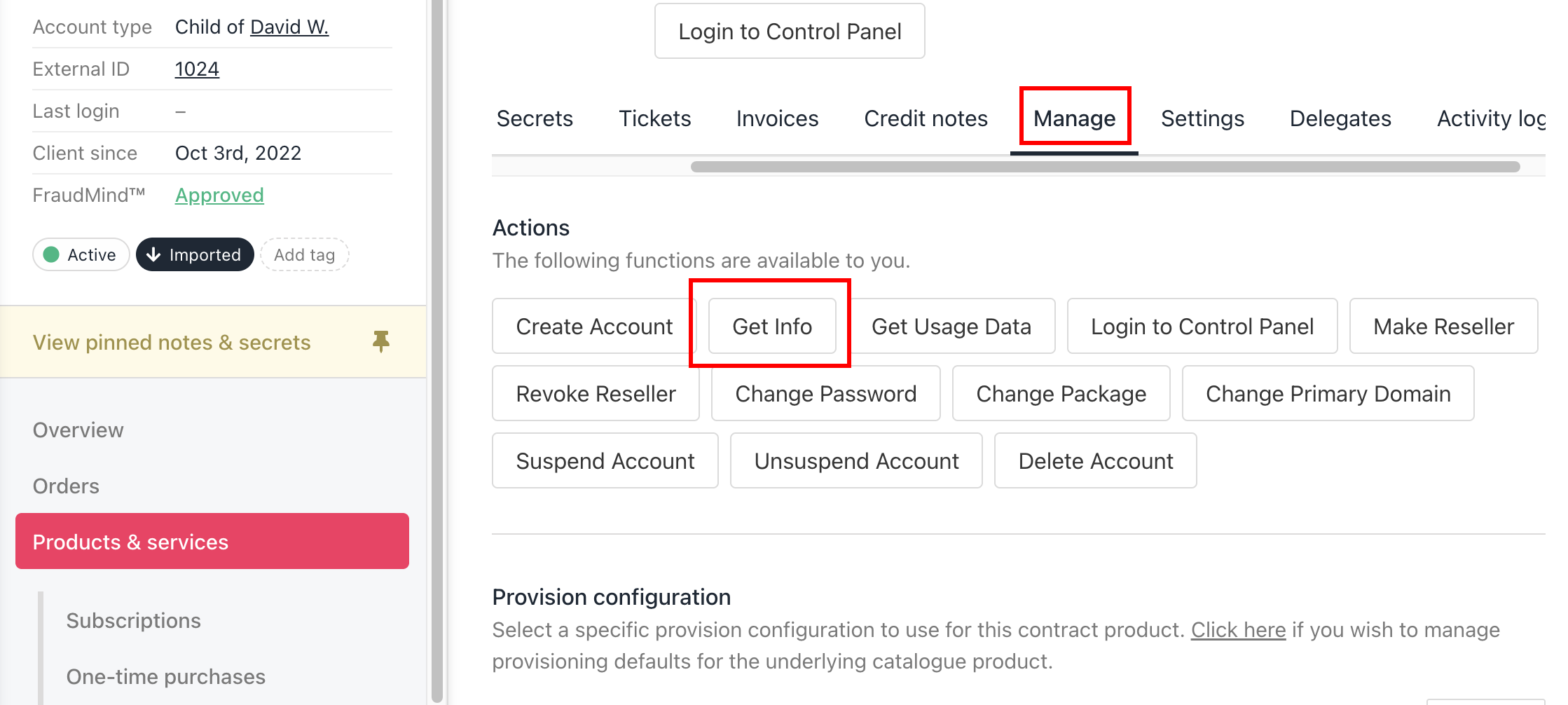
Product > Manage > Get Info
- Fill in the Account Domain Name and Account Username (the Enhance customer’s email address) when prompted.
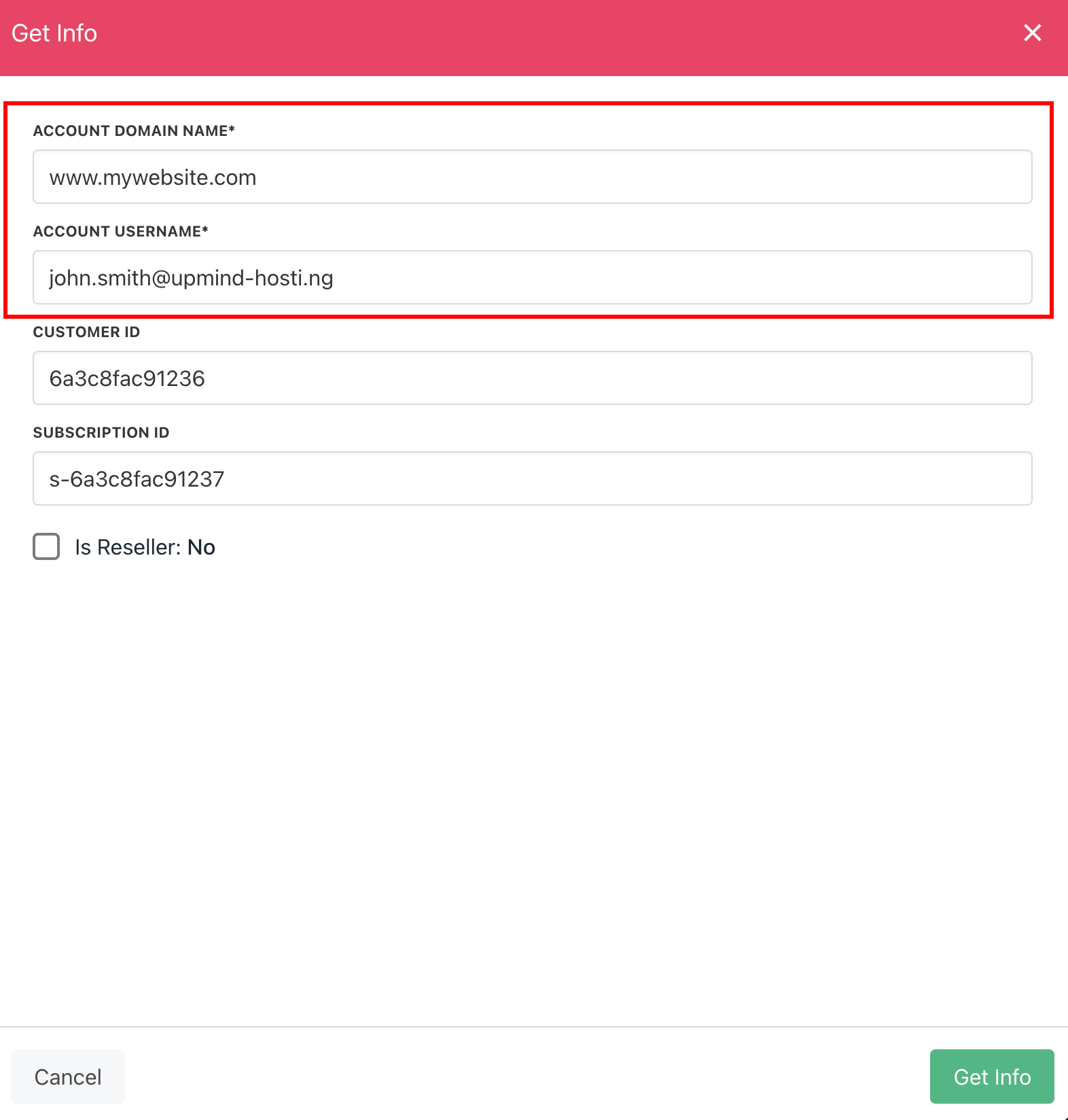
Account Domain Name and Account Username
Awaiting Activation, don’t forget to also press Activate on the summary tab to commence recurring billing.
Create new order for existing customer
The first time you try to create a new subscription/website for a customer that already exists in Enhance, you will likely get an error stating the customer’s email already exists. To solve this, click Create Account and paste in the ID of the Enhance customer. You can get their ID by taking it from the URL when viewing the customer in your Enhance panel.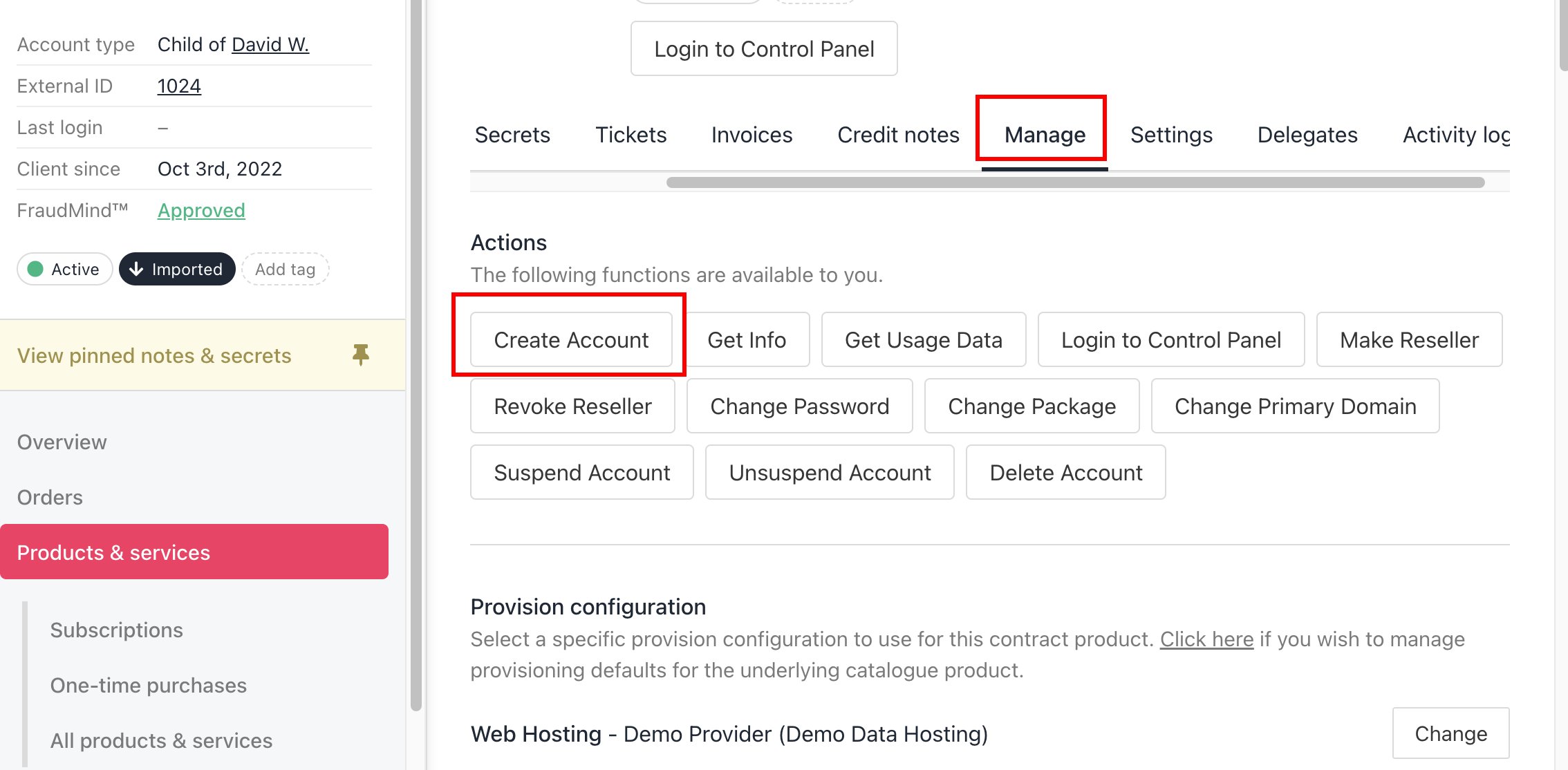
Product > Manage > Create Account
9ac67064-fd90-447f-ad9a-b2245e24999e.
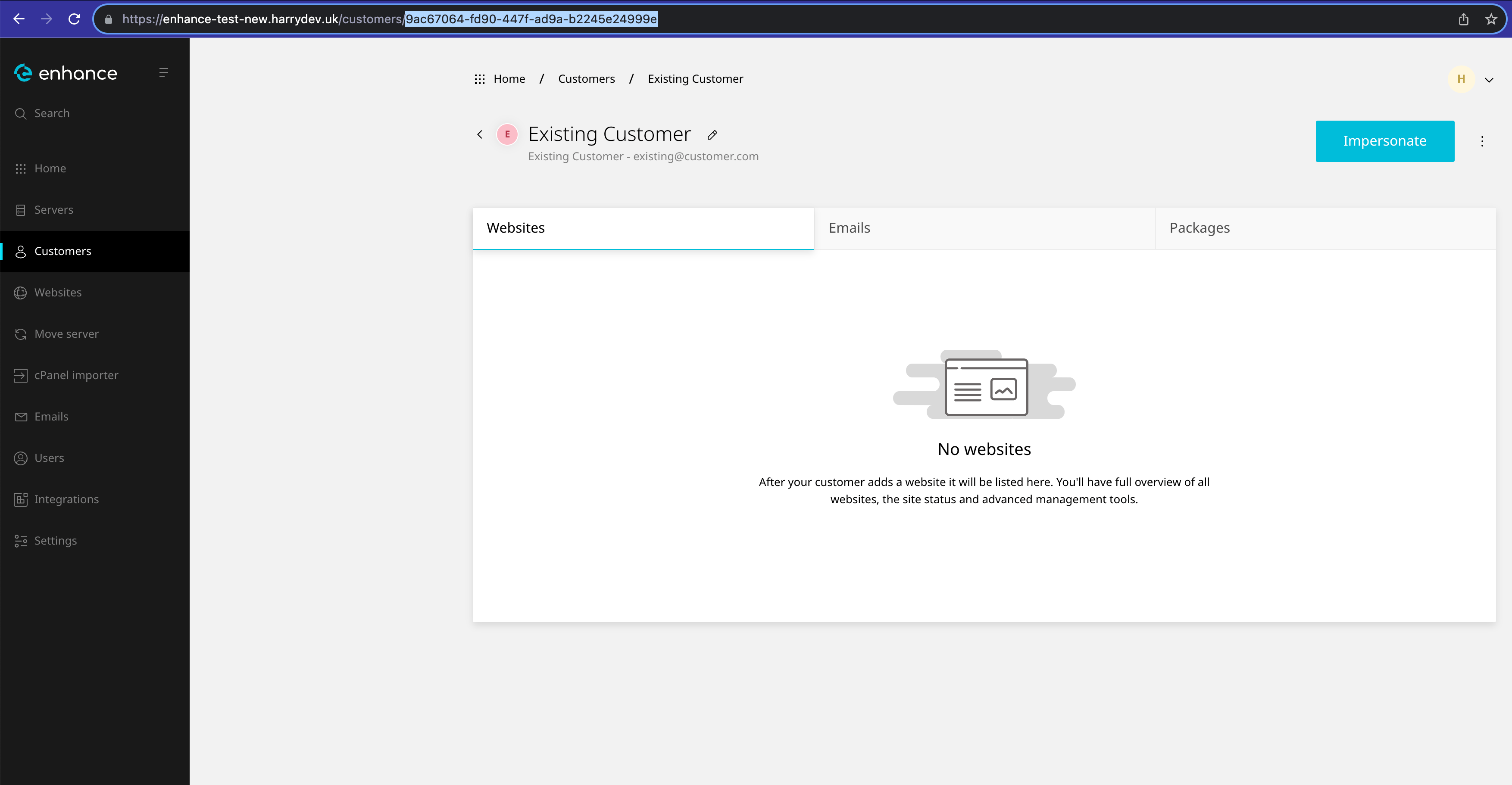
Copy the customer ID from the URL
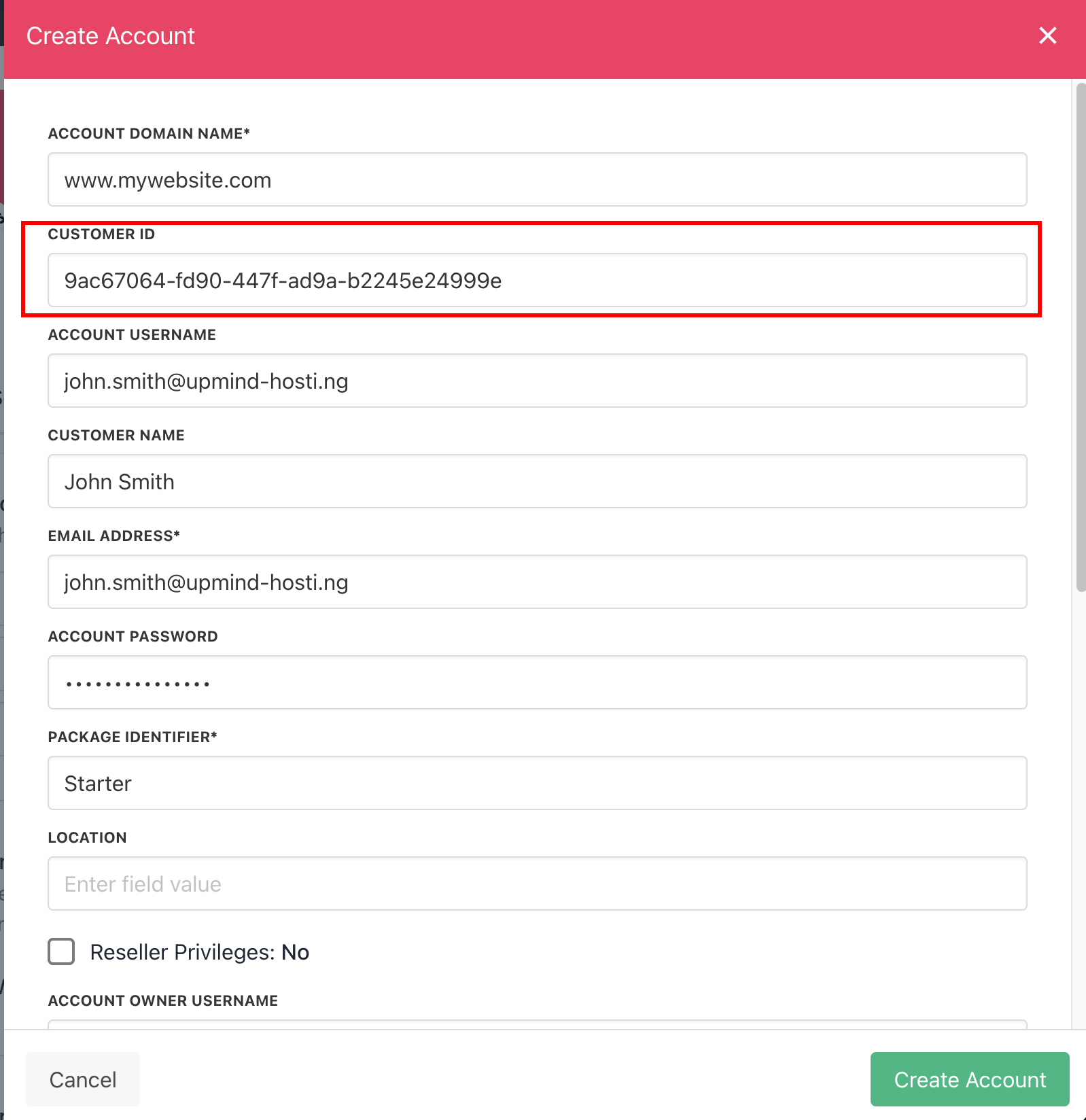
Paste the ID