

Before setting up CyberPanel in Upmind, please keep the following in mind:
- Ensure API access is enabled in your CyberPanel account and that you have administrator access.
- One account is created per website. Upmind creates a dedicated CyberPanel account for each website, and we currently do not support creating an account with a larger website limit.
- Do not use an existing CyberPanel account. The
usernamefield should only be used for the account created for the setup. If you use an existing account that already hosts multiple websites, terminating the setup will delete the entire account and all websites associated with it. - Termination deletes the account and website. The
terminatefunction removes both the website and its associated CyberPanel account. Therefore, using an account that contains other websites can result in those websites being deleted as well.
Enabling API access
- Log in to CyberPanel as an admin and open Users in the Main section of the sidebar.

Log in to CyberPanel
- In the Users menu, click API Access.

Click API Access
- Under Select User Account:
- Choose the account with administrator access to use for the API.
- Select Enable API Access
- Click Save Changes.
- The API Access Status should then show Currently Enabled.

Enabled API Access
Configuring CyberPanel provisioning in Upmind
- In Upmind, go to Settings > Provision Configurations.
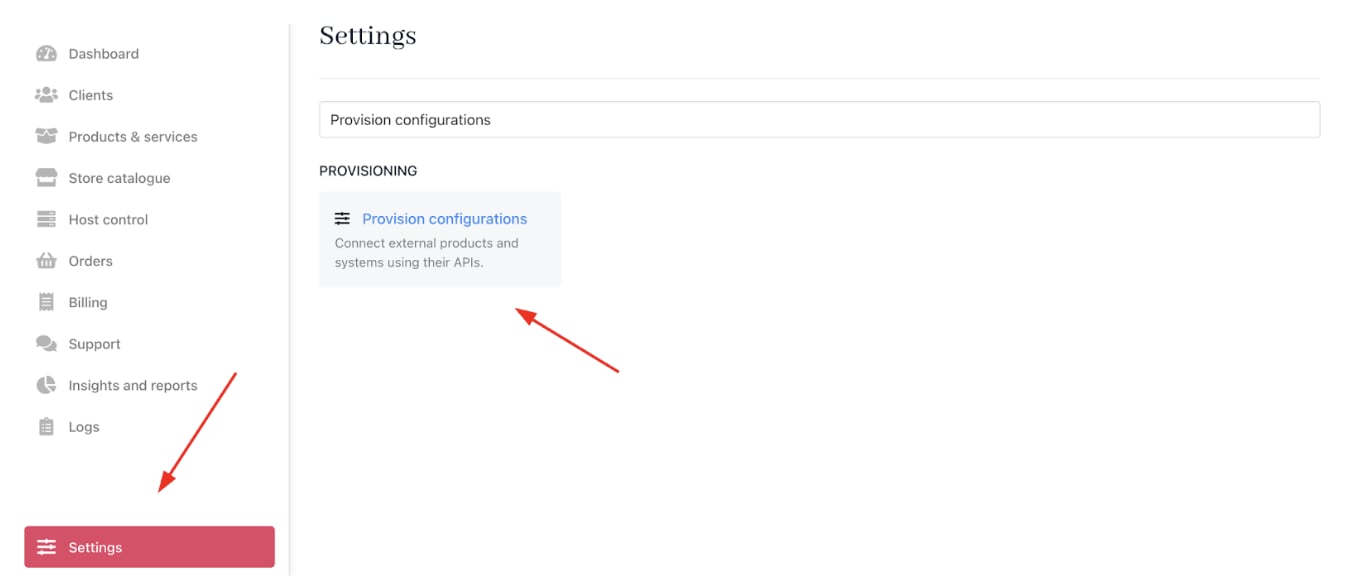
Settings > Provision configurations
- Click on Add New Configuration.

Add new configuration
- Provide a Name (e.g., CyberPanel Hosting Provision).
- Select Web Hosting as the product type.
- Choose CyberPanel as the provisioning provider.

Choose CyberPanel
- Complete the following details:
- Your server’s Hostname: Hostname of the CyberPanel server, e.g. cp.example.com
- Your Port: Port the panel listens on. CyberPanel uses
8090by default. If left empty, requests go tohttps://<hostname>/with no port - Your Username: Username of the CyberPanel admin account used for API requests
- Your Password: Password of that admin account
- SSL Verify: Whether to verify the server’s SSL certificate (by default: off)
- Click Create.


Enter provision configurations
Setting up CyberPanel Packages
Every hosting account in CyberPanel is created with a package, which sets its resource limits.- Create your packages in CyberPanel before provisioning accounts. See CyberPanel Package Management for how to create one.
- When you create an account or change its package, the package name given to the provider must match a package name in CyberPanel exactly, including upper and lower case.

Package Name
- In Upmind, when creating a product, paste this value (for example, admin_General) as the Package Identifier in the provisioning settings to match the CyberPanel package you created.
Creating CyberPanel hosting products in Upmind
- Go to Host Control > Web Hosting in Upmind.
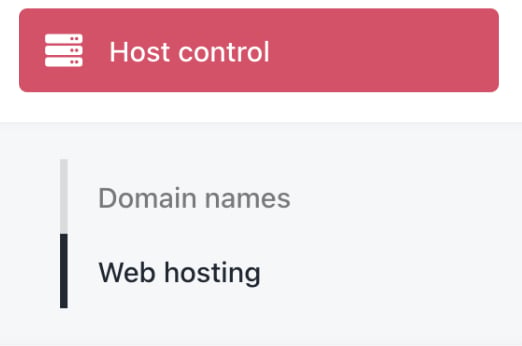
Host control > Web hosting
- Click Add New.

Add new
- Choose a category and fill in the details. Then click Create.
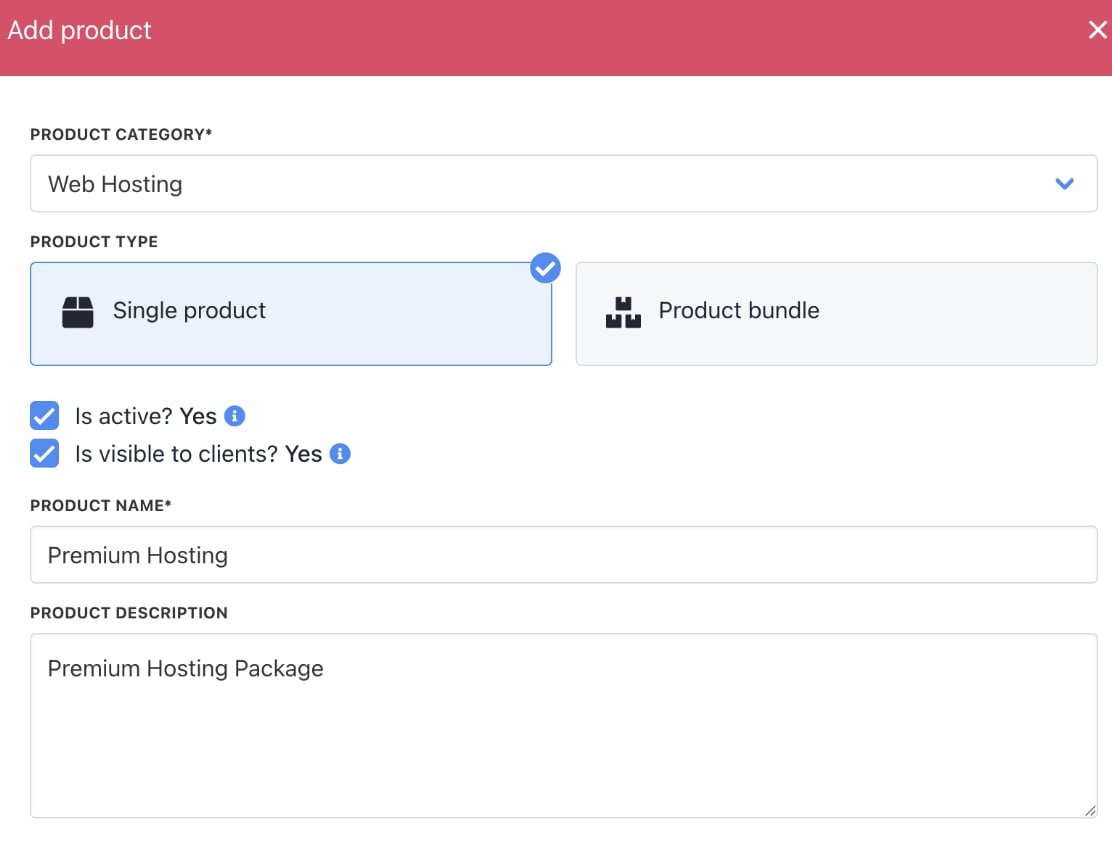
Fill in product details
- On Provisioning, set the Provision Provider to CyberPanel.
- Choose the Configuration Mode and Provider Configuration.


Set provision provider
- Enter the Package Identifier exactly as it appears in CyberPanel (matching the package name).
- Complete other product details like name, pricing, billing cycle, and permissions.
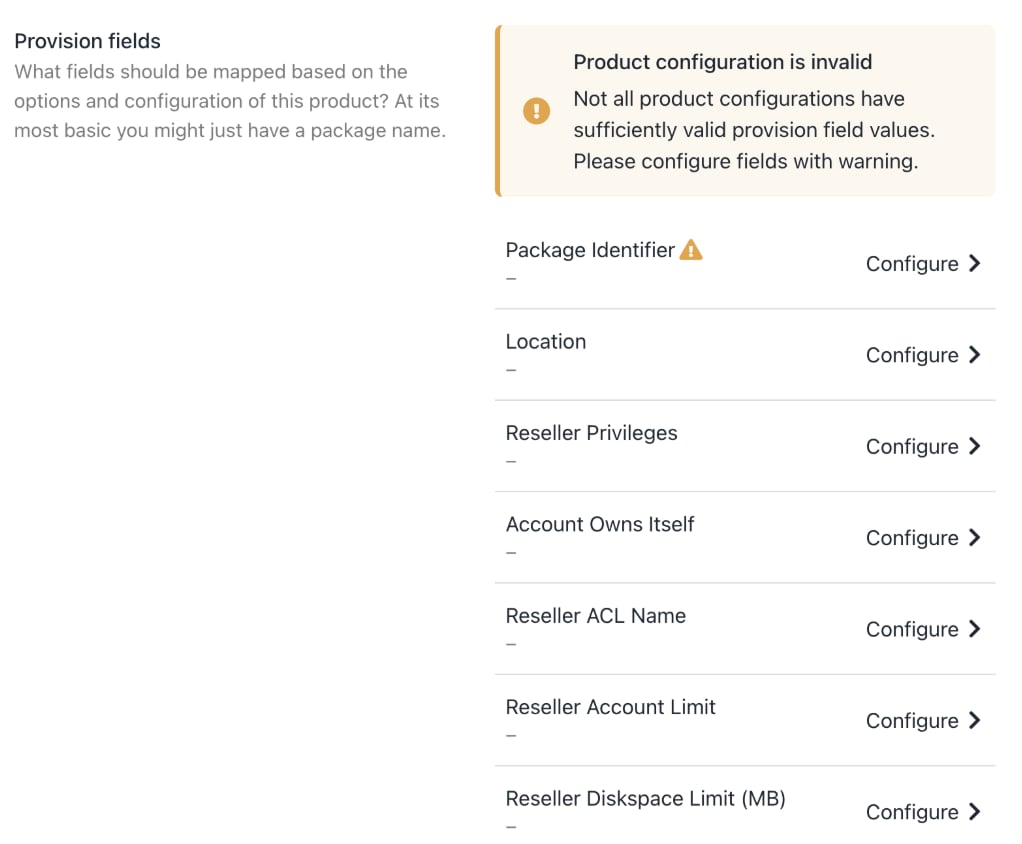
Complete other product details
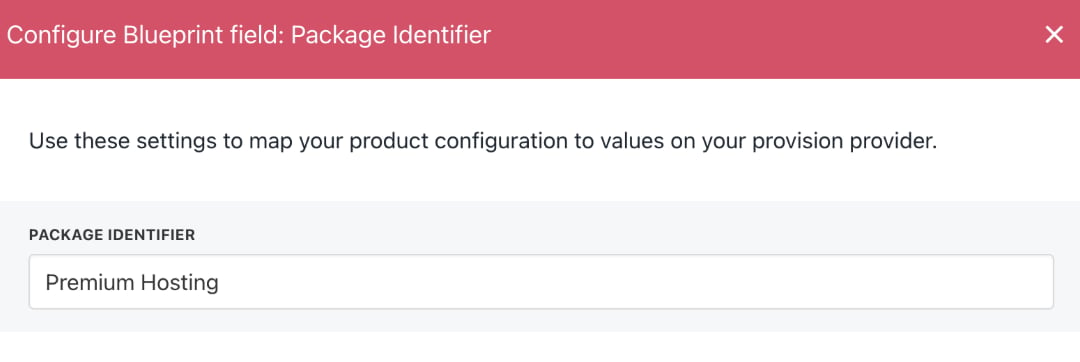
Enter package identifier
- Save the product.