

- Finance
- Fraud
- Marketing
- Product
- Support
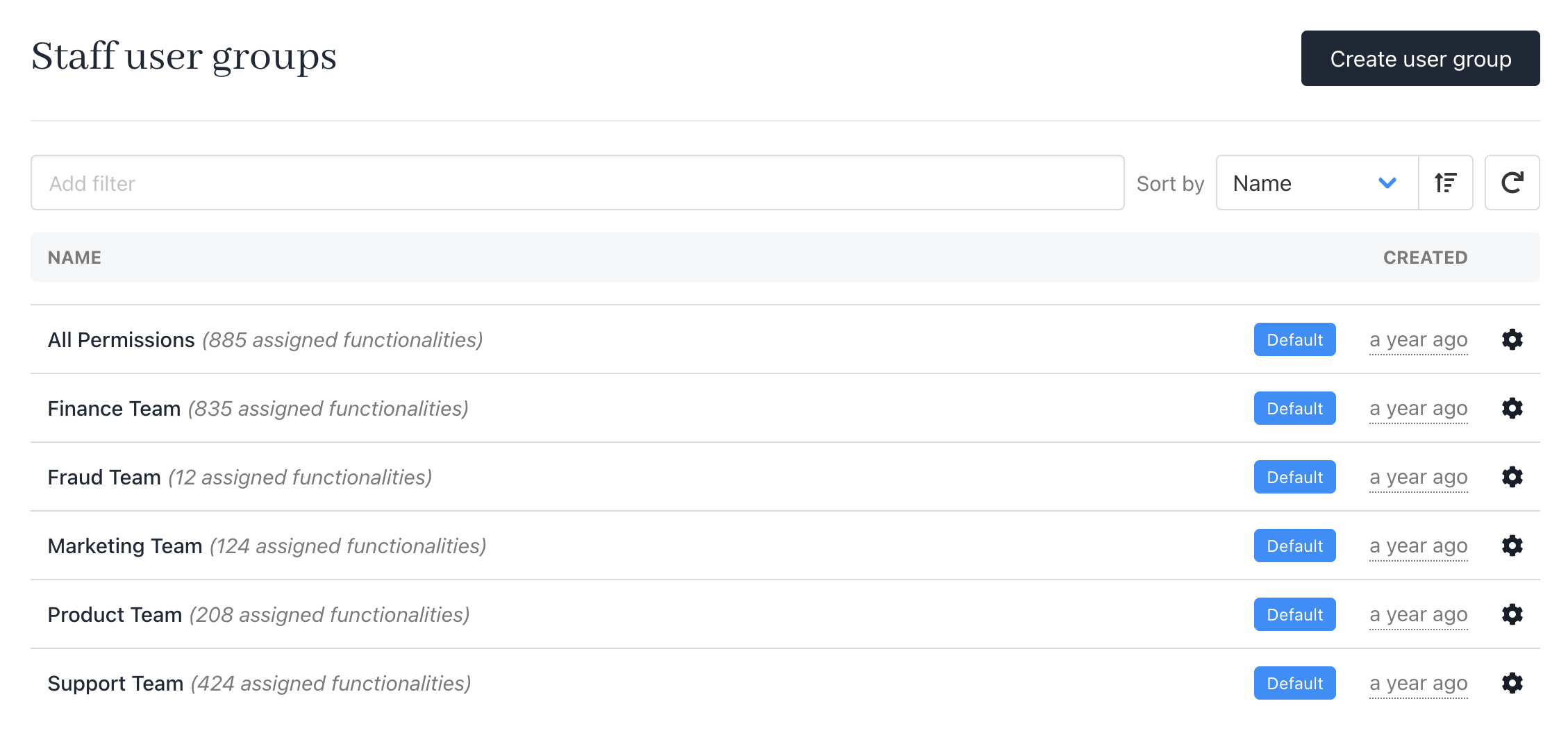
Predefined staff user groups
Creating a user group
- On the Upmind dashboard, go to Settings > Staff Groups under Users and Permissions.
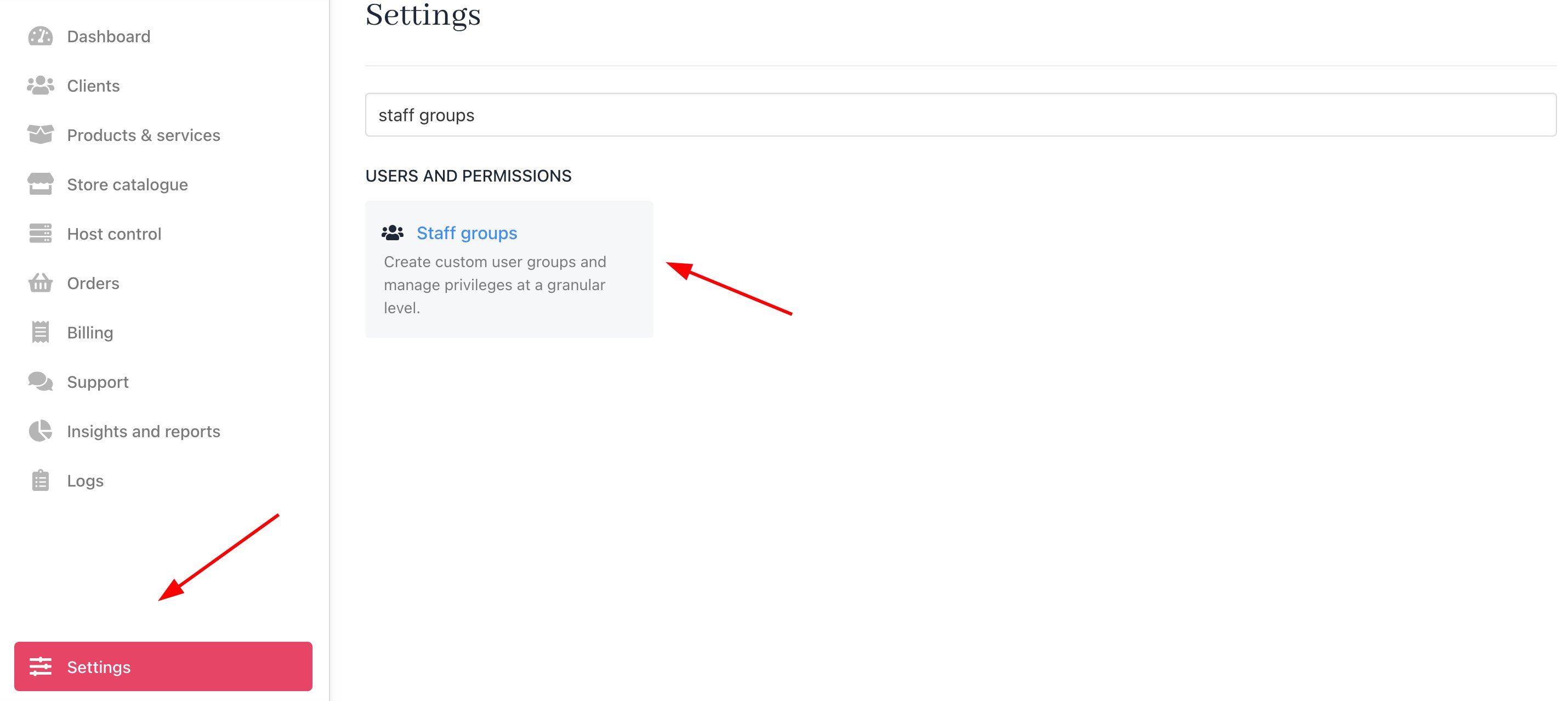
Settings > Users and Permissions > Staff Groups
- Click the Create user group button.
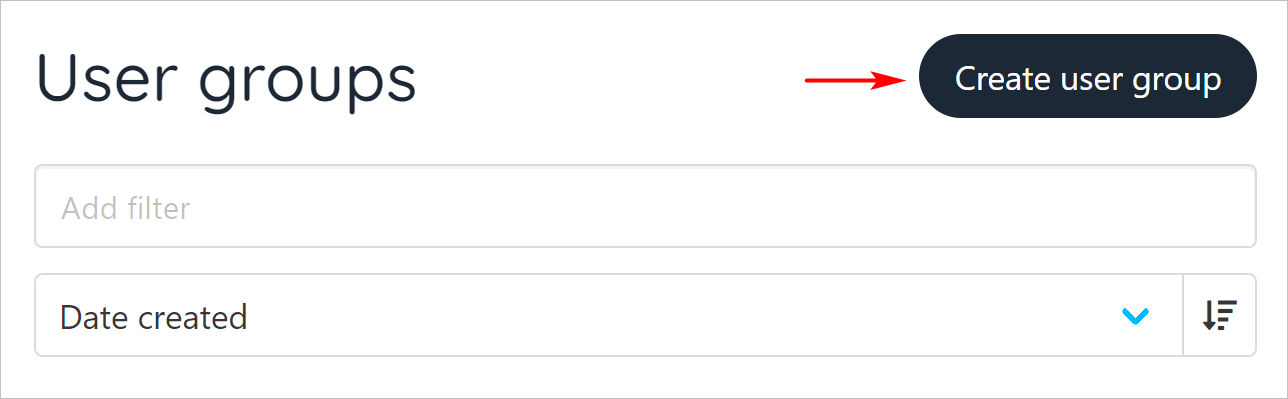
Create user group button
- Enter a group name.
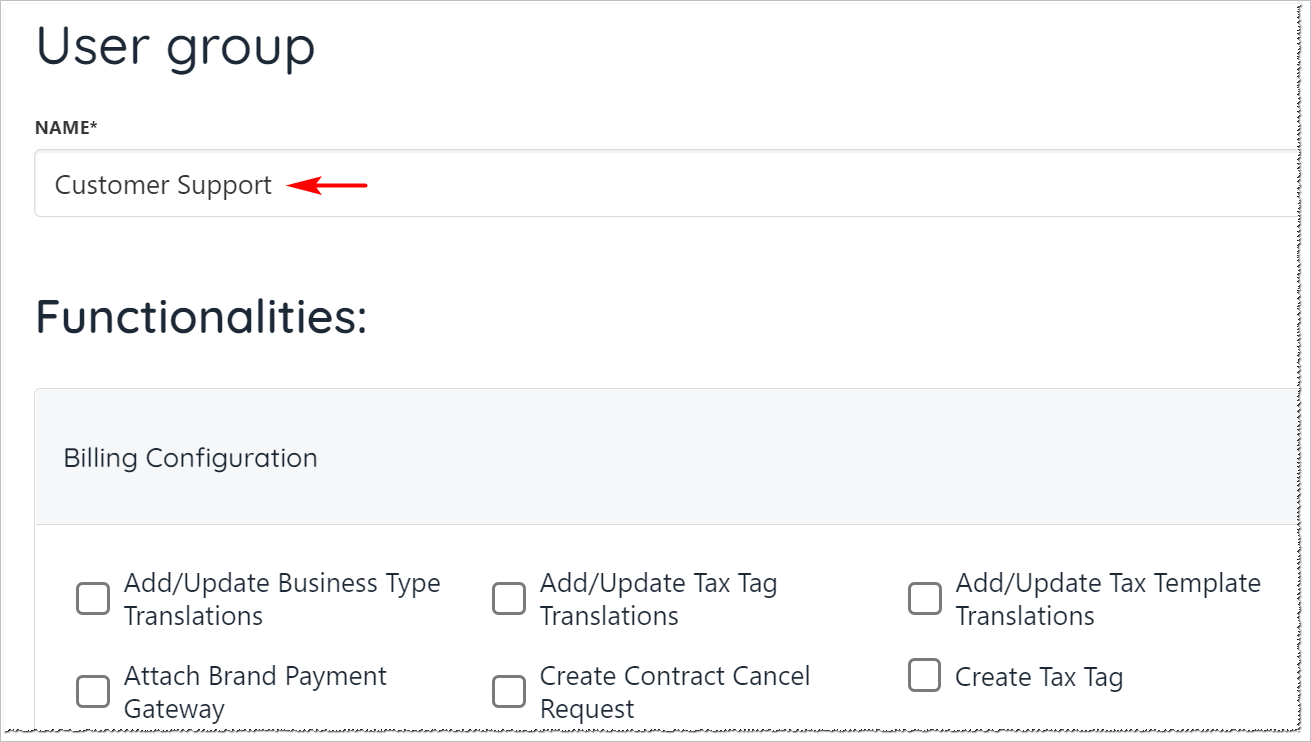
User group name
- Scroll through the Functionalities page and check the relevant boxes to assign group permissions.
- Click the Select all button to check all boxes in a subcategory. (optional)
- Click Save.
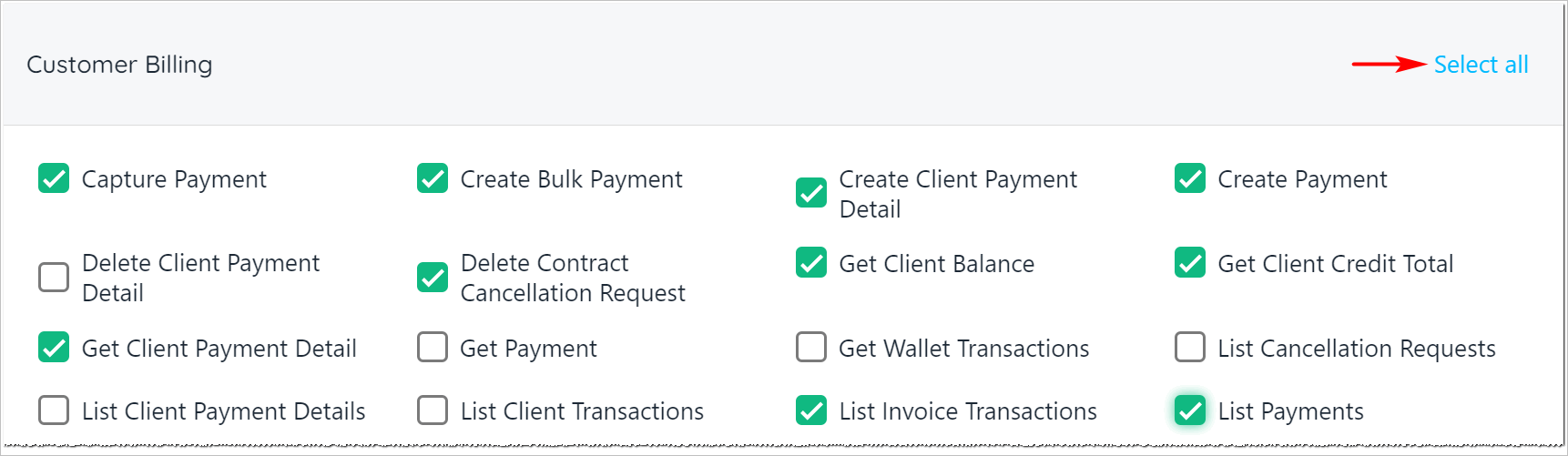
User group subcategories
Assigning staff users to a user group
The next step is to assign staff users to one or more User Groups.- Go to the Admin dashboard.
- Click Settings > Staff users under Users and Permissions.
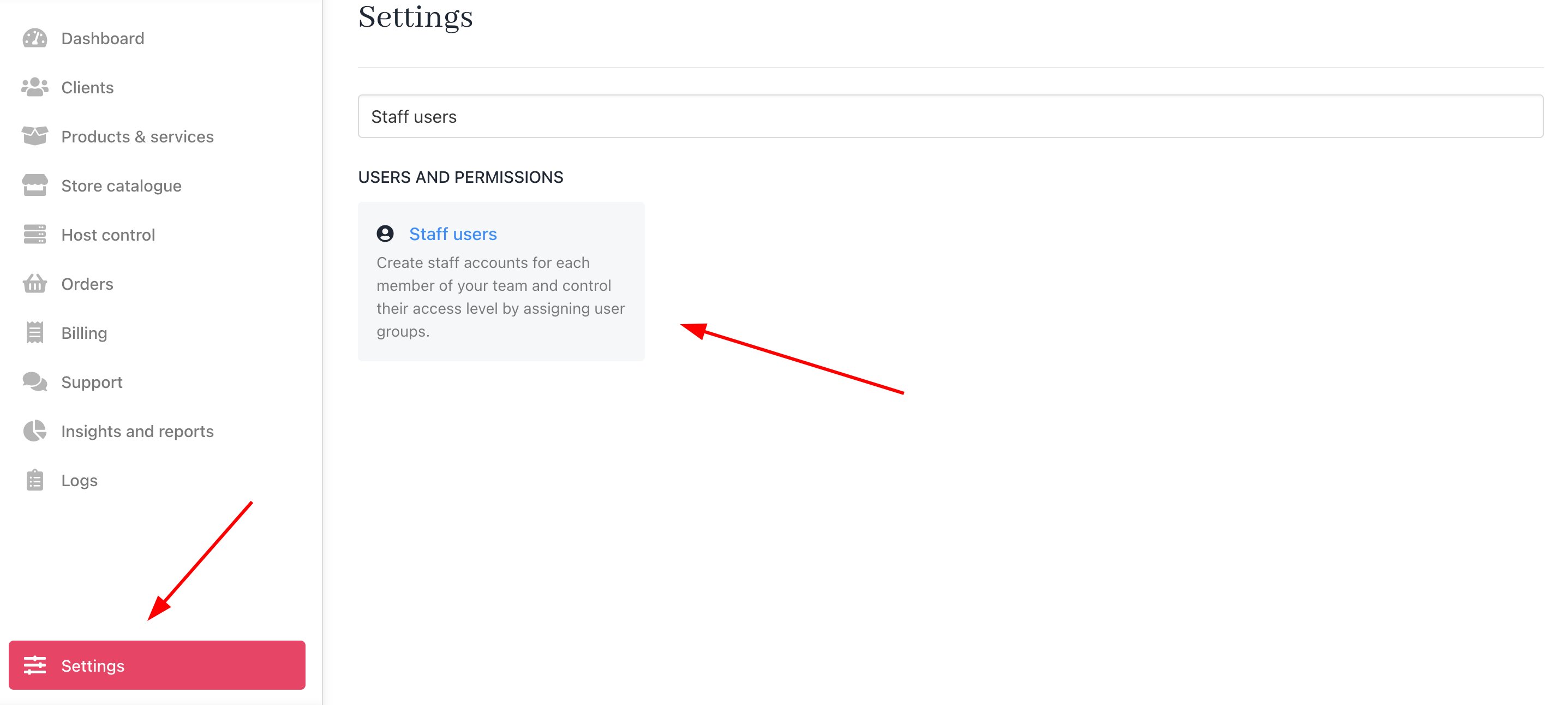
Settings > Users and Permissions > Staff users
- Locate a staff user, click the gear icon, and select Manage user.
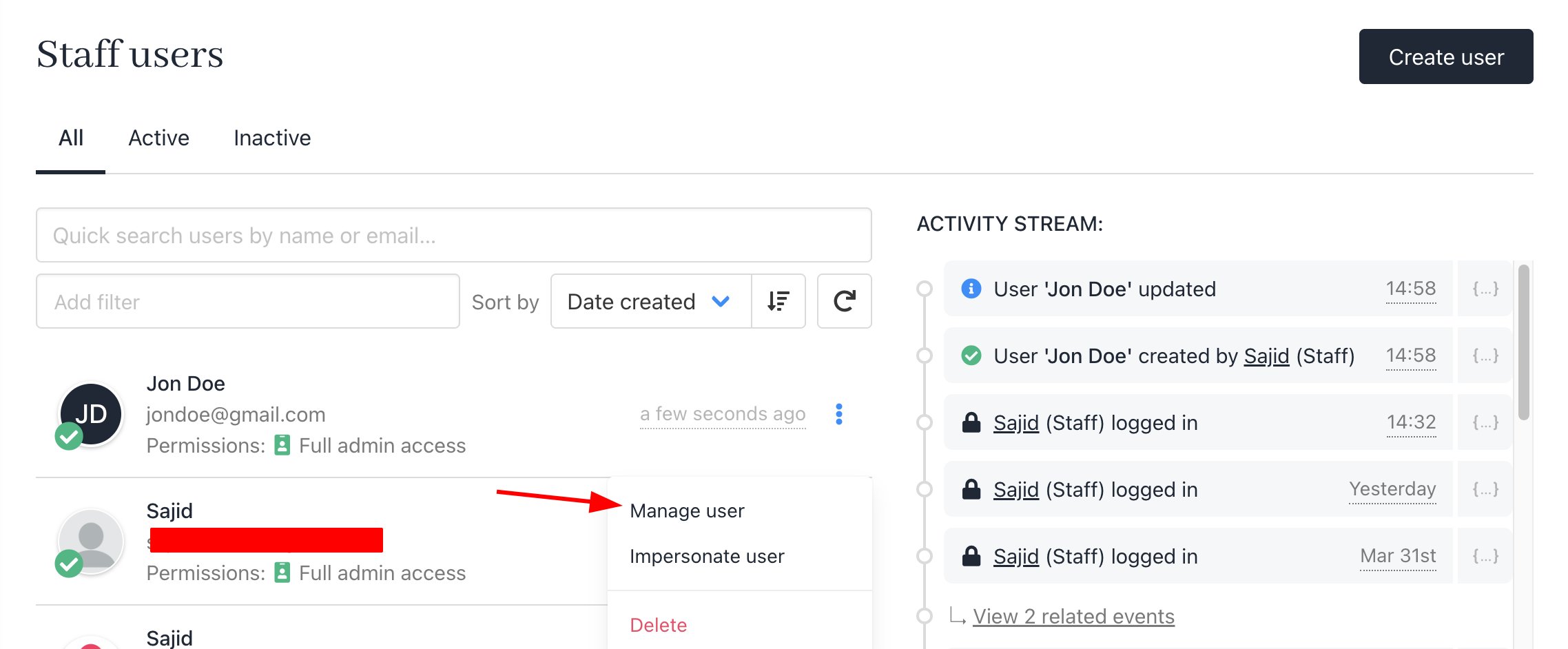
Manage user
- Scroll down the Staff overview page and set User Group permissions.
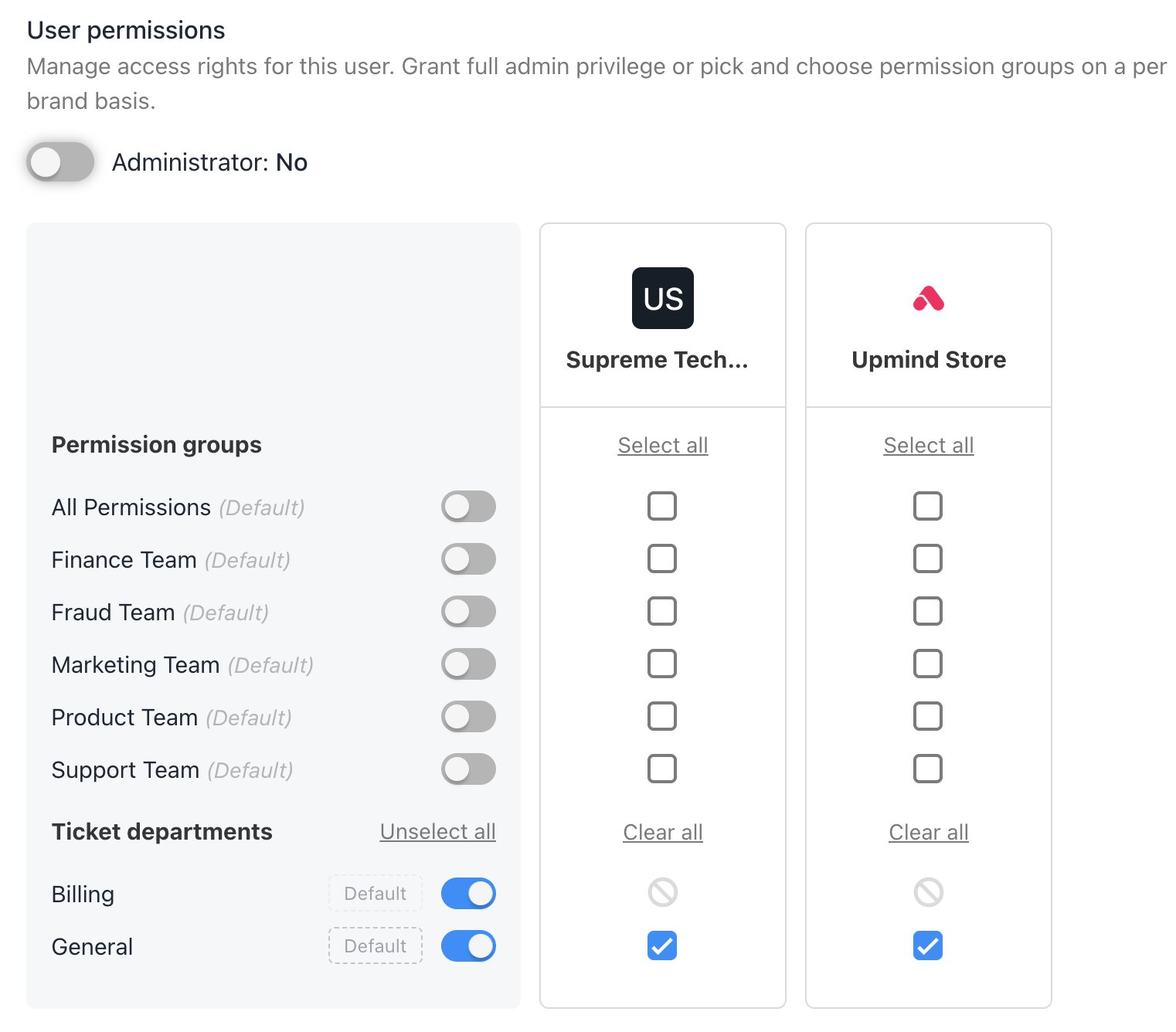
Set user permissions
- Select Administrator to grant the staff user full access to all User Groups and all brands.
- We suggest granting Admin permissions to a maximum of two staff users.
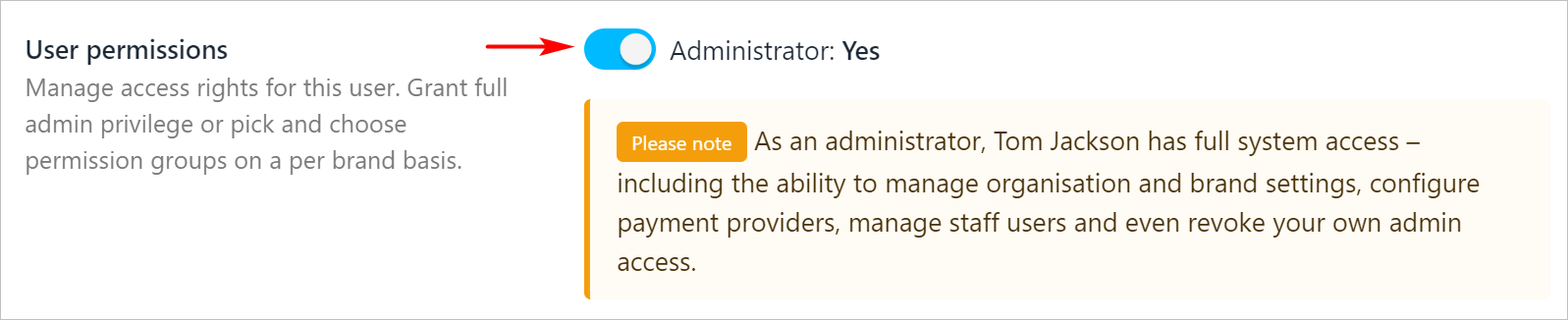
Assign admin permissions